audio LINCOLN MKZ 2015 Owner's Manual
[x] Cancel search | Manufacturer: LINCOLN, Model Year: 2015, Model line: MKZ, Model: LINCOLN MKZ 2015Pages: 516, PDF Size: 4.48 MB
Page 408 of 516
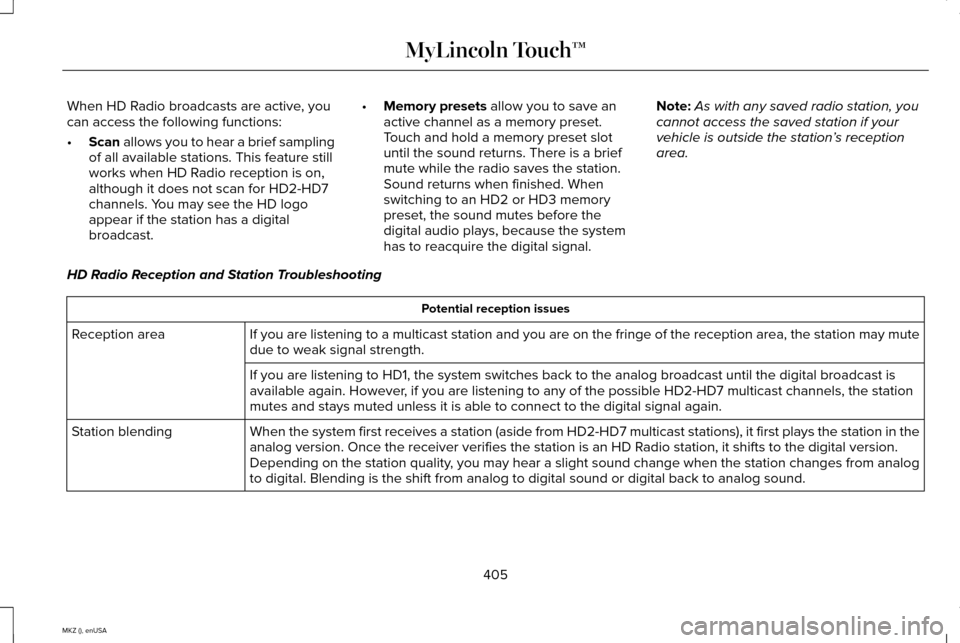
When HD Radio broadcasts are active, you
can access the following functions:
•
Scan allows you to hear a brief sampling
of all available stations. This feature still
works when HD Radio reception is on,
although it does not scan for HD2-HD7
channels. You may see the HD logo
appear if the station has a digital
broadcast. •
Memory presets
allow you to save an
active channel as a memory preset.
Touch and hold a memory preset slot
until the sound returns. There is a brief
mute while the radio saves the station.
Sound returns when finished. When
switching to an HD2 or HD3 memory
preset, the sound mutes before the
digital audio plays, because the system
has to reacquire the digital signal. Note:
As with any saved radio station, you
cannot access the saved station if your
vehicle is outside the station’ s reception
area.
HD Radio Reception and Station Troubleshooting Potential reception issues
If you are listening to a multicast station and you are on the fringe of\
the reception area, the station may mute
due to weak signal strength.
Reception area
If you are listening to HD1, the system switches back to the analog broa\
dcast until the digital broadcast is
available again. However, if you are listening to any of the possible HD2-HD7 multicast channels\
, the station
mutes and stays muted unless it is able to connect to the digital signal\
again.
When the system first receives a station (aside from HD2-HD7 multicast \
stations), it first plays the station in the
analog version. Once the receiver verifies the station is an HD Radio station, it shifts to the digital version.
Depending on the station quality, you may hear a slight sound change when the station changes from analo\
g
to digital. Blending is the shift from analog to digital sound or digita\
l back to analog sound.
Station blending
405
MKZ (), enUSA MyLincoln Touch™
Page 409 of 516
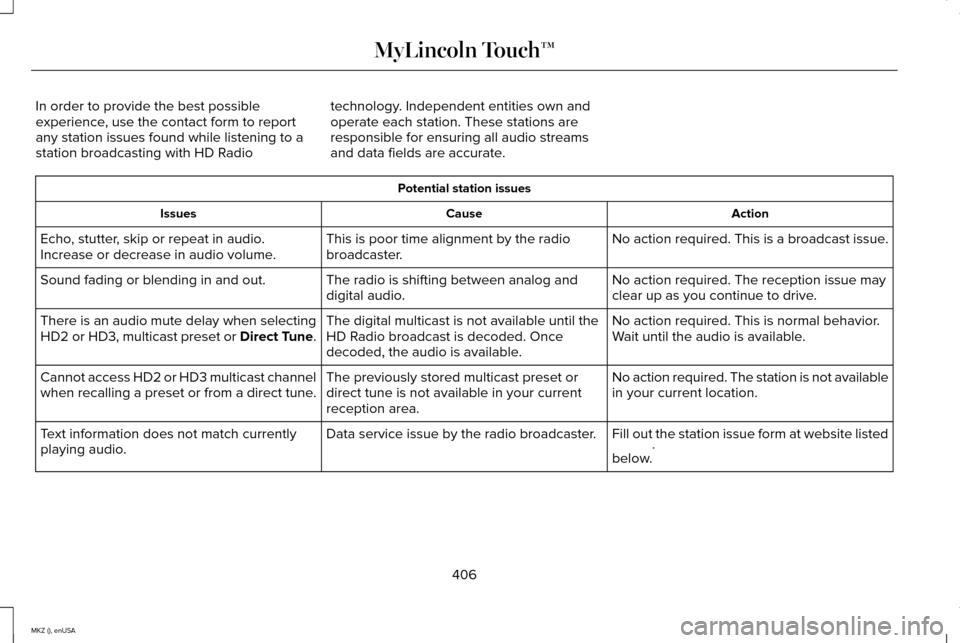
In order to provide the best possible
experience, use the contact form to report
any station issues found while listening to a
station broadcasting with HD Radio
technology. Independent entities own and
operate each station. These stations are
responsible for ensuring all audio streams
and data fields are accurate. Potential station issues
Action
Cause
Issues
No action required. This is a broadcast issue.
This is poor time alignment by the radio
broadcaster.
Echo, stutter, skip or repeat in audio.
Increase or decrease in audio volume.
No action required. The reception issue may
clear up as you continue to drive.
The radio is shifting between analog and
digital audio.
Sound fading or blending in and out.
No action required. This is normal behavior.
Wait until the audio is available.
The digital multicast is not available until the
HD Radio broadcast is decoded. Once
decoded, the audio is available.
There is an audio mute delay when selecting
HD2 or HD3, multicast preset or Direct Tune.
No action required. The station is not available
in your current location.
The previously stored multicast preset or
direct tune is not available in your current
reception area.
Cannot access HD2 or HD3 multicast channel
when recalling a preset or from a direct tune.
Fill out the station issue form at website listed
below.*
Data service issue by the radio broadcaster.
Text information does not match currently
playing audio.
406
MKZ (), enUSA MyLincoln Touch™
Page 412 of 516
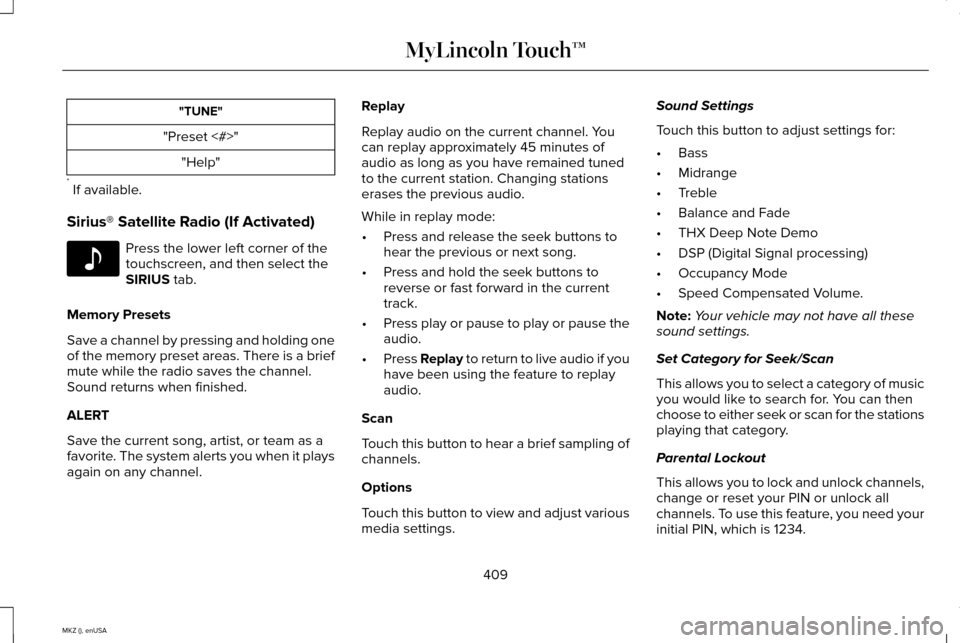
"TUNE"
"Preset <#>" "Help"
* If available.
Sirius® Satellite Radio (If Activated) Press the lower left corner of the
touchscreen, and then select the
SIRIUS tab.
Memory Presets
Save a channel by pressing and holding one
of the memory preset areas. There is a brief
mute while the radio saves the channel.
Sound returns when finished.
ALERT
Save the current song, artist, or team as a
favorite. The system alerts you when it plays
again on any channel. Replay
Replay audio on the current channel. You
can replay approximately 45 minutes of
audio as long as you have remained tuned
to the current station. Changing stations
erases the previous audio.
While in replay mode:
•
Press and release the seek buttons to
hear the previous or next song.
• Press and hold the seek buttons to
reverse or fast forward in the current
track.
• Press play or pause to play or pause the
audio.
• Press
Replay to return to live audio if you
have been using the feature to replay
audio.
Scan
Touch this button to hear a brief sampling of
channels.
Options
Touch this button to view and adjust various
media settings. Sound Settings
Touch this button to adjust settings for:
•
Bass
• Midrange
• Treble
• Balance and Fade
• THX Deep Note Demo
• DSP (Digital Signal processing)
• Occupancy Mode
• Speed Compensated Volume.
Note: Your vehicle may not have all these
sound settings.
Set Category for Seek/Scan
This allows you to select a category of music
you would like to search for. You can then
choose to either seek or scan for the stations
playing that category.
Parental Lockout
This allows you to lock and unlock channels,
change or reset your PIN or unlock all
channels. To use this feature, you need your
initial PIN, which is 1234.
409
MKZ (), enUSA MyLincoln Touch™E142611
Page 414 of 516
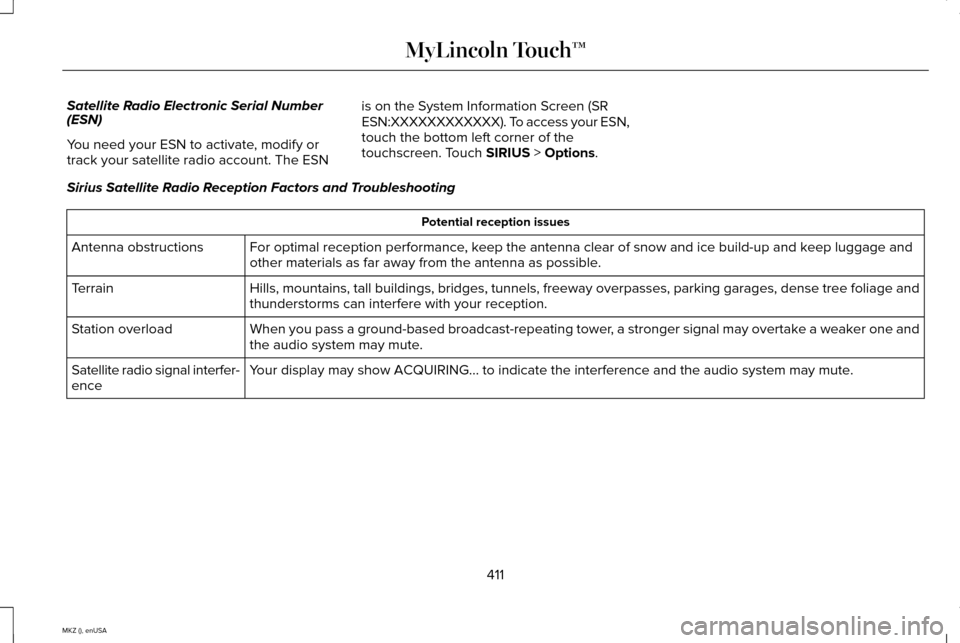
Satellite Radio Electronic Serial Number
(ESN)
You need your ESN to activate, modify or
track your satellite radio account. The ESN
is on the System Information Screen (SR
ESN:XXXXXXXXXXXX). To access your ESN,
touch the bottom left corner of the
touchscreen. Touch SIRIUS > Options.
Sirius Satellite Radio Reception Factors and Troubleshooting Potential reception issues
For optimal reception performance, keep the antenna clear of snow and ice build-up and keep luggage and
other materials as far away from the antenna as possible.
Antenna obstructions
Hills, mountains, tall buildings, bridges, tunnels, freeway overpasses, \
parking garages, dense tree foliage and
thunderstorms can interfere with your reception.
Terrain
When you pass a ground-based broadcast-repeating tower, a stronger signal may overtake a weaker one and
the audio system may mute.
Station overload
Your display may show ACQUIRING... to indicate the interference and the a\
udio system may mute.
Satellite radio signal interfer-
ence
411
MKZ (), enUSA MyLincoln Touch™
Page 415 of 516
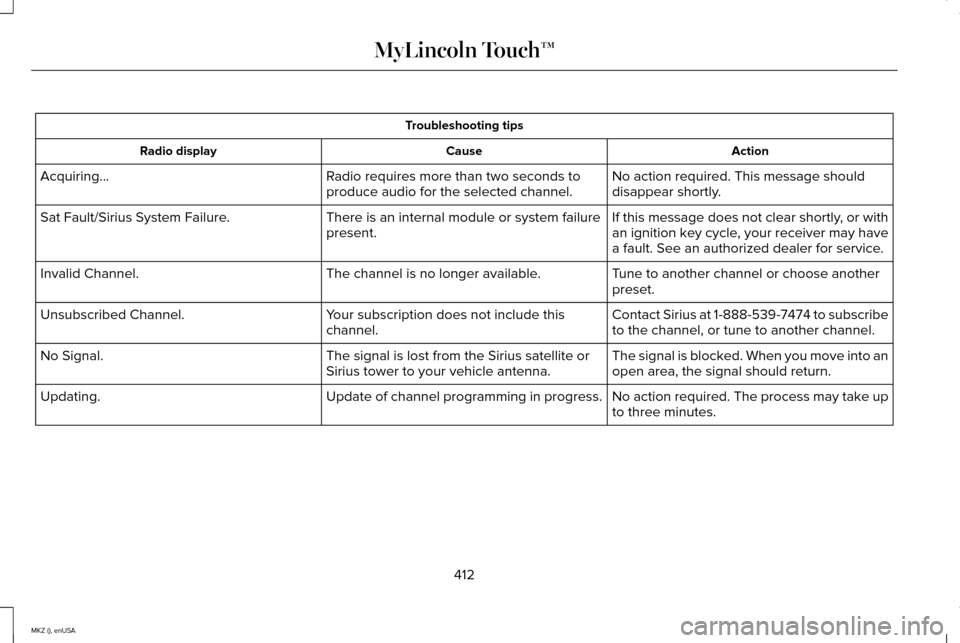
Troubleshooting tips
Action
Cause
Radio display
No action required. This message should
disappear shortly.
Radio requires more than two seconds to
produce audio for the selected channel.
Acquiring...
If this message does not clear shortly, or with
an ignition key cycle, your receiver may have
a fault. See an authorized dealer for service.
There is an internal module or system failure
present.
Sat Fault/Sirius System Failure.
Tune to another channel or choose another
preset.
The channel is no longer available.
Invalid Channel.
Contact Sirius at 1-888-539-7474 to subscribe
to the channel, or tune to another channel.
Your subscription does not include this
channel.
Unsubscribed Channel.
The signal is blocked. When you move into an
open area, the signal should return.
The signal is lost from the Sirius satellite or
Sirius tower to your vehicle antenna.
No Signal.
No action required. The process may take up
to three minutes.
Update of channel programming in progress.
Updating.
412
MKZ (), enUSA MyLincoln Touch™
Page 421 of 516
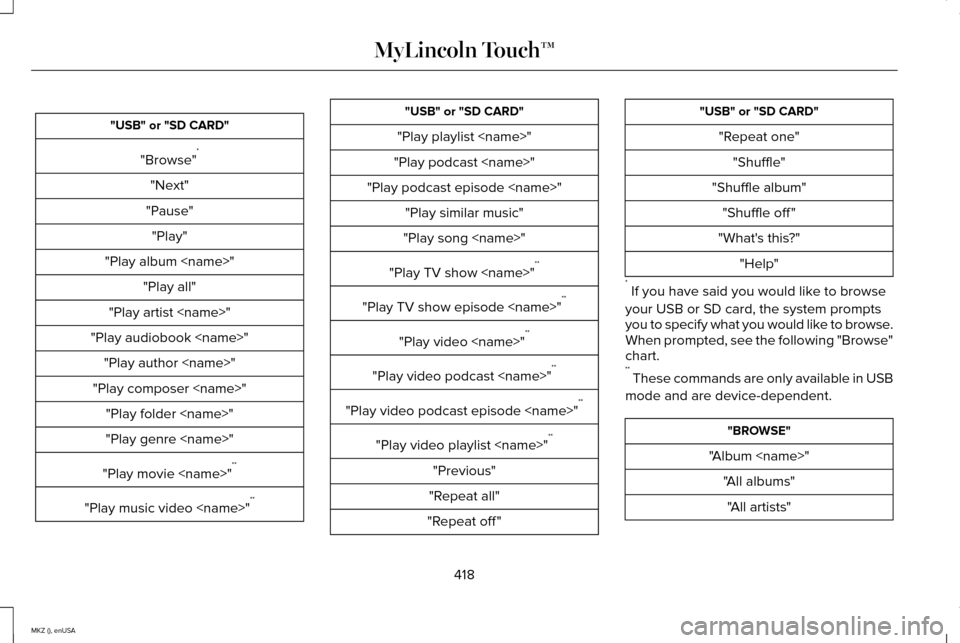
"USB" or "SD CARD"
"Browse" *
"Next"
"Pause" "Play"
"Play album
"Play artist
"Play audiobook
"Play composer
"Play genre
"Play movie
"Play music video
"Play playlist
"Play podcast
"Play podcast episode
"Play song
"Play TV show
"Play TV show episode
"Play video
"Play video podcast
"Play video podcast episode
"Play video playlist
"Previous"
"Repeat all"
"Repeat off " "USB" or "SD CARD"
"Repeat one""Shuffle"
"Shuffle album" "Shuffle off "
"What's this?" "Help"
* If you have said you would like to browse
your USB or SD card, the system prompts
you to specify what you would like to browse.
When prompted, see the following "Browse"
chart.
** These commands are only available in USB
mode and are device-dependent. "BROWSE"
"Album
418
MKZ (), enUSA MyLincoln Touch™
Page 422 of 516
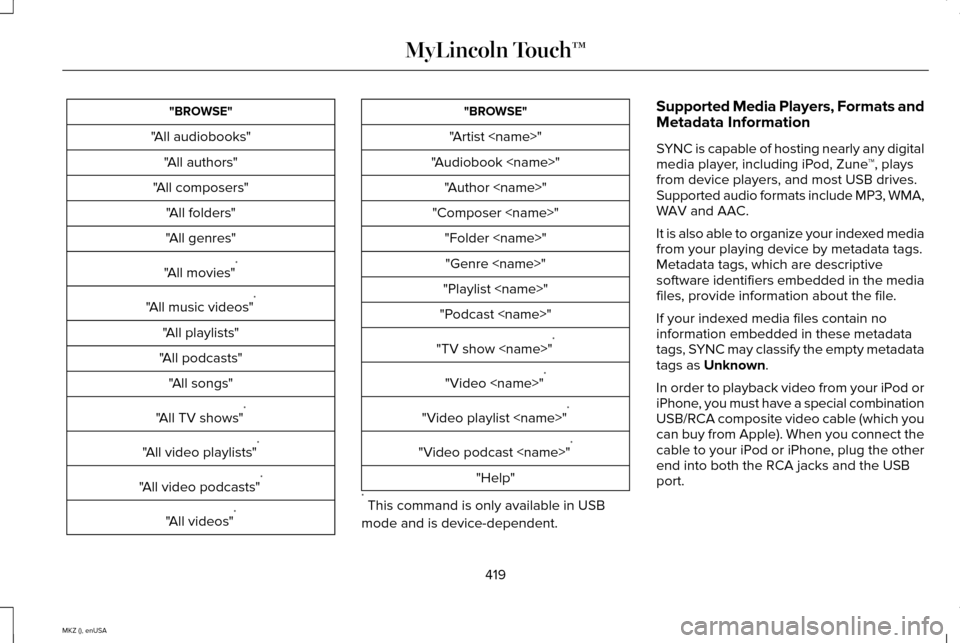
"BROWSE"
"All audiobooks" "All authors"
"All composers" "All folders"
"All genres"
"All movies" *
"All music videos" *
"All playlists"
"All podcasts" "All songs"
"All TV shows" *
"All video playlists" *
"All video podcasts" *
"All videos" * "BROWSE"
"Artist
"Audiobook
"Composer
"Playlist
"Podcast
"TV show
"Video
"Video playlist
"Video podcast
"Help"
* This command is only available in USB
mode and is device-dependent. Supported Media Players, Formats and
Metadata Information
SYNC is capable of hosting nearly any digital
media player, including iPod, Zune
™, plays
from device players, and most USB drives.
Supported audio formats include MP3, WMA,
WAV and AAC.
It is also able to organize your indexed media
from your playing device by metadata tags.
Metadata tags, which are descriptive
software identifiers embedded in the media
files, provide information about the file.
If your indexed media files contain no
information embedded in these metadata
tags, SYNC may classify the empty metadata
tags as Unknown.
In order to playback video from your iPod or
iPhone, you must have a special combination
USB/RCA composite video cable (which you
can buy from Apple). When you connect the
cable to your iPod or iPhone, plug the other
end into both the RCA jacks and the USB
port.
419
MKZ (), enUSA MyLincoln Touch™
Page 423 of 516
Bluetooth Audio
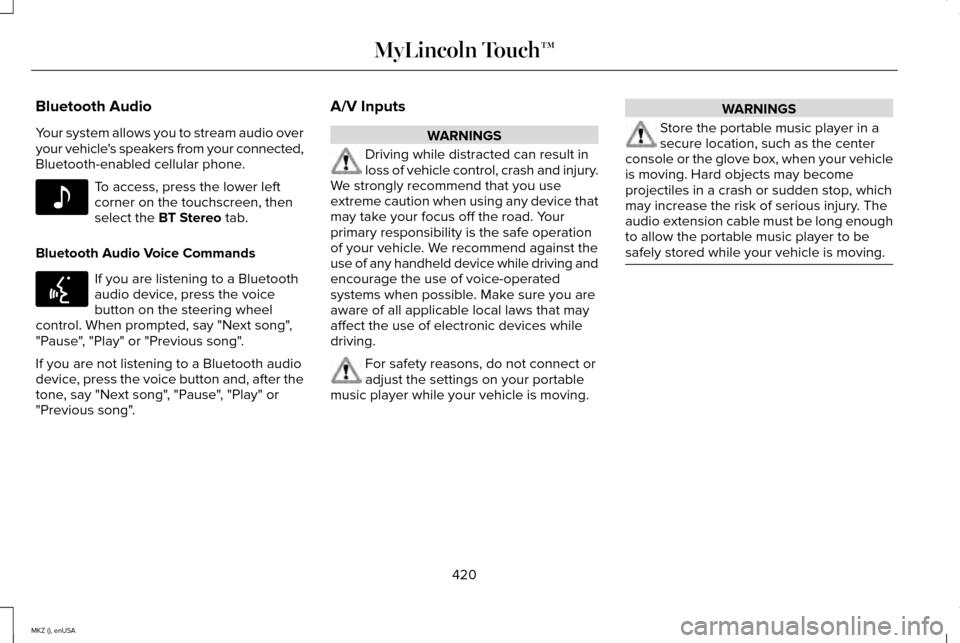
Your system allows you to stream audio over
your vehicle's speakers from your connected,
Bluetooth-enabled cellular phone.
To access, press the lower left
corner on the touchscreen, then
select the BT Stereo tab.
Bluetooth Audio Voice Commands If you are listening to a Bluetooth
audio device, press the voice
button on the steering wheel
control. When prompted, say "Next song",
"Pause", "Play" or "Previous song".
If you are not listening to a Bluetooth audio
device, press the voice button and, after the
tone, say "Next song", "Pause", "Play" or
"Previous song". A/V Inputs WARNINGS
Driving while distracted can result in
loss of vehicle control, crash and injury.
We strongly recommend that you use
extreme caution when using any device that
may take your focus off the road. Your
primary responsibility is the safe operation
of your vehicle. We recommend against the
use of any handheld device while driving and
encourage the use of voice-operated
systems when possible. Make sure you are
aware of all applicable local laws that may
affect the use of electronic devices while
driving. For safety reasons, do not connect or
adjust the settings on your portable
music player while your vehicle is moving. WARNINGS
Store the portable music player in a
secure location, such as the center
console or the glove box, when your vehicle
is moving. Hard objects may become
projectiles in a crash or sudden stop, which
may increase the risk of serious injury. The
audio extension cable must be long enough
to allow the portable music player to be
safely stored while your vehicle is moving. 420
MKZ (), enUSA MyLincoln Touch™E142611 E142599
Page 424 of 516
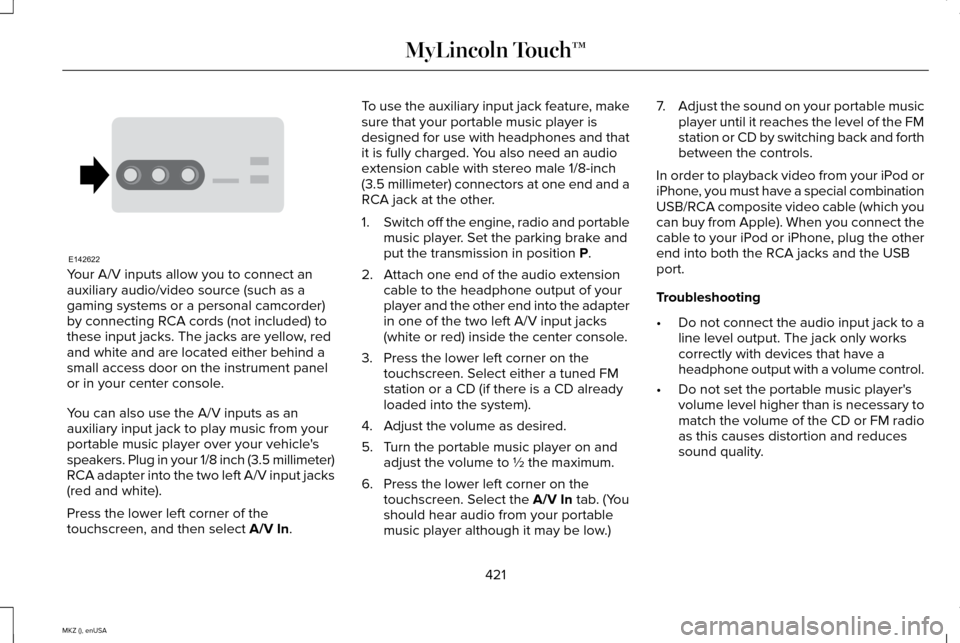
Your A/V inputs allow you to connect an
auxiliary audio/video source (such as a
gaming systems or a personal camcorder)
by connecting RCA cords (not included) to
these input jacks. The jacks are yellow, red
and white and are located either behind a
small access door on the instrument panel
or in your center console.
You can also use the A/V inputs as an
auxiliary input jack to play music from your
portable music player over your vehicle's
speakers. Plug in your 1/8 inch (3.5 millimeter)
RCA adapter into the two left A/V input jacks
(red and white).
Press the lower left corner of the
touchscreen, and then select A/V In. To use the auxiliary input jack feature, make
sure that your portable music player is
designed for use with headphones and that
it is fully charged. You also need an audio
extension cable with stereo male 1/8-inch
(3.5 millimeter) connectors at one end and a
RCA jack at the other.
1.
Switch off the engine, radio and portable
music player. Set the parking brake and
put the transmission in position
P.
2. Attach one end of the audio extension cable to the headphone output of your
player and the other end into the adapter
in one of the two left A/V input jacks
(white or red) inside the center console.
3. Press the lower left corner on the touchscreen. Select either a tuned FM
station or a CD (if there is a CD already
loaded into the system).
4. Adjust the volume as desired.
5. Turn the portable music player on and adjust the volume to ½ the maximum.
6. Press the lower left corner on the touchscreen. Select the
A/V In tab. (You
should hear audio from your portable
music player although it may be low.) 7.
Adjust the sound on your portable music
player until it reaches the level of the FM
station or CD by switching back and forth
between the controls.
In order to playback video from your iPod or
iPhone, you must have a special combination
USB/RCA composite video cable (which you
can buy from Apple). When you connect the
cable to your iPod or iPhone, plug the other
end into both the RCA jacks and the USB
port.
Troubleshooting
• Do not connect the audio input jack to a
line level output. The jack only works
correctly with devices that have a
headphone output with a volume control.
• Do not set the portable music player's
volume level higher than is necessary to
match the volume of the CD or FM radio
as this causes distortion and reduces
sound quality.
421
MKZ (), enUSA MyLincoln Touch™E142622
Page 436 of 516
SYNC Services quick tips
You can personalize your Services feature to provide quicker access to your most used or favorite information.
You can save address points, such as work or home. You can also save favorite information like sports teams,
such as Detroit Lions, or a news category. You can learn more about personalization by logging onto
www.SYNCMyRide.com.
Personalizing
Press the voice button at any time (while connected to SYNC Services) to interrupt a voice prompt or an audio
clip (such as a sports report) and say your voice command.
Push to interrupt
Your subscription is associated with your Bluetooth-enabled cellular phon\
e number, not your VIN (Vehicle
Identification Number). You can pair and connect your phone to any vehicle equipped with SYNC Services and
continue enjoying your personalized services.
Portable
SYNC Services Voice Commands When a route has been
downloaded (non-navigation
systems), press the voice button
on the steering wheel controls. When
prompted, say any of the following
commands: "SERVICES"
"Cancel route"
"Navigation voice off " "Navigation voice on" "Next turn"
"Route status"
"Route summary" "SERVICES"
"Services"
"Update route" "Help"
433
MKZ (), enUSA MyLincoln Touch™E142599