page 61 LINCOLN MKZ 2017 Owners Manual
[x] Cancel search | Manufacturer: LINCOLN, Model Year: 2017, Model line: MKZ, Model: LINCOLN MKZ 2017Pages: 564, PDF Size: 5.54 MB
Page 428 of 564
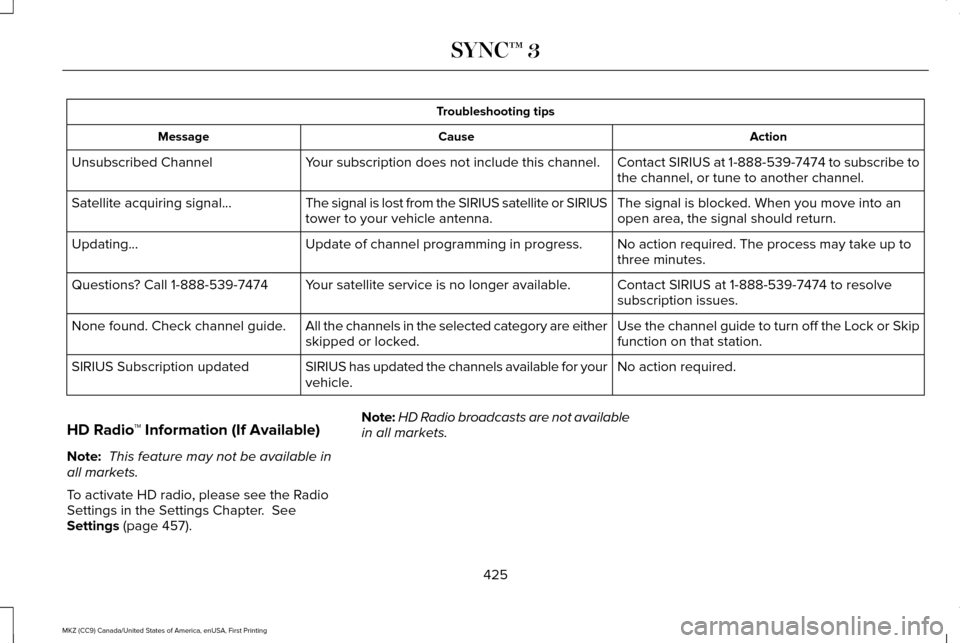
Troubleshooting tips
Action
Cause
Message
Contact SIRIUS at 1-888-539-7474 to subscribe to
the channel, or tune to another channel.
Your subscription does not include this channel.
Unsubscribed Channel
The signal is blocked. When you move into an
open area, the signal should return.
The signal is lost from the SIRIUS satellite or SIRIUS
tower to your vehicle antenna.
Satellite acquiring signal\b
No action required. The process may take up to
three minutes.
Update of channel programming in progress.
Updating\b
Contact SIRIUS at 1-888-539-7474 to resolve
subscription issues.
Your satellite service is no longer available.
Questions? Call 1-888-539-7474
Use the channel guide to turn off the Lock or Skip
function on that station.
All the channels in the selected category are either
skipped or locked.
None found. Check channel guide.
No action required.
SIRIUS has updated the channels available for your
vehicle.
SIRIUS Subscription updated
HD Radio ™ Information (If Available)
Note: This feature may not be available in
all markets.
To activate HD radio, please see the Radio
Settings in the Settings Chapter. See
Settings (page 457). Note:
HD Radio broadcasts are not available
in all markets.
425
MKZ (CC9) Canada/United States of America, enUSA, First Printing SYNC™ 3
Page 435 of 564
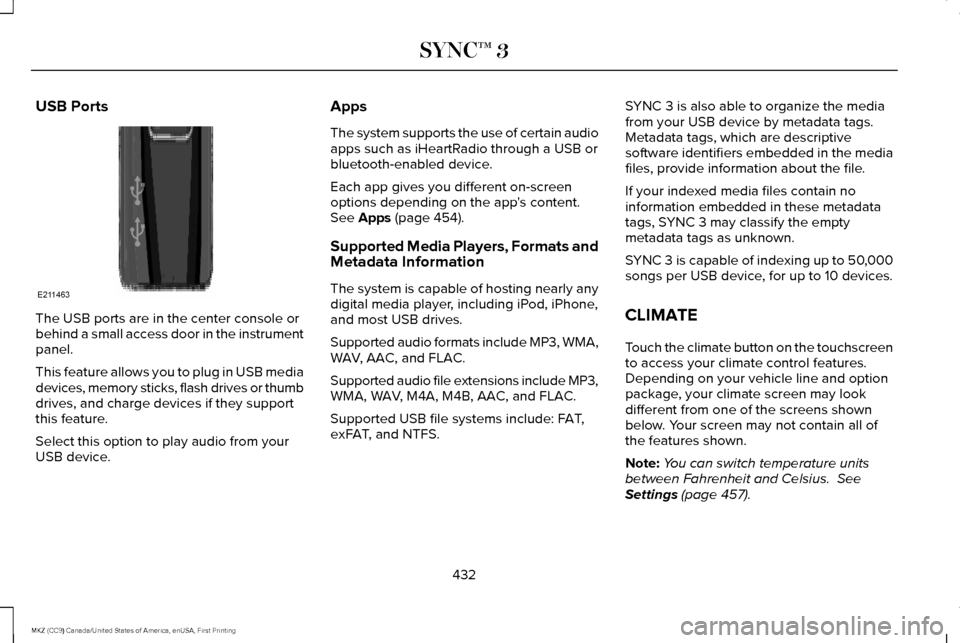
USB Ports
The USB ports are in the center console or
behind a small access door in the instrument
panel.
This feature allows you to plug in USB media
devices, memory sticks, flash drives or thumb
drives, and charge devices if they support
this feature.
Select this option to play audio from your
USB device. Apps
The system supports the use of certain audio
apps such as iHeartRadio through a USB or
bluetooth-enabled device.
Each app gives you different on-screen
options depending on the app's content.
See Apps (page 454).
Supported Media Players, Formats and
Metadata Information
The system is capable of hosting nearly any
digital media player, including iPod, iPhone,
and most USB drives.
Supported audio formats include MP3, WMA,
WAV, AAC, and FLAC.
Supported audio file extensions include MP3,
WMA, WAV, M4A, M4B, AAC, and FLAC.
Supported USB file systems include: FAT,
exFAT, and NTFS. SYNC 3 is also able to organize the media
from your USB device by metadata tags.
Metadata tags, which are descriptive
software identifiers embedded in the media
files, provide information about the file.
If your indexed media files contain no
information embedded in these metadata
tags, SYNC 3 may classify the empty
metadata tags as unknown.
SYNC 3 is capable of indexing up to 50,000
songs per USB device, for up to 10 devices.
CLIMATE
Touch the climate button on the touchscreen
to access your climate control features.
Depending on your vehicle line and option
package, your climate screen may look
different from one of the screens shown
below. Your screen may not contain all of
the features shown.
Note:
You can switch temperature units
between Fahrenheit and Celsius.
See
Settings (page 457).
432
MKZ (CC9) Canada/United States of America, enUSA, First Printing SYNC™ 3E211463
Page 437 of 564

Driver temperature: Touch up or down to adjust the temperature.
A
AUTO:
Touch the button to switch on automatic operation. Select the desired tem\
perature using the temperature control. The
system adjusts fan speed, air distribution, air conditioning operation, \
and selects outside air or recirculated air to heat or cool the
vehicle in order to maintain the desired temperature.
B
Defrost:
A pop up appears on the screen to display the defrost options.
C
MAX Defrost: Touch the button to maximize defrosting. Air flows through the windshield\
vents, the fan automatically adjusts to the
highest speed and the driver and passenger temperatures are set to HI. Y\
ou can use this setting to defog or clear a thin covering
of ice from the windshield. The heated rear window also automatically tu\
rns on when you select MAX Defrost.
Defrost:
Distributes air through the windshield defroster vents and demister vent\
s.
Heated rear window:
Turns the heated rear window on and off. See Heated Windows and Mirrors (page 137).
Power:
Touch the button to switch the system on and off. Switching off the climate control system prevents outside air from enteri\
ng
the vehicle.
D
DUAL:
This button lights up when the passenger controls are active. To switch the off and link the passenger temperature to the
driver temperature, touch the DUAL button.
E
Note:
the passenger side temperature and the DUAL indication automatically turn on when you or your passenger adjust th\
e
passenger temperature.
Passenger temperature:
Touch up or down to adjust the temperature.
F
Fan speed:
Touch up or down to increase or decrease the volume of air that circulate\
s in your vehicle.
G
Note:
You cannot adjust the fan speed when the system is set to AUTO or MAX A/C.
A/C:
A pop-up appears on the screen to display the air conditioning options.\
H
434
MKZ (CC9) Canada/United States of America, enUSA, First Printing SYNC™ 3
Page 442 of 564

Action and Description
Menu Item
Item
You can place a call by selecting an entry from this list.
You can also sort the calls by selecting the drop down menu at the top of\
the screen. You can choose: Missed
Outgoing
Incoming
All
All of your contacts from your phone display in alphabetical order.
Contacts
B
Selecting this button allows you to choose a
specific letter to view.
A-Z Jump
Displays the name of your phone and takes you to the phone settings options.
Phone Settings
C
From this menu, you can pair subsequent devices, set ring tones and aler\
ts. See Settings (page 457).
Displays all recent text messages.
Text Messages
D
Use this keypad to dial in a phone number.
Phone Keypad
E
Use the backspace button to delete numbers.
Press this button to begin a call.
Call
Touch this button to send all calls directly to your voicemail. New text \
message notifications are not
displayed on the screen and all ringtones and alerts are set to silent.
Do Not Disturb
F
Users with phones having voice services may
see a button to access the feature. For
example, iPhone users see a Siri button. A
press and hold of the voice button on the
steering wheel also accesses this feature. 439
MKZ (CC9) Canada/United States of America, enUSA, First Printing SYNC™ 3
Page 443 of 564
Making Calls
There are many ways to make calls from the
SYNC 3 system, including using voice
commands. See Using Voice Recognition
(page 408). You can use the touchscreen to
place calls as well.
440
MKZ (CC9) Canada/United States of America, enUSA, First Printing SYNC™ 3
Page 444 of 564
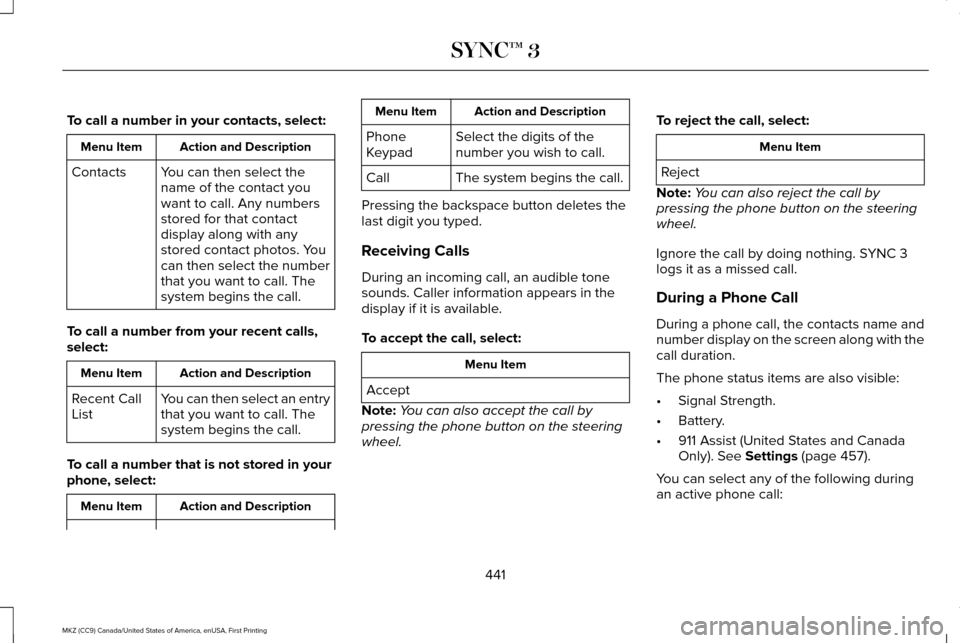
To call a number in your contacts, select:
Action and Description
Menu Item
You can then select the
name of the contact you
want to call. Any numbers
stored for that contact
display along with any
stored contact photos. You
can then select the number
that you want to call. The
system begins the call.
Contacts
To call a number from your recent calls,
select: Action and Description
Menu Item
You can then select an entry
that you want to call. The
system begins the call.
Recent Call
List
To call a number that is not stored in your
phone, select: Action and Description
Menu Item Action and Description
Menu Item
Select the digits of the
number you wish to call.
Phone
Keypad
The system begins the call.
Call
Pressing the backspace button deletes the
last digit you typed.
Receiving Calls
During an incoming call, an audible tone
sounds. Caller information appears in the
display if it is available.
To accept the call, select: Menu Item
Accept
Note: You can also accept the call by
pressing the phone button on the steering
wheel. To reject the call, select: Menu Item
Reject
Note: You can also reject the call by
pressing the phone button on the steering
wheel.
Ignore the call by doing nothing. SYNC 3
logs it as a missed call.
During a Phone Call
During a phone call, the contacts name and
number display on the screen along with the
call duration.
The phone status items are also visible:
• Signal Strength.
• Battery.
• 911 Assist (United States and Canada
Only). See Settings (page 457).
You can select any of the following during
an active phone call:
441
MKZ (CC9) Canada/United States of America, enUSA, First Printing SYNC™ 3
Page 448 of 564
instead of repeating the same icon, in order
to reduce clutter. When you select the box
on the map, a pop-up appears indicating how
many POIs are in this location. Select the pop
up to see a list of the available POIs. You can
scroll through and select POIs from this list.
If your vehicle is low on charge or fuel,
station icons automatically display on the
map.
If you have subscribed to SiriusXM Traffic
and Travel Link (where available), traffic flow
will be indicated on the map by green (clear),
yellow (slowing), and red (stopped) road
highlights. Traffic flow is indicated where the
information is available and varies across the
US.
You can choose to display traffic icons on
the map representing twelve different types
of incidents. See Settings (page 457).
You can set a destination by hovering above
a location and selecting: Button
Start
Destination Mode
To set a destination, press: Description
Menu Item
Destination
Enter a navigation destination in any of the following formats: Street Address
Search
(number, street, city, state)
For example "12 Mainstreet Dearborn MI"
Partial Address
(number, street) if searching in current state
(number, street and zip code (or postal code in Canada)) if searching out of\
state
445
MKZ (CC9) Canada/United States of America, enUSA, First Printing SYNC™ 3
Page 450 of 564
Description
Menu Item
These locations cannot be deleted individually. To delete them, preform a master reset. See SYNC™ 3
Troubleshooting (page 474).
Select to navigate to your set Home destination.
Home
The time it takes to travel from your current location to Home displays.
To set your Home, press:
A prompt appears asking if you would like to create a favorite for home. Select:
Home
Enter a location into the search bar and press:
Yes
Save
Select to navigate to your set Work destination.
Work
The time it takes to travel from your current location to Work displays.
To set your Work:
A prompt appears asking if you would like to create a favorite for work. Select:
Work
Enter a location into the search bar and press:
Yes
Save
Favorites include any location you have previously saved.
Favorites
To add Favorites:
Select this button and enter a location into the destination bar.
Add a Favorite
Select this option to have the system locate the address you have entere\
d.
Search
447
MKZ (CC9) Canada/United States of America, enUSA, First Printing SYNC™ 3
Page 454 of 564

Button
Avoid
The system calculates a new route and displays a new turn list.
You can find the SiriusXM Traffic and Travel Link information by pressing this button. This information require\
s
an active subscription to SiriusXM Traffic and Travel Link.
Traffic List
When a route is not active, a list of nearby traffic incidents displays (if any are present).
When a route is active, you can choose to display a list of traffic nearby or on the route.
Press this button to adjust your preferences. See Settings (page 457).
Navigation Settings
Provides your current location city, longitude and latitude and the nearest road.
Where Am I?
The following are only available on the menu during an active navigation\
route:
The system asks for confirmation and then returns you to the map mode sc\
reen.
Cancel Route
Selecting this option switches off the audio navigation guidance. Press the button again to un-mute guidance.
Mute Guidance
Press this to see a map of the full route.
View Route
An alternate route displays in comparison with the current route.
Detour
Only available if you have an active waypoint on your route. See Waypoints later in this section for information
on how to set waypoints.
Edit Waypoints
451
MKZ (CC9) Canada/United States of America, enUSA, First Printing SYNC™ 3
Page 456 of 564
cityseeker (If Equipped)
Note: cityseeker point of interest (POI)
information is limited to approximately 1110
cities (1049 in the United States, 36 in
Canada and 15 in Mexico). cityseeker, when available, is a service that
provides more information about certain
points of interest such as restaurants, hotels
and attractions.
When you have selected a point of interest,
the location and information appear, such as
address, phone number and a star rating.
Press
More Information to see a photo, a
review, a list of services and facilities, the
average room or meal price and the web
address. This screen displays the point of
interest icons. For restaurants, cityseeker can provide
information such as star rating, average cost,
review, handicap access, hours of operation,
and website address.
For hotels, cityseeker can provide
information such as star rating, price
category, review, check-in and checkout
times, hotel service icons and website
address. Hotel service icons include:
•
Restaurant
• Business center
• Handicap facilities
• Laundry
• Refrigerator
• 24 hour room service
• Fitness center
• Internet access
• Pool
• Wi-Fi
Attractions include nearby landmarks,
amusement parks, historic buildings and
more. cityseeker can provide information
such as star rating, reviews, hour of operation
and admission price. SiriusXM Traffic and Travel Link
SiriusXM Traffic and Travel Link is available
on vehicles equipped with navigation and
only in select markets. You must activate and
subscribe to receive SiriusXM Traffic and
Travel Link information. It helps you locate
the best gas prices, find movie listings, get
current traffic alerts, view the weather map,
get accurate ski conditions and see current
sports scores.
See Apps (page 454).
The system calculates a reasonable efficient
route based on available speed limits, traffic,
and road conditions. You may know a local
short cut that is more efficient at a given time
than the route provided by SYNC 3, but you
should expect a slight difference in minutes
or miles with the SYNC 3 route.
Navigation Map Updates
Annual navigation map updates are available
for purchase through your dealership, by
calling 1-866-462-8837 in the United States
and Canada or 01-800-557-5539 in Mexico.
You can also visit:
453
MKZ (CC9) Canada/United States of America, enUSA, First Printing SYNC™ 3E225487