vent LINCOLN MKZ 2017 User Guide
[x] Cancel search | Manufacturer: LINCOLN, Model Year: 2017, Model line: MKZ, Model: LINCOLN MKZ 2017Pages: 564, PDF Size: 5.54 MB
Page 60 of 564
5. Reinstall the battery cover and the key
blade.
Car Finder Press the button twice within three
seconds. A tone sounds and the
direction indicators will flash. We
recommend you use this method to locate
your vehicle, rather than using the panic
alarm.
Sounding the Panic Alarm
Note: The panic alarm only operates when
the ignition is off. Press the button to sound the
panic alarm. Press the button
again or switch the ignition on to
turn it off. Remote Start WARNING
To avoid exhaust fumes, do not use
remote start if your vehicle is parked
indoors or in areas that are not well
ventilated. Note:
Do not use remote start if your fuel
level is low. The remote start button is on the
transmitter.
This feature allows you to start your vehicle
from the outside. The transmitter has an
extended operating range.
If your vehicle has automatic climate control,
you can configure it to operate when you
remote start your vehicle. See Climate
Control (page 134).
Many states and provinces have restrictions
for the use of remote start. Check your local
and state or provincial laws for specific
requirements regarding remote start
systems. The remote start system does not work if any
of the following occur:
•
The ignition is on.
• The anti-theft alarm triggers.
• You switch the feature off in the
information display.
• The hood is open.
• The transmission is not in park (P).
• The battery voltage is below the
minimum operating voltage.
Remote Control Feedback (If Equipped)
An LED on the remote control provides status
feedback of remote start or stop commands.
57
MKZ (CC9) Canada/United States of America, enUSA, First Printing Keys and Remote ControlsE138623 E138624 E138625
Page 63 of 564
PRINCIPLE OF OPERATION
MyKey allows you to program keys with
restricted driving modes to promote good
driving habits. You can program the
restrictions to all keys but one. Any keys that
you did not program are administrator keys
or admin keys.
You can use admin keys to:
•
Create a MyKey with certain vehicle
restrictions.
• Program certain MyKey settings.
• Clear all MyKey restrictions.
After you program a MyKey, you can view
the following information through the
information display:
• The total number of admin keys and
MyKeys for your vehicle.
• The total distance a MyKey driver
traveled with your vehicle.
Note: Every MyKey receives the same
restrictions and settings. You cannot
program them individually. Note:
For vehicles equipped with a
push-button start switch: When both a MyKey
and an admin key are present when you
start your vehicle, the system recognizes the
admin key only.
Standard Settings
Not every vehicle includes the features listed
below. If your vehicle has this equipment,
then you cannot change the following
settings when using a MyKey:
• Seatbelt reminder or Belt-Minder™. MyKey
mutes the audio system until drivers, and
in some instances, passengers, fasten
their seatbelts. Note: If your vehicle
includes an AM/FM radio or a very basic
audio system, then the radio may not
mute.
• Earlier low-fuel warning. The low-fuel
warning activates earlier for MyKey
drivers, giving them more time to refuel. •
Certain driver alerts, stability systems or
parking aids turn on automatically when
you use the MyKey system. For example,
Blind Spot Information System (BLIS),
cross traffic alert, lane departure warning
or forward collision warning. Note: MyKey
drivers may be able to turn the lane
departure warning feature off, but this
feature turns back on automatically with
every new key cycle.
• Restricted touchscreen operation in some
markets. For example, MyKey may
prevent manual navigation destination
input while the vehicle is in any gear
other than park (P) or when the vehicle
reaches a certain rate of speed.
• Satellite radio adult content restrictions,
if this feature is available in your market.
Optional Settings
You can configure certain vehicle feature
settings when you first create a MyKey. You
can also change the settings afterward with
an admin key.
60
MKZ (CC9) Canada/United States of America, enUSA, First Printing MyKey™
Page 64 of 564
Note:
Not every feature applies to every
vehicle in every market. When they are
available for your vehicle, then they appear
in your information display, providing choices
to switch them on or off, or to select a more
specific setting.
• Various vehicle speed limits so the
MyKey driver cannot exceed certain
speeds. The information display shows
warnings followed by an audible tone
when the MyKey driver reaches the set
speed. You cannot override the set
speed by fully depressing the accelerator
pedal. WARNING
Do not set MyKey maximum speed limit
to a limit that will prevent the driver
from maintaining a safe speed considering
posted speed limits and prevailing road
conditions. The driver is always responsible
to drive in accordance with local laws and
prevailing conditions. Failure to do so could
result in accident or injury. •
Various vehicle speed reminders so
MyKey drivers know when their vehicle
speed approaches the limits. Warnings
appear in your information display and a
tone sounds when the MyKey drivers
exceed the set vehicle speed.
• The audio system's maximum volume
limits to 45% so MyKey drivers can
concentrate on the road. A message
appears in the information display when
MyKey drivers attempt to exceed the
limited volume. MyKey also disables the
automatic volume control. Note: If your
vehicle includes an AM/FM radio or a
very basic audio system, then the radio
may not limit.
• Always on setting. This setting forces
certain features to remain on and active
for MyKey drivers. For example, E911 or
emergency assistance and the do not
disturb features stay on even if a MyKey
driver uses the feature's control to switch
it off. CREATING A MYKEY
Use the information display to create a
MyKey.
1. Switch the ignition on using the key or
the transmitter you want to program.
2. Access the main menu in the information
display and then scroll through the
menus to begin programming your
MyKey. See Information Displays (page
108
).
3. Follow the instructions in the display.
4. A confirmation message appears in the display after you finish programming your
MyKey. The programmed restrictions
apply when you restart your vehicle with
the programmed key or transmitter.
Note: Make sure you label the programmed
MyKey so you can distinguish it from the
admin keys.
You can also program the optional MyKey
settings.
61
MKZ (CC9) Canada/United States of America, enUSA, First Printing MyKey™
Page 70 of 564
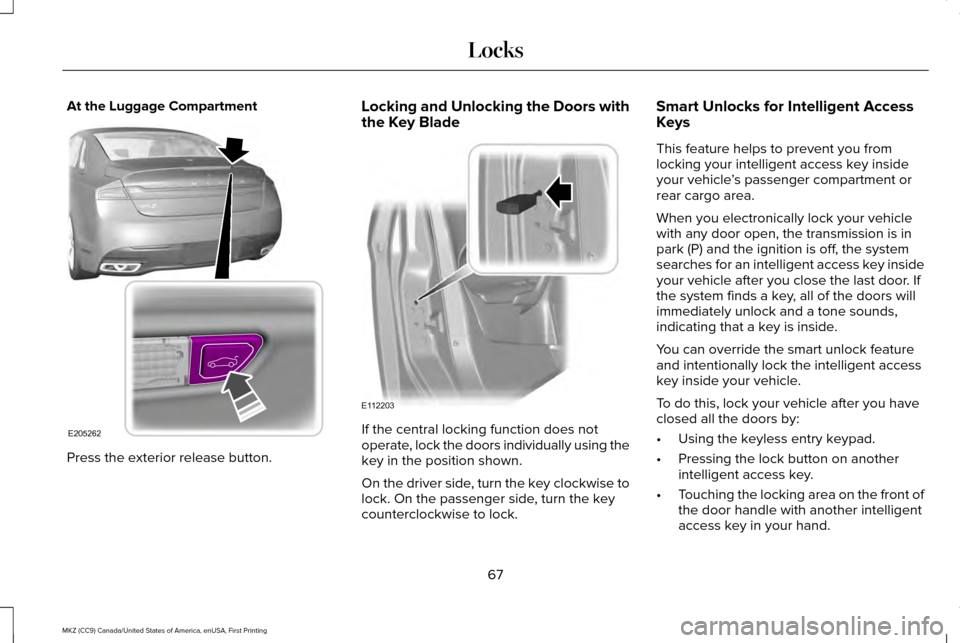
At the Luggage Compartment
Press the exterior release button. Locking and Unlocking the Doors with
the Key Blade
If the central locking function does not
operate, lock the doors individually using the
key in the position shown.
On the driver side, turn the key clockwise to
lock. On the passenger side, turn the key
counterclockwise to lock.Smart Unlocks for Intelligent Access
Keys
This feature helps to prevent you from
locking your intelligent access key inside
your vehicle
’s passenger compartment or
rear cargo area.
When you electronically lock your vehicle
with any door open, the transmission is in
park (P) and the ignition is off, the system
searches for an intelligent access key inside
your vehicle after you close the last door. If
the system finds a key, all of the doors will
immediately unlock and a tone sounds,
indicating that a key is inside.
You can override the smart unlock feature
and intentionally lock the intelligent access
key inside your vehicle.
To do this, lock your vehicle after you have
closed all the doors by:
• Using the keyless entry keypad.
• Pressing the lock button on another
intelligent access key.
• Touching the locking area on the front of
the door handle with another intelligent
access key in your hand.
67
MKZ (CC9) Canada/United States of America, enUSA, First Printing LocksE205262 E112203
Page 78 of 564
PASSIVE ANTI-THEFT SYSTEM
Note:
The system is not compatible with
non-Ford aftermarket remote start systems.
Use of these systems may result in vehicle
starting problems and a loss of security
protection.
Note: Metallic objects, electronic devices or
a second coded key on the same key chain
may cause vehicle starting problems if they
are too close to the key when starting your
vehicle. Prevent these objects from touching
the coded key while starting your vehicle.
Switch the ignition off, move all objects on
the key chain away from the coded key and
restart your vehicle if a problem occurs.
Note: Do not leave a duplicate coded key
in your vehicle. Always take your keys and
lock all doors when leaving your vehicle. SecuriLock
The system helps prevent your vehicle from
starting unless you use a coded key
programmed to your vehicle. Using the
wrong key may prevent your vehicle from
starting. A message may appear in the
information display.
If you are unable to start your vehicle with a
correctly coded key, it is not operating
properly. A message may appear in the
information display.
Automatic Arming
Your vehicle arms immediately after
switching the ignition off.
Automatic Disarming
Switching the ignition on with a coded key
disarms your vehicle.
Replacement Keys
Note:
Your vehicle comes equipped with two
intelligent access keys. The intelligent access key functions as a
programmed key that operates the driver
door lock and activates the intelligent access
with push button start system, as well as a
remote control.
If your programmed transmitters are lost or
stolen and you do not have an extra coded
key, have your vehicle towed to an
authorized dealer. You need to erase the
key codes from your vehicle and program
new coded keys.
Store an extra programmed key away from
your vehicle in a safe place to help prevent
any inconveniences. See your authorized
dealer to purchase additional spare or
replacement keys.
Programming a Spare Intelligent Access
Key
Note:
You can program a maximum of four
intelligent access keys to your vehicle.
75
MKZ (CC9) Canada/United States of America, enUSA, First Printing Security
Page 82 of 564
To adjust:
•
Tilt: press the top or bottom of the
control.
• Telescope: press the front or rear of the
control.
The steering column sets a stopping position
just short of the end of the column position
to prevent damage to the steering column.
A new stopping position sets if the steering
column encounters an object when tilting or
telescoping.
To reset the steering column to its normal
stopping position:
1. Press the steering column control again after encountering the new stopping
position.
2. Continue pressing the control until it reaches the end of the column position.
A new stopping position is set. The next time
you tilt or telescope the steering column, it
will stop just short of the end of the column
position. Memory Feature
You can save and recall the steering column
position with the memory function. See
Memory Function (page 145).
Note: Pressing the adjustment control during
memory recall cancels the operation. The
column responds to the adjustment control.
Easy Entry and Exit Feature
When you switch the ignition off, the steering
column will move to the full up position to
allow extra room to exit your vehicle. The
column will return to the previous setting
when you switch the ignition on. You can
enable or disable this feature in the
information display.
See Information
Displays (page 108).
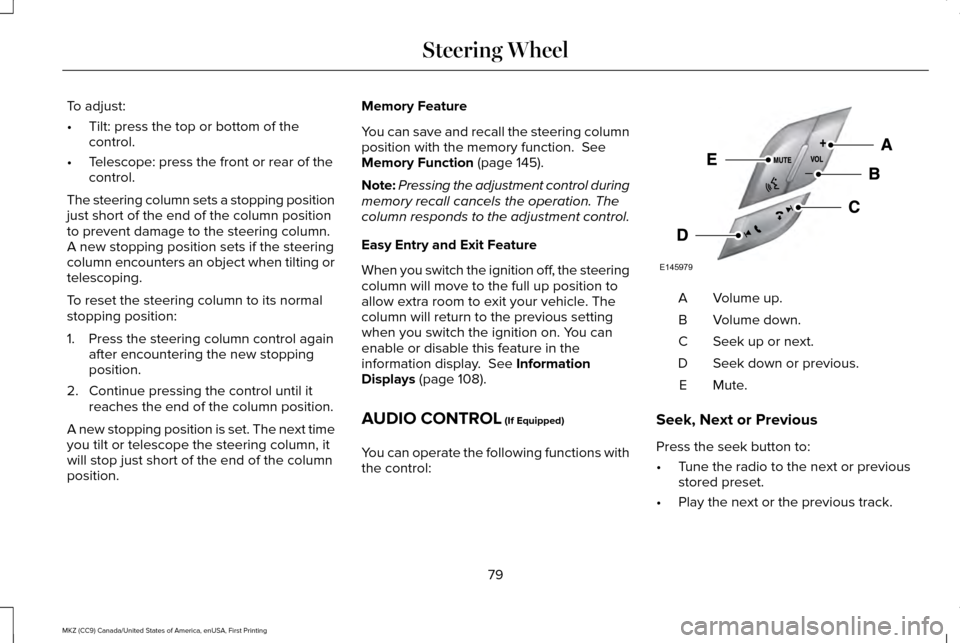
AUDIO CONTROL
(If Equipped)
You can operate the following functions with
the control: Volume up.
A
Volume down.
B
Seek up or next.
C
Seek down or previous.
D
Mute.E
Seek, Next or Previous
Press the seek button to:
• Tune the radio to the next or previous
stored preset.
• Play the next or the previous track.
79
MKZ (CC9) Canada/United States of America, enUSA, First Printing Steering WheelE145979
Page 90 of 564
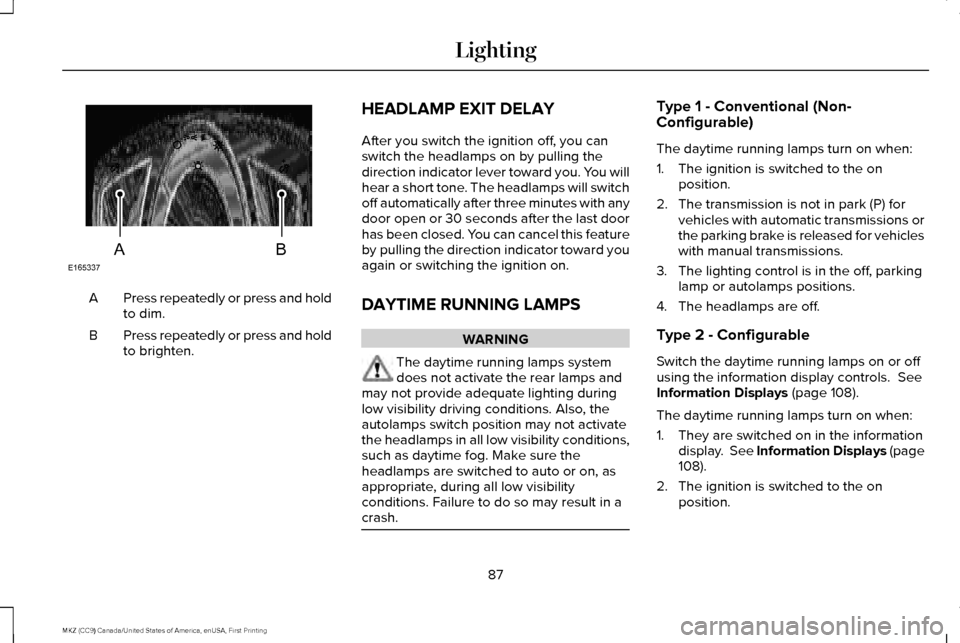
Press repeatedly or press and hold
to dim.
A
Press repeatedly or press and hold
to brighten.
B HEADLAMP EXIT DELAY
After you switch the ignition off, you can
switch the headlamps on by pulling the
direction indicator lever toward you. You will
hear a short tone. The headlamps will switch
off automatically after three minutes with any
door open or 30 seconds after the last door
has been closed. You can cancel this feature
by pulling the direction indicator toward you
again or switching the ignition on.
DAYTIME RUNNING LAMPS WARNING
The daytime running lamps system
does not activate the rear lamps and
may not provide adequate lighting during
low visibility driving conditions. Also, the
autolamps switch position may not activate
the headlamps in all low visibility conditions,
such as daytime fog. Make sure the
headlamps are switched to auto or on, as
appropriate, during all low visibility
conditions. Failure to do so may result in a
crash. Type 1 - Conventional (Non-
Configurable)
The daytime running lamps turn on when:
1. The ignition is switched to the on
position.
2. The transmission is not in park (P) for vehicles with automatic transmissions or
the parking brake is released for vehicles
with manual transmissions.
3. The lighting control is in the off, parking lamp or autolamps positions.
4. The headlamps are off.
Type 2 - Configurable
Switch the daytime running lamps on or off
using the information display controls. See
Information Displays (page 108).
The daytime running lamps turn on when:
1. They are switched on in the information display. See Information Displays (page
108
).
2. The ignition is switched to the on position.
87
MKZ (CC9) Canada/United States of America, enUSA, First Printing LightingE165337AB
Page 97 of 564
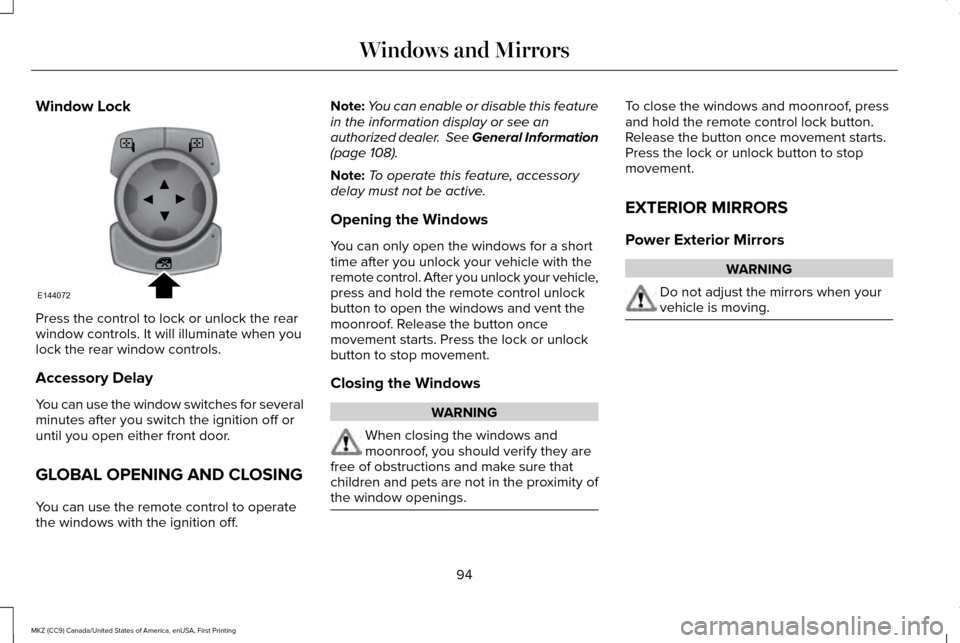
Window Lock
Press the control to lock or unlock the rear
window controls. It will illuminate when you
lock the rear window controls.
Accessory Delay
You can use the window switches for several
minutes after you switch the ignition off or
until you open either front door.
GLOBAL OPENING AND CLOSING
You can use the remote control to operate
the windows with the ignition off. Note:
You can enable or disable this feature
in the information display or see an
authorized dealer. See General Information
(page 108).
Note: To operate this feature, accessory
delay must not be active.
Opening the Windows
You can only open the windows for a short
time after you unlock your vehicle with the
remote control. After you unlock your vehicle,
press and hold the remote control unlock
button to open the windows and vent the
moonroof. Release the button once
movement starts. Press the lock or unlock
button to stop movement.
Closing the Windows WARNING
When closing the windows and
moonroof, you should verify they are
free of obstructions and make sure that
children and pets are not in the proximity of
the window openings. To close the windows and moonroof, press
and hold the remote control lock button.
Release the button once movement starts.
Press the lock or unlock button to stop
movement.
EXTERIOR MIRRORS
Power Exterior Mirrors
WARNING
Do not adjust the mirrors when your
vehicle is moving.
94
MKZ (CC9) Canada/United States of America, enUSA, First Printing Windows and MirrorsE144072
Page 102 of 564
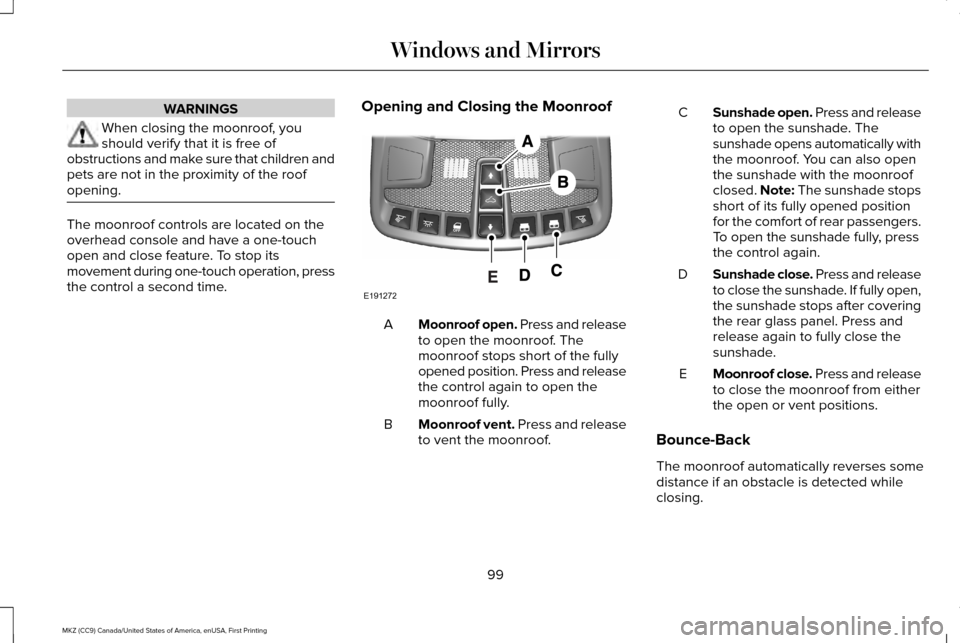
WARNINGS
When closing the moonroof, you
should verify that it is free of
obstructions and make sure that children and
pets are not in the proximity of the roof
opening. The moonroof controls are located on the
overhead console and have a one-touch
open and close feature. To stop its
movement during one-touch operation, press
the control a second time.
Opening and Closing the Moonroof Moonroof open. Press and release
to open the moonroof. The
moonroof stops short of the fully
opened position. Press and release
the control again to open the
moonroof fully.
A
Moonroof vent. Press and release
to vent the moonroof.
B Sunshade open. Press and release
to open the sunshade. The
sunshade opens automatically with
the moonroof. You can also open
the sunshade with the moonroof
closed. Note: The sunshade stops
short of its fully opened position
for the comfort of rear passengers.
To open the sunshade fully, press
the control again.
C
Sunshade close. Press and release
to close the sunshade. If fully open,
the sunshade stops after covering
the rear glass panel. Press and
release again to fully close the
sunshade.
D
Moonroof close. Press and release
to close the moonroof from either
the open or vent positions.
E
Bounce-Back
The moonroof automatically reverses some
distance if an obstacle is detected while
closing.
99
MKZ (CC9) Canada/United States of America, enUSA, First Printing Windows and MirrorsE191272
Page 118 of 564
.
Adaptive Cruise Malfunction
Displayed wh")
Adaptive Cruise Control
Action
Message
Displayed when a radar malfunction is preventing the ACC from engaging. \
See Using Adaptive Cruise Control (page 216).
Adaptive Cruise Malfunction
Displayed when conditions exist such that the adaptive cruise cannot fun\
ction properly.
See
Using Adaptive Cruise Control (page 216).
Adaptive Cruise Not Available
Displayed when the radar is blocked because of poor radar visibility due to bad weather or ice/
mud/water in front of radar. Driver can typically clean the sensor to resolve. See Using AdaptiveCruise Control
(page 216).
Adaptive Cruise Not Available Sensor
Blocked See Manual
Displayed when the automatic braking has been disabled.
Normal Cruise Active Automatic Braking
Turned Off
Displayed when a radar malfunction is preventing the ACC from engaging.
Front Sensor Not Aligned
Displayed when the adaptive cruise has reinstated controls to the driver\
.
Adaptive Cruise - Driver Resume Control
Displays when the vehicle speed is too slow to activate the adaptive cru\
ise.
Adaptive Cruise Speed Too Low to
Activate
Displays when the adaptive cruise is automatically adjusting the gap dis\
tance and the driverneeds to shift the transmission into a lower gear.
Adaptive Cruise Shift Down
115
MKZ (CC9) Canada/United States of America, enUSA, First Printing Information Displays