change time LINCOLN MKZ 2017 Owner's Manual
[x] Cancel search | Manufacturer: LINCOLN, Model Year: 2017, Model line: MKZ, Model: LINCOLN MKZ 2017Pages: 564, PDF Size: 5.54 MB
Page 310 of 564
If you tow a trailer with your vehicle, the
engine may temporarily reach higher a
temperature during severe operating
conditions, for example ascending a long or
steep grade in high ambient temperatures.
At this time, you may notice the coolant
temperature gauge moves toward the red
zone and a message may appear in the
information display.
You may notice a reduction in vehicle speed
caused by reduced engine power. In order
to manage the engine coolant temperature.
Your vehicle may enter this mode if certain
high-temperature and high-load conditions
take place. The amount of speed reduction
depends on vehicle loading, grade and
ambient temperature. If this occurs, there is
no need to pull off the road. You can
continue to drive your vehicle.
The air conditioning may automatically turn
on and off during severe operating
conditions to protect the engine from
overheating. When the coolant temperature
decreases to the normal operating
temperature, the air conditioning turns on.
If the coolant temperature gauge moves fully
into the red zone, or if the coolant
temperature warning or service engine soon
messages appear in your information display,
do the following:
1. Pull off the road as soon as safely
possible and shift the transmission into
park (P).
2. Leave the engine running until the coolant temperature gauge needle
returns to the normal position. After
several minutes, if the temperature does
not drop, follow the remaining steps.
3. Switch the engine off and wait for it to cool. Check the coolant level.
4. If the coolant level is at or below the minimum mark, add prediluted coolant
immediately.
5. If the coolant level is normal, restart the engine and continue. AUTOMATIC TRANSMISSION
FLUID CHECK
6F35/HF35 transmission
(If Equipped)
Note: Transmission fluid should be checked
by an authorized dealer. If required, fluid
should be added by an authorized dealer.
The automatic transmission does not have
a transmission fluid dipstick.
Refer to your scheduled maintenance
information for scheduled intervals for fluid
checks and changes. Your transmission does
not consume fluid. However, the fluid level
should be checked if the transmission is not
working properly, (For example: if the
transmission slips or shifts slowly) or if you
notice some sign of fluid leakage.
See
Scheduled Maintenance (page 495).
Do not use supplemental transmission fluid
additives, treatments or cleaning agents. The
use of these materials may affect
transmission operation and result in damage
to internal transmission components.
307
MKZ (CC9) Canada/United States of America, enUSA, First Printing Maintenance
Page 311 of 564
6F50/6F55 Transmission (If Equipped)
WARNINGS
The dipstick cap and surrounding
components may be hot; gloves are
recommended. Use gloves when moving the air filter
assembly. Components will be hot.
Note:
Automatic transmission fluid expands
when warmed. To obtain an accurate fluid
check, drive the vehicle until it is warmed up
(approximately 20 miles [30 kilometers]). If
your vehicle has been operated for an
extended period at high speeds, in city traffic
during hot weather or pulling a trailer, the
vehicle should be turned off until normal
operating temperatures are reached to allow
the fluid to cool before checking. Depending
on vehicle use, cooling times could take up
to 30 minutes or longer. Refer to your scheduled maintenance
information for scheduled intervals for fluid
checks and changes. Your transmission does
not consume fluid. However, the fluid level
should be checked if the transmission is not
working properly. For example, if the
transmission slips or shifts slowly or if you
notice some sign of fluid leakage.
1.
Drive the vehicle 20 miles (30 kilometers)
or until it reaches normal operating
temperature
2. Park the vehicle on a level surface and engage the parking brake.
3. With the parking brake engaged and your
foot on the brake pedal, start the engine
and move the gearshift lever through all
of the gear ranges. Allow a minimum of
10 seconds for each gear to engage.
4. Put the gearshift lever in
P (Park) and
leave the engine running.
Note: You will need to move the air filter
assembly to access the transmission
dipstick. 5.
Remove the dipstick, wiping it clean with
a clean, dry lint free rag. If necessary,
refer to Under hood overview in this
chapter for the location of the dipstick.
6. Install the dipstick making sure it is fully seated in the filler tube by turning it to
the locked position.
7. Remove the dipstick and inspect the fluid
level. The fluid should be in the
designated areas for normal operating
temperature.
Moving the Air Filter Assembly (Accessing
the Dipstick) WARNING
Do not run engine with the air filter
disconnected.
308
MKZ (CC9) Canada/United States of America, enUSA, First Printing Maintenance
Page 319 of 564
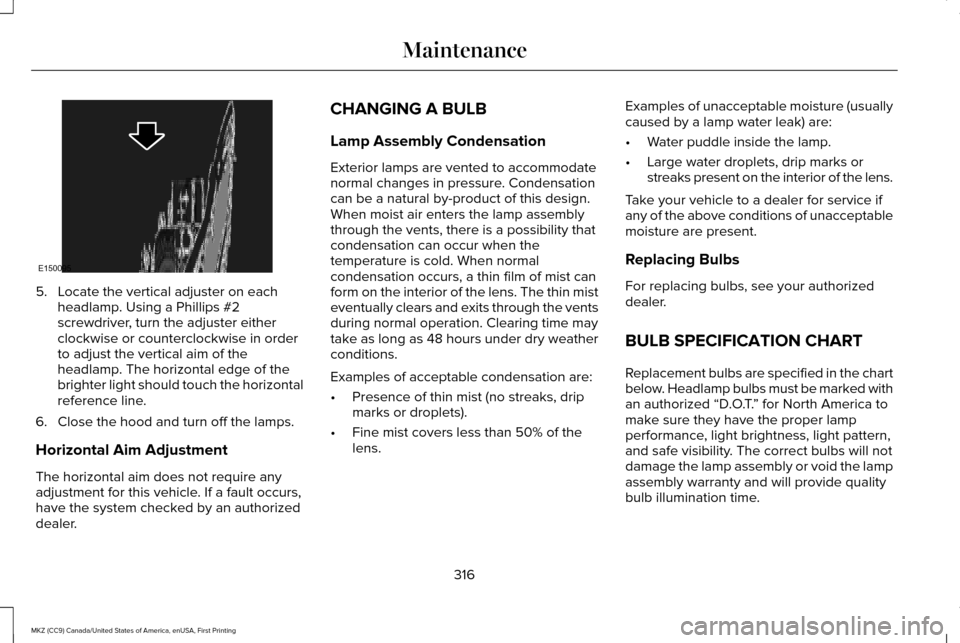
5. Locate the vertical adjuster on each
headlamp. Using a Phillips #2
screwdriver, turn the adjuster either
clockwise or counterclockwise in order
to adjust the vertical aim of the
headlamp. The horizontal edge of the
brighter light should touch the horizontal
reference line.
6. Close the hood and turn off the lamps.
Horizontal Aim Adjustment
The horizontal aim does not require any
adjustment for this vehicle. If a fault occurs,
have the system checked by an authorized
dealer. CHANGING A BULB
Lamp Assembly Condensation
Exterior lamps are vented to accommodate
normal changes in pressure. Condensation
can be a natural by-product of this design.
When moist air enters the lamp assembly
through the vents, there is a possibility that
condensation can occur when the
temperature is cold. When normal
condensation occurs, a thin film of mist can
form on the interior of the lens. The thin mist
eventually clears and exits through the vents
during normal operation. Clearing time may
take as long as 48 hours under dry weather
conditions.
Examples of acceptable condensation are:
•
Presence of thin mist (no streaks, drip
marks or droplets).
• Fine mist covers less than 50% of the
lens. Examples of unacceptable moisture (usually
caused by a lamp water leak) are:
•
Water puddle inside the lamp.
• Large water droplets, drip marks or
streaks present on the interior of the lens.
Take your vehicle to a dealer for service if
any of the above conditions of unacceptable
moisture are present.
Replacing Bulbs
For replacing bulbs, see your authorized
dealer.
BULB SPECIFICATION CHART
Replacement bulbs are specified in the chart
below. Headlamp bulbs must be marked with
an authorized “D.O.T. ” for North America to
make sure they have the proper lamp
performance, light brightness, light pattern,
and safe visibility. The correct bulbs will not
damage the lamp assembly or void the lamp
assembly warranty and will provide quality
bulb illumination time.
316
MKZ (CC9) Canada/United States of America, enUSA, First Printing MaintenanceE150095
Page 344 of 564
A. P: Indicates a tire, designated by the
Tire and Rim Association, that may be
used for service on cars, sport utility
vehicles, minivans and light trucks.
Note:
If your tire size does not begin with a
letter this may mean it is designated by
either the European Tire and Rim
Technical Organization or the Japan Tire
Manufacturing Association.
B.
215: Indicates the nominal width of
the tire in millimeters from sidewall edge
to sidewall edge. In general, the larger
the number, the wider the tire.
C.
65: Indicates the aspect ratio which
gives the tire's ratio of height to width.
D.
R: Indicates a radial type tire.
E.
15: Indicates the wheel or rim
diameter in inches. If you change your
wheel size, you will have to purchase
new tires to match the new wheel
diameter. F.
95: Indicates the tire's load index. It
is an index that relates to how much
weight a tire can carry. You may find this
information in your owner’ s manual. If
not, contact a local tire dealer.
Note: You may not find this information
on all tires because it is not required by
federal law.
G.
H: Indicates the tire's speed rating.
The speed rating denotes the speed at
which a tire is designed to be driven for
extended periods of time under a
standard condition of load and inflation
pressure. The tires on your vehicle may
operate at different conditions for load
and inflation pressure. These speed
ratings may need to be adjusted for the
difference in conditions. The ratings
range from 81 mph (130 km/h) to 186
mph (299 km/h). These ratings are listed
in the following chart.
Note: You may not find this information
on all tires because it is not required by
federal law. mph ( km/h)
Letter rating
81 mph (130 km/h)
M
87 mph (140 km/h)
N
99 mph (159 km/h)
Q
106 mph (171 km/h)
R
112 mph (180 km/h)
S
118 mph (190 km/h)
T
124 mph (200 km/h)
U
130 mph (210 km/h)
H
149 mph (240 km/h)
V
341
MKZ (CC9) Canada/United States of America, enUSA, First Printing Wheels and Tires
Page 393 of 564
GENERAL INFORMATION
WARNING
Driving while distracted can result in
loss of vehicle control, crash and injury.
We strongly recommend that you use
extreme caution when using any device that
may take your focus off the road. Your
primary responsibility is the safe operation
of your vehicle. We recommend against the
use of any hand-held device while driving
and encourage the use of voice-operated
systems when possible. Make sure you are
aware of all applicable local laws that may
affect the use of electronic devices while
driving. Getting to Know Your System
The SYNC 3 system allows you to interact
with a variety of features using the
touchscreen and voice commands. By
integrating with your Bluetooth-enabled
phone, the touchscreen provides easy
interaction with audio, multimedia, climate
control, navigation, and your phone's SYNC
3 compatible apps.
Using the Touchscreen
To operate the touchscreen, you can simply
touch the item or option that you want to
select. The button changes color when you
select it.
The SYNC 3 layout allows you to quickly
select the feature you wish to use.
390
MKZ (CC9) Canada/United States of America, enUSA, First Printing SYNC™ 3
Page 409 of 564
download continues where it left off at the
next Wi-Fi connected opportunity. Upon
activation of an update, a banner displays
on the touchscreen indicating the system
update. Select the icon to see more detail.
This icon displays for two ignition cycles.
To switch this feature off:
Menu Item
Settings
General In this menu selection, you
can change the selection for
automatic updates to OFF.
Automatic
System
Updates
Support
The SYNC support team is available to help
you with any questions you are not able to
answer on your own.
Monday-Saturday, 8:30am-8:00pm EST. United States: 1-800-521-4140.
Canada: 1-800-387-9333.
Times are subject to change due to holidays.
Privacy Information
When you connect a cellular phone to SYNC
3, the system creates a profile within your
vehicle that links to that cellular phone. This
profile helps in offering you more cellular
features and operating more efficiently.
Among other things, this profile may contain
data about your cellular phone book, text
messages (read and unread), and call history,
including history of calls when your cell
phone was not connected to the system. In
addition, if you connect a media device, the
system creates and retains an index of
supported media content. The system also
records a short diagnostic log of
approximately 10 minutes of all recent system
activity. The log profile and other system data
may be used to improve the system and help
diagnose any problems that may occur.The cellular profile, media device index, and
diagnostic log remain in your vehicle unless
you delete them and are generally accessible
only in your vehicle when the cellular phone
or media player is connected.
If you no longer plan to use the system or
your vehicle, we recommend you perform a
Master Reset to erase all stored information.
You can find more information about the
Master Reset in General Settings. See
Settings (page 457). System data cannot be
accessed without special equipment and
access to your vehicle's SYNC 3 module. The
Lincoln Motor Company does not access the
system data for any purpose other than as
described absent consent, a court order, or
where required by law enforcement, other
government authorities, or other third parties
acting with lawful authority. Other parties
may seek to access the information
independently of The Lincoln Motor
Company.
406
MKZ (CC9) Canada/United States of America, enUSA, First Printing SYNC™ 3
Page 425 of 564
For more information on extended
subscription terms (a service fee is required),
the online media player and a list of SIRIUS
satellite radio channels, and other features,
please visit www.siriusxm.com in the United
States, www.siriusxm.ca in Canada, or call
SIRIUS at 1-888-539-7474.
Note:
SIRIUS reserves the unrestricted right
to change, rearrange, add or delete
programming. This includes canceling,
moving or adding particular channels, and
its prices, at any time, with or without notice
to you. Ford Motor Company shall not be
responsible for any such programming
changes. Note:
This receiver includes the eCos
real-time operating system. eCos is
published under the eCos License.
The following buttons are available for Sirius: Action and description
Menu item
Touch this button to see a list of available stations.
Browse
A pop-up appears, allowing you to type in the call numbers of a station.\
Direct Tune
Once you enter the stations call numbers, you can select:
The system tunes to the station you select.
Enter
You exit the pop-up and the current station continues to play.
Cancel
You can press the backspace button to delete the previous number.
422
MKZ (CC9) Canada/United States of America, enUSA, First Printing SYNC™ 3
Page 432 of 564
HD Radio Technology manufactured under
license from iBiquity Digital Corp. U.S. and
foreign patents. HD Radio and the HD and
HD Radio logos are proprietary trademarks
of iBiquity Digital Corp. Ford Motor Company
and iBiquity Digital Corp. are not responsible
for the content sent using HD Radio
technology. Content may be changed, added
or deleted at any time at the station owner's
discretion.
* You can find the form here: Website
http://www.ibiquity.com/automotive/
report_radio_station_experiences
CD (If equipped)
Once you select this option, the system
returns you to the main audio screen. The current audio information appears on
the screen.
The following buttons are also available: Function
Button
You can use the browse button to select a track.
Browse
Select this button and a small number one displays to indicate the track\
is set to repeat.
Repeat
For MP3 CDs, this button allows you to toggle through repeat off, repeat one track (a small number
one displays), and repeat current folder (a small folder displays).
Select the shuffle symbol to have the audio on the disk play in random o\
rder.
Shuffle
You can use the forward, reverse, pause or
play buttons to control the audio playback.
429
MKZ (CC9) Canada/United States of America, enUSA, First Printing SYNC™ 3
Page 458 of 564
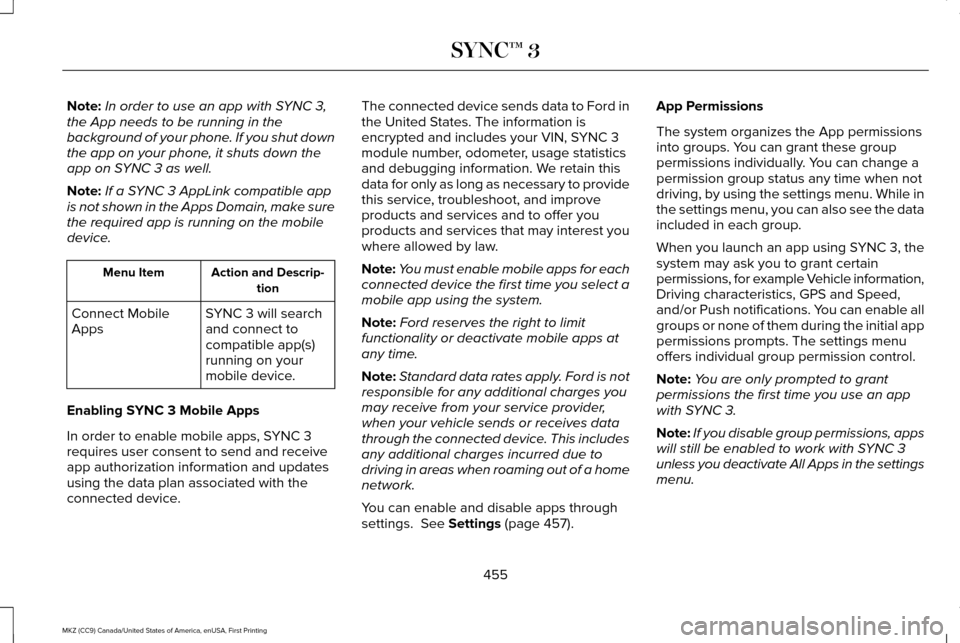
Note:
In order to use an app with SYNC 3,
the App needs to be running in the
background of your phone. If you shut down
the app on your phone, it shuts down the
app on SYNC 3 as well.
Note: If a SYNC 3 AppLink compatible app
is not shown in the Apps Domain, make sure
the required app is running on the mobile
device. Action and Descrip-
tion
Menu Item
SYNC 3 will search
and connect to
compatible app(s)
running on your
mobile device.
Connect Mobile
Apps
Enabling SYNC 3 Mobile Apps
In order to enable mobile apps, SYNC 3
requires user consent to send and receive
app authorization information and updates
using the data plan associated with the
connected device. The connected device sends data to Ford in
the United States. The information is
encrypted and includes your VIN, SYNC 3
module number, odometer, usage statistics
and debugging information. We retain this
data for only as long as necessary to provide
this service, troubleshoot, and improve
products and services and to offer you
products and services that may interest you
where allowed by law.
Note:
You must enable mobile apps for each
connected device the first time you select a
mobile app using the system.
Note: Ford reserves the right to limit
functionality or deactivate mobile apps at
any time.
Note: Standard data rates apply. Ford is not
responsible for any additional charges you
may receive from your service provider,
when your vehicle sends or receives data
through the connected device. This includes
any additional charges incurred due to
driving in areas when roaming out of a home
network.
You can enable and disable apps through
settings. See Settings (page 457). App Permissions
The system organizes the App permissions
into groups. You can grant these group
permissions individually. You can change a
permission group status any time when not
driving, by using the settings menu. While in
the settings menu, you can also see the data
included in each group.
When you launch an app using SYNC 3, the
system may ask you to grant certain
permissions, for example Vehicle information,
Driving characteristics, GPS and Speed,
and/or Push notifications. You can enable all
groups or none of them during the initial app
permissions prompts. The settings menu
offers individual group permission control.
Note:
You are only prompted to grant
permissions the first time you use an app
with SYNC 3.
Note: If you disable group permissions, apps
will still be enabled to work with SYNC 3
unless you deactivate All Apps in the settings
menu.
455
MKZ (CC9) Canada/United States of America, enUSA, First Printing SYNC™ 3
Page 463 of 564
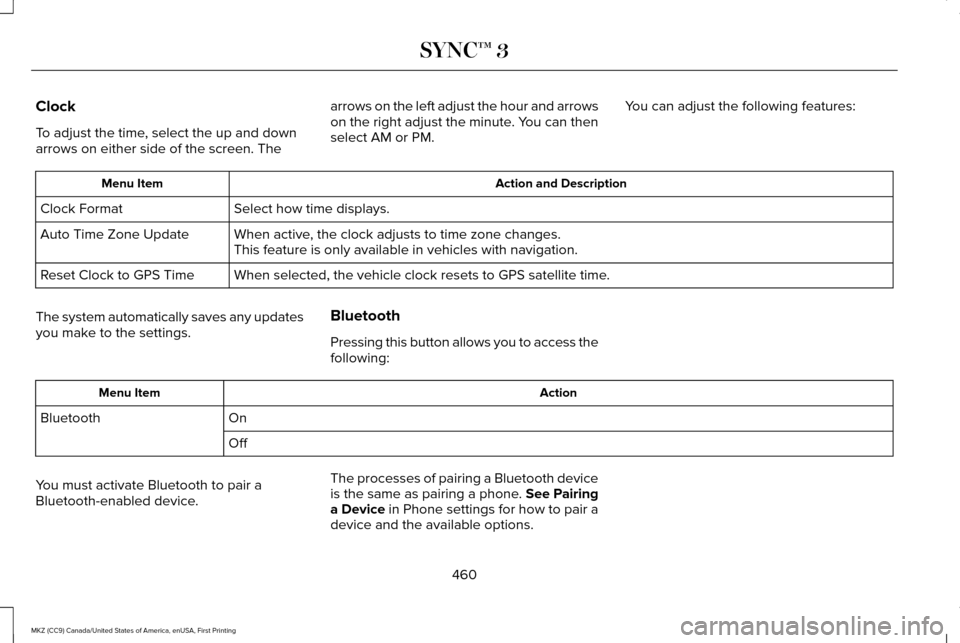
Clock
To adjust the time, select the up and down
arrows on either side of the screen. The
arrows on the left adjust the hour and arrows
on the right adjust the minute. You can then
select AM or PM.
You can adjust the following features: Action and Description
Menu Item
Select how time displays.
Clock Format
When active, the clock adjusts to time zone changes.
Auto Time Zone Update
This feature is only available in vehicles with navigation.
When selected, the vehicle clock resets to GPS satellite time.
Reset Clock to GPS Time
The system automatically saves any updates
you make to the settings. Bluetooth
Pressing this button allows you to access the
following: Action
Menu Item
On
Bluetooth
Off
You must activate Bluetooth to pair a
Bluetooth-enabled device. The processes of pairing a Bluetooth device
is the same as pairing a phone. See Pairing
a Device in Phone settings for how to pair a
device and the available options.
460
MKZ (CC9) Canada/United States of America, enUSA, First Printing SYNC™ 3