tow LINCOLN MKZ 2017 Owner's Guide
[x] Cancel search | Manufacturer: LINCOLN, Model Year: 2017, Model line: MKZ, Model: LINCOLN MKZ 2017Pages: 564, PDF Size: 5.54 MB
Page 203 of 564
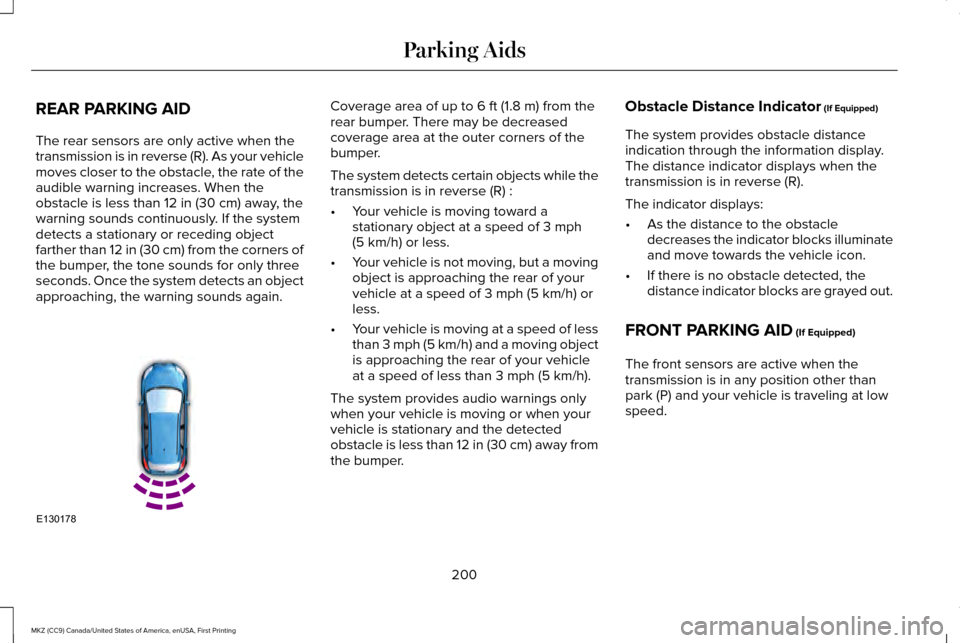
REAR PARKING AID
The rear sensors are only active when the
transmission is in reverse (R). As your vehicle
moves closer to the obstacle, the rate of the
audible warning increases. When the
obstacle is less than 12 in (30 cm) away, the
warning sounds continuously. If the system
detects a stationary or receding object
farther than
12 in (30 cm) from the corners of
the bumper, the tone sounds for only three
seconds. Once the system detects an object
approaching, the warning sounds again. Coverage area of up to
6 ft (1.8 m) from the
rear bumper. There may be decreased
coverage area at the outer corners of the
bumper.
The system detects certain objects while the
transmission is in reverse (R) :
• Your vehicle is moving toward a
stationary object at a speed of
3 mph
(5 km/h) or less.
• Your vehicle is not moving, but a moving
object is approaching the rear of your
vehicle at a speed of
3 mph (5 km/h) or
less.
• Your vehicle is moving at a speed of less
than 3 mph (5 km/h) and a moving object
is approaching the rear of your vehicle
at a speed of less than
3 mph (5 km/h).
The system provides audio warnings only
when your vehicle is moving or when your
vehicle is stationary and the detected
obstacle is less than 12 in (30 cm) away from
the bumper. Obstacle Distance Indicator
(If Equipped)
The system provides obstacle distance
indication through the information display.
The distance indicator displays when the
transmission is in reverse (R).
The indicator displays:
• As the distance to the obstacle
decreases the indicator blocks illuminate
and move towards the vehicle icon.
• If there is no obstacle detected, the
distance indicator blocks are grayed out.
FRONT PARKING AID
(If Equipped)
The front sensors are active when the
transmission is in any position other than
park (P) and your vehicle is traveling at low
speed.
200
MKZ (CC9) Canada/United States of America, enUSA, First Printing Parking AidsE130178
Page 204 of 564
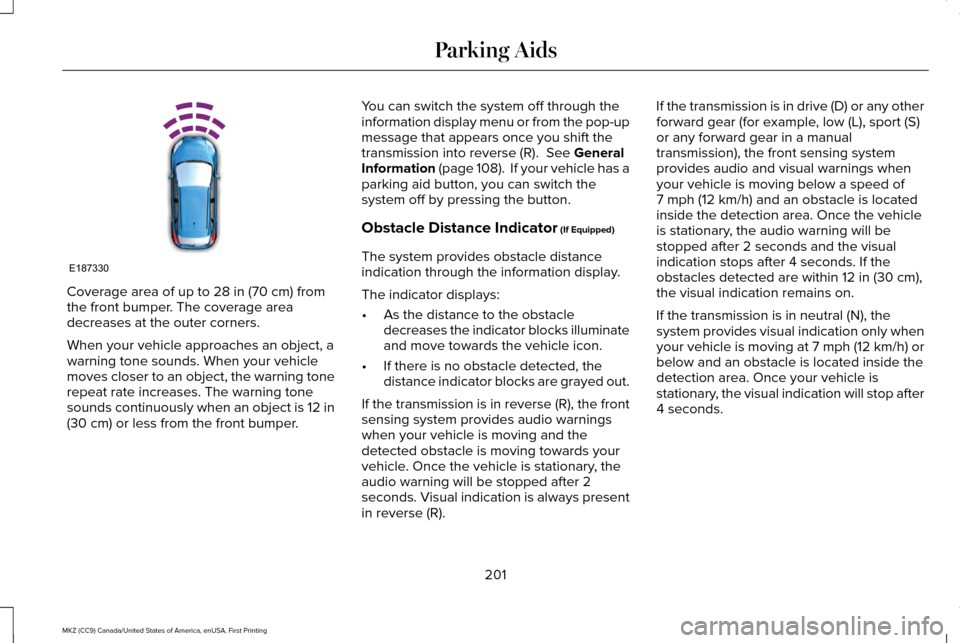
Coverage area of up to 28 in (70 cm) from
the front bumper. The coverage area
decreases at the outer corners.
When your vehicle approaches an object, a
warning tone sounds. When your vehicle
moves closer to an object, the warning tone
repeat rate increases. The warning tone
sounds continuously when an object is 12 in
(30 cm)
or less from the front bumper. You can switch the system off through the
information display menu or from the pop-up
message that appears once you shift the
transmission into reverse (R).
See General
Information (page 108). If your vehicle has a
parking aid button, you can switch the
system off by pressing the button.
Obstacle Distance Indicator
(If Equipped)
The system provides obstacle distance
indication through the information display.
The indicator displays:
• As the distance to the obstacle
decreases the indicator blocks illuminate
and move towards the vehicle icon.
• If there is no obstacle detected, the
distance indicator blocks are grayed out.
If the transmission is in reverse (R), the front
sensing system provides audio warnings
when your vehicle is moving and the
detected obstacle is moving towards your
vehicle. Once the vehicle is stationary, the
audio warning will be stopped after 2
seconds. Visual indication is always present
in reverse (R). If the transmission is in drive (D) or any other
forward gear (for example, low (L), sport (S)
or any forward gear in a manual
transmission), the front sensing system
provides audio and visual warnings when
your vehicle is moving below a speed of
7 mph (12 km/h)
and an obstacle is located
inside the detection area. Once the vehicle
is stationary, the audio warning will be
stopped after 2 seconds and the visual
indication stops after 4 seconds. If the
obstacles detected are within
12 in (30 cm),
the visual indication remains on.
If the transmission is in neutral (N), the
system provides visual indication only when
your vehicle is moving at 7 mph (12 km/h) or
below and an obstacle is located inside the
detection area. Once your vehicle is
stationary, the visual indication will stop after
4 seconds.
201
MKZ (CC9) Canada/United States of America, enUSA, First Printing Parking AidsE187330
Page 205 of 564
SIDE SENSING SYSTEM (If Equipped)
The side sensing system uses the front and
rear side sensors to detect and map
obstacles that are near to the sides of your
vehicle. The side sensors are active when
the transmission is in any position other than
park (P).
Note: Obstacles that enter the side detection
area without being detected and mapped
by the front or rear side sensors will not be
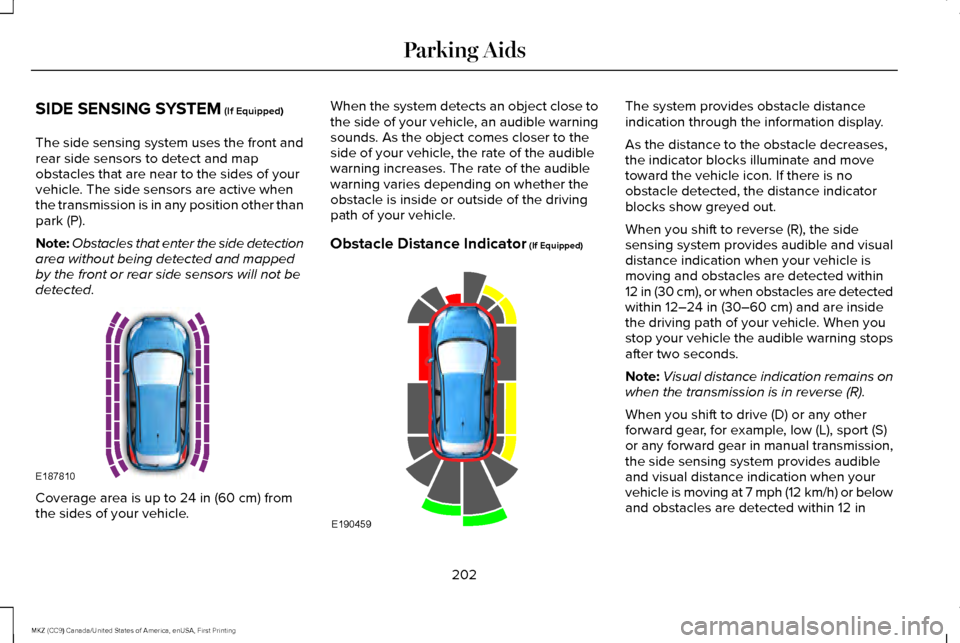
detected. Coverage area is up to
24 in (60 cm) from
the sides of your vehicle. When the system detects an object close to
the side of your vehicle, an audible warning
sounds. As the object comes closer to the
side of your vehicle, the rate of the audible
warning increases. The rate of the audible
warning varies depending on whether the
obstacle is inside or outside of the driving
path of your vehicle.
Obstacle Distance Indicator
(If Equipped) The system provides obstacle distance
indication through the information display.
As the distance to the obstacle decreases,
the indicator blocks illuminate and move
toward the vehicle icon. If there is no
obstacle detected, the distance indicator
blocks show greyed out.
When you shift to reverse (R), the side
sensing system provides audible and visual
distance indication when your vehicle is
moving and obstacles are detected within
12 in (30 cm), or when obstacles are detected
within
12–24 in (30–60 cm) and are inside
the driving path of your vehicle. When you
stop your vehicle the audible warning stops
after two seconds.
Note: Visual distance indication remains on
when the transmission is in reverse (R).
When you shift to drive (D) or any other
forward gear, for example, low (L), sport (S)
or any forward gear in manual transmission,
the side sensing system provides audible
and visual distance indication when your
vehicle is moving at 7 mph (12 km/h) or below
and obstacles are detected within
12 in
202
MKZ (CC9) Canada/United States of America, enUSA, First Printing Parking AidsE187810 E190459
Page 207 of 564
Parallel Park Out Assist automatically steers
your vehicle out of a parallel parking space
(hands-free) while you control the
accelerator, gearshift and brakes. The system
visually and audibly guides you to enter
traffic.
Note:
The Blind Spot Information System
does not detect traffic alongside or behind
your vehicle during a park assist maneuver.
The system may not correctly operate in any
of the following conditions:
• You use a spare tire or a tire significantly
worn more than the other tires.
• One or more tires are improperly inflated.
• You try to park on a tight curve.
• Something passes between the front
bumper and the parking space (a
pedestrian or cyclist). •
The edge of the neighboring parked
vehicle is high off the ground (for
example, a bus, tow truck or flatbed
truck).
• The weather conditions are poor (heavy
rain, snow, fog, etc).
Note: Keep the sensors, located on the
bumper or fascia, free from snow, ice and
large accumulations of dirt. Covered sensors
can affect the system's accuracy. Do not
clean the sensors with sharp objects.
Note: The sensors may not detect objects
with surfaces that absorb ultrasonic waves
or cause ultrasonic interference (motorcycle
exhaust, truck air brakes or horns).
Do not use the system if:
• You have attached a bike rack, trailer or
other object near the sensors on the front
or rear of your vehicle.
• You have attached an overhanging
object (surfboard) to the roof. •
A foreign object damages or obstructs
the front or rear bumper or side sensors.
• The correct tire size is not in use on your
vehicle (for example, a mini-spare tire).
Using Active Park Assist - Parallel Parking Press the button located on the
center console near the gearshift
lever or the right side of the center
stack once.
When driving at a speed less than 22 mph
(35 km/h) the system automatically scans
both sides of your vehicle for an available
parking space. The system displays a
message and a corresponding graphic to
indicate it is searching for a parking space.
Use the direction indicator to select
searching either to the left-hand side or
right-hand side of your vehicle. If the
direction indicators are not used, the system
defaults to the passenger side of your
vehicle.
204
MKZ (CC9) Canada/United States of America, enUSA, First Printing Parking AidsE146186
Page 215 of 564
Using the Rear View Camera System
The rear view camera system displays what
is behind your vehicle when you place the
transmission in reverse (R).
The system uses three types of guides to
help you see what is behind your vehicle:
•
Active guidelines: Show the intended
path of your vehicle when reversing.
• Fixed guidelines: Show the actual path
your vehicle is moving in while reversing
in a straight line. This can be helpful
when backing into a parking space or
aligning your vehicle with another object
behind you.
• Centerline (if applicable): Helps align the
center of your vehicle with an object
(trailer).
Note: If the transmission is in reverse (R) and
the luggage compartment is ajar, no rear
view camera features will display.
Note: If the image comes on while the
transmission is not in reverse (R), have the
system inspected by an authorized dealer. Note:
When towing, the camera only sees
what you are towing behind your vehicle.
This might not provide adequate coverage
and you might not see some objects. In some
vehicles, the guidelines may disappear once
you connect the trailer tow connector.
The camera may not operate correctly under
the following conditions:
• Nighttime or dark areas if the reverse
lamps are not operating.
• Mud, water or debris obstructs the
camera's view. Clean the lens with a soft,
lint-free cloth and non-abrasive cleaner.
• The camera is misaligned due to damage
to the rear of your vehicle.
To access any of the rear view camera
system settings, make the following
selections in the touch screen when the
transmission is not in reverse (R):
• Menu > Vehicle > Camera Settings
After changing a system setting, the touch
screen shows a preview of the selected
features. Guidelines and the Centerline
Note:
Active guidelines and fixed guidelines
are only available when the transmission is
in reverse (R).
Note: The centerline is only available if
Active or Fixed guidelines are on.
212
MKZ (CC9) Canada/United States of America, enUSA, First Printing Parking Aids
Page 216 of 564
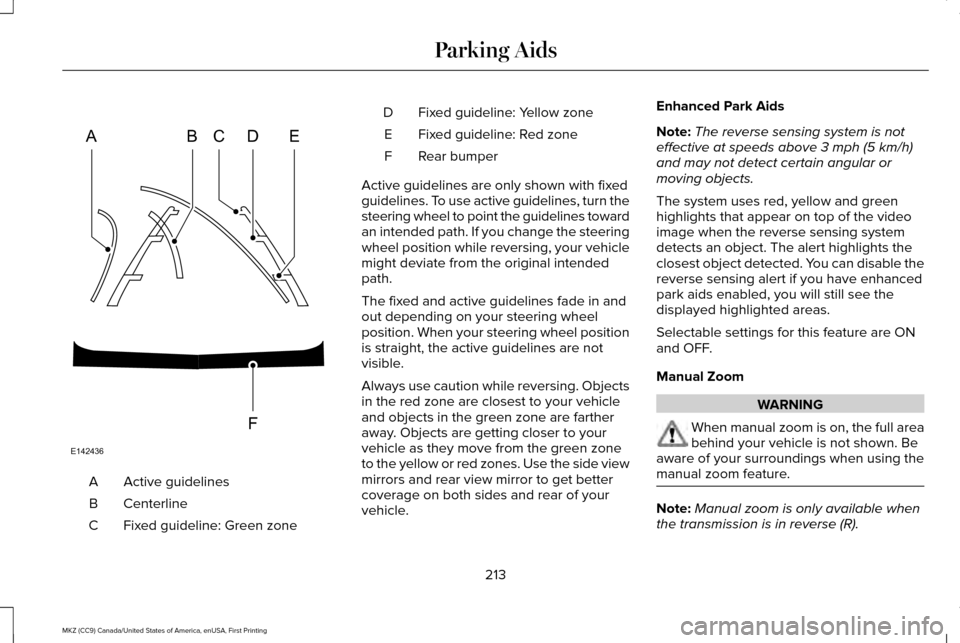
Active guidelines
A
Centerline
B
Fixed guideline: Green zone
C Fixed guideline: Yellow zone
D
Fixed guideline: Red zone
E
Rear bumper
F
Active guidelines are only shown with fixed
guidelines. To use active guidelines, turn the
steering wheel to point the guidelines toward
an intended path. If you change the steering
wheel position while reversing, your vehicle
might deviate from the original intended
path.
The fixed and active guidelines fade in and
out depending on your steering wheel
position. When your steering wheel position
is straight, the active guidelines are not
visible.
Always use caution while reversing. Objects
in the red zone are closest to your vehicle
and objects in the green zone are farther
away. Objects are getting closer to your
vehicle as they move from the green zone
to the yellow or red zones. Use the side view
mirrors and rear view mirror to get better
coverage on both sides and rear of your
vehicle. Enhanced Park Aids
Note:
The reverse sensing system is not
effective at speeds above 3 mph (5 km/h)
and may not detect certain angular or
moving objects.
The system uses red, yellow and green
highlights that appear on top of the video
image when the reverse sensing system
detects an object. The alert highlights the
closest object detected. You can disable the
reverse sensing alert if you have enhanced
park aids enabled, you will still see the
displayed highlighted areas.
Selectable settings for this feature are ON
and OFF.
Manual Zoom WARNING
When manual zoom is on, the full area
behind your vehicle is not shown. Be
aware of your surroundings when using the
manual zoom feature. Note:
Manual zoom is only available when
the transmission is in reverse (R).
213
MKZ (CC9) Canada/United States of America, enUSA, First Printing Parking AidsABCD
F
E
E142436
Page 219 of 564
Canceling the Set Speed
Press CNCL or tap the brake pedal. You will
not erase the set speed.
Resuming the Set Speed
Press and release RES.
Switching Cruise Control Off
Note: You will erase the set speed if you
switch the system off.
Press and release OFF or switch the ignition
off.
USING ADAPTIVE CRUISE
CONTROL
(If Equipped) WARNINGS
Always pay close attention to changing
road conditions when using adaptive
cruise control. The system does not replace
attentive driving. Failing to pay attention to
the road may result in a crash, serious injury
or death. WARNINGS
Adaptive cruise control does not detect
stationary or slow moving vehicles
below
6 mph (10 km/h). Do not use adaptive cruise control on
winding roads, in heavy traffic or when
the road surface is slippery. This could result
in loss of vehicle control, serious injury or
death. Do not use adaptive cruise control
when towing a trailer that has trailer
brakes. The auto-brake component of the
adaptive cruise control system does not
operate the trailer brakes. Using adaptive
cruise control when towing a trailer that has
trailer brakes may result in the loss of vehicle
control, which could result in serious injury. Adaptive cruise control is not a crash
warning or avoidance system.
Adaptive cruise control does not detect
pedestrians or objects in the road.
Adaptive cruise control does not detect
oncoming vehicles in the same lane. WARNINGS
Do not use the system in poor visibility,
for example fog, heavy rain, spray or
snow. Do not use the adaptive cruise control
when entering or leaving a highway,
on roads with intersections or roundabouts
or non-vehicular traffic or roads that are
winding, slippery, unpaved, or steep slopes. Do not use tire sizes other than those
recommended because this can affect
the normal operation of the system. Failure
to do so may result in a loss of vehicle
control, which could result in serious injury. Note:
It is your responsibility to stay alert,
drive safely and be in control of the vehicle
at all times.
The system adjusts your vehicle speed to
maintain the set gap between you and the
vehicle in front of you in the same lane. You
can select four gap settings.
216
MKZ (CC9) Canada/United States of America, enUSA, First Printing Cruise Control
Page 230 of 564
Note:
The system may not function if the
camera is blocked or there is damage to the
windshield.
Note: When Aid mode is on and the system
detects no steering activity for a short period,
the system will alert you to put your hands
on the steering wheel. The system may
detect a light grip or touch on the steering
wheel as hands off driving.
The system notifies you to stay in your lane
through the steering system and the
instrument cluster display when the front
camera detects an unintentional drift out of
your lane is likely to occur. The system
automatically detects and tracks the road
lane markings using a camera mounted
behind the interior rear view mirror.
Switching the System On and Off
Note: The system on or off setting is stored
until it is manually changed, unless a MyKey
is detected. If the system detects a MyKey
it defaults to on and the mode is set to Alert.
Note: If a MyKey is detected, pressing the
button will not affect the on or off status of
the system. Press the button on the steering
wheel stalk to switch the system
on or off.
System Settings
The system has optional setting menus
available. The system stores the last-known
selection for each of these settings. You do
not need to readjust your settings each time
you turn on the system.
Mode: This setting allows you to select which
of the system features you can enable. Alert only – Provides a steering wheel
vibration when the system detects an
unintended lane departure.
Aid only – Provides an assistance steering
torque input toward the lane center when
the system detects an unintended lane
departure.
227
MKZ (CC9) Canada/United States of America, enUSA, First Printing Driving AidsE144813 E165515 E165516
Page 231 of 564
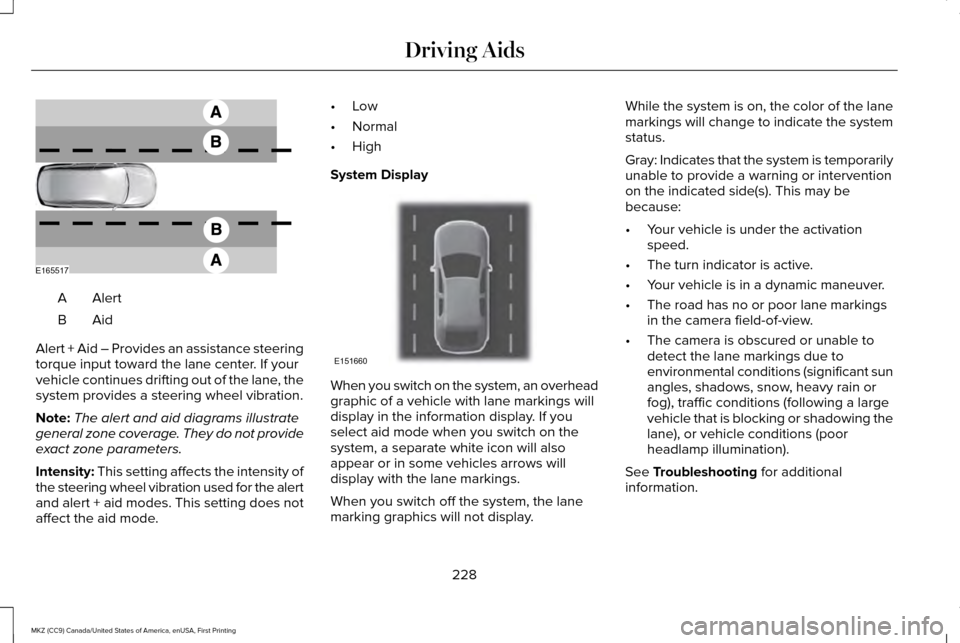
AlertA
AidB
Alert + Aid – Provides an assistance steering
torque input toward the lane center. If your
vehicle continues drifting out of the lane, the
system provides a steering wheel vibration.
Note: The alert and aid diagrams illustrate
general zone coverage. They do not provide
exact zone parameters.
Intensity: This setting affects the intensity of
the steering wheel vibration used for the alert
and alert + aid modes. This setting does not
affect the aid mode. •
Low
• Normal
• High
System Display When you switch on the system, an overhead
graphic of a vehicle with lane markings will
display in the information display. If you
select aid mode when you switch on the
system, a separate white icon will also
appear or in some vehicles arrows will
display with the lane markings.
When you switch off the system, the lane
marking graphics will not display.While the system is on, the color of the lane
markings will change to indicate the system
status.
Gray: Indicates that the system is temporarily
unable to provide a warning or intervention
on the indicated side(s). This may be
because:
•
Your vehicle is under the activation
speed.
• The turn indicator is active.
• Your vehicle is in a dynamic maneuver.
• The road has no or poor lane markings
in the camera field-of-view.
• The camera is obscured or unable to
detect the lane markings due to
environmental conditions (significant sun
angles, shadows, snow, heavy rain or
fog), traffic conditions (following a large
vehicle that is blocking or shadowing the
lane), or vehicle conditions (poor
headlamp illumination).
See Troubleshooting for additional
information.
228
MKZ (CC9) Canada/United States of America, enUSA, First Printing Driving AidsE165517 E151660
Page 233 of 564
 when I can s\
ee the lane markings on the road?
Camera blockage due to dirt, grime, fog, frost or water on the windshield
Driving too close to")
Why is the feature not available (line markings are gray) when I can s\
ee the lane markings on the road?
Camera blockage due to dirt, grime, fog, frost or water on the windshield
Driving too close to the vehicle in front of you
Transitioning between no lane markings to lane markings or vice versa
Standing water on the road
Faint lane markings (partial yellow lane markings on concrete roads)
Lane width too narrow or too wide
Camera not calibrated after a windshield replacement
Driving on tight roads or on uneven roads Why does the vehicle not come back toward the middle of the lane, as expected, in the Aid or Aid + Alert mode?
High cross winds
Large road crown
Rough roads, grooves, shoulder drop-offs
Heavy uneven loading of the vehicle or improper tire inflation pressure
If the tires have been exchanged (including snow tires), or the suspension has been modified
230
MKZ (CC9) Canada/United States of America, enUSA, First Printing Driving Aids