warning LINCOLN MKZ 2018 Owners Manual
[x] Cancel search | Manufacturer: LINCOLN, Model Year: 2018, Model line: MKZ, Model: LINCOLN MKZ 2018Pages: 595, PDF Size: 5.06 MB
Page 212 of 595
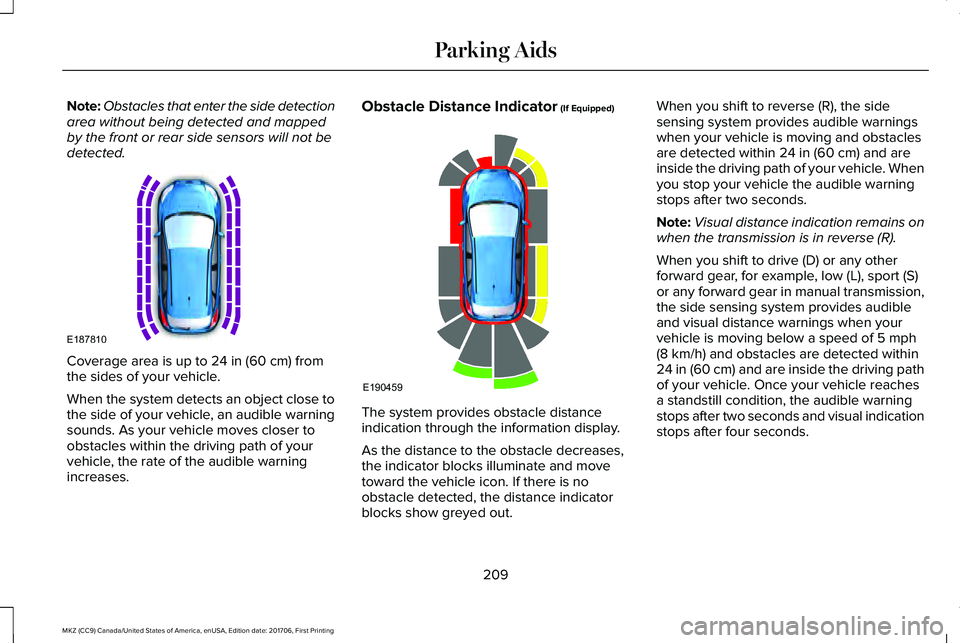
Note:Obstacles that enter the side detectionarea without being detected and mappedby the front or rear side sensors will not bedetected.
Coverage area is up to 24 in (60 cm) fromthe sides of your vehicle.
When the system detects an object close tothe side of your vehicle, an audible warningsounds. As your vehicle moves closer toobstacles within the driving path of yourvehicle, the rate of the audible warningincreases.
Obstacle Distance Indicator (If Equipped)
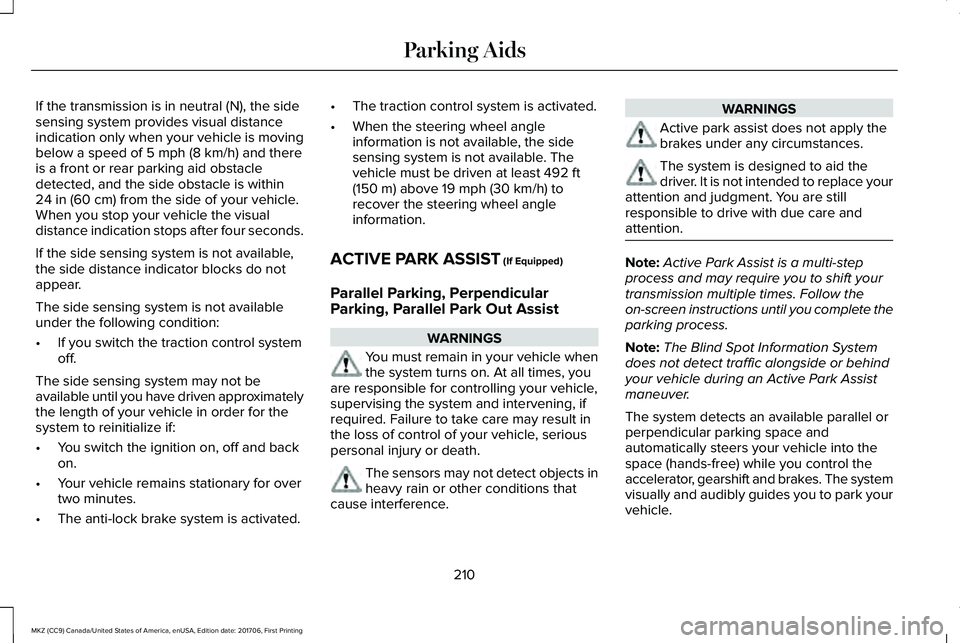
The system provides obstacle distanceindication through the information display.
As the distance to the obstacle decreases,the indicator blocks illuminate and movetoward the vehicle icon. If there is noobstacle detected, the distance indicatorblocks show greyed out.
When you shift to reverse (R), the sidesensing system provides audible warningswhen your vehicle is moving and obstaclesare detected within 24 in (60 cm) and areinside the driving path of your vehicle. Whenyou stop your vehicle the audible warningstops after two seconds.
Note:Visual distance indication remains onwhen the transmission is in reverse (R).
When you shift to drive (D) or any otherforward gear, for example, low (L), sport (S)or any forward gear in manual transmission,the side sensing system provides audibleand visual distance warnings when yourvehicle is moving below a speed of 5 mph(8 km/h) and obstacles are detected within24 in (60 cm) and are inside the driving pathof your vehicle. Once your vehicle reachesa standstill condition, the audible warningstops after two seconds and visual indicationstops after four seconds.
209
MKZ (CC9) Canada/United States of America, enUSA, Edition date: 201706, First Printing
Parking AidsE187810 E190459
Page 213 of 595
If the transmission is in neutral (N), the sidesensing system provides visual distanceindication only when your vehicle is movingbelow a speed of 5 mph (8 km/h) and thereis a front or rear parking aid obstacledetected, and the side obstacle is within24 in (60 cm) from the side of your vehicle.When you stop your vehicle the visualdistance indication stops after four seconds.
If the side sensing system is not available,the side distance indicator blocks do notappear.
The side sensing system is not availableunder the following condition:
•If you switch the traction control systemoff.
The side sensing system may not beavailable until you have driven approximatelythe length of your vehicle in order for thesystem to reinitialize if:
•You switch the ignition on, off and backon.
•Your vehicle remains stationary for overtwo minutes.
•The anti-lock brake system is activated.
•The traction control system is activated.
•When the steering wheel angleinformation is not available, the sidesensing system is not available. Thevehicle must be driven at least 492 ft(150 m) above 19 mph (30 km/h) torecover the steering wheel angleinformation.
ACTIVE PARK ASSIST (If Equipped)
Parallel Parking, PerpendicularParking, Parallel Park Out Assist
WARNINGS
You must remain in your vehicle whenthe system turns on. At all times, youare responsible for controlling your vehicle,supervising the system and intervening, ifrequired. Failure to take care may result inthe loss of control of your vehicle, seriouspersonal injury or death.
The sensors may not detect objects inheavy rain or other conditions thatcause interference.
WARNINGS
Active park assist does not apply thebrakes under any circumstances.
The system is designed to aid thedriver. It is not intended to replace yourattention and judgment. You are stillresponsible to drive with due care andattention.
Note:Active Park Assist is a multi-stepprocess and may require you to shift yourtransmission multiple times. Follow theon-screen instructions until you complete theparking process.
Note:The Blind Spot Information Systemdoes not detect traffic alongside or behindyour vehicle during an Active Park Assistmaneuver.
The system detects an available parallel orperpendicular parking space andautomatically steers your vehicle into thespace (hands-free) while you control theaccelerator, gearshift and brakes. The systemvisually and audibly guides you to park yourvehicle.
210
MKZ (CC9) Canada/United States of America, enUSA, Edition date: 201706, First Printing
Parking Aids
Page 219 of 595
The system determines the clearance to thefront and rear of your vehicle andautomatically steers your vehicle out of aparallel parking space (hands-free) while youcontrol the accelerator, gearshift and brakes.The system visually and audibly guides youto enter traffic.
After the system directs your vehicle pastthe adjacent vehicle or object, it guides youto take control of the steering to completethe exit out of the parking space.
Note:If the clearance in front of your vehicleallows easy departure, the Parallel Park OutAssist feature may not be available.
Note:You are responsible for controllingyour vehicle and making sure the path isclear prior to pulling into traffic.
Note:Do not use this system to assist inexiting perpendicular parking spaces.Damages to your vehicle may occur.
Note:If your vehicle speed exceedsapproximately 3 mph (5 km/h) or youinterrupt the maneuver, the system switchesoff and you need to take full control of yourvehicle.
Deactivating the Active Park AssistFeature
You can manually deactivate the system by:
•Pressing the Active Park Assist buttonduring an active maneuver.
•Grabbing the steering wheel during anactive maneuver.
•Driving above approximately 22 mph(35 km/h) for 30 seconds while searchingfor a parking space.
•Driving above approximately 6 mph(10 km/h) during an active maneuver.
•Switching the traction control system off.
Certain vehicle conditions may alsodeactivate the system, for example:
•The traction control system activates.
•There is an anti-lock brake systemactivation or failure.
If a problem occurs with the system, awarning message displays accompanied bya tone. Occasional system messages mayoccur in normal operation. For recurring orfrequent system faults, contact an authorizeddealer.
216
MKZ (CC9) Canada/United States of America, enUSA, Edition date: 201706, First Printing
Parking Aids
Page 222 of 595
REAR VIEW CAMERA
WARNINGS
The rear view camera system is areverse aid supplement device that stillrequires the driver to use it in conjunctionwith the interior and exterior mirrors formaximum coverage.
Objects that are close to either cornerof the bumper or under the bumper,might not be seen on the screen due to thelimited coverage of the camera system.
Back up as slow as possible sincehigher speeds might limit your reactiontime to stop your vehicle.
Use caution when using the rear videocamera and the trunk is ajar. If the trunkis ajar, the camera will be out of position andthe video image may be incorrect. Allguidelines (if enabled) have been removedwhen the trunk is ajar.
Use caution when turning camerafeatures on or off while in reverse (R).Make sure your vehicle is not moving.
The rear view camera system provides avideo image of the area behind your vehicle.The image will display in either the rear viewmirror or the display in the center of theinstrument panel.
During operation, lines will appear in thedisplay that represent your vehicle’s pathand proximity to objects behind your vehicle.
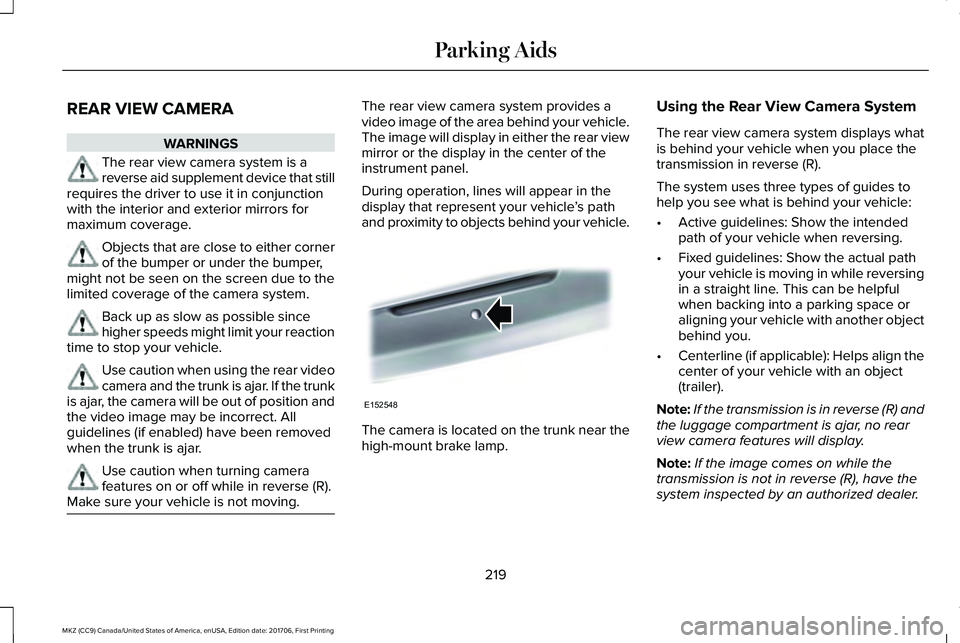
The camera is located on the trunk near thehigh-mount brake lamp.
Using the Rear View Camera System
The rear view camera system displays whatis behind your vehicle when you place thetransmission in reverse (R).
The system uses three types of guides tohelp you see what is behind your vehicle:
•Active guidelines: Show the intendedpath of your vehicle when reversing.
•Fixed guidelines: Show the actual pathyour vehicle is moving in while reversingin a straight line. This can be helpfulwhen backing into a parking space oraligning your vehicle with another objectbehind you.
•Centerline (if applicable): Helps align thecenter of your vehicle with an object(trailer).
Note:If the transmission is in reverse (R) andthe luggage compartment is ajar, no rearview camera features will display.
Note:If the image comes on while thetransmission is not in reverse (R), have thesystem inspected by an authorized dealer.
219
MKZ (CC9) Canada/United States of America, enUSA, Edition date: 201706, First Printing
Parking AidsE152548
Page 224 of 595
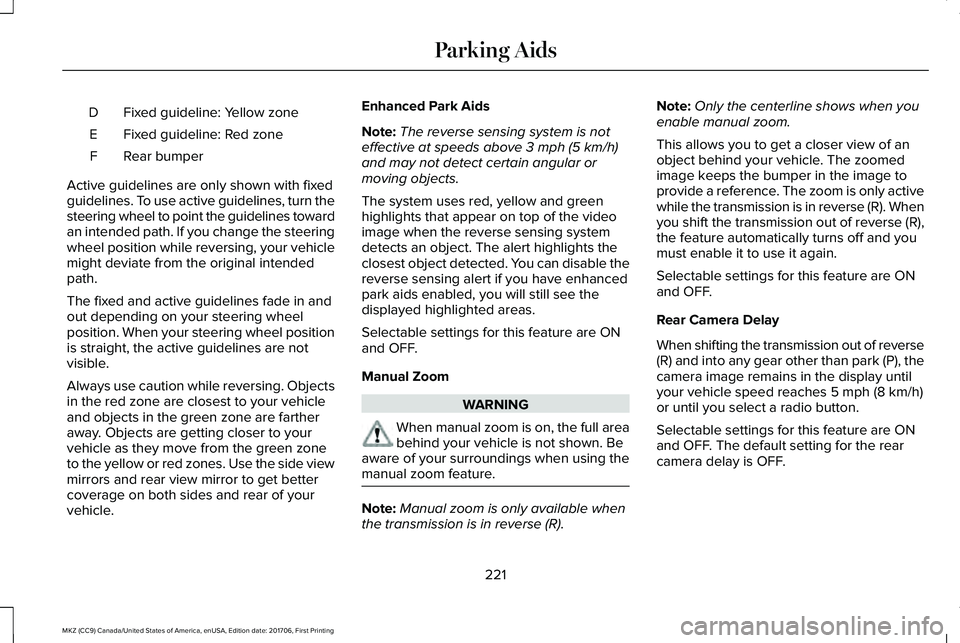
Fixed guideline: Yellow zoneD
Fixed guideline: Red zoneE
Rear bumperF
Active guidelines are only shown with fixedguidelines. To use active guidelines, turn thesteering wheel to point the guidelines towardan intended path. If you change the steeringwheel position while reversing, your vehiclemight deviate from the original intendedpath.
The fixed and active guidelines fade in andout depending on your steering wheelposition. When your steering wheel positionis straight, the active guidelines are notvisible.
Always use caution while reversing. Objectsin the red zone are closest to your vehicleand objects in the green zone are fartheraway. Objects are getting closer to yourvehicle as they move from the green zoneto the yellow or red zones. Use the side viewmirrors and rear view mirror to get bettercoverage on both sides and rear of yourvehicle.
Enhanced Park Aids
Note:The reverse sensing system is noteffective at speeds above 3 mph (5 km/h)and may not detect certain angular ormoving objects.
The system uses red, yellow and greenhighlights that appear on top of the videoimage when the reverse sensing systemdetects an object. The alert highlights theclosest object detected. You can disable thereverse sensing alert if you have enhancedpark aids enabled, you will still see thedisplayed highlighted areas.
Selectable settings for this feature are ONand OFF.
Manual Zoom
WARNING
When manual zoom is on, the full areabehind your vehicle is not shown. Beaware of your surroundings when using themanual zoom feature.
Note:Manual zoom is only available whenthe transmission is in reverse (R).
Note:Only the centerline shows when youenable manual zoom.
This allows you to get a closer view of anobject behind your vehicle. The zoomedimage keeps the bumper in the image toprovide a reference. The zoom is only activewhile the transmission is in reverse (R). Whenyou shift the transmission out of reverse (R),the feature automatically turns off and youmust enable it to use it again.
Selectable settings for this feature are ONand OFF.
Rear Camera Delay
When shifting the transmission out of reverse(R) and into any gear other than park (P), thecamera image remains in the display untilyour vehicle speed reaches 5 mph (8 km/h)or until you select a radio button.
Selectable settings for this feature are ONand OFF. The default setting for the rearcamera delay is OFF.
221
MKZ (CC9) Canada/United States of America, enUSA, Edition date: 201706, First Printing
Parking Aids
Page 225 of 595
PRINCIPLE OF OPERATION
Cruise control lets you maintain a set speedwithout keeping your foot on the acceleratorpedal. You can use cruise control when yourvehicle speed is greater than 20 mph(30 km/h).
USING CRUISE CONTROL (If Equipped)
WARNINGS
Do not use cruise control on windingroads, in heavy traffic or when the roadsurface is slippery. This could result in lossof vehicle control, serious injury or death.
When you are going downhill, yourvehicle speed could increase abovethe set speed. The system does not applythe brakes.
Note:Cruise control disengages if thevehicle speed decreases more than 10 mph(16 km/h) below the set speed when drivinguphill.
To help the system to maintain the set speedwhen going downhill, downshift to a lowergear.
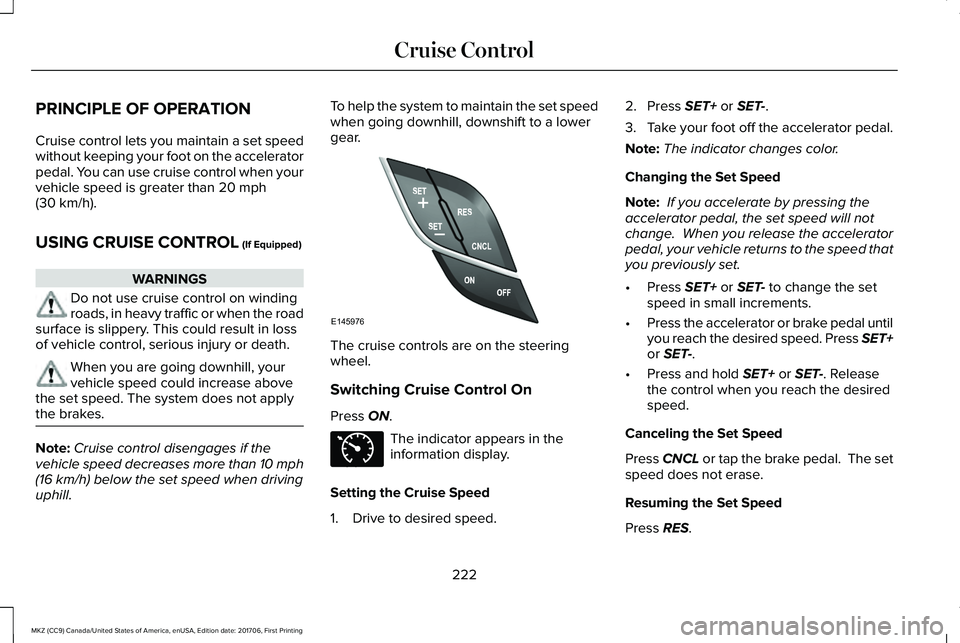
The cruise controls are on the steeringwheel.
Switching Cruise Control On
Press ON.
The indicator appears in theinformation display.
Setting the Cruise Speed
1. Drive to desired speed.
2. Press SET+ or SET-.
3.Take your foot off the accelerator pedal.
Note:The indicator changes color.
Changing the Set Speed
Note: If you accelerate by pressing theaccelerator pedal, the set speed will notchange. When you release the acceleratorpedal, your vehicle returns to the speed thatyou previously set.
•Press SET+ or SET- to change the setspeed in small increments.
•Press the accelerator or brake pedal untilyou reach the desired speed. Press SET+or SET-.
•Press and hold SET+ or SET-. Releasethe control when you reach the desiredspeed.
Canceling the Set Speed
Press CNCL or tap the brake pedal. The setspeed does not erase.
Resuming the Set Speed
Press RES.
222
MKZ (CC9) Canada/United States of America, enUSA, Edition date: 201706, First Printing
Cruise ControlE145976 E71340
Page 226 of 595
Switching Cruise Control Off
Note:You erase the set speed when youswitch the system off.
Press OFF when the system is in stand bymode, or switch the ignition off.
USING ADAPTIVE CRUISE
CONTROL (If Equipped)
WARNINGS
Always pay close attention to changingroad conditions when using adaptivecruise control. The system does not replaceattentive driving. Failing to pay attention tothe road may result in a crash, serious injuryor death.
Do not use the adaptive cruise controlwhen entering or leaving a highway,on roads with intersections or roundaboutsor non-vehicular traffic or roads that arewinding, slippery, unpaved, or steep slopes.
Do not use the system in poor visibility,for example fog, heavy rain, spray orsnow.
WARNINGS
Do not use the system when towing atrailer with aftermarket trailer brakecontrols. Aftermarket trailer brakes will notfunction properly when you switch thesystem on because the brakes areelectronically controlled. Failing to do so mayresult in loss of vehicle control, which couldresult in serious injury.
Do not use tire sizes other than thoserecommended because this can affectthe normal operation of the system. Failureto do so may result in a loss of vehiclecontrol, which could result in serious injury.
Adaptive cruise control may not detectstationary or slow moving vehiclesbelow 6 mph (10 km/h).
Adaptive cruise control does not detectpedestrians or objects in the road.
Adaptive cruise control does not detectoncoming vehicles in the same lane.
Adaptive cruise control is not a crashwarning or avoidance system.
Note:It is your responsibility to stay alert,drive safely and be in control of the vehicleat all times.
The system adjusts your vehicle speed tomaintain the set gap between you and thevehicle in front of you in the same lane. Youcan select four gap settings.
The system uses a radar sensor that projectsa beam directly in front of your vehicle.
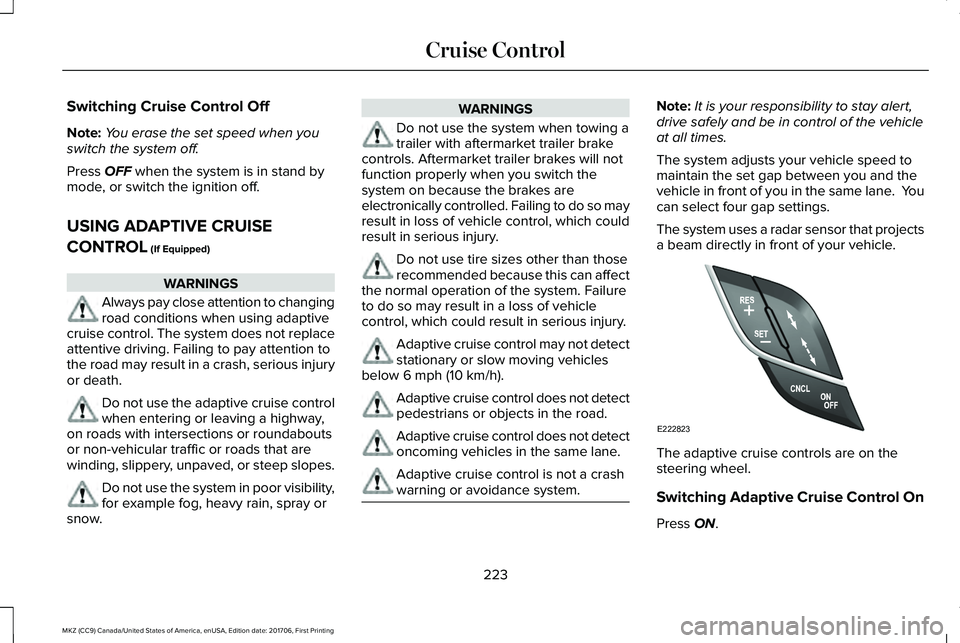
The adaptive cruise controls are on thesteering wheel.
Switching Adaptive Cruise Control On
Press ON.
223
MKZ (CC9) Canada/United States of America, enUSA, Edition date: 201706, First Printing
Cruise ControlE222823
Page 227 of 595
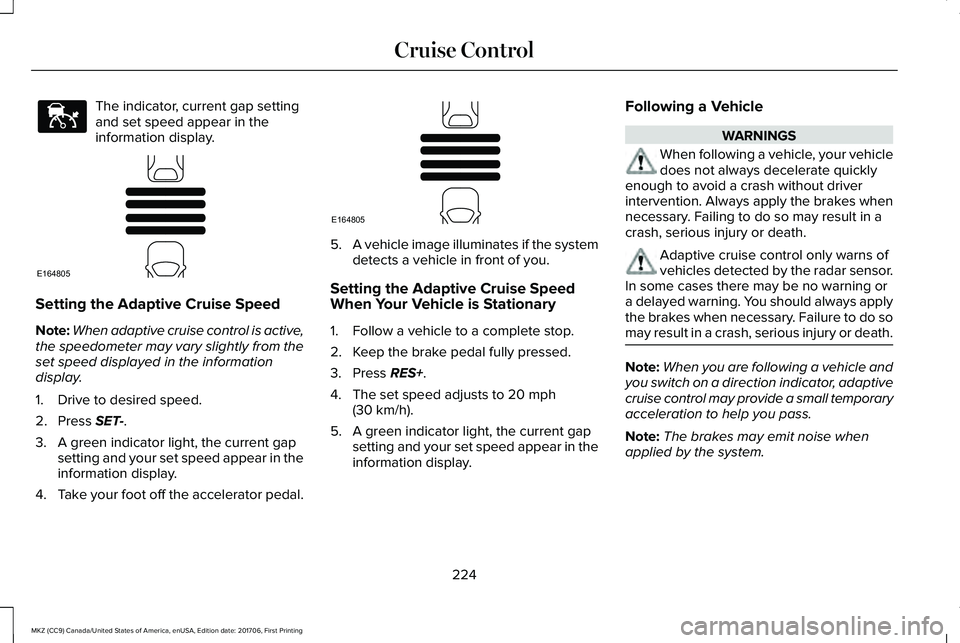
The indicator, current gap settingand set speed appear in theinformation display.
Setting the Adaptive Cruise Speed
Note:When adaptive cruise control is active,the speedometer may vary slightly from theset speed displayed in the informationdisplay.
1. Drive to desired speed.
2. Press SET-.
3. A green indicator light, the current gapsetting and your set speed appear in theinformation display.
4.Take your foot off the accelerator pedal.
5.A vehicle image illuminates if the systemdetects a vehicle in front of you.
Setting the Adaptive Cruise SpeedWhen Your Vehicle is Stationary
1. Follow a vehicle to a complete stop.
2. Keep the brake pedal fully pressed.
3. Press RES+.
4. The set speed adjusts to 20 mph(30 km/h).
5. A green indicator light, the current gapsetting and your set speed appear in theinformation display.
Following a Vehicle
WARNINGS
When following a vehicle, your vehicledoes not always decelerate quicklyenough to avoid a crash without driverintervention. Always apply the brakes whennecessary. Failing to do so may result in acrash, serious injury or death.
Adaptive cruise control only warns ofvehicles detected by the radar sensor.In some cases there may be no warning ora delayed warning. You should always applythe brakes when necessary. Failure to do somay result in a crash, serious injury or death.
Note:When you are following a vehicle andyou switch on a direction indicator, adaptivecruise control may provide a small temporaryacceleration to help you pass.
Note:The brakes may emit noise whenapplied by the system.
224
MKZ (CC9) Canada/United States of America, enUSA, Edition date: 201706, First Printing
Cruise ControlE144529 E164805 E164805
Page 228 of 595
When a vehicle ahead of you enters thesame lane or a slower vehicle is ahead in thesame lane, the vehicle speed adjusts tomaintain a preset gap distance. A vehiclegraphic illuminates in the instrument cluster.
Your vehicle maintains a consistent gap fromthe vehicle ahead until:
•The vehicle in front of you accelerates toa speed above the set speed.
•The vehicle in front of you moves out ofthe lane you are in.
•The vehicle speed falls below 12 mph(20 km/h).
•You set a new gap distance.
The system applies the brakes to slow yourvehicle to maintain a safe gap distance fromthe vehicle in front. The system only applieslimited braking. You can override the systemby applying the brakes.
If the system determines that its maximumbraking level is not sufficient, an audiblewarning sounds when the system continuesto brake. A red warning bar displays on thewindshield and you must take immediateaction.
Following a Vehicle to a Complete Stop
If your vehicle follows a vehicle to a completestop and remains stationary for less thanthree seconds, your vehicle accelerates froma stationary position to follow the vehicleahead.
If your vehicle follows a vehicle to a completestop and remains stationary for more thanthree seconds, press RES+ or the acceleratorpedal to follow the vehicle ahead.
Setting the Gap Distance
Note:The gap setting is time dependent andtherefore the distance adjusts with yourvehicle speed.
Note:It is your responsibility to select a gapappropriate to the driving conditions.
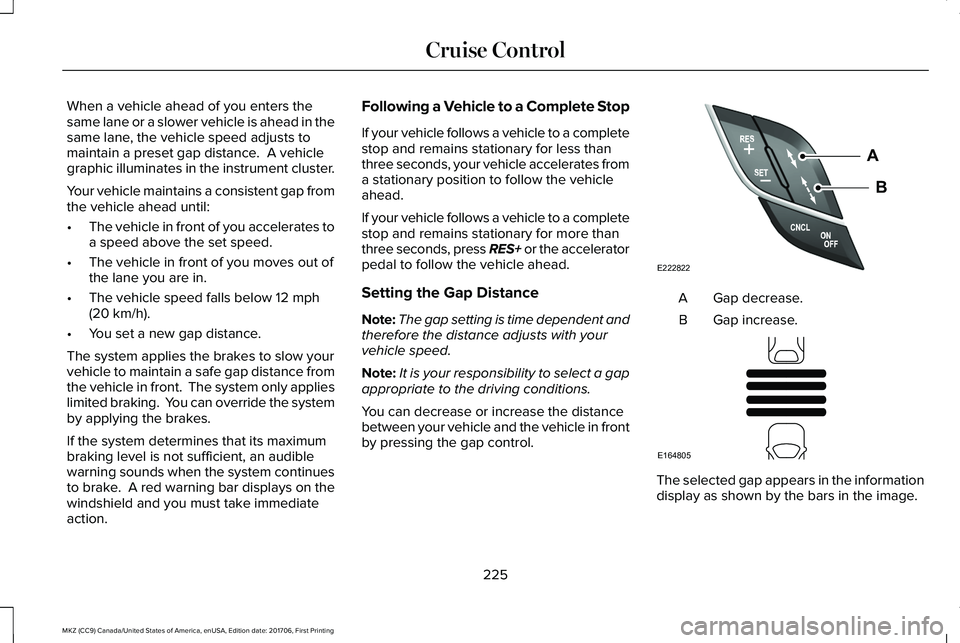
You can decrease or increase the distancebetween your vehicle and the vehicle in frontby pressing the gap control.
Gap decrease.A
Gap increase.B
The selected gap appears in the informationdisplay as shown by the bars in the image.
225
MKZ (CC9) Canada/United States of America, enUSA, Edition date: 201706, First Printing
Cruise ControlE222822
A
B E164805
Page 229 of 595
Adaptive Cruise Control Gap Settings
Dynamic behaviorGraphic display, barsindicated betweenvehicles
Sport.1
Normal.2
Normal.3
Comfort.4
Each time you switch the system on, itselects the last chosen gap setting.
Overriding the Set Speed
WARNING
If you override the system by pressingthe accelerator pedal, it does notautomatically apply the brakes to maintain agap from any vehicle ahead.
When you press the accelerator pedal, youoverride the set speed and gap distance.
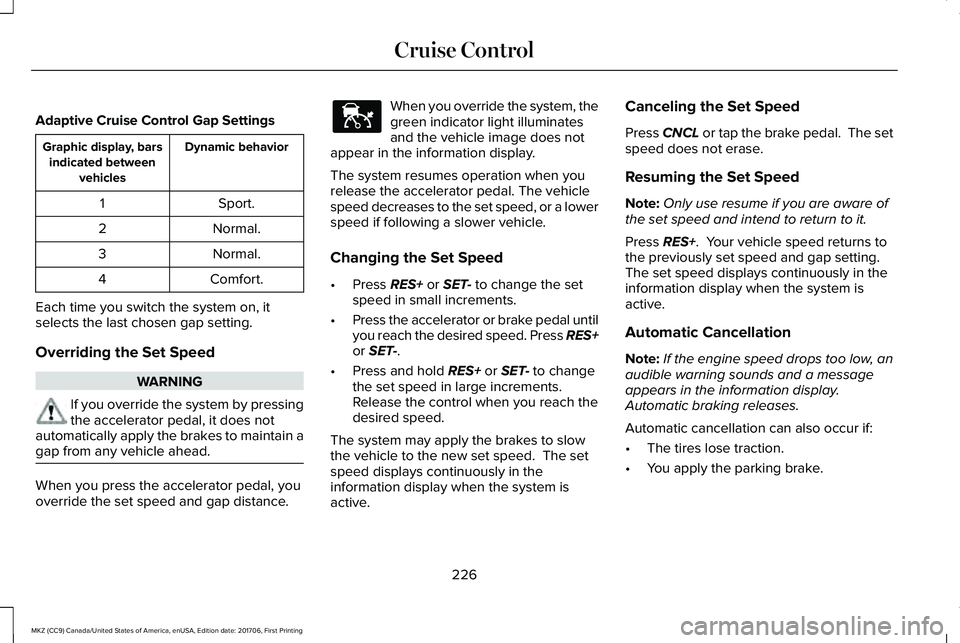
When you override the system, thegreen indicator light illuminatesand the vehicle image does notappear in the information display.
The system resumes operation when yourelease the accelerator pedal. The vehiclespeed decreases to the set speed, or a lowerspeed if following a slower vehicle.
Changing the Set Speed
•Press RES+ or SET- to change the setspeed in small increments.
•Press the accelerator or brake pedal untilyou reach the desired speed. Press RES+or SET-.
•Press and hold RES+ or SET- to changethe set speed in large increments.Release the control when you reach thedesired speed.
The system may apply the brakes to slowthe vehicle to the new set speed. The setspeed displays continuously in theinformation display when the system isactive.
Canceling the Set Speed
Press CNCL or tap the brake pedal. The setspeed does not erase.
Resuming the Set Speed
Note:Only use resume if you are aware ofthe set speed and intend to return to it.
Press RES+. Your vehicle speed returns tothe previously set speed and gap setting. The set speed displays continuously in theinformation display when the system isactive.
Automatic Cancellation
Note:If the engine speed drops too low, anaudible warning sounds and a messageappears in the information display.Automatic braking releases.
Automatic cancellation can also occur if:
•The tires lose traction.
•You apply the parking brake.
226
MKZ (CC9) Canada/United States of America, enUSA, Edition date: 201706, First Printing
Cruise ControlE144529