ignition LINCOLN MKZ 2019 Manual PDF
[x] Cancel search | Manufacturer: LINCOLN, Model Year: 2019, Model line: MKZ, Model: LINCOLN MKZ 2019Pages: 595, PDF Size: 4.95 MB
Page 399 of 595
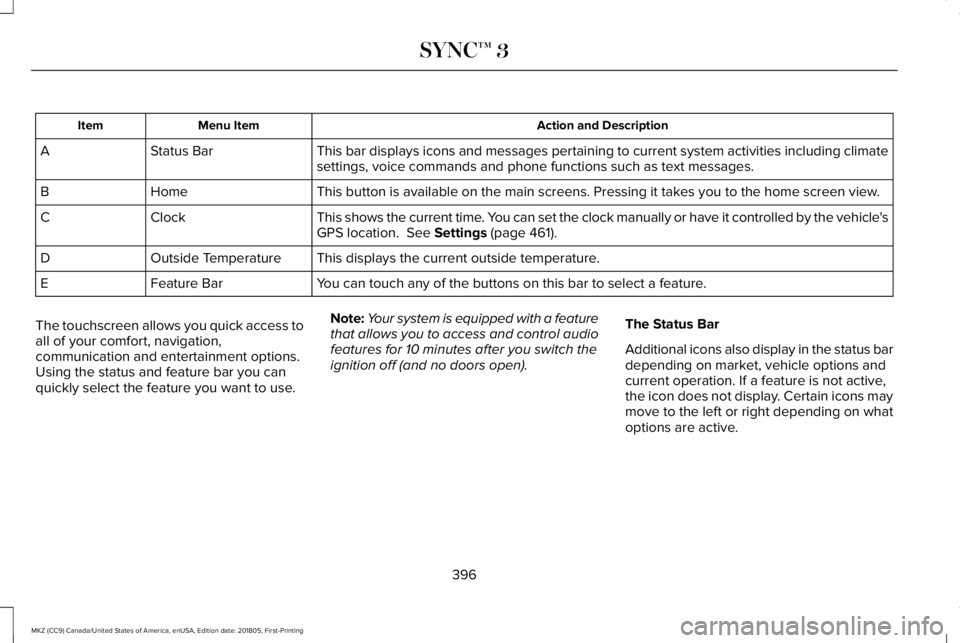
Action and DescriptionMenu ItemItem
This bar displays icons and messages pertaining to current system activities including climatesettings, voice commands and phone functions such as text messages.Status BarA
This button is available on the main screens. Pressing it takes you to the home screen view.HomeB
This shows the current time. You can set the clock manually or have it controlled by the vehicle'sGPS location. See Settings (page 461).ClockC
This displays the current outside temperature.Outside TemperatureD
You can touch any of the buttons on this bar to select a feature.Feature BarE
The touchscreen allows you quick access toall of your comfort, navigation,communication and entertainment options.Using the status and feature bar you canquickly select the feature you want to use.
Note:Your system is equipped with a featurethat allows you to access and control audiofeatures for 10 minutes after you switch theignition off (and no doors open).
The Status Bar
Additional icons also display in the status bardepending on market, vehicle options andcurrent operation. If a feature is not active,the icon does not display. Certain icons maymove to the left or right depending on whatoptions are active.
396
MKZ (CC9) Canada/United States of America, enUSA, Edition date: 201805, First-Printing
SYNC™ 3
Page 411 of 595
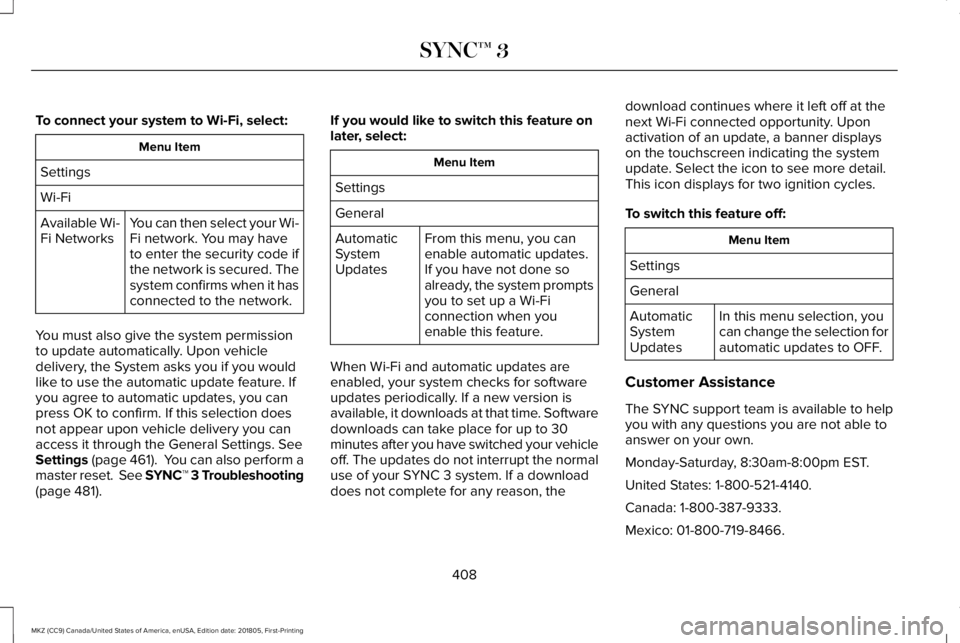
To connect your system to Wi-Fi, select:
Menu Item
Settings
Wi-Fi
You can then select your Wi-Fi network. You may haveto enter the security code ifthe network is secured. Thesystem confirms when it hasconnected to the network.
Available Wi-Fi Networks
You must also give the system permissionto update automatically. Upon vehicledelivery, the System asks you if you wouldlike to use the automatic update feature. Ifyou agree to automatic updates, you canpress OK to confirm. If this selection doesnot appear upon vehicle delivery you canaccess it through the General Settings. SeeSettings (page 461). You can also perform amaster reset. See SYNC™ 3 Troubleshooting(page 481).
If you would like to switch this feature onlater, select:
Menu Item
Settings
General
From this menu, you canenable automatic updates.If you have not done soalready, the system promptsyou to set up a Wi-Ficonnection when youenable this feature.
AutomaticSystemUpdates
When Wi-Fi and automatic updates areenabled, your system checks for softwareupdates periodically. If a new version isavailable, it downloads at that time. Softwaredownloads can take place for up to 30minutes after you have switched your vehicleoff. The updates do not interrupt the normaluse of your SYNC 3 system. If a downloaddoes not complete for any reason, the
download continues where it left off at thenext Wi-Fi connected opportunity. Uponactivation of an update, a banner displayson the touchscreen indicating the systemupdate. Select the icon to see more detail.This icon displays for two ignition cycles.
To switch this feature off:
Menu Item
Settings
General
In this menu selection, youcan change the selection forautomatic updates to OFF.
AutomaticSystemUpdates
Customer Assistance
The SYNC support team is available to helpyou with any questions you are not able toanswer on your own.
Monday-Saturday, 8:30am-8:00pm EST.
United States: 1-800-521-4140.
Canada: 1-800-387-9333.
Mexico: 01-800-719-8466.
408
MKZ (CC9) Canada/United States of America, enUSA, Edition date: 201805, First-Printing
SYNC™ 3
Page 430 of 595
SiriusXM Satellite Radio Reception Factors and Troubleshooting
Potential reception issues
For optimal reception performance, keep the antenna clear of snow and ice build-up and keepluggage and other materials as far away from the antenna as possible.Antenna obstructions
Hills, mountains, tall buildings, bridges, tunnels, freeway overpasses, parking garages, dense treefoliage and thunderstorms can interfere with your reception.Terrain
When you pass a ground-based broadcast-repeating tower, a stronger signal may overtake aweaker one and the audio system may mute.Station overload
Your display may show ACQUIRING... to indicate the interference and the audio system may mute.Satellite radio signal interference
Troubleshooting tips
ActionCauseMessage
No action required. This message should disap-pear shortly.Radio requires more than two seconds to produceaudio for the selected channel.Acquiring Signal
If this message does not clear shortly, or with anignition key cycle, your receiver may have a fault.See an authorized dealer for service.
There is an internal module or system failurepresent.Satellite antenna fault
SIRIUS system failure
Tune to another channel or choose another preset.The channel is no longer available.Invalid Channel
427
MKZ (CC9) Canada/United States of America, enUSA, Edition date: 201805, First-Printing
SYNC™ 3
Page 459 of 595
Menu Item
The waypoint list then appears and you are able to re-order all of yourwaypoints by selecting the menu icon on the right hand side of thelocation. You can select up to five waypoints.
Add Waypoint
Optimize OrderYou can also have the system set the order for you by pressing:
GoTo return to your route, press:
SYNC AppLink
The AppLink app allows you to use someSYNC 3 navigation features on your phone.
First Mile Navigation
When you switch your ignition off, thelocation of your vehicle is recorded and sentto your SYNC AppLink app. The location ofyour vehicle can be viewed within the app.You can also view walking directions to yourvehicle.
Last Mile Navigation
When you park near your destination, thesystem provides walking directions to yourdestination.
POI Search
Your paired phone can be used to accessadditional points of interest (POI). Thesepoints of interest can only be access whenyour phone is paired.
Send To Car
You can send destinations to your navigationsystem using a computer or phone usingAppLink.
cityseeker (If Equipped)
Note:cityseeker point of interest (POI)information is limited to approximately 1,110cities (1,049 in the United States, 36 inCanada and 15 in Mexico).
456
MKZ (CC9) Canada/United States of America, enUSA, Edition date: 201805, First-Printing
SYNC™ 3E225487
Page 481 of 595
Note:The Vehicle Wi-Fi Hotspot (VehicleHotspot) may be operational while ignitionis On and may remain operational while theignition is Off.
Note:Vehicle Hotspot services are providedby the vehicle network carrier, subject toyour vehicle network carrier agreement,coverage and availability.
Note:It is the account owner’s responsibilityto remove the vehicle from the vehiclenetwork carrier account when ownership ofthe vehicle is transferred. If the owner wouldlike to remove the vehicle from the accountfor any reason, please contact your vehiclenetwork carrier for more information.
Note:Data, such as the Vehicle IdentificationNumber (VIN), SIM Card ID, and data planusage, is shared between us and the vehiclenetwork carrier to provide the VehicleHotspot service in accordance with yourvehicle network carrier agreement, coverageand availability, and may be used to enablea seamless transition from an old to newembedded modem and to confirm anyupdates are successfully delivered.
Note:For your convenience data usage maybe available for monitoring under Settingsbut may not reflect actual or current usage.The vehicle network carrier is responsiblefor providing information about your account.Please contact the vehicle network carrierfor more information.
Note:We may need to update operatingsystem software on your vehicle, includingsecurity updates and bug fixes, to keepconnected services current, like VehicleHotspot, without prior notice to you.
Ambient Lighting (If Equipped)
Tap a color once to active ambient lighting.This sets the color to the highest intensity.
You can drag the colors up and down toincrease or decrease the intensity.
To switch ambient lighting off, press theactive color once or drag the active color allthe way down to zero intensity.
Vehicle
Note:Your vehicle may not have all of thesefeatures.
You can select the following features toupdate their settings.
Door Keypad Code
Select this button to add or erase a personaldoor keypad code. To add or erase apersonal code, you first need to enter thefive-digit factory set code. You can find thiscode on the owner's wallet card in the glovebox or from your authorized dealer.
478
MKZ (CC9) Canada/United States of America, enUSA, Edition date: 201805, First-Printing
SYNC™ 3
Page 493 of 595
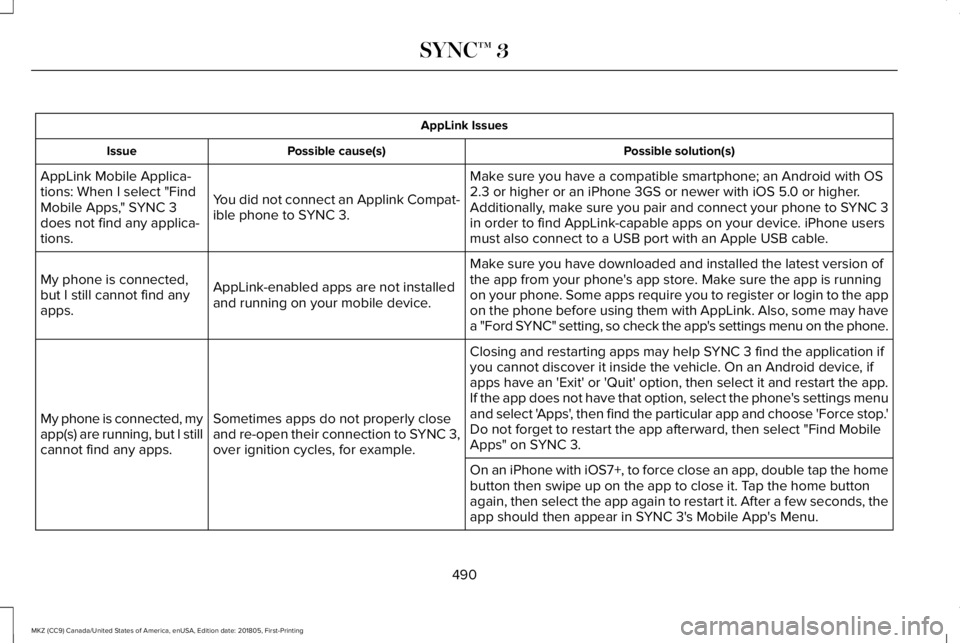
AppLink Issues
Possible solution(s)Possible cause(s)Issue
Make sure you have a compatible smartphone; an Android with OS2.3 or higher or an iPhone 3GS or newer with iOS 5.0 or higher.Additionally, make sure you pair and connect your phone to SYNC 3in order to find AppLink-capable apps on your device. iPhone usersmust also connect to a USB port with an Apple USB cable.
You did not connect an Applink Compat-ible phone to SYNC 3.
AppLink Mobile Applica-tions: When I select "FindMobile Apps," SYNC 3does not find any applica-tions.
Make sure you have downloaded and installed the latest version ofthe app from your phone's app store. Make sure the app is runningon your phone. Some apps require you to register or login to the appon the phone before using them with AppLink. Also, some may havea "Ford SYNC" setting, so check the app's settings menu on the phone.
AppLink-enabled apps are not installedand running on your mobile device.
My phone is connected,but I still cannot find anyapps.
Closing and restarting apps may help SYNC 3 find the application ifyou cannot discover it inside the vehicle. On an Android device, ifapps have an 'Exit' or 'Quit' option, then select it and restart the app.If the app does not have that option, select the phone's settings menuand select 'Apps', then find the particular app and choose 'Force stop.'Do not forget to restart the app afterward, then select "Find MobileApps" on SYNC 3.
Sometimes apps do not properly closeand re-open their connection to SYNC 3,over ignition cycles, for example.
My phone is connected, myapp(s) are running, but I stillcannot find any apps.
On an iPhone with iOS7+, to force close an app, double tap the homebutton then swipe up on the app to close it. Tap the home buttonagain, then select the app again to restart it. After a few seconds, theapp should then appear in SYNC 3's Mobile App's Menu.
490
MKZ (CC9) Canada/United States of America, enUSA, Edition date: 201805, First-Printing
SYNC™ 3
Page 498 of 595
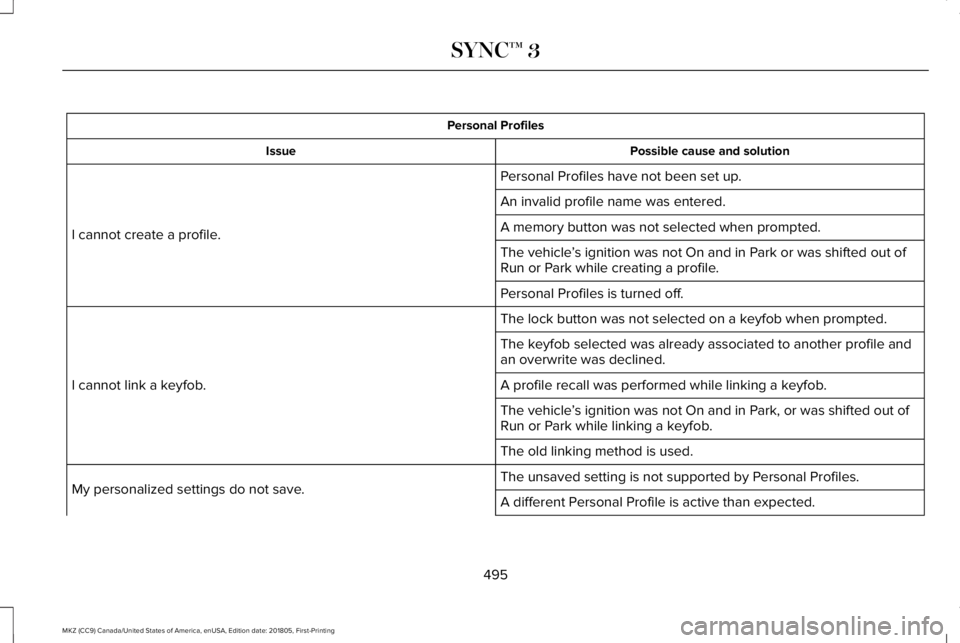
Personal Profiles
Possible cause and solutionIssue
Personal Profiles have not been set up.
I cannot create a profile.
An invalid profile name was entered.
A memory button was not selected when prompted.
The vehicle’s ignition was not On and in Park or was shifted out ofRun or Park while creating a profile.
Personal Profiles is turned off.
The lock button was not selected on a keyfob when prompted.
I cannot link a keyfob.
The keyfob selected was already associated to another profile andan overwrite was declined.
A profile recall was performed while linking a keyfob.
The vehicle’s ignition was not On and in Park, or was shifted out ofRun or Park while linking a keyfob.
The old linking method is used.
The unsaved setting is not supported by Personal Profiles.My personalized settings do not save.A different Personal Profile is active than expected.
495
MKZ (CC9) Canada/United States of America, enUSA, Edition date: 201805, First-Printing
SYNC™ 3
Page 543 of 595
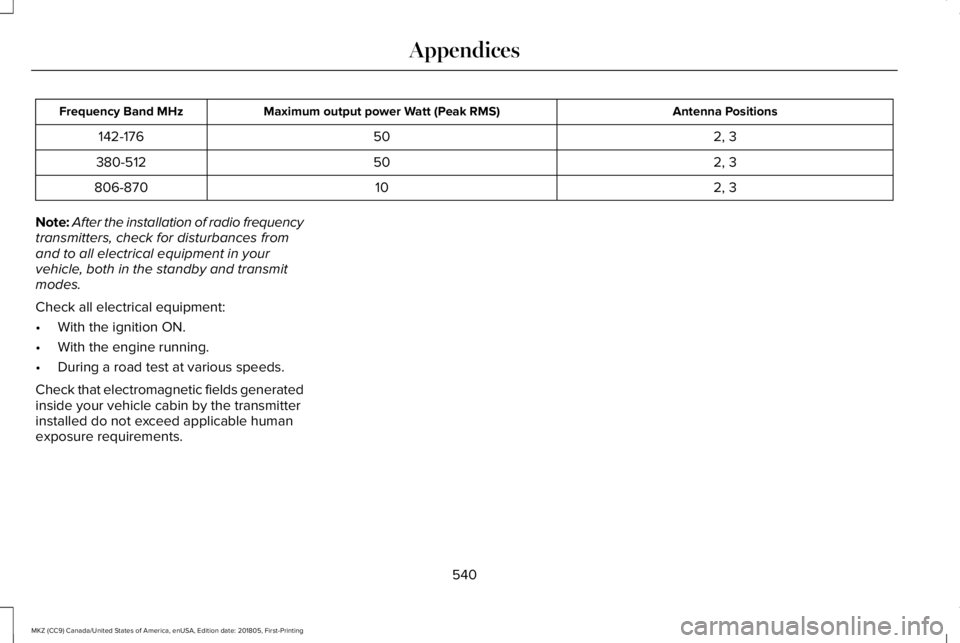
Antenna PositionsMaximum output power Watt (Peak RMS)Frequency Band MHz
2, 350142-176
2, 350380-512
2, 310806-870
Note:After the installation of radio frequencytransmitters, check for disturbances fromand to all electrical equipment in yourvehicle, both in the standby and transmitmodes.
Check all electrical equipment:
•With the ignition ON.
•With the engine running.
•During a road test at various speeds.
Check that electromagnetic fields generatedinside your vehicle cabin by the transmitterinstalled do not exceed applicable humanexposure requirements.
540
MKZ (CC9) Canada/United States of America, enUSA, Edition date: 201805, First-Printing
Appendices
Page 590 of 595
J
Jump Starting the Vehicle..........................264Connecting the Jumper Cables.....................264Jump Starting......................................................265Preparing Your Vehicle.....................................264Removing the Jumper Cables........................266
K
Keyless Entry....................................................73SECURICODE™ KEYLESS ENTRYKEYPAD...............................................................73
Keyless Starting..............................................161Ignition Modes......................................................161
Keys and Remote Controls...........................57
L
Lane Keeping System.................................229Switching the System On and Off..................230
Lighting Control...............................................87Flashing the Headlamp High Beam.................88Headlamp High Beam.........................................88
Lighting..............................................................87General Information..............................................87
Lincoln Automotive Financial Services......12
Lincoln Protect...............................................501Lincoln Protect (CANADA ONLY)...................502Lincoln Protect Extended Service Plans (U.S.Only)...................................................................501
Load Carrying................................................248Load Limit.......................................................248Special Loading Instructions for Owners ofPick-up Trucks and Utility-typeVehicles............................................................252Vehicle Loading - with and without aTrailer................................................................248
Locking and Unlocking..................................67Activating Intelligent Access.............................68Autolock..................................................................70Battery Saver...........................................................71Illuminated Entry...................................................70Illuminated Exit......................................................70Locking and Unlocking the Doors with theKey Blade...........................................................69Luggage Compartment........................................71Power Door Locks................................................67Remote Control.....................................................67Smart Unlocks for Intelligent AccessKeys.....................................................................69
Lug NutsSee: Changing a Road Wheel.........................356
M
Maintenance..................................................297General Information...........................................297
Media Hub......................................................392Memory Function...........................................147Easy Entry and Exit Feature..............................148Linking a PreSet Position to your RemoteControl or Intelligent Access Key Fob.......148Saving a PreSet Position....................................147
Message CenterSee: Information Displays..................................110
MirrorsSee: Windows and Mirrors.................................95
Mobile Communications Equipment...........14Moonroof.........................................................100Opening and Closing.........................................102Type 1.......................................................................101Type 2.....................................................................101
Motorcraft Parts - 2.0L................................368Motorcraft Parts - 3.0L.................................370MyKey Troubleshooting................................65MyKey™..............................................................62Principle of Operation.........................................62
587
MKZ (CC9) Canada/United States of America, enUSA, Edition date: 201805, First-Printing
Index