light LINCOLN MKZ HYBRID 2014 Owners Manual
[x] Cancel search | Manufacturer: LINCOLN, Model Year: 2014, Model line: MKZ HYBRID, Model: LINCOLN MKZ HYBRID 2014Pages: 445, PDF Size: 3.8 MB
Page 326 of 445
From this screen, you can also make other
adjustments such as 12-hour or 24-hour
mode, activate GPS time synchronization
and have the system automatically update
new time zones.
You can also turn the outside air
temperature display off and on. It appears
at the top center of the touchscreen, next
to the time and date.
The system automatically saves any
updates you make to the settings.
Display
You can adjust the touchscreen display
through the touchscreen or by pressing
the voice button on your steering wheel
controls and when prompted, say, "Display
settings".
Press the Settings icon >
Display, to access and make
adjustments using the
touchscreen.
• Brightness
allows you to make the
screen display brighter or dimmer.
• Auto DIM
, when set to On, lets you
use the Auto Dim Manual Offset
feature. When set to
Off, screen
brightness does not change.
• Mode
allows you to set the screen to
a certain brightness or have the system
automatically change based on the
outside light level, or turn the display
off.
• If you select
AUTO or NIGHT, you
have the options of turning the
display's Auto Dim feature on or off
and changing the Auto Dim Manual
Offset feature. •
Auto Dim Manual Offset
allows you
to adjust screen dimming as the
outside lighting conditions change
from day to night. This feature also
allows you to adjust screen brightness
using the instrument panel dimming
control.
• Edit Wallpaper
•You can have your touchscreen
display the default photo or upload
your own.
Uploading Photos for Your Home Screen
Wallpaper
Note: You cannot load photos directly
from your camera. You must access the
photos either from your USB mass storage
device or from an SD card.
Note: Photographs with extremely large
dimensions (such as 2048 x 1536) may not
be compatible and appear as a blank
(black) image on the display.
Your system allows you to upload and
view up to 32 photos. To access, press the Settings
icon > Display > Edit Wallpaper,
and then follow the system
prompts to upload your photographs.
Only the photograph(s), which meets the
following conditions, display:
• Compatible file formats are as follows:
.jpg, .gif, .png, .bmp
• Each file must be 1.5 MB or less.
• Recommended dimensions: 800 x 384
324
MKZ (CC9) MyLincoln Touch™E142607 E142607
Page 327 of 445
Sound
Press the Settings icon > Sound,
then select from the following: Sound
Bass
Midrange Treble
Set Balance and Fade
DSP*
THX Deep Note Demo *
Occupancy Mode *
Speed Compensated Volume
* Your vehicle may not have these sound
settings.
Vehicle Press the Settings icon >
Vehicle
, then select from the
following:
• Ambient Lighting
• Vehicle Health Report
• Rear View Camera
• Enable Valet Mode.
Ambient Lighting (If Equipped)
When you turn this feature on, ambient
lighting illuminates footwells and
cupholders with a choice of colors. To
access and make adjustments: 1. Press the Settings icon >
Vehicle >
Ambient Lighting.
2. Touch the desired color.
3. Use the scroll bar to increase or decrease the intensity.
To turn the feature on or off, press the
power button.
Vehicle Health Report
Turn Automatic Reminders on and off and
set the mileage interval at which you
would like to receive the reports. Press
?
for more information on these selections.
When done making your selections, press
Run Vehicle Health Report Now
if you
want your report.
You can find more information on Vehicle
Health Report in this chapter.
See
Information (page 365).
Rear View Camera
This menu allows you to access settings
for your rear view camera. Press the Settings icon > Vehicle
>
Rear View Camera, then
select from the following
settings:
• Rear Camera Delay
• Visual Park Aid Alert
• Guidelines.
You can find more information on the rear
view camera in another chapter. See
Rear
View Camera (page 188).
325
MKZ (CC9) MyLincoln Touch™E142607 E142607 E142607 E142607
Page 338 of 445
![LINCOLN MKZ HYBRID 2014 Owners Manual Sample commands
"Play [album] <name>" **
"Play [artist] <name>" **
"Play [genre] <name>" **
"Play [playlist] <name>" **
"Play [song] <name>" **
"Play <name>"
"Play <name (song or album)> by <artist na](/img/15/6992/w960_6992-337.png "LINCOLN MKZ HYBRID 2014 Owners Manual Sample commands
\"Play [album] <name>\" **
\"Play [artist] <name>\" **
\"Play [genre] <name>\" **
\"Play [playlist] <name>\" **
\"Play [song] <name>\" **
\"Play <name>\"
\"Play <name (song or album)> by <artist na")
Sample commands
"Play [album]
"Play [artist]
"Play [genre]
"Play [playlist]
"Play [song]
"Play
"Play
"Sirius <0-223>" *
"Sports games" *
* This command is only usable if you have
an active subscription to Sirius satellite
radio.
** The commands that have [ ] around the
word means that the word is optional. For
example, if you say, "Play Metallica", this
is the same as the voice command, "Play
[artist]
AM/FM Radio Touch the AM or FM tab to listen
to the radio.
To change between AM and FM presets,
just touch the AM or FM tab. Memory Presets
Save a station by pressing and holding
one of the memory preset areas. There is
a brief mute while the radio saves the
station. Sound returns when finished.
HD Radio
Touch this button to turn HD Radio on. The
light on the button illuminates when the
feature is on. HD Radio allows you to
receive radio broadcasts digitally, where
available, providing free, crystal-clear
sound. See HD Radio information later in
this chapter.
Scan
Touch this button to go to the next strong
AM or FM radio station. The light on the
button illuminates when the feature is on.
Options
Sound Settings
Touch this button to adjust settings for:
•
Bass
• Midrange
• Treble
• Balance and Fade
• THX Deep Note Demo
• DSP (Digital Signal processing)
• Occupancy Mode
• Speed Compensated Volume.
Note: Your vehicle may not have all these
sound settings.
336
MKZ (CC9) MyLincoln Touch™E142611
Page 339 of 445
Set PTY for Seek/Scan
This allows you to select a category of
music you would like to search for. You
can then choose to either seek or scan for
the stations playing that category.
RDS Text Display
This allows you to view the information
broadcast by FM stations.
AST
AST (Autostore) allows you to have the
system automatically store the six
strongest stations in your current location.
TAG Button
This feature is available when HD Radio
is on, and allows you to tag a song to
download later. When you select On, TAG
appears on-screen when HD Radio is
active. You can touch TAG to save the
information of the song that is playing.
When you plug in your portable music
player, the information transfers, if
supported by your device. When you are
connected to iTunes®, the tags appear to
remind you of the songs you would like to
download. See HD Radio information later
in this chapter.
Direct Tune
Touch this button to enter the desired
station number manually. Touch
Enter
when you are done.
HD Radio ™ Information (If Available)
Note: HD Radio broadcasts are not
available in all markets. HD Radio technology is the digital
evolution of analog AM/FM radio. Your
system has a special receiver that allows
it to receive digital broadcasts (where
available) in addition to the analog
broadcasts, it already receives. Digital
broadcasts provide a better sound quality
than analog broadcasts with free,
crystal-clear audio and no static or
distortion. For more information, and a
guide to available stations and
programming, please visit
www.hdradio.com.
When HD Radio is on and you tune to a
station broadcasting HD Radio technology,
you may notice the following indicators on
your screen:
The HD Radio logo blinks when acquiring
a digital station and stays solid when
digital audio is playing. When this logo is
available, you may also see Title and Artist
fields on-screen.
The multicast indicator appears in FM
mode (only) if the current station is
broadcasting multiple digital broadcasts.
The highlighted numbers signify available
digital channels where new or different
content is available. HD1 signifies the main
programming status and is available in
analog and digital broadcasts. Other
multicast stations (HD2 through HD7) are
only available digitally.
337
MKZ (CC9) MyLincoln Touch™E142616
Page 341 of 445
HD Radio Reception and Station Troubleshooting
Potential reception issues
If you are listening to a multicast station and you are on
the fringe of the reception area, the station may mute due
to weak signal strength.
Reception area
If you are listening to HD1, the system switches back to
the analog broadcast until the digital broadcast is available
again. However, if you are listening to any of the possible
HD2-HD7 multicast channels, the station mutes and stays
muted unless it is able to connect to the digital signal
again.
When the system first receives a station (aside from HD2-
HD7 multicast stations), it first plays the station in the
analog version. Once the receiver verifies the station is
an HD Radio station, it shifts to the digital version.
Depending on the station quality, you may hear a slight
sound change when the station changes from analog to
digital. Blending is the shift from analog to digital sound
or digital back to analog sound.
Station blending
In order to provide the best possible
experience, use the contact form to report
any station issues found while listening to
a station broadcasting with HD Radio
technology. Independent entities own and
operate each station. These stations are
responsible for ensuring all audio streams
and data fields are accurate.
339
MKZ (CC9) MyLincoln Touch™
Page 364 of 445
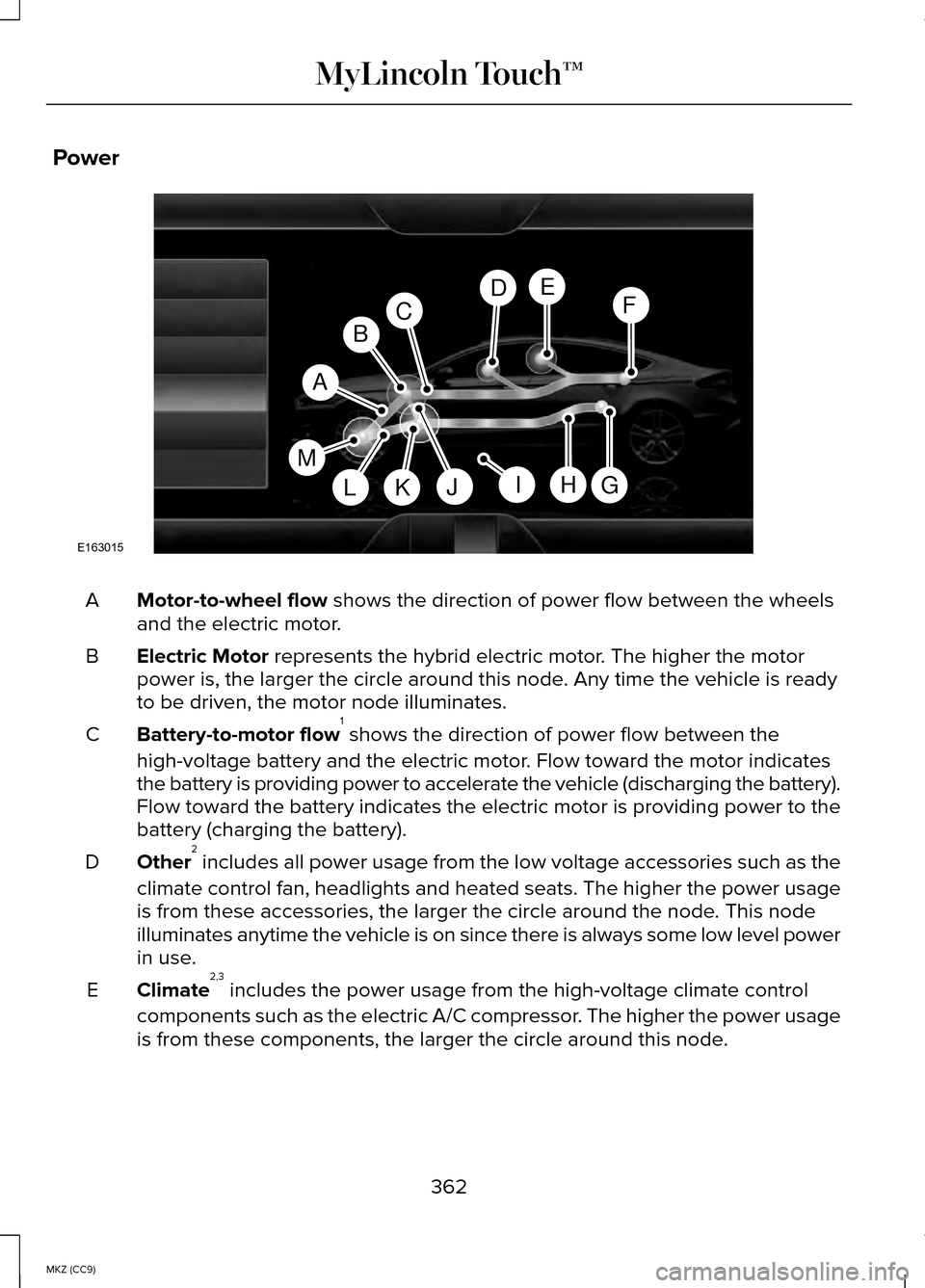
Power
Motor-to-wheel flow shows the direction of power flow between the wheels
and the electric motor.
A
Electric Motor
represents the hybrid electric motor. The higher the motor
power is, the larger the circle around this node. Any time the vehicle is ready
to be driven, the motor node illuminates.
B
Battery-to-motor flow 1
shows the direction of power flow between the
high-voltage battery and the electric motor. Flow toward the motor indicates
the battery is providing power to accelerate the vehicle (discharging t\
he battery).
Flow toward the battery indicates the electric motor is providing power \
to the
battery (charging the battery).
C
Other 2
includes all power usage from the low voltage accessories such as the
climate control fan, headlights and heated seats. The higher the power u\
sage
is from these accessories, the larger the circle around the node. This node
illuminates anytime the vehicle is on since there is always some low lev\
el power
in use.
D
Climate 2,3
includes the power usage from the high-voltage climate control
components such as the electric A/C compressor. The higher the power usage
is from these components, the larger the circle around this node.
E
362
MKZ (CC9) MyLincoln Touch™A
G
FDE
BC
HJLKI
E163015
M
Page 365 of 445

High voltage battery power represents your high-voltage battery. A circle
illuminates around the node when the high-voltage battery is receiving p\
ower
from regenerative braking or engine charging. The higher the power going\
into the high-voltage battery, the larger the circle around this node.
F
Fuel
represents the fuel tank in the vehicle.
G
Fuel-to-engine flow
shows flow from the fuel tank to the engine when the
engine is on and using fuel (there are some cases where the engine is o\
n, but
not using any fuel). When the engine is on, but not using fuel, the eng\
ine node
is active, but the fuel flow path is off. An example of this is when your foot is
off the accelerator pedal and the vehicle is traveling at a high speed.
H
Engine On due to
provides you with the reason(s) the gasoline engine is on.
When the gasoline engine is off, this display does not appear. Engine On due
to
reasons displayed by the system are in a chart following this list.
I
Motor-to-engine flow
shows the direction of power flow between the engine
and the electric motor. The direction indicates if the engine is providing power
to the high-voltage electrical system, or if the high-voltage electrical\
system is
providing power to control or start the engine.
J
Engine power
represents the gasoline engine. It illuminates only when the
gasoline engine is on. The higher the engine power is, the larger the ci\
rcle
around this node.
K
Engine-to-wheels flow
shows the direction of the power flow between the
engine and the wheels.
L
Drive power
represents the power going to the wheels. The higher the wheel
power is, the larger the circle around this node. When the engine is off, drive
power is shown in blue. When the engine is on, drive power is shown in grey.
M
1 The battery-to-motor flow includes battery
power the vehicle is using for acceleration.
It does not include energy the vehicle is
using for accessories (such as air
conditioning, headlights and radio). This
screen displays accessories and climate
usage separately. 2
Accessories
indicates electrical power
demands from your vehicle ’s accessory
systems. Accessories use power but do
not contribute to making the vehicle move.
The power flow displays power usage from
the climate control system and other
accessories separately.
3 The climate control system may determine
A/C is necessary even when you turn it off.
In this case, you may see some climate
power when the A/C is off.
363
MKZ (CC9) MyLincoln Touch™
Page 379 of 445
Power: Touch to switch the system off and on. Outside air cannot enter your
vehicle when you switch off the system.
A
Passenger settings:
Touch DUAL to switch on the passenger temperature
control. Touch the + and - to adjust the temperature. Touch the heated seat
icon to control the heated seat (if equipped). Touch the cooled seat icon to
control the cooled seat (if equipped).
See Seats (page 129).
B
Fan speed:
Touch + or - to increase or decrease the volume of air circulated
in your vehicle.
C
Recirculated air:
Touch the button to switch between outside air and
recirculated air. When you select recirculated air, the button illuminates and
the air currently in the passenger compartment recirculates. This may re\
duce
the time needed to cool the interior (when used with A/C) and may redu\
ce
unwanted odors from entering your vehicle. Recirculated air may turn off
automatically in all airflow modes except MAX A/C to reduce the possibility of
fogging.
D
MAX A/C:
Touch to switch on. The system distributes recirculated air through
the instrument panel air vents, air conditioning automatically turns on \
and fan
speed adjusts to the highest speed. This re-cooling of the interior is m\
ore
economical and efficient than normal A/C.
E
A/C:
Touch to turn air conditioning on or off. To improve air conditioning when
starting your vehicle, drive with the windows slightly open for two to three
minutes. Use A/C with recirculated air to improve cooling performance an\
d
efficiency.
F
AUTO:
Touch to turn on fully automatic operation. Select the desired
temperature using the temperature control. The system automatically adju\
sts
fan speed, air distribution, A/C operation, and outside or recirculated \
air, to
heat or cool the vehicle to maintain the selected temperature.
G
Rear defroster:
Touch to turn the rear window defroster and heated mirrors
(if equipped).
H
377
MKZ (CC9) MyLincoln Touch™
Page 382 of 445
To view the navigation map and your
vehicle's current location, touch the green
bar in the upper right hand corner of the
touchscreen, or, press Dest, then Map.
See Map mode later in this chapter.
Setting a Destination
Press the green corner of your
touchscreen, then the
Dest button when
it appears. Choose any of the following: Destination
My HomeFavorites
Previous Destinations Point of InterestEmergency
Street Address IntersectionCity Center Map
Edit Route Cancel Route
1. Enter the necessary information into the highlighted text fields (in any
order). For address destination entry,
the Go! button appears once you enter
all the necessary information. Pressing
the
Go! button makes the address
location appear on the map. If you
choose
Previous Destination, the last
20 destinations you have selected
appear. 2. Select
Set as Dest to make this your
destination. You can also choose to
set this as a waypoint (have the system
route to this point on the way to your
current destination) or save it as a
favorite. The system considers any
Avoid Areas
selections in its route
calculation.
3. Choose from up to three different types of routes, and then select
Start
Route.
• Fastest: Uses the fastest moving roads
possible.
• Shortest: Uses the shortest distance
possible.
• Eco Route: Uses the most fuel-efficient
route.
You can cancel the route or have the
system demo the route for you. Select
Route Prefs
to set route preferences like
avoiding freeways, tollroads, ferries and
car trains as well as to use or not use
high-occupancy vehicle lanes.
(High-occupancy vehicle lanes are also
known as carpool or diamond lanes.
People who ride in buses, vanpools or
carpools use these lanes.)
Note: If your vehicle is on a recognized
road and you do not press the Start Route
button, the system defaults to the Fastest
Route option and begins guidance.
During route guidance, you can press the
talking bubble icon that appears in the
upper right navigation corner (green bar)
if you want the system to repeat route
guidance information. When the system
repeats the last guidance instruction, it
updates the distance to the next guidance
instruction, since it detects when the
vehicle is moving.
380
MKZ (CC9) MyLincoln Touch™
Page 416 of 445
Oils, Fluids and Flushing
In many cases, fluid discoloration is a
normal operating characteristic and, by
itself, does not necessarily indicate a
concern or that the fluid needs to be
changed. However, a qualified expert,
such as the factory-trained technicians at
your dealership, should inspect discolored
fluids that also show signs of overheating
or foreign material contamination
immediately.
Make sure to change your vehicle
’s oils
and fluids at the specified intervals or in
conjunction with a repair. Flushing is a
viable way to change fluid for many vehicle
sub-systems during scheduled
maintenance. It is critical that systems are
flushed only with new fluid that is the same
as that required to fill and operate the
system or using a Ford-approved flushing
chemical.
Owner Checks and Services
Make sure you perform the following basic
maintenance checks and inspections every
month or at six-month intervals. Check every month
Engine oil level.
Function of all interior and exterior lights.
Tires (including spare) for wear and proper pressure. Windshield washer fluid level. Check every six months
Battery connections. Clean if necessary.
Body and door drain holes for obstructions. Clean if necessary. Cooling system fluid level and coolant strength.
Door weatherstrips for wear. Lubricate if necessary.
Hinges, latches and outside locks for proper operation. Lubricate if necessary. Parking brake for proper operation.
414
MKZ (CC9) Scheduled Maintenance