steering LINCOLN MKZ HYBRID 2014 User Guide
[x] Cancel search | Manufacturer: LINCOLN, Model Year: 2014, Model line: MKZ HYBRID, Model: LINCOLN MKZ HYBRID 2014Pages: 445, PDF Size: 3.8 MB
Page 82 of 445
•
the ambient light level is high enough
that high beams are not required
• the system detects severe rain, snow
or fog
• the camera is blocked
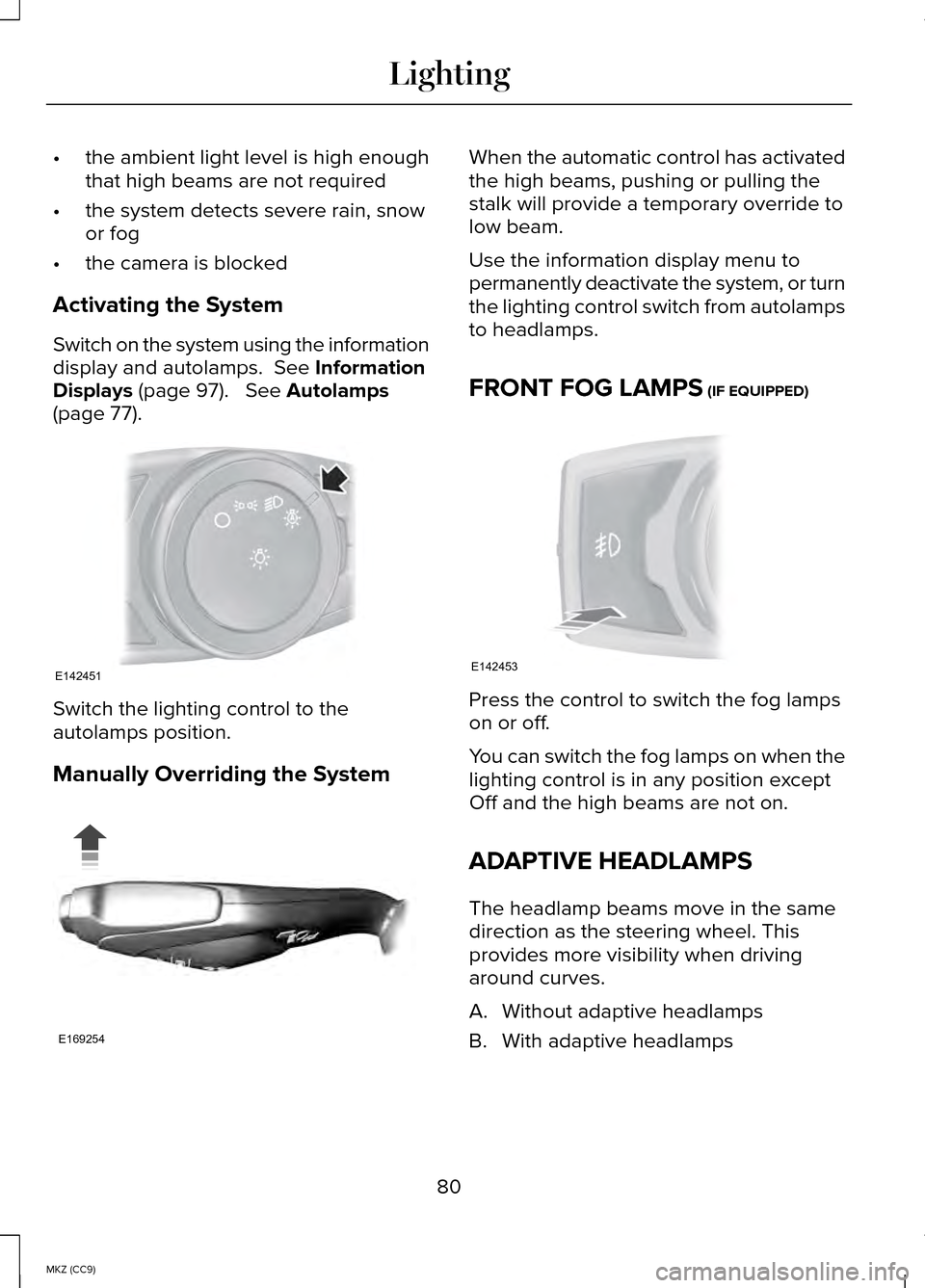
Activating the System
Switch on the system using the information
display and autolamps. See Information
Displays (page 97). See Autolamps
(page 77). Switch the lighting control to the
autolamps position.
Manually Overriding the System When the automatic control has activated
the high beams, pushing or pulling the
stalk will provide a temporary override to
low beam.
Use the information display menu to
permanently deactivate the system, or turn
the lighting control switch from autolamps
to headlamps.
FRONT FOG LAMPS
(IF EQUIPPED)
Press the control to switch the fog lamps
on or off.
You can switch the fog lamps on when the
lighting control is in any position except
Off and the high beams are not on.
ADAPTIVE HEADLAMPS
The headlamp beams move in the same
direction as the steering wheel. This
provides more visibility when driving
around curves.
A. Without adaptive headlamps
B. With adaptive headlamps
80
MKZ (CC9) LightingE142451 E169254 E142453
Page 92 of 445
Right Information Display
Efficiency Leaves
Efficiency leaves indicate short term
driving efficiency. The more leaves and
vines that are displayed, the better your
fuel economy. Leaves and vines will
occasionally appear and disappear to
indicate a change in driving efficiency.
Note:
The efficiency leaves display can
be impacted by your use of brakes,
accelerator and accessories, as well as
environmental conditions such as hills and
weather.
Flowers
Flowers appear on the efficiency leaves
screen in addition to the leaves and vines.
The flowers indicate long term driving
efficiency. The more flowers that are
displayed, the more efficiently you have
driven. Once earned, the flowers will
remain unless reset. The flowers can be
reset through the information display. See
General Information (page 97).
Common Displays
Fuel Economy Displays:
Displays your average and instantaneous
fuel economy on most Display Mode
screens.
Note: You can reset your average fuel
economy by pressing and holding the
OK
button on the left hand steering wheel
controls. Average fuel economy cannot
be reset while on the MyView screen. •
Average Fuel Economy - is
continuously averaged since the last
reset. You can reset your average fuel
economy by pressing and holding the
OK button on the left hand steering
wheel controls.
• Instantaneous Fuel Economy - If your
instantaneous fuel economy is greater
than the maximum value displayed, a
+ sign will be shown next to the
maximum scale number. When the
vehicle is operating on battery power
only, EV is displayed and the gauge fill
is shown in blue.
Battery Gauge:
Note: Battery gauge information can be
individually selected on or off through
Battery Display in the Options sub-menu.
From any main display a right arrow press
on the steering wheel controls will take
you to the options sub-menu.
The high-voltage battery gauge appears
on the right side of the left information
display screen. This provides Charge Fill
(State of Charge), Charge Assist and
Regen Display.
Charge Fill
The fill level, or State of Charge indicates
the amount of energy stored in the
high-voltage battery as a percent of total
energy capacity. The level will increase or
decrease as the battery charges and
discharges during normal operation.
90
MKZ (CC9) Instrument Cluster
Page 99 of 445
GENERAL INFORMATION
WARNING
Driving while distracted can result in
loss of vehicle control, crash and
injury. We strongly recommend that you
use extreme caution when using any
device that may take your focus off the
road. Your primary responsibility is the
safe operation of your vehicle. We
recommend against the use of any
hand-held device while driving and
encourage the use of voice-operated
systems when possible. Make sure you
are aware of all applicable local laws that
may affect the use of electronic devices
while driving Various systems on your vehicle can be
controlled using the information display
controls on the steering wheel.
Corresponding information is displayed in
the information display.
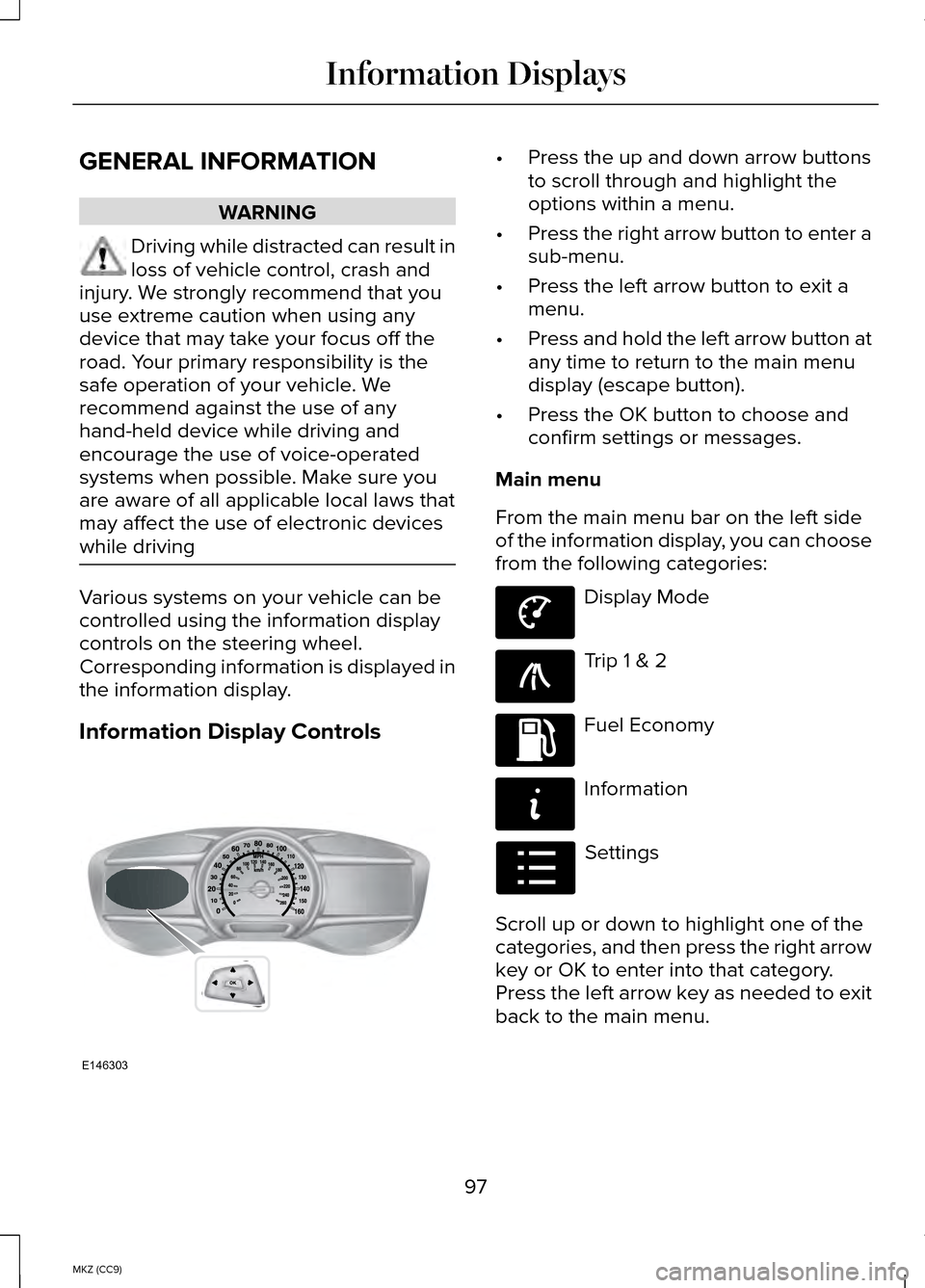
Information Display Controls •
Press the up and down arrow buttons
to scroll through and highlight the
options within a menu.
• Press the right arrow button to enter a
sub-menu.
• Press the left arrow button to exit a
menu.
• Press and hold the left arrow button at
any time to return to the main menu
display (escape button).
• Press the OK button to choose and
confirm settings or messages.
Main menu
From the main menu bar on the left side
of the information display, you can choose
from the following categories: Display Mode
Trip 1 & 2
Fuel Economy
Information
Settings
Scroll up or down to highlight one of the
categories, and then press the right arrow
key or OK to enter into that category.
Press the left arrow key as needed to exit
back to the main menu.
97
MKZ (CC9) Information DisplaysE146303 E144639 E138660 E144640 E144642 E100023
Page 103 of 445
Empower
Empower adds an engine on/off threshold
to the power demand gauge from
Enlighten. The threshold is shown as a
blue double outline. The gauge is
designed to show you how close you are
to the gasoline engine on/off threshold
and how much power you are requesting
based on how far you press the
accelerator pedal.
When power demand is below the
threshold the vehicle is operating on
battery power only with the engine off, EV
is displayed and the gauge fill is shown in
blue.
When power demand exceeds the
threshold both the engine and the high
voltage battery provide power and the
gauge fill is white.
When power demand surpasses the amber
indicator, this level of demand and
associated fuel economy are shown in
amber.
Note:
You can reset your average fuel
economy by pressing and holding the OK
button on the left hand steering wheel
controls.
MyView
You can choose what to display in this
view. Selecting Change MyView in the
options menu allows you to scroll through
two columns of content choices. •
Press the up or down arrow to view
content.
• Use the right and left arrows to move
between the left column content and
the middle column content.
• The right column is reserved for the
Battery Gauge and the Fuel Gauge.
Once you have your desired content
showing in each column then press OK to
save. This becomes your new MyView
screen.
Unique content available in MyView:
• Accessory Power— Indicates electrical
power demands from your vehicle ’s
accessory systems. Accessories use
power but do not contribute to
propelling the vehicle. The gauge
separately displays power demand in
kilowatts (kW) for climate and other
accessories.
Climate includes the power being used by
high voltage climate control components
such as the electric A/C compressor and
the electric heater (Energi vehicles only)
Other includes all power being used by
the low voltage accessories (cabin fans,
headlights, heated seats, etc.).
• Coolant Temp – Indicates engine
coolant temperature. At normal
operating temperature, the level
indicator will be white and will be in
the normal range (between H and C).
If the engine coolant temperature
exceeds the normal range, the level
indicator will change to red to indicate
that the engine is overheating. Stop
the vehicle as soon as safely possible,
turn off the vehicle and let the engine
cool.
101
MKZ (CC9) Information Displays
Page 106 of 445
 Charge Assist Yes / No
Charge Level Help —
—
Help
• Fuel History: This view from left to right starts with the instantaneous fuel economy\
gauge")
Fuel Economy
(Coach + Battery
Gauge+ Fuel Gauge) Charge Assist Yes / No
Charge Level Help —
—
Help
• Fuel History: This view from left to right starts with the instantaneous fuel economy\
gauge and adds historical fuel economy data. The data is represented as \
an average
for time intervals of either 1, 2 or 6 minutes, with the left most inter\
val being the most
recent. Total time for the 5 intervals is shown at the bottom of the view. Intervals
shown in grey color are from the previous drive.
Note: You can reset your average fuel economy by pressing and holding the OK button
on the left hand steering wheel controls.
• Coach:
This view provides a comparison of your recent Acceleration, Braking an\
d
Cruising behavior to what is recommended for most efficient use of energ\
y under
present conditions. The horizontal bars fill from left to right with bes\
t behavior (and
Blue color) shown as at least half full. When the bars are less than ha\
lf full, the color
is Amber, suggesting that a change in behavior is needed to achieve better energ\
y
efficiency.
Note: Fuel economy is not always a measure of appropriate driving behavior. For
example, when driving uphill and maintaining an appropriate speed, your instant\
fuel
economy may not be good (losing leaves) but the Coach may show a blue \
bar for
Acceleration or Cruising.
Info In this mode, you can view
different vehicle system
information and perform a
system check.
104
MKZ (CC9) Information DisplaysE144642
Page 109 of 445
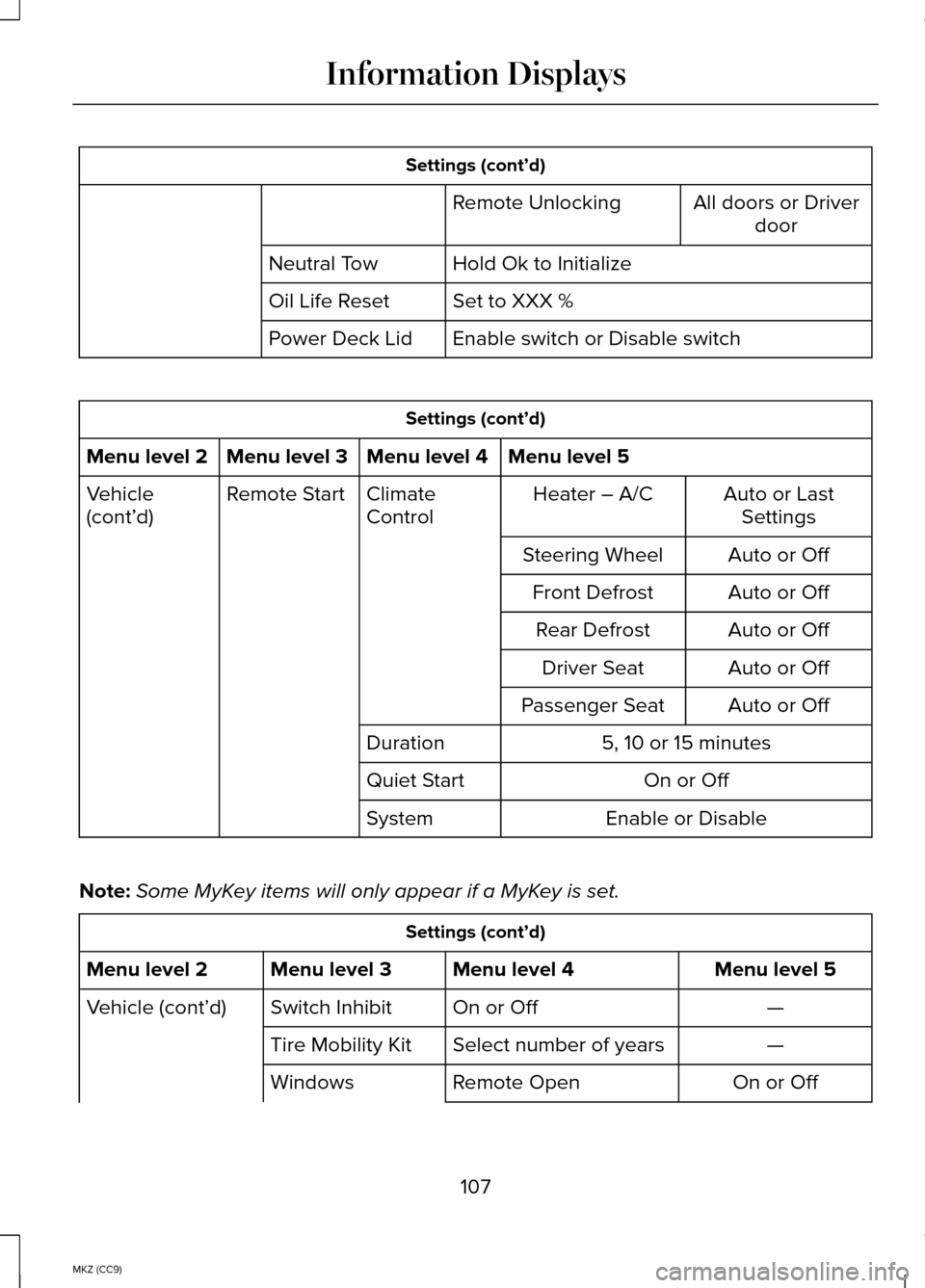
Settings (cont’d)
All doors or Driverdoor
Remote Unlocking
Hold Ok to Initialize
Neutral Tow
Set to XXX %
Oil Life Reset
Enable switch or Disable switch
Power Deck Lid Settings (cont’d)
Menu level 5
Menu level 4
Menu level 3
Menu level 2
Auto or LastSettings
Heater – A/C
Climate
Control
Remote Start
Vehicle
(cont’d)
Auto or Off
Steering Wheel
Auto or Off
Front Defrost
Auto or Off
Rear Defrost
Auto or Off
Driver Seat
Auto or Off
Passenger Seat
5, 10 or 15 minutes
Duration
On or Off
Quiet Start
Enable or Disable
System
Note: Some MyKey items will only appear if a MyKey is set. Settings (cont’d)
Menu level 5
Menu level 4
Menu level 3
Menu level 2
—
On or Off
Switch Inhibit
Vehicle (cont’d)
—
Select number of years
Tire Mobility Kit
On or Off
Remote Open
Windows
107
MKZ (CC9) Information Displays
Page 113 of 445
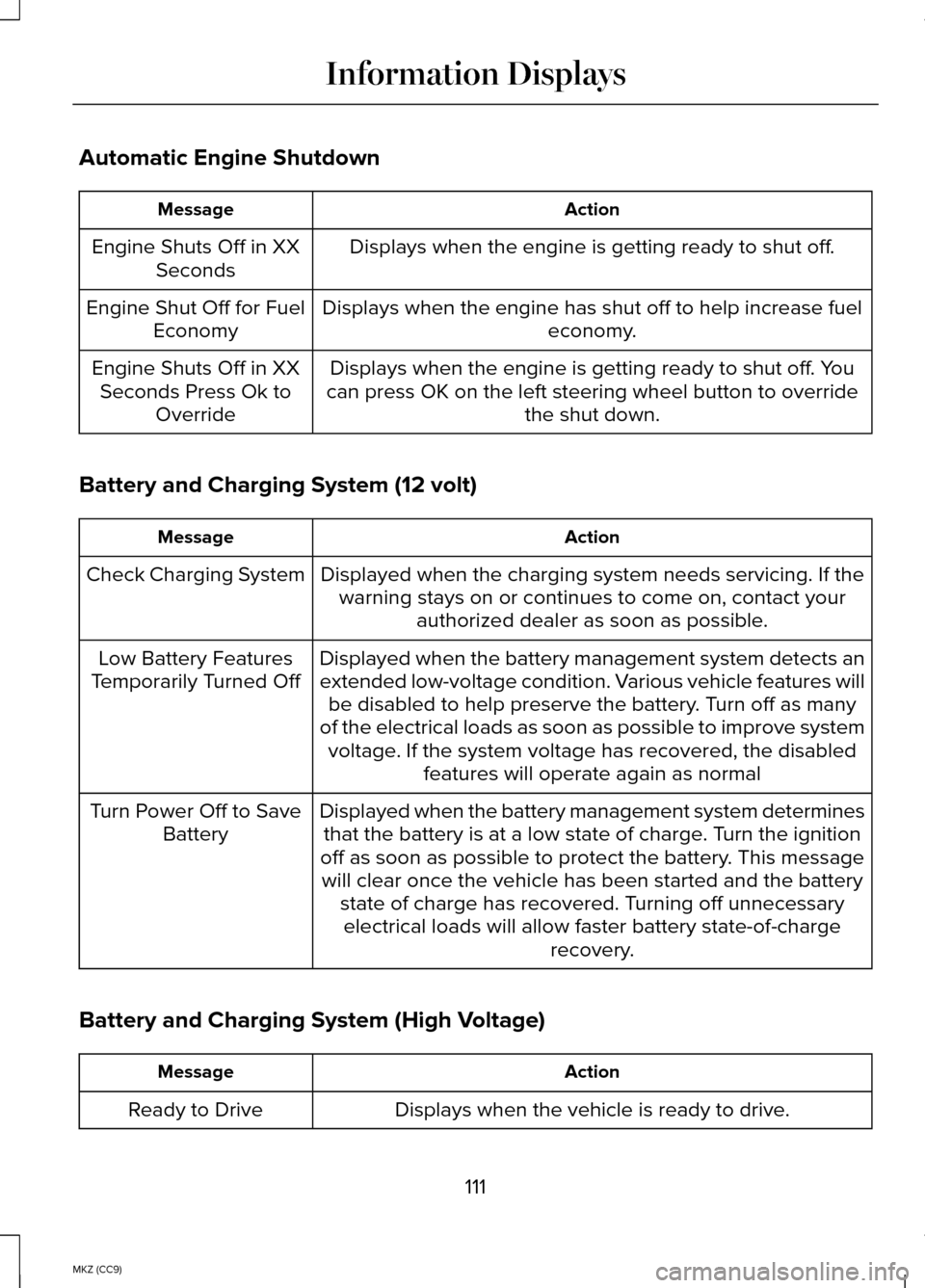
Automatic Engine Shutdown
Action
Message
Displays when the engine is getting ready to shut off.
Engine Shuts Off in XX
Seconds
Displays when the engine has shut off to help increase fuel economy.
Engine Shut Off for Fuel
Economy
Displays when the engine is getting ready to shut off. You
can press OK on the left steering wheel button to override the shut down.
Engine Shuts Off in XX
Seconds Press Ok to Override
Battery and Charging System (12 volt) Action
Message
Displayed when the charging system needs servicing. If thewarning stays on or continues to come on, contact your authorized dealer as soon as possible.
Check Charging System
Displayed when the battery management system detects an
extended low-voltage condition. Various vehicle features willbe disabled to help preserve the battery. Turn off as many
of the electrical loads as soon as possible to improve system voltage. If the system voltage has recovered, the disabled features will operate again as normal
Low Battery Features
Temporarily Turned Off
Displayed when the battery management system determinesthat the battery is at a low state of charge. Turn the ignition
off as soon as possible to protect the battery. This message will clear once the vehicle has been started and the battery state of charge has recovered. Turning off unnecessaryelectrical loads will allow faster battery state-of-charge recovery.
Turn Power Off to Save
Battery
Battery and Charging System (High Voltage) Action
Message
Displays when the vehicle is ready to drive.
Ready to Drive
111
MKZ (CC9) Information Displays
Page 117 of 445
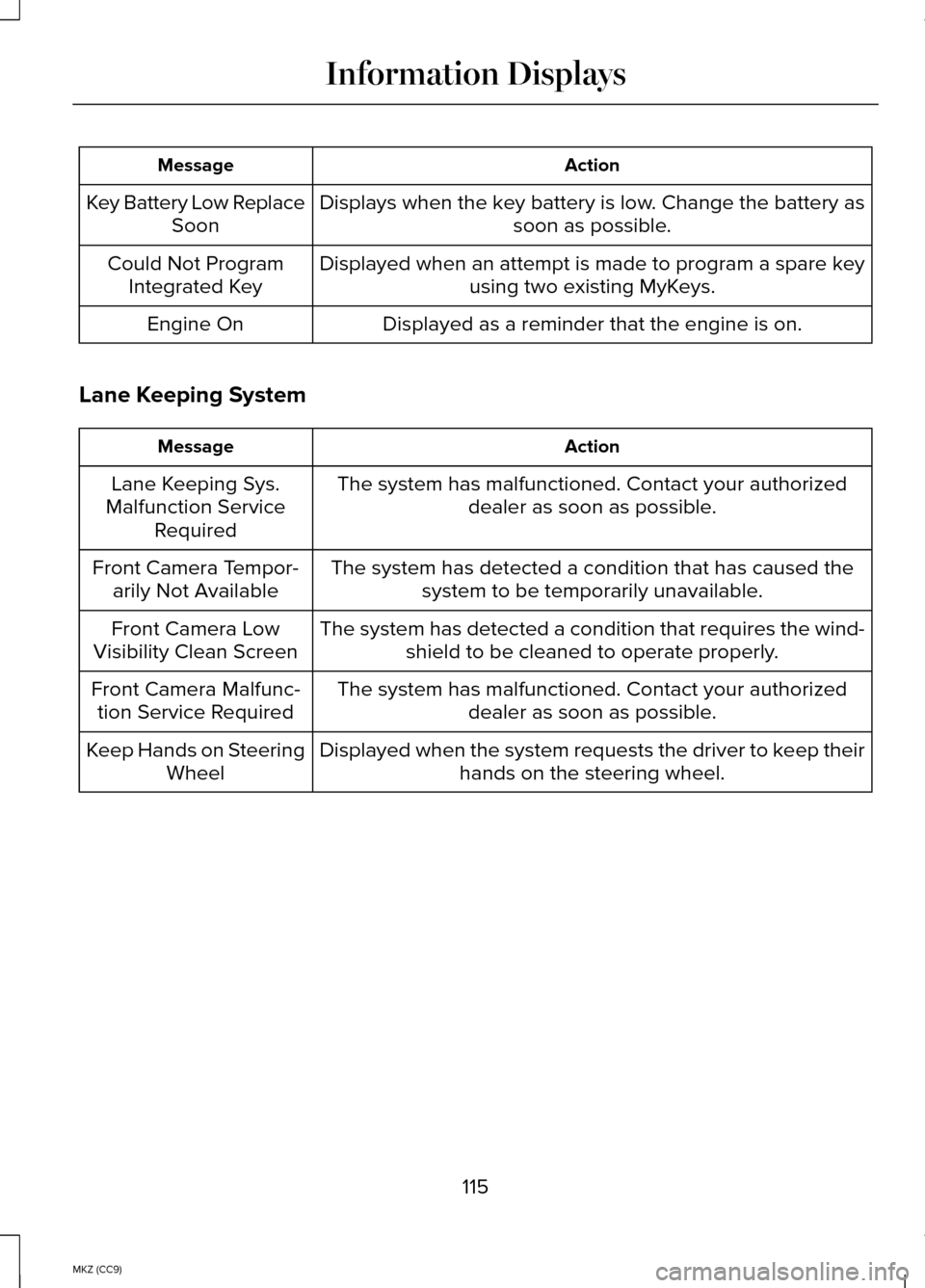
Action
Message
Displays when the key battery is low. Change the battery as soon as possible.
Key Battery Low Replace
Soon
Displayed when an attempt is made to program a spare key using two existing MyKeys.
Could Not Program
Integrated Key
Displayed as a reminder that the engine is on.
Engine On
Lane Keeping System Action
Message
The system has malfunctioned. Contact your authorizeddealer as soon as possible.
Lane Keeping Sys.
Malfunction Service Required
The system has detected a condition that has caused thesystem to be temporarily unavailable.
Front Camera Tempor-
arily Not Available
The system has detected a condition that requires the wind-shield to be cleaned to operate properly.
Front Camera Low
Visibility Clean Screen
The system has malfunctioned. Contact your authorizeddealer as soon as possible.
Front Camera Malfunc-
tion Service Required
Displayed when the system requests the driver to keep theirhands on the steering wheel.
Keep Hands on Steering
Wheel
115
MKZ (CC9) Information Displays
Page 121 of 445
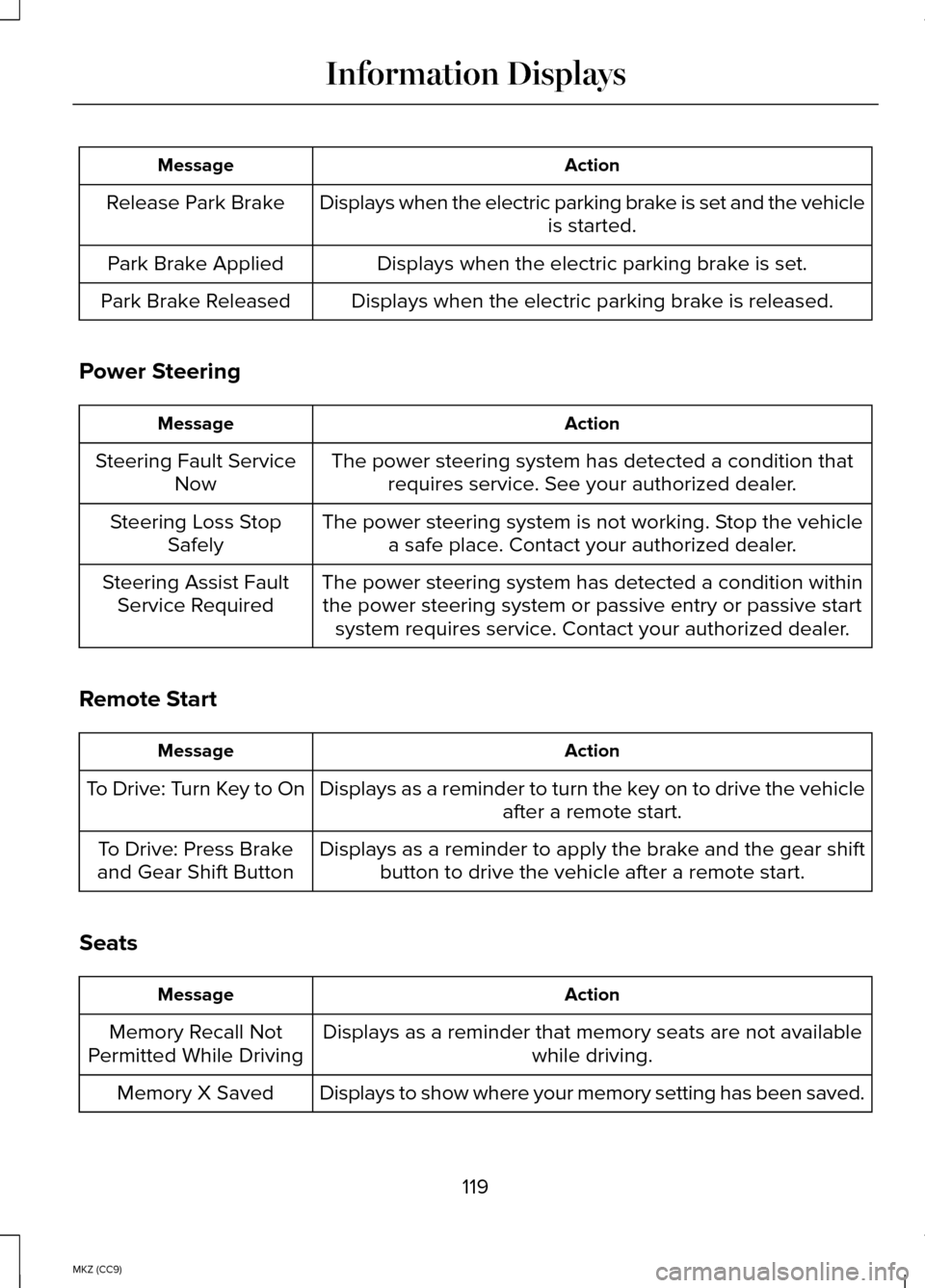
Action
Message
Displays when the electric parking brake is set and the vehicle is started.
Release Park Brake
Displays when the electric parking brake is set.
Park Brake Applied
Displays when the electric parking brake is released.
Park Brake Released
Power Steering Action
Message
The power steering system has detected a condition thatrequires service. See your authorized dealer.
Steering Fault Service
Now
The power steering system is not working. Stop the vehiclea safe place. Contact your authorized dealer.
Steering Loss Stop
Safely
The power steering system has detected a condition withinthe power steering system or passive entry or passive start system requires service. Contact your authorized dealer.
Steering Assist Fault
Service Required
Remote Start Action
Message
Displays as a reminder to turn the key on to drive the vehicle after a remote start.
To Drive: Turn Key to On
Displays as a reminder to apply the brake and the gear shiftbutton to drive the vehicle after a remote start.
To Drive: Press Brake
and Gear Shift Button
Seats Action
Message
Displays as a reminder that memory seats are not available while driving.
Memory Recall Not
Permitted While Driving
Displays to show where your memory setting has been saved.
Memory X Saved
119
MKZ (CC9) Information Displays
Page 129 of 445
The particulate filtration system reduces
the concentration of airborne particles
such as dust, spores and pollen in the air
supplied to the interior of your vehicle.
Note:
To prevent foreign objects from
entering the system, make sure the cabin
air is in place at all times. Running the
system without a filter in place could result
in degradation or damage to the system.
The particulate filtration system gives you
and your passengers the following
benefits:
• It improves your driving comfort by
reducing particle concentration.
• It improves the interior compartment
cleanliness.
• It protects the climate control
components from particle deposits.
Replace the filter at regular intervals. See
Scheduled Maintenance (page 412).
For additional cabin air filter information,
or to replace the filter, see an authorized
dealer.
REMOTE START
The climate control system adjusts the
cabin temperature during remote start.
You cannot adjust the system during
remote start operation. Turn the ignition
on to return the system to its previous
settings. You can now make adjustments.
You need to turn certain
vehicle-dependent features back on, such
as:
• heated seats
• cooled seats
• heated steering wheel •
heated mirrors
• heated rear window.
You can adjust the settings using the
information display controls.
See
Information Displays (page 97).
Automatic Settings
You can set the climate control to operate
in AUTO mode through the information
display setting: Remote Start > Climate
Control > Heater-A/C > Auto. The climate
control system automatically sets the
interior temperature to 72°F (22°C).
In hot weather, the system is set to 72°F
(22°C). Cooled seats are set to high (if
available, and selected to AUTO in the
information display).
In moderate weather, the system either
heats or cools (based on previous
settings). The rear defroster, heated
mirrors and heated/cooled seats do not
automatically turn on.
In cold weather, the system is set to 72°F
(22°C). The heated seats and heated
steering wheel are set to high (if available,
and selected to AUTO in the information
display). The rear defroster and heated
mirrors automatically turn on.
Last Settings
You can set the climate control to operate
using the last climate control settings
through the information display setting:
Remote Start > Climate Control >
Heater–A/C > Last Settings. The climate
control system automatically uses the
settings last selected before turning off
the vehicle.
127
MKZ (CC9) Climate Control