audio LINCOLN MKZ HYBRID 2015 User Guide
[x] Cancel search | Manufacturer: LINCOLN, Model Year: 2015, Model line: MKZ HYBRID, Model: LINCOLN MKZ HYBRID 2015Pages: 504, PDF Size: 4.45 MB
Page 361 of 504

Volume:: Tap either side of the slider, or slide your finger across the control to increase or decrease the vo\
lume level on the system.
To slowly increase or decrease the volume level, press and hold either en\
d of the slider.
D
Power:
Switch the audio system on and off by pressing the button.
E
Seek/Fast Forward/Reverse:
Press to go to the previous or next track or available radio station. P\
ress and hold to either reverse
or fast forward through the current track or to quickly reverse or advan\
ce through the radio band in individual increments.
F
MEDIA HUB
The media hub is located in the center
console and has the following features: A/V inputs
A
SD card slot
B
USB ports
C
See
Entertainment (page 385).
358
MKZ Hybrid (), enUSA Audio SystemC
BA
E142605
Page 364 of 504
Information
G
Entertainment
H
This system uses a four-corner strategy to
provide quick access to several vehicle
features and settings. The touchscreen
provides easy interaction with your cellular
phone, multimedia, climate control and
navigation system. The corners display any
active modes within those menus, such as
phone status or the climate temperature.
Note: Some features are not available while
your vehicle is moving.
Note: Your system is equipped with a feature
that allows you to access and control audio
features for 30 minutes after you switch the
ignition off (and no doors open).
PHONE
Press to select any of the following:
• Phone
• Quick Dial
• Phonebook
• History •
Messaging
• Settings
NAVIGATION
Press to select any of the following:
• My Home
• Favorites
• Previous Destinations
• Point of Interest
• Emergency
• Street Address
• Intersection
• City Center
• Map
• Edit Route
• Cancel Route
CLIMATE Press to select any of the following:
•
Driver Settings
• Recirculated Air
• Auto
• Dual
• Passenger Settings
• A/C
• Defrost SETTINGS
Press to select any of the following:
• Clock
• Display
• Sound
• Vehicle
• Settings
• Help
361
MKZ Hybrid (), enUSA MyLincoln Touch™E142607
Page 366 of 504
Using Your Steering Wheel Controls
Depending on your vehicle and option
package, you can use your steering wheel
controls to interact with the touchscreen
system.
•
VOL: Control the volume of audio output.
• Mute: Mute the audio output.
• Voice:
Press to start a voice session.
Press again and hold to end a voice
session. •
SEEK
and PHONE ACCEPT:
• While in radio mode, press to seek
between memory presets or press
and hold to seek between stations.
• While in USB or CD mode, press to
seek between stations or press and
hold to fast seek.
• While in phone mode, press to
answer a call, or to switch between
calls.
• SEEK
and PHONE REJECT:
• While in radio mode, press to seek
between memory presets or press
and hold to seek between stations.
• While in USB or CD mode, press to
seek between stations or press and
hold to fast seek.
• While in phone mode, press to end a
call, or to reject an incoming call.
See
Steering Wheel (page 78). Cleaning the Touchscreen Display
Use a clean, soft cloth such as one used for
cleaning glasses. If dirt or fingerprints are
still visible, apply a small amount of alcohol
to the cloth. Do not pour or spray alcohol
onto the display. Do not use detergent or
any type of solvent to clean the display.
Support
The SYNC support team is available to help
you with any questions you are not able to
answer on your own.
Monday-Saturday, 8:30am-9:00pm EST.
Sunday, 10:30am-7:30pm EST.
In the United States, call: 1-800-392-3673.
In Canada, call: 1-800-565-3673.
Times are subject to change due to holidays.
363
MKZ Hybrid (), enUSA MyLincoln Touch™
Page 371 of 504
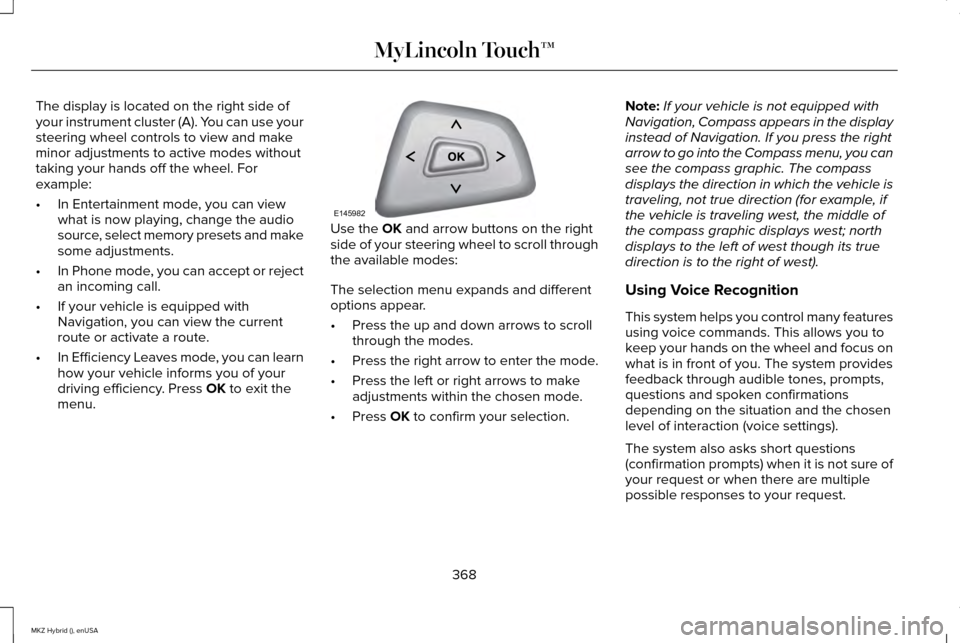
The display is located on the right side of
your instrument cluster (A). You can use your
steering wheel controls to view and make
minor adjustments to active modes without
taking your hands off the wheel. For
example:
•
In Entertainment mode, you can view
what is now playing, change the audio
source, select memory presets and make
some adjustments.
• In Phone mode, you can accept or reject
an incoming call.
• If your vehicle is equipped with
Navigation, you can view the current
route or activate a route.
• In Efficiency Leaves mode, you can learn
how your vehicle informs you of your
driving efficiency. Press OK to exit the
menu. Use the
OK and arrow buttons on the right
side of your steering wheel to scroll through
the available modes:
The selection menu expands and different
options appear.
• Press the up and down arrows to scroll
through the modes.
• Press the right arrow to enter the mode.
• Press the left or right arrows to make
adjustments within the chosen mode.
• Press
OK to confirm your selection. Note:
If your vehicle is not equipped with
Navigation, Compass appears in the display
instead of Navigation. If you press the right
arrow to go into the Compass menu, you can
see the compass graphic. The compass
displays the direction in which the vehicle is
traveling, not true direction (for example, if
the vehicle is traveling west, the middle of
the compass graphic displays west; north
displays to the left of west though its true
direction is to the right of west).
Using Voice Recognition
This system helps you control many features
using voice commands. This allows you to
keep your hands on the wheel and focus on
what is in front of you. The system provides
feedback through audible tones, prompts,
questions and spoken confirmations
depending on the situation and the chosen
level of interaction (voice settings).
The system also asks short questions
(confirmation prompts) when it is not sure of
your request or when there are multiple
possible responses to your request.
368
MKZ Hybrid (), enUSA MyLincoln Touch™E145982
Page 373 of 504
Available voice commands
"Audio list of commands"
"Bluetooth audio list of commands" "Browse list of commands""CD list of commands"
"Climate control list of commands" "List of commands"
"Navigation list of commands" *
"Phone list of commands" "Radio list of commands"
"SD card list of commands"
"Sirius satellite list of commands" **
"Travel link list of commands" *
"USB list of commands"
"Voice instructions list of commands" Available voice commands
"Voice settings list of commands" "Help"
* This command is only available when your
vehicle is equipped with the navigation
system, and the navigation system SD card
is in the card slot.
** This command is only available when you
have an active SIRIUS satellite radio
subscription.
Voice Settings
Voice settings allow you to customize the
level of system interaction, help and
feedback. The system defaults to standard
interaction that uses candidate lists and
confirmation prompts as these provide the
highest level of guidance and feedback. •
Interaction Mode: Novice mode provides
detailed interaction and guidance while
the advanced mode has less audible
interaction and more tone prompts.
• Confirmation Prompts: The system uses
these short questions to confirm your
voice request. If turned off, the system
simply makes a best guess as to what
you requested. The system may still
occasionally ask you to confirm settings.
• Phone and Media Candidate Lists:
Candidate lists are lists of possible results
from your voice commands. The system
creates these lists when it has the same
confidence level of several options based
on your voice command.
To access these settings using the
touchscreen:
1. Press the Settings icon > Settings > then
Voice Control.
2. Select from the following:
• Interaction Mode
• Confirmation Prompts
• Media Candidate Lists
370
MKZ Hybrid (), enUSA MyLincoln Touch™
Page 379 of 504

System
Select to have the system beep to confirm button choices made through th\
e climate or audio system.
Touch Panel Button Beep
Have the touchscreen keyboard display in QWERTY or ABC format.
Keyboard Layout
Install any downloaded applications or view the current software license\
s.
Install Applications
Select to restore factory defaults. This erases all personal settings an\
d personal data.
Master Reset
Voice Control Press the Settings icon > Settings
> Voice Control, then select from
the following: Voice control
Standard interaction mode provides more detailed interaction and guidance\
. Advanced mode has less audible
interaction and more tone prompts.
Interaction Mode
Have the system ask you short questions if it has not clearly heard or u\
nderstood your request. *
Confirmation Prompts
Candidate lists are possible results from your voice commands. The syste\
m simply makes a best guess at your
request with these turned off.
Media Candidate Lists
376
MKZ Hybrid (), enUSA MyLincoln Touch™E142607
Page 380 of 504

Voice control
Candidate lists are possible results from your voice commands. The syste\
m simply makes a best guess at your
request with these turned off.
Phone Candidate Lists
This allows you to adjust the system ’s voice volume level.
Voice Control Volume
* Even with confirmation prompts turned off, the system may occasionally ask you to confirm settings
Media Player Press the Settings icon > Settings
> Media Player, then select from
the following: Media player
When this feature is on, the system automatically switches to the media \
source upon initial connection. This
allows you to listen to music during the indexing process. When this fea\
ture is off, the system does not auto-
matically switch to the inserted media source.
Autoplay
Select to connect, disconnect, add or delete a device. You can also set a device as your favorite so that the
system automatically attempts to connect to that device at every ignitio\
n cycle.
Bluetooth Devices
When this feature is on, the system automatically indexes media on your connected Bluetooth device.
Index Bluetooth Audio
Devices
377
MKZ Hybrid (), enUSA MyLincoln Touch™E142607
Page 389 of 504
CDD
USBE
Touch this button to scroll down for more options, such as SD Card, BT Stereo and A/V In
F
These buttons change with the media mode you are in.
G
Radio memory presets and CD controls.
H
Note: Some features may not be available
in your area. Contact an authorized dealer
for more information.
You can access these options using the
touchscreen or voice commands.
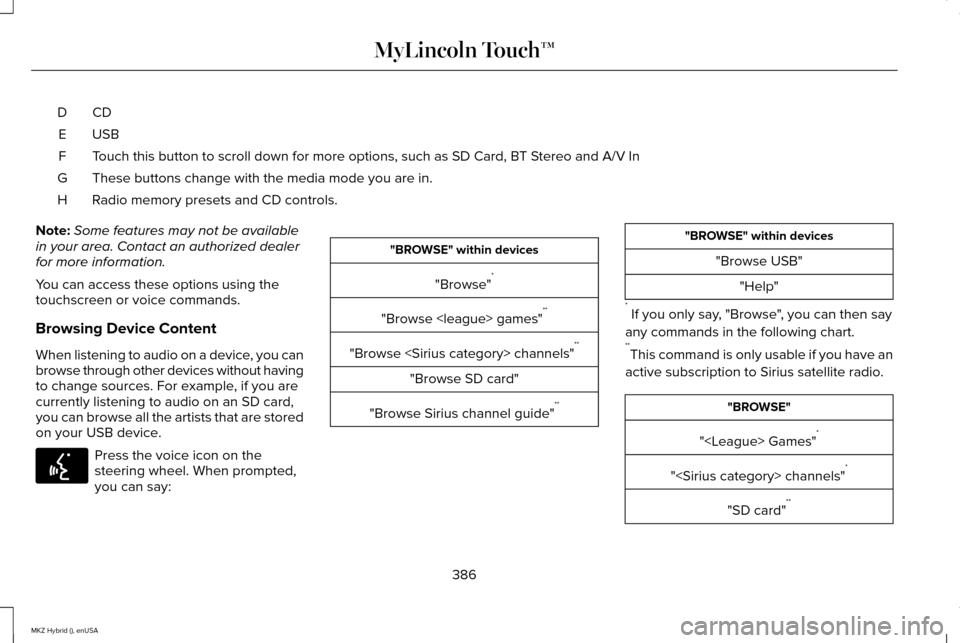
Browsing Device Content
When listening to audio on a device, you can
browse through other devices without having
to change sources. For example, if you are
currently listening to audio on an SD card,
you can browse all the artists that are stored
on your USB device. Press the voice icon on the
steering wheel. When prompted,
you can say: "BROWSE" within devices
"Browse" *
"Browse
"Browse
"Browse SD card"
"Browse Sirius channel guide" ** "BROWSE" within devices
"Browse USB""Help"
* If you only say, "Browse", you can then say
any commands in the following chart.
** This command is only usable if you have an
active subscription to Sirius satellite radio. "BROWSE"
"
"
"SD card" **
386
MKZ Hybrid (), enUSA MyLincoln Touch™E142599
Page 390 of 504
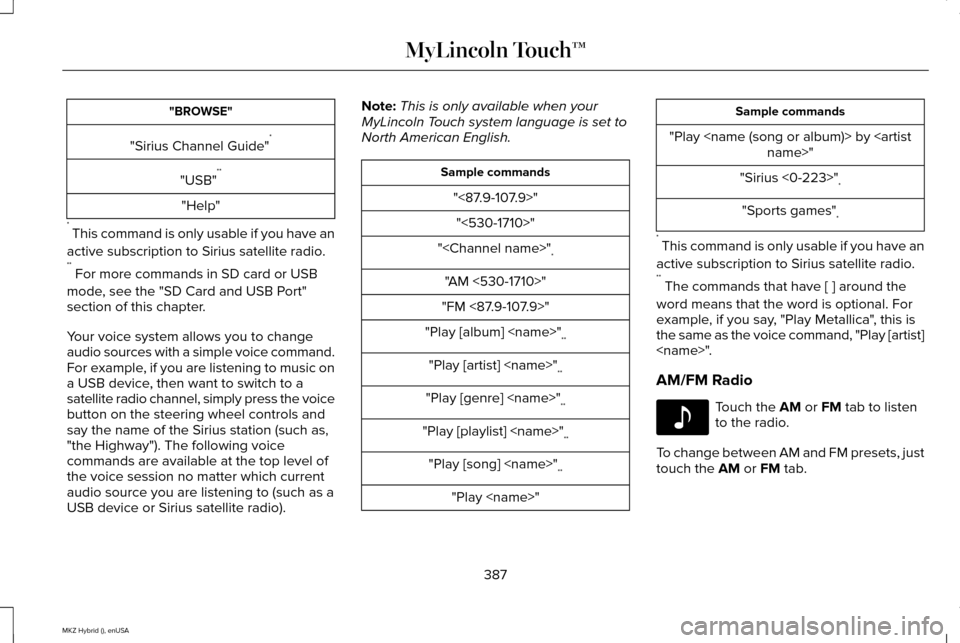
"BROWSE"
"Sirius Channel Guide" *
"USB" **
"Help"
* This command is only usable if you have an
active subscription to Sirius satellite radio.
** For more commands in SD card or USB
mode, see the "SD Card and USB Port"
section of this chapter.
Your voice system allows you to change
audio sources with a simple voice command.
For example, if you are listening to music on
a USB device, then want to switch to a
satellite radio channel, simply press the voice
button on the steering wheel controls and
say the name of the Sirius station (such as,
"the Highway"). The following voice
commands are available at the top level of
the voice session no matter which current
audio source you are listening to (such as a
USB device or Sirius satellite radio). Note:
This is only available when your
MyLincoln Touch system language is set to
North American English. Sample commands
"<87.9-107.9>""<530-1710>"
"
"AM <530-1710>"
"FM <87.9-107.9>"
"Play [album]
"Play [artist]
"Play [genre]
"Play [playlist]
"Play [song]
"Play
"Play
"Sirius <0-223>" *
"Sports games" *
* This command is only usable if you have an
active subscription to Sirius satellite radio.
** The commands that have [ ] around the
word means that the word is optional. For
example, if you say, "Play Metallica", this is
the same as the voice command, "Play [artist]
AM/FM Radio Touch the AM or FM tab to listen
to the radio.
To change between AM and FM presets, just
touch the
AM or FM tab.
387
MKZ Hybrid (), enUSA MyLincoln Touch™E142611
Page 392 of 504
HD Radio technology is the digital evolution
of analog AM/FM radio. Your system has a
special receiver that allows it to receive
digital broadcasts (where available) in
addition to the analog broadcasts, it already
receives. Digital broadcasts provide a better
sound quality than analog broadcasts with
free, crystal-clear audio and no static or
distortion. For more information, and a guide
to available stations and programming,
please visit www.hdradio.com.
When HD Radio is on and you tune to a
station broadcasting HD Radio technology,
you may notice the following indicators on
your screen:
The HD Radio logo either blinks when
acquiring a digital station, and then stays
solid when digital audio is playing, or is grey
when acquiring a digital station, and then
changes to orange when digital audio is
playing. When this logo is available, you may
also see Title and Artist fields on-screen.
The multicast indicator appears in FM mode
(only) if the current station is broadcasting
multiple digital broadcasts. The highlighted
numbers signify available digital channels
where new or different content is available.
HD1 signifies the main programming status
and is available in analog and digital
broadcasts. Other multicast stations (HD2
through HD7) are only available digitally.
TAG allows you to save a song to download
later when you are on an acquired HD Radio
station and the feature is on. To turn the
feature on and use it:
1. Press
AM or FM > Options > TAG Button
> On.
2. When you hear a song you like, touch TAG
.
3. The system automatically saves the song's information and transfers it to your
portable music player (if supported) when
you connect it to the system. The system
automatically transfers the tag to your
player (if already connected) and a
pop-up confirms the transfer.
4. When you access iTunes with your portable music player, the tags appear
to you as a reminder. The system allows
you to tag up to approximately 100
songs. For a list of devices that support
tagging, see www.SYNCMyRide.com,
www.SYNCMyRide.ca or
www.syncmaroute.ca.
389
MKZ Hybrid (), enUSA MyLincoln Touch™E142616