phone LINCOLN MKZ HYBRID 2017 Service Manual
[x] Cancel search | Manufacturer: LINCOLN, Model Year: 2017, Model line: MKZ HYBRID, Model: LINCOLN MKZ HYBRID 2017Pages: 546, PDF Size: 5.12 MB
Page 419 of 546

Action and Description
Menu Item
Item
You can place a call by selecting an entry from this list.
You can also sort the calls by selecting the drop down menu at the top of\
the screen. You can choose: Missed
Outgoing
Incoming
All
All of your contacts from your phone display in alphabetical order.
Contacts
B
Selecting this button allows you to choose a
specific letter to view.
A-Z Jump
Displays the name of your phone and takes you to the phone settings options.
Phone Settings
C
From this menu, you can pair subsequent devices, set ring tones and aler\
ts. See Settings (page 442).
Displays all recent text messages.
Text Messages
D
Use this keypad to dial in a phone number.
Phone Keypad
E
Use the backspace button to delete numbers.
Press this button to begin a call.
Call
Touch this button to send all calls directly to your voicemail. New text \
message notifications are not
displayed on the screen and all ringtones and alerts are set to silent.
Do Not Disturb
F
Users with phones having voice services may
see a button to access the feature. For
example, iPhone users see a Siri button. A
press and hold of the voice button on the
steering wheel also accesses this feature. 416
MKZ Hybrid (CC9) Hybrid Electric Vehicle (HEV), Canada/United States of America, enUSA, First Printing SYNC™ 3
Page 421 of 546
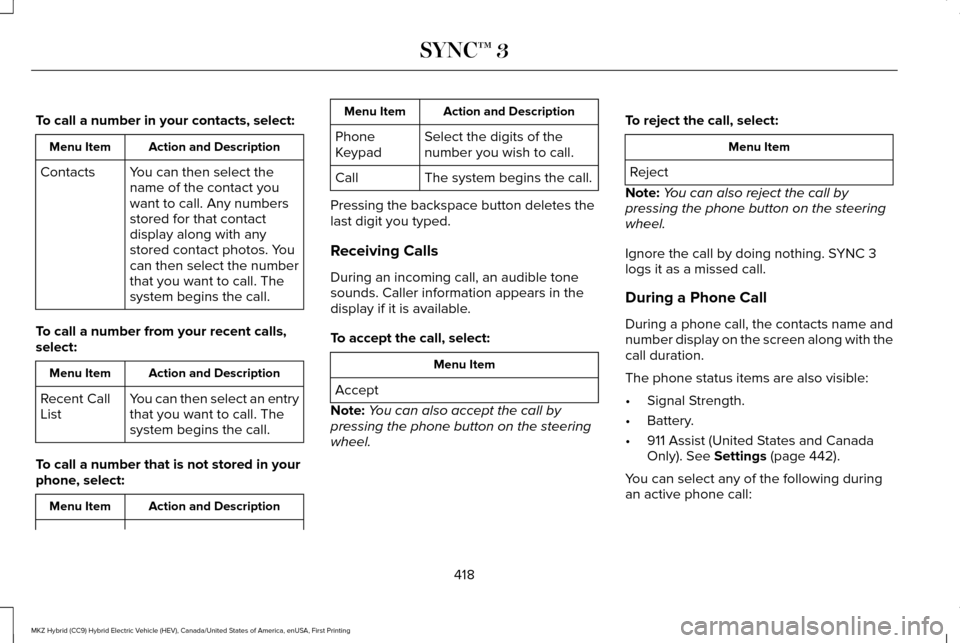
To call a number in your contacts, select:
Action and Description
Menu Item
You can then select the
name of the contact you
want to call. Any numbers
stored for that contact
display along with any
stored contact photos. You
can then select the number
that you want to call. The
system begins the call.
Contacts
To call a number from your recent calls,
select: Action and Description
Menu Item
You can then select an entry
that you want to call. The
system begins the call.
Recent Call
List
To call a number that is not stored in your
phone, select: Action and Description
Menu Item Action and Description
Menu Item
Select the digits of the
number you wish to call.
Phone
Keypad
The system begins the call.
Call
Pressing the backspace button deletes the
last digit you typed.
Receiving Calls
During an incoming call, an audible tone
sounds. Caller information appears in the
display if it is available.
To accept the call, select: Menu Item
Accept
Note: You can also accept the call by
pressing the phone button on the steering
wheel. To reject the call, select: Menu Item
Reject
Note: You can also reject the call by
pressing the phone button on the steering
wheel.
Ignore the call by doing nothing. SYNC 3
logs it as a missed call.
During a Phone Call
During a phone call, the contacts name and
number display on the screen along with the
call duration.
The phone status items are also visible:
• Signal Strength.
• Battery.
• 911 Assist (United States and Canada
Only). See Settings (page 442).
You can select any of the following during
an active phone call:
418
MKZ Hybrid (CC9) Hybrid Electric Vehicle (HEV), Canada/United States of America, enUSA, First Printing SYNC™ 3
Page 422 of 546
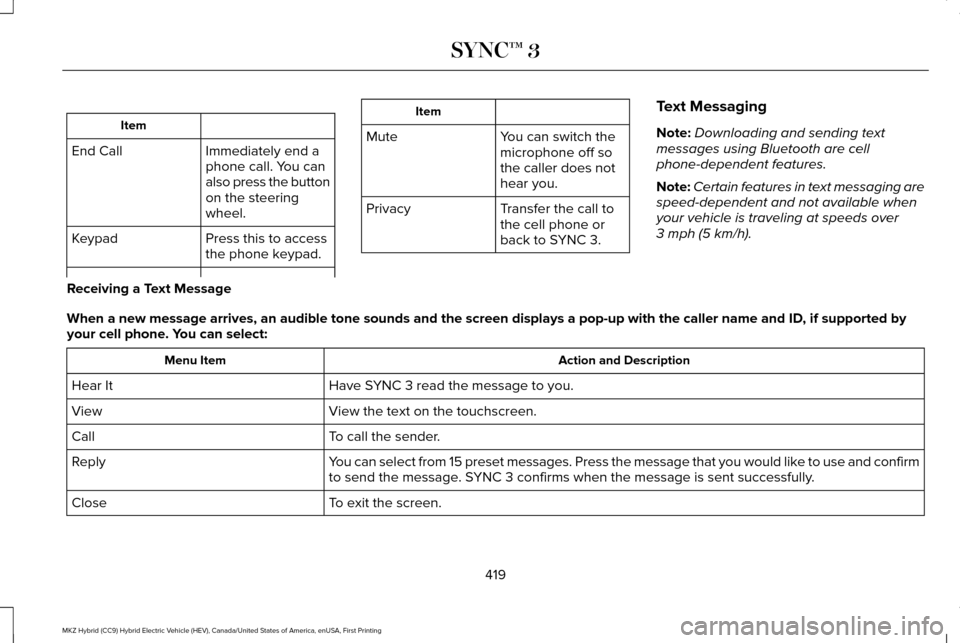
Item
Immediately end a
phone call. You can
also press the button
on the steering
wheel.
End Call
Press this to access
the phone keypad.
Keypad Item
Mute You can switch the
microphone off so
the caller does not
hear you.
Transfer the call to
the cell phone or
back to SYNC 3.
Privacy Text Messaging
Note:
Downloading and sending text
messages using Bluetooth are cell
phone-dependent features.
Note: Certain features in text messaging are
speed-dependent and not available when
your vehicle is traveling at speeds over
3 mph (5 km/h).
Receiving a Text Message
When a new message arrives, an audible tone sounds and the screen displa\
ys a pop-up with the caller name and ID, if supported by
your cell phone. You can select: Action and Description
Menu Item
Have SYNC 3 read the message to you.
Hear It
View the text on the touchscreen.
View
To call the sender.
Call
You can select from 15 preset messages. Press the message that you would \
like to use and confirm
to send the message. SYNC 3 confirms when the message is sent successfully.
Reply
To exit the screen.
Close
419
MKZ Hybrid (CC9) Hybrid Electric Vehicle (HEV), Canada/United States of America, enUSA, First Printing SYNC™ 3
Page 423 of 546
Smartphone Connectivity (If Equipped)
420
MKZ Hybrid (CC9) Hybrid Electric Vehicle (HEV), Canada/United S
tates of America, enUSA, First PrintingSYNC™ 3
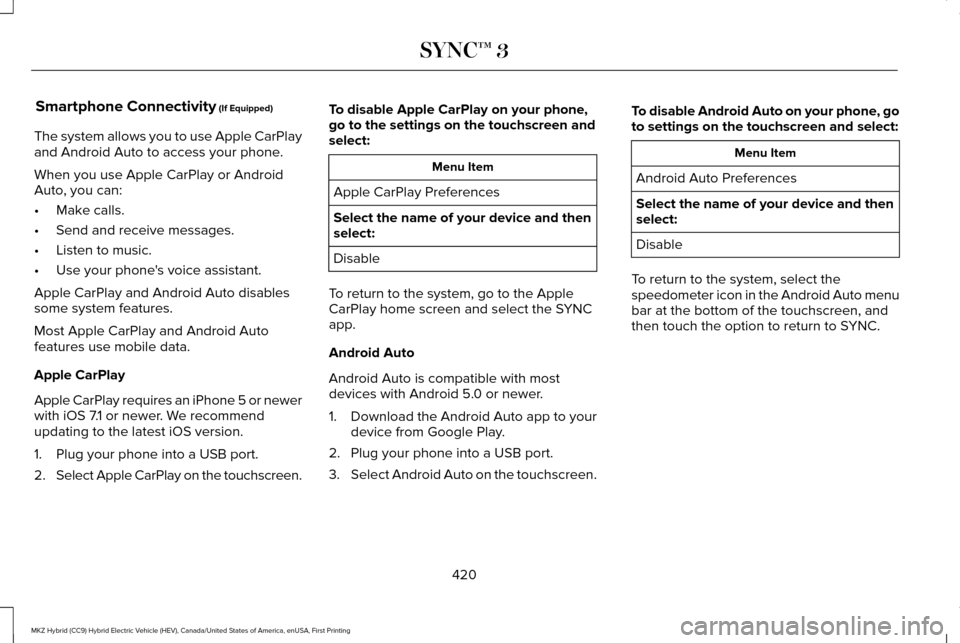
The system allows you to use Apple CarPlay
and Android Auto to access your phone.
When you use Apple CarPlay or Android
Auto, you can:
•
Make calls.
• Send and receive messages.
• Listen to music.
• Use your phone's voice assistant.
Apple CarPlay and Android Auto disables
some system features.
Most Apple CarPlay and Android Auto
features use mobile data.
Apple CarPlay
Apple CarPlay requires an iPhone 5 or newer
with iOS 7.1 or newer. We recommend
updating to the latest iOS version.
1. Plug your phone into a USB port.
2. Select Apple CarPlay on the touchscreen. To disable Apple CarPlay on your phone,
go to the settings on the touchscreen and
select: Menu Item
Apple CarPlay Preferences
Select the name of your device and then
select:
Disable
To return to the system, go to the Apple
CarPlay home screen and select the SYNC
app.
Android Auto
Android Auto is compatible with most
devices with Android 5.0 or newer.
1. Download the Android Auto app to your
device from Google Play.
2. Plug your phone into a USB port.
3. Select Android Auto on the touchscreen. To disable Android Auto on your phone, go
to settings on the touchscreen and select: Menu Item
Android Auto Preferences
Select the name of your device and then
select:
Disable
To return to the system, select the
speedometer icon in the Android Auto menu
bar at the bottom of the touchscreen, and
then touch the option to return to SYNC.
Page 433 of 546
cityseeker (If Equipped)
Note: cityseeker point of interest (POI)
information is limited to approximately 1110
cities (1049 in the United States, 36 in
Canada and 15 in Mexico). cityseeker, when available, is a service that
provides more information about certain
points of interest such as restaurants, hotels
and attractions.
When you have selected a point of interest,
the location and information appear, such as
address, phone number and a star rating.
Press
More Information to see a photo, a
review, a list of services and facilities, the
average room or meal price and the web
address. This screen displays the point of
interest icons. For restaurants, cityseeker can provide
information such as star rating, average cost,
review, handicap access, hours of operation,
and website address.
For hotels, cityseeker can provide
information such as star rating, price
category, review, check-in and checkout
times, hotel service icons and website
address. Hotel service icons include:
•
Restaurant
• Business center
• Handicap facilities
• Laundry
• Refrigerator
• 24 hour room service
• Fitness center
• Internet access
• Pool
• Wi-Fi
Attractions include nearby landmarks,
amusement parks, historic buildings and
more. cityseeker can provide information
such as star rating, reviews, hour of operation
and admission price. SiriusXM Traffic and Travel Link
SiriusXM Traffic and Travel Link is available
on vehicles equipped with navigation and
only in select markets. You must activate and
subscribe to receive SiriusXM Traffic and
Travel Link information. It helps you locate
the best gas prices, find movie listings, get
current traffic alerts, view the weather map,
get accurate ski conditions and see current
sports scores.
See Apps (page 438).
The system calculates a reasonable efficient
route based on available speed limits, traffic,
and road conditions. You may know a local
short cut that is more efficient at a given time
than the route provided by SYNC 3, but you
should expect a slight difference in minutes
or miles with the SYNC 3 route.
Navigation Map Updates
Annual navigation map updates are available
for purchase through your dealership, by
calling 1-866-462-8837 in the United States
and Canada or 01-800-557-5539 in Mexico.
You can also visit:
430
MKZ Hybrid (CC9) Hybrid Electric Vehicle (HEV), Canada/United States of America, enUSA, First Printing SYNC™ 3E225487
Page 441 of 546
Privacy Notice for GPS Mapping with
MyLincoln Mobile
MyLincoln Mobile allows for GPS mapping
when a vehicle is registered to a MyLincoln
Mobile account. To remove the vehicle from
the account, thereby removing GPS mapping
ability, a Master Reset can be performed in
the vehicle. See Settings (page 442).
Before transferring ownership of a vehicle,
owners may choose to execute a Master
Reset or Factory Reset (completed via the
MyLincoln Mobile website). Either method
removes the vehicle from all MyLincoln
Mobile accounts.
It is recommended that new owners conduct
a Master Reset upon taking possession of
the vehicle to remove it from any existing
MyLincoln Mobile accounts. The new owner
can activate a MyLincoln Mobile account by
completing registration process on the
website. Website
owner.lincoln.com
www.syncmyride.ca Website
www.syncmaroute.ca
APPS
The system enables voice, steering wheel,
and touch screen control of SYNC 3 AppLink
enabled smartphone apps. Once an app is
running through AppLink, you can control
main features of the app through voice
commands and steering wheel controls.
Note: Available AppLink enabled apps will
vary by market.
Note: You must pair and connect your
smartphone via Bluetooth to SYNC 3 to
access AppLink.
Note: iPhone users need to connect the
phone to the USB port.
Note: For information on available apps,
supported smartphone devices and
troubleshooting tips please visit: Websites
owner.lincoln.com
www.syncmyride.ca
www.syncmaroute.ca
Note: Make sure you have an active account
for the app that you have downloaded. Some
apps will work automatically with no setup.
Other apps will want you to configure your
personal settings and personalize your
experience by creating stations or favorites.
We recommend you do this at home or
outside of your vehicle.
Note: We encourage you to review the
smartphone app ’s terms of service and
privacy policies because Ford is not
responsible for your app or its use of data.
438
MKZ Hybrid (CC9) Hybrid Electric Vehicle (HEV), Canada/United States of America, enUSA, First Printing SYNC™ 3
Page 442 of 546
Note:
AppLink is a native SYNC system
feature. Accessing mobile apps through
AppLink is only possible when Android Auto
or Apple CarPlay are disabled. Some apps
may only be accessible in the car through
Applink and others only through Android
Auto or Apple CarPlay. Please refer to the
Smartphone Connectivity information to
disable Android Auto or Apple CarPlay.
Note: In order to use an app with SYNC 3,
the App needs to be running in the
background of your phone. If you shut down
the app on your phone, it shuts down the
app on SYNC 3 as well.
Note: If a SYNC 3 AppLink compatible app
is not shown in the Apps Domain, make sure
the required app is running on the mobile
device. Action and Descrip-
tion
Menu Item
SYNC 3 will search
and connect to
compatible app(s)
running on your
mobile device.
Connect Mobile
Apps
Enabling SYNC 3 Mobile Apps
In order to enable mobile apps, SYNC 3
requires user consent to send and receive
app authorization information and updates
using the data plan associated with the
connected device.
The connected device sends data to Ford in
the United States. The information is
encrypted and includes your VIN, SYNC 3
module number, odometer, usage statistics
and debugging information. We retain this
data for only as long as necessary to provide
this service, troubleshoot, and improve
products and services and to offer you
products and services that may interest you
where allowed by law. Note:
You must enable mobile apps for each
connected device the first time you select a
mobile app using the system.
Note: Ford reserves the right to limit
functionality or deactivate mobile apps at
any time.
Note: Standard data rates apply. Ford is not
responsible for any additional charges you
may receive from your service provider,
when your vehicle sends or receives data
through the connected device. This includes
any additional charges incurred due to
driving in areas when roaming out of a home
network.
You can enable and disable apps through
settings. See Settings (page 442).
App Permissions
The system organizes the App permissions
into groups. You can grant these group
permissions individually. You can change a
permission group status any time when not
driving, by using the settings menu. While in
the settings menu, you can also see the data
included in each group.
439
MKZ Hybrid (CC9) Hybrid Electric Vehicle (HEV), Canada/United States of America, enUSA, First Printing SYNC™ 3
Page 447 of 546
Clock
To adjust the time, select the up and down
arrows on either side of the screen. The
arrows on the left adjust the hour and arrows
on the right adjust the minute. You can then
select AM or PM.
You can adjust the following features: Action and Description
Menu Item
Select how time displays.
Clock Format
When active, the clock adjusts to time zone changes.
Auto Time Zone Update
This feature is only available in vehicles with navigation.
When selected, the vehicle clock resets to GPS satellite time.
Reset Clock to GPS Time
The system automatically saves any updates
you make to the settings. Bluetooth
Pressing this button allows you to access the
following: Action
Menu Item
On
Bluetooth
Off
You must activate Bluetooth to pair a
Bluetooth-enabled device. The processes of pairing a Bluetooth device
is the same as pairing a phone. See Pairing
a Device in Phone settings for how to pair a
device and the available options.
444
MKZ Hybrid (CC9) Hybrid Electric Vehicle (HEV), Canada/United States of America, enUSA, First Printing SYNC™ 3
Page 448 of 546
Phone
Pair your Bluetooth-enabled phone with the
system before using the functions in
hands-free mode.
Switch on Bluetooth on your device to begin
pairing. See your phone
’s manual if
necessary.
To add a phone, select: Menu Item
Add Phone
1. Follow the on-screen instructions.
2. A prompt alerts you to search for the system on your phone.
3. Select your vehicle's make and model as
it displays on your phone.
4. Confirm that the six-digit number appearing on your phone matches the
six-digit number on the touchscreen. 5. The touchscreen indicates when the
pairing is successful.
6. Your phone may prompt you to give the system permission to access information.
To check your phone ’s compatibility, see
your phone ’s manual or visit the website.
Alternatively, to add a phone, select: Menu Item
Add Phone
Then select:
Discover Other Bluetooth Devices
1. Follow the on-screen instructions.
2. A prompt alerts you to search for the system on your phone.
3. Select your phone's name when it appears on the touchscreen.
4. Confirm that the six-digit number appearing on your phone matches the
six-digit number on the touchscreen. 5. The touchscreen indicates when the
pairing is successful.
6. Your phone may prompt you to give the system permission to access information.
To check your phone ’s compatibility, see
your phone ’s manual or visit the website.
Other features, such as text messaging using
Bluetooth and automatic phonebook
download, are phone-dependent features.
Once you have paired a device you can
adjust the following options.
To check your phone ’s compatibility, see
your phone ’s manual or visit the website: Website
owner.lincoln.com
www.syncmyride.ca
www.syncmaroute.ca
Once you have paired a device you can
adjust the following options.
445
MKZ Hybrid (CC9) Hybrid Electric Vehicle (HEV), Canada/United States of America, enUSA, First Printing SYNC™ 3
Page 449 of 546

Action and Description
Menu Item
View Devices
You can then select: You can add a Bluetooth-enabled device by following the steps in the prev\
ious table.
Add a Bluetooth Device
You can select a phone by touching the name of the phone on the screen. Y\
ou then have the following options:
Depending on the status of the device, you can select either of these options to interact with the selected
device.
Connect
Disconnect
Allows you to see phone and device information.
Device Information
Allows you to select this device to be your preferred device.
Make Primary
Removes the selected device from the system.
Delete Action and Description
Menu Item
Manage Contacts
You can then select: Enable this option to have SYNC 3 periodically re-download your phonebook to keep your contact list up to
date.
Automatic Contact Download
On/Off
Choose how you would like the system to display your contacts. You can choose:
Sort By:
446
MKZ Hybrid (CC9) Hybrid Electric Vehicle (HEV), Canada/United States of America, enUSA, First Printing SYNC™ 3