using key LINCOLN NAUTILUS 2020 Owner's Manual
[x] Cancel search | Manufacturer: LINCOLN, Model Year: 2020, Model line: NAUTILUS, Model: LINCOLN NAUTILUS 2020Pages: 596, PDF Size: 5.88 MB
Page 159 of 596
You can enable or disable this feature
through the information display. See
Information Displays (page 116).
Personal Profiles
This feature allows you to create multiple
personal profiles enabling users to
personalize vehicle ’s settings. You can
create one profile for each preset memory
seat button along with a guest profile. You
can recall a profile using SYNC 3 or the
preset button you selected when you created
your profile. You can also link a keyfob to
your profile, which is used to recall it.
Creating a Personal Profile
Use the SYNC display to create a personal
profile.
1. Switch the ignition on and leave the vehicle in park (P).
2. Select the Personal Profiles button under
Settings.
3. Follow the instructions on the display. Linking a Personal Profile to your Remote
Control or Intelligent Access Keyfob
You can save preset memory positions for
up to three remote controls or intelligent
access (IA) keys, by assigning a keyfob to a
personal profile in your SYNC 3.
Use the SYNC display to link a keyfob to a
personal profile.
1. Switch the ignition on and leave the
vehicle in park (P).
2. Select the Personal Profiles button under
Settings.
3. Touch the arrow for the profile you wish to link a keyfob to.
4. Select the Link Keyfob button.
5. Follow the instructions on the display.
Note: If more than one linked remote control
or intelligent access key is in range, the
memory function moves to the settings of
the first key to initiate a memory recall. Note:
The guest profile consists of existing
settings when there is no driver profile
created. After you create a driver profile, the
guest profile serves as an additional driver
profile.
Note: You cannot link a personalized name,
a memory seat button or a keyfob to a guest
profile.
Personal Settings
Personal profiles allow you to personalize
positional settings such as seats and mirrors,
as well as non-positional settings such as
radio, navigation, driver assist and system
settings.
See SYNC™ 3 (page 429). You
cannot change the menu locations and
settings of those personalized features with
personal profiles.
Note: Non-positional settings are saved to
the active driver profile whenever you
change a setting.
Note: You can save positional settings if you
press and hold a memory seat button.
See
Settings (page 471).
156
Nautilus (CD9) Canada/United States of America, enUSA, Edition date: 201907, First-Printing Seats
Page 160 of 596
Recalling and Changing a Profile
You can recall a profile by:
•
Using a keyfob that has been linked to a
driver profile to access the remote start
feature, press an unlock button or open
the door with the exterior door handle.
• Pressing a memory seat button that has
been linked to a driver profile.
• Using the Personal Profiles menu on the
SYNC touchscreen.
Note: The recalled profile replaces the
previously active profile. If the active profile
is not your desired profile, you can change
it using any of the three methods listed. When you switch on the personal profiles
feature:
•
Unlocking a door with a keyfob that is
not linked to a driver profile recalls
non-positional settings from the guest
profile. It will not change the positional
settings.
• Pressing a memory seat button that is
not linked to a driver profile or has not
been saved to a preset setting recalls
non-positional settings from the guest
profile. It will not change the positional
settings.
• Pressing a memory seat button that is
not linked to a driver profile but has been
saved to a preset setting recalls
non-positional settings from the guest
profile. It recalls the positional settings
that you saved to that memory seat
button.
See SYNC™ 3 Troubleshooting (page 473). When you switch off a personal profile
feature:
•
Unlocking a door with a keyfob recalls
non-positional settings from the guest
profile and still recalls positional settings
from the driver profile which the keyfob
had been linked to.
• Pressing a memory seat button that has
not been linked to a driver profile or has
not been saved to a preset setting recalls
non-positional settings from the guest
profile. It will not change the positional
settings.
• Pressing a memory seat button that has
been linked to a driver profile or has
saved to a preset setting recalls
non-positional settings from the guest
profile. It recalls the positional settings
that you saved to that memory seat
button.
157
Nautilus (CD9) Canada/United States of America, enUSA, Edition date: 201907, First-Printing Seats
Page 175 of 596
GENERAL INFORMATION
WARNING: Extended idling at high
engine speeds can produce very high
temperatures in the engine and exhaust
system, creating the risk of fire or other
damage. WARNING: Do not park, idle or drive
your vehicle on dry grass or other dry
ground cover. The emission system heats
up the engine compartment and exhaust
system, creating the risk of fire. WARNING:
Do not start the engine
in a closed garage or in other enclosed
areas. Exhaust fumes can be toxic. Always
open the garage door before you start the
engine. WARNING:
Exhaust leaks may result
in entry of harmful and potentially lethal
fumes into the passenger compartment. If
you smell exhaust fumes inside your
vehicle, have your vehicle inspected
immediately. Do not drive if you smell
exhaust fumes.
If you disconnect the battery, your vehicle
may exhibit some unusual driving
characteristics for approximately 5 mi (8 km)
after you reconnect it. This is because the
engine management system must realign
itself with the engine. You can disregard any
unusual driving characteristics during this
period.
The powertrain control system meets all
Canadian interference-causing equipment
standard requirements regulating the
impulse electrical field or radio noise.
When you start the engine, avoid pressing
the accelerator pedal before and during
operation. Only use the accelerator pedal
when you have difficulty starting the engine. KEYLESS STARTING
Note:
The keyless starting system may not
function if the key is close to metal objects
or electronic devices such as cellular
phones.
Note: A valid key must be located inside
your vehicle to switch the ignition on and
start the engine.
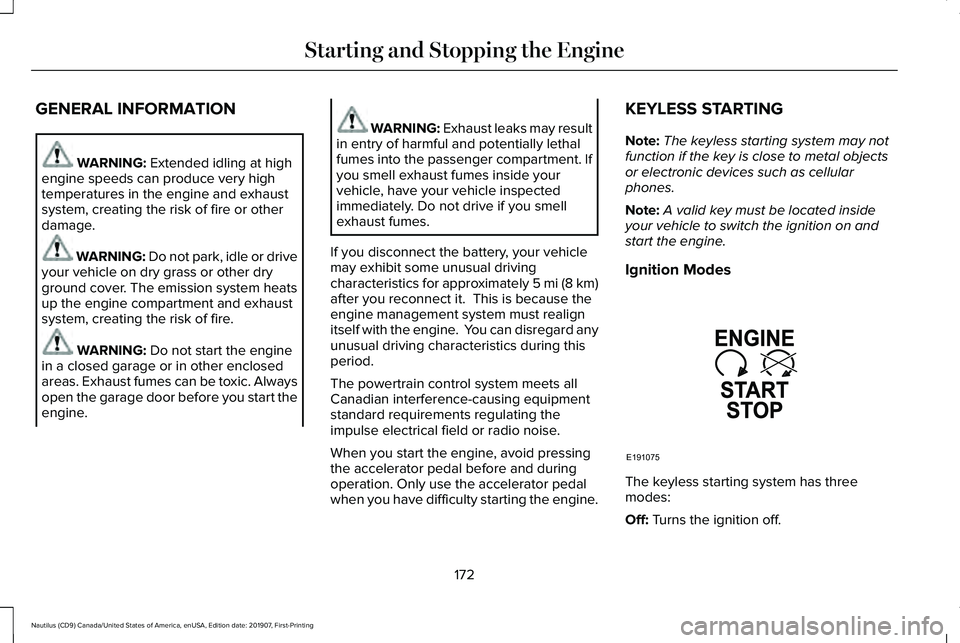
Ignition Modes The keyless starting system has three
modes:
Off:
Turns the ignition off.
172
Nautilus (CD9) Canada/United States of America, enUSA, Edition date: 201907, First-Printing Starting and Stopping the EngineE191075
Page 217 of 596
PRINCIPLE OF OPERATION
WARNING: To help avoid personal
injury, always use caution when in reverse
(R) and when using the sensing system. WARNING:
The system may not
detect objects with surfaces that absorb
reflection. Always drive with due care and
attention. Failure to take care may result
in a crash. WARNING:
Traffic control systems,
inclement weather, air brakes, external
motors and fans may affect the correct
operation of the sensing system.This may
cause reduced performance or false alerts. WARNING:
The system may not
detect small or moving objects, particularly
those close to the ground.
Note: If your vehicle has MyKey™, the sensing
system cannot be switched off when a
MyKey™ is present.
See Principle of
Operation (page 65). Note:
Keep the sensors on the bumper or
fascia free from snow, ice and large
accumulations of dirt. If the sensors are
covered, the system’ s accuracy can be
affected. Do not clean the sensors with sharp
objects.
Note: If your vehicle sustains damage to the
bumper or fascia, leaving it misaligned or
bent, the sensing zone may be altered
causing inaccurate measurement of
obstacles or false alerts.
Note: Certain add-on devices installed
around the bumper or fascia may create
false alerts. For example, large trailer
hitches, bike or surfboard racks, license plate
brackets, bumper covers or any other device
that may block the normal detection zone
of the system. Remove the add-on device to
prevent false alerts.
Note: When you connect a trailer to your
vehicle, the rear parking aid may detect the
trailer and therefore provide an alert. Disable
the rear parking aid when you connect a
trailer to prevent the alert. The sensing system warns the driver of
obstacles within a certain range of your
vehicle. The system turns on automatically
whenever you switch the ignition on.
You can switch the system off through the
information display menu or from the pop-up
message that appears once you shift the
transmission into reverse (R).
See Using
Traction Control (page 210). If your vehicle
has a parking aid button, you can switch the
system off by pressing the button.
If a fault is present in the system, a warning
message appears in the information display.
See
Information Messages (page 122).
REAR PARKING AID WARNING:
The system may not
detect objects with surfaces that absorb
reflection. Always drive with due care and
attention. Failure to take care may result
in a crash.
214
Nautilus (CD9) Canada/United States of America, enUSA, Edition date: 201907, First-Printing Parking Aids
Page 291 of 596
ROADSIDE ASSISTANCE
Vehicles sold in the United States:
Getting Roadside Assistance
To fully assist you should you have a vehicle
concern, Lincoln Motor Company offers a
complimentary roadside assistance program.
This program is separate from the New
Vehicle Limited Warranty.
The service is available:
•
Throughout the life of the vehicle for
original owners.
• For six years or 70,000 mi (110,000 km)
(whichever comes first) for subsequent
owners.
Roadside Assistance covers:
• A flat tire change with a good spare
(except vehicles supplied with a tire
inflation kit).
• Battery jump start.
• Lock-out assistance (key replacement
cost is the client's responsibility). •
Fuel delivery — independent service
contractors, if not prohibited by state,
local or municipal law shall deliver up to
2 gal (8 L)
of gasoline fuel to a disabled
vehicle. Roadside Assistance limits fuel
delivery service to two no-charge
occurrences within a 12-month period.
• Winch out — available within 100 ft (30 m)
of a paved or county maintained road,
no recoveries. •
Towing — independent service
contractors, if not prohibited by state,
local or municipal law shall tow Lincoln
eligible vehicles to the client's selling or
preferred dealer within 100 mi (160 km)
of the disablement location or to the
nearest Lincoln dealer. If a client requests
a tow to a selling or preferred dealer that
is more than
100 mi (160 km) from the
disablement location, the client is
responsible for any mileage costs in
excess of
100 mi (160 km).
• Roadside Assistance includes up to $200
for a towed trailer if the disabled eligible
vehicle requires service at the nearest
authorized dealer. If the towing vehicle
is operational but the trailer is not, then
the trailer does not qualify for any
roadside services.
Vehicles Sold in the United States:
Using Roadside Assistance
United States clients who require roadside
assistance, call 1-800-521-4140 or contact
Roadside Assistance using the Lincoln Way
mobile app.
288
Nautilus (CD9) Canada/United States of America, enUSA, Edition date: 201907, First-Printing Roadside Emergencies
Page 292 of 596
If you need to arrange roadside assistance
for yourself, Lincoln Motor Company
reimburses a reasonable amount for towing
to the nearest Lincoln dealership within
100 mi (160 km). To obtain reimbursement
information, United States clients, call
1-800-521-4140. Clients need to submit their
original receipts.
Vehicles Sold in Canada: Getting
Roadside Assistance
To fully assist you should you have a vehicle
concern, Lincoln Motor Company offers a
complimentary roadside assistance program.
This program is eligible within Canada or the
continental United States.
The service is available 24 hours a day,
seven days a week.
This program is separate from the New
Vehicle Limited Warranty, beginning from
the original warranty start date and lasts the
life of the vehicle for the original owner.
Subsequent owners receive coverage that
is concurrent with the 6 years or
70,000 mi
(110,000 km) (whichever occurs first)
powertrain warranty coverage period. Note:
Canadian roadside coverage and
benefits may differ from the U.S. coverage.
For complete program coverage details,
review your warranty guide, contact your
dealer, call us in Canada at 1-800-387-9333,
or visit our website at
www.lincolncanada.com.
If you purchased your vehicle in Canada and
require roadside assistance, please call
1-800-387-9333 or contact Roadside
Assistance using the Lincoln Way mobile
app.
Note: For quick reference, complete the
roadside assistance identification card found
in the glove compartment of your vehicle
and place it in your wallet.
HAZARD FLASHERS
Note: The hazard flashers operate when the
ignition is in any position, or if the key is not
in the ignition. If used when the vehicle is not
running, the battery loses charge. As a result,
there may be insufficient power to restart
your vehicle. The flasher control is on the
instrument panel. Use your hazard
flashers when your vehicle is
creating a safety hazard for other motorists.
• Press the flasher control and all front and
rear direction indicators flash.
• Press the button again to switch them off.
FUEL SHUTOFF WARNING:
If your vehicle has been
involved in a crash, have the fuel system
checked. Failure to follow this instruction
could result in fire, personal injury or death.
Note: When you try to restart your vehicle
after a fuel shutoff, the vehicle makes sure
that various systems are safe to restart.
Once the vehicle determines the systems
are safe, then the vehicle allows you to
restart.
Note: In the event that your vehicle does not
restart after your third attempt, contact a
qualified technician.
289
Nautilus (CD9) Canada/United States of America, enUSA, Edition date: 201907, First-Printing Roadside Emergencies
Page 462 of 596
1. Select Add Phone.
Note: A prompt alerts you to search for your
vehicle on your cell phone.
2. Select your vehicle on your cell phone.
Note: A number appears on your cell phone
and on the touchscreen.
3. Confirm that the number on your cell phone matches the number on the
touchscreen.
Note: The touchscreen indicates that you
have successfully paired your cell phone.
4. Download the phonebook from your cell
phone when you are prompted.
Note: If you pair more than one cell phone,
use the phone settings to specify the primary
phone. You can change this setting at any
time.
Using Your Cell Phone
Recent Call List
Display and select an entry from a list of
previous calls. Contacts
Display a smart search form to look up your
contacts. Use the List button to alphabetically
sort your contacts.
Change Device
Display the list of paired or connected
devices that you can select.
Phone Settings
Change ring tones, alerts or pair another
phone.
Do Not Disturb
Reject incoming calls and switch ring tones
and alerts off.
Phone Keypad
Directly dial a number.
Mute
Mute the microphone.
Text Messaging
Setting Text Message Notification
iOS
1. Go to the settings menu on your cell
phone.
2. Select Bluetooth.
3. Select the information icon to the right of
your vehicle.
4. Switch text message notification on.
Android
1. Go to the settings menu on your cell phone.
2. Select Bluetooth.
3. Select the profiles option.
4. Select the phone profile.
5. Switch text message notification on.
459
Nautilus (CD9) Canada/United States of America, enUSA, Edition date: 201907, First-Printing SYNC™ 3
Page 466 of 596
Setting a Destination Using the Text Entry
Screen
Text entry field.
A
Automatic suggestions based on
the text you enter.
B
Information icon.
C Search.
D
Keyboard settings.
E
Note: Select one of the suggestions to
copy the detail to the text entry field.
You can search by entering all or part of
the destination, such as the Address, POI
Category or Name, Intersection, City,
Latitude/Longitude, etc. Tips: If you do not
specify a location, the system will use the
current vehicle location. You can specify a
location by address, city, state or zip code.
For additional search support, please visit:
owner.lincoln.com.
Note: Press the button in the top right-hand
corner of the main map to display estimated
time of arrival, remaining travel time or
distance to destination. Setting a Destination Using the Map Screen
Re-center the map.
A
Selected location.
B
3D map rotation. Swipe left or right.
C
Destination name.
D
Start route guidance.
E
Select the location on the map.
Select Start to begin route guidance.
463
Nautilus (CD9) Canada/United States of America, enUSA, Edition date: 201907, First-Printing SYNC™ 3E297857 E297858
Page 582 of 596
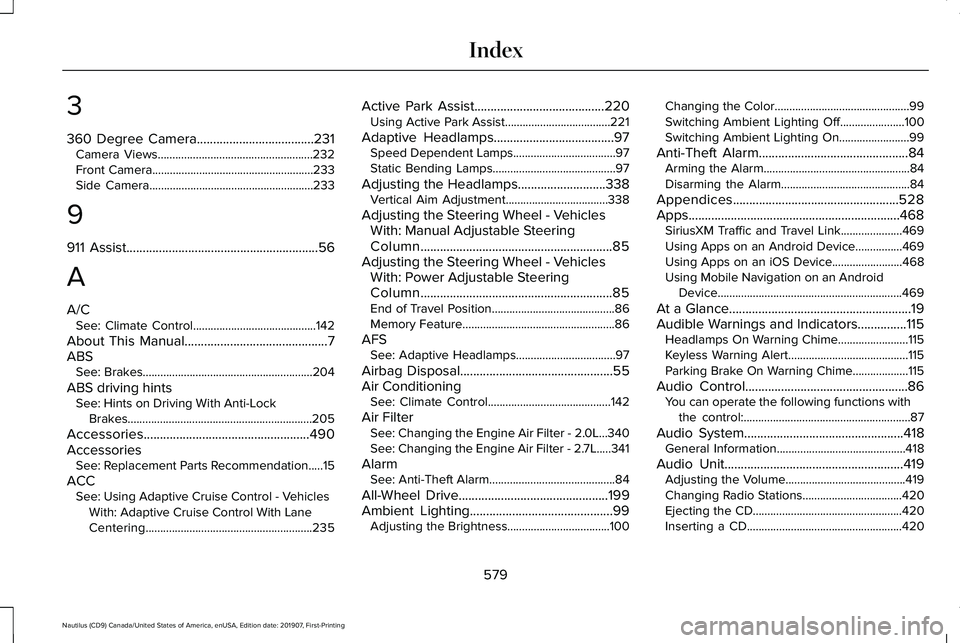
3
360 Degree Camera....................................231
Camera Views.....................................................232
Front Camera.......................................................233
Side Camera........................................................233
9
911 Assist...........................................................56
A
A/C See: Climate Control..........................................142
About This Manual
............................................7
ABS See: Brakes..........................................................204
ABS driving hints See: Hints on Driving With Anti-Lock
Brakes...............................................................205
Accessories...................................................490
Accessories See: Replacement Parts Recommendation.....15
ACC See: Using Adaptive Cruise Control - Vehicles
With: Adaptive Cruise Control With Lane
Centering.........................................................235 Active Park Assist........................................220
Using Active Park Assist....................................221
Adaptive Headlamps
.....................................97
Speed Dependent Lamps...................................97
Static Bending Lamps..........................................97
Adjusting the Headlamps...........................338 Vertical Aim Adjustment...................................338
Adjusting the Steering Wheel - Vehicles With: Manual Adjustable Steering
Column...........................................................85
Adjusting the Steering Wheel - Vehicles With: Power Adjustable Steering
Column...........................................................85
End of Travel Position..........................................86
Memory Feature....................................................86
AFS See: Adaptive Headlamps..................................97
Airbag Disposal
...............................................55
Air Conditioning See: Climate Control..........................................142
Air Filter See: Changing the Engine Air Filter - 2.0L...340
See: Changing the Engine Air Filter - 2.7L.....341
Alarm See: Anti-Theft Alarm...........................................84
All-Wheel Drive
..............................................199
Ambient Lighting............................................99 Adjusting the Brightness...................................100 Changing the Color..............................................99
Switching Ambient Lighting Off......................100
Switching Ambient Lighting On........................99
Anti-Theft Alarm
..............................................84
Arming the Alarm..................................................84
Disarming the Alarm............................................84
Appendices...................................................528
Apps .................................................................
468
SiriusXM Traffic and Travel Link.....................469
Using Apps on an Android Device................469
Using Apps on an iOS Device........................
468
Using Mobile Navigation on an Android Device...............................................................469
At a Glance
........................................................19
Audible Warnings and Indicators...............115 Headlamps On Warning Chime........................115
Keyless Warning Alert.........................................115
Parking Brake On Warning Chime...................115
Audio Control
..................................................86
You can operate the following functions with
the control:.........................................................87
Audio System
.................................................418
General Information............................................418
Audio Unit
.......................................................419
Adjusting the Volume.........................................419
Changing Radio Stations..................................420
Ejecting the CD...................................................420
Inserting a CD.....................................................420
579
Nautilus (CD9) Canada/United States of America, enUSA, Edition date: 201907, First-Printing Index
Page 585 of 596
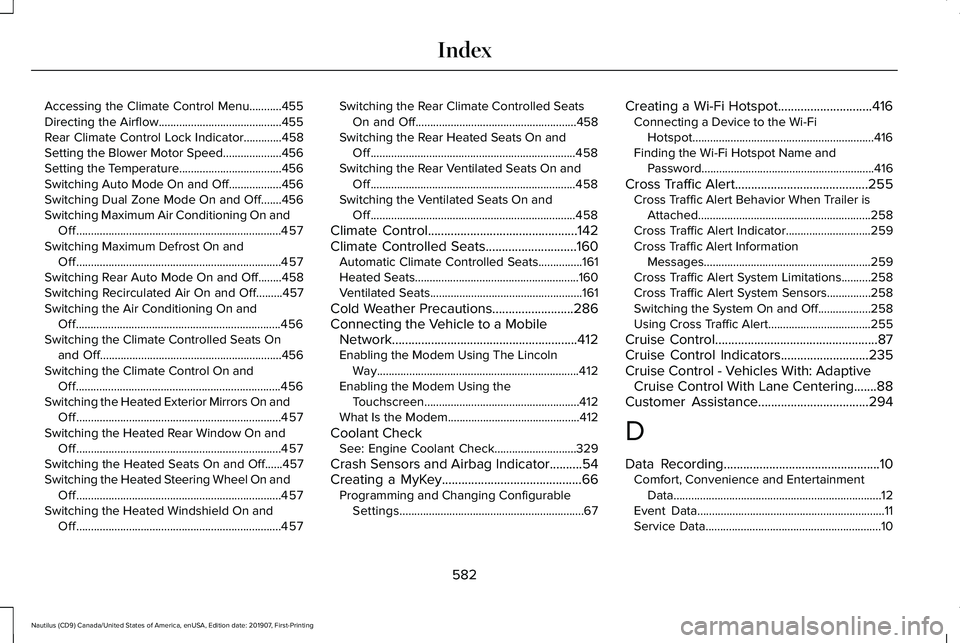
Accessing the Climate Control Menu...........455
Directing the Airflow..........................................455
Rear Climate Control Lock Indicator.............458
Setting the Blower Motor Speed....................456
Setting the Temperature...................................456
Switching Auto Mode On and Off..................456
Switching Dual Zone Mode On and Off.......456
Switching Maximum Air Conditioning On and
Off......................................................................457
Switching Maximum Defrost On and Off......................................................................457
Switching Rear Auto Mode On and Off........458
Switching Recirculated Air On and Off.........457
Switching the Air Conditioning On and Off......................................................................456
Switching the Climate Controlled Seats On and Off..............................................................456
Switching the Climate Control On and Off......................................................................456
Switching the Heated Exterior Mirrors On and Off......................................................................457
Switching the Heated Rear Window On and Off......................................................................457
Switching the Heated Seats On and Off......457
Switching the Heated Steering Wheel On and Off......................................................................457
Switching the Heated Windshield On and Off......................................................................457 Switching the Rear Climate Controlled Seats
On and Off.......................................................458
Switching the Rear Heated Seats On and Off......................................................................458
Switching the Rear Ventilated Seats On and Off......................................................................458
Switching the Ventilated Seats On and Off......................................................................458
Climate Control..............................................142
Climate Controlled Seats............................160 Automatic Climate Controlled Seats...............161
Heated Seats........................................................160
Ventilated Seats....................................................161
Cold Weather Precautions
.........................286
Connecting the Vehicle to a Mobile Network
.........................................................412
Enabling the Modem Using The Lincoln
Way.....................................................................412
Enabling the Modem Using the Touchscreen.....................................................412
What Is the Modem.............................................412
Coolant Check See: Engine Coolant Check............................
329
Crash Sensors and Airbag Indicator
..........54
Creating a MyKey...........................................66 Programming and Changing Configurable
Settings...............................................................67 Creating a Wi-Fi Hotspot.............................416
Connecting a Device to the Wi-Fi
Hotspot..............................................................416
Finding the Wi-Fi Hotspot Name and Password...........................................................416
Cross Traffic Alert.........................................255 Cross Traffic Alert Behavior When Trailer is
Attached...........................................................258
Cross Traffic Alert Indicator.............................259
Cross Traffic Alert Information Messages.........................................................259
Cross Traffic Alert System Limitations..........
258
Cross Traffic Alert System Sensors...............258
Switching the System On and Off..................258
Using Cross Traffic Alert...................................255
Cruise Control
..................................................87
Cruise Control Indicators...........................235
Cruise Control - Vehicles With: Adaptive Cruise Control With Lane Centering.......88
Customer Assistance
..................................294
D
Data Recording
................................................10
Comfort, Convenience and Entertainment
Data.......................................................................12
Event Data................................................................11
Service Data............................................................10
582
Nautilus (CD9) Canada/United States of America, enUSA, Edition date: 201907, First-Printing Index