USB port LINCOLN NAUTILUS 2020 Owners Manual
[x] Cancel search | Manufacturer: LINCOLN, Model Year: 2020, Model line: NAUTILUS, Model: LINCOLN NAUTILUS 2020Pages: 596, PDF Size: 5.88 MB
Page 9 of 596
Tire Pressure Monitoring System
.............371
Changing a Road Wheel ............................
376
Technical Specifications ............................
383
Capacities and Specifications
Engine Specifications - 2.0L .....................
385
Engine Specifications - 2.7L .....................
386
Motorcraft Parts - 2.0L ................................
387
Motorcraft Parts - 2.7L ................................
388
Vehicle Identification Number .................
389
Vehicle Certification Label ........................
389
Transmission Code Designation .............
390
Capacities and Specifications - 2.0L .......
391
Capacities and Specifications - 2.7L .......
401
Bulb Specification Chart ..............................
411
Network Connectivity
Connecting the Vehicle to a Mobile Network ......................................................
412
Network Connectivity – Troubleshooting .......................................................................
413 Wi-Fi Hotspot
Creating a Wi-Fi Hotspot
............................
416
Changing the Wi-Fi Hotspot Name or Password ....................................................
416
Audio System
General Information .....................................
418
Audio Unit ......................................................
419
Digital Radio .................................................
420
Satellite Radio ..............................................
424
USB Port ........................................................
427
Media Hub .....................................................
427
SYNC™ 3
General Information ...................................
429
Using Voice Recognition ............................
431
Entertainment ...............................................
443
Climate ...........................................................
455
Phone .............................................................
458
Navigation .....................................................
460
Apps ...............................................................
468
Settings ...........................................................
471
SYNC™ 3 Troubleshooting .........................
473Accessories
Accessories
..................................................
490
Lincoln Protect
Lincoln Protect .............................................
492
Scheduled Maintenance
General Maintenance Information ..........
495
Normal Scheduled Maintenance ............
500
Special Operating Conditions Scheduled Maintenance ............................................
504
Scheduled Maintenance Record .............
507
Appendices
Electromagnetic Compatibility ................
528
End User License Agreement ..................
533
Declaration of Conformity .........................
564
Type Approvals ............................................
564
6
Nautilus (CD9) Canada/United States of America, enUSA, Edition date: 201907, First-Printing Table of Contents
Page 169 of 596
12 Volt DC Power Point
WARNING: Do not plug optional
electrical accessories into the cigar lighter
socket. Incorrect use of the cigar lighter
can cause damage not covered by the
vehicle warranty, and can result in fire or
serious injury.
Note: When you switch the ignition on, you
can use the socket to power 12 volt
appliances with a maximum current rating
of 15 amps.
Note: If the power supply does not work after
you switch the ignition off, switch the ignition
on.
Note: Do not hang any accessory from the
accessory plug.
Note: Do not use the power point over the
vehicle capacity of 12 volt DC 180 watts or
a fuse may blow.
Note: Always keep the power point caps
closed when not in use. Do not insert objects other than an accessory
plug into the power point. This damages the
power point and may blow the fuse.
Run the vehicle for full capacity use of the
power point.
To prevent the battery from running out of
charge:
•
Do not use the power point longer than
necessary when the vehicle is not
running.
• Do not leave devices plugged in
overnight or when you park your vehicle
for extended periods.
USB Port and Power Point Locations
USB Ports and Power Points may be in the
following locations:
• On the lower instrument panel.
• Inside the center console.
• On the front of the center console.
• On the rear of the center console.
• In the cargo area.
• On the passenger side floor panel.
• 3rd row on the quarter trim panels. Note:
Some of the USB ports may not have
data transfer capabilities.
Note: Incorrect use of the USB ports can
cause damage not covered by the vehicle
warranty.
110 Volt AC Power Point WARNING:
Do not keep electrical
devices plugged in the power point
whenever the device is not in use. Do not
use any extension cord with the 110 volt
AC power point, since it will defeat the
safety protection design. Doing so may
cause the power point to overload due to
powering multiple devices that can reach
beyond the 150 watt load limit and could
result in fire or serious injury.
Note: The power point turns off when you
switch off the ignition, when the vehicle is
not in accessory mode or when the battery
voltage drops below 11 volts.
You can use the power point for electric
devices that require up to 150 watts. It is on
the rear of the center console.
166
Nautilus (CD9) Canada/United States of America, enUSA, Edition date: 201907, First-Printing Auxiliary Power Points
Page 173 of 596
GLOVE COMPARTMENT
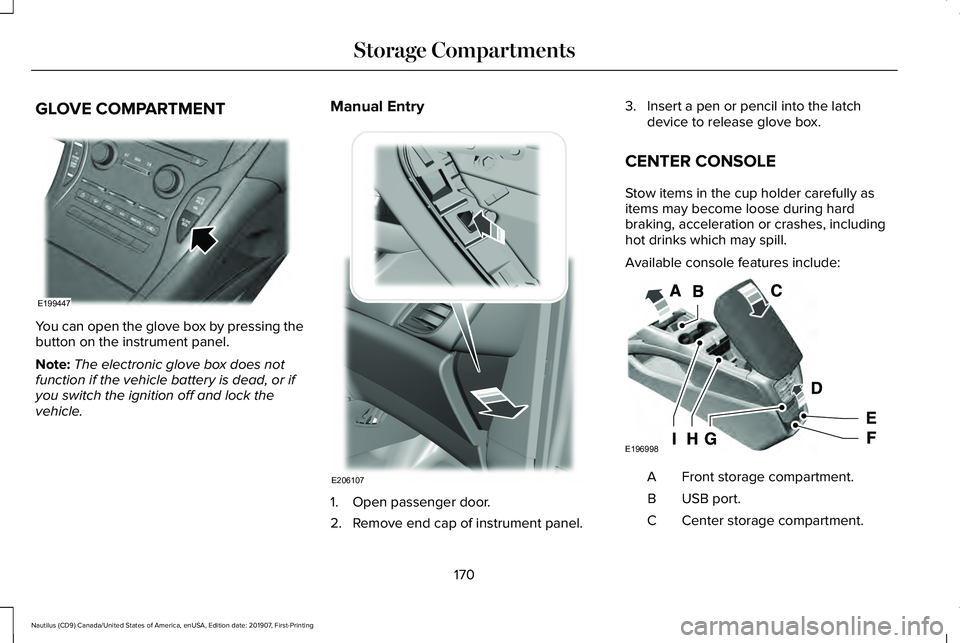
You can open the glove box by pressing the
button on the instrument panel.
Note:
The electronic glove box does not
function if the vehicle battery is dead, or if
you switch the ignition off and lock the
vehicle. Manual Entry
1. Open passenger door.
2. Remove end cap of instrument panel.3. Insert a pen or pencil into the latch
device to release glove box.
CENTER CONSOLE
Stow items in the cup holder carefully as
items may become loose during hard
braking, acceleration or crashes, including
hot drinks which may spill.
Available console features include: Front storage compartment.
A
USB port.
B
Center storage compartment.
C
170
Nautilus (CD9) Canada/United States of America, enUSA, Edition date: 201907, First-Printing Storage CompartmentsE199447 E206107 E196998
Page 174 of 596
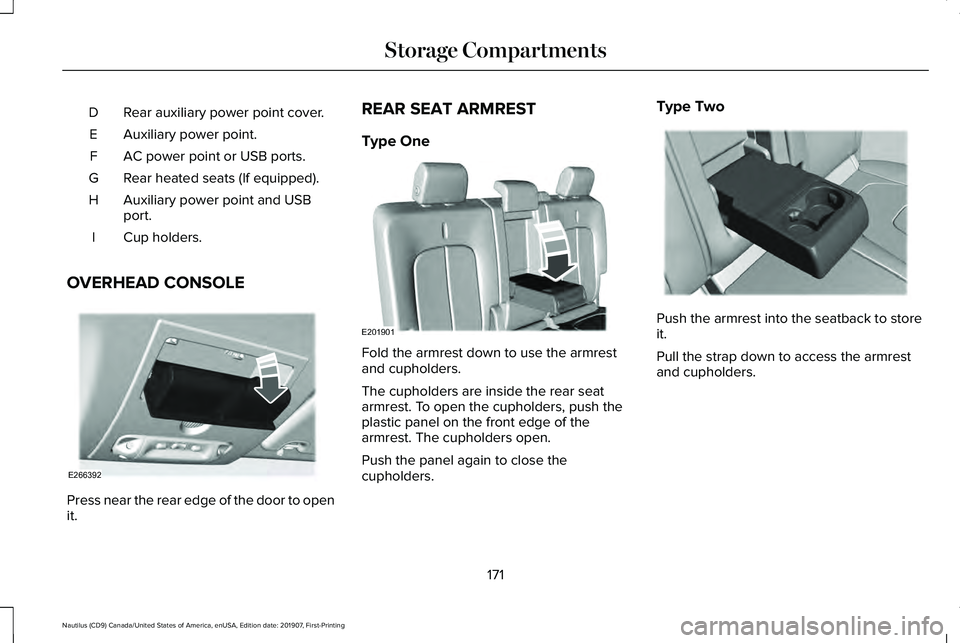
Rear auxiliary power point cover.
D
Auxiliary power point.
E
AC power point or USB ports.
F
Rear heated seats (If equipped).
G
Auxiliary power point and USB
port.
H
Cup holders.
I
OVERHEAD CONSOLE Press near the rear edge of the door to open
it. REAR SEAT ARMREST
Type One
Fold the armrest down to use the armrest
and cupholders.
The cupholders are inside the rear seat
armrest. To open the cupholders, push the
plastic panel on the front edge of the
armrest. The cupholders open.
Push the panel again to close the
cupholders.Type Two
Push the armrest into the seatback to store
it.
Pull the strap down to access the armrest
and cupholders.
171
Nautilus (CD9) Canada/United States of America, enUSA, Edition date: 201907, First-Printing Storage CompartmentsE266392 E201901 E309799
Page 430 of 596
Action
Condition
Message
Use the channel guide to turn off the Lock or
Skip function on that station.
All the channels in the selected category are
either skipped or locked.
None found
Check Channel Guide
No action required.
SiriusXM has updated the channels available
for your vehicle.
Subscription Updated
USB PORT WARNING: Driving while distracted
can result in loss of vehicle control, crash
and injury. We strongly recommend that
you use extreme caution when using any
device that may take your focus off the
road. Your primary responsibility is the safe
operation of your vehicle. We recommend
against the use of any hand-held device
while driving and encourage the use of
voice-operated systems when possible.
Make sure you are aware of all applicable
local laws that may affect the use of
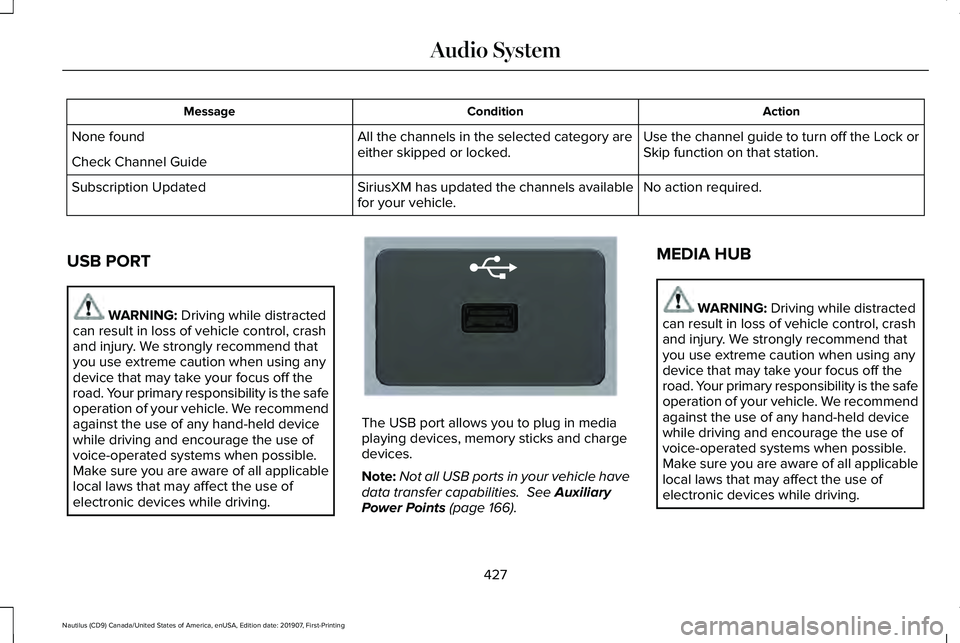
electronic devices while driving. The USB port allows you to plug in media
playing devices, memory sticks and charge
devices.
Note:
Not all USB ports in your vehicle have
data transfer capabilities.
See Auxiliary
Power Points (page 166). MEDIA HUB WARNING:
Driving while distracted
can result in loss of vehicle control, crash
and injury. We strongly recommend that
you use extreme caution when using any
device that may take your focus off the
road. Your primary responsibility is the safe
operation of your vehicle. We recommend
against the use of any hand-held device
while driving and encourage the use of
voice-operated systems when possible.
Make sure you are aware of all applicable
local laws that may affect the use of
electronic devices while driving.
427
Nautilus (CD9) Canada/United States of America, enUSA, Edition date: 201907, First-Printing Audio SystemE201595
Page 431 of 596
The media hub may be on the instrument
panel or center console.
The media hub may contain one or more of
the following inputs:
See USB Port (page 427).
See
Audio Unit (page 419).
428
Nautilus (CD9) Canada/United States of America, enUSA, Edition date: 201907, First-Printing Audio System
Page 433 of 596
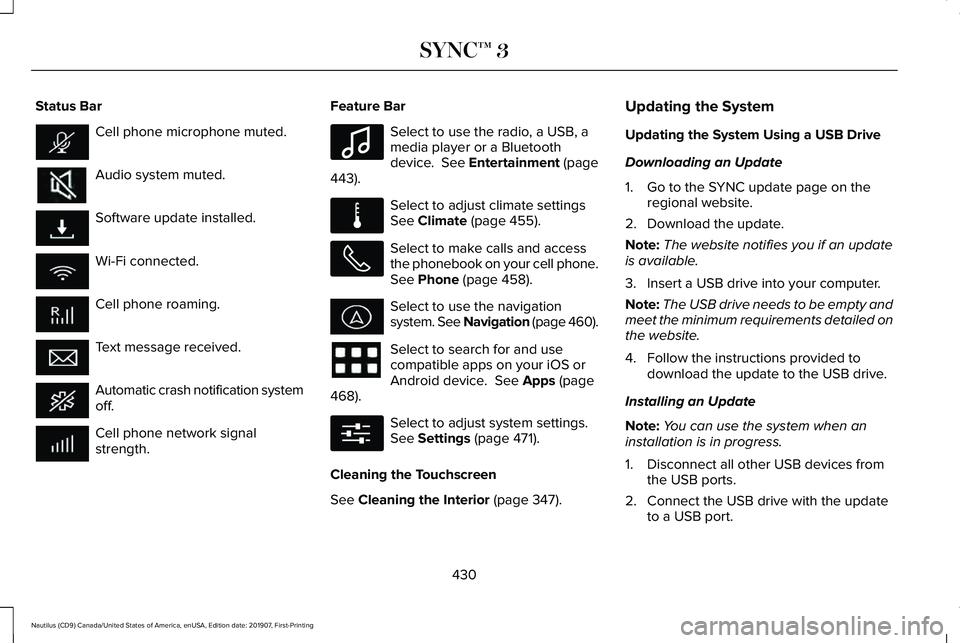
Status Bar
Cell phone microphone muted.
Audio system muted.
Software update installed.
Wi-Fi connected.
Cell phone roaming.
Text message received.
Automatic crash notification system
off.
Cell phone network signal
strength. Feature Bar Select to use the radio, a USB, a
media player or a Bluetooth
device. See Entertainment (page
443). Select to adjust climate settings
See
Climate (page 455).
Select to make calls and access
the phonebook on your cell phone.
See
Phone (page 458).
Select to use the navigation
system. See Navigation (page 460
).
Select to search for and use
compatible apps on your iOS or
Android device.
See Apps (page
468). Select to adjust system settings.
See
Settings (page 471).
Cleaning the Touchscreen
See
Cleaning the Interior (page 347). Updating the System
Updating the System Using a USB Drive
Downloading an Update
1. Go to the SYNC update page on the
regional website.
2. Download the update.
Note: The website notifies you if an update
is available.
3. Insert a USB drive into your computer.
Note: The USB drive needs to be empty and
meet the minimum requirements detailed on
the website.
4. Follow the instructions provided to download the update to the USB drive.
Installing an Update
Note: You can use the system when an
installation is in progress.
1. Disconnect all other USB devices from the USB ports.
2. Connect the USB drive with the update to a USB port.
430
Nautilus (CD9) Canada/United States of America, enUSA, Edition date: 201907, First-Printing SYNC™ 3 E100027 E283811 E280315
Page 458 of 596
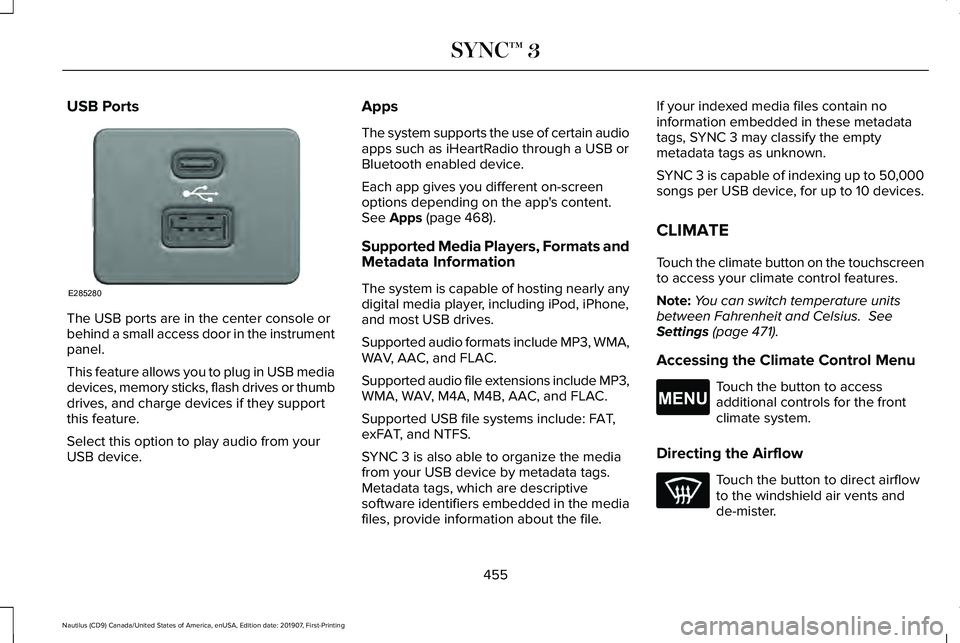
USB Ports
The USB ports are in the center console or
behind a small access door in the instrument
panel.
This feature allows you to plug in USB media
devices, memory sticks, flash drives or thumb
drives, and charge devices if they support
this feature.
Select this option to play audio from your
USB device. Apps
The system supports the use of certain audio
apps such as iHeartRadio through a USB or
Bluetooth enabled device.
Each app gives you different on-screen
options depending on the app's content.
See Apps (page 468).
Supported Media Players, Formats and
Metadata Information
The system is capable of hosting nearly any
digital media player, including iPod, iPhone,
and most USB drives.
Supported audio formats include MP3, WMA,
WAV, AAC, and FLAC.
Supported audio file extensions include MP3,
WMA, WAV, M4A, M4B, AAC, and FLAC.
Supported USB file systems include: FAT,
exFAT, and NTFS.
SYNC 3 is also able to organize the media
from your USB device by metadata tags.
Metadata tags, which are descriptive
software identifiers embedded in the media
files, provide information about the file. If your indexed media files contain no
information embedded in these metadata
tags, SYNC 3 may classify the empty
metadata tags as unknown.
SYNC 3 is capable of indexing up to 50,000
songs per USB device, for up to 10 devices.
CLIMATE
Touch the climate button on the touchscreen
to access your climate control features.
Note:
You can switch temperature units
between Fahrenheit and Celsius.
See
Settings (page 471).
Accessing the Climate Control Menu Touch the button to access
additional controls for the front
climate system.
Directing the Airflow Touch the button to direct airflow
to the windshield air vents and
de-mister.
455
Nautilus (CD9) Canada/United States of America, enUSA, Edition date: 201907, First-Printing SYNC™ 3E285280 E265038
Page 463 of 596
Using Text Messaging
Description
Menu Item
Hear the text message.
Hear It
View the text message.
View
Call the sender.
Call
Reply to the text message with a standard text message.
Reply
Apple CarPlay (If Equipped)
1. Connect your device to a USB port.
2. Follow the instructions on the touchscreen.
Note: Certain features of the system are not
available when you are using Apple CarPlay.
Switching Apple CarPlay Off Select the settings option on the
feature bar.
1. Select
Apple CarPlay Preferences.
2. Switch
Apple CarPlay off. Android Auto
(If Equipped)
1. Connect your device to a USB port.
2. Follow the instructions on the touchscreen.
Note: You might need to enable Android
Auto from the settings menu.
Note: Certain features of the system are not
available when you are using Android Auto.
Switching Android Auto Off Select the settings option on the
feature bar.
1. Select
Android Auto. 2. Switch
Android Auto off.
NAVIGATION
(IF EQUIPPED)
Note: For more information, refer to our
website. Select the navigation option on the
feature bar.
460
Nautilus (CD9) Canada/United States of America, enUSA, Edition date: 201907, First-Printing SYNC™ 3
Page 471 of 596
The navigation system map data may contain
inaccurate or incomplete information due to
the passage of time, changing
circumstances, sources used and the nature
of collecting comprehensive geographic
data, any of which may lead to incorrect
results. Inaccurate speed limit information,
turn restrictions and other road attributes
may affect the determined route and
associated guidance
Annual navigation map updates are available
for purchase through your dealership.
Depending on your purchase agreement,
you might be eligible for free Map update.
You can choose to download the Map data
update onto a USB, order a USB, or use Wi-Fi
to deliver automatic updates. To update your
Map data over Wi-Fi, your vehicle must be
connected to a Wi-Fi access point. Map Data
files are large, so it is highly recommended
to perform the update when free Wi-Fi is
available otherwise high data rates may
apply. For USB updates, free map update
eligibility, and other details, contact dealers
at 1-866-462-8837 in the United States and
Canada or 01-800-557-5539 in Mexico or
visit our local website for more information.
APPS
The system allows you interact with select
mobile apps while keeping your eyes on the
road. Voice commands, your steering wheel
buttons, or a quick tap on your touchscreen
give you advanced control of compatible
mobile apps. You can also stream your
favorite music or podcasts, share your time
of arrival with friends, and keep connected
safely.
When you start an app through the system
for the first time, you could be asked to grant
certain permissions. You can review and
change the permissions that you have
granted at any time when your vehicle is not
moving. We recommend that you check your
data plan before using your apps through
the system. Using them could result in
additional charges. We also recommend that
you check the app provider's terms and
conditions and privacy policy before using
their app. Make sure that you have an active
account for apps that you want to use
through the system. Some apps will work
with no setup. Others require you to
configure some personal settings before you
can use them.
Note:
For more information about available
apps, visit catalog.ford.com.
Using Apps on an iOS Device Select the apps option on the
feature bar.
1. If your device is connected via USB, switch Apple CarPlay off. See Phone
(page 458).
2. Connect your device to a USB port or pair and connect using Bluetooth.
3. If prompted to enable CarPlay, select Disable
.
4. Start the apps on your device that you want to use through SYNC.
Note: If you close the apps on your device,
you will not be able to use them through the
system.
468
Nautilus (CD9) Canada/United States of America, enUSA, Edition date: 201907, First-Printing SYNC™ 3