change wheel LINCOLN NAVIGATOR 2015 User Guide
[x] Cancel search | Manufacturer: LINCOLN, Model Year: 2015, Model line: NAVIGATOR, Model: LINCOLN NAVIGATOR 2015Pages: 475, PDF Size: 5.13 MB
Page 321 of 475
The usage of a full-size dissimilar spare tire and wheel assembly can lead
to impairment of the following:
•Handling, stability and braking performance
• Comfort and noise
• Ground clearance and parking at curbs
• Winter weather driving capability
• Wet weather driving capability
• All-wheel driving capability (if applicable)
• Load leveling adjustment (if applicable)
When driving with the full-size dissimilar spare tire and wheel assembly,
additional caution should be given to:
• towing a trailer.
• driving vehicles equipped with a camper body.
• driving vehicles with a load on the cargo rack.
Drive cautiously when using a full-size dissimilar spare tire and wheel,
and seek service as soon as possible.
Tire Change Procedure
WARNING: When one of the front wheels is off the ground, the
transmission alone will not prevent the vehicle from moving or
slipping off the jack, even if the transmission is in park (P).
WARNING: To help prevent the vehicle from moving when you
change a tire, be sure to place the transmission in park (P), set
the parking brake and block (in both directions) the wheel that is
diagonally opposite (other side and end of the vehicle) to the tire being
changed.
WARNING: Never get underneath a vehicle that is supported
only by a jack. If the vehicle slips off the jack, you or someone
else could be seriously injured.
320 Wheels and Tires
2015 Navigator(nav)
Owners Guide gf, 2nd Printing, December 2014
USA (fus)
Page 322 of 475
WARNING:Do not attempt to change a tire on the side of the
vehicle close to moving traffic. Pull far enough off the road to
avoid the danger of being hit when operating the jack or changing the
wheel.
WARNING: Always use the jack provided as original equipment
with your vehicle. If using a jack other than the one provided as
original equipment with your vehicle, make sure the jack capacity is
adequate for the vehicle weight, including any vehicle cargo or
modifications.
WARNING: Disable the power running boards before jacking,
lifting, or placing any object under the vehicle. Never place your
hand between the power running board and vehicle as extended power
running boards will retract when the doors are closed. Failure to follow
these instructions may result in personal injury.
Note: Passengers should not remain in the vehicle when the vehicle is
being jacked.
Park on a level surface, set the parking brake, and activate the hazard
flashers. Place the transmission in park (P) and turn the engine off.
Location of the Spare Tire and Tools
The spare tire and tools for your vehicle are stowed in the following
locations:
Item Location
Spare tire Under the vehicle, just forward of
the rear bumper
Jack tools Under the access panel located in
the floor compartment behind the
rear seat
Wheels and Tires 321
2015 Navigator(nav)
Owners Guide gf, 2nd Printing, December 2014
USA (fus)
Page 324 of 475
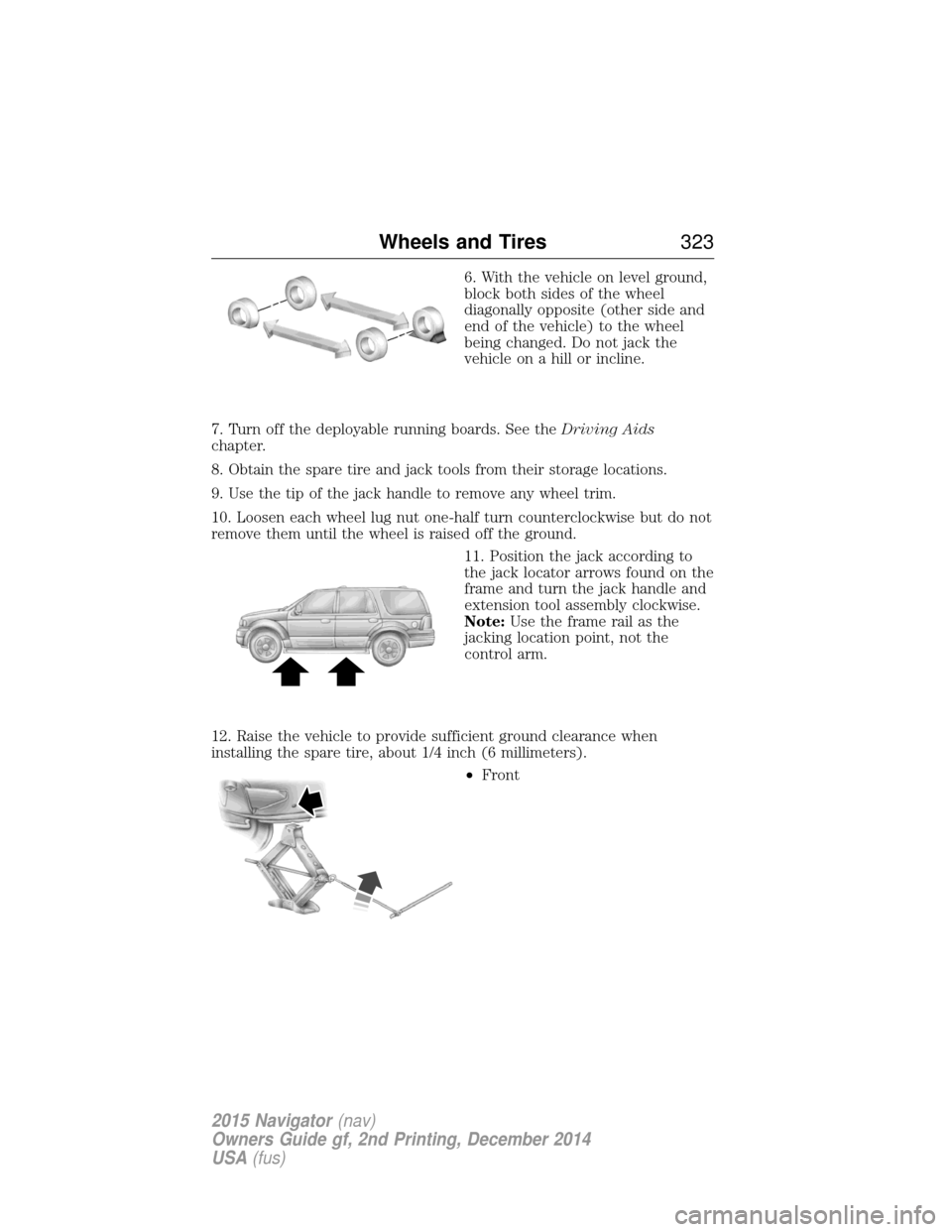
6. With the vehicle on level ground,
block both sides of the wheel
diagonally opposite (other side and
end of the vehicle) to the wheel
being changed. Do not jack the
vehicle on a hill or incline.
7. Turn off the deployable running boards. See the Driving Aids
chapter.
8. Obtain the spare tire and jack tools from their storage locations.
9. Use the tip of the jack handle to remove any wheel trim.
10. Loosen each wheel lug nut one-half turn counterclockwise but do not
remove them until the wheel is raised off the ground.
11. Position the jack according to
the jack locator arrows found on the
frame and turn the jack handle and
extension tool assembly clockwise.
Note:Use the frame rail as the
jacking location point, not the
control arm.
12. Raise the vehicle to provide sufficient ground clearance when
installing the spare tire, about 1/4 inch (6 millimeters). •Front
Wheels and Tires 323
2015 Navigator(nav)
Owners Guide gf, 2nd Printing, December 2014
USA (fus)
Page 357 of 475
•Seek andTune: Use as you normally would in media modes.
• PRESETS: Press and hold a numbered button to store a radio or
Sirius station. Press to recall the stored station.
• Eject: Eject a CD from the entertainment system.
• Climate control: Control the temperature, fan speed and settings of
the climate control system.
• MEDIA: Touch repeatedly to see all available media sources. If not
on an audio screen, the media change appears in the lower left status
bar.
Using Your Steering Wheel Controls
Depending on your vehicle and option package, you can use your
steering wheel controls to interact with the touchscreen system.
• VOL: Control the volume of audio output.
• VOICE: Press to start a voice session. Press again and hold to end a
voice session.
• SEEK andPHONE SEND:
• While in radio mode, press to seek between presets or press and
hold to seek between stations.
• While in USB or CD mode, press to seek between stations or press
and hold to fast seek.
• While in phone mode, press to answer a call or switch between
calls.
• SEEK andPHONE END:
• While in radio mode, press to seek between presets or press and
hold to seek between stations.
• While in USB or CD mode, press to seek between stations or press
and hold to fast seek.
• While in phone mode, press to end a call or reject an incoming
call.
See the Steering Wheel chapter for more information.
Cleaning the Touchscreen Display
Use a clean, soft cloth such as one used for cleaning glasses. If dirt or
fingerprints are still visible, apply a small amount of alcohol to the cloth.
Do not pour or spray alcohol onto the display. Do not use detergent or
any type of solvent to clean the display.
Support
The SYNC support team is available to help you with any questions you
cannot answer on your own.
Monday-Saturday, 8:30am-9:00pm EST.
356 MyLincoln Touch™
2015 Navigator(nav)
Owners Guide gf, 2nd Printing, December 2014
USA (fus)
Page 361 of 475
ACCESSING AND ADJUSTING MODES THROUGH YOUR RIGHT
VEHICLE INFORMATION DISPLAY
The display is located on the right side of your instrument cluster. You
can use your steering wheel controls to view and make minor
adjustments to active modes without taking your hands off the wheel.
For example:
•In Entertainment mode, you can view what is now playing, change
the audio source (such as AM, FM and CD) and scroll through
memory presets.
• In Phone mode, you can accept or reject an incoming call, or make a
call by choosing from select menus within the Phone menu.
• If your vehicle is equipped with Navigation, you can view the current
route or cancel a route.
Note: If your vehicle is not equipped with Navigation, Compass appears
in the display instead of Navigation. If you press the right arrow to go
into the Compass menu, you can see the compass graphic. The compass
displays the direction in which the vehicle is traveling, not true direction.
(For example, if the vehicle is traveling west, the middle of the compass
graphic displays west; north displays to the left of west though its true
direction is to the right of west).
Audio Sources and Memory Presets
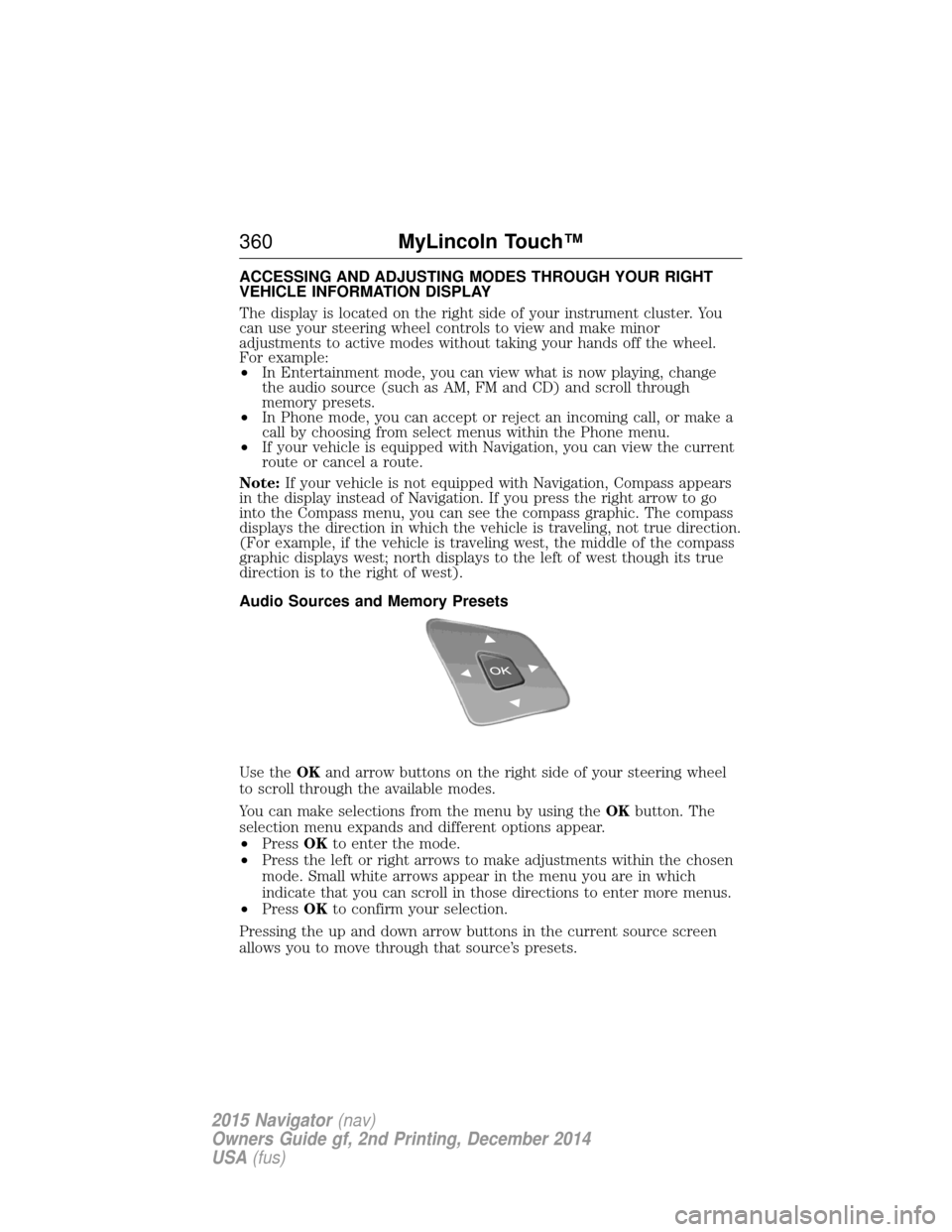
Use the OKand arrow buttons on the right side of your steering wheel
to scroll through the available modes.
You can make selections from the menu by using the OKbutton. The
selection menu expands and different options appear.
• Press OKto enter the mode.
• Press the left or right arrows to make adjustments within the chosen
mode. Small white arrows appear in the menu you are in which
indicate that you can scroll in those directions to enter more menus.
• Press OKto confirm your selection.
Pressing the up and down arrow buttons in the current source screen
allows you to move through that source’s presets.
360 MyLincoln Touch™
2015 Navigator(nav)
Owners Guide gf, 2nd Printing, December 2014
USA (fus)
Page 366 of 475
Browsing Device Content
When listening to audio on a device, you can browse through other
devices without having to change sources. For example, if you are
currently listening to audio on an SD card, you can browse all the artists
that are stored on your USB device.Press the voice icon on the steering wheel. When prompted,
you can say:
“BROWSE” within devices “Browse”*
“Browse
“Browse
“Browse Sirius channel guide”**
“Browse SD card”“Browse USB” “Help”
*If you have said “Browse”, you can then say any commands in the
following chart.
**This command is only usable if you have an active subscription to
Sirius satellite radio.
“BROWSE”
“
”
“SD card”**
“Sirius channel guide”*
“USB”**
“Help”
*This command is only usable if you have an active subscription to Sirius
satellite radio.
**For more commands in SD card or USB mode, see the “SD card and
USB Port” section of this chapter.
For a complete list of “Browse” voice commands, see USB and SD card
voice commands andBluetooth audio voice commands in the
following sections.
MyLincoln Touch™ 365
2015 Navigator(nav)
Owners Guide gf, 2nd Printing, December 2014
USA (fus)
Page 367 of 475
Your voice system allows you to change audio sources with a simple
voice command. For example, if you are listening to music on a USB
device, then want to switch to a satellite radio channel, simply press the
voice button on the steering wheel controls and say the name of the
Sirius station (such as, “the Highway”). The following voice commands
are available at the top level of the voice session no matter which
current audio source you are listening to (such as a USB device or Sirius
satellite radio).Note:This is only available when your MyFord Touch
system language is set to North American English.
“AM <530 - 1710>” “FM <87.9 – 107.9>”
“<530 - 1710>” “<87.9 – 107.9>”
“Sirius <0-223>”
*“
“Play [genre]
“Play [artist]
“Play [album]
“Play
*
*
This command is only usable if you have an active subscription to Sirius
satellite radio.
**The commands that have [ ] around the word means that the word is
optional. For example, if you say, “Play Metallica”, this is the same as the
voice command, “Play [artist]
AM and FM
Touch the AMorFM tab to listen to the radio.
To change between AM and FM presets, just touch the AMor
FM tab.
Memory Presets
Save a station by pressing and holding one of the memory preset areas.
There is a brief mute while the radio saves the station. Sound returns
when finished.
HD Radio
Touch this button to turn HD Radio on. The light on the button
illuminates when the feature is on. HD Radio allows you to receive radio
broadcasts digitally, where available, providing free, crystal-clear sound.
See HD Radio information later in this chapter.
366MyLincoln Touch™
2015 Navigator(nav)
Owners Guide gf, 2nd Printing, December 2014
USA (fus)
Page 374 of 475
Parental Lockoutallows you to lock and unlock channels, change or
reset your PIN or unlock all channels. To use this feature, you need your
initial PIN, which is 1234.
Artist/Title/Team Alerts allows you to select Artists, Titles and Teams
that you would like the system to alert you to when they are playing on
other channels. Press Edit Alertsto delete or turn off alerts. You can
also set all alerts to on or off. When an alert appears on the screen, you
can choose to Tune to the channel, to Cancel the alert or to Disable
Alerts. If you are listening to a sporting event, you can save your favorite
teams so that the system can alert you when they are playing on a
satellite radio channel.
Note: Sirius does not support the Alert feature on all channels. Ford
Motor Company shall not be responsible for Alert feature variation.
Electronic Serial Number (ESN) is required when you need to
activate, modify or track your satellite radio account. The ESN is on the
System Information Screen (SR ESN: XXXXXXXXXXXX). To access your
ESN, press the bottom left corner of the touchscreen, then SIRIUS>
Options.
Direct Tune
Touch this button to manually enter the desired satellite channel
number. Touch Enterwhen you are done.
Browse
Touch this button to view a list of all available stations. Scroll to see
more categories. Touch the station you want to listen to.
Touch Skipif you want to skip this channel.
Touch Lockif you do not want anyone to listen to this channel.
Touch Ti t l eorArtist to see song and artists on other stations.
Satellite Radio Voice Commands If you are listening to Sirius satellite radio, press the voice
button on the steering wheel control. When prompted, say any
of the commands in the following chart.
If you are not listening to Sirius satellite radio, press the voice button
and, after the tone, say “Sirius”, then any of the commands in the
following chart.
MyLincoln Touch™ 373
2015 Navigator(nav)
Owners Guide gf, 2nd Printing, December 2014
USA (fus)
Page 393 of 475
Note:This feature does not function properly if you have enabled caller
ID blocking on your mobile phone. Make sure your mobile phone is not
blocking caller ID before using SYNC Services.
Note: The driver is ultimately responsible for the safe operation of the
vehicle, and therefore, must evaluate whether it is safe to follow the
suggested directions. Any navigation features are provided only as an aid.
Make your driving decisions based on your observations of local
conditions and existing traffic regulations. Do not follow the route
suggestions if doing so would result in an unsafe or illegal maneuver, if
you would be placed in an unsafe situation, or if you would be directed
into an area that you consider unsafe. Maps used by this system may be
inaccurate because of errors, changes in roads, traffic conditions or
driving conditions.
Note: When you connect, the service uses GPS technology and advanced
vehicle sensors to collect your vehicle’s current location, travel direction
and speed to help provide you with the directions, traffic reports, or
business searches you request. Further, to provide the services you
request, for continuous improvement, the service may collect and record
call details and voice communications. For more information, see SYNC
Services Terms and Conditions at www.SYNCMyRide.com. If you do not
want Ford or its service providers to collect your vehicle travel
information or other information identified in the Terms and Conditions,
do not subscribe or use the service.
SYNC Services uses advanced vehicle sensors, integrated GPS technology
and comprehensive map and traffic data, to give you personalized traffic
reports, precise turn-by-turn directions, business search, news, sports,
weather and more. For a complete list of services, or to learn more,
please visit www.SYNCMyRide.com.
Connecting to SYNC Services Using Voice Commands
Press the voice button on the steering wheel controls.
1. When prompted, say “Services”. This initiates an outgoingcall to SYNC Services using your paired and connected
Bluetooth-enabled cellular phone.
2. Once you connect to the service, follow the voice prompts to request the desired service, such as “Traffic” or “Directions”. You can also
say, “What are my choices?” to receive a list of available services
from which to choose.
3. Say, “Services” to return to the Services main menu or for help, say, “Help”.
392 MyLincoln Touch™
2015 Navigator(nav)
Owners Guide gf, 2nd Printing, December 2014
USA (fus)
Page 405 of 475
You can also turn the outside air temperature display on and off. It
appears at the top center of the touchscreen, next to the time and date.
The system automatically saves any updates you make to the settings.
Display
You can adjust the touchscreen display through the touchscreen or by
pressing the voice button on your steering wheel controls and when
prompted, say, “Display settings”.Press the Settings icon > Display,to access and make
adjustments using the touchscreen.
• Brightness allows you to make the screen display brighter or
dimmer.
• Auto DIM, when set to On,lets you use the Auto Dim Manual Offset
feature. When set to Off,screen brightness does not change.
• Mode allows you to set the screen to a certain brightness or have the
system automatically change based on the outside light level, or turn
the display off.
• If you select AUTOorNIGHT, you have the options of turning
the display’s Auto Dim feature on or off and changing the Auto
Dim Manual Offset feature.
• Auto Dim Manual Offset allows you to adjust screen dimming as
the outside lighting conditions change from day to night. This feature
also allows you to adjust screen brightness using the instrument panel
dimming control.
Edit Wallpaper
• You can have your touchscreen display the default photo or upload
your own.
Uploading Photos for Your Home Screen Wallpaper
Note: You cannot load photos directly from your camera. You must
access the photos either from your USB mass storage device or from an
SD card.
Note: Photographs with extremely large dimensions (such as 2048 x
1536) may not be compatible and appear as a blank (black) image on the
display.
Your system allows you to upload and view up to 32 photos.
To access, press the Settings icon > Display>Edit Wallpaper, and
then follow the system prompts to upload your photographs.
404 MyLincoln Touch™
2015 Navigator(nav)
Owners Guide gf, 2nd Printing, December 2014
USA (fus)