phone LINCOLN NAVIGATOR 2015 Service Manual
[x] Cancel search | Manufacturer: LINCOLN, Model Year: 2015, Model line: NAVIGATOR, Model: LINCOLN NAVIGATOR 2015Pages: 475, PDF Size: 5.13 MB
Page 403 of 475
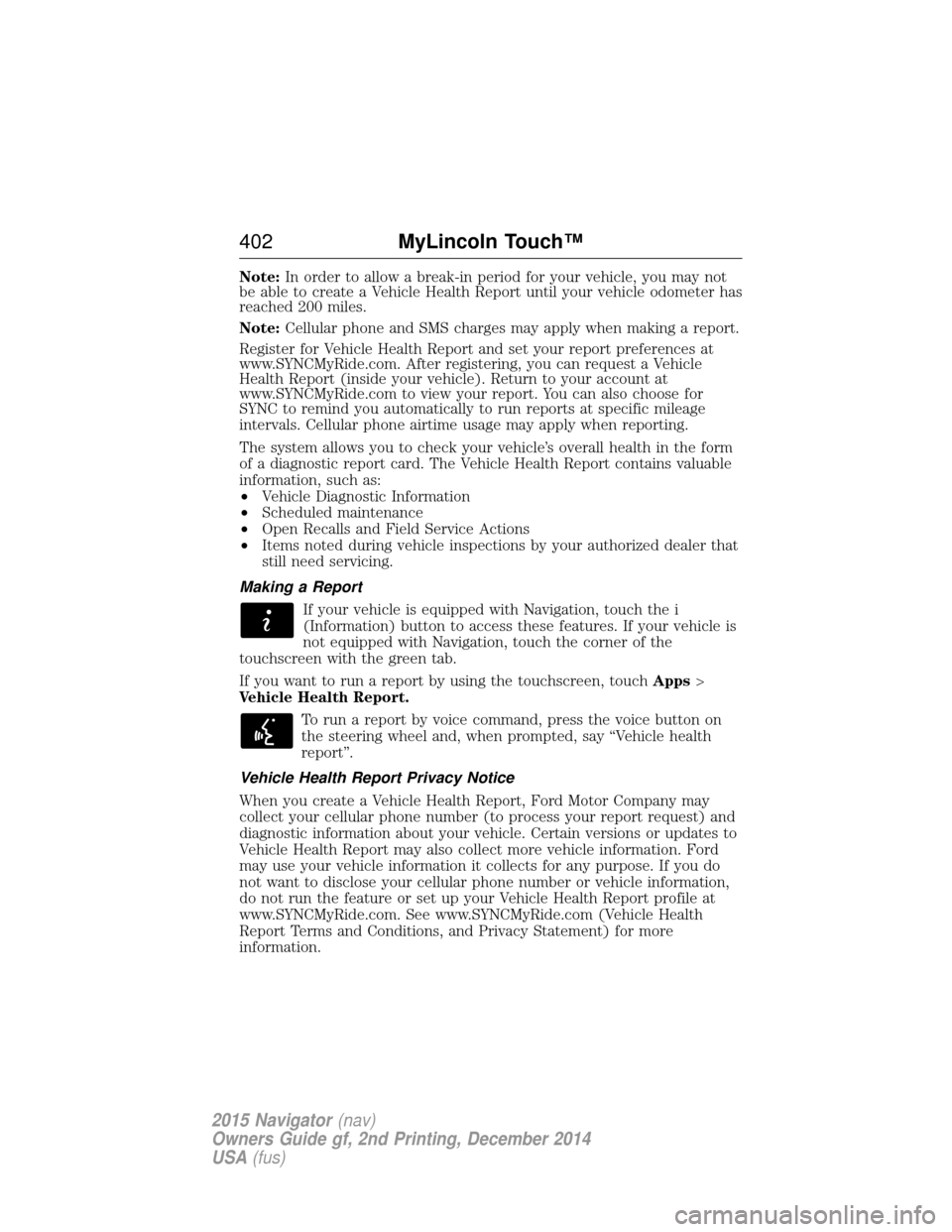
Note:In order to allow a break-in period for your vehicle, you may not
be able to create a Vehicle Health Report until your vehicle odometer has
reached 200 miles.
Note: Cellular phone and SMS charges may apply when making a report.
Register for Vehicle Health Report and set your report preferences at
www.SYNCMyRide.com. After registering, you can request a Vehicle
Health Report (inside your vehicle). Return to your account at
www.SYNCMyRide.com to view your report. You can also choose for
SYNC to remind you automatically to run reports at specific mileage
intervals. Cellular phone airtime usage may apply when reporting.
The system allows you to check your vehicle’s overall health in the form
of a diagnostic report card. The Vehicle Health Report contains valuable
information, such as:
• Vehicle Diagnostic Information
• Scheduled maintenance
• Open Recalls and Field Service Actions
• Items noted during vehicle inspections by your authorized dealer that
still need servicing.
Making a Report If your vehicle is equipped with Navigation, touch the i
(Information) button to access these features. If your vehicle is
not equipped with Navigation, touch the corner of the
touchscreen with the green tab.
If you want to run a report by using the touchscreen, touch Apps>
Vehicle Health Report.
To run a report by voice command, press the voice button on
the steering wheel and, when prompted, say “Vehicle health
report”.
Vehicle Health Report Privacy Notice
When you create a Vehicle Health Report, Ford Motor Company may
collect your cellular phone number (to process your report request) and
diagnostic information about your vehicle. Certain versions or updates to
Vehicle Health Report may also collect more vehicle information. Ford
may use your vehicle information it collects for any purpose. If you do
not want to disclose your cellular phone number or vehicle information,
do not run the feature or set up your Vehicle Health Report profile at
www.SYNCMyRide.com. See www.SYNCMyRide.com (Vehicle Health
Report Terms and Conditions, and Privacy Statement) for more
information.
402 MyLincoln Touch™
2015 Navigator(nav)
Owners Guide gf, 2nd Printing, December 2014
USA (fus)
Page 407 of 475
Door Keypad Code
To change the keypad code for your keyless entry keypad system:
1. Press the Settings icon >Vehicle>Door Keypad Code.
2. Enter your current factory code, then, when prompted, enter your new code.
Camera Settings
This menu allows you to access settings for your rear view camera.
Press the Settings icon > Vehicle>Camera Settings, then select from
the following settings:
• Enhanced Park Aids.
• Rear Camera Delay.
Enable Valet Mode
Valet mode allows you to lock the system. No information is accessible
until the system is unlocked with the correct PIN.
1. Press the Settings icon > Vehicle>Enable Valet Mode.
2. Enter a four-digit pin twice, as prompted.
After you press Continue, the system locks until you enter the PIN again.
Note: If the system locks, and you need to reset the PIN, enter 3681 and
the system unlocks.
Settings
Access and adjust system settings, voice features, as well as phone,
navigation and wireless settings.
System
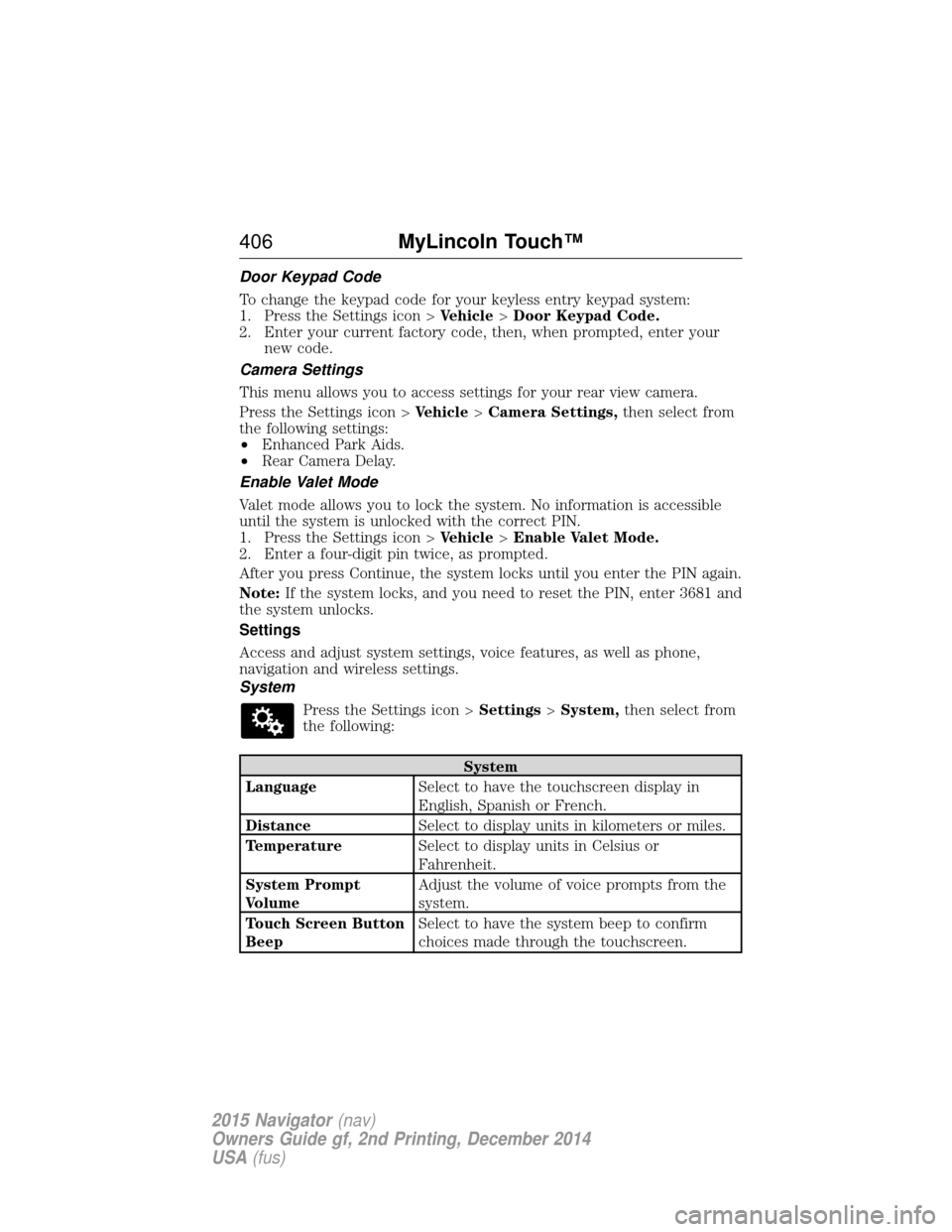
Press the Settings icon > Settings>System, then select from
the following:
System
Language Select to have the touchscreen display in
English, Spanish or French.
Distance Select to display units in kilometers or miles.
Temperature Select to display units in Celsius or
Fahrenheit.
System Prompt
Volume Adjust the volume of voice prompts from the
system.
Touch Screen Button
Beep Select to have the system beep to confirm
choices made through the touchscreen.
406
MyLincoln Touch™
2015 Navigator(nav)
Owners Guide gf, 2nd Printing, December 2014
USA (fus)
Page 408 of 475
System
Touch Panel Button
Beep Select to have the system beep to confirm
button choices made through the climate or
audio system.
Keyboard Layout Have the touchscreen keyboard display in
QWERTY or ABC format.
Install Applications Install any downloaded applications or view
the current software licenses.
Master Reset Select to restore factory defaults. This erases
all personal settings and personal data.
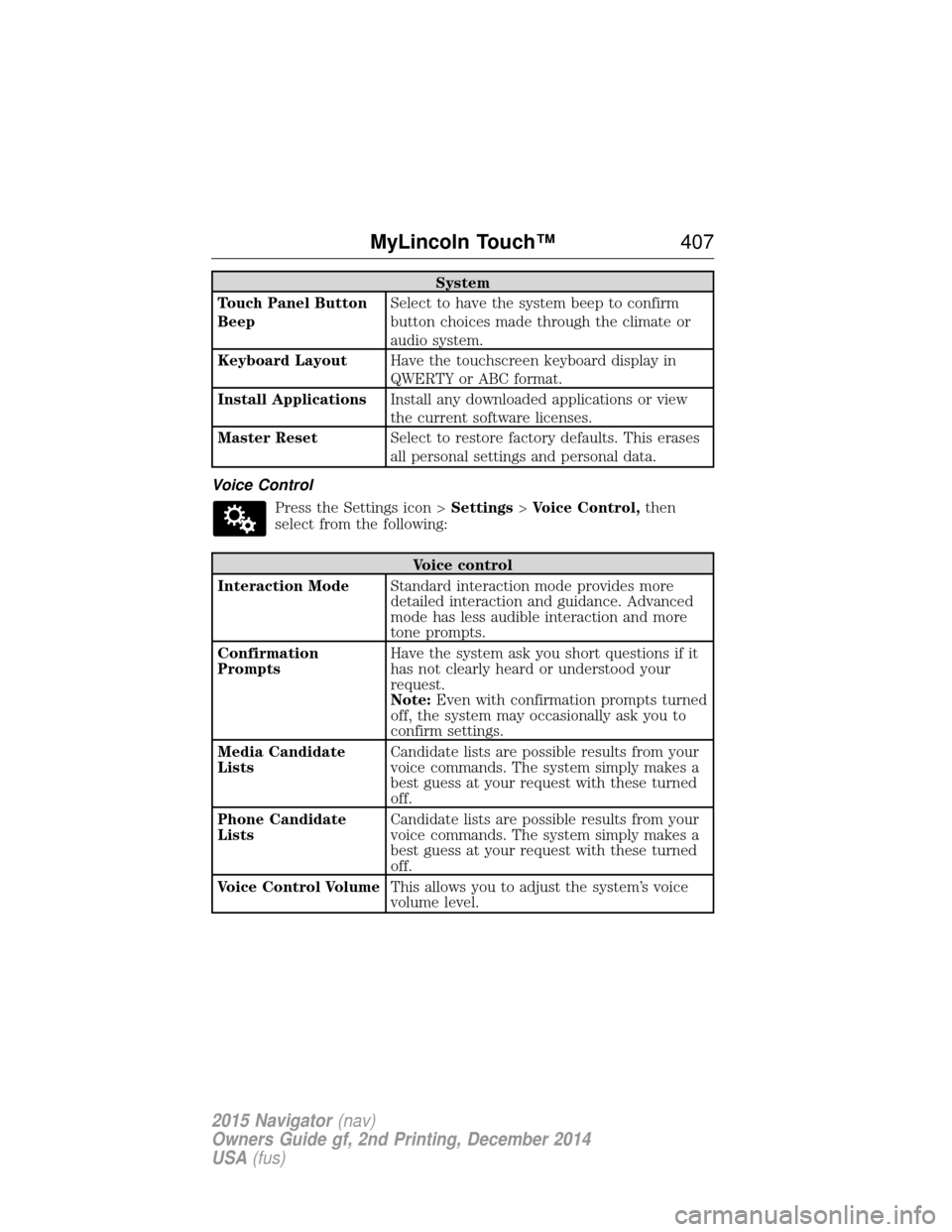
Voice Control Press the Settings icon > Settings>Voice Control, then
select from the following:
Voice control
Interaction Mode Standard interaction mode provides more
detailed interaction and guidance. Advanced
mode has less audible interaction and more
tone prompts.
Confirmation
Prompts Have the system ask you short questions if it
has not clearly heard or understood your
request.
Note:
Even with confirmation prompts turned
off, the system may occasionally ask you to
confirm settings.
Media Candidate
Lists Candidate lists are possible results from your
voice commands. The system simply makes a
best guess at your request with these turned
off.
Phone Candidate
Lists Candidate lists are possible results from your
voice commands. The system simply makes a
best guess at your request with these turned
off.
Voice Control Volume This allows you to adjust the system’s voice
volume level.
MyLincoln Touch™ 407
2015 Navigator(nav)
Owners Guide gf, 2nd Printing, December 2014
USA (fus)
Page 412 of 475
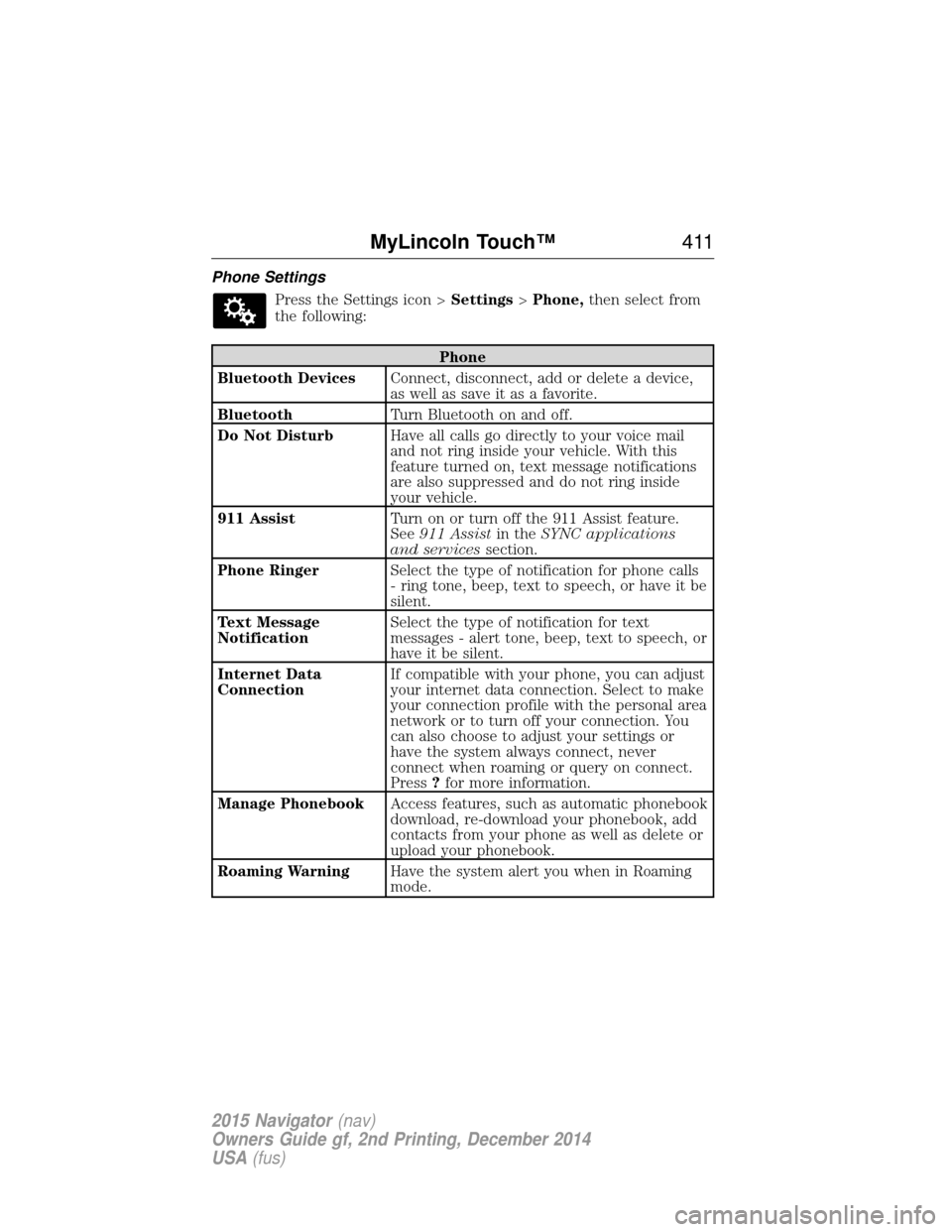
Phone SettingsPress the Settings icon > Settings>Phone, then select from
the following:
Phone
Bluetooth Devices Connect, disconnect, add or delete a device,
as well as save it as a favorite.
Bluetooth Turn Bluetooth on and off.
Do Not Disturb Have all calls go directly to your voice mail
and not ring inside your vehicle. With this
feature turned on, text message notifications
are also suppressed and do not ring inside
your vehicle.
911 Assist Turn on or turn off the 911 Assist feature.
See911 Assist in theSYNC applications
and services section.
Phone Ringer Select the type of notification for phone calls
- ring tone, beep, text to speech, or have it be
silent.
Text Message
Notification Select the type of notification for text
messages - alert tone, beep, text to speech, or
have it be silent.
Internet Data
Connection If compatible with your phone, you can adjust
your internet data connection. Select to make
your connection profile with the personal area
network or to turn off your connection. You
can also choose to adjust your settings or
have the system always connect, never
connect when roaming or query on connect.
Press
?for more information.
Manage Phonebook Access features, such as automatic phonebook
download, re-download your phonebook, add
contacts from your phone as well as delete or
upload your phonebook.
Roaming Warning Have the system alert you when in Roaming
mode.
MyLincoln Touch™ 411
2015 Navigator(nav)
Owners Guide gf, 2nd Printing, December 2014
USA (fus)
Page 413 of 475
Wireless & Internet
Your system has a Wi-Fi feature that creates a wireless network within
your vehicle, thereby allowing other devices (such as personal computers
or phones) in your vehicle to speak to each other, share files or play
games. Using this Wi-Fi feature, everyone in your vehicle can also gain
access the internet if you have a USB mobile broadband connection
inside your vehicle, your phone supports personal area networking and if
you park outside a wireless hotspot.Press the Settings icon > Settings>Wireless & Internet,
then select from the following:
Wireless & Internet
Wi-Fi Settings Wi-Fi Network (Client) Mode turns the
Wi-Fi feature on and off in your vehicle. Make
sure you turn it on for connectivity purposes.
Choose a Wireless Network allows you to
use a previously stored wireless network. You
can categorize by alphabetical listing, priority
and signal strength. You can also choose to
search for a network, connect to a network,
disconnect from a network, receive more
information, prioritize a network or delete a
network.
Gateway (Access Point) Mode makes
SYNC an access point for a phone or a
computer when turned on. This forms the
local area network within your vehicle for
things, such as game playing, file transfer and
internet browsing. Press ?for more
information.
Gateway (Access Point) Settings allows
you to view and change settings for using
SYNC as the internet gateway.
Gateway (Access Point) Device List
allows you to view recent connections to your
Wi-Fi system.
412 MyLincoln Touch™
2015 Navigator(nav)
Owners Guide gf, 2nd Printing, December 2014
USA (fus)
Page 414 of 475
Wireless & Internet
USB Mobile
Broadband Instead of using Wi-Fi, your system can also
use a USB mobile broadband connection to
access the internet. (You must turn on your
mobile broadband device on your personal
computer before connecting it to the system.)
This screen allows you to set up what is your
typical area for your USB mobile broadband
connection. (USB mobile broadband settings
may not display if the device is already on.)
You can select the following: Country, Carrier,
Phone Number, User Name and Password.
Bluetooth Settings Shows you the currently paired devices as
well as giving you your typical Bluetooth
options to connect, disconnect, set as favorite,
delete and add device. Bluetooth is a
registered trademark of the Bluetooth SIG.
Prioritize
Connection Methods Choose your connection methods and change
them as needed. You can select to Change
Order and have the system either always
attempt to connect using a USB mobile
broadband or using Wi-Fi.
The Wi-Fi CERTIFIED Logo is a
certification mark of the Wi-Fi Alliance.
MyLincoln Touch™ 413
2015 Navigator(nav)
Owners Guide gf, 2nd Printing, December 2014
USA (fus)
Page 415 of 475
HelpPress the Settings icon > Help,then select from the following:
Help
Where Am I? View your vehicle’s current location, if your
vehicle is equipped with navigation. If your
vehicle is not equipped with navigation,
nothing displays.
System Information Touchscreen system serial number.
Your vehicle identification number (VIN).
Touchscreen system software version.
Navigation system version.
Map database version.
Sirius satellite radio electronic serial number
(ESN).
Gracenote Database Information and Library
version.
Software Licenses View the licenses for any software and
applications installed on your system.
Driving Restrictions Certain features are not accessible when your
vehicle is moving.
911 Assist Turn on and turn off the 911 Assist feature.
See911 Assist in theSYNC applications
and services section.
In Case of Emergency (ICE) Speed Dial
allows you to save up to two numbers as ICE
contacts for quick access if there is an
emergency. Select Editto access your
phonebook and then select the desired
contacts. The numbers then appear as options
on this screen for the ICE 1 and ICE 2
buttons. The ICE contacts you select appear
at the end of the 911 Assist call process.
Voice Command List View categorized lists of voice commands.
To access Help using the voice commands, press the voice button, then,
after the tone, say “Help”. The system provides allowable voice
commands for the current mode.
414 MyLincoln Touch™
2015 Navigator(nav)
Owners Guide gf, 2nd Printing, December 2014
USA (fus)
Page 422 of 475
Pressing theSearch Areas button allows you to search for points of
interest nearby, near a city or state or near a destination, if a route is
active.
Pressing the Search By Name button allows you to directly enter the
point of interest name into the system by using the keyboard.
cityseekr (If Available)
Note: cityseekr point of interest information is limited to approximately
912 cities (881 in the United States, 20 in Canada and 11 in Mexico).
cityseekr, when available, is a service that
provides more information about certain
points of interest such as restaurants,
hotels and attractions.
When you have selected a point of
interest, the location and information
appear, such as address and phone
number. If cityseekr lists the point of
interest, more information is available, such as a brief description, hotel
check-in and checkout times or restaurant hours.
Press More Information for a longer review, a list of services and
facilities, the average room or meal price as well as the website link.
This screen displays either a facility photo (if available) or point of
interest icons, such as:
Hotel
Coffeehouse
Food & Drink
MyLincoln Touch™ 421
2015 Navigator(nav)
Owners Guide gf, 2nd Printing, December 2014
USA (fus)
Page 445 of 475
TERMS AND CONDITIONS
License Limitations on Use: You agree that your license to use this
Data is limited to and conditioned on use for solely personal,
noncommercial purposes, and not for service bureau, timesharing or
other similar purposes. Except as otherwise set forth herein, you agree
not to otherwise reproduce, copy, modify, decompile, disassemble or
reverse engineer any portion of this Data, and may not transfer or
distribute it in any form, for any purpose, except to the extent permitted
by mandatory laws.
License Limitations on Transfer: Your limited license does not allow
transfer or resale of the Data, except on the condition that you may
transfer the Data and all accompanying materials on a permanent basis
if: (a) you retain no copies of the Data; (b) the recipient agrees to the
terms of this End-User License Agreement; and (c) you transfer the Data
in the exact same form as you purchased it by physically transferring the
original media (e.g., the CD-ROM or DVD you purchased), all original
packaging, all Manuals and other documentation. Specifically, Multi-disc
sets may only be transferred or sold as a complete set as provided to you
and not as a subset thereof.
Additional License Limitations: Except where you have been
specifically licensed to do so by HERE in a separate written agreement,
and without limiting the preceding paragraph, your license is conditioned
on use of the Data as prescribed in this agreement, and you may not (a)
use this Data with any products, systems, or applications installed or
otherwise connected to or in communication with vehicles capable of
vehicle navigation, positioning, dispatch, real time route guidance, fleet
management or similar applications; or (b) with, or in communication
with, including without limitation, cellular phones, palmtop and handheld
computers, pagers, and personal digital -assistants or PDAs.
This Data may contain inaccurate or incomplete information due to the
passage of time, changing circum-stances, sources used and the nature of
collecting comprehensive geographic Data, any of which may lead to
incorrect results.
No Warranty: This Data is provided to you “as is”, and you agree to use
it at your own risk. HERE and its licensors (and their licensors and
suppliers) make no guarantees, representations or warranties of any
kind, express or implied, arising by law or otherwise, including but not
limited to, content, quality, accuracy, completeness, effectiveness,
reliability, fitness for a particular purpose, usefulness, use or results to be
obtained from this Data, or that the Data or server will be uninterrupted
or error free.
444 Appendices
2015 Navigator(nav)
Owners Guide gf, 2nd Printing, December 2014
USA (fus)
Page 469 of 475
911 Assist™ ..............................398
A
ABS (see Brakes) .....................187
Accessing and using your USB
port ............................................378
Accessing your calendar ..........398
Accessory delay ..........................94
Adding (pairing) a phone ........385
Airbag supplemental restraint
system ..........................................45and child safety seats ..............47
description ................................45
disposal ......................................52
driver airbag ..............................45
passenger airbag .......................45
side airbag ...........................45, 47
Air cleaner filter .......276–277, 333
Air filter .............................277, 333
All Wheel Drive (AWD),
driving off road .........................179
Ambient mood/lighting .............405
Ambulance packages ..................14
AM/FM .......................................366
Antifreeze
(see Engine coolant) ................267
Anti-lock brake system
(see Brakes) ..............................187
Anti-theft system ..................76–77 arming the system ..............76–77
disarming a triggered system ..77
Audio system Single CD ................................343 Audio system (see Radio) .......343
Automatic transmission
driving an automatic
overdrive .................................172
fluid, adding ............................271
fluid, checking ........................271
fluid, refill capacities ..............328
fluid, specification ..................328
Selectshift (SST) ....................175
Auxiliary Input Jack .................375
Auxiliary powerpoint ................152
A/V inputs ..........................351, 382
Axle lubricant specifications ..........328
refill capacities ........................328
B
Battery .......................................273 acid, treating emergencies .....273
jumping a disabled battery ....244
maintenance-free ....................273
replacement, specifications ...333
servicing ..................................273
Blind Spot Information
System .......................................205
Booster seats ...............................30
Brakes ........................................187 anti-lock ...................................187
anti-lock brake system (ABS)
warning light ...........................187
brake warning light ................187
fluid, checking and adding ....272
fluid, refill capacities ..............328
fluid, specifications .................328
lubricant specifications ..........328
parking ....................................188
shift interlock ..........................176
trailer .......................................231
468 Index
2015 Navigator(nav)
Owners Guide gf, 2nd Printing, December 2014
USA (fus)