USB LINCOLN NAVIGATOR 2015 Owners Manual
[x] Cancel search | Manufacturer: LINCOLN, Model Year: 2015, Model line: NAVIGATOR, Model: LINCOLN NAVIGATOR 2015Pages: 475, PDF Size: 5.13 MB
Page 156 of 475
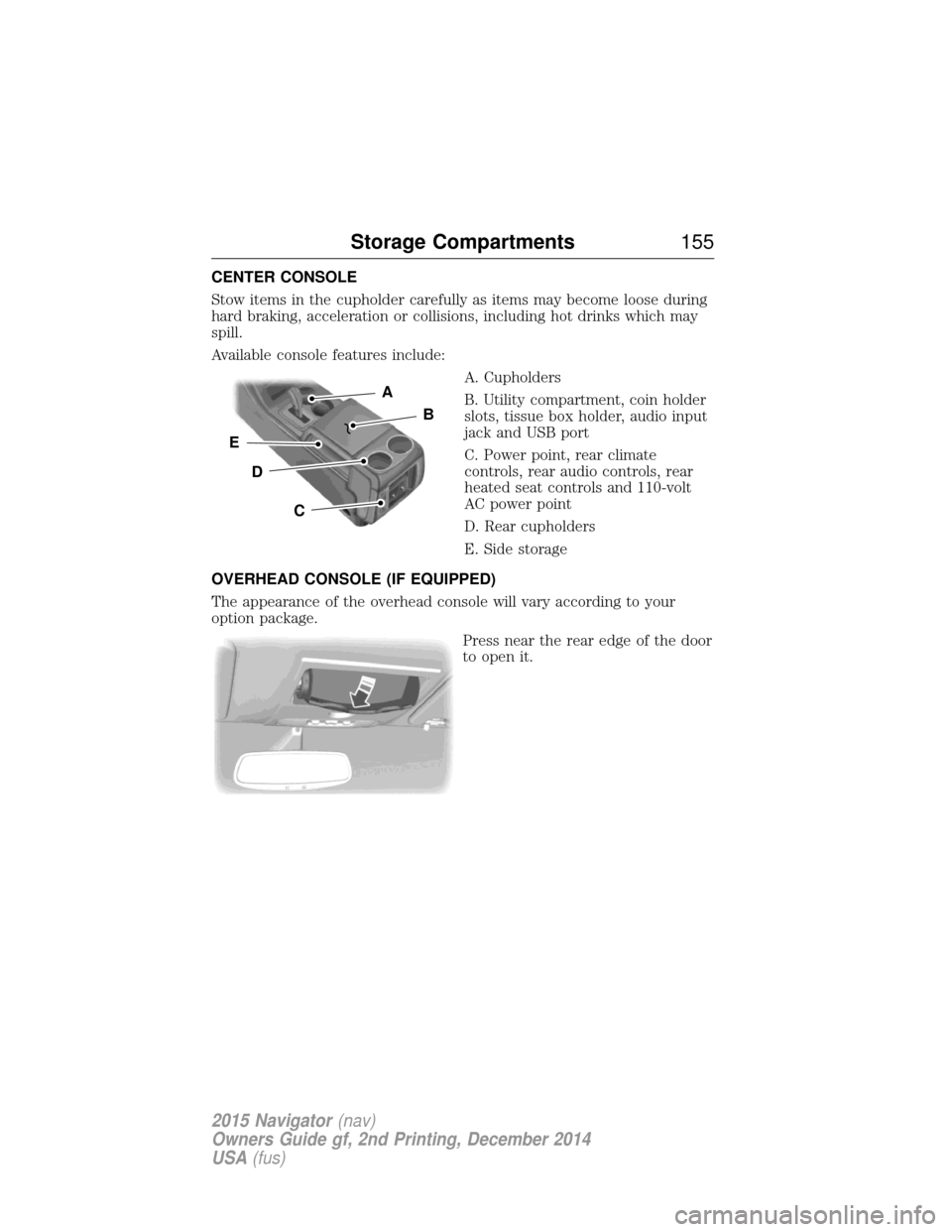
CENTER CONSOLE
Stow items in the cupholder carefully as items may become loose during
hard braking, acceleration or collisions, including hot drinks which may
spill.
Available console features include:A. Cupholders
B. Utility compartment, coin holder
slots, tissue box holder, audio input
jack and USB port
C. Power point, rear climate
controls, rear audio controls, rear
heated seat controls and 110-volt
AC power point
D. Rear cupholders
E. Side storage
OVERHEAD CONSOLE (IF EQUIPPED)
The appearance of the overhead console will vary according to your
option package. Press near the rear edge of the door
to open it.
A
B
C
D
E
Storage Compartments 155
2015 Navigator(nav)
Owners Guide gf, 2nd Printing, December 2014
USA (fus)
Page 345 of 475
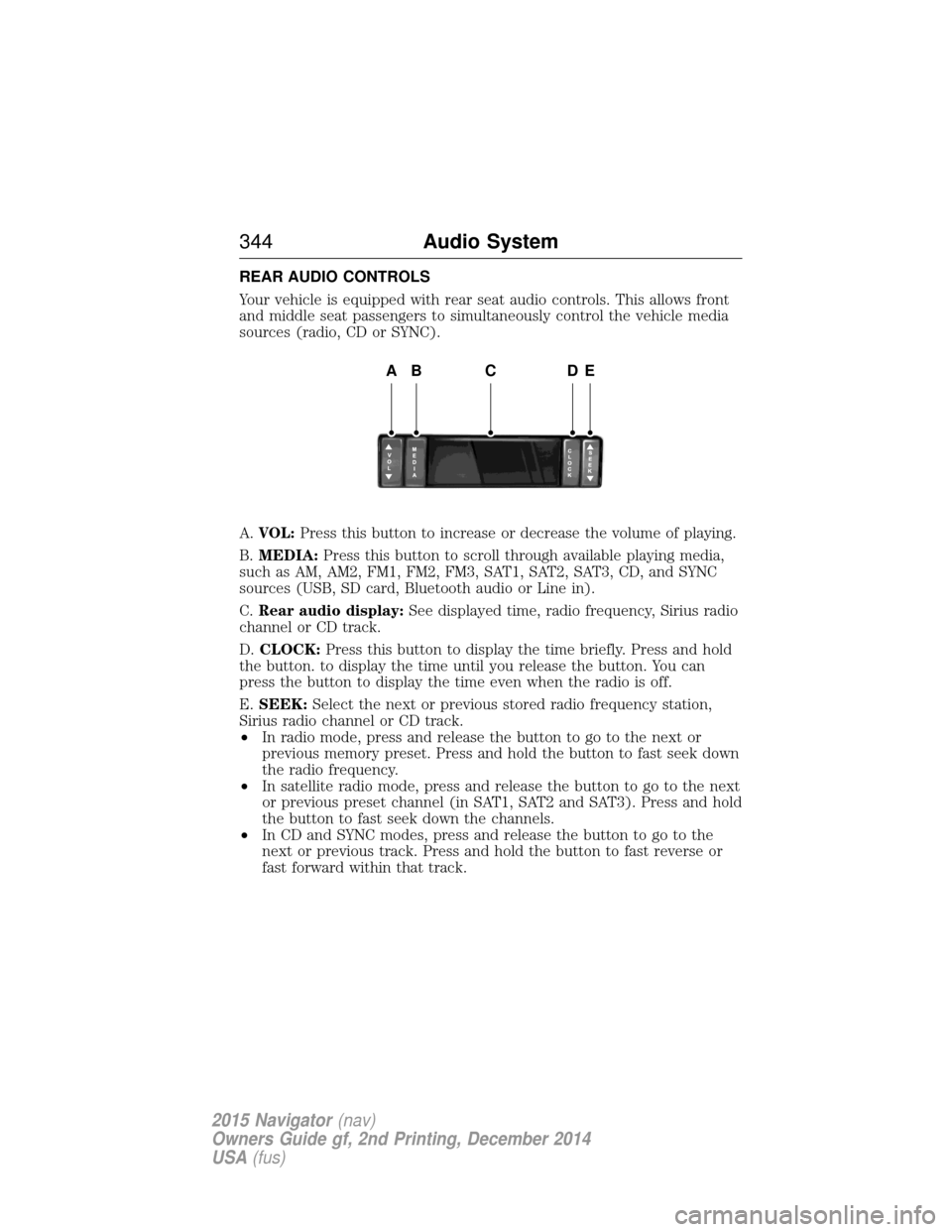
REAR AUDIO CONTROLS
Your vehicle is equipped with rear seat audio controls. This allows front
and middle seat passengers to simultaneously control the vehicle media
sources (radio, CD or SYNC).
A.VOL: Press this button to increase or decrease the volume of playing.
B. MEDIA: Press this button to scroll through available playing media,
such as AM, AM2, FM1, FM2, FM3, SAT1, SAT2, SAT3, CD, and SYNC
sources (USB, SD card, Bluetooth audio or Line in).
C. Rear audio display: See displayed time, radio frequency, Sirius radio
channel or CD track.
D. CLOCK: Press this button to display the time briefly. Press and hold
the button. to display the time until you release the button. You can
press the button to display the time even when the radio is off.
E. SEEK: Select the next or previous stored radio frequency station,
Sirius radio channel or CD track.
• In radio mode, press and release the button to go to the next or
previous memory preset. Press and hold the button to fast seek down
the radio frequency.
• In satellite radio mode, press and release the button to go to the next
or previous preset channel (in SAT1, SAT2 and SAT3). Press and hold
the button to fast seek down the channels.
• In CD and SYNC modes, press and release the button to go to the
next or previous track. Press and hold the button to fast reverse or
fast forward within that track.
ABCDE
344 Audio System
2015 Navigator(nav)
Owners Guide gf, 2nd Printing, December 2014
USA (fus)
Page 352 of 475
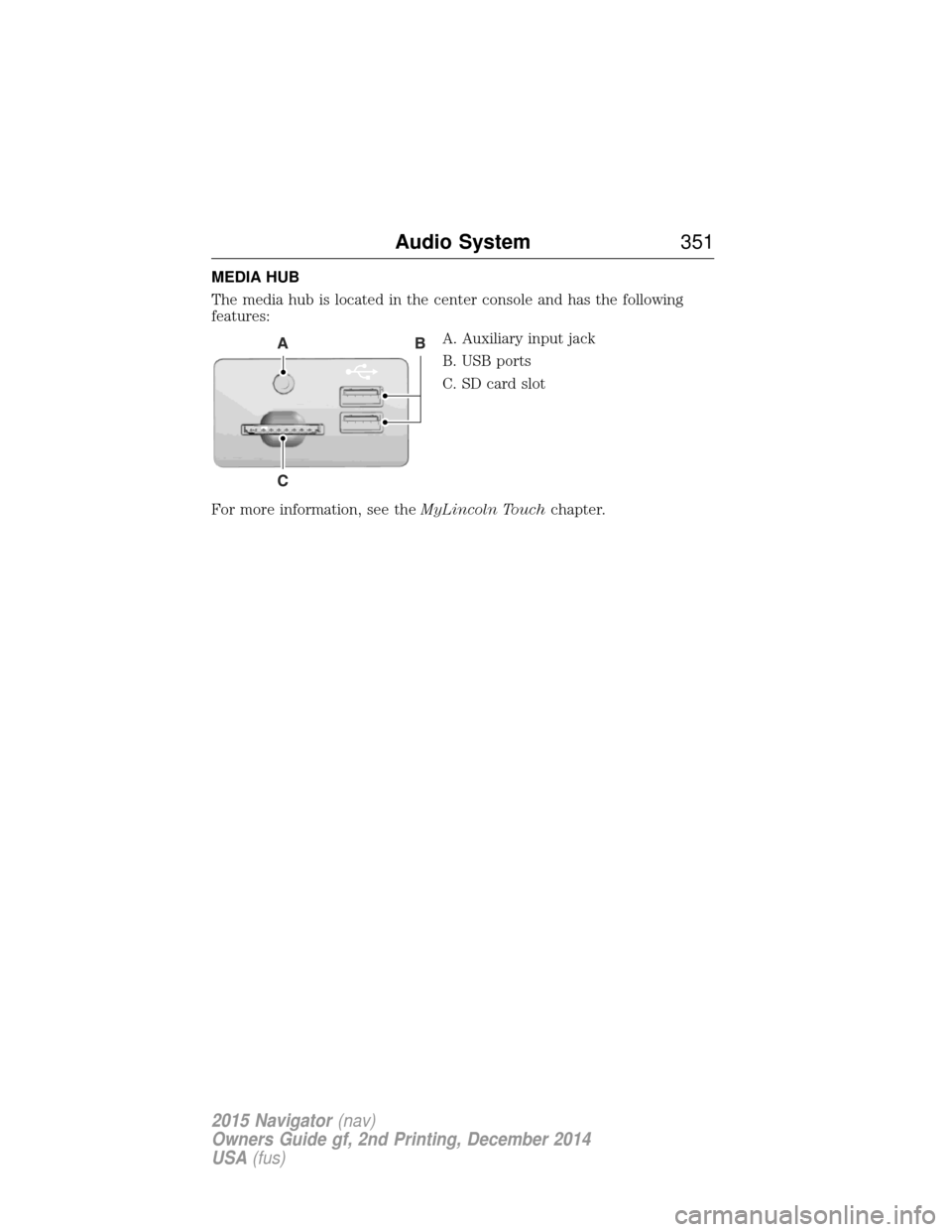
MEDIA HUB
The media hub is located in the center console and has the following
features:A. Auxiliary input jack
B. USB ports
C. SD card slot
For more information, see the MyLincoln Touchchapter.
Audio System 351
2015 Navigator(nav)
Owners Guide gf, 2nd Printing, December 2014
USA (fus)
Page 356 of 475
HOME
Press to access your home screen. Depending on your vehicle’s
option package and software, your screens may vary in
appearance from the descriptions in this section. Your features may also
be limited depending on your market. Check with your authorized dealer
for availability.
INFORMATION
Press to select any of the following:
• SYNC Services
• Sirius Travel Link
• Alerts
• Calendar
• SYNC Apps
If the icon is yellow, see Alertsin theInformation section of this
chapter.
ENTERTAINMENT
Press to select any of the following:
• AM
• FM
• SIRIUS
• CD
• USB
• BT Stereo
• SD Card
• A/V In
Using the Touchscreen
To turn a feature on and off, just touch the graphic with your finger. To
get the best performance from the touch-sensitive controls:
• Make sure your hands are clean and dry.
• Press firmly on the center of a control graphic or menu item.
• Keep metal and other conductive material away from the surface of
the touchscreen.
Using Your Audio and Climate Controls
Depending on your vehicle and option package, you may also have these
controls on your bezel:
• Power: Switch the media or climate features off and on.
• VOL: Control the volume of playing media.
MyLincoln Touch™ 355
2015 Navigator(nav)
Owners Guide gf, 2nd Printing, December 2014
USA (fus)
Page 357 of 475
•Seek andTune: Use as you normally would in media modes.
• PRESETS: Press and hold a numbered button to store a radio or
Sirius station. Press to recall the stored station.
• Eject: Eject a CD from the entertainment system.
• Climate control: Control the temperature, fan speed and settings of
the climate control system.
• MEDIA: Touch repeatedly to see all available media sources. If not
on an audio screen, the media change appears in the lower left status
bar.
Using Your Steering Wheel Controls
Depending on your vehicle and option package, you can use your
steering wheel controls to interact with the touchscreen system.
• VOL: Control the volume of audio output.
• VOICE: Press to start a voice session. Press again and hold to end a
voice session.
• SEEK andPHONE SEND:
• While in radio mode, press to seek between presets or press and
hold to seek between stations.
• While in USB or CD mode, press to seek between stations or press
and hold to fast seek.
• While in phone mode, press to answer a call or switch between
calls.
• SEEK andPHONE END:
• While in radio mode, press to seek between presets or press and
hold to seek between stations.
• While in USB or CD mode, press to seek between stations or press
and hold to fast seek.
• While in phone mode, press to end a call or reject an incoming
call.
See the Steering Wheel chapter for more information.
Cleaning the Touchscreen Display
Use a clean, soft cloth such as one used for cleaning glasses. If dirt or
fingerprints are still visible, apply a small amount of alcohol to the cloth.
Do not pour or spray alcohol onto the display. Do not use detergent or
any type of solvent to clean the display.
Support
The SYNC support team is available to help you with any questions you
cannot answer on your own.
Monday-Saturday, 8:30am-9:00pm EST.
356 MyLincoln Touch™
2015 Navigator(nav)
Owners Guide gf, 2nd Printing, December 2014
USA (fus)
Page 359 of 475
•Any action that requires you to use a keyboard is restricted, such as
entering a navigation destination or editing information.
• All lists are limited so the user can view fewer entries (such as phone
contacts or recent phone call entries).
See the following chart for more specific examples:
Restricted Features
Cellular Phone Pairing a Bluetooth phone Adding phonebook contacts or uploading
phonebook contacts (from a USB)
List entries are limited for phone contacts and
recent phone call entries
System Functionality Editing the keypad code Enabling Valet Mode
Editing settings while the rear view camera or
Active Park Assist are active
Wi-Fi and Wireless Editing wireless settings Editing the list of wireless networks
Videos, Photos and
Graphics Playing video
Editing the screen’s wallpaper or adding new
wallpaper
Text Messages Composing text messages Viewing received text messages
Editing preset text messages
Navigation Using the keyboard to enter a destination Demo navigation route
Adding or Editing Address Book entries or
Avoid Areas
Privacy Information
When a cellular phone is connected to SYNC, the system creates a
profile within your vehicle that is linked to that cellular phone. This
profile is created in order to offer you more cellular features and to
operate more efficiently. Among other things, this profile may contain
data about your cellular phone book, text messages (read and unread),
and call history, including history of calls when your cell phone was not
connected to the system. In addition, if you connect a media device, the
358 MyLincoln Touch™
2015 Navigator(nav)
Owners Guide gf, 2nd Printing, December 2014
USA (fus)
Page 363 of 475
Helpful Hints
•Make sure the interior of your vehicle is as quiet as possible. Wind
noise from open windows and road vibrations may prevent the system
from correctly recognizing spoken commands.
• After pressing the voice icon, wait until after the tone sounds and
Listening appears before saying a command. Any command spoken
prior to this does not register with the system.
• Speak naturally, without long pauses between words.
• At any time, you can interrupt the system while it is speaking by
pressing the voice icon.
Accessing a List of Available Commands
• If you use the touchscreen, press the Settings icon > Help>Voice
Command List.
• If you use the steering wheel control, press the voice icon. After the
tone, speak your command clearly.
Voice command list
“Audio list of commands”
“Bluetooth audio list of commands” “Browse list of commands”“CD list of commands”
“Climate control list of commands” “List of commands”
“Navigation list of commands”
*
“Phone list of commands” “Radio list of commands”
“SD card list of commands”
“Sirius satellite list of commands”
**
“Travel link list of commands”*
“USB list of commands”
“Voice instructions list of commands” “Voice settings list of commands” “Help”
*This command is only available when your vehicle is equipped with the
navigation system, and the navigation system SD card is in the card slot.
**This command is only available when you have an active Sirius satellite
radio subscription.
362 MyLincoln Touch™
2015 Navigator(nav)
Owners Guide gf, 2nd Printing, December 2014
USA (fus)
Page 365 of 475
Using Voice Commands with the Touchscreen Options
Your voice system has a dual mode feature which allows you to switch
between using voice commands and making on-screen selections. This is
available only when the system displays a list of candidates generated
during a voice session. For example, when entering in a street address or
trying to call a contact from the phone you paired to the system.
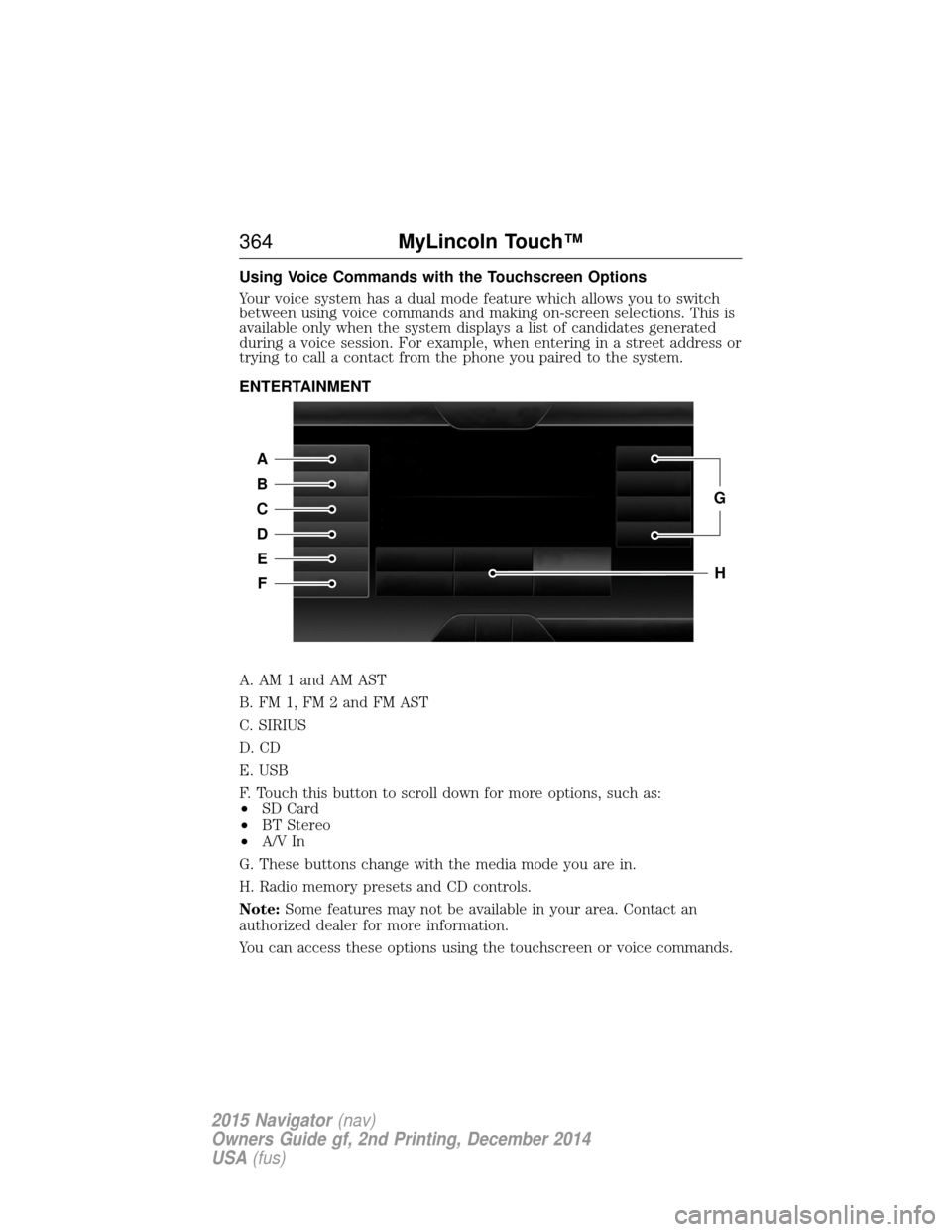
ENTERTAINMENT
A. AM 1 and AM AST
B. FM 1, FM 2 and FM AST
C. SIRIUS
D. CD
E. USB
F. Touch this button to scroll down for more options, such as:
•SD Card
• BT Stereo
• A/V In
G. These buttons change with the media mode you are in.
H. Radio memory presets and CD controls.
Note: Some features may not be available in your area. Contact an
authorized dealer for more information.
You can access these options using the touchscreen or voice commands.
A
B
C
D
E
F
G
H
364 MyLincoln Touch™
2015 Navigator(nav)
Owners Guide gf, 2nd Printing, December 2014
USA (fus)
Page 366 of 475
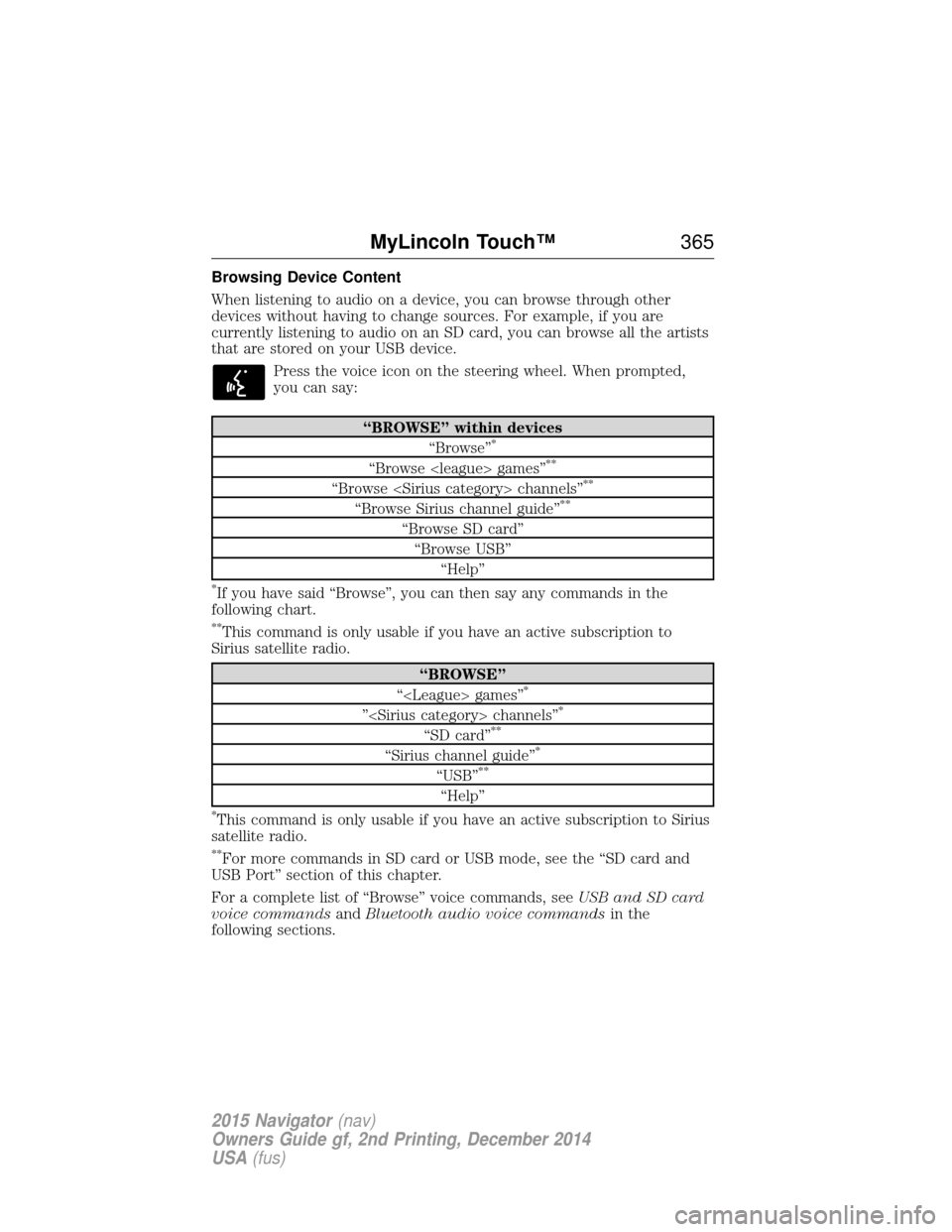
Browsing Device Content
When listening to audio on a device, you can browse through other
devices without having to change sources. For example, if you are
currently listening to audio on an SD card, you can browse all the artists
that are stored on your USB device.Press the voice icon on the steering wheel. When prompted,
you can say:
“BROWSE” within devices “Browse”*
“Browse
“Browse
“Browse Sirius channel guide”**
“Browse SD card”“Browse USB” “Help”
*If you have said “Browse”, you can then say any commands in the
following chart.
**This command is only usable if you have an active subscription to
Sirius satellite radio.
“BROWSE”
“
”
“SD card”**
“Sirius channel guide”*
“USB”**
“Help”
*This command is only usable if you have an active subscription to Sirius
satellite radio.
**For more commands in SD card or USB mode, see the “SD card and
USB Port” section of this chapter.
For a complete list of “Browse” voice commands, see USB and SD card
voice commands andBluetooth audio voice commands in the
following sections.
MyLincoln Touch™ 365
2015 Navigator(nav)
Owners Guide gf, 2nd Printing, December 2014
USA (fus)
Page 367 of 475
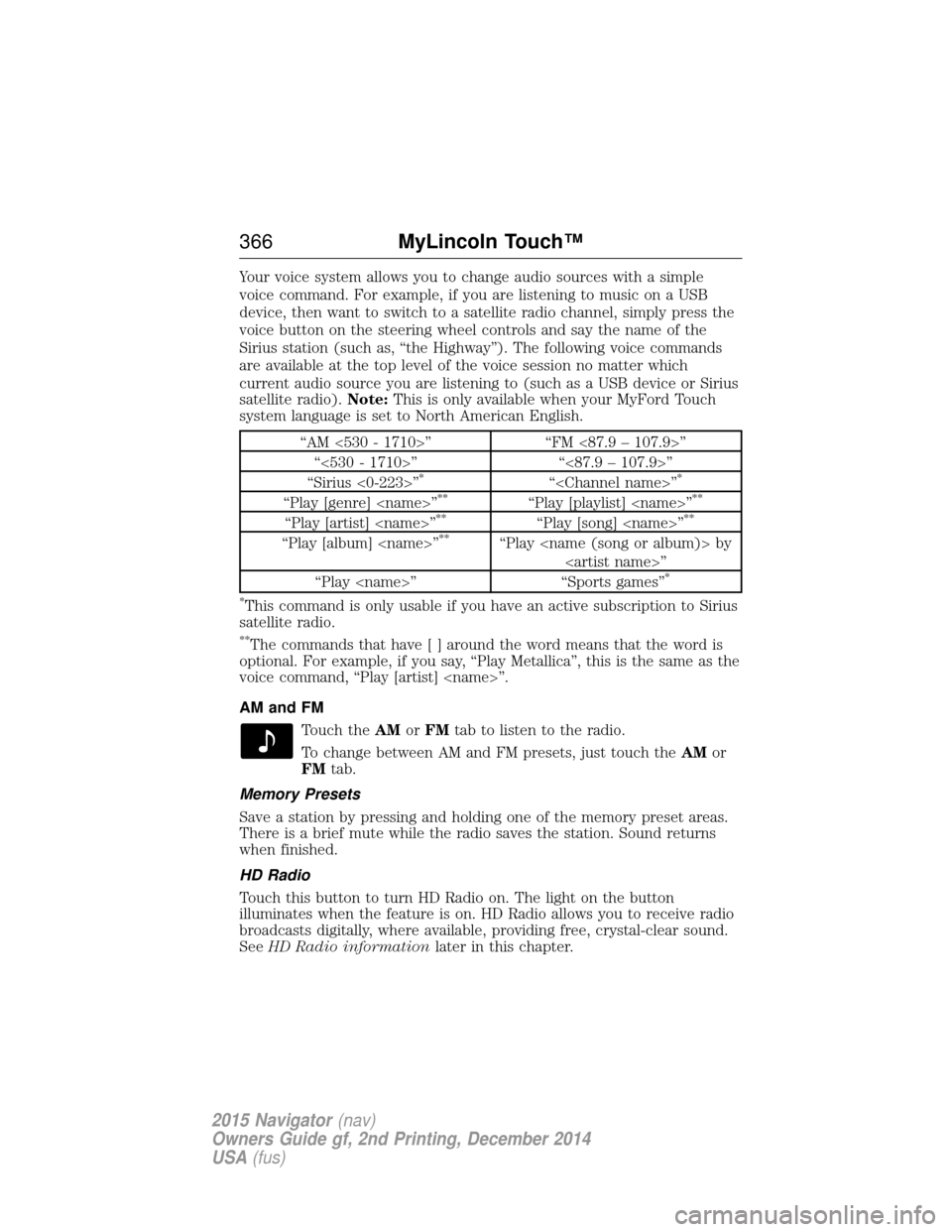
Your voice system allows you to change audio sources with a simple
voice command. For example, if you are listening to music on a USB
device, then want to switch to a satellite radio channel, simply press the
voice button on the steering wheel controls and say the name of the
Sirius station (such as, “the Highway”). The following voice commands
are available at the top level of the voice session no matter which
current audio source you are listening to (such as a USB device or Sirius
satellite radio).Note:This is only available when your MyFord Touch
system language is set to North American English.
“AM <530 - 1710>” “FM <87.9 – 107.9>”
“<530 - 1710>” “<87.9 – 107.9>”
“Sirius <0-223>”
*“
“Play [genre]
“Play [artist]
“Play [album]
“Play
*
*
This command is only usable if you have an active subscription to Sirius
satellite radio.
**The commands that have [ ] around the word means that the word is
optional. For example, if you say, “Play Metallica”, this is the same as the
voice command, “Play [artist]
AM and FM
Touch the AMorFM tab to listen to the radio.
To change between AM and FM presets, just touch the AMor
FM tab.
Memory Presets
Save a station by pressing and holding one of the memory preset areas.
There is a brief mute while the radio saves the station. Sound returns
when finished.
HD Radio
Touch this button to turn HD Radio on. The light on the button
illuminates when the feature is on. HD Radio allows you to receive radio
broadcasts digitally, where available, providing free, crystal-clear sound.
See HD Radio information later in this chapter.
366MyLincoln Touch™
2015 Navigator(nav)
Owners Guide gf, 2nd Printing, December 2014
USA (fus)