steering wheel LINCOLN NAVIGATOR 2015 Owners Manual
[x] Cancel search | Manufacturer: LINCOLN, Model Year: 2015, Model line: NAVIGATOR, Model: LINCOLN NAVIGATOR 2015Pages: 475, PDF Size: 5.13 MB
Page 3 of 475
Locks67
Locking and unlocking ..................................67
SecuriCode™ keyless entry keypad .........................73
Security 76
SecuriLock® passive anti-theft system .......................76
Anti-theft alarm .......................................77
Steering Wheel 79
Adjusting the steering wheel ..............................79
Steering wheel controls .................................80
Pedals 84
Adjustable pedals ......................................84
Wipers and Washers 85
Windshield wipers .....................................85
Rain-sensing wipers ....................................85
Windshield washers ....................................86
Rear-window wiper and washer ............................86
Lighting 87
Lighting control .......................................87
Autolamps ...........................................88
Instrument lighting dimmer ...............................89
Daytime running lamps ..................................89
Adaptive headlamps ....................................90
Directionindicators ....................................91
Interior lamps ........................................91
Windows and Mirrors 93
Power windows .......................................93
Exteriormirrors.......................................94
Interiormirrors .......................................96
Sunvisors ...........................................98
Moonroof ............................................98
2 Table of Contents
2015 Navigator(nav)
Owners Guide gf, 2nd Printing, December 2014
USA (fus)
Page 5 of 475
Transmission172
Automatic transmission .................................172
Four-Wheel Drive (If Equipped) 179
Four wheel drive .....................................179
Brakes 187
Brakes .............................................187
Hints on driving with anti-lock brakes ......................188
Parking brake ........................................188
Hill start assist .......................................188
Traction Control 190
TractionControl™ ....................................190
Stability Control 191
AdvanceTrac® .......................................192
Terrain Response 194
Hill descent control ...................................194
Parking Aids 196
Sensing system .......................................196
Rear-view camera system ...............................198
Cruise Control 203
Usingcruisecontrol ...................................203
Driving Aids 205
Blind Spot Information System (BLIS) with Cross Traffic Alert
(CTA) .............................................205
Steering............................................210
Auto leveling suspension ................................212
Load Carrying 213
Roof racks and load carriers .............................213
Vehicle loading .......................................213
Cargo management system ..............................220
4Table of Contents
2015 Navigator(nav)
Owners Guide gf, 2nd Printing, December 2014
USA (fus)
Page 12 of 475
Event Data Recording
This vehicle is equipped with an event data recorder (EDR). The
main purpose of an EDR is to record, in certain crash or near
crash-like situations, such as an airbag deployment or hitting a
road obstacle; this data will assist in understanding how a
vehicle’s systems performed. The EDR is designed to record data
related to vehicle dynamics and safety systems for a short period
of time, typically 30 seconds or less. The EDR in this vehicle is
designed to record such data as:
•How various systems in your vehicle were operating;
• Whether or not the driver and passenger safety belts were
buckled/fastened;
• How far (if at all) the driver was depressing the accelerator
and/or the brake pedal;
• How fast the vehicle was travelling;
• Where the driver was positioning the steering wheel.
This data can help provide a better understanding of the
circumstances in which crashes and injuries occur.
Note: EDR data is recorded by your vehicle only if a non-trivial
crash situation occurs; no data is recorded by the EDR under
normal driving conditions and no personal data or information
(e.g., name, gender, age, and crash location) is recorded (see
limitations regarding 911 Assist and Traffic, Directions and
Information privacy below). However, parties, such as law
enforcement, could combine the EDR data with the type of
personally identifying data routinely acquired during a crash
investigation.
To read data recorded by an EDR, special equipment is required,
and access to the vehicle or the EDR is needed. In addition to the
vehicle manufacturer, other parties, such as law enforcement,
that have such special equipment, can read the information if
they have access to the vehicle or the EDR. Ford Motor Company
and Ford of Canada do not access event data recorder
information without obtaining consent, unless pursuant to court
order or where required by law enforcement, other government
authorities or other third parties acting with lawful authority.
Other parties may seek to access the information independently
of Ford Motor Company and Ford of Canada.
Introduction 11
2015 Navigator(nav)
Owners Guide gf, 2nd Printing, December 2014
USA (fus)
Page 80 of 475
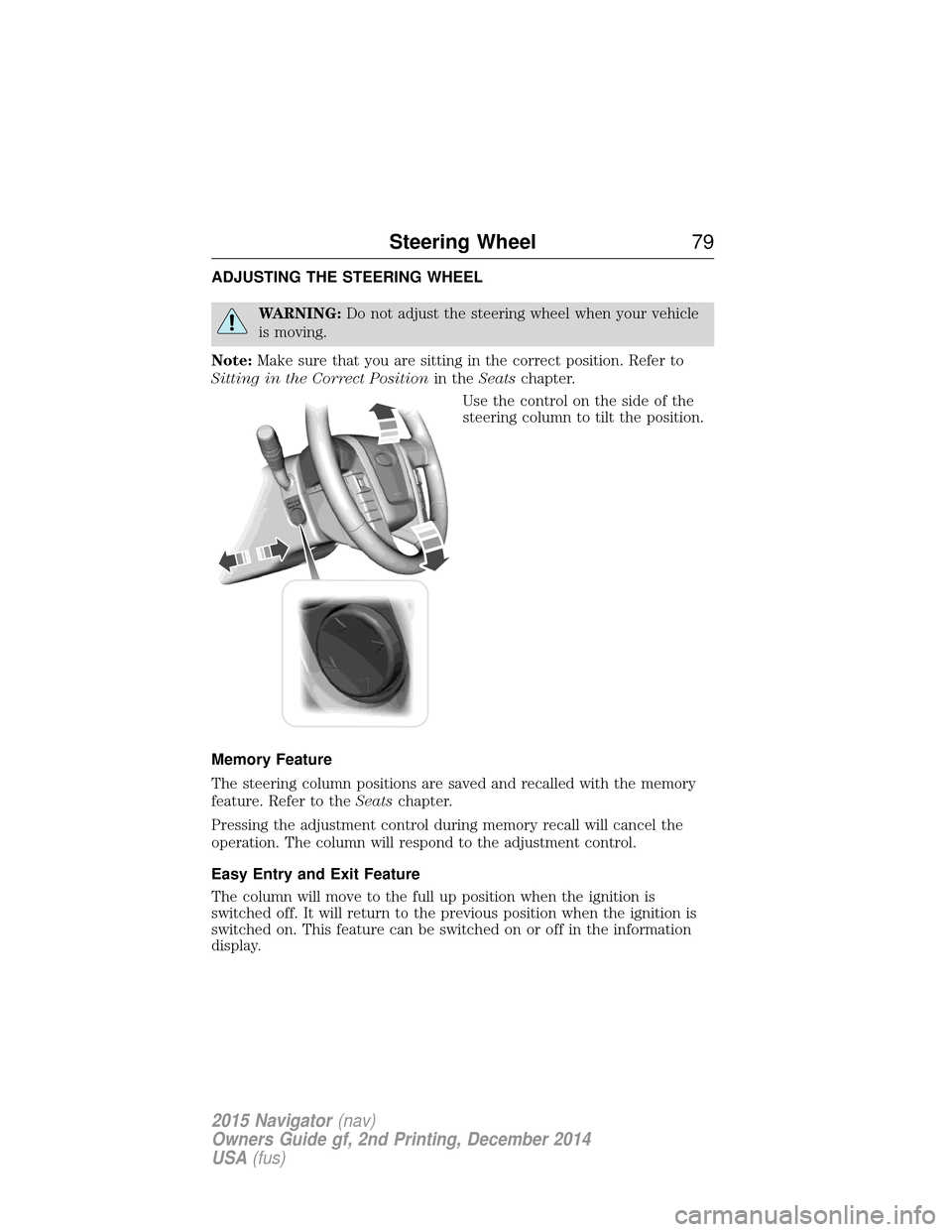
ADJUSTING THE STEERING WHEEL
WARNING:Do not adjust the steering wheel when your vehicle
is moving.
Note: Make sure that you are sitting in the correct position. Refer to
Sitting in the Correct Position in theSeatschapter.
Use the control on the side of the
steering column to tilt the position.
Memory Feature
The steering column positions are saved and recalled with the memory
feature. Refer to the Seatschapter.
Pressing the adjustment control during memory recall will cancel the
operation. The column will respond to the adjustment control.
Easy Entry and Exit Feature
The column will move to the full up position when the ignition is
switched off. It will return to the previous position when the ignition is
switched on. This feature can be switched on or off in the information
display.
Steering Wheel 79
2015 Navigator(nav)
Owners Guide gf, 2nd Printing, December 2014
USA (fus)
Page 81 of 475
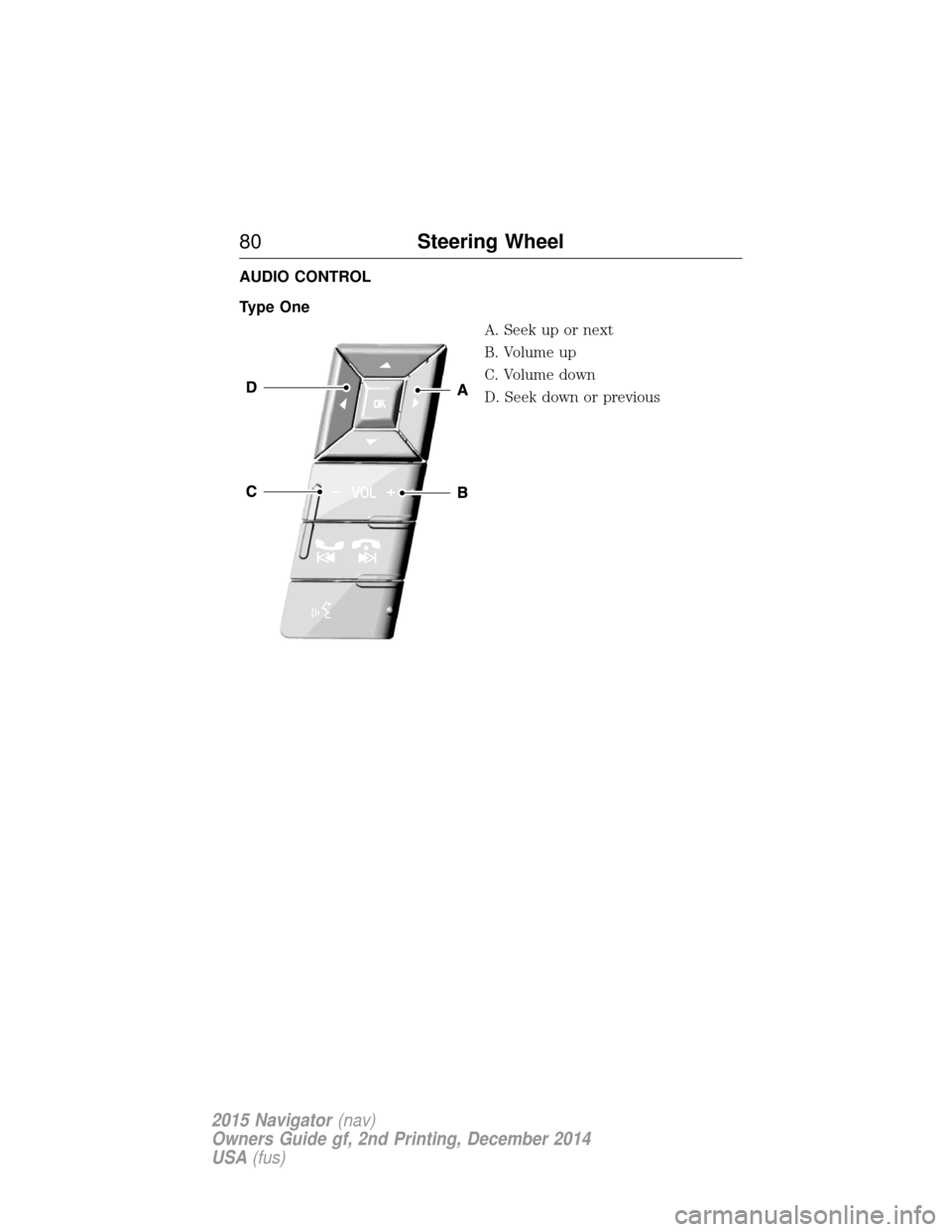
AUDIO CONTROL
Type OneA. Seek up or next
B. Volume up
C. Volume down
D. Seek down or previous
80Steering Wheel
2015 Navigator(nav)
Owners Guide gf, 2nd Printing, December 2014
USA (fus)
Page 82 of 475
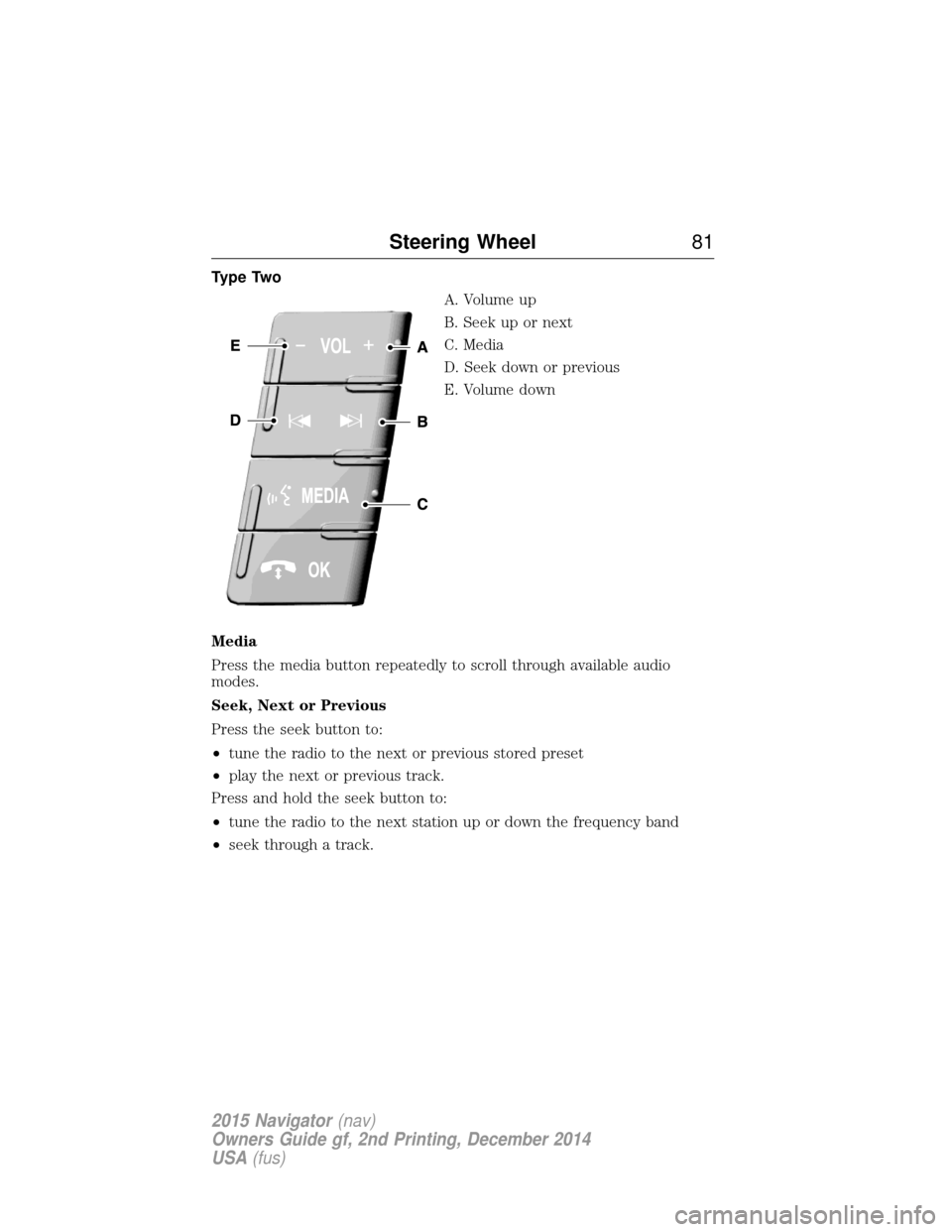
Type TwoA. Volume up
B. Seek up or next
C. Media
D. Seek down or previous
E. Volume down
Media
Press the media button repeatedly to scroll through available audio
modes.
Seek, Next or Previous
Press the seek button to:
• tune the radio to the next or previous stored preset
• play the next or previous track.
Press and hold the seek button to:
• tune the radio to the next station up or down the frequency band
• seek through a track.
Steering Wheel 81
2015 Navigator(nav)
Owners Guide gf, 2nd Printing, December 2014
USA (fus)
Page 83 of 475
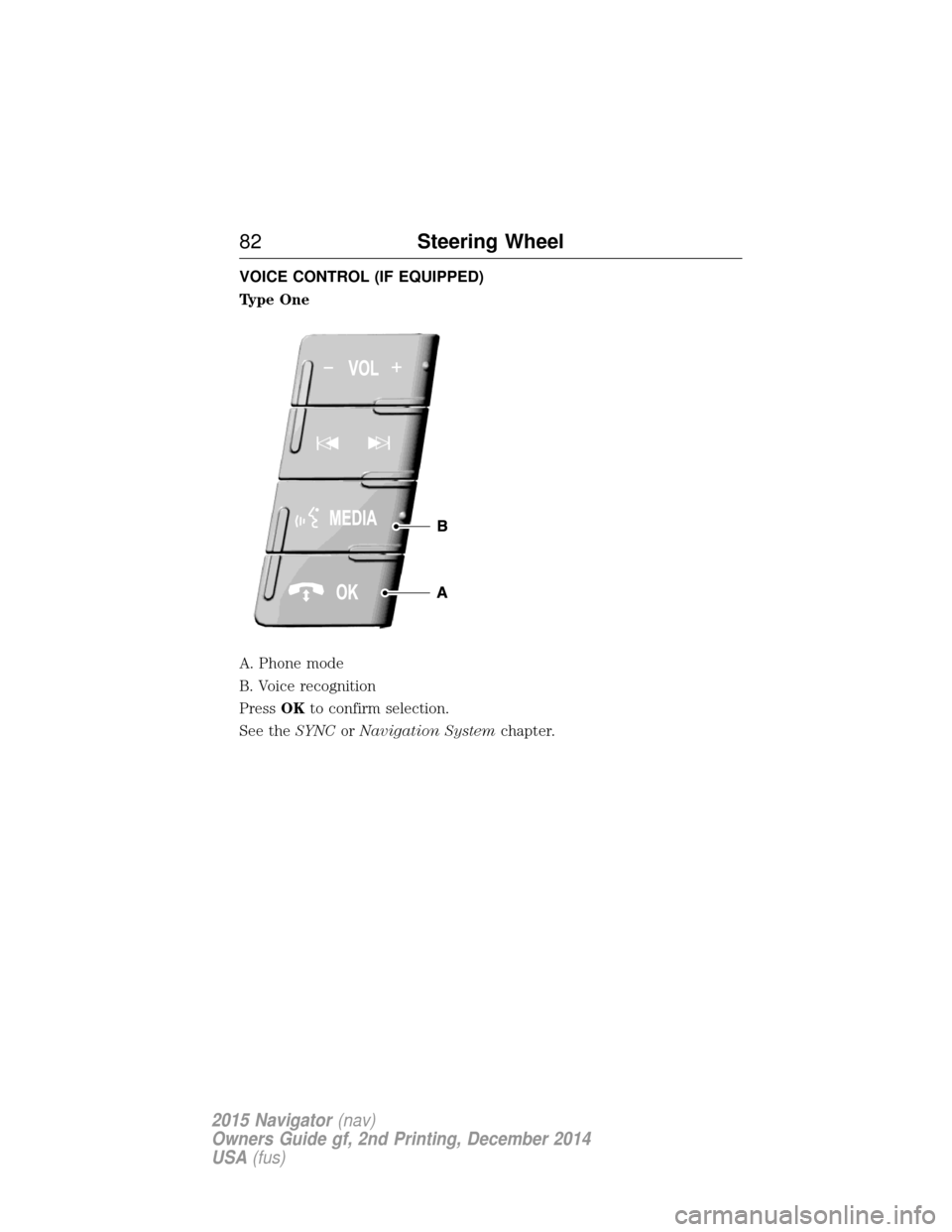
VOICE CONTROL (IF EQUIPPED)
Type One
A. Phone mode
B. Voice recognition
PressOKto confirm selection.
See the SYNCorNavigation System chapter.
82Steering Wheel
2015 Navigator(nav)
Owners Guide gf, 2nd Printing, December 2014
USA (fus)
Page 84 of 475
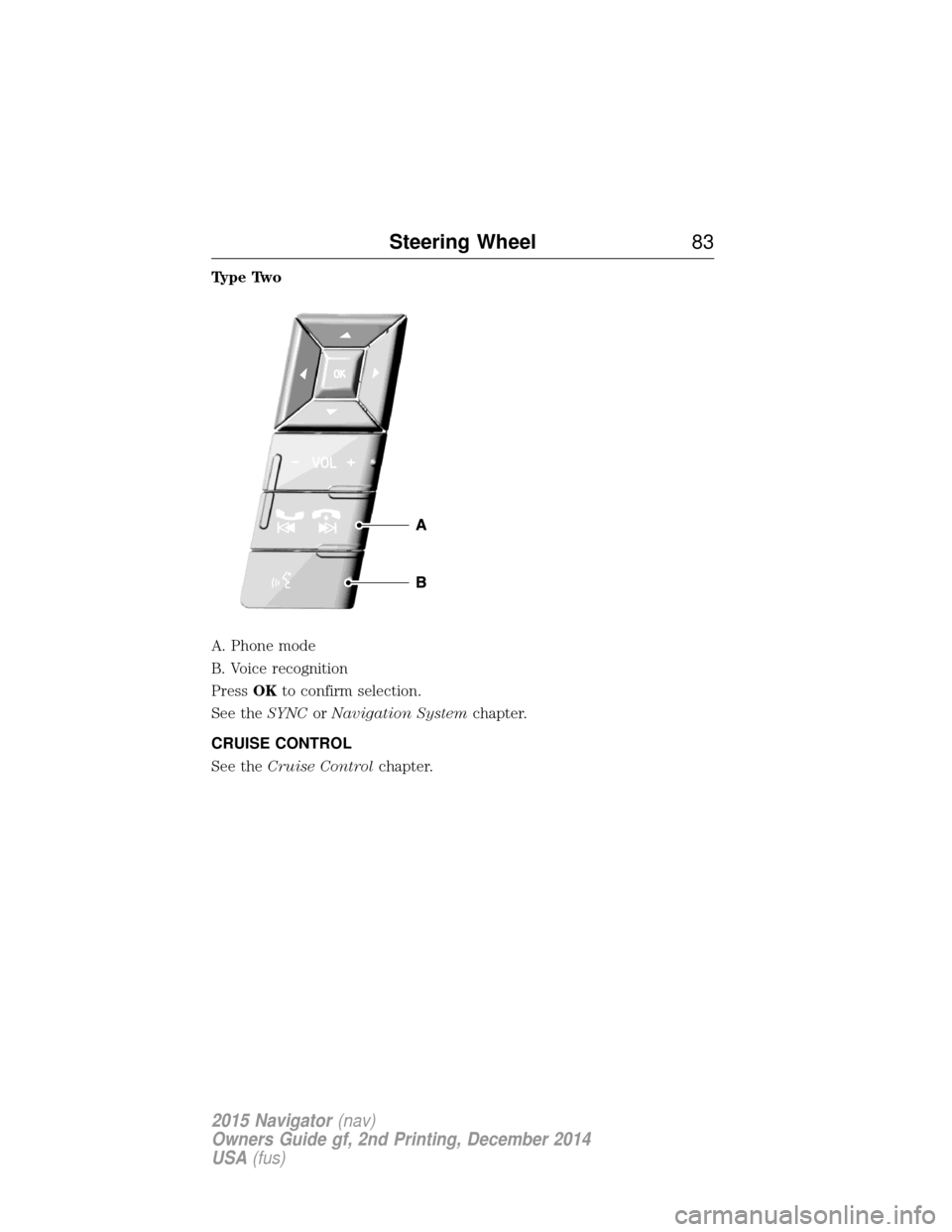
Type Two
A. Phone mode
B. Voice recognition
PressOKto confirm selection.
See the SYNCorNavigation System chapter.
CRUISE CONTROL
See the Cruise Control chapter.
Steering Wheel 83
2015 Navigator(nav)
Owners Guide gf, 2nd Printing, December 2014
USA (fus)
Page 91 of 475
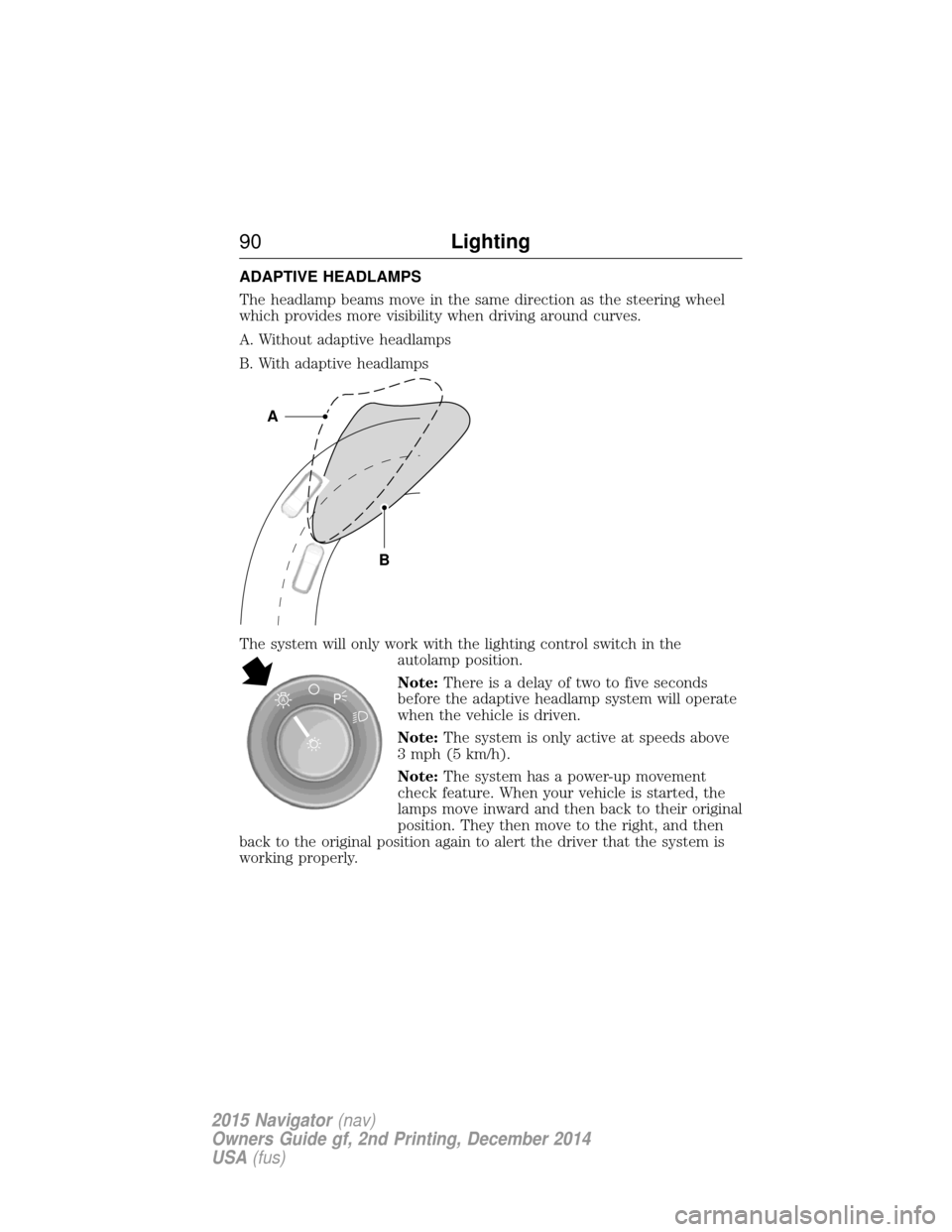
ADAPTIVE HEADLAMPS
The headlamp beams move in the same direction as the steering wheel
which provides more visibility when driving around curves.
A. Without adaptive headlamps
B. With adaptive headlamps
The system will only work with the lighting control switch in theautolamp position.
Note:There is a delay of two to five seconds
before the adaptive headlamp system will operate
when the vehicle is driven.
Note: The system is only active at speeds above
3 mph (5 km/h).
Note: The system has a power-up movement
check feature. When your vehicle is started, the
lamps move inward and then back to their original
position. They then move to the right, and then
back to the original position again to alert the driver that the system is
working properly.
B
A
A
90 Lighting
2015 Navigator(nav)
Owners Guide gf, 2nd Printing, December 2014
USA (fus)
Page 107 of 475
GENERAL INFORMATION
WARNING:Driving while distracted can result in loss of vehicle
control, crash and injury. We strongly recommend that you use
extreme caution when using any device that may take your focus off
the road. Your primary responsibility is the safe operation of your
vehicle. We recommend against the use of any handheld device while
driving and encourage the use of voice-operated systems when possible.
Make sure you are aware of all applicable local laws that may affect the
use of electronic devices while driving.
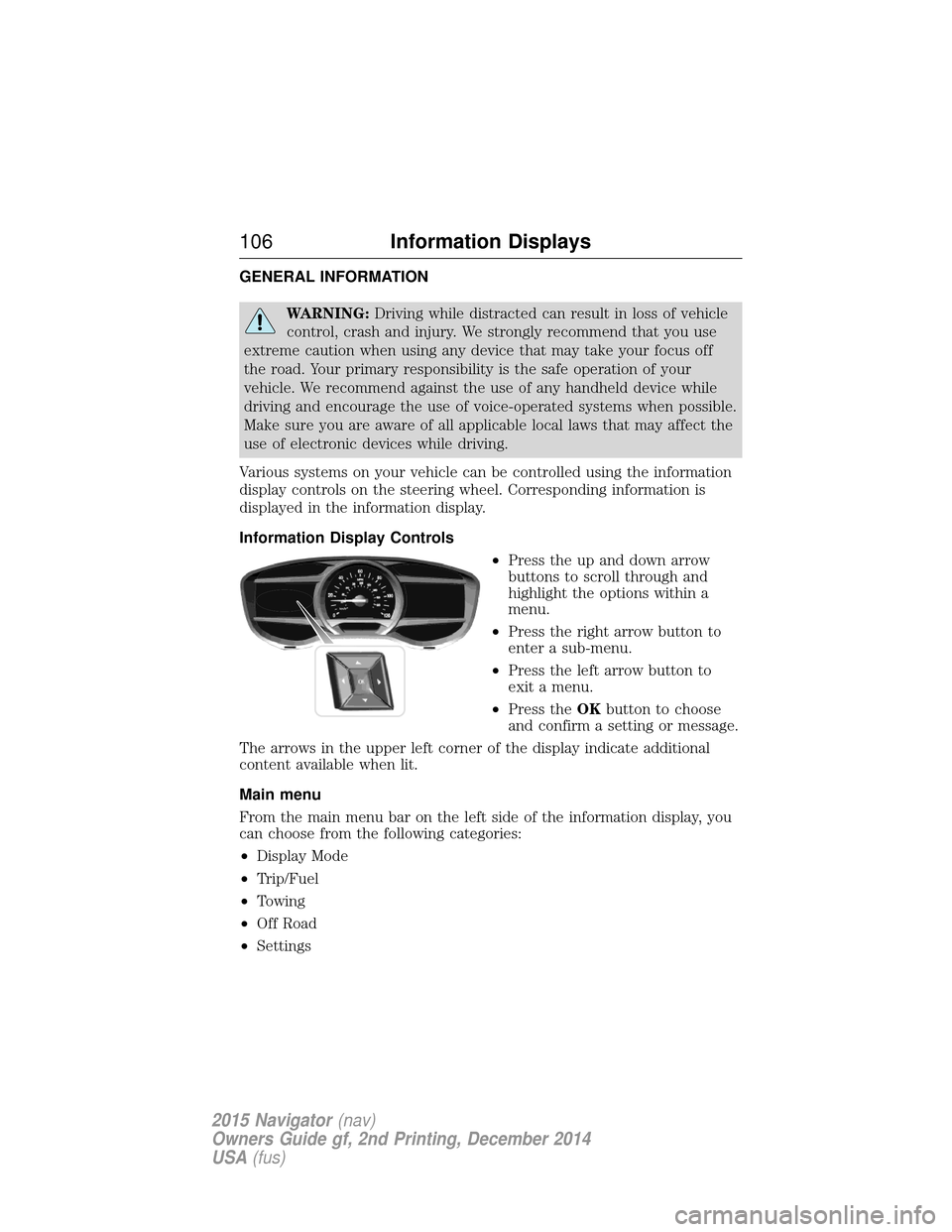
Various systems on your vehicle can be controlled using the information
display controls on the steering wheel. Corresponding information is
displayed in the information display.
Information Display Controls •Press the up and down arrow
buttons to scroll through and
highlight the options within a
menu.
• Press the right arrow button to
enter a sub-menu.
• Press the left arrow button to
exit a menu.
• Press the OKbutton to choose
and confirm a setting or message.
The arrows in the upper left corner of the display indicate additional
content available when lit.
Main menu
From the main menu bar on the left side of the information display, you
can choose from the following categories:
• Display Mode
• Trip/Fuel
• Towing
• Off Road
• Settings
106 Information Displays
2015 Navigator (nav)
Owners Guide gf, 2nd Printing, December 2014
USA (fus)