door lock LINCOLN NAVIGATOR 2016 User Guide
[x] Cancel search | Manufacturer: LINCOLN, Model Year: 2016, Model line: NAVIGATOR, Model: LINCOLN NAVIGATOR 2016Pages: 419, PDF Size: 3.59 MB
Page 73 of 419
Note:
Entering your vehicle while the liftgate
is closing can cause your vehicle to bounce
and activate obstacle detection. To prevent
this, let the power liftgate close completely
before you enter your vehicle. Before driving
off, check the instrument cluster for a liftgate
or door ajar message or warning indicator.
Failure to do this could result in
unintentionally leaving the liftgate open
while driving.
When Opening
The system stops when it detects an
obstacle and two short tones sound.
Remove the obstacle to operate the liftgate.
KEYLESS ENTRY
SECURICODE™ KEYLESS ENTRY
KEYPAD
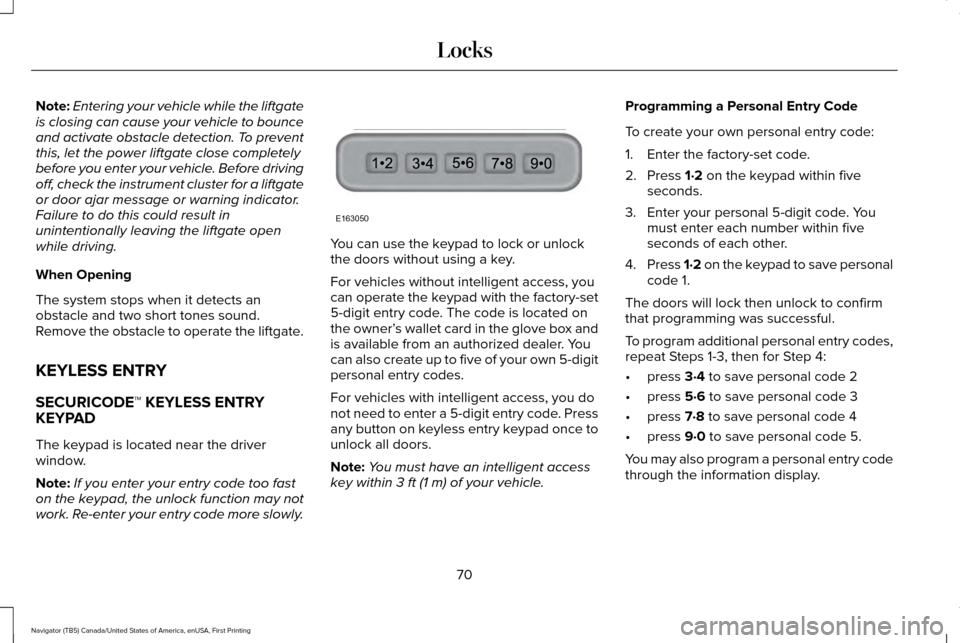
The keypad is located near the driver
window.
Note: If you enter your entry code too fast
on the keypad, the unlock function may not
work. Re-enter your entry code more slowly. You can use the keypad to lock or unlock
the doors without using a key.
For vehicles without intelligent access, you
can operate the keypad with the factory-set
5-digit entry code. The code is located on
the owner’
s wallet card in the glove box and
is available from an authorized dealer. You
can also create up to five of your own 5-digit
personal entry codes.
For vehicles with intelligent access, you do
not need to enter a 5-digit entry code. Press
any button on keyless entry keypad once to
unlock all doors.
Note: You must have an intelligent access
key within 3 ft (1 m) of your vehicle. Programming a Personal Entry Code
To create your own personal entry code:
1. Enter the factory-set code.
2. Press
1·2 on the keypad within five
seconds.
3. Enter your personal 5-digit code. You must enter each number within five
seconds of each other.
4. Press 1·2 on the keypad to save personal
code 1.
The doors will lock then unlock to confirm
that programming was successful.
To program additional personal entry codes,
repeat Steps 1-3, then for Step 4:
• press
3·4 to save personal code 2
• press
5·6 to save personal code 3
• press
7·8 to save personal code 4
• press
9·0 to save personal code 5.
You may also program a personal entry code
through the information display.
70
Navigator (TB5) Canada/United States of America, enUSA, First Printing LocksE163050
Page 74 of 419
Tips:
•
Do not set a code that uses five of the
same number.
• Do not use five numbers in sequential
order.
• The factory-set code will work even if you
have set your own personal code.
Recalling Memory Positions (If Equipped)
The programmed entry codes will recall
driver memory positions as follows:
• Entry code 1 will recall driver 1 memory
positions.
• Entry code 2 will recall driver 2 memory
positions.
Note: Personal entry codes 3, 4 and 5 will
not recall memory positions.
Erasing a Personal Code
1. Enter the factory-set 5-digit code.
2. Press and release 1·2 on the keypad
within five seconds. 3. Press and hold
1·2 for two seconds. You
must do this within five seconds of
completing Step 2.
All personal codes will erase and only the
factory-set 5-digit code will work.
Anti-Scan Feature
The keypad will go into an anti-scan mode
if you enter the wrong code seven times (35
consecutive button presses). This mode
disables the keypad for one minute and the
keypad lamp will flash.
The anti-scan feature will turn off after:
• one minute of keypad inactivity
• pressing the unlock button on the remote
control
• switching the ignition on.
Displaying the Factory Set Code
Note: You will need to have two
programmed passive anti-theft keys for this
procedure.
To display the factory-set code in the
information display: 1. Insert a key into the ignition and switch
the ignition on for a few seconds.
2. Switch the ignition off and remove the key.
3. Insert the second key into the ignition and switch the ignition on.
The factory-set code will display for a few
seconds.
Note: The code may not display until after
any other warning messages first display.
Unlocking and Locking the Doors
Vehicles Without Intelligent Access
To Unlock the Driver Door
Enter the factory-set 5-digit code or your
personal code. You must press each number
within five seconds of each other. The
interior lamps will illuminate.
Note: All doors will unlock if you disable the
two-stage unlocking mode.
See Locking
and Unlocking (page 63).
71
Navigator (TB5) Canada/United States of America, enUSA, First Printing Locks
Page 75 of 419
To Unlock All Doors
Enter the factory-set code or your personal
code, then press 3·4 within five seconds.
To Lock All Doors
Press and hold 7·8 and 9·0 at the same time
(with the driver door closed). You do not
need to enter the keypad code first.
Vehicles With Intelligent Access
Press any button on keyless entry keypad
once to unlock all doors.
Note: You must have an intelligent access
key within
3 ft (1 m) of your vehicle.
72
Navigator (TB5) Canada/United States of America, enUSA, First Printing Locks
Page 76 of 419
PASSIVE ANTI-THEFT SYSTEM
Note:
The system is not compatible with
non-Ford aftermarket remote start systems.
Use of these systems may result in vehicle
starting problems and a loss of security
protection.
Note: Metallic objects, electronic devices or
a second coded key on the same key chain
may cause vehicle starting problems if they
are too close to the key when starting the
engine. Prevent these objects from touching
the coded key while starting the engine.
Switch the ignition off, move all objects on
the key chain away from the coded key and
restart the engine if a problem occurs.
Note: Do not leave a duplicate coded key
in the vehicle. Always take your keys and
lock all doors when leaving the vehicle. SecuriLock™
The system is an engine immobilization
system. The intended design is to help
prevent the engine from starting unless a
coded key programmed to your vehicle is
used. Using the wrong key may prevent the
engine from starting. A message may appear
in the information display.
If you are unable to start the engine with a
correctly coded key, a malfunction has
happened and a message may appear in the
information display.
Automatic Arming
The vehicle arms immediately after you
switch the ignition off.
Automatic Disarming
If you switch the ignition on with a coded key
you disarm the vehicle. If you unlock the
doors with the touch handle you disarm the
alarm.Replacement Keys
Note:
Your vehicle comes equipped with two
intelligent access keys.
The intelligent access key functions as a
programmed key that operates the driver
door lock and activates the intelligent access
with push button start system, as well as a
remote control.
If your programmed transmitters are lost or
stolen and you do not have an extra coded
key, you will need to have your vehicle
towed to an authorized dealer. You need to
erase the key codes from your vehicle and
program new coded keys.
Store an extra programmed key away from
the vehicle in a safe place to help prevent
any inconveniences. See your authorized
dealer to purchase additional spare or
replacement keys.
Programming a Spare Intelligent Access
Key
See your authorized dealer to have
additional keys programmed to your vehicle.
73
Navigator (TB5) Canada/United States of America, enUSA, First Printing Security
Page 77 of 419
ANTI-THEFT ALARM
The system will warn you of an unauthorized
entry to your vehicle. It will be triggered if
any door, the luggage compartment or the
hood is opened without using the key,
remote control or keyless entry keypad.
The direction indicators will flash and the
horn will sound if unauthorized entry is
attempted while the alarm is armed.
Take all remote controls to an authorized
dealer if there is any potential alarm problem
with your vehicle.
Arming the Alarm
The alarm is ready to arm when there is not
a key in your vehicle. Electronically lock your
vehicle to arm the alarm.
Disarming the Alarm
Disarm the alarm by any of the following
actions:
•
Unlock the doors or luggage
compartment with the remote control or
keyless entry keypad.
• Switch your vehicle on or start your
vehicle.
• Use a key in the driver door to unlock
your vehicle, then switch your vehicle on
within 12 seconds.
Note: Pressing the panic button on the
remote control will stop the horn and signal
indicators, but will not disarm the system.
74
Navigator (TB5) Canada/United States of America, enUSA, First Printing Security
Page 78 of 419
USING POWER RUNNING BOARDS
WARNINGS
In extreme climates, excessive ice
buildup may occur, causing the running
boards not to deploy. Make sure that the
running boards have deployed, and have
finished moving before attempting to step
on them. The running boards will resume
normal function once the blockage is
cleared. Turn off the running boards before
jacking or placing any object under
your vehicle. Never place your hand between
the extended running board and your
vehicle. A moving running board may cause
injury. Note:
Do not use the running boards, front
and rear hinge assemblies, running board
motors, or the running board underbody
mounts to lift your vehicle when jacking.
Always use proper jacking points.
Note: The running boards may operate more
slowly in cool temperatures. Note:
The running board mechanism may
trap debris such as mud, dirt, snow, ice and
salt. This may cause unwanted noise. If this
happens, manually set the running boards
to the deployed position. Then, wash the
system, in particular the front and rear hinge
arms, with a high-pressure car wash wand.
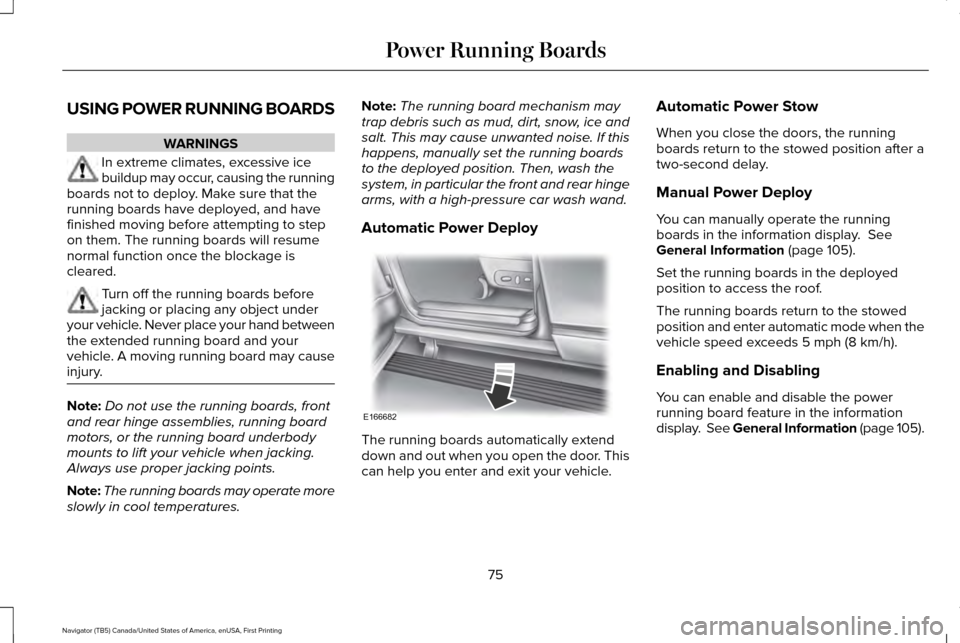
Automatic Power Deploy The running boards automatically extend
down and out when you open the door. This
can help you enter and exit your vehicle.Automatic Power Stow
When you close the doors, the running
boards return to the stowed position after a
two-second delay.
Manual Power Deploy
You can manually operate the running
boards in the information display. See
General Information (page 105).
Set the running boards in the deployed
position to access the roof.
The running boards return to the stowed
position and enter automatic mode when the
vehicle speed exceeds
5 mph (8 km/h).
Enabling and Disabling
You can enable and disable the power
running board feature in the information
display. See General Information (page 105).
75
Navigator (TB5) Canada/United States of America, enUSA, First Printing Power Running BoardsE166682
Page 97 of 419
Accessory Delay
The window switches remain operational for
several minutes when you switch the ignition
off or until you open either front door.
EXTERIOR MIRRORS
Power Exterior Mirrors
WARNING
Do not adjust the mirrors when your
vehicle is moving.
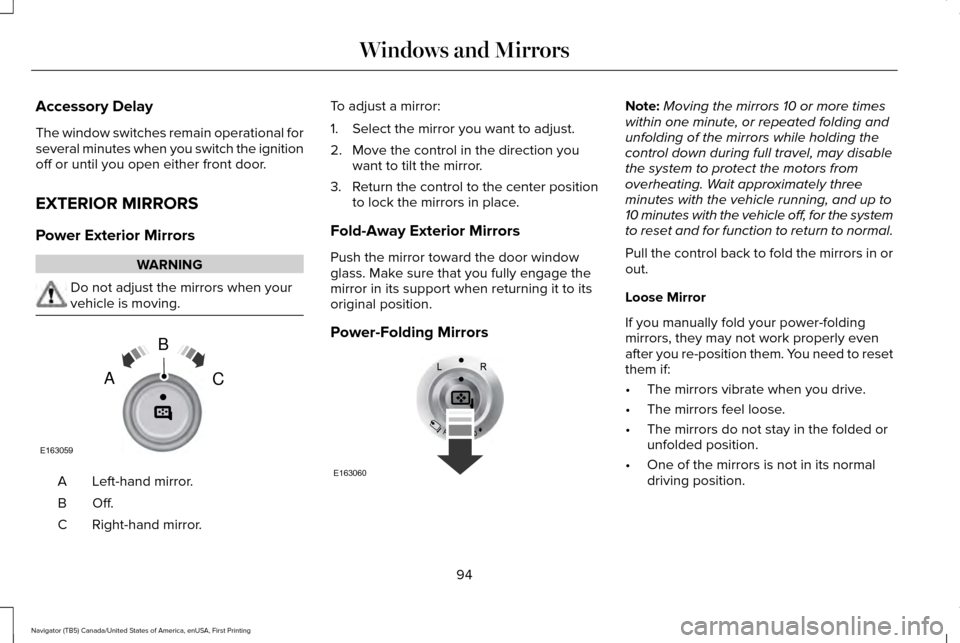
Left-hand mirror.
A
Off.B
Right-hand mirror.
C To adjust a mirror:
1. Select the mirror you want to adjust.
2. Move the control in the direction you
want to tilt the mirror.
3. Return the control to the center position
to lock the mirrors in place.
Fold-Away Exterior Mirrors
Push the mirror toward the door window
glass. Make sure that you fully engage the
mirror in its support when returning it to its
original position.
Power-Folding Mirrors Note:
Moving the mirrors 10 or more times
within one minute, or repeated folding and
unfolding of the mirrors while holding the
control down during full travel, may disable
the system to protect the motors from
overheating. Wait approximately three
minutes with the vehicle running, and up to
10 minutes with the vehicle off, for the system
to reset and for function to return to normal.
Pull the control back to fold the mirrors in or
out.
Loose Mirror
If you manually fold your power-folding
mirrors, they may not work properly even
after you re-position them. You need to reset
them if:
• The mirrors vibrate when you drive.
• The mirrors feel loose.
• The mirrors do not stay in the folded or
unfolded position.
• One of the mirrors is not in its normal
driving position.
94
Navigator (TB5) Canada/United States of America, enUSA, First Printing Windows and MirrorsE163059
B
AC E163060
Page 113 of 419
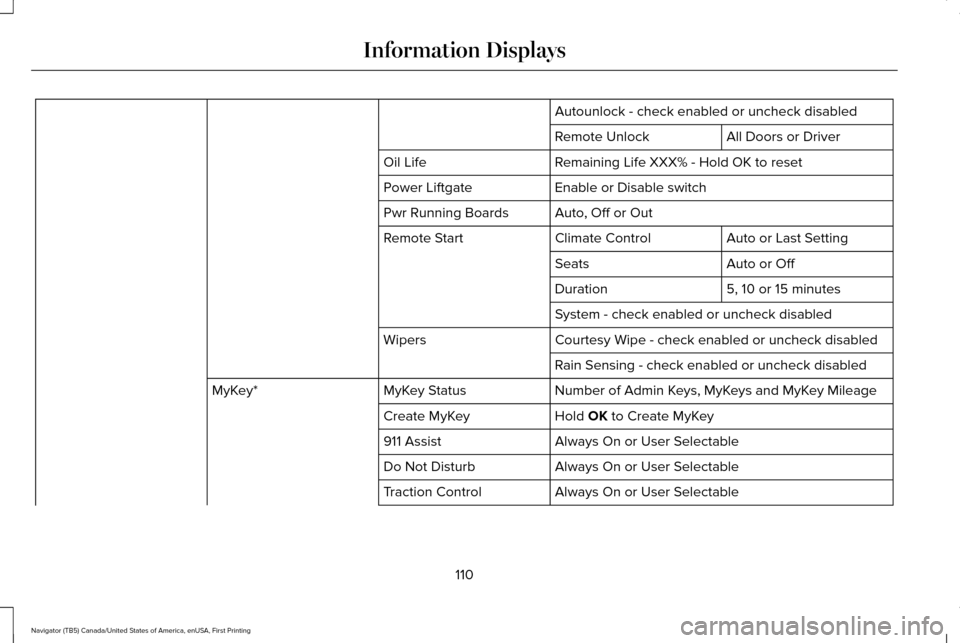
Autounlock - check enabled or uncheck disabled
All Doors or Driver
Remote Unlock
Remaining Life XXX% - Hold OK to reset
Oil Life
Enable or Disable switch
Power Liftgate
Auto, Off or Out
Pwr Running Boards
Auto or Last Setting
Climate Control
Remote Start
Auto or Off
Seats
5, 10 or 15 minutes
Duration
System - check enabled or uncheck disabled
Courtesy Wipe - check enabled or uncheck disabled
Wipers
Rain Sensing - check enabled or uncheck disabled
Number of Admin Keys, MyKeys and MyKey Mileage
MyKey Status
MyKey*
Hold OK to Create MyKey
Create MyKey
Always On or User Selectable
911 Assist
Always On or User Selectable
Do Not Disturb
Always On or User Selectable
Traction Control
110
Navigator (TB5) Canada/United States of America, enUSA, First Printing Information Displays
Page 139 of 419
WARNINGS
Do not use the memory function when
your vehicle is moving.
This feature automatically recalls the position
of the following:
•
Driver seat.
• Power mirrors.
• Power steering column.
• Power adjustable foot pedals.
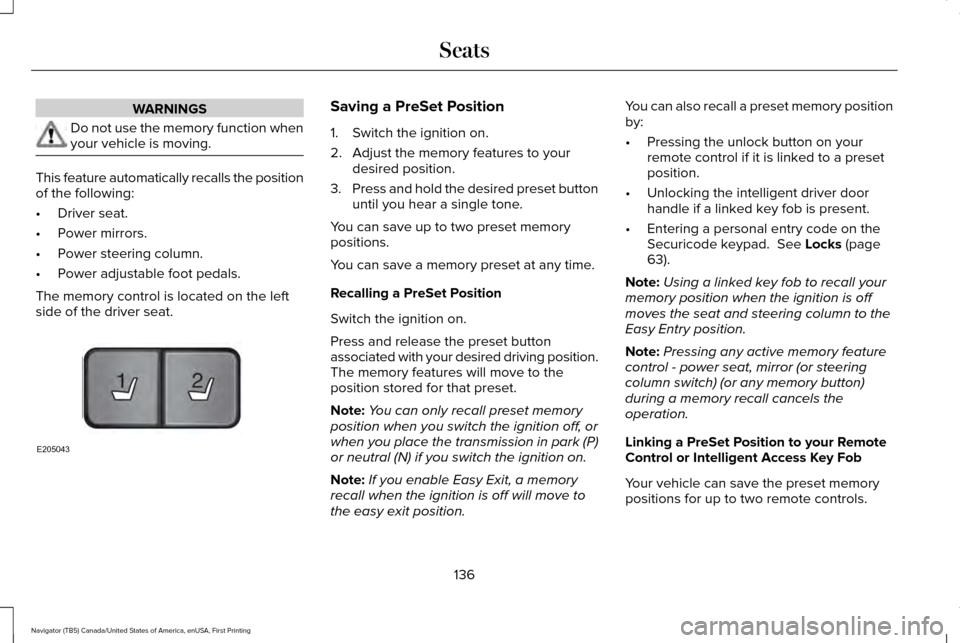
The memory control is located on the left
side of the driver seat. Saving a PreSet Position
1. Switch the ignition on.
2. Adjust the memory features to your
desired position.
3. Press and hold the desired preset button
until you hear a single tone.
You can save up to two preset memory
positions.
You can save a memory preset at any time.
Recalling a PreSet Position
Switch the ignition on.
Press and release the preset button
associated with your desired driving position.
The memory features will move to the
position stored for that preset.
Note: You can only recall preset memory
position when you switch the ignition off, or
when you place the transmission in park (P)
or neutral (N) if you switch the ignition on.
Note: If you enable Easy Exit, a memory
recall when the ignition is off will move to
the easy exit position. You can also recall a preset memory position
by:
•
Pressing the unlock button on your
remote control if it is linked to a preset
position.
• Unlocking the intelligent driver door
handle if a linked key fob is present.
• Entering a personal entry code on the
Securicode keypad. See Locks (page
63).
Note: Using a linked key fob to recall your
memory position when the ignition is off
moves the seat and steering column to the
Easy Entry position.
Note: Pressing any active memory feature
control - power seat, mirror (or steering
column switch) (or any memory button)
during a memory recall cancels the
operation.
Linking a PreSet Position to your Remote
Control or Intelligent Access Key Fob
Your vehicle can save the preset memory
positions for up to two remote controls.
136
Navigator (TB5) Canada/United States of America, enUSA, First Printing Seats21
E205043
Page 141 of 419
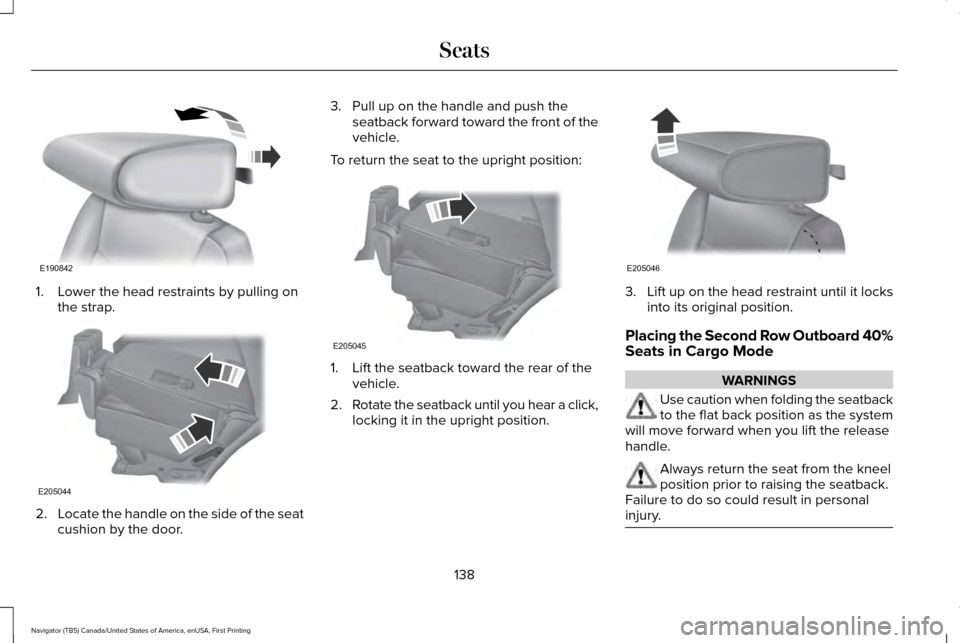
1. Lower the head restraints by pulling on
the strap. 2.
Locate the handle on the side of the seat
cushion by the door. 3. Pull up on the handle and push the
seatback forward toward the front of the
vehicle.
To return the seat to the upright position: 1. Lift the seatback toward the rear of the
vehicle.
2. Rotate the seatback until you hear a click,
locking it in the upright position. 3.
Lift up on the head restraint until it locks
into its original position.
Placing the Second Row Outboard 40%
Seats in Cargo Mode WARNINGS
Use caution when folding the seatback
to the flat back position as the system
will move forward when you lift the release
handle. Always return the seat from the kneel
position prior to raising the seatback.
Failure to do so could result in personal
injury. 138
Navigator (TB5) Canada/United States of America, enUSA, First Printing SeatsE190842 E205044 E205045 E205046