steering LINCOLN NAVIGATOR 2016 User Guide
[x] Cancel search | Manufacturer: LINCOLN, Model Year: 2016, Model line: NAVIGATOR, Model: LINCOLN NAVIGATOR 2016Pages: 419, PDF Size: 3.59 MB
Page 83 of 419
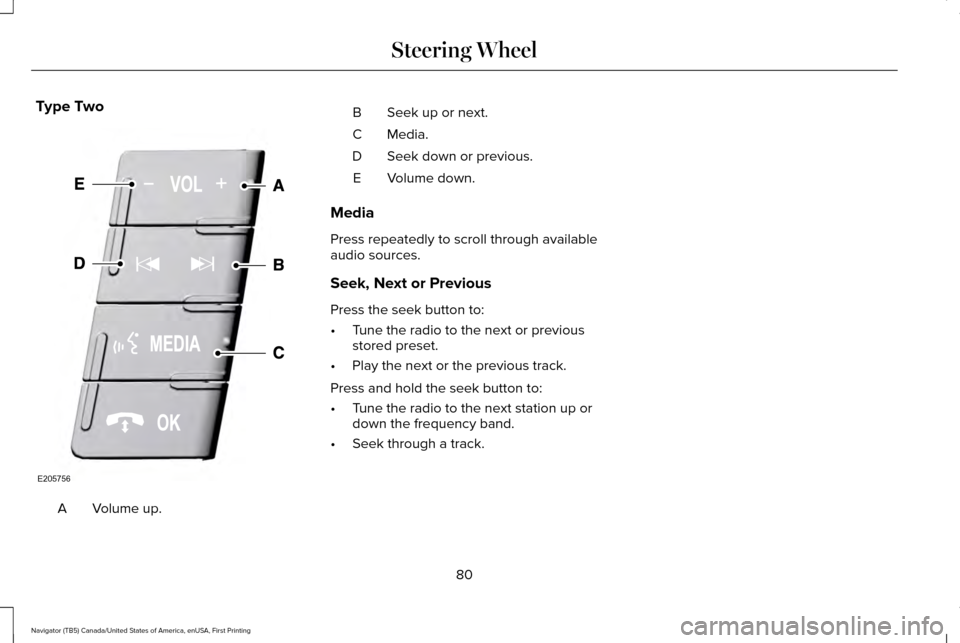
Type Two
Volume up.
A B Seek up or next.
Media.
C
Seek down or previous.
D
Volume down.
E
Media
Press repeatedly to scroll through available
audio sources.
Seek, Next or Previous
Press the seek button to:
• Tune the radio to the next or previous
stored preset.
• Play the next or the previous track.
Press and hold the seek button to:
• Tune the radio to the next station up or
down the frequency band.
• Seek through a track.
80
Navigator (TB5) Canada/United States of America, enUSA, First Printing Steering WheelE205756
Page 84 of 419
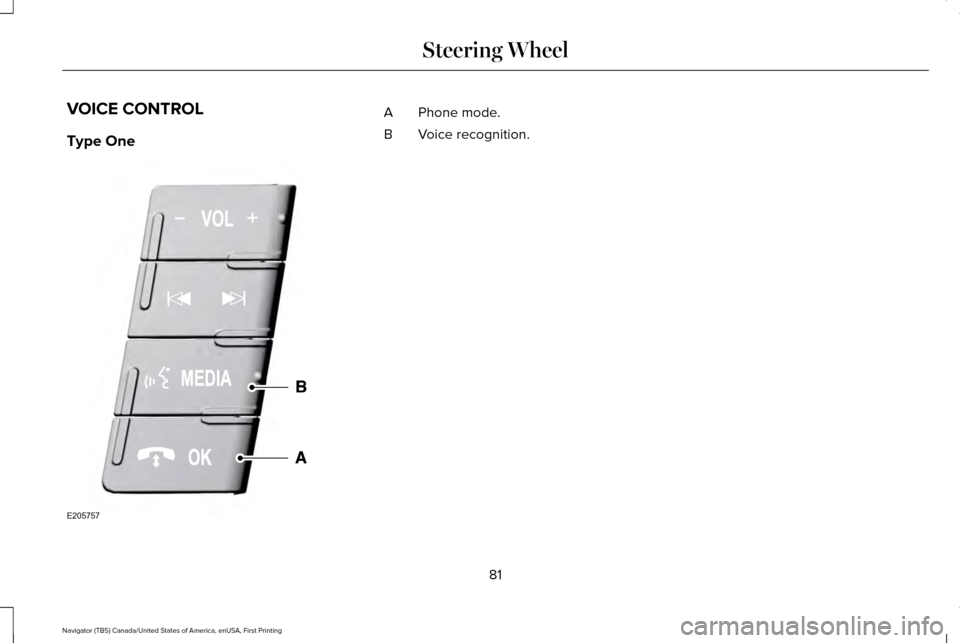
VOICE CONTROL
Type One
Phone mode.
A
Voice recognition.
B
81
Navigator (TB5) Canada/United States of America, enUSA, First Printing Steering WheelE205757
Page 85 of 419
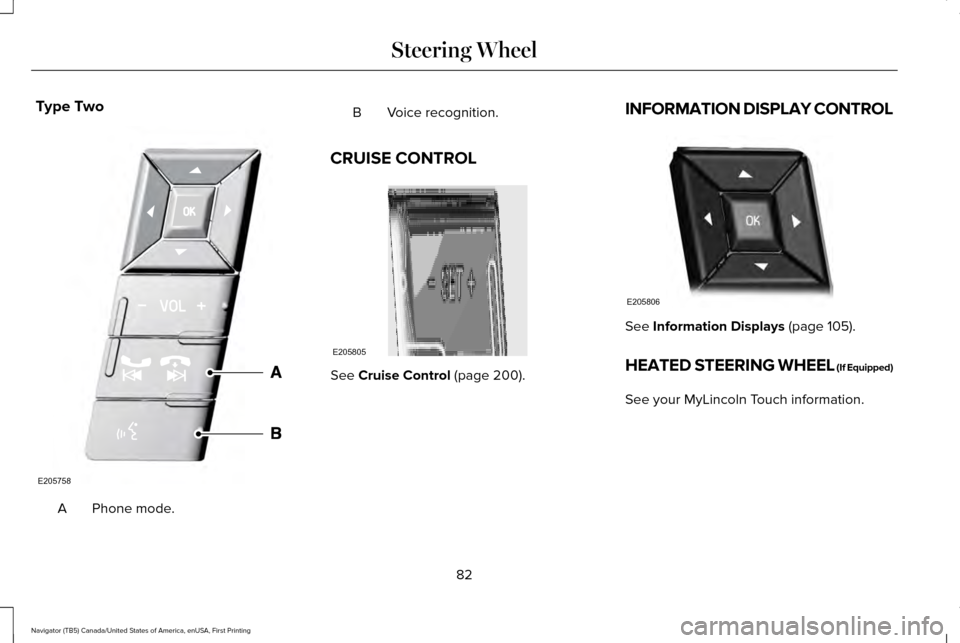
Type Two
Phone mode.
A B Voice recognition.
CRUISE CONTROL See Cruise Control (page 200).INFORMATION DISPLAY CONTROL See
Information Displays (page 105).
HEATED STEERING WHEEL (If Equipped)
See your MyLincoln Touch information.
82
Navigator (TB5) Canada/United States of America, enUSA, First Printing Steering WheelE205758 E205805 E205806
Page 86 of 419
ADJUSTING THE PEDALS
WARNING
Never use the controls while your feet
are on the accelerator and brake
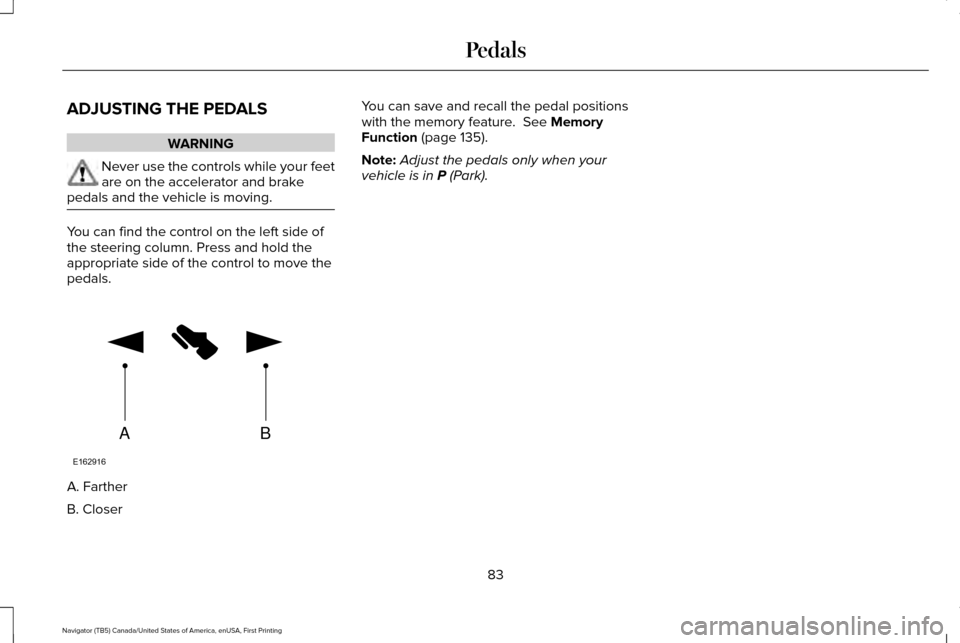
pedals and the vehicle is moving. You can find the control on the left side of
the steering column. Press and hold the
appropriate side of the control to move the
pedals.
A. Farther
B. Closer You can save and recall the pedal positions
with the memory feature. See Memory
Function (page 135).
Note: Adjust the pedals only when your
vehicle is in
P (Park).
83
Navigator (TB5) Canada/United States of America, enUSA, First Printing PedalsAB
E162916
Page 93 of 419
Type 1 - Conventional (Non-
Configurable)
The daytime running lamps turn on when:
1. The ignition is switched to the on
position.
2. The transmission is not in park (P) for vehicles with automatic transmissions or
the parking brake is released for vehicles
with manual transmissions.
3. The lighting control is in the off, parking lamp or autolamps positions.
4. The headlamps are off.
Type 2 - Configurable
Switch the daytime running lamps on or off
using the information display controls. See
Information Displays (page 105).
The daytime running lamps turn on when:
1. They are switched on in the information display. See Information Displays (page
105
).
2. The ignition is switched to the on position. 3. The transmission is not in park (P) for
vehicles with automatic transmissions or
the parking brake is released for vehicles
with manual transmissions.
4. The lighting control is in the autolamps position.
5. The headlamps are off.
The other lighting control switch positions
do not activate the daytime running lamps,
and you can use them to temporarily override
autolamp control.
When switched off in the information display,
the daytime running lamps are off in all
lighting control switch positions.
ADAPTIVE HEADLAMPS
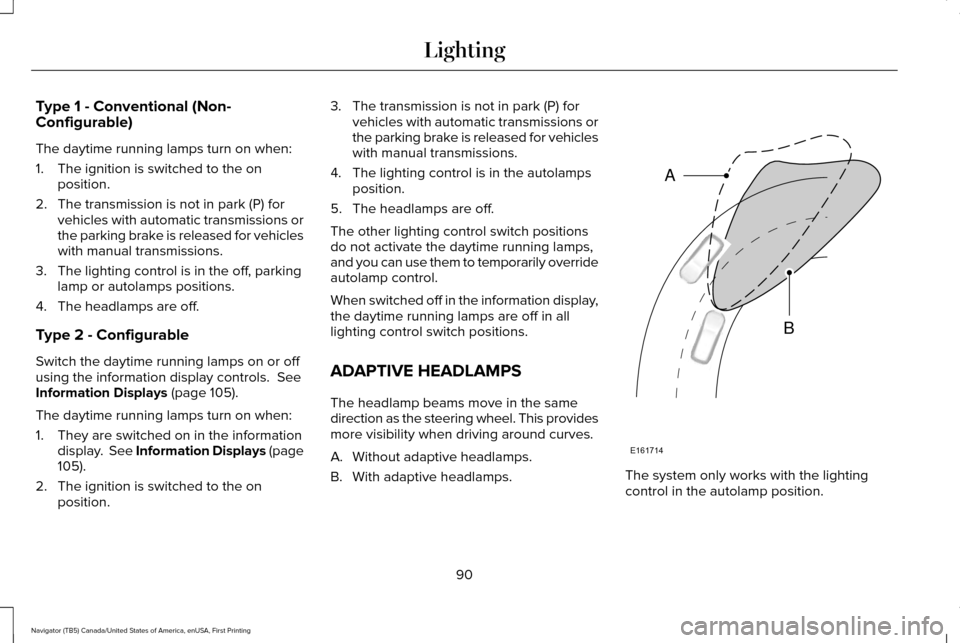
The headlamp beams move in the same
direction as the steering wheel. This provides
more visibility when driving around curves.
A. Without adaptive headlamps.
B. With adaptive headlamps. The system only works with the lighting
control in the autolamp position.
90
Navigator (TB5) Canada/United States of America, enUSA, First Printing LightingE161714
B
A
Page 108 of 419
GENERAL INFORMATION
WARNING
Driving while distracted can result in
loss of vehicle control, crash and injury.
We strongly recommend that you use
extreme caution when using any device that
may take your focus off the road. Your
primary responsibility is the safe operation
of your vehicle. We recommend against the
use of any handheld device while driving and
encourage the use of voice-operated
systems when possible. Make sure you are
aware of all applicable local laws that may
affect the use of electronic devices while
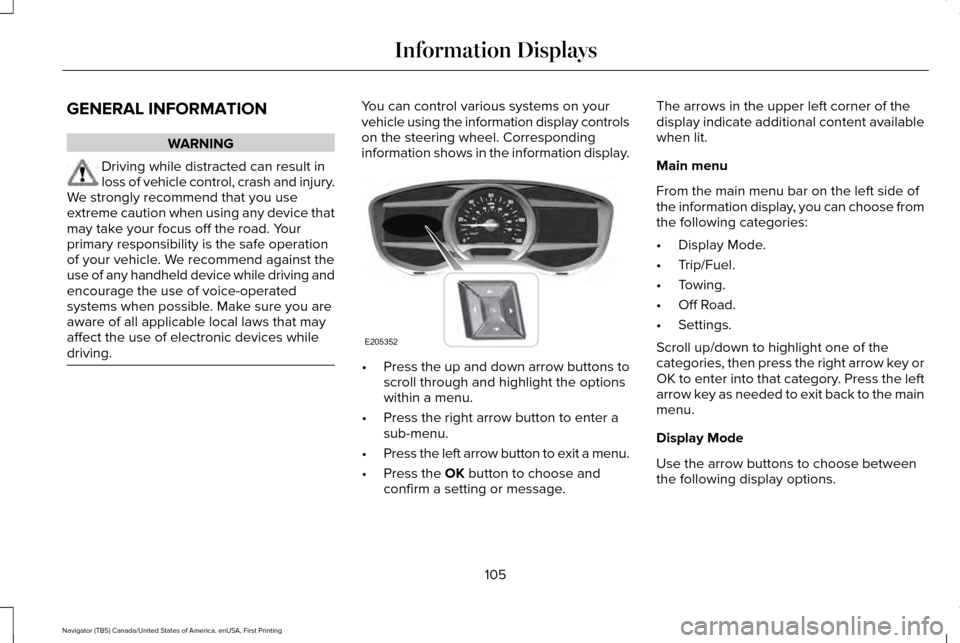
driving. You can control various systems on your
vehicle using the information display controls
on the steering wheel. Corresponding
information shows in the information display.
•
Press the up and down arrow buttons to
scroll through and highlight the options
within a menu.
• Press the right arrow button to enter a
sub-menu.
• Press the left arrow button to exit a menu.
• Press the OK button to choose and
confirm a setting or message. The arrows in the upper left corner of the
display indicate additional content available
when lit.
Main menu
From the main menu bar on the left side of
the information display, you can choose from
the following categories:
•
Display Mode.
• Trip/Fuel.
• Towing.
• Off Road.
• Settings.
Scroll up/down to highlight one of the
categories, then press the right arrow key or
OK to enter into that category. Press the left
arrow key as needed to exit back to the main
menu.
Display Mode
Use the arrow buttons to choose between
the following display options.
105
Navigator (TB5) Canada/United States of America, enUSA, First Printing Information DisplaysE205352
Page 124 of 419
 and the park aid disa\
bles.
Check Park Aid
Displays the park aid status.
Rear Park Aid On Off
Displays when the trans")
Park Aid Messages
Action
Message
Displays when the transmission is in reverse (R) and the park aid disa\
bles.
Check Park Aid
Displays the park aid status.
Rear Park Aid On Off
Displays when the transmission is in reverse (R) and the park aid disa\
bles.
Check Rear Park Aid
Displays when the system detects a condition that requires service. See Parking Aids (page
195).
Check Front Park Aid
Displays the park aid status.
Front Park Aid On Off
Power Steering Messages Action
Message
The power steering system detects a condition that requires service. Contact an authorized dealer.
Steering loss Stop safely
The power steering system detects a condition within the power steering \
system that requiresservice immediately. Contact an authorized dealer.
Steering fault Service now
The power steering system disables power steering assist due to a system\
error. Contact an authorized dealer.
Steering assist fault Service required
121
Navigator (TB5) Canada/United States of America, enUSA, First Printing Information Displays
Page 133 of 419
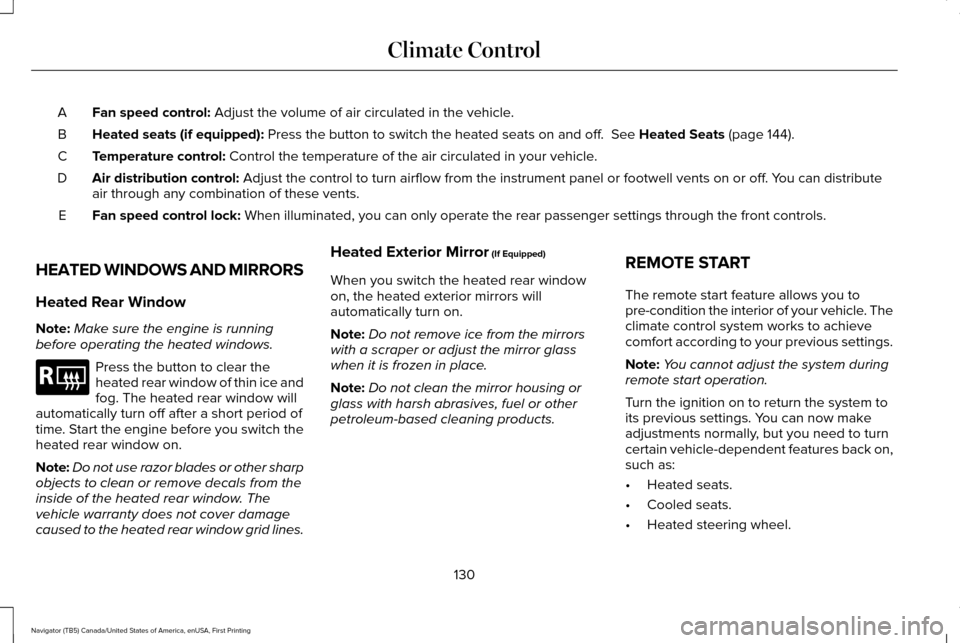
Fan speed control: Adjust the volume of air circulated in the vehicle.
A
Heated seats (if equipped):
Press the button to switch the heated seats on and off. See Heated Seats (page 144).
B
Temperature control:
Control the temperature of the air circulated in your vehicle.
C
Air distribution control:
Adjust the control to turn airflow from the instrument panel or footwel\
l vents on or off. You can distribute
air through any combination of these vents.
D
Fan speed control lock:
When illuminated, you can only operate the rear passenger settings thro\
ugh the front controls.
E
HEATED WINDOWS AND MIRRORS
Heated Rear Window
Note: Make sure the engine is running
before operating the heated windows. Press the button to clear the
heated rear window of thin ice and
fog. The heated rear window will
automatically turn off after a short period of
time. Start the engine before you switch the
heated rear window on.
Note: Do not use razor blades or other sharp
objects to clean or remove decals from the
inside of the heated rear window. The
vehicle warranty does not cover damage
caused to the heated rear window grid lines. Heated Exterior Mirror
(If Equipped)
When you switch the heated rear window
on, the heated exterior mirrors will
automatically turn on.
Note: Do not remove ice from the mirrors
with a scraper or adjust the mirror glass
when it is frozen in place.
Note: Do not clean the mirror housing or
glass with harsh abrasives, fuel or other
petroleum-based cleaning products. REMOTE START
The remote start feature allows you to
pre-condition the interior of your vehicle. The
climate control system works to achieve
comfort according to your previous settings.
Note:
You cannot adjust the system during
remote start operation.
Turn the ignition on to return the system to
its previous settings. You can now make
adjustments normally, but you need to turn
certain vehicle-dependent features back on,
such as:
• Heated seats.
• Cooled seats.
• Heated steering wheel.
130
Navigator (TB5) Canada/United States of America, enUSA, First Printing Climate ControlE184884
Page 135 of 419
SITTING IN THE CORRECT
POSITION
WARNINGS
Sitting improperly, out of position or
with the seatback reclined too far can
take weight off the seat cushion and affect
the decision of the passenger sensing
system, resulting in serious injury or death
in the event of a crash. Always sit upright
against your seat back, with your feet on the
floor. Do not recline the seatback as this can
cause the occupant to slide under the
safety belt, resulting in serious injury in the
event of a crash. Do not place objects higher than the
seatback to reduce the risk of serious
injury in the event of a crash or during heavy
braking. When you use them properly, the seat, head
restraint, safety belt and airbags will provide
optimum protection in the event of a crash.
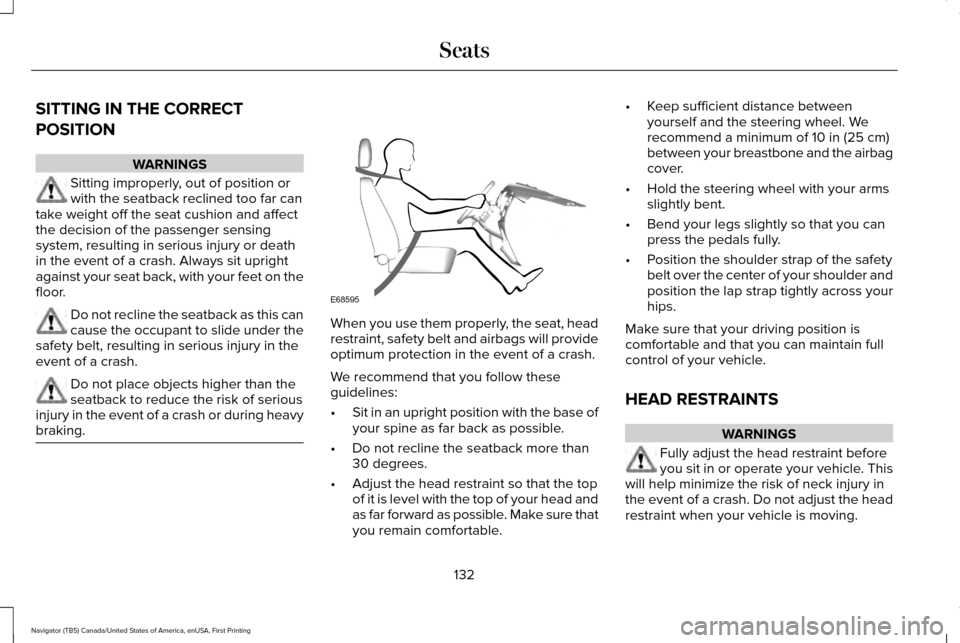
We recommend that you follow these
guidelines:
•
Sit in an upright position with the base of
your spine as far back as possible.
• Do not recline the seatback more than
30 degrees.
• Adjust the head restraint so that the top
of it is level with the top of your head and
as far forward as possible. Make sure that
you remain comfortable. •
Keep sufficient distance between
yourself and the steering wheel. We
recommend a minimum of 10 in (25 cm)
between your breastbone and the airbag
cover.
• Hold the steering wheel with your arms
slightly bent.
• Bend your legs slightly so that you can
press the pedals fully.
• Position the shoulder strap of the safety
belt over the center of your shoulder and
position the lap strap tightly across your
hips.
Make sure that your driving position is
comfortable and that you can maintain full
control of your vehicle.
HEAD RESTRAINTS WARNINGS
Fully adjust the head restraint before
you sit in or operate your vehicle. This
will help minimize the risk of neck injury in
the event of a crash. Do not adjust the head
restraint when your vehicle is moving.
132
Navigator (TB5) Canada/United States of America, enUSA, First Printing SeatsE68595
Page 139 of 419
WARNINGS
Do not use the memory function when
your vehicle is moving.
This feature automatically recalls the position
of the following:
•
Driver seat.
• Power mirrors.
• Power steering column.
• Power adjustable foot pedals.
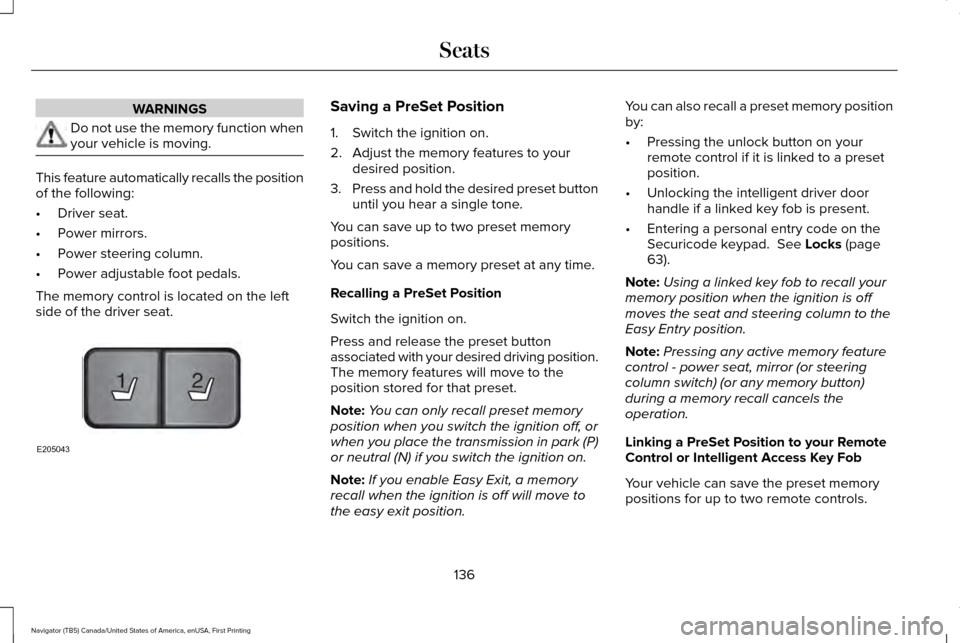
The memory control is located on the left
side of the driver seat. Saving a PreSet Position
1. Switch the ignition on.
2. Adjust the memory features to your
desired position.
3. Press and hold the desired preset button
until you hear a single tone.
You can save up to two preset memory
positions.
You can save a memory preset at any time.
Recalling a PreSet Position
Switch the ignition on.
Press and release the preset button
associated with your desired driving position.
The memory features will move to the
position stored for that preset.
Note: You can only recall preset memory
position when you switch the ignition off, or
when you place the transmission in park (P)
or neutral (N) if you switch the ignition on.
Note: If you enable Easy Exit, a memory
recall when the ignition is off will move to
the easy exit position. You can also recall a preset memory position
by:
•
Pressing the unlock button on your
remote control if it is linked to a preset
position.
• Unlocking the intelligent driver door
handle if a linked key fob is present.
• Entering a personal entry code on the
Securicode keypad. See Locks (page
63).
Note: Using a linked key fob to recall your
memory position when the ignition is off
moves the seat and steering column to the
Easy Entry position.
Note: Pressing any active memory feature
control - power seat, mirror (or steering
column switch) (or any memory button)
during a memory recall cancels the
operation.
Linking a PreSet Position to your Remote
Control or Intelligent Access Key Fob
Your vehicle can save the preset memory
positions for up to two remote controls.
136
Navigator (TB5) Canada/United States of America, enUSA, First Printing Seats21
E205043