Rear LINCOLN NAVIGATOR 2017 Owners Manual
[x] Cancel search | Manufacturer: LINCOLN, Model Year: 2017, Model line: NAVIGATOR, Model: LINCOLN NAVIGATOR 2017Pages: 532, PDF Size: 3.9 MB
Page 346 of 532
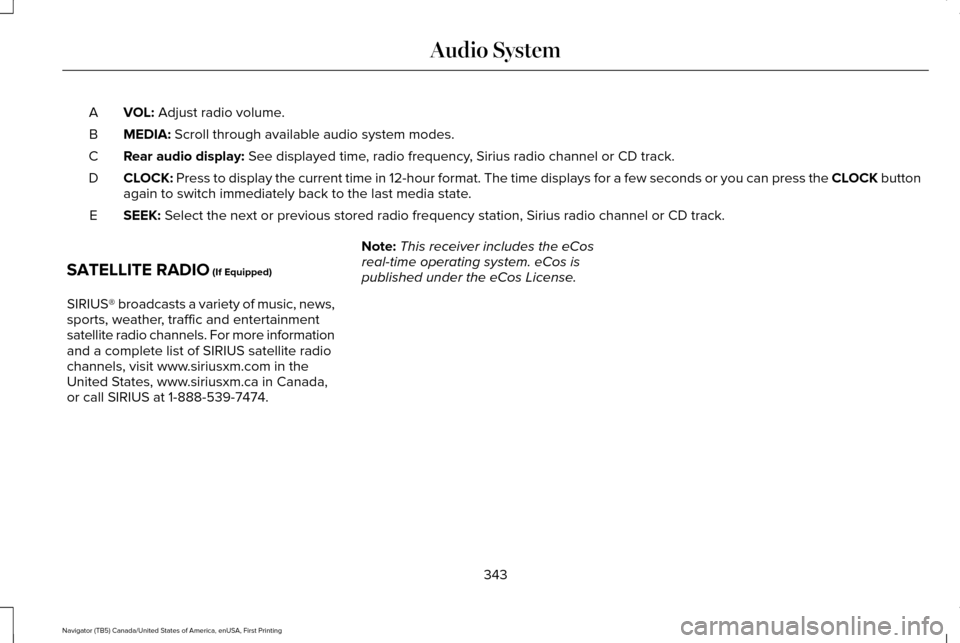
VOL: Adjust radio volume.
A
MEDIA:
Scroll through available audio system modes.
B
Rear audio display:
See displayed time, radio frequency, Sirius radio channel or CD track.
C
CLOCK:
Press to display the current time in 12-hour format. The time displays \
for a few seconds or you can press the CLOCK button
again to switch immediately back to the last media state.
D
SEEK:
Select the next or previous stored radio frequency station, Sirius radi\
o channel or CD track.
E
SATELLITE RADIO
(If Equipped)
SIRIUS® broadcasts a variety of music, news,
sports, weather, traffic and entertainment
satellite radio channels. For more information
and a complete list of SIRIUS satellite radio
channels, visit www.siriusxm.com in the
United States, www.siriusxm.ca in Canada,
or call SIRIUS at 1-888-539-7474. Note:
This receiver includes the eCos
real-time operating system. eCos is
published under the eCos License.
343
Navigator (TB5) Canada/United States of America, enUSA, First Printing Audio System
Page 347 of 532
Satellite Radio Reception Factors
Potential satellite radio reception issues
For optimal reception performance, keep the antenna clear of snow and ice build-up and keep luggage and
other material as far away from the antenna as possible.
Antenna obstructions
Hills, mountains, tall buildings, bridges, tunnels, freeway overpasses, \
parking garages, dense tree foliage and
thunderstorms can interfere with your reception.
Terrain
When you pass a ground-based broadcast-repeating tower, a stronger signal may overtake a weaker one and
the audio system may mute.
Station overload
Your display may show ACQUIRING . . . to indicate the interference and th\
e audio system may mute.
Satellite radio signal interfer-
ence
SIRIUS® Satellite Radio Service
Note: SIRIUS reserves the unrestricted right
to change, rearrange, add or delete
programming including canceling, moving
or adding particular channels, and its prices,
at any time, with or without notice to you.
Ford Motor Company shall not be
responsible for any such programming
changes. SIRIUS satellite radio is a subscription-based
satellite radio service that broadcasts a
variety of music, sports, news, weather, traffic
and entertainment programming. Your
factory-installed SIRIUS satellite radio system
includes hardware and a limited subscription
term, which begins on the date of sale or
lease of your vehicle. See an authorized
dealer for availability.
344
Navigator (TB5) Canada/United States of America, enUSA, First Printing Audio SystemE208625
Page 362 of 532
•
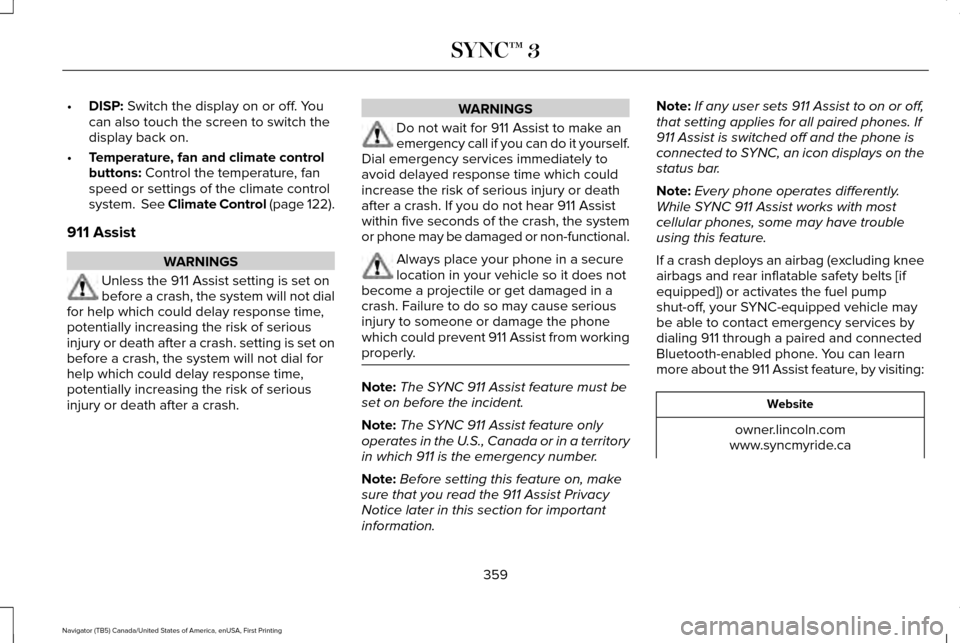
DISP: Switch the display on or off. You
can also touch the screen to switch the
display back on.
• Temperature, fan and climate control
buttons:
Control the temperature, fan
speed or settings of the climate control
system. See Climate Control (page 122).
911 Assist WARNINGS
Unless the 911 Assist setting is set on
before a crash, the system will not dial
for help which could delay response time,
potentially increasing the risk of serious
injury or death after a crash. setting is set on
before a crash, the system will not dial for
help which could delay response time,
potentially increasing the risk of serious
injury or death after a crash. WARNINGS
Do not wait for 911 Assist to make an
emergency call if you can do it yourself.
Dial emergency services immediately to
avoid delayed response time which could
increase the risk of serious injury or death
after a crash. If you do not hear 911 Assist
within five seconds of the crash, the system
or phone may be damaged or non-functional. Always place your phone in a secure
location in your vehicle so it does not
become a projectile or get damaged in a
crash. Failure to do so may cause serious
injury to someone or damage the phone
which could prevent 911 Assist from working
properly. Note:
The SYNC 911 Assist feature must be
set on before the incident.
Note: The SYNC 911 Assist feature only
operates in the U.S., Canada or in a territory
in which 911 is the emergency number.
Note: Before setting this feature on, make
sure that you read the 911 Assist Privacy
Notice later in this section for important
information. Note:
If any user sets 911 Assist to on or off,
that setting applies for all paired phones. If
911 Assist is switched off and the phone is
connected to SYNC, an icon displays on the
status bar.
Note: Every phone operates differently.
While SYNC 911 Assist works with most
cellular phones, some may have trouble
using this feature.
If a crash deploys an airbag (excluding knee
airbags and rear inflatable safety belts [if
equipped]) or activates the fuel pump
shut-off, your SYNC-equipped vehicle may
be able to contact emergency services by
dialing 911 through a paired and connected
Bluetooth-enabled phone. You can learn
more about the 911 Assist feature, by visiting: Website
owner.lincoln.com
www.syncmyride.ca
359
Navigator (TB5) Canada/United States of America, enUSA, First Printing SYNC™ 3
Page 365 of 532
•
Screens crowded with information, such
as Point of Interest reviews and ratings,
SiriusXM Traffic and Travel Link sports
scores, movie times or ski conditions. •
Any action that requires you to use a
keyboard is restricted, such as entering
a navigation destination or editing
information.
• All lists are limited so the user can view
fewer entries (such as phone contacts or
recent phone call entries). See the following chart for more specific
examples. Restricted features
Pairing a Bluetooth phone.
Cellular Phone
Browsing of list entries is limited for phone contacts and recent phone \
calls.
Editing the keypad code.
System Functionality
Enabling Valet Mode.
Editing settings while the rear view camera or active park assist are ac\
tive.
Editing Wi-Fi settings.
Wi-Fi
Editing the list of wireless networks.
Connecting to a new Wi-Fi network.
Viewing received text messages.
Text Messages
362
Navigator (TB5) Canada/United States of America, enUSA, First Printing SYNC™ 3
Page 384 of 532
For more information on extended
subscription terms (a service fee is required),
the online media player and a list of SIRIUS
satellite radio channels, and other features,
please visit www.siriusxm.com in the United
States, www.siriusxm.ca in Canada, or call
SIRIUS at 1-888-539-7474.
Note:
SIRIUS reserves the unrestricted right
to change, rearrange, add or delete
programming. This includes canceling,
moving or adding particular channels, and
its prices, at any time, with or without notice
to you. Ford Motor Company shall not be
responsible for any such programming
changes. Note:
This receiver includes the eCos
real-time operating system. eCos is
published under the eCos License.
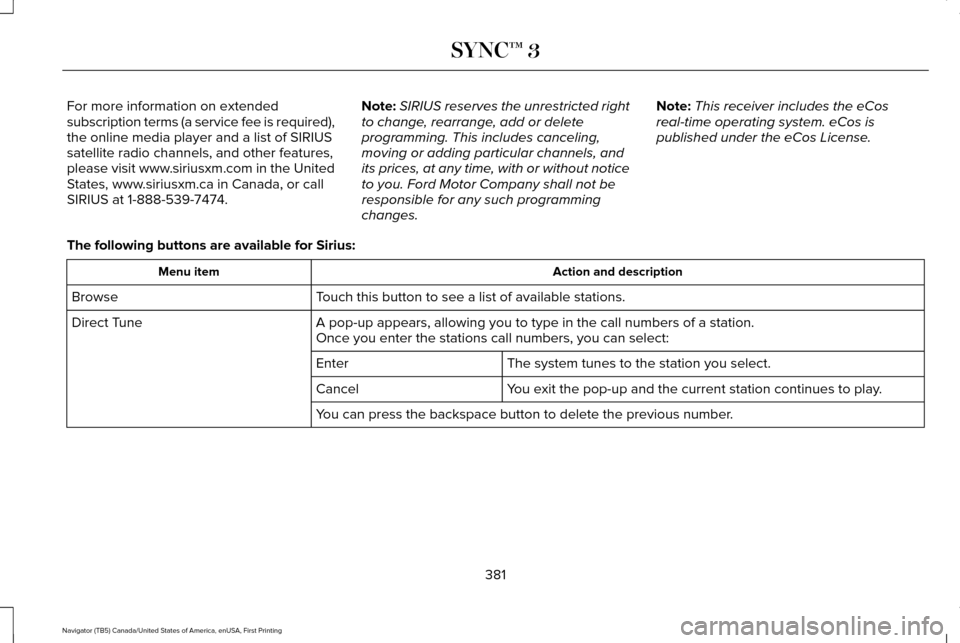
The following buttons are available for Sirius: Action and description
Menu item
Touch this button to see a list of available stations.
Browse
A pop-up appears, allowing you to type in the call numbers of a station.\
Direct Tune
Once you enter the stations call numbers, you can select:
The system tunes to the station you select.
Enter
You exit the pop-up and the current station continues to play.
Cancel
You can press the backspace button to delete the previous number.
381
Navigator (TB5) Canada/United States of America, enUSA, First Printing SYNC™ 3
Page 396 of 532
Note: This feature only functions when you switch the engine on.
Touch this icon to switch the heated steering wheel on and off. It takes about 5 minutes to warm the steering wheel to 74°F in
temperatures as low as -4°F. The wheel maintains an approximate temperature of 90°F and operates independently from the heated\
seats and other climate-control functions. The heating element is in bet\
ween the leather covering and foam core to help provide
maximum heat without adversely affecting the feel of the steering wheel.\
Note:
The heated steering wheel may remain on after remote starting the vehic\
le, based on your remote start settings. The heated
steering wheel may also turn on when you start your vehicle, if it was on when you switched your vehicle off.
Note:
For steering wheels with wood trim, the heating feature will not heat t\
he wheel between the 10 and 2 o'clock positions.
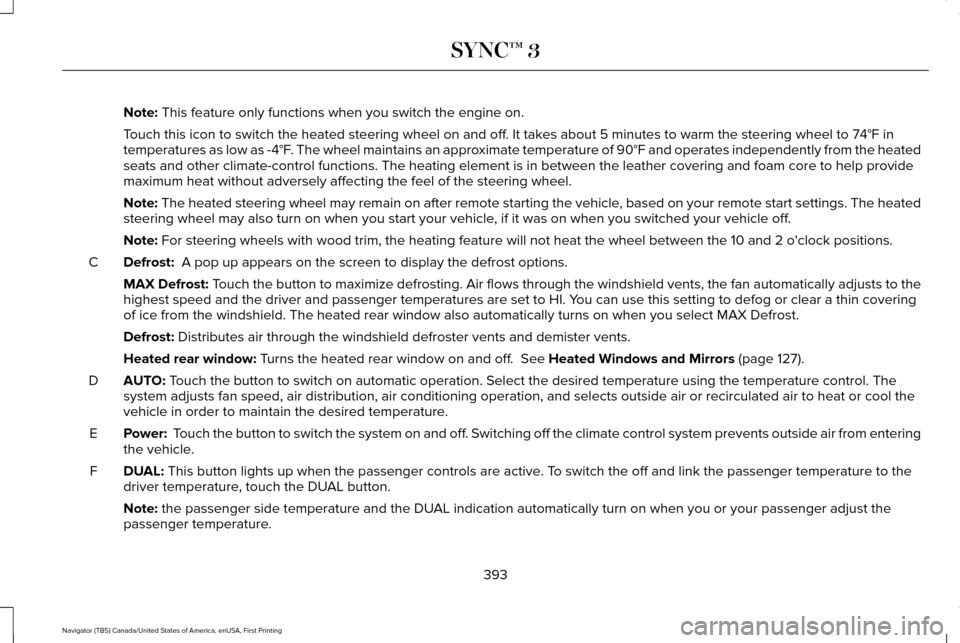
Defrost:
A pop up appears on the screen to display the defrost options.
C
MAX Defrost: Touch the button to maximize defrosting. Air flows through the windshield\
vents, the fan automatically adjusts to the
highest speed and the driver and passenger temperatures are set to HI. Y\
ou can use this setting to defog or clear a thin covering
of ice from the windshield. The heated rear window also automatically tu\
rns on when you select MAX Defrost.
Defrost:
Distributes air through the windshield defroster vents and demister vent\
s.
Heated rear window:
Turns the heated rear window on and off. See Heated Windows and Mirrors (page 127).
AUTO:
Touch the button to switch on automatic operation. Select the desired tem\
perature using the temperature control. The
system adjusts fan speed, air distribution, air conditioning operation, \
and selects outside air or recirculated air to heat or cool the
vehicle in order to maintain the desired temperature.
D
Power:
Touch the button to switch the system on and off. Switching off the climate control system prevents outside air from enteri\
ng
the vehicle.
E
DUAL:
This button lights up when the passenger controls are active. To switch the off and link the passenger temperature to the
driver temperature, touch the DUAL button.
F
Note:
the passenger side temperature and the DUAL indication automatically turn on when you or your passenger adjust th\
e
passenger temperature.
393
Navigator (TB5) Canada/United States of America, enUSA, First Printing SYNC™ 3
Page 397 of 532

Passenger temperature: Touch up or down to adjust the temperature.
G
Fan speed:
Touch up or down to increase or decrease the volume of air that circulate\
s in your vehicle.
H
Note:
You cannot adjust the fan speed when the system is set to AUTO or MAX A/C.
Rear:
A pop up appears on the screen to display the rear control options.
I
Touch the power icon to switch the rear climate control functions off and\
on.
Touch
Rear Climate to allow the rear seat passengers to adjust the rear climate settings. \
Touch it again to prevent the rear seat
passengers from adjusting the settings. Rear Control automatically turns off when you use the touchscreen to adju\
st the rear climate
settings.
Touch + or – to adjust the temperature.
To adjust fan speed, touch + or – next to the fan icon.
Touch
Rear again to close the rear controls. Closing the rear climate control func\
tions does not affect their current settings.
Manual airflow distribution controls:
J
Footwell and Defrost:
Distributes air through the windshield defroster vents, demister vents,\
floor vents and rear seat floor vents,
and provides outside air to reduce window fogging.
Panel:
Distributes air through the instrument panel vents.
Floor:
Distributes air through the demister vents, floor vents and rear seat f\
loor vents.
Panel and Floor:
Distributes air through the instrument panel vents, demister vents, flo\
or vents and rear seat floor vents.
A/C:
A pop-up appears on the screen to display the air conditioning options.\
K
MAX A/C:
Touch the button to activate and maximize cooling. The driver and passeng\
er temperatures are set to LO, recirculated
air flows through the instrument panel vents, air conditioning automatic\
ally turns on and the fan automatically adjusts to the highest
speed.
394
Navigator (TB5) Canada/United States of America, enUSA, First Printing SYNC™ 3
Page 435 of 532
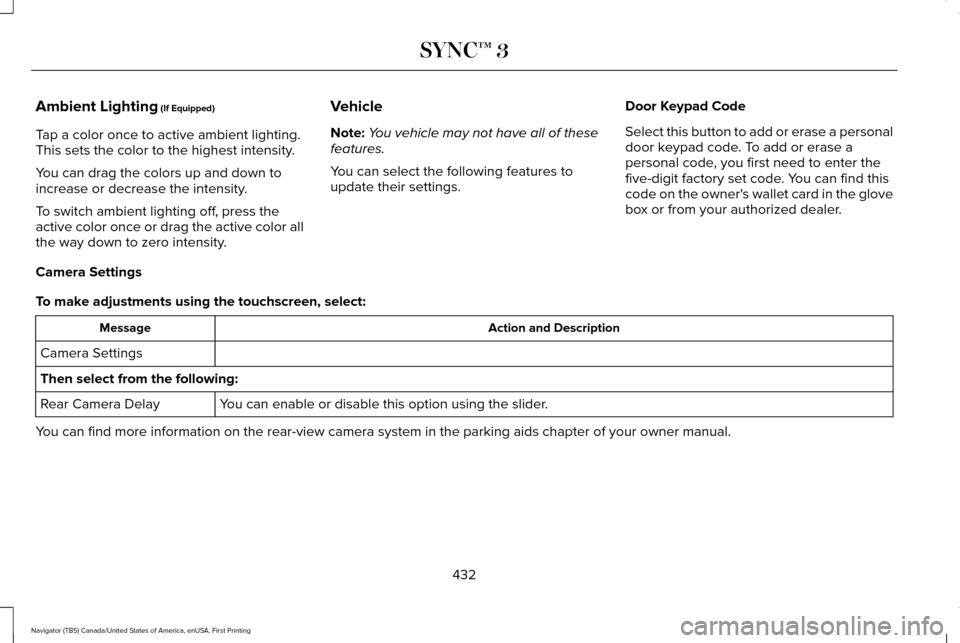
Ambient Lighting (If Equipped)
Tap a color once to active ambient lighting.
This sets the color to the highest intensity.
You can drag the colors up and down to
increase or decrease the intensity.
To switch ambient lighting off, press the
active color once or drag the active color all
the way down to zero intensity. Vehicle
Note:
You vehicle may not have all of these
features.
You can select the following features to
update their settings. Door Keypad Code
Select this button to add or erase a personal
door keypad code. To add or erase a
personal code, you first need to enter the
five-digit factory set code. You can find this
code on the owner's wallet card in the glove
box or from your authorized dealer.
Camera Settings
To make adjustments using the touchscreen, select: Action and Description
Message
Camera Settings
Then select from the following: You can enable or disable this option using the slider.
Rear Camera Delay
You can find more information on the rear-view camera system in the parki\
ng aids chapter of your owner manual.
432
Navigator (TB5) Canada/United States of America, enUSA, First Printing SYNC™ 3
Page 454 of 532
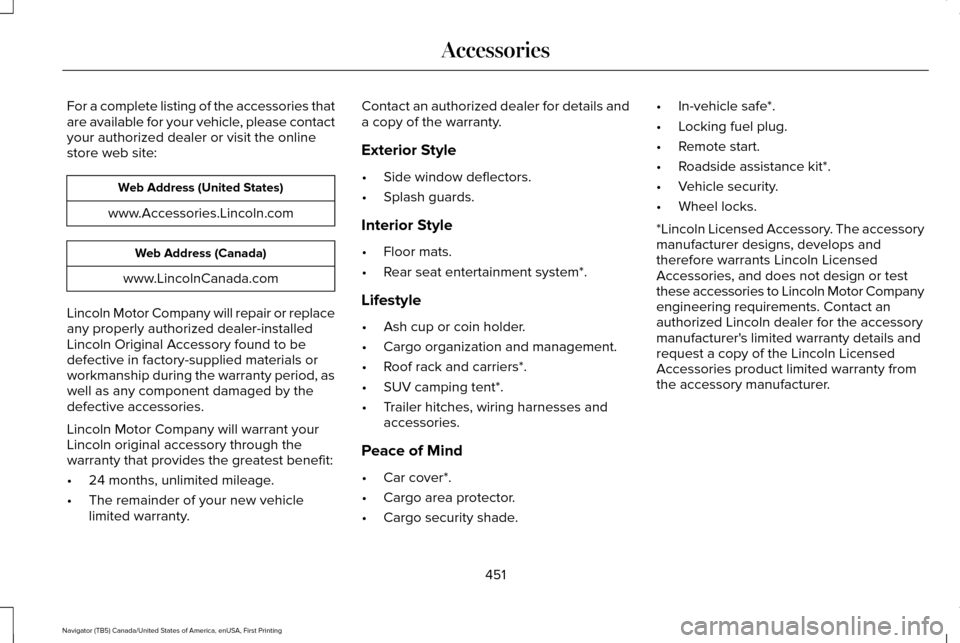
For a complete listing of the accessories that
are available for your vehicle, please contact
your authorized dealer or visit the online
store web site:
Web Address (United States)
www.Accessories.Lincoln.com Web Address (Canada)
www.LincolnCanada.com
Lincoln Motor Company will repair or replace
any properly authorized dealer-installed
Lincoln Original Accessory found to be
defective in factory-supplied materials or
workmanship during the warranty period, as
well as any component damaged by the
defective accessories.
Lincoln Motor Company will warrant your
Lincoln original accessory through the
warranty that provides the greatest benefit:
• 24 months, unlimited mileage.
• The remainder of your new vehicle
limited warranty. Contact an authorized dealer for details and
a copy of the warranty.
Exterior Style
•
Side window deflectors.
• Splash guards.
Interior Style
• Floor mats.
• Rear seat entertainment system*.
Lifestyle
• Ash cup or coin holder.
• Cargo organization and management.
• Roof rack and carriers*.
• SUV camping tent*.
• Trailer hitches, wiring harnesses and
accessories.
Peace of Mind
• Car cover*.
• Cargo area protector.
• Cargo security shade. •
In-vehicle safe*.
• Locking fuel plug.
• Remote start.
• Roadside assistance kit*.
• Vehicle security.
• Wheel locks.
*Lincoln Licensed Accessory. The accessory
manufacturer designs, develops and
therefore warrants Lincoln Licensed
Accessories, and does not design or test
these accessories to Lincoln Motor Company
engineering requirements. Contact an
authorized Lincoln dealer for the accessory
manufacturer's limited warranty details and
request a copy of the Lincoln Licensed
Accessories product limited warranty from
the accessory manufacturer.
451
Navigator (TB5) Canada/United States of America, enUSA, First Printing Accessories
Page 455 of 532
For maximum vehicle performance, keep the
following information in mind when adding
accessories or equipment to your vehicle:
•
When adding accessories, equipment,
passengers and luggage to your vehicle,
do not exceed the total weight capacity
of the vehicle or of the front or rear axle
(GVWR or GAWR as indicated on the
Safety Compliance Certification label).
Ask an authorized dealer for specific
weight information.
• The Federal Communications
Commission (FCC) and Canadian Radio
Telecommunications Commission (CRTC)
regulate the use of mobile
communications systems that are
equipped with radio transmitters, for
example, two-way radios, telephones and
theft alarms. Any such equipment
installed in your vehicle should comply
with Federal Communications
Commission (FCC) and Canadian Radio
Telecommunications Commission (CRTC)
regulations and should be installed only
by an authorized dealer. •
Mobile communications systems may
harm the operation of your vehicle,
particularly if their manufacturer did not
design them specifically for automotive
use.
• If you or an authorized Lincoln dealer add
any non-Lincoln electrical or electronic
accessories or components to your
vehicle, you may adversely affect battery
performance and durability. In addition,
you may also adversely affect the
performance of other electrical systems
in the vehicle.
452
Navigator (TB5) Canada/United States of America, enUSA, First Printing Accessories