instrument panel LINCOLN NAVIGATOR 2017 Owner's Manual
[x] Cancel search | Manufacturer: LINCOLN, Model Year: 2017, Model line: NAVIGATOR, Model: LINCOLN NAVIGATOR 2017Pages: 532, PDF Size: 3.9 MB
Page 333 of 532
VEHICLE IDENTIFICATION
NUMBER
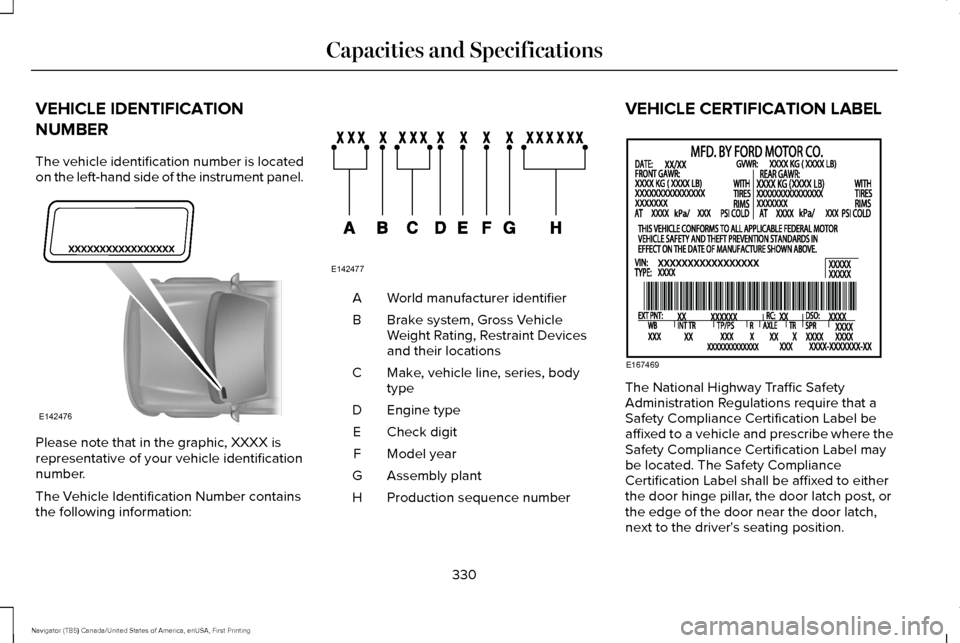
The vehicle identification number is located
on the left-hand side of the instrument panel.
Please note that in the graphic, XXXX is
representative of your vehicle identification
number.
The Vehicle Identification Number contains
the following information: World manufacturer identifier
A
Brake system, Gross Vehicle
Weight Rating, Restraint Devices
and their locations
B
Make, vehicle line, series, body
type
C
Engine type
D
Check digit
E
Model year
F
Assembly plant
G
Production sequence number
H VEHICLE CERTIFICATION LABEL
The National Highway Traffic Safety
Administration Regulations require that a
Safety Compliance Certification Label be
affixed to a vehicle and prescribe where the
Safety Compliance Certification Label may
be located. The Safety Compliance
Certification Label shall be affixed to either
the door hinge pillar, the door latch post, or
the edge of the door near the door latch,
next to the driver's seating position.
330
Navigator (TB5) Canada/United States of America, enUSA, First Printing Capacities and SpecificationsE142476 E142477 E167469
Page 350 of 532
USB PORT (If Equipped)
WARNING
Driving while distracted can result in
loss of vehicle control, crash and injury.
We strongly recommend that you use
extreme caution when using any device that
may take your focus off the road. Your
primary responsibility is the safe operation
of your vehicle. We recommend against the
use of any hand-held device while driving
and encourage the use of voice-operated
systems when possible. Make sure you are
aware of all applicable local laws that may
affect the use of electronic devices while
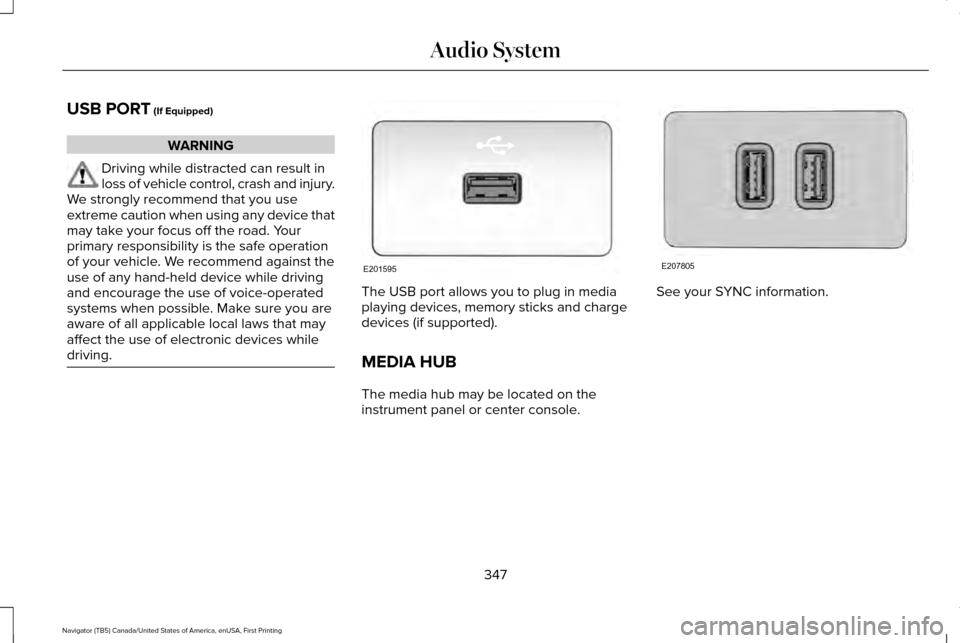
driving. The USB port allows you to plug in media
playing devices, memory sticks and charge
devices (if supported).
MEDIA HUB
The media hub may be located on the
instrument panel or center console. See your SYNC information.
347
Navigator (TB5) Canada/United States of America, enUSA, First Printing Audio SystemE201595 E207805
Page 361 of 532
Note:
If your vehicle is not equipped with
navigation, compass appears in the display
instead of navigation. If you press the right
arrow to go into the compass menu, you can
see the compass graphic. The compass
displays the direction in which the vehicle is
traveling, not true direction (for example, if
the vehicle is traveling west, the middle of
the compass graphic displays west; north
displays to the left of west though its true
direction is to the right of west).
Using the Steering Wheel Controls
Depending on your vehicle and option
package, you can use different controls on
your steering wheel to interact with the
touchscreen system in different ways.
VOL: Control the volume of audio output.
Mute:
Mute the audio output.
Voice:
Press to start a voice session. Press
again to stop the voice prompt and
immediately begin speaking. Press and hold
to end a voice session. SEEK NEXT:
•
While in radio mode, press to seek
between memory presets.
• While in USB, Bluetooth Audio or CD
mode, press to seek between songs or
press and hold to fast seek.
SEEK PREVIOUS:
• While in radio mode, press to seek
between memory presets.
• While in USB, Bluetooth Audio or CD
mode, press to seek between songs or
press and hold to fast seek.
PHONE ACCEPT:
Press to answer a call or
switch between calls.
PHONE REJECT: Press to end a call or reject
an incoming call.
Note: On some models, SEEK NEXT may be
combined with
PHONE REJECT and SEEK
PREVIOUS may be combined with PHONE
ACCEPT.
M:
Touch the control repeatedly to switch
between media sources (modes).
See
Steering Wheel (page 74). Using Your Bezel Controls
Depending on your vehicle and option
package, you may also have these controls
on your instrument panel:
•
Power:
Switch the audio system on and
off.
• VOL:
Control the volume of playing
audio.
• Seek
and Tune: Use as you normally
would in audio modes.
• Eject:
Eject a CD from the audio system.
• SOURCE
or MEDIA: Press repeatedly to
advance through available media modes.
• SOUND:
Press to access the Sound
menu where you can adjust sound and
other audio settings.
• 1-6:
Press and hold to store or press to
select an AM, FM or SIRIUS memory
preset.
See Audio System (page 339).
358
Navigator (TB5) Canada/United States of America, enUSA, First Printing SYNC™ 3
Page 394 of 532
USB Ports
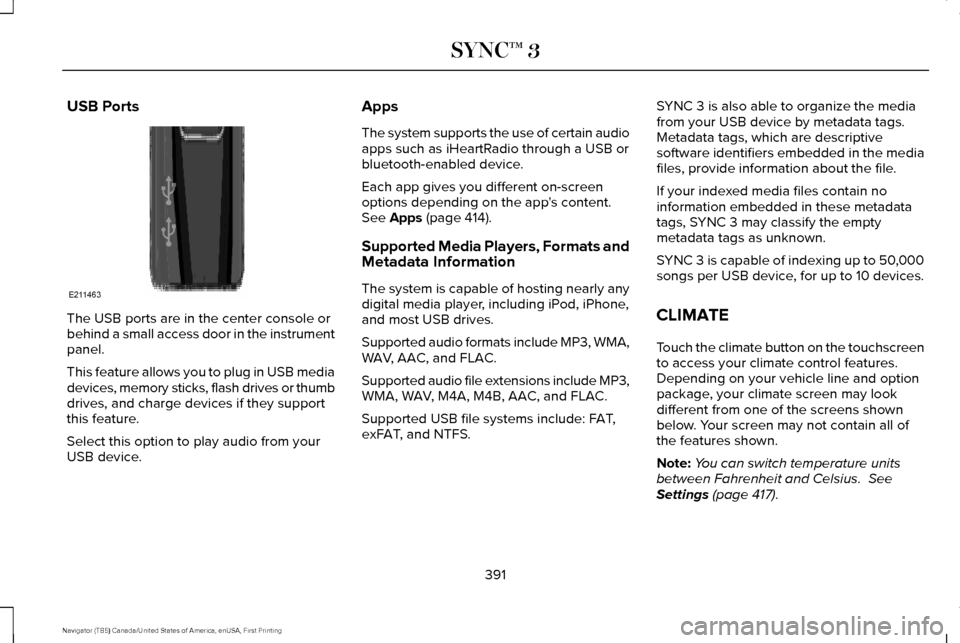
The USB ports are in the center console or
behind a small access door in the instrument
panel.
This feature allows you to plug in USB media
devices, memory sticks, flash drives or thumb
drives, and charge devices if they support
this feature.
Select this option to play audio from your
USB device. Apps
The system supports the use of certain audio
apps such as iHeartRadio through a USB or
bluetooth-enabled device.
Each app gives you different on-screen
options depending on the app's content.
See Apps (page 414).
Supported Media Players, Formats and
Metadata Information
The system is capable of hosting nearly any
digital media player, including iPod, iPhone,
and most USB drives.
Supported audio formats include MP3, WMA,
WAV, AAC, and FLAC.
Supported audio file extensions include MP3,
WMA, WAV, M4A, M4B, AAC, and FLAC.
Supported USB file systems include: FAT,
exFAT, and NTFS. SYNC 3 is also able to organize the media
from your USB device by metadata tags.
Metadata tags, which are descriptive
software identifiers embedded in the media
files, provide information about the file.
If your indexed media files contain no
information embedded in these metadata
tags, SYNC 3 may classify the empty
metadata tags as unknown.
SYNC 3 is capable of indexing up to 50,000
songs per USB device, for up to 10 devices.
CLIMATE
Touch the climate button on the touchscreen
to access your climate control features.
Depending on your vehicle line and option
package, your climate screen may look
different from one of the screens shown
below. Your screen may not contain all of
the features shown.
Note:
You can switch temperature units
between Fahrenheit and Celsius.
See
Settings (page 417).
391
Navigator (TB5) Canada/United States of America, enUSA, First Printing SYNC™ 3E211463
Page 397 of 532

Passenger temperature: Touch up or down to adjust the temperature.
G
Fan speed:
Touch up or down to increase or decrease the volume of air that circulate\
s in your vehicle.
H
Note:
You cannot adjust the fan speed when the system is set to AUTO or MAX A/C.
Rear:
A pop up appears on the screen to display the rear control options.
I
Touch the power icon to switch the rear climate control functions off and\
on.
Touch
Rear Climate to allow the rear seat passengers to adjust the rear climate settings. \
Touch it again to prevent the rear seat
passengers from adjusting the settings. Rear Control automatically turns off when you use the touchscreen to adju\
st the rear climate
settings.
Touch + or – to adjust the temperature.
To adjust fan speed, touch + or – next to the fan icon.
Touch
Rear again to close the rear controls. Closing the rear climate control func\
tions does not affect their current settings.
Manual airflow distribution controls:
J
Footwell and Defrost:
Distributes air through the windshield defroster vents, demister vents,\
floor vents and rear seat floor vents,
and provides outside air to reduce window fogging.
Panel:
Distributes air through the instrument panel vents.
Floor:
Distributes air through the demister vents, floor vents and rear seat f\
loor vents.
Panel and Floor:
Distributes air through the instrument panel vents, demister vents, flo\
or vents and rear seat floor vents.
A/C:
A pop-up appears on the screen to display the air conditioning options.\
K
MAX A/C:
Touch the button to activate and maximize cooling. The driver and passeng\
er temperatures are set to LO, recirculated
air flows through the instrument panel vents, air conditioning automatic\
ally turns on and the fan automatically adjusts to the highest
speed.
394
Navigator (TB5) Canada/United States of America, enUSA, First Printing SYNC™ 3
Page 523 of 532
B
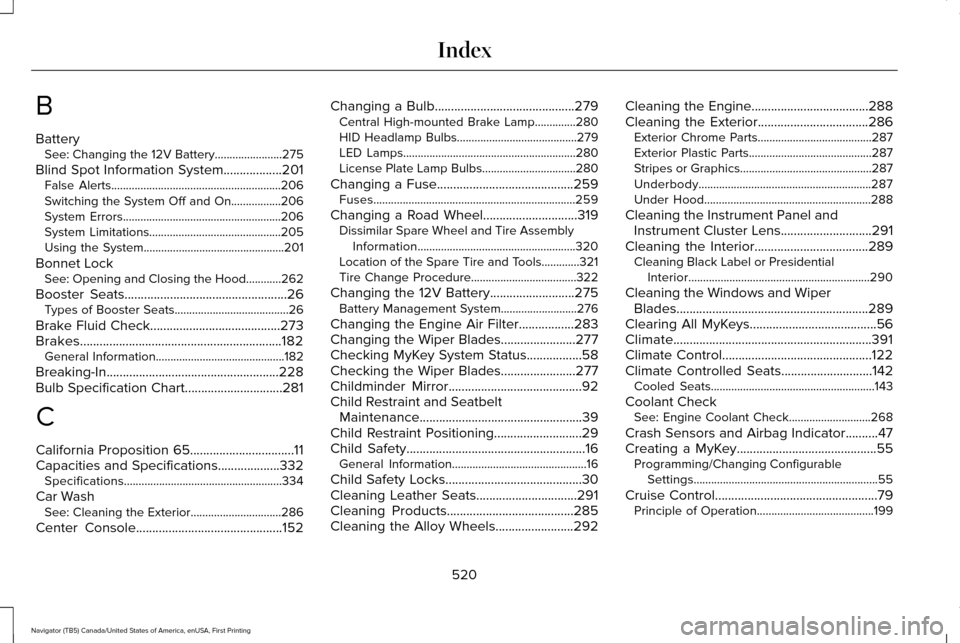
Battery
See: Changing the 12V Battery.......................275
Blind Spot Information System..................201
False Alerts..........................................................206
Switching the System Off and On.................206
System Errors......................................................206
System Limitations.............................................205
Using the System................................................201
Bonnet Lock See: Opening and Closing the Hood............262
Booster Seats
..................................................26
Types of Booster Seats.......................................26
Brake Fluid Check
........................................273
Brakes..............................................................182 General Information............................................182
Breaking-In.....................................................228
Bulb Specification Chart
..............................281
C
California Proposition 65................................11
Capacities and Specifications...................332 Specifications......................................................334
Car Wash See: Cleaning the Exterior...............................286
Center Console
.............................................152 Changing a Bulb
...........................................279
Central High-mounted Brake Lamp..............280
HID Headlamp Bulbs.........................................279
LED Lamps...........................................................280
License Plate Lamp Bulbs................................280
Changing a Fuse..........................................259 Fuses.....................................................................259
Changing a Road Wheel.............................319 Dissimilar Spare Wheel and Tire Assembly
Information......................................................320
Location of the Spare Tire and Tools.............321
Tire Change Procedure....................................
322
Changing the 12V Battery
..........................275
Battery Management System..........................276
Changing the Engine Air Filter.................283
Changing the Wiper Blades.......................277
Checking MyKey System Status.................58
Checking the Wiper Blades
.......................277
Childminder Mirror.........................................92
Child Restraint and Seatbelt Maintenance..................................................39
Child Restraint Positioning
...........................29
Child Safety.......................................................16
General Information..............................................16
Child Safety Locks..........................................30
Cleaning Leather Seats...............................291
Cleaning Products
.......................................285
Cleaning the Alloy Wheels........................292 Cleaning the Engine....................................288
Cleaning the Exterior..................................286
Exterior Chrome Parts.......................................287
Exterior Plastic Parts..........................................287
Stripes or Graphics.............................................287
Underbody...........................................................287
Under Hood.........................................................288
Cleaning the Instrument Panel and Instrument Cluster Lens............................291
Cleaning the Interior...................................289 Cleaning Black Label or Presidential
Interior..............................................................290
Cleaning the Windows and Wiper Blades...........................................................289
Clearing All MyKeys.......................................56
Climate.............................................................391
Climate Control..............................................122
Climate Controlled Seats
............................142
Cooled Seats........................................................143
Coolant Check See: Engine Coolant Check............................268
Crash Sensors and Airbag Indicator..........47
Creating a MyKey...........................................55 Programming/Changing Configurable
Settings...............................................................55
Cruise Control
..................................................79
Principle of Operation........................................199
520
Navigator (TB5) Canada/United States of America, enUSA, First Printing Index