display LINCOLN NAVIGATOR 2017 Workshop Manual
[x] Cancel search | Manufacturer: LINCOLN, Model Year: 2017, Model line: NAVIGATOR, Model: LINCOLN NAVIGATOR 2017Pages: 532, PDF Size: 3.9 MB
Page 177 of 532
USING FOUR-WHEEL DRIVE
WARNING
For important information regarding
safe operation of this type of vehicle,
see General Information in the Wheels and
Tires chapter. Note:
Do not use 4X4 mode on dry, hard
surfaced roads. Doing so will produce
excessive noise, increase tire wear and may
damage drive components. 4X4 mode is
only intended for consistently slippery or
loose surfaces.
Your four-wheel drive vehicle features the
heavy-duty Control Trac® 4WD system. This
unique system is interactive with the road,
continually monitoring and adjusting torque
delivery to the front and rear wheels to
optimize vehicle control. 4WD Indicator Lights
The indicator lights illuminate in the
information display in the reconfigurable
telltale (RTT) location under the following
conditions. See Warning Lamps and
Indicators (page 98).
Note: When a 4X4 system fault is present,
the system will typically remain in whichever
4X4 mode was selected prior to the fault
condition occurring. It will not default to 4X2
in all circumstances. When this warning is
displayed, have your vehicle serviced by an
authorized dealer.
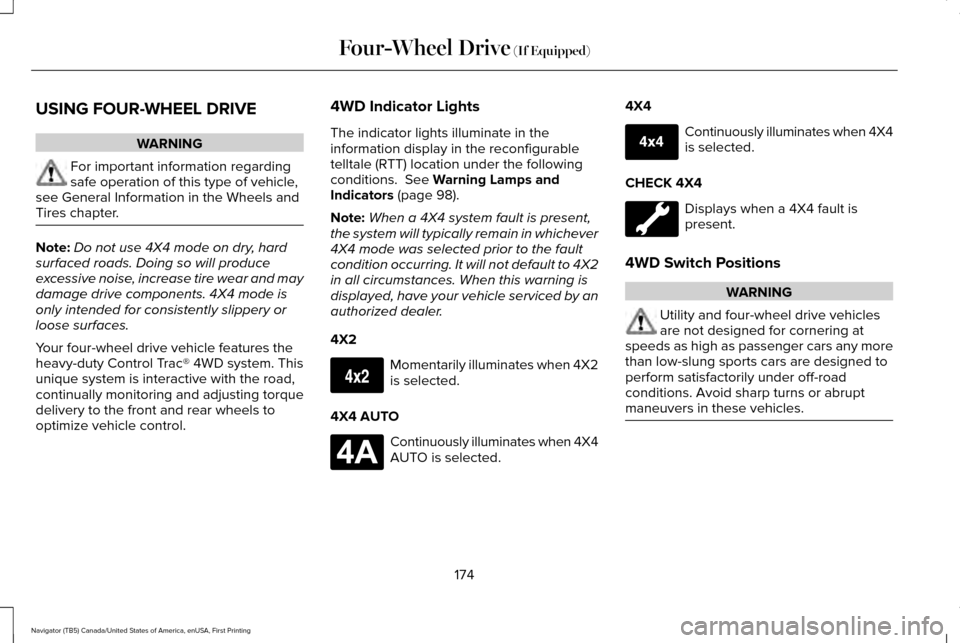
4X2 Momentarily illuminates when 4X2
is selected.
4X4 AUTO Continuously illuminates when 4X4
AUTO is selected.4X4 Continuously illuminates when 4X4
is selected.
CHECK 4X4 Displays when a 4X4 fault is
present.
4WD Switch Positions WARNING
Utility and four-wheel drive vehicles
are not designed for cornering at
speeds as high as passenger cars any more
than low-slung sports cars are designed to
perform satisfactorily under off-road
conditions. Avoid sharp turns or abrupt
maneuvers in these vehicles. 174
Navigator (TB5) Canada/United States of America, enUSA, First Printing Four-Wheel Drive
(If Equipped)E163173 E181781 E207351
Page 178 of 532

Note:
The AdvanceTrac® with RSC® stability
enhancement system can be turned off
manually by pressing the AdvanceTrac
button. See Using Traction Control (page
185). This will disable the engine
management feature, allowing the vehicle
to maintain full power and enhanced
momentum through the obstacle.
Note: The Control Trac® selector switch
should not be changed while the rear wheels
are slipping. The Control Trac® system functions in three
modes:
•
4X2
delivers power to the rear wheels
only. The information display will
momentarily display 4x2 when this mode
is selected. This mode is appropriate for
normal on-road driving on dry pavement
and provides the best fuel economy.
• 4X4 AUTO
provides electronic control
four-wheel drive with power delivered to
all four wheels, as required, for increased
traction. The information display will
display 4A when this mode is selected.
This mode is appropriate for all on-road
driving conditions, such as dry road
surfaces, wet pavement, snow, or gravel.
• 4X4
provides electronically locked
four-wheel drive power to front and rear
wheels. The information display will
display 4X4 when this mode is selected.
This mode is not recommended for use
on dry pavement. This mode is only
intended for severe winter or off-road
conditions, such as deep snow, ice or
shallow sand. Shifting between system modes
Note:
Momentarily releasing the accelerator
pedal while a shift in progress message
displays will improve
engagement/disengagement performance.
Note: Do not perform this operation if the
rear wheels are slipping.
Note: Some noise may be heard as the
system shifts or engages; this is normal.
Press any button (4X2, 4X4 AUTO or 4X4) at
a stop or while driving. The information
display may display a message indicating a
4X4 shift is in progress. Once the shift is
complete the information display will then
display the system mode selected.
175
Navigator (TB5) Canada/United States of America, enUSA, First Printing Four-Wheel Drive
(If Equipped)E207352
Page 187 of 532
When the system is active, your vehicle will
remain stationary on the slope for two to
three seconds after you release the brake
pedal. This allows you time to move your foot
from the brake to the accelerator pedal. The
brakes release automatically when the
engine has sufficient torque to prevent your
vehicle from rolling down the grade. This is
an advantage when pulling away on a slope,
for example from a car park ramp, traffic
lights or when reversing uphill into a parking
space.
The system will activate automatically on any
slope that will cause significant vehicle
rollback. For vehicles with a manual
transmission, you can switch this feature off
using the information display. See
Information Displays (page 102). The system
will remain on or off depending on how it
was last set.
Note: There is no warning lamp to indicate
the system is either on or off.
Note: If your vehicle is equipped with Auto
Hold, Hill Start Assist will not be available
while Auto Hold is active. Using Hill Start Assist
1. Bring your vehicle to a complete
standstill. Keep the brake pedal pressed
and select an uphill gear (for example,
first (1) when facing uphill or reverse (R)
when facing downhill).
2. If the sensors detect that your vehicle is on a slope, the system will activate
automatically.
3. When you remove your foot from the brake pedal, your vehicle will remain on
the slope without rolling away for about
two or three seconds. This hold time will
automatically be extended if you are in
the process of driving off.
4. Drive off in the normal manner. The brakes will release automatically.
Switching the System On and Off
You can switch this feature on or off if your
vehicle is equipped with a manual
transmission and an information display. See
General Information (page 102). The system
remembers the last setting when you start
your vehicle. If your vehicle is not equipped with a manual
transmission and an information display, you
cannot turn the system on or off. When you
switch the ignition on, the system
automatically turns on.
184
Navigator (TB5) Canada/United States of America, enUSA, First Printing Brakes
Page 195 of 532
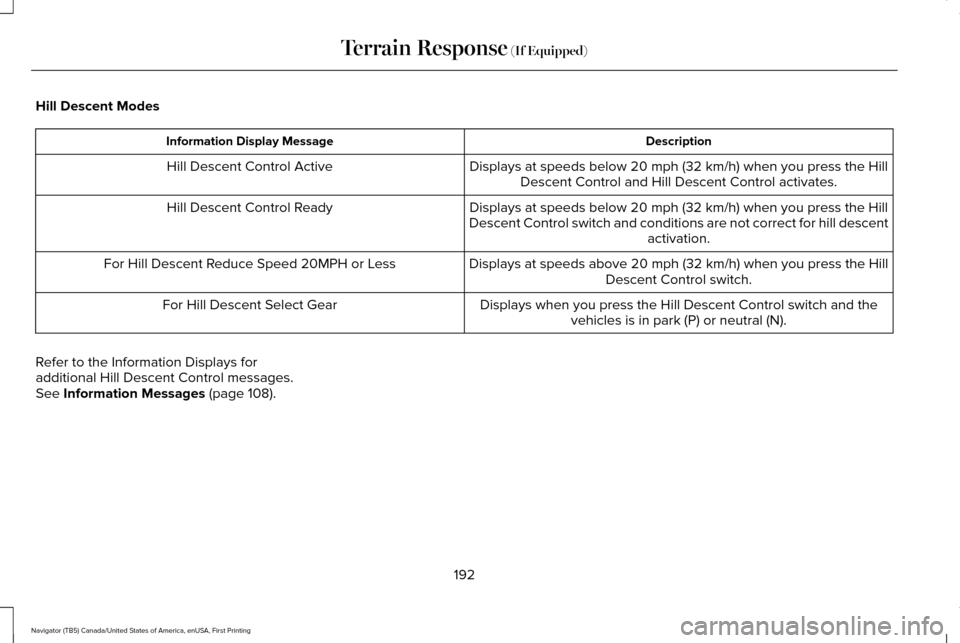
Hill Descent Modes
Description
Information Display Message
Displays at speeds below 20 mph (32 km/h) when you press the Hill
Descent Control and Hill Descent Control activates.
Hill Descent Control Active
Displays at speeds below
20 mph (32 km/h) when you press the Hill
Descent Control switch and conditions are not correct for hill descent activation.
Hill Descent Control Ready
Displays at speeds above 20 mph (32 km/h) when you press the HillDescent Control switch.
For Hill Descent Reduce Speed 20MPH or Less
Displays when you press the Hill Descent Control switch and thevehicles is in park (P) or neutral (N).
For Hill Descent Select Gear
Refer to the Information Displays for
additional Hill Descent Control messages.
See
Information Messages (page 108).
192
Navigator (TB5) Canada/United States of America, enUSA, First Printing Terrain Response
(If Equipped)
Page 196 of 532
PRINCIPLE OF OPERATION
WARNINGS
To help avoid personal injury, please
read and understand the limitations of
the system as contained in this section.
Sensing is only an aid for some (generally
large and fixed) objects when moving on a
flat surface at parking speeds. Certain
objects with surfaces that absorb ultrasonic
waves, surrounding vehicle's parking aid
systems, traffic control systems, fluorescent
lamps, inclement weather, air brakes, and
external motors and fans may also affect the
function of the sensing system; this may
include reduced performance or a false
activation. To help avoid personal injury, always
use caution when in reverse (R) and
when using the sensing system. WARNINGS
This system is not designed to prevent
contact with small or moving objects.
The system is designed to provide a warning
to assist the driver in detecting large
stationary objects to avoid damaging your
vehicle. The system may not detect smaller
objects, particularly those close to the
ground. Certain add-on devices such as large
trailer hitches, bike or surfboard racks
and any device that may block the normal
detection zone of the system, may create
false beeps. Note:
Keep the sensors, located on the
bumper or fascia, free from snow, ice and
large accumulations of dirt. If the sensors
are covered, the system’ s accuracy can be
affected. Do not clean the sensors with sharp
objects.
Note: If your vehicle sustains damage to the
bumper or fascia, leaving it misaligned or
bent, the sensing zone may be altered
causing inaccurate measurement of
obstacles or false alarms. Note:
The sensing system cannot be turned
off when a MyKey is present. See Principle
of Operation (page 54).
Note: If you attach certain add-on devices
such as a trailer or bike rack, the rear
sensing system may detect that add-on
device and therefore provide warnings. It is
suggested that you disable the rear sensing
system when you attach an add-on device
to your vehicle to prevent these warnings.
The sensing system warns the driver of
obstacles within a certain range of your
vehicle. The system turns on automatically
whenever you switch the ignition on. You can turn the system on or off
by pressing the parking aid button.
If your vehicle does not have a
parking aid button, the system can be
switched off through the information display
menu or from the pop-up message that
appears once you shift the transmission into
reverse (R).
See General Information (page
102).
If a fault is present in the system, a warning
message appears in the information display.
See
Information Messages (page 108).
193
Navigator (TB5) Canada/United States of America, enUSA, First Printing Parking AidsE139213
Page 197 of 532
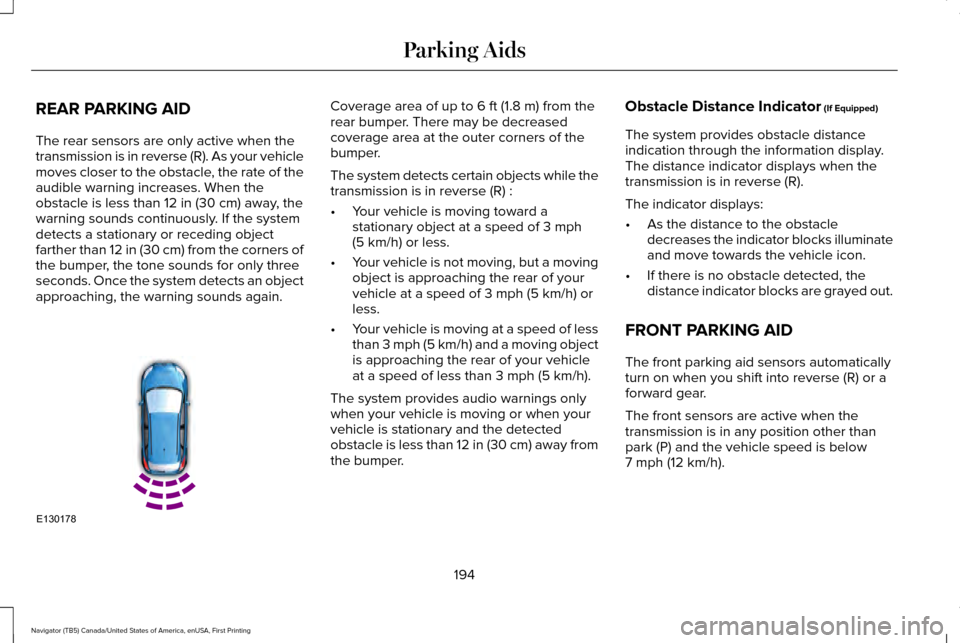
REAR PARKING AID
The rear sensors are only active when the
transmission is in reverse (R). As your vehicle
moves closer to the obstacle, the rate of the
audible warning increases. When the
obstacle is less than 12 in (30 cm) away, the
warning sounds continuously. If the system
detects a stationary or receding object
farther than
12 in (30 cm) from the corners of
the bumper, the tone sounds for only three
seconds. Once the system detects an object
approaching, the warning sounds again. Coverage area of up to
6 ft (1.8 m) from the
rear bumper. There may be decreased
coverage area at the outer corners of the
bumper.
The system detects certain objects while the
transmission is in reverse (R) :
• Your vehicle is moving toward a
stationary object at a speed of
3 mph
(5 km/h) or less.
• Your vehicle is not moving, but a moving
object is approaching the rear of your
vehicle at a speed of
3 mph (5 km/h) or
less.
• Your vehicle is moving at a speed of less
than 3 mph (5 km/h) and a moving object
is approaching the rear of your vehicle
at a speed of less than
3 mph (5 km/h).
The system provides audio warnings only
when your vehicle is moving or when your
vehicle is stationary and the detected
obstacle is less than 12 in (30 cm) away from
the bumper. Obstacle Distance Indicator
(If Equipped)
The system provides obstacle distance
indication through the information display.
The distance indicator displays when the
transmission is in reverse (R).
The indicator displays:
• As the distance to the obstacle
decreases the indicator blocks illuminate
and move towards the vehicle icon.
• If there is no obstacle detected, the
distance indicator blocks are grayed out.
FRONT PARKING AID
The front parking aid sensors automatically
turn on when you shift into reverse (R) or a
forward gear.
The front sensors are active when the
transmission is in any position other than
park (P) and the vehicle speed is below
7 mph (12 km/h)
.
194
Navigator (TB5) Canada/United States of America, enUSA, First Printing Parking AidsE130178
Page 198 of 532
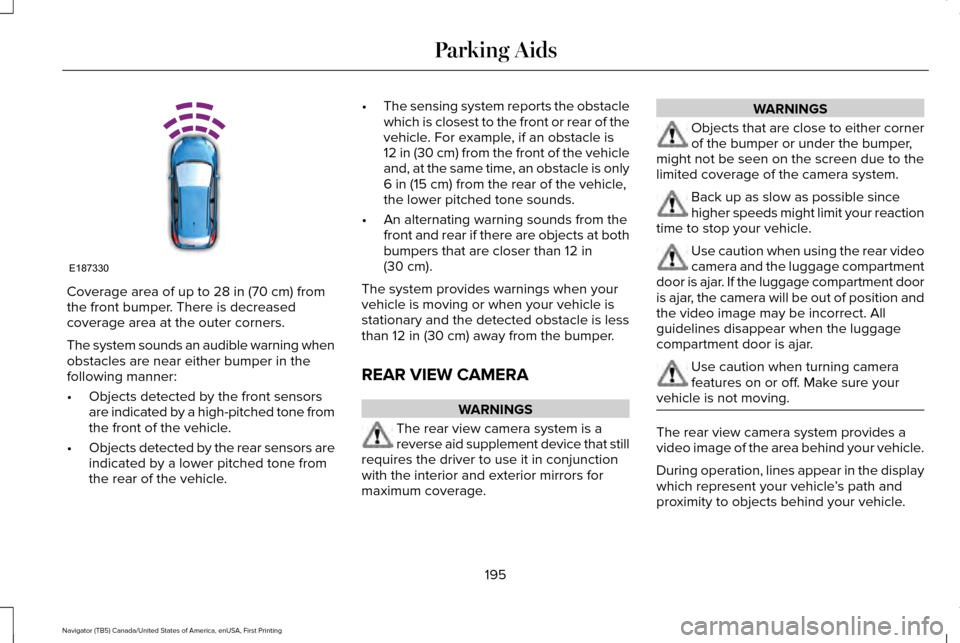
Coverage area of up to 28 in (70 cm) from
the front bumper. There is decreased
coverage area at the outer corners.
The system sounds an audible warning when
obstacles are near either bumper in the
following manner:
• Objects detected by the front sensors
are indicated by a high-pitched tone from
the front of the vehicle.
• Objects detected by the rear sensors are
indicated by a lower pitched tone from
the rear of the vehicle. •
The sensing system reports the obstacle
which is closest to the front or rear of the
vehicle. For example, if an obstacle is
12 in (30 cm) from the front of the vehicle
and, at the same time, an obstacle is only
6 in (15 cm)
from the rear of the vehicle,
the lower pitched tone sounds.
• An alternating warning sounds from the
front and rear if there are objects at both
bumpers that are closer than
12 in
(30 cm).
The system provides warnings when your
vehicle is moving or when your vehicle is
stationary and the detected obstacle is less
than
12 in (30 cm) away from the bumper.
REAR VIEW CAMERA WARNINGS
The rear view camera system is a
reverse aid supplement device that still
requires the driver to use it in conjunction
with the interior and exterior mirrors for
maximum coverage. WARNINGS
Objects that are close to either corner
of the bumper or under the bumper,
might not be seen on the screen due to the
limited coverage of the camera system. Back up as slow as possible since
higher speeds might limit your reaction
time to stop your vehicle. Use caution when using the rear video
camera and the luggage compartment
door is ajar. If the luggage compartment door
is ajar, the camera will be out of position and
the video image may be incorrect. All
guidelines disappear when the luggage
compartment door is ajar. Use caution when turning camera
features on or off. Make sure your
vehicle is not moving. The rear view camera system provides a
video image of the area behind your vehicle.
During operation, lines appear in the display
which represent your vehicle
’s path and
proximity to objects behind your vehicle.
195
Navigator (TB5) Canada/United States of America, enUSA, First Printing Parking AidsE187330
Page 199 of 532
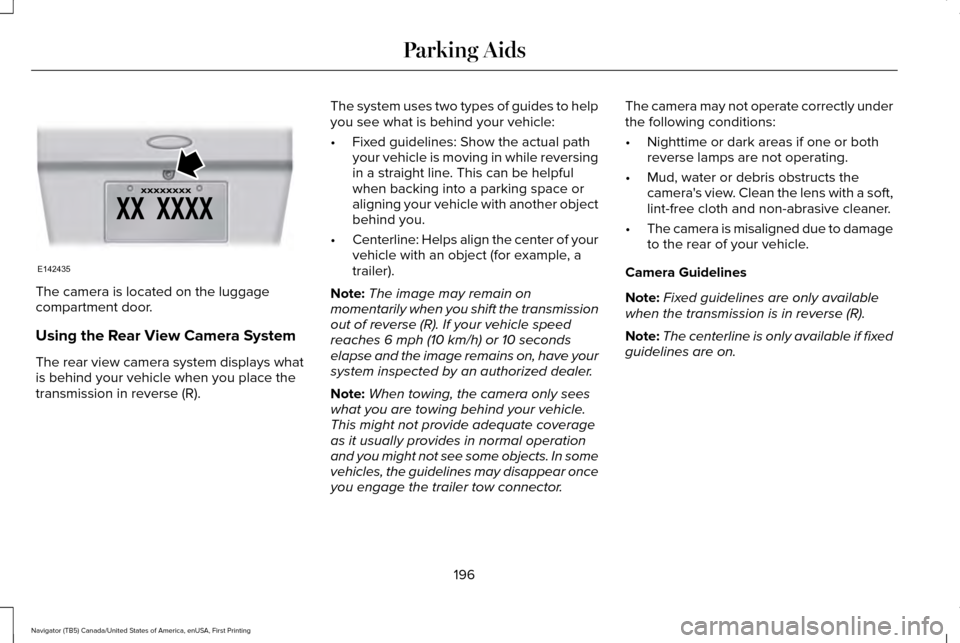
The camera is located on the luggage
compartment door.
Using the Rear View Camera System
The rear view camera system displays what
is behind your vehicle when you place the
transmission in reverse (R).
The system uses two types of guides to help
you see what is behind your vehicle:
•
Fixed guidelines: Show the actual path
your vehicle is moving in while reversing
in a straight line. This can be helpful
when backing into a parking space or
aligning your vehicle with another object
behind you.
• Centerline: Helps align the center of your
vehicle with an object (for example, a
trailer).
Note: The image may remain on
momentarily when you shift the transmission
out of reverse (R). If your vehicle speed
reaches 6 mph (10 km/h) or 10 seconds
elapse and the image remains on, have your
system inspected by an authorized dealer.
Note: When towing, the camera only sees
what you are towing behind your vehicle.
This might not provide adequate coverage
as it usually provides in normal operation
and you might not see some objects. In some
vehicles, the guidelines may disappear once
you engage the trailer tow connector. The camera may not operate correctly under
the following conditions:
•
Nighttime or dark areas if one or both
reverse lamps are not operating.
• Mud, water or debris obstructs the
camera's view. Clean the lens with a soft,
lint-free cloth and non-abrasive cleaner.
• The camera is misaligned due to damage
to the rear of your vehicle.
Camera Guidelines
Note: Fixed guidelines are only available
when the transmission is in reverse (R).
Note: The centerline is only available if fixed
guidelines are on.
196
Navigator (TB5) Canada/United States of America, enUSA, First Printing Parking AidsE142435
Page 200 of 532
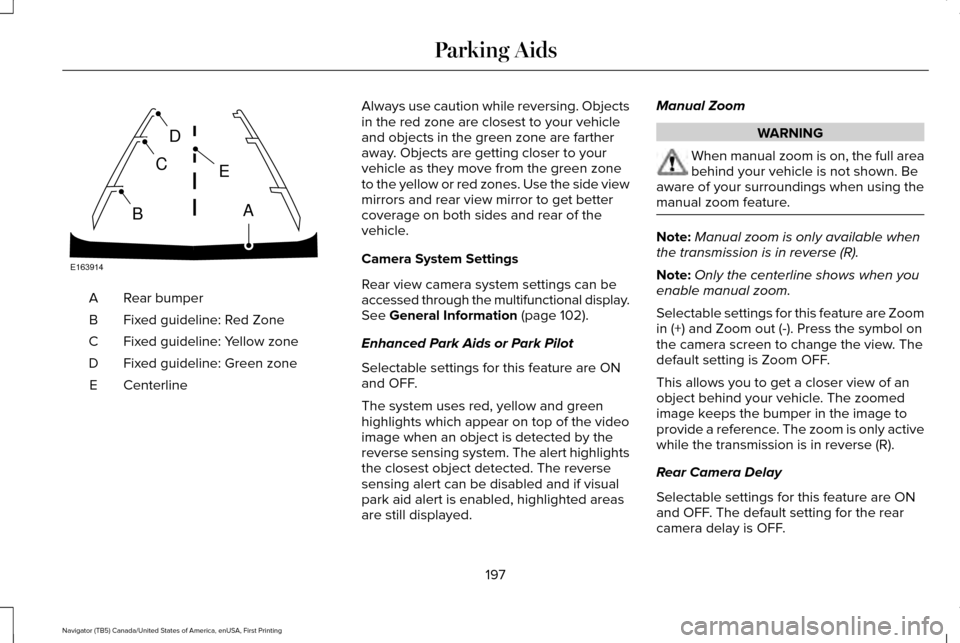
Rear bumper
A
Fixed guideline: Red Zone
B
Fixed guideline: Yellow zone
C
Fixed guideline: Green zone
D
Centerline
E Always use caution while reversing. Objects
in the red zone are closest to your vehicle
and objects in the green zone are farther
away. Objects are getting closer to your
vehicle as they move from the green zone
to the yellow or red zones. Use the side view
mirrors and rear view mirror to get better
coverage on both sides and rear of the
vehicle.
Camera System Settings
Rear view camera system settings can be
accessed through the multifunctional display.
See General Information (page 102).
Enhanced Park Aids or Park Pilot
Selectable settings for this feature are ON
and OFF.
The system uses red, yellow and green
highlights which appear on top of the video
image when an object is detected by the
reverse sensing system. The alert highlights
the closest object detected. The reverse
sensing alert can be disabled and if visual
park aid alert is enabled, highlighted areas
are still displayed. Manual Zoom WARNING
When manual zoom is on, the full area
behind your vehicle is not shown. Be
aware of your surroundings when using the
manual zoom feature. Note:
Manual zoom is only available when
the transmission is in reverse (R).
Note: Only the centerline shows when you
enable manual zoom.
Selectable settings for this feature are Zoom
in (+) and Zoom out (-). Press the symbol on
the camera screen to change the view. The
default setting is Zoom OFF.
This allows you to get a closer view of an
object behind your vehicle. The zoomed
image keeps the bumper in the image to
provide a reference. The zoom is only active
while the transmission is in reverse (R).
Rear Camera Delay
Selectable settings for this feature are ON
and OFF. The default setting for the rear
camera delay is OFF.
197
Navigator (TB5) Canada/United States of America, enUSA, First Printing Parking AidsE163914
A
E
D
C
B
Page 201 of 532
When shifting the transmission out of reverse
(R) and into any gear other than park (P), the
camera image remains in the display until:
•
Your vehicle speed sufficiently increases.
• You shift your vehicle into park (P).
198
Navigator (TB5) Canada/United States of America, enUSA, First Printing Parking Aids