brakes LINCOLN NAVIGATOR 2018 Owner's Manual
[x] Cancel search | Manufacturer: LINCOLN, Model Year: 2018, Model line: NAVIGATOR, Model: LINCOLN NAVIGATOR 2018Pages: 649, PDF Size: 4.96 MB
Page 245 of 649
WARNING: Active park assist doesnot apply the brakes under anycircumstances.
WARNING: You are responsible forcontrolling your vehicle at all times. Thesystem is designed to be an aid and doesnot relieve you of your responsibility todrive with due care and attention. Failureto follow this instruction could result in theloss of control of your vehicle, personalinjury or death.
Active park assist is a multi-step process andmay require you to shift the transmissionmultiple times. Follow the onscreeninstructions until the parking maneuver iscomplete.
If you are uncomfortable with the proximityto any vehicle or object, you may choose tooverride the system by grabbing the steeringwheel, or by taking full control of your vehicleafter pressing the active park assist button.
Keep your hands, hair, clothing and anyloose items clear of the steering wheel whenusing active park assist.
The sensors are on the front and rearbumpers.
Note:Keep the sensors free from snow, iceand large accumulations of dirt.
Note:Do not cover up the sensors.
Note:Do not clean the sensors with sharpobjects.
Note:The sensors may not detect objectswith surfaces that absorb ultrasonic waves.The sensors may falsely detect objects dueto ultrasonic interference caused bymotorcycle exhausts, truck air brakes orhorns, for example.
Note:If you change any tires, the systemmust recalibrate and may not correctlyoperate for a short time.
The system may not correctly operate in anyof the following conditions:
•You use a spare tire or a tire that issignificantly worn more than the othertires.
•One or more tires are incorrectly inflated.
•You try to park on a tight curve.
•Something passes between the frontbumper and the parking space. Forexample, a pedestrian or cyclist.
•The edge of the neighboring parkedvehicle is high off the ground. Forexample, a bus, tow truck or flatbedtruck.
•The weather conditions are poor. Forexample, during heavy rain, snow, fog,high humidity and high temperatures.
Do not use the system if:
•You have attached an add-on accessoryclose to the sensors on the front or rearof your vehicle. For example, a bike rackor trailer.
•You have attached an overhangingobject to the roof. For example, asurfboard.
•The front bumper, rear bumper or theside sensors are damaged.
•The correct tire size is not in use on yourvehicle. For example, a mini-spare tire.
242
Navigator (TB9) Canada/United States of America, enUSA, Edition date: 201708, Third-Printing-
Parking Aids
Page 246 of 649
Using Active Park Assist
Selecting an Active Park Assist Mode
Press the button once to activateparallel parking. Press the buttona second time to activateperpendicular parking. If you press thebutton again the system switches off.
If your vehicle is parked and after you switchthe ignition on, you can use the informationdisplay to toggle through the modes. Pressthe button to switch the system on and openthe system menu in the information display.
Note:If your vehicle is parked, the defaultmode is parallel park out assist. However, ifyou did not use active park assist to parallelpark your vehicle, use the informationdisplay to select park out assist.
Note:You can repeatedly press the activepark assist button to toggle through themodes only after moving your vehicleapproximately 33 ft (10 m).
To toggle through the modes, use thebuttons on the information display to selectthe following:
•Parallel parking.
•Perpendicular parking.
•Parallel park out assist.
•Switch the system off.
Note:There is no time limit for togglingthrough the modes.
Parallel Parking
The system detects available parallel parkingspaces and steers your vehicle into thespace. You control the accelerator, gearshiftand brakes. The system visually and audiblyguides you into a parallel parking space.
Press the button once to searchfor a parking space.
Note:You can also switch the system onafter you have already driven partially orcompletely past a parking space. Press theactive park assist button and the systeminforms you if you have recently passed asuitable parking space.
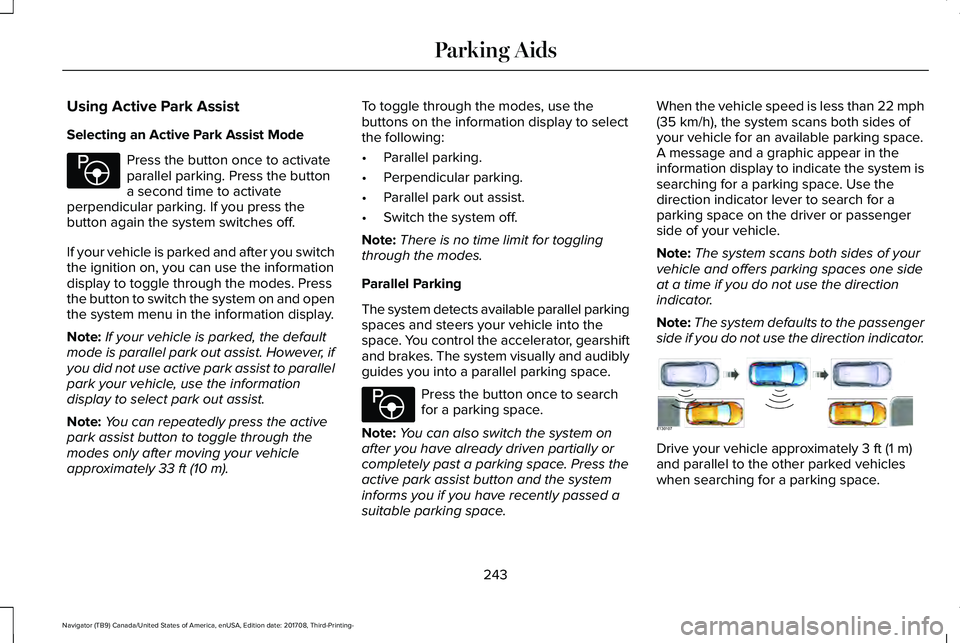
When the vehicle speed is less than 22 mph(35 km/h), the system scans both sides ofyour vehicle for an available parking space.A message and a graphic appear in theinformation display to indicate the system issearching for a parking space. Use thedirection indicator lever to search for aparking space on the driver or passengerside of your vehicle.
Note:The system scans both sides of yourvehicle and offers parking spaces one sideat a time if you do not use the directionindicator.
Note:The system defaults to the passengerside if you do not use the direction indicator.
Drive your vehicle approximately 3 ft (1 m)and parallel to the other parked vehicleswhen searching for a parking space.
243
Navigator (TB9) Canada/United States of America, enUSA, Edition date: 201708, Third-Printing-
Parking AidsE146186 E146186 E130107
Page 248 of 649
Certain vehicle conditions may alsodeactivate the system, for example:
•The traction control system activates orfails.
•The anti-lock brake system activates orfails.
If the system malfunctions, a messageappears and a tone sounds. Have yourvehicle checked as soon as possible.
Perpendicular Parking
The system detects available perpendicularparking spaces and steers your vehicle intothe space. You control the accelerator,gearshift and brakes. The system visuallyand audibly guides you into a perpendicularparking space.
Press the button twice to searchfor a parking space.
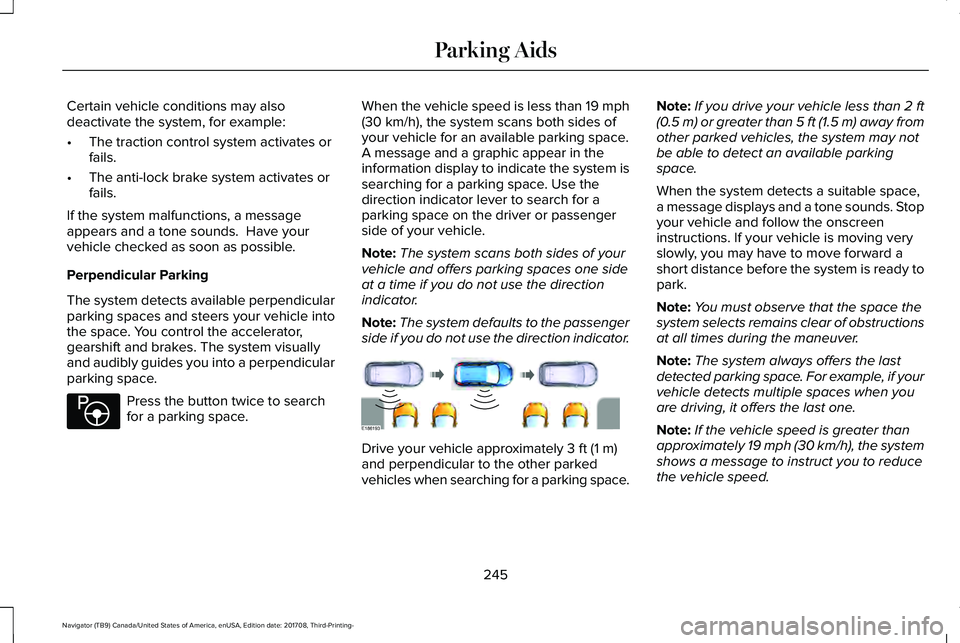
When the vehicle speed is less than 19 mph(30 km/h), the system scans both sides ofyour vehicle for an available parking space.A message and a graphic appear in theinformation display to indicate the system issearching for a parking space. Use thedirection indicator lever to search for aparking space on the driver or passengerside of your vehicle.
Note:The system scans both sides of yourvehicle and offers parking spaces one sideat a time if you do not use the directionindicator.
Note:The system defaults to the passengerside if you do not use the direction indicator.
Drive your vehicle approximately 3 ft (1 m)and perpendicular to the other parkedvehicles when searching for a parking space.
Note:If you drive your vehicle less than 2 ft(0.5 m) or greater than 5 ft (1.5 m) away fromother parked vehicles, the system may notbe able to detect an available parkingspace.
When the system detects a suitable space,a message displays and a tone sounds. Stopyour vehicle and follow the onscreeninstructions. If your vehicle is moving veryslowly, you may have to move forward ashort distance before the system is ready topark.
Note:You must observe that the space thesystem selects remains clear of obstructionsat all times during the maneuver.
Note:The system always offers the lastdetected parking space. For example, if yourvehicle detects multiple spaces when youare driving, it offers the last one.
Note:If the vehicle speed is greater thanapproximately 19 mph (30 km/h), the systemshows a message to instruct you to reducethe vehicle speed.
245
Navigator (TB9) Canada/United States of America, enUSA, Edition date: 201708, Third-Printing-
Parking AidsE146186 E186193
Page 250 of 649
Parallel Park Out Assist
The system steers your vehicle out of aparallel parking space. You control theaccelerator, gearshift and brakes. The systemvisually and audibly guides you out of aparallel parking space.
Note:This system is not intended to assistwhen exiting a perpendicular parking space.
Press the button once when yourvehicle is stationary in a parallelparking space.
Note:If you did not use active park assist toparallel park your vehicle, pressing thebutton once selects parallel park. You mustuse the information display to select parkout assist.
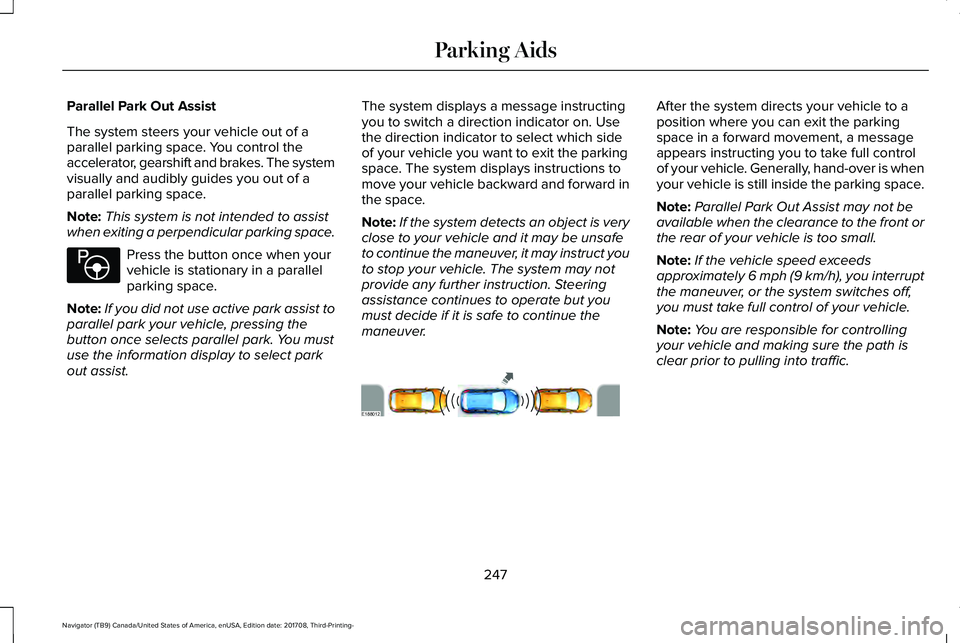
The system displays a message instructingyou to switch a direction indicator on. Usethe direction indicator to select which sideof your vehicle you want to exit the parkingspace. The system displays instructions tomove your vehicle backward and forward inthe space.
Note:If the system detects an object is veryclose to your vehicle and it may be unsafeto continue the maneuver, it may instruct youto stop your vehicle. The system may notprovide any further instruction. Steeringassistance continues to operate but youmust decide if it is safe to continue themaneuver.
After the system directs your vehicle to aposition where you can exit the parkingspace in a forward movement, a messageappears instructing you to take full controlof your vehicle. Generally, hand-over is whenyour vehicle is still inside the parking space.
Note:Parallel Park Out Assist may not beavailable when the clearance to the front orthe rear of your vehicle is too small.
Note:If the vehicle speed exceedsapproximately 6 mph (9 km/h), you interruptthe maneuver, or the system switches off,you must take full control of your vehicle.
Note:You are responsible for controllingyour vehicle and making sure the path isclear prior to pulling into traffic.
247
Navigator (TB9) Canada/United States of America, enUSA, Edition date: 201708, Third-Printing-
Parking AidsE146186 E188012
Page 259 of 649
PRINCIPLE OF OPERATION
Cruise control lets you maintain a set speedwithout keeping your foot on the acceleratorpedal. You can use cruise control when yourvehicle speed is greater than 20 mph(30 km/h).
USING CRUISE CONTROL (IF EQUIPPED)
WARNING: Do not use cruise controlon winding roads, in heavy traffic or whenthe road surface is slippery. This couldresult in loss of vehicle control, seriousinjury or death.
WARNING: When you are goingdownhill, your vehicle speed couldincrease above the set speed. The systemdoes not apply the brakes.
Note:Cruise control disengages if thevehicle speed decreases more than 10 mph(16 km/h) below the set speed when drivinguphill.
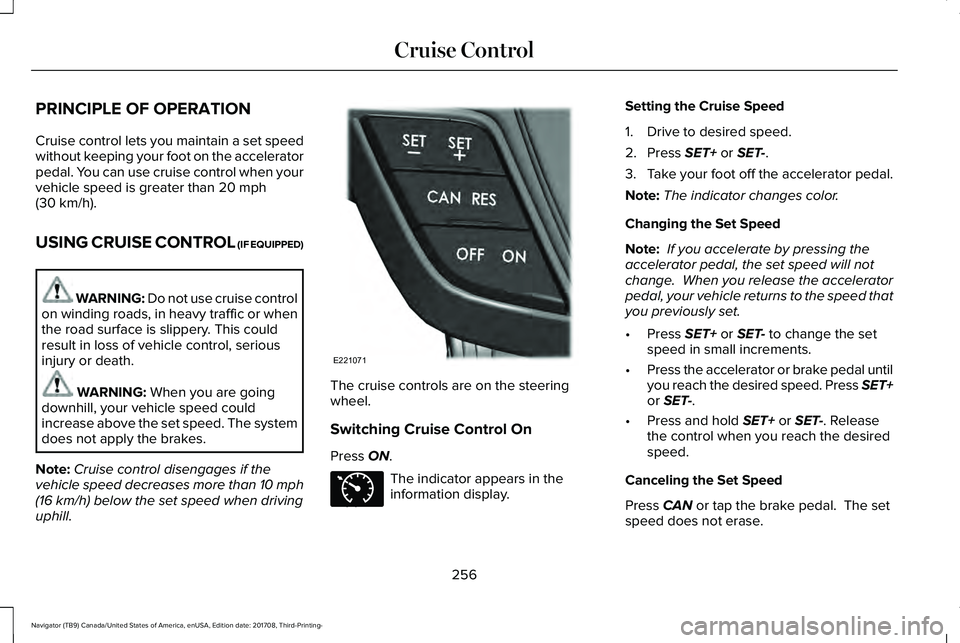
The cruise controls are on the steeringwheel.
Switching Cruise Control On
Press ON.
The indicator appears in theinformation display.
Setting the Cruise Speed
1. Drive to desired speed.
2. Press SET+ or SET-.
3.Take your foot off the accelerator pedal.
Note:The indicator changes color.
Changing the Set Speed
Note: If you accelerate by pressing theaccelerator pedal, the set speed will notchange. When you release the acceleratorpedal, your vehicle returns to the speed thatyou previously set.
•Press SET+ or SET- to change the setspeed in small increments.
•Press the accelerator or brake pedal untilyou reach the desired speed. Press SET+or SET-.
•Press and hold SET+ or SET-. Releasethe control when you reach the desiredspeed.
Canceling the Set Speed
Press CAN or tap the brake pedal. The setspeed does not erase.
256
Navigator (TB9) Canada/United States of America, enUSA, Edition date: 201708, Third-Printing-
Cruise ControlE221071 E71340
Page 260 of 649
Resuming the Set Speed
Press RES.
Switching Cruise Control Off
Note:You erase the set speed when youswitch the system off.
Press OFF when the system is in standbymode, or switch the ignition off.
USING ADAPTIVE CRUISE
CONTROL (IF EQUIPPED)
WARNING: Always pay closeattention to changing road conditions whenusing adaptive cruise control. The systemdoes not replace attentive driving. Failingto pay attention to the road may result ina crash, serious injury or death.
WARNING: Do not use the adaptivecruise control when entering or leaving ahighway, on roads with intersections orroundabouts or non-vehicular traffic orroads that are winding, slippery, unpaved,or steep slopes.
WARNING: Do not use the systemin poor visibility, for example fog, heavyrain, spray or snow.
WARNING: Do not use the systemwhen towing a trailer with aftermarkettrailer brake controls. Aftermarket trailerbrakes will not function properly when youswitch the system on because the brakesare electronically controlled. Failing to doso may result in loss of vehicle control,which could result in serious injury.
WARNING: Do not use tire sizesother than those recommended becausethis can affect the normal operation of thesystem. Failure to do so may result in a lossof vehicle control, which could result inserious injury.
WARNING: Adaptive cruise controlmay not detect stationary or slow movingvehicles below 6 mph (10 km/h).
WARNING: Adaptive cruise controldoes not detect pedestrians or objects inthe road.
WARNING: Adaptive cruise controldoes not detect oncoming vehicles in thesame lane.
WARNING: Adaptive cruise controlis not a crash warning or avoidancesystem.
Note:It is your responsibility to stay alert,drive safely and be in control of the vehicleat all times.
The system adjusts your vehicle speed tomaintain the set gap between you and thevehicle in front of you in the same lane. Youcan select four gap settings.
The system uses a radar sensor that projectsa beam directly in front of your vehicle.
257
Navigator (TB9) Canada/United States of America, enUSA, Edition date: 201708, Third-Printing-
Cruise Control
Page 262 of 649
Following a Vehicle
WARNING: When following a vehicle,your vehicle does not always deceleratequickly enough to avoid a crash withoutdriver intervention. Always apply thebrakes when necessary. Failing to do somay result in a crash, serious injury ordeath.
WARNING: Adaptive cruise controlonly warns of vehicles detected by theradar sensor. In some cases there may beno warning or a delayed warning. Youshould always apply the brakes whennecessary. Failure to do so may result in acrash, serious injury or death.
Note:When you are following a vehicle andyou switch on a direction indicator, adaptivecruise control may provide a small temporaryacceleration to help you pass.
Note:The brakes may emit noise whenapplied by the system.
When a vehicle ahead of you enters thesame lane or a slower vehicle is ahead in thesame lane, the vehicle speed adjusts tomaintain a preset gap distance. A vehiclegraphic illuminates in the instrument cluster.
Your vehicle maintains a consistent gap fromthe vehicle ahead until:
•The vehicle in front of you accelerates toa speed above the set speed.
•The vehicle in front of you moves out ofthe lane you are in.
•You set a new gap distance.
The system applies the brakes to slow yourvehicle to maintain a safe gap distance fromthe vehicle in front. The system only applieslimited braking. You can override the systemby applying the brakes.
If the system determines that its maximumbraking level is not sufficient, an audiblewarning sounds when the system continuesto brake. A red warning bar displays on thewindshield and you must take immediateaction.
Following a Vehicle to a Complete Stop
If your vehicle follows a vehicle to a completestop and remains stationary for less thanthree seconds, your vehicle accelerates froma stationary position to follow the vehicleahead.
If your vehicle follows a vehicle to a completestop and remains stationary for more thanthree seconds, press RES+ or the acceleratorpedal to follow the vehicle ahead.
Setting the Gap Distance
Note:The gap setting is time dependent andtherefore the distance adjusts with yourvehicle speed.
Note:It is your responsibility to select a gapappropriate to the driving conditions.
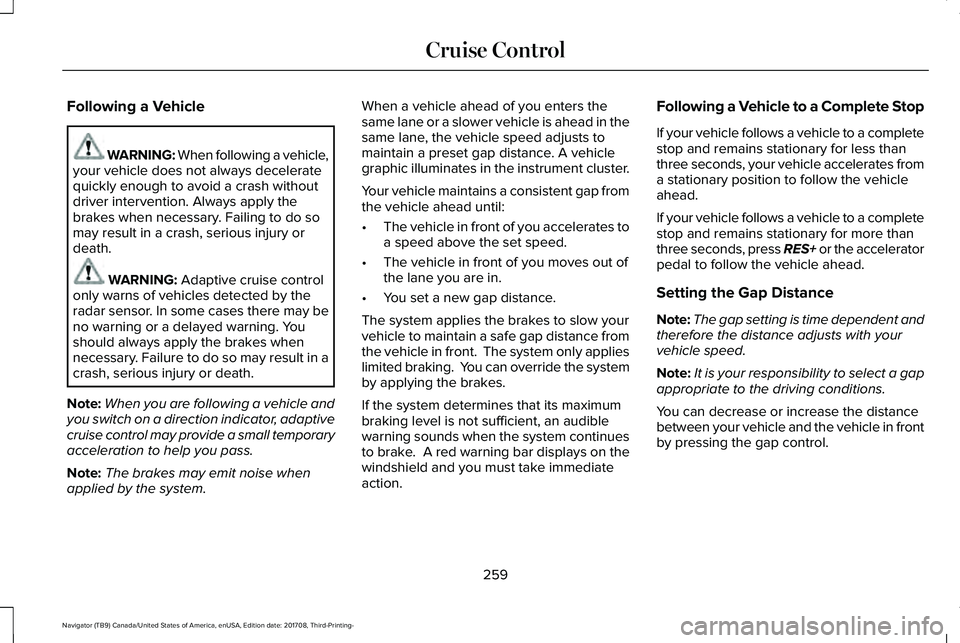
You can decrease or increase the distancebetween your vehicle and the vehicle in frontby pressing the gap control.
259
Navigator (TB9) Canada/United States of America, enUSA, Edition date: 201708, Third-Printing-
Cruise Control
Page 263 of 649
Gap increase.A
Gap decrease.B
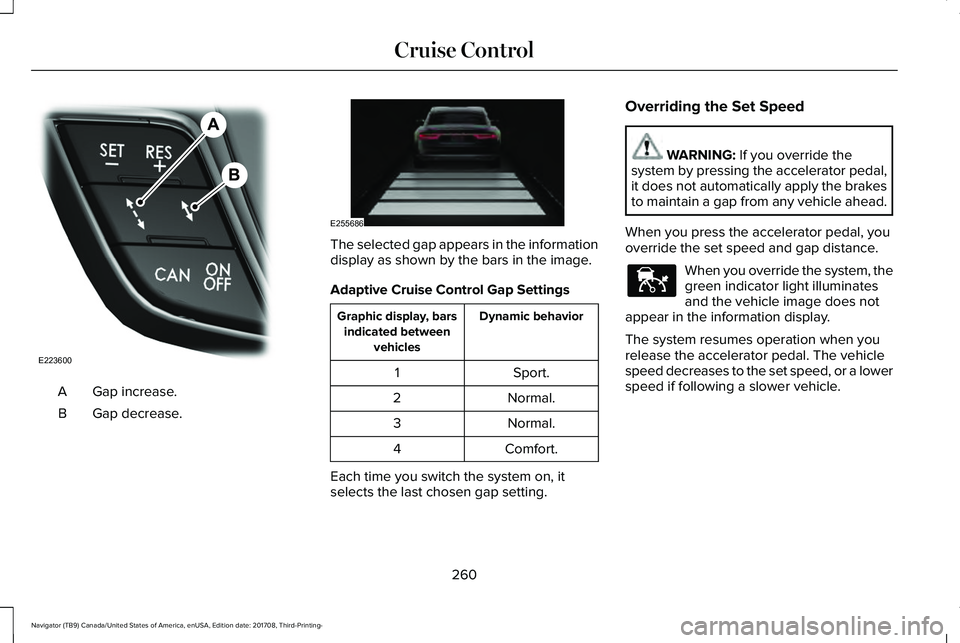
The selected gap appears in the informationdisplay as shown by the bars in the image.
Adaptive Cruise Control Gap Settings
Dynamic behaviorGraphic display, barsindicated betweenvehicles
Sport.1
Normal.2
Normal.3
Comfort.4
Each time you switch the system on, itselects the last chosen gap setting.
Overriding the Set Speed
WARNING: If you override thesystem by pressing the accelerator pedal,it does not automatically apply the brakesto maintain a gap from any vehicle ahead.
When you press the accelerator pedal, youoverride the set speed and gap distance.
When you override the system, thegreen indicator light illuminatesand the vehicle image does notappear in the information display.
The system resumes operation when yourelease the accelerator pedal. The vehiclespeed decreases to the set speed, or a lowerspeed if following a slower vehicle.
260
Navigator (TB9) Canada/United States of America, enUSA, Edition date: 201708, Third-Printing-
Cruise ControlE223600 E255686 E144529
Page 264 of 649
Changing the Set Speed
•Press RES+ or SET- to change the setspeed in small increments.
•Press the accelerator or brake pedal untilyou reach the desired speed. Press RES+or SET-.
•Press and hold RES+ or SET- to changethe set speed in large increments.Release the control when you reach thedesired speed.
The system may apply the brakes to slowthe vehicle to the new set speed. The setspeed displays continuously in theinformation display when the system isactive.
Canceling the Set Speed
Press CAN or tap the brake pedal. The setspeed does not erase.
Resuming the Set Speed
Note:Only use resume if you are aware ofthe set speed and intend to return to it.
Press RES+. Your vehicle speed returns tothe previously set speed and gap setting. The set speed displays continuously in theinformation display when the system isactive.
Automatic Cancellation
Automatic cancellation can also occur if:
•The tires lose traction.
•You apply the parking brake.
Park Brake Application
Automatic parking brake application andcancellation occurs if:
•You unbuckle the seatbelt and open thedoor after you stop the vehicle.
•You hold the vehicle at a stopcontinuously for more than three minutes.
Hilly Condition and Trailer Tow Usage
Note:An audible alarm sounds and thesystem shuts down if it applies brakes for anextended period of time. This allows thebrakes to cool. The system functionsnormally again after the brakes cool.
Note:When towing with adaptive cruisecontrol, switch on Tow/Haul Mode.
Note:Tow/Haul mode increases the timegaps and allows more distance for braking.
Select a lower gear when the system isactive in situations such as prolongeddownhill driving on steep grades, forexample in mountainous areas. The systemneeds additional engine braking in thesesituations to reduce the load on the vehicle’sregular brake system to prevent it fromoverheating.
Switching Adaptive Cruise Control Off
Note:You erase the set speed and gapsetting when you switch the system off.
Press OFF when the system is in standbymode, or switch the ignition off.
261
Navigator (TB9) Canada/United States of America, enUSA, Edition date: 201708, Third-Printing-
Cruise Control
Page 267 of 649
ActionCause
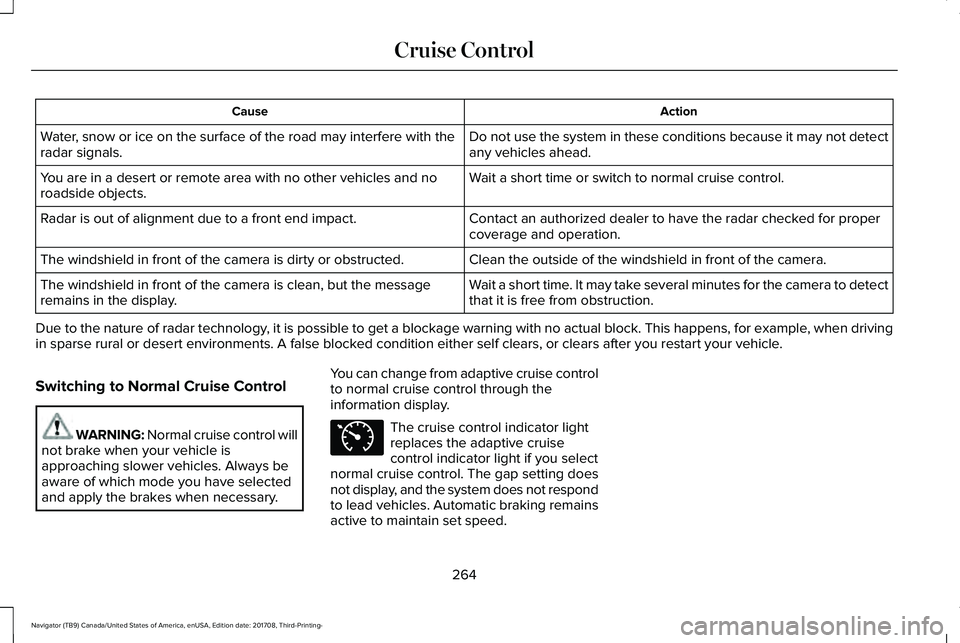
Do not use the system in these conditions because it may not detectany vehicles ahead.Water, snow or ice on the surface of the road may interfere with theradar signals.
Wait a short time or switch to normal cruise control.You are in a desert or remote area with no other vehicles and noroadside objects.
Contact an authorized dealer to have the radar checked for propercoverage and operation.Radar is out of alignment due to a front end impact.
Clean the outside of the windshield in front of the camera.The windshield in front of the camera is dirty or obstructed.
Wait a short time. It may take several minutes for the camera to detectthat it is free from obstruction.The windshield in front of the camera is clean, but the messageremains in the display.
Due to the nature of radar technology, it is possible to get a blockage warning with no actual block. This happens, for example, when drivingin sparse rural or desert environments. A false blocked condition either self clears, or clears after you restart your vehicle.
Switching to Normal Cruise Control
WARNING: Normal cruise control willnot brake when your vehicle isapproaching slower vehicles. Always beaware of which mode you have selectedand apply the brakes when necessary.
You can change from adaptive cruise controlto normal cruise control through theinformation display.
The cruise control indicator lightreplaces the adaptive cruisecontrol indicator light if you selectnormal cruise control. The gap setting doesnot display, and the system does not respondto lead vehicles. Automatic braking remainsactive to maintain set speed.
264
Navigator (TB9) Canada/United States of America, enUSA, Edition date: 201708, Third-Printing-
Cruise ControlE71340