brake LINCOLN NAVIGATOR 2018 Repair Manual
[x] Cancel search | Manufacturer: LINCOLN, Model Year: 2018, Model line: NAVIGATOR, Model: LINCOLN NAVIGATOR 2018Pages: 649, PDF Size: 4.96 MB
Page 262 of 649
Following a Vehicle
WARNING: When following a vehicle,your vehicle does not always deceleratequickly enough to avoid a crash withoutdriver intervention. Always apply thebrakes when necessary. Failing to do somay result in a crash, serious injury ordeath.
WARNING: Adaptive cruise controlonly warns of vehicles detected by theradar sensor. In some cases there may beno warning or a delayed warning. Youshould always apply the brakes whennecessary. Failure to do so may result in acrash, serious injury or death.
Note:When you are following a vehicle andyou switch on a direction indicator, adaptivecruise control may provide a small temporaryacceleration to help you pass.
Note:The brakes may emit noise whenapplied by the system.
When a vehicle ahead of you enters thesame lane or a slower vehicle is ahead in thesame lane, the vehicle speed adjusts tomaintain a preset gap distance. A vehiclegraphic illuminates in the instrument cluster.
Your vehicle maintains a consistent gap fromthe vehicle ahead until:
•The vehicle in front of you accelerates toa speed above the set speed.
•The vehicle in front of you moves out ofthe lane you are in.
•You set a new gap distance.
The system applies the brakes to slow yourvehicle to maintain a safe gap distance fromthe vehicle in front. The system only applieslimited braking. You can override the systemby applying the brakes.
If the system determines that its maximumbraking level is not sufficient, an audiblewarning sounds when the system continuesto brake. A red warning bar displays on thewindshield and you must take immediateaction.
Following a Vehicle to a Complete Stop
If your vehicle follows a vehicle to a completestop and remains stationary for less thanthree seconds, your vehicle accelerates froma stationary position to follow the vehicleahead.
If your vehicle follows a vehicle to a completestop and remains stationary for more thanthree seconds, press RES+ or the acceleratorpedal to follow the vehicle ahead.
Setting the Gap Distance
Note:The gap setting is time dependent andtherefore the distance adjusts with yourvehicle speed.
Note:It is your responsibility to select a gapappropriate to the driving conditions.
You can decrease or increase the distancebetween your vehicle and the vehicle in frontby pressing the gap control.
259
Navigator (TB9) Canada/United States of America, enUSA, Edition date: 201708, Third-Printing-
Cruise Control
Page 263 of 649
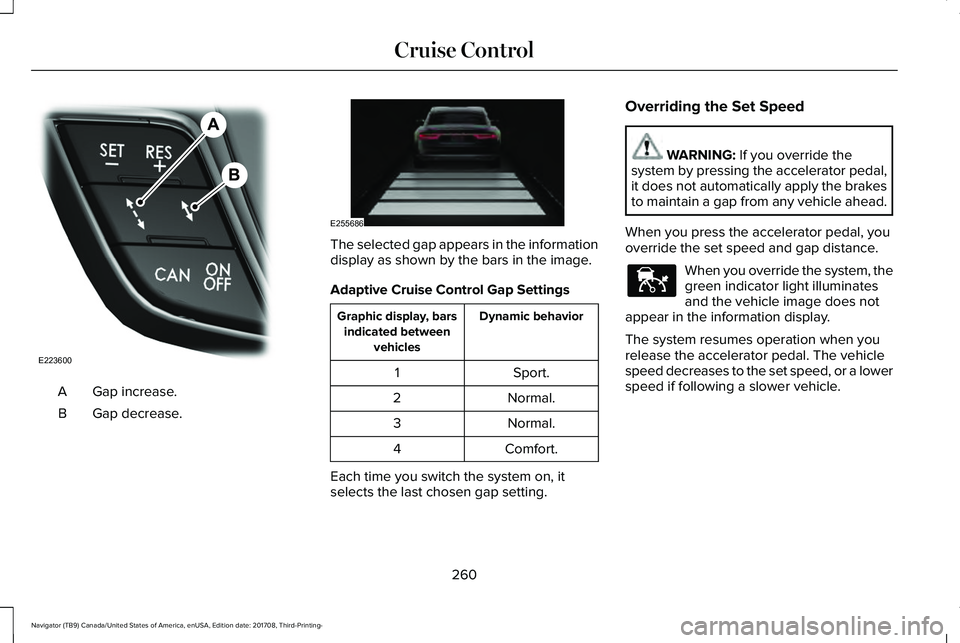
Gap increase.A
Gap decrease.B
The selected gap appears in the informationdisplay as shown by the bars in the image.
Adaptive Cruise Control Gap Settings
Dynamic behaviorGraphic display, barsindicated betweenvehicles
Sport.1
Normal.2
Normal.3
Comfort.4
Each time you switch the system on, itselects the last chosen gap setting.
Overriding the Set Speed
WARNING: If you override thesystem by pressing the accelerator pedal,it does not automatically apply the brakesto maintain a gap from any vehicle ahead.
When you press the accelerator pedal, youoverride the set speed and gap distance.
When you override the system, thegreen indicator light illuminatesand the vehicle image does notappear in the information display.
The system resumes operation when yourelease the accelerator pedal. The vehiclespeed decreases to the set speed, or a lowerspeed if following a slower vehicle.
260
Navigator (TB9) Canada/United States of America, enUSA, Edition date: 201708, Third-Printing-
Cruise ControlE223600 E255686 E144529
Page 264 of 649
Changing the Set Speed
•Press RES+ or SET- to change the setspeed in small increments.
•Press the accelerator or brake pedal untilyou reach the desired speed. Press RES+or SET-.
•Press and hold RES+ or SET- to changethe set speed in large increments.Release the control when you reach thedesired speed.
The system may apply the brakes to slowthe vehicle to the new set speed. The setspeed displays continuously in theinformation display when the system isactive.
Canceling the Set Speed
Press CAN or tap the brake pedal. The setspeed does not erase.
Resuming the Set Speed
Note:Only use resume if you are aware ofthe set speed and intend to return to it.
Press RES+. Your vehicle speed returns tothe previously set speed and gap setting. The set speed displays continuously in theinformation display when the system isactive.
Automatic Cancellation
Automatic cancellation can also occur if:
•The tires lose traction.
•You apply the parking brake.
Park Brake Application
Automatic parking brake application andcancellation occurs if:
•You unbuckle the seatbelt and open thedoor after you stop the vehicle.
•You hold the vehicle at a stopcontinuously for more than three minutes.
Hilly Condition and Trailer Tow Usage
Note:An audible alarm sounds and thesystem shuts down if it applies brakes for anextended period of time. This allows thebrakes to cool. The system functionsnormally again after the brakes cool.
Note:When towing with adaptive cruisecontrol, switch on Tow/Haul Mode.
Note:Tow/Haul mode increases the timegaps and allows more distance for braking.
Select a lower gear when the system isactive in situations such as prolongeddownhill driving on steep grades, forexample in mountainous areas. The systemneeds additional engine braking in thesesituations to reduce the load on the vehicle’sregular brake system to prevent it fromoverheating.
Switching Adaptive Cruise Control Off
Note:You erase the set speed and gapsetting when you switch the system off.
Press OFF when the system is in standbymode, or switch the ignition off.
261
Navigator (TB9) Canada/United States of America, enUSA, Edition date: 201708, Third-Printing-
Cruise Control
Page 265 of 649
Detection Issues
WARNING: On rare occasions,detection issues can occur due to the roadinfrastructures, for example bridges,tunnels and safety barriers. In these cases,the system may brake late orunexpectedly. At all times, you areresponsible for controlling your vehicle,supervising the system and intervening, ifrequired.
WARNING: If the systemmalfunctions, have your vehicle checkedas soon as possible.
The radar sensor has a limited field of view.It may not detect vehicles at all or detect avehicle later than expected in somesituations. The lead vehicle graphic does notilluminate if the system does not detect avehicle in front of you.
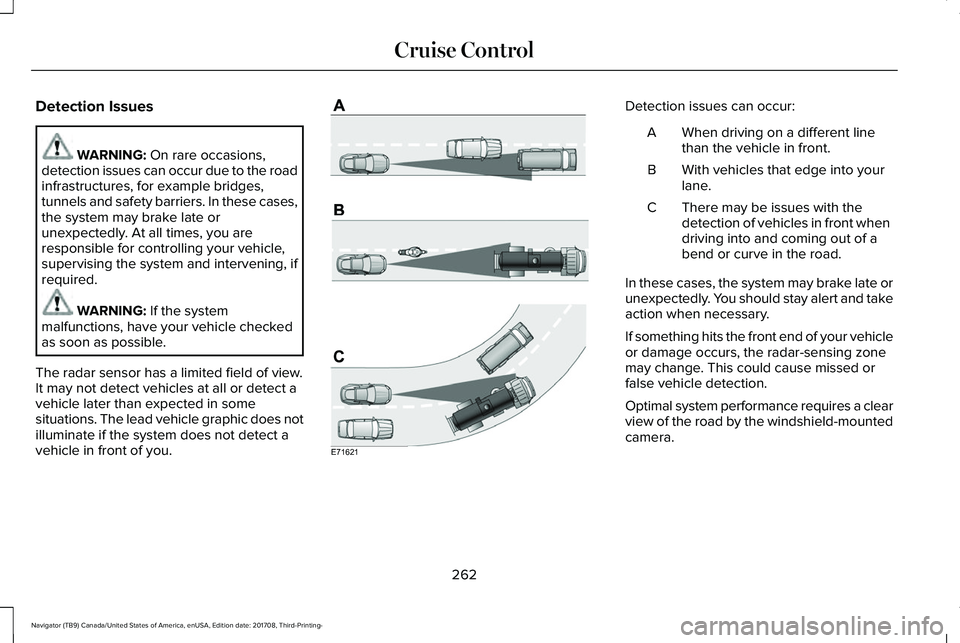
Detection issues can occur:
When driving on a different linethan the vehicle in front.A
With vehicles that edge into yourlane.B
There may be issues with thedetection of vehicles in front whendriving into and coming out of abend or curve in the road.
C
In these cases, the system may brake late orunexpectedly. You should stay alert and takeaction when necessary.
If something hits the front end of your vehicleor damage occurs, the radar-sensing zonemay change. This could cause missed orfalse vehicle detection.
Optimal system performance requires a clearview of the road by the windshield-mountedcamera.
262
Navigator (TB9) Canada/United States of America, enUSA, Edition date: 201708, Third-Printing-
Cruise ControlE71621
Page 266 of 649
Optimal performance may not occur if:
•The camera is blocked.
•There is poor visibility or lightingconditions.
•There are bad weather conditions.
System Not Available
The system may not turn on if there is:
•A blocked sensor.
•High brake temperature.
•A failure in the system or a relatedsystem.
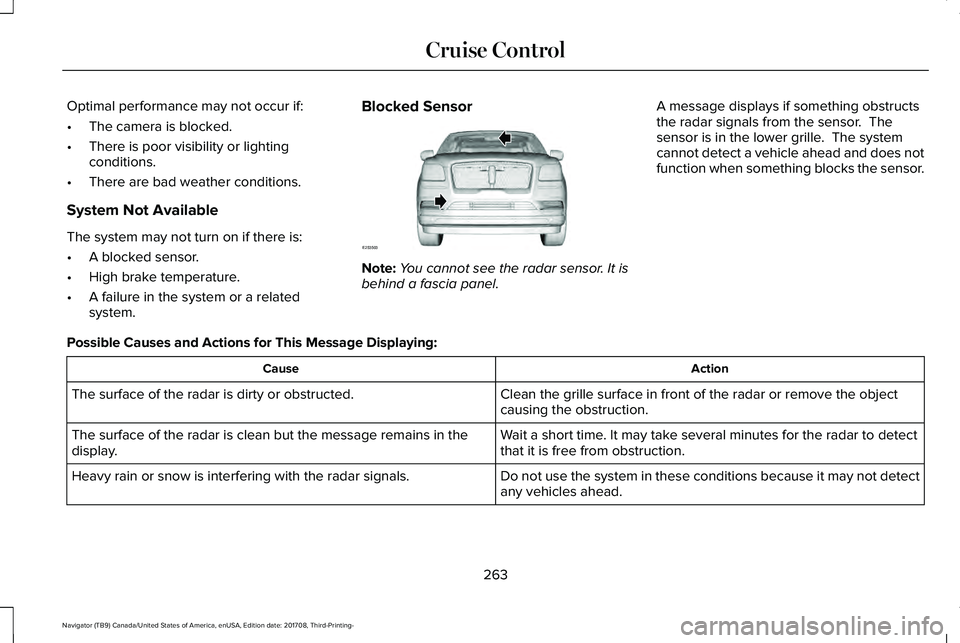
Blocked Sensor
Note:You cannot see the radar sensor. It isbehind a fascia panel.
A message displays if something obstructsthe radar signals from the sensor. Thesensor is in the lower grille. The systemcannot detect a vehicle ahead and does notfunction when something blocks the sensor.
Possible Causes and Actions for This Message Displaying:
ActionCause
Clean the grille surface in front of the radar or remove the objectcausing the obstruction.The surface of the radar is dirty or obstructed.
Wait a short time. It may take several minutes for the radar to detectthat it is free from obstruction.The surface of the radar is clean but the message remains in thedisplay.
Do not use the system in these conditions because it may not detectany vehicles ahead.Heavy rain or snow is interfering with the radar signals.
263
Navigator (TB9) Canada/United States of America, enUSA, Edition date: 201708, Third-Printing-
Cruise ControlE253503
Page 267 of 649
ActionCause
Do not use the system in these conditions because it may not detectany vehicles ahead.Water, snow or ice on the surface of the road may interfere with theradar signals.
Wait a short time or switch to normal cruise control.You are in a desert or remote area with no other vehicles and noroadside objects.
Contact an authorized dealer to have the radar checked for propercoverage and operation.Radar is out of alignment due to a front end impact.
Clean the outside of the windshield in front of the camera.The windshield in front of the camera is dirty or obstructed.
Wait a short time. It may take several minutes for the camera to detectthat it is free from obstruction.The windshield in front of the camera is clean, but the messageremains in the display.
Due to the nature of radar technology, it is possible to get a blockage warning with no actual block. This happens, for example, when drivingin sparse rural or desert environments. A false blocked condition either self clears, or clears after you restart your vehicle.
Switching to Normal Cruise Control
WARNING: Normal cruise control willnot brake when your vehicle isapproaching slower vehicles. Always beaware of which mode you have selectedand apply the brakes when necessary.
You can change from adaptive cruise controlto normal cruise control through theinformation display.
The cruise control indicator lightreplaces the adaptive cruisecontrol indicator light if you selectnormal cruise control. The gap setting doesnot display, and the system does not respondto lead vehicles. Automatic braking remainsactive to maintain set speed.
264
Navigator (TB9) Canada/United States of America, enUSA, Edition date: 201708, Third-Printing-
Cruise ControlE71340
Page 284 of 649
Note:A high crown in the road or highcrosswinds may also make the steeringseem to wander or pull.
Adaptive Learning
The electronic power steering systemadaptive learning helps correct roadirregularities and improves overall handlingand steering feel. It communicates with thebrake system to help operate advancedstability control and accident avoidancesystems. Additionally, whenever the batteryis disconnected or a new battery installed,you must drive your vehicle a short distancebefore the system relearns the strategy andreactivates all systems.
PRE-COLLISION ASSIST
WARNING: You are responsible forcontrolling your vehicle at all times. Thesystem is designed to be an aid and doesnot relieve you of your responsibility todrive with due care and attention. Failureto follow this instruction could result in theloss of control of your vehicle, personalinjury or death.
WARNING: The system does notdetect vehicles that are driving in adifferent direction, cyclists or animals.Failure to take care may result in the lossof control of your vehicle, serious personalinjury or death.
WARNING: The system does notoperate during hard acceleration orsteering. Failure to take care may lead toa crash or personal injury.
WARNING: The system may fail oroperate with reduced function during coldand severe weather conditions. Snow, ice,rain, spray and fog can adversely affect thesystem. Keep the front camera and radarfree of snow and ice. Failure to take caremay result in the loss of control of yourvehicle, serious personal injury or death.
WARNING: In situations where thevehicle camera has limited detectioncapability, this may reduce systemperformance. These situations include butare not limited to direct or low sunlight,vehicles at night without tail lights,unconventional vehicle types, pedestrianswith complex backgrounds, runningpedestrians, partly obscured pedestrians,or pedestrians that the system cannotdistinguish from a group. Failure to takecare may result in the loss of control ofyour vehicle, serious personal injury ordeath.
281
Navigator (TB9) Canada/United States of America, enUSA, Edition date: 201708, Third-Printing-
Driving Aids
Page 285 of 649
WARNING: The system cannot helpprevent all crashes. Do not rely on thissystem to replace driver judgment and theneed to maintain a safe distance andspeed.
Using the Pre-Collision Assist System
The Pre-Collision Assist system is active atspeeds above approximately 3 mph (5 km/h)and pedestrian detection is active at speedsup to 50 mph (80 km/h).
If your vehicle is rapidly approaching anotherstationary vehicle, a vehicle traveling in thesame direction as yours, or a pedestrianwithin your driving path, the system isdesigned to provide three levels offunctionality:
1. Alert
2. Brake Support
3. Active Braking
Alert: When active, a flashing visual warningappears and an audible warning tonesounds.
Brake Support: The system is designed tohelp reduce the impact speed by preparingthe brakes for rapid braking. Brake supportdoes not automatically apply the brakes. Ifyou press the brake pedal, the system couldapply additional braking up to maximumbraking force, even if you lightly press thebrake pedal.
Active Braking: Active braking may activateif the system determines that a collision isimminent. The system may help the driverreduce impact damage or avoid the crashcompletely.
Note:The Active Braking capability of thesystem is disabled when you select theSLOW CLIMB drive mode.
Note:If you perceive Pre-Collision Assistalerts as being too frequent or disturbing,then you can reduce the alert sensitivity,though the manufacturer recommends usingthe highest sensitivity setting where possible.Setting lower sensitivity would lead to fewerand later system warnings.
Distance Indication and Alert
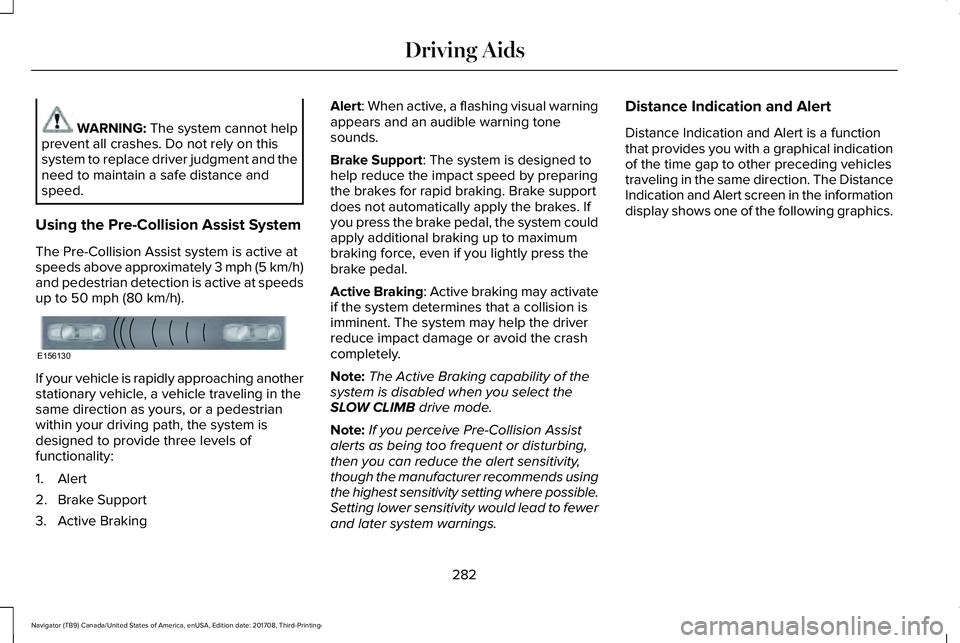
Distance Indication and Alert is a functionthat provides you with a graphical indicationof the time gap to other preceding vehiclestraveling in the same direction. The DistanceIndication and Alert screen in the informationdisplay shows one of the following graphics.
282
Navigator (TB9) Canada/United States of America, enUSA, Edition date: 201708, Third-Printing-
Driving AidsE156130
Page 298 of 649
operation at Gross Vehicle WeightRating, not at Gross Combined WeightRating.) Separate functional brakesshould be used for safe control of towedvehicles and for trailers where the GrossCombined Weight of the towing vehicleplus the trailer exceed the Gross VehicleWeight Rating of the towing vehicle.
The gross combined weight must neverexceed the Gross Combined WeightRating.
Note: For trailer towing informationrefer to the RV and Trailer Towing Guideavailable at an authorized dealer.
WARNING: Do not exceed theGVWR or the GAWR specified on thecertification label.
WARNING: Do not usereplacement tires with lower loadcarrying capacities than the originaltires because they may lower yourvehicle's GVWR and GAWR limitations.Replacement tires with a higher limitthan the original tires do not increasethe GVWR and GAWR limitations.
WARNING: Exceeding anyvehicle weight rating can adverselyaffect the performance and handlingof your vehicle, cause vehicle damageand can result in the loss of control ofyour vehicle, serious personal injuryor death.
Steps for determining the correct loadlimit:
1.Locate the statement "The combinedweight of occupants and cargoshould never exceed XXX kg or XXXlb." on your vehicle’s placard.
2.Determine the combined weight ofthe driver and passengers that willbe riding in your vehicle.
3.Subtract the combined weight of thedriver and passengers from XXX kgor XXX lb.
4. The resulting figure equals theavailable amount of cargo andluggage load capacity. For example,if the “XXX” amount equals 1,400 lb.and there will be five 150 lb.passengers in your vehicle, theamount of available cargo andluggage load capacity is 650 lb.(1400-750 (5 x 150) = 650 lb.)
5.Determine the combined weight ofluggage and cargo being loaded onthe vehicle. That weight may not
safely exceed the available cargoand luggage load capacity calculatedin Step 4.
295
Navigator (TB9) Canada/United States of America, enUSA, Edition date: 201708, Third-Printing-
Load Carrying
Page 301 of 649
TOWING A TRAILER
WARNING: Towing trailersbeyond the maximum recommendedgross trailer weight exceeds the limitof your vehicle and could result inengine damage, transmission damage,structural damage, loss of vehiclecontrol, vehicle rollover and personalinjury.
WARNING: Do not exceed theGVWR or the GAWR specified on thecertification label.
Note: See Recommended TowingWeights (page 310).
Your vehicle may have electrical items,such as fuses or relays, related totowing. See Fuses (page 342).
Your vehicle's load capacity designationis by weight, not by volume, so youcannot necessarily use all availablespace when loading a vehicle or trailer.
Towing a trailer places an extra load onyour vehicle's engine, transmission, axle,brakes, tires and suspension. Inspectthese components periodically during,and after, any towing operation.
Load Placement
To help minimize how trailer movementaffects your vehicle when driving:
•Load the heaviest items closest tothe trailer floor.
•Load the heaviest items centeredbetween the left and right side trailertires.
•Load the heaviest items above thetrailer axles or just slightly forwardtoward the trailer tongue. Do notallow the final trailer tongue weightto go above or below 10-15% of theloaded trailer weight.
•Select a ball mount with the correctrise or drop and load capacity. Whenboth the loaded vehicle and trailerare connected, the trailer frameshould be level, or slightly angleddown toward your vehicle, whenviewed from the side.
When driving with a trailer or payload, aslight takeoff vibration or shudder maybe present due to the increased payloadweight. Additional information regardingproper trailer loading and setting yourvehicle up for towing is located inanother chapter of this manual. SeeLoad Limit (page 293).
You can also find information in the RV& Trailer Towing Guide available at yourauthorized dealer, or online.
298
Navigator (TB9) Canada/United States of America, enUSA, Edition date: 201708, Third-Printing-
Towing