steering wheel LINCOLN NAVIGATOR 2019 User Guide
[x] Cancel search | Manufacturer: LINCOLN, Model Year: 2019, Model line: NAVIGATOR, Model: LINCOLN NAVIGATOR 2019Pages: 645, PDF Size: 5.02 MB
Page 95 of 645
HEATED STEERING WHEEL (IF
EQUIPPED)
Switch the heated steering wheel on and offusing the touchscreen.
Touch the button to switch theheated steering wheel on and off.
Note:You can use the heated steeringwheel only when the engine is running.
Note:The system uses a sensor and isdesigned to control the temperature of thesteering wheel and to prevent it fromoverheating.
Note:In warm temperatures, the steeringwheel quickly reaches its maximumtemperature and the system reduces thecurrent to the heating element. This couldcause you to think that the system hasstopped working but it has not. This isnormal.
92
Navigator (TB9) Canada/United States of America, enUSA, Edition date: 201808, First-Printing
Steering Wheel
Page 104 of 645
The system turns the high beams off if:
•The ambient light level is high enoughthat high beams are not required.
•The system detects an approachingvehicle's headlamps or tail lamps.
•The vehicle speed falls belowapproximately 27 mph (44 km/h).
•The system detects severe rain, snow orfog.
•The camera is blocked.
Switching the System On and Off
Switch the system on using the informationdisplay. See Information Displays (page120).
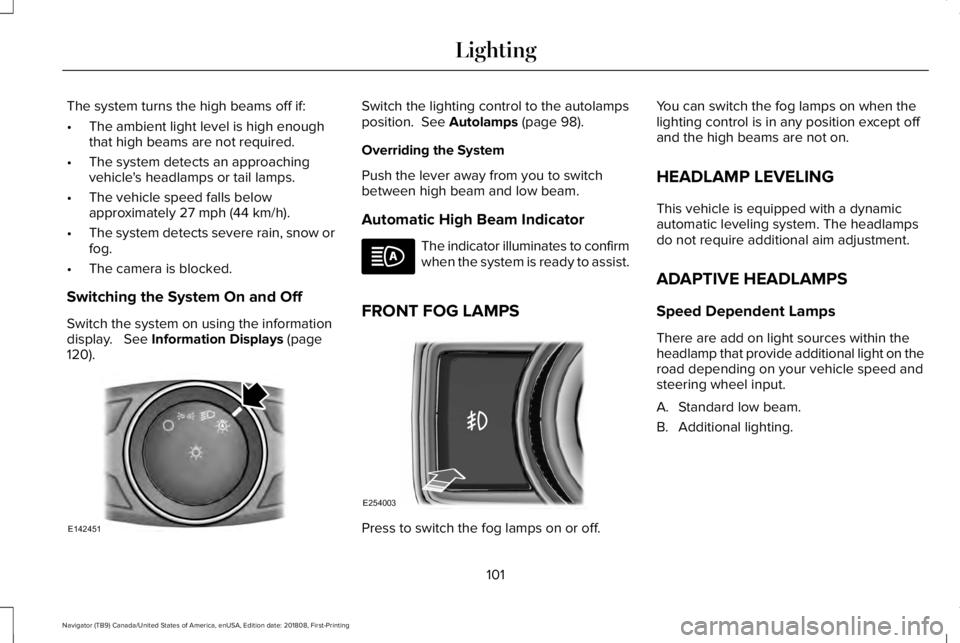
Switch the lighting control to the autolampsposition. See Autolamps (page 98).
Overriding the System
Push the lever away from you to switchbetween high beam and low beam.
Automatic High Beam Indicator
The indicator illuminates to confirmwhen the system is ready to assist.
FRONT FOG LAMPS
Press to switch the fog lamps on or off.
You can switch the fog lamps on when thelighting control is in any position except offand the high beams are not on.
HEADLAMP LEVELING
This vehicle is equipped with a dynamicautomatic leveling system. The headlampsdo not require additional aim adjustment.
ADAPTIVE HEADLAMPS
Speed Dependent Lamps
There are add on light sources within theheadlamp that provide additional light on theroad depending on your vehicle speed andsteering wheel input.
A. Standard low beam.
B. Additional lighting.
101
Navigator (TB9) Canada/United States of America, enUSA, Edition date: 201808, First-Printing
LightingE142451 E254003
Page 123 of 645
GENERAL INFORMATION
WARNING: Driving while distractedcan result in loss of vehicle control, crashand injury. We strongly recommend thatyou use extreme caution when using anydevice that may take your focus off theroad. Your primary responsibility is the safeoperation of your vehicle. We recommendagainst the use of any hand-held devicewhile driving and encourage the use ofvoice-operated systems when possible.Make sure you are aware of all applicablelocal laws that may affect the use ofelectronic devices while driving.
You can control various systems on yourvehicle using the quick action menu (QAM)buttons on the right-hand side of the steeringwheel. The information display provides thecorresponding information.
Note:Some options may appear slightlydifferent or not at all if the items are optional.
Note:Trailer options are not available if yourvehicle speed is greater than 3 mph (5 km/h).
Note:Some MyKey menu options onlyappear if MyKey is enabled and at least oneMyKey is programmed.
This icon gives you the ability toswitch a feature on or off. A checkin the box indicates the feature ison, and unchecked indicates the feature isoff.
120
Navigator (TB9) Canada/United States of America, enUSA, Edition date: 201808, First-Printing
Information DisplaysE204495
Page 130 of 645
Adaptive Headlamps
ActionMessage
Displays when a fault with the system has occurred. Contact an authorized dealer as soon aspossible.Check Headlamp System See Manual
Alarm
ActionMessage
The alarm has been triggered due to unauthorized entry. See Anti-Theft Alarm (page 86).Vehicle Alarm To Stop Alarm, Start Vehicle.
Automatic Engine Shutdown
ActionMessage
The engine is getting ready to shut off.Vehicle Shuts Off In {seconds:#0} Seconds
The engine has shut off to help increase fuel economy.Vehicle Shut Off to Save Energy
The engine is getting ready to shut off. You can press OK on the left steering wheel button tooverride the shut down.Vehicle Shuts Off in {seconds:#0} SecondsPress Ok to Override
127
Navigator (TB9) Canada/United States of America, enUSA, Edition date: 201808, First-Printing
Information Displays
Page 138 of 645
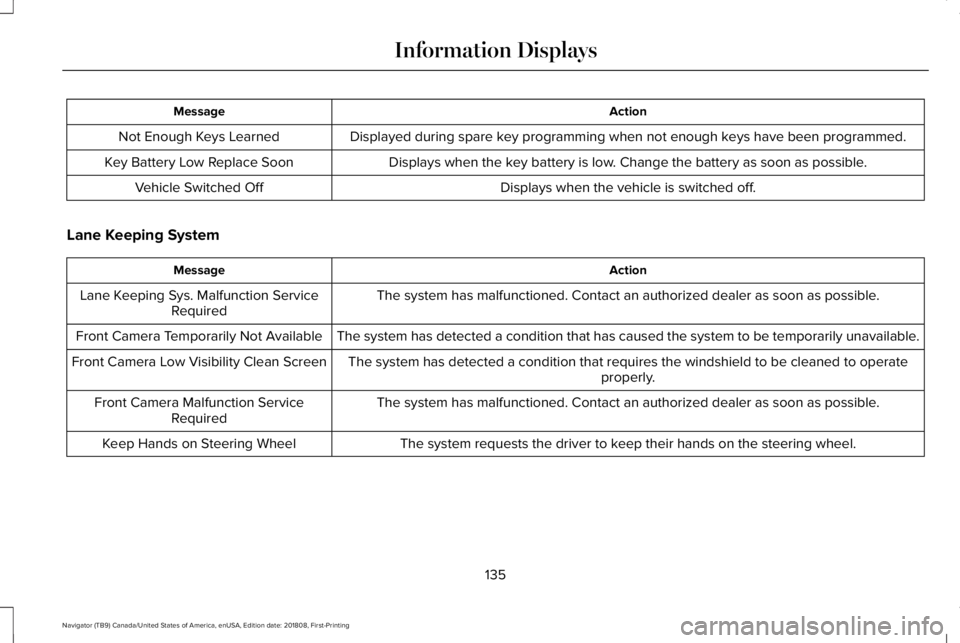
ActionMessage
Displayed during spare key programming when not enough keys have been programmed.Not Enough Keys Learned
Displays when the key battery is low. Change the battery as soon as possible.Key Battery Low Replace Soon
Displays when the vehicle is switched off.Vehicle Switched Off
Lane Keeping System
ActionMessage
The system has malfunctioned. Contact an authorized dealer as soon as possible.Lane Keeping Sys. Malfunction ServiceRequired
The system has detected a condition that has caused the system to be temporarily unavailable.Front Camera Temporarily Not Available
The system has detected a condition that requires the windshield to be cleaned to operateproperly.Front Camera Low Visibility Clean Screen
The system has malfunctioned. Contact an authorized dealer as soon as possible.Front Camera Malfunction ServiceRequired
The system requests the driver to keep their hands on the steering wheel.Keep Hands on Steering Wheel
135
Navigator (TB9) Canada/United States of America, enUSA, Edition date: 201808, First-Printing
Information Displays
Page 144 of 645
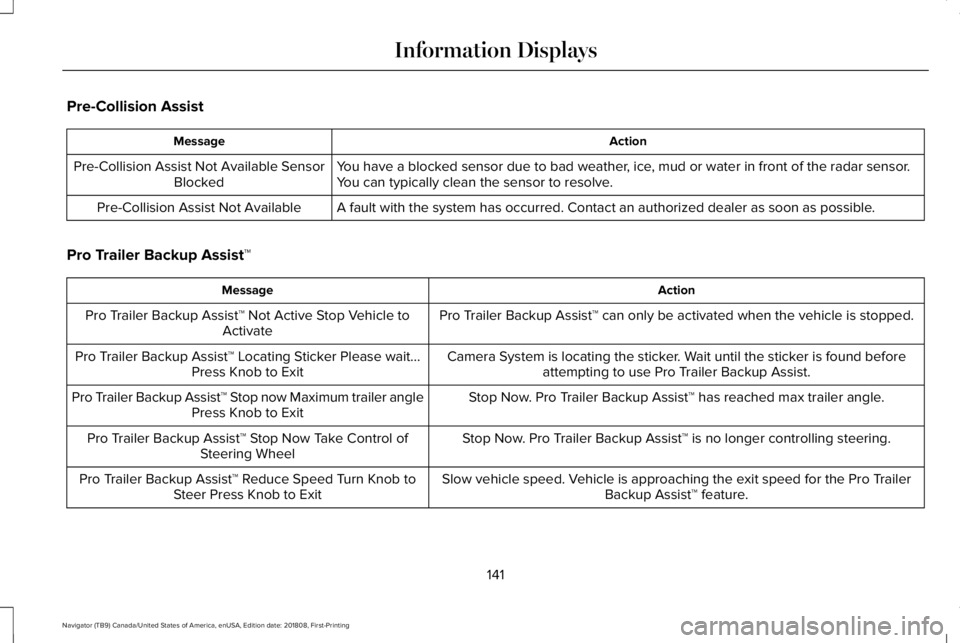
Pre-Collision Assist
ActionMessage
You have a blocked sensor due to bad weather, ice, mud or water in front of the radar sensor.You can typically clean the sensor to resolve.Pre-Collision Assist Not Available SensorBlocked
A fault with the system has occurred. Contact an authorized dealer as soon as possible.Pre-Collision Assist Not Available
Pro Trailer Backup Assist™
ActionMessage
Pro Trailer Backup Assist™ can only be activated when the vehicle is stopped.Pro Trailer Backup Assist™ Not Active Stop Vehicle toActivate
Camera System is locating the sticker. Wait until the sticker is found beforeattempting to use Pro Trailer Backup Assist.Pro Trailer Backup Assist™ Locating Sticker Please wait...Press Knob to Exit
Stop Now. Pro Trailer Backup Assist™ has reached max trailer angle.Pro Trailer Backup Assist™ Stop now Maximum trailer anglePress Knob to Exit
Stop Now. Pro Trailer Backup Assist™ is no longer controlling steering.Pro Trailer Backup Assist™ Stop Now Take Control ofSteering Wheel
Slow vehicle speed. Vehicle is approaching the exit speed for the Pro TrailerBackup Assist™ feature.Pro Trailer Backup Assist™ Reduce Speed Turn Knob toSteer Press Knob to Exit
141
Navigator (TB9) Canada/United States of America, enUSA, Edition date: 201808, First-Printing
Information Displays
Page 145 of 645
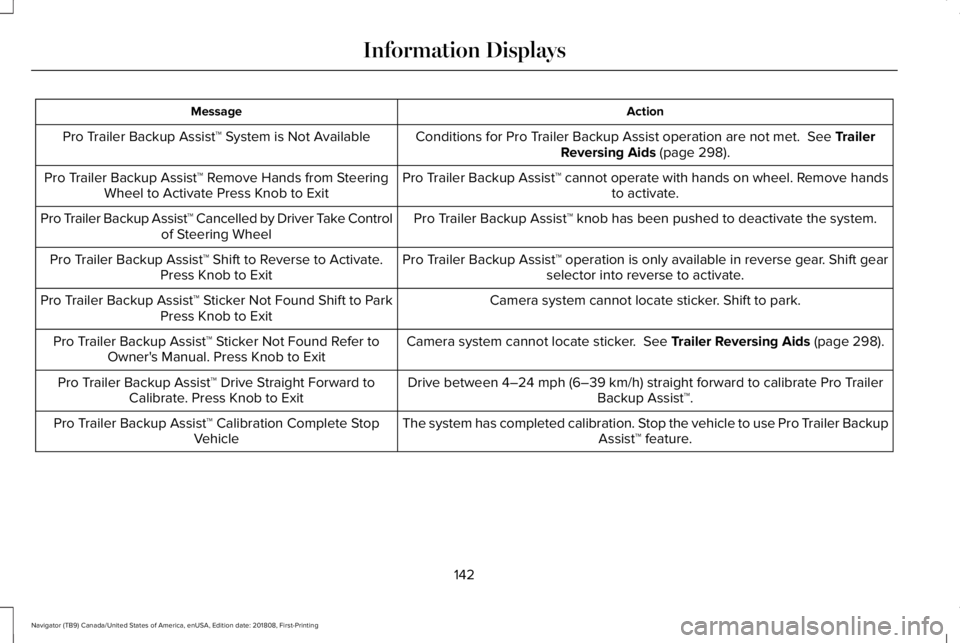
ActionMessage
Conditions for Pro Trailer Backup Assist operation are not met. See TrailerReversing Aids (page 298).Pro Trailer Backup Assist™ System is Not Available
Pro Trailer Backup Assist™ cannot operate with hands on wheel. Remove handsto activate.Pro Trailer Backup Assist™ Remove Hands from SteeringWheel to Activate Press Knob to Exit
Pro Trailer Backup Assist™ knob has been pushed to deactivate the system.Pro Trailer Backup Assist™ Cancelled by Driver Take Controlof Steering Wheel
Pro Trailer Backup Assist™ operation is only available in reverse gear. Shift gearselector into reverse to activate.Pro Trailer Backup Assist™ Shift to Reverse to Activate.Press Knob to Exit
Camera system cannot locate sticker. Shift to park.Pro Trailer Backup Assist™ Sticker Not Found Shift to ParkPress Knob to Exit
Camera system cannot locate sticker. See Trailer Reversing Aids (page 298).Pro Trailer Backup Assist™ Sticker Not Found Refer toOwner's Manual. Press Knob to Exit
Drive between 4–24 mph (6–39 km/h) straight forward to calibrate Pro TrailerBackup Assist™.Pro Trailer Backup Assist™ Drive Straight Forward toCalibrate. Press Knob to Exit
The system has completed calibration. Stop the vehicle to use Pro Trailer BackupAssist™ feature.Pro Trailer Backup Assist™ Calibration Complete StopVehicle
142
Navigator (TB9) Canada/United States of America, enUSA, Edition date: 201808, First-Printing
Information Displays
Page 152 of 645
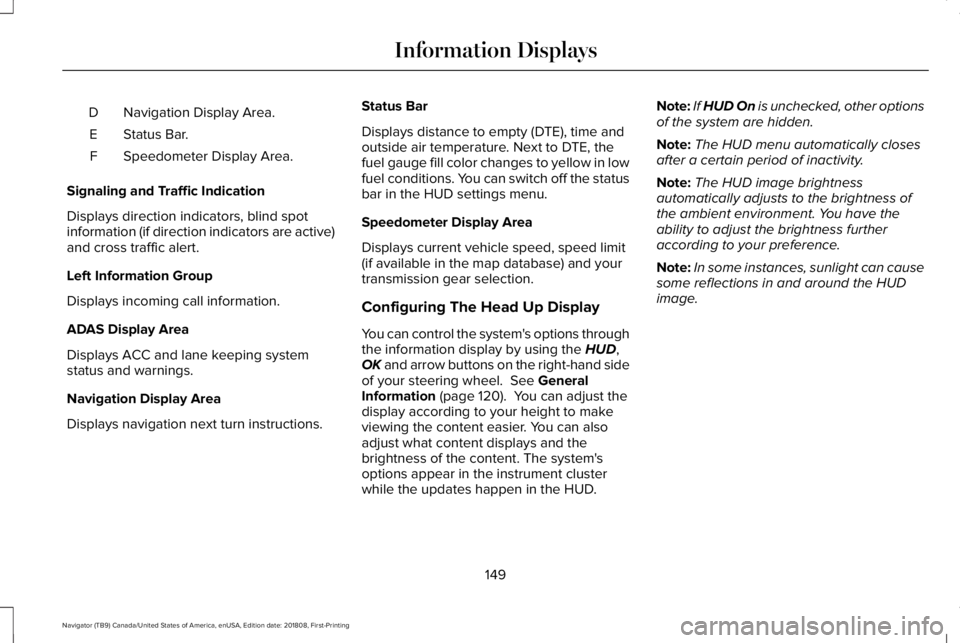
Navigation Display Area.D
Status Bar.E
Speedometer Display Area.F
Signaling and Traffic Indication
Displays direction indicators, blind spotinformation (if direction indicators are active)and cross traffic alert.
Left Information Group
Displays incoming call information.
ADAS Display Area
Displays ACC and lane keeping systemstatus and warnings.
Navigation Display Area
Displays navigation next turn instructions.
Status Bar
Displays distance to empty (DTE), time andoutside air temperature. Next to DTE, thefuel gauge fill color changes to yellow in lowfuel conditions. You can switch off the statusbar in the HUD settings menu.
Speedometer Display Area
Displays current vehicle speed, speed limit(if available in the map database) and yourtransmission gear selection.
Configuring The Head Up Display
You can control the system's options throughthe information display by using the HUD,OK and arrow buttons on the right-hand sideof your steering wheel. See GeneralInformation (page 120). You can adjust thedisplay according to your height to makeviewing the content easier. You can alsoadjust what content displays and thebrightness of the content. The system'soptions appear in the instrument clusterwhile the updates happen in the HUD.
Note:If HUD On is unchecked, other optionsof the system are hidden.
Note:The HUD menu automatically closesafter a certain period of inactivity.
Note:The HUD image brightnessautomatically adjusts to the brightness ofthe ambient environment. You have theability to adjust the brightness furtheraccording to your preference.
Note:In some instances, sunlight can causesome reflections in and around the HUDimage.
149
Navigator (TB9) Canada/United States of America, enUSA, Edition date: 201808, First-Printing
Information Displays
Page 160 of 645
Replace the filter at regular intervals. SeeScheduled Maintenance (page 547).
For additional cabin air filter information, orto replace the filter, see an authorized dealer.
REMOTE START
The climate control system adjusts theinterior temperature during remote start.
You can switch this feature on or off andadjust the settings using the informationdisplay controls. See Information Displays(page 120).
You cannot adjust the climate control settingduring remote start operation. Switch theignition on to make adjustments.
Based on your remote start settings, thefollowing vehicle-dependent features mayor may not remain on after remote startingyour vehicle:
•Climate controlled seats.
•Heated steering wheel.
•Heated mirrors.
•Heated rear window.
•Windshield wiper de-icer.
Note:For dual zone climate controlled seats,the passenger seat setting defaults to matchthe driver seat during remote start.
Automatic Settings
If Auto is on, the system sets the interiortemperature to 72°F (22°C) and heats orcools the vehicle interior as required toachieve comfort.
Note:In cold weather, the heated rearwindow and heated mirrors turn on.
Last Settings
If Last Settings is on, the system uses thesettings last selected before you turned offthe vehicle.
Heated and Cooled Features
In Auto mode, certain heated features mayswitch on during cold weather, and cooledfeatures during hot weather.
157
Navigator (TB9) Canada/United States of America, enUSA, Edition date: 201808, First-Printing
Climate Control
Page 161 of 645
SITTING IN THE CORRECT
POSITION
WARNING: Sitting improperly, out ofposition or with the seatback reclined toofar can take weight off the seat cushionand affect the decision of the passengersensing system, resulting in serious injuryor death in the event of a crash. Always situpright against your seat back, with yourfeet on the floor.
WARNING: Do not recline theseatback too far as this can cause theoccupant to slide under the seatbelt,resulting in serious injury in the event of acollision.
WARNING: Do not place objectshigher than the top of the seat backrest.Failure to follow this instruction could resultin personal injury or death in the event ofa sudden stop or crash.
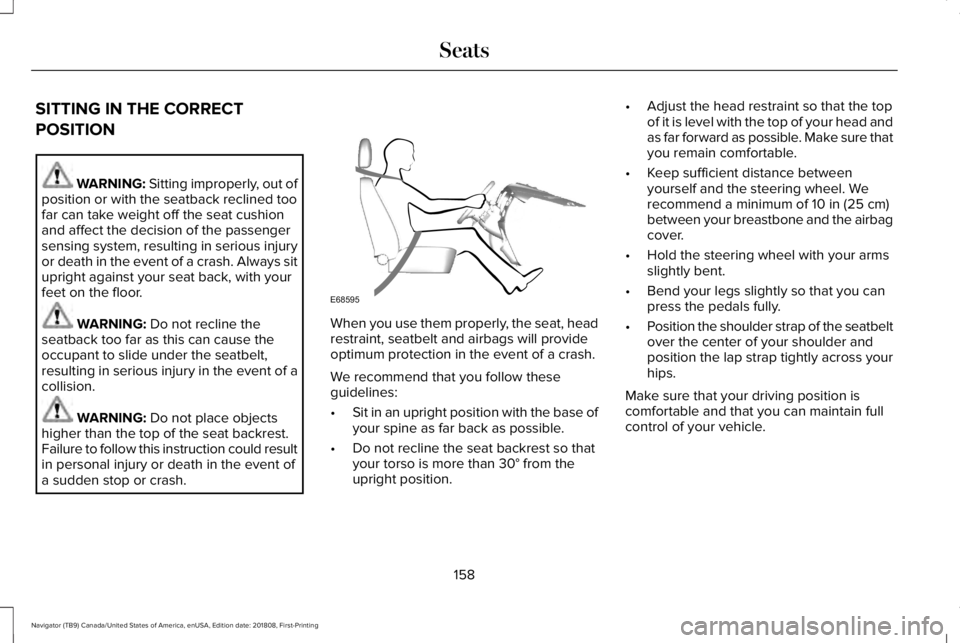
When you use them properly, the seat, headrestraint, seatbelt and airbags will provideoptimum protection in the event of a crash.
We recommend that you follow theseguidelines:
•Sit in an upright position with the base ofyour spine as far back as possible.
•Do not recline the seat backrest so thatyour torso is more than 30° from theupright position.
•Adjust the head restraint so that the topof it is level with the top of your head andas far forward as possible. Make sure thatyou remain comfortable.
•Keep sufficient distance betweenyourself and the steering wheel. Werecommend a minimum of 10 in (25 cm)between your breastbone and the airbagcover.
•Hold the steering wheel with your armsslightly bent.
•Bend your legs slightly so that you canpress the pedals fully.
•Position the shoulder strap of the seatbeltover the center of your shoulder andposition the lap strap tightly across yourhips.
Make sure that your driving position iscomfortable and that you can maintain fullcontrol of your vehicle.
158
Navigator (TB9) Canada/United States of America, enUSA, Edition date: 201808, First-Printing
SeatsE68595