steering wheel LINCOLN NAVIGATOR 2019 Service Manual
[x] Cancel search | Manufacturer: LINCOLN, Model Year: 2019, Model line: NAVIGATOR, Model: LINCOLN NAVIGATOR 2019Pages: 645, PDF Size: 5.02 MB
Page 268 of 645
Using Driver Alert
Switching the system on and off
You may switch the system on or off throughthe information display. See GeneralInformation (page 120). When activated, thesystem monitors your alertness level basedupon your driving behavior in relation to thelane markings, and other factors.
System Warnings
Note: The system does not issue warningsbelow approximately 40 mph (64 km/h).
The warning system is in two stages. At firstthe system issues a temporary warning thatyou need to take a rest. This message willonly appear for a short time. If the systemdetects further reduction in driving alertness,another warning may be issued which willremain in the information display for a longertime. Press OK on the steering wheel controlto clear the warning. When active the systemwill run automatically in the background andonly issue a warning if required.
Resetting the System
You can reset the system by either:
•Switching the ignition off and on.
•Stopping your vehicle and then openingand closing the driver’s door.
LANE KEEPING SYSTEM (IF EQUIPPED)
WARNING: You are responsible forcontrolling your vehicle at all times. Thesystem is designed to be an aid and doesnot relieve you of your responsibility todrive with due care and attention. Failureto follow this instruction could result in theloss of control of your vehicle, personalinjury or death.
WARNING: Always drive with duecare and attention when using andoperating the controls and features on yourvehicle.
WARNING: In cold and severeweather conditions the system may notfunction. Rain, snow and spray can all limitsensor performance.
WARNING: The system will notoperate if the sensor cannot track the roadlane markings.
WARNING: The sensor mayincorrectly track lane markings as otherstructures or objects. This can result in afalse or missed warning.
WARNING: Large contrasts in outsidelighting can limit sensor performance.
WARNING: The system may notoperate properly if the sensor is blocked.Keep the windshield free from obstruction.
WARNING: If damage occurs in theimmediate area surrounding the sensor,have your vehicle checked as soon aspossible.
265
Navigator (TB9) Canada/United States of America, enUSA, Edition date: 201808, First-Printing
Driving Aids
Page 269 of 645
WARNING: The system may notcorrectly operate if your vehicle is fittedwith a suspension kit not approved by us.
Note:The system works above 40 mph(64 km/h).
Note:The system works as long as thecamera can detect one lane marking.
Note:When you select aid or alert and aidmode and the system detects no steeringactivity for a short period, the system alertsyou to put your hands on the steering wheel.The system may detect a light grip or touchon the steering wheel as hands off driving.
Note:The system may not function if thecamera is blocked, or if the windshield isdamaged or dirty.
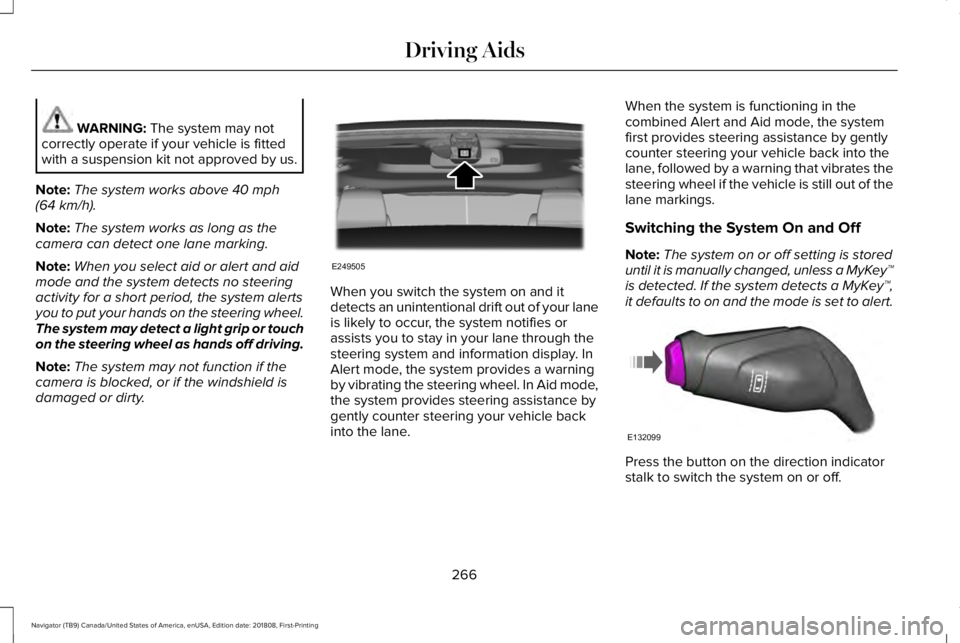
When you switch the system on and itdetects an unintentional drift out of your laneis likely to occur, the system notifies orassists you to stay in your lane through thesteering system and information display. InAlert mode, the system provides a warningby vibrating the steering wheel. In Aid mode,the system provides steering assistance bygently counter steering your vehicle backinto the lane.
When the system is functioning in thecombined Alert and Aid mode, the systemfirst provides steering assistance by gentlycounter steering your vehicle back into thelane, followed by a warning that vibrates thesteering wheel if the vehicle is still out of thelane markings.
Switching the System On and Off
Note:The system on or off setting is storeduntil it is manually changed, unless a MyKey™is detected. If the system detects a MyKey™,it defaults to on and the mode is set to alert.
Press the button on the direction indicatorstalk to switch the system on or off.
266
Navigator (TB9) Canada/United States of America, enUSA, Edition date: 201808, First-Printing
Driving AidsE249505 E132099
Page 270 of 645
System Settings
The system has optional menu settingsavailable. See General Information (page120). The system stores the last knownselection for each of these settings. You donot need to readjust your settings each timeyou switch the system on.
Adjust the settings to enable one of the threemodes:
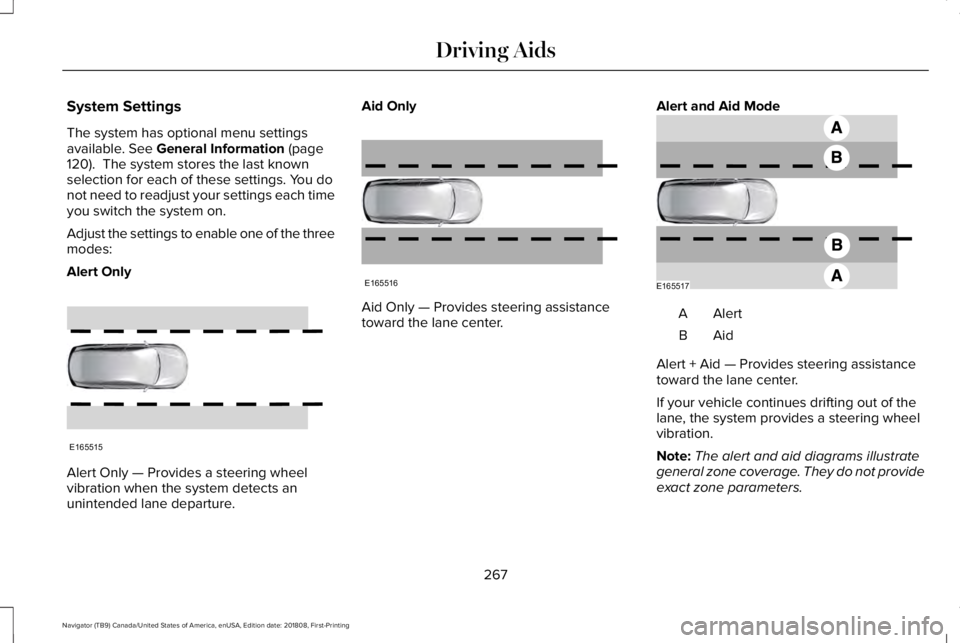
Alert Only
Alert Only — Provides a steering wheelvibration when the system detects anunintended lane departure.
Aid Only
Aid Only — Provides steering assistancetoward the lane center.
Alert and Aid Mode
AlertA
AidB
Alert + Aid — Provides steering assistancetoward the lane center.
If your vehicle continues drifting out of thelane, the system provides a steering wheelvibration.
Note:The alert and aid diagrams illustrategeneral zone coverage. They do not provideexact zone parameters.
267
Navigator (TB9) Canada/United States of America, enUSA, Edition date: 201808, First-Printing
Driving AidsE165515 E165516 E165517
Page 271 of 645
Intensity: This setting affects the intensity ofthe steering wheel vibration used for the alertand alert and aid modes. This setting doesnot affect the aid mode.
•Low.
•Medium.
•High.
System Display
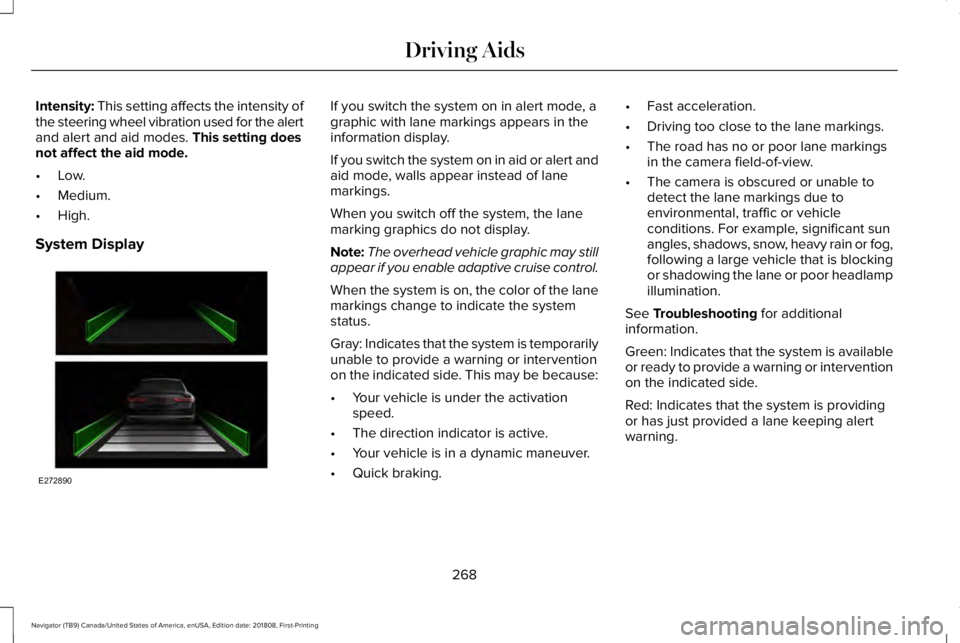
If you switch the system on in alert mode, agraphic with lane markings appears in theinformation display.
If you switch the system on in aid or alert andaid mode, walls appear instead of lanemarkings.
When you switch off the system, the lanemarking graphics do not display.
Note:The overhead vehicle graphic may stillappear if you enable adaptive cruise control.
When the system is on, the color of the lanemarkings change to indicate the systemstatus.
Gray: Indicates that the system is temporarilyunable to provide a warning or interventionon the indicated side. This may be because:
•Your vehicle is under the activationspeed.
•The direction indicator is active.
•Your vehicle is in a dynamic maneuver.
•Quick braking.
•Fast acceleration.
•Driving too close to the lane markings.
•The road has no or poor lane markingsin the camera field-of-view.
•The camera is obscured or unable todetect the lane markings due toenvironmental, traffic or vehicleconditions. For example, significant sunangles, shadows, snow, heavy rain or fog,following a large vehicle that is blockingor shadowing the lane or poor headlampillumination.
See Troubleshooting for additionalinformation.
Green: Indicates that the system is availableor ready to provide a warning or interventionon the indicated side.
Red: Indicates that the system is providingor has just provided a lane keeping alertwarning.
268
Navigator (TB9) Canada/United States of America, enUSA, Edition date: 201808, First-Printing
Driving AidsE272890
Page 288 of 645
Changing the drive mode automaticallychanges the functionality of the followingsystems:
•Electronically power-assisted steeringsystem adjusts steering effort and feelbased on the mode you select. SeeSteering (page 279).
•Electronic stability control and tractioncontrol maintain your vehicle control inadverse conditions or high performancedriving. See Stability Control (page 232).
•Electronic throttle control enhances thepowertrain response to your inputs.
•Transmission controls optimize with shiftschedules tuned to each mode.
•Driveline settings optimize for eachmode.
Using the System
The system automatically tailors your vehicleconfiguration for each mode you select.
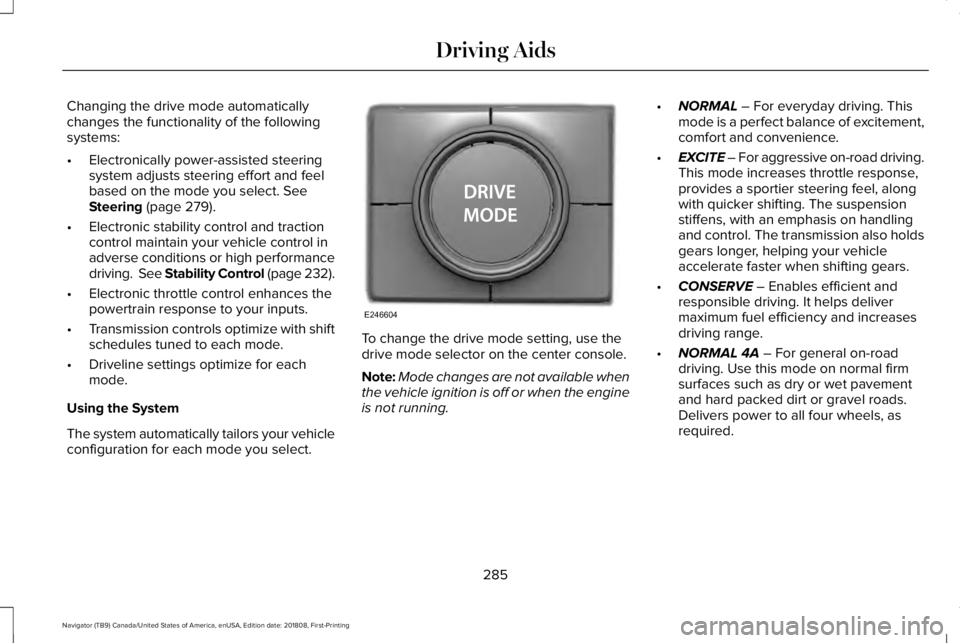
To change the drive mode setting, use thedrive mode selector on the center console.
Note:Mode changes are not available whenthe vehicle ignition is off or when the engineis not running.
•NORMAL – For everyday driving. Thismode is a perfect balance of excitement,comfort and convenience.
•EXCITE – For aggressive on-road driving.This mode increases throttle response,provides a sportier steering feel, alongwith quicker shifting. The suspensionstiffens, with an emphasis on handlingand control. The transmission also holdsgears longer, helping your vehicleaccelerate faster when shifting gears.
•CONSERVE – Enables efficient andresponsible driving. It helps delivermaximum fuel efficiency and increasesdriving range.
•NORMAL 4A – For general on-roaddriving. Use this mode on normal firmsurfaces such as dry or wet pavementand hard packed dirt or gravel roads.Delivers power to all four wheels, asrequired.
285
Navigator (TB9) Canada/United States of America, enUSA, Edition date: 201808, First-Printing
Driving AidsE246604
Page 302 of 645
You have to set up each trailer you use withyour vehicle. You must accurately follow thesetup process to make sure you correctlyplace the sticker.
Contact your dealership if you needassistance in setting up your trailer.
Setting Up Pro Trailer Backup Assist
Note:Once you enter a trailer's information,the system stores it for easy recall. You canadd a maximum of 10 trailers to the system.
Step 1: Position your Vehicle and Trailer
Hitch the conventional trailer to your vehicle.See Essential Towing Checks (page 311).
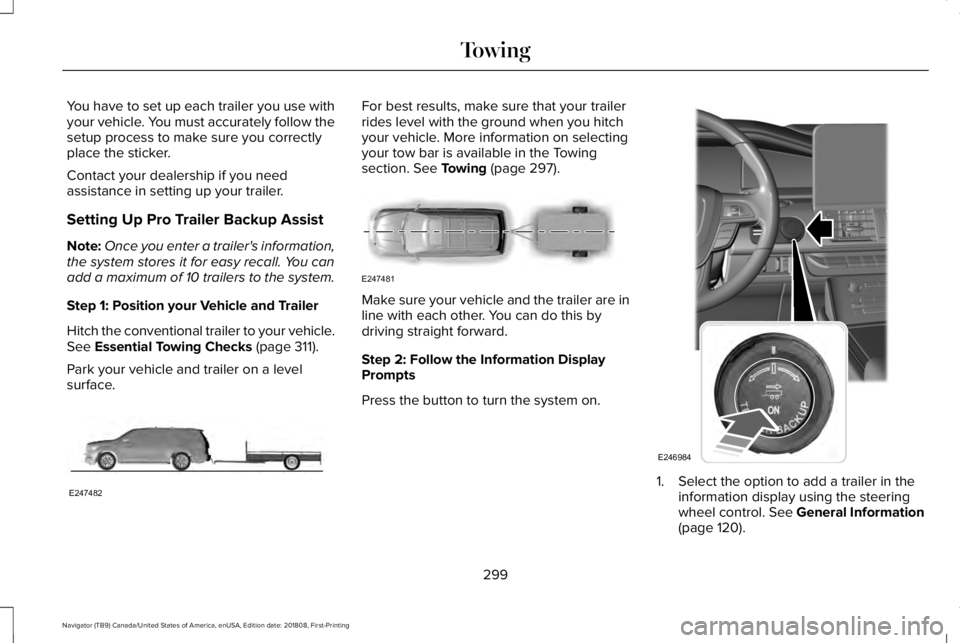
Park your vehicle and trailer on a levelsurface.
For best results, make sure that your trailerrides level with the ground when you hitchyour vehicle. More information on selectingyour tow bar is available in the Towingsection. See Towing (page 297).
Make sure your vehicle and the trailer are inline with each other. You can do this bydriving straight forward.
Step 2: Follow the Information DisplayPrompts
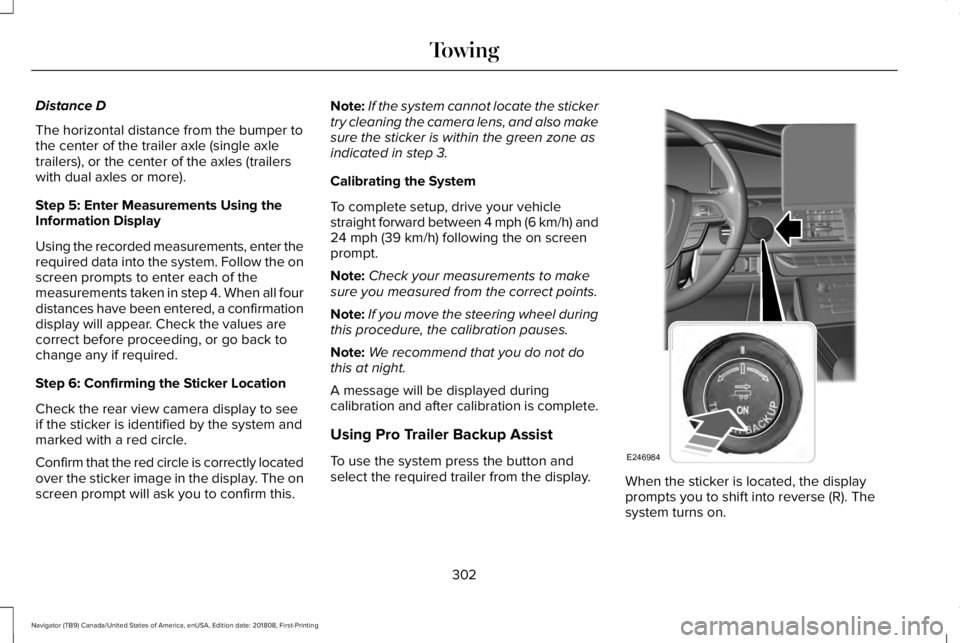
Press the button to turn the system on.
1. Select the option to add a trailer in theinformation display using the steeringwheel control. See General Information(page 120).
299
Navigator (TB9) Canada/United States of America, enUSA, Edition date: 201808, First-Printing
TowingE247482 E247481 E246984
Page 305 of 645
Distance D
The horizontal distance from the bumper tothe center of the trailer axle (single axletrailers), or the center of the axles (trailerswith dual axles or more).
Step 5: Enter Measurements Using theInformation Display
Using the recorded measurements, enter therequired data into the system. Follow the onscreen prompts to enter each of themeasurements taken in step 4. When all fourdistances have been entered, a confirmationdisplay will appear. Check the values arecorrect before proceeding, or go back tochange any if required.
Step 6: Confirming the Sticker Location
Check the rear view camera display to seeif the sticker is identified by the system andmarked with a red circle.
Confirm that the red circle is correctly locatedover the sticker image in the display. The onscreen prompt will ask you to confirm this.
Note:If the system cannot locate the stickertry cleaning the camera lens, and also makesure the sticker is within the green zone asindicated in step 3.
Calibrating the System
To complete setup, drive your vehiclestraight forward between 4 mph (6 km/h) and24 mph (39 km/h) following the on screenprompt.
Note:Check your measurements to makesure you measured from the correct points.
Note:If you move the steering wheel duringthis procedure, the calibration pauses.
Note:We recommend that you do not dothis at night.
A message will be displayed duringcalibration and after calibration is complete.
Using Pro Trailer Backup Assist
To use the system press the button andselect the required trailer from the display.When the sticker is located, the displayprompts you to shift into reverse (R). Thesystem turns on.
302
Navigator (TB9) Canada/United States of America, enUSA, Edition date: 201808, First-Printing
TowingE246984
Page 306 of 645
Note:The system does not function if yourhands are on the steering wheel. Removeyour hands to resume operation.
Follow the screen prompts to steer yourvehicle and trailer.
Note:You may have to drive forward tostraighten the trailer.
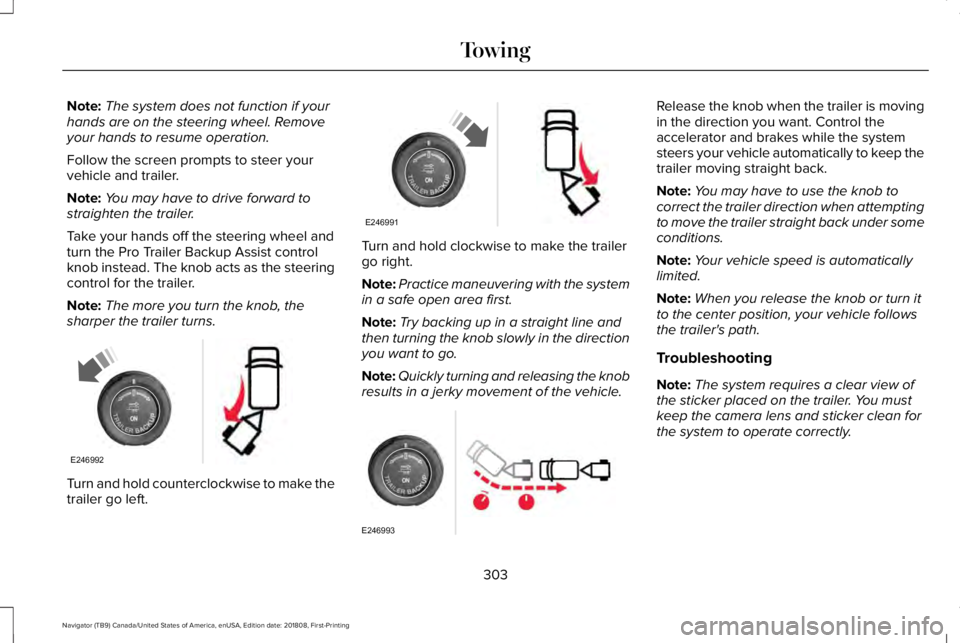
Take your hands off the steering wheel andturn the Pro Trailer Backup Assist controlknob instead. The knob acts as the steeringcontrol for the trailer.
Note:The more you turn the knob, thesharper the trailer turns.
Turn and hold counterclockwise to make thetrailer go left.
Turn and hold clockwise to make the trailergo right.
Note:Practice maneuvering with the systemin a safe open area first.
Note:Try backing up in a straight line andthen turning the knob slowly in the directionyou want to go.
Note:Quickly turning and releasing the knobresults in a jerky movement of the vehicle.
Release the knob when the trailer is movingin the direction you want. Control theaccelerator and brakes while the systemsteers your vehicle automatically to keep thetrailer moving straight back.
Note:You may have to use the knob tocorrect the trailer direction when attemptingto move the trailer straight back under someconditions.
Note:Your vehicle speed is automaticallylimited.
Note:When you release the knob or turn itto the center position, your vehicle followsthe trailer's path.
Troubleshooting
Note:The system requires a clear view ofthe sticker placed on the trailer. You mustkeep the camera lens and sticker clean forthe system to operate correctly.
303
Navigator (TB9) Canada/United States of America, enUSA, Edition date: 201808, First-Printing
TowingE246992 E246991 E246993
Page 311 of 645
•If the sticker location needs to bechanged, the previous sticker must beremoved and a new sticker needs to beplaced on the trailer. ONLY ONESTICKER SHOULD BE PLACED ON THETRAILER FOR PROPER SYSTEMFUNCTION.
•Disregard the prompt to remove thissticker and continue to the next step ifyou only plan to update themeasurements for the current stickerlocation.
System consistently shows Stop now takecontrol of steering warning:
•The system displays this warning whenit can no longer steer the vehicle and youmust take over steering. There are fourreasons why this warning displays andadditional information regarding thereason for the warning is available on thecenter display.
•The steering wheel is touched while thesystem is controlling it. Avoid touchingthe wheel during system operation.
•The maximum speed for featureoperation is exceeded. Systemperformance is optimized at slowerspeeds. Backup slowly.
•The sticker was lost by the camerasystem. Once your vehicle is stoppedadditional warnings will indicate thesticker was lost. Refer to sticker losttrouble shooting tips.
•An internal condition for systemoperation was not met which requiresyour vehicle return to manual control ofthe steering.
Note:The system is designed to be usedwith the same trailer connection every timethe trailer is chosen from the selection menu.Using a different drawbar or a different pinhole (on drawbars with more than one) whenconnecting the drawbar to your vehicleaffects the trailer measurements. Take themeasurements again and update if required.
TRAILER SWAY CONTROL
WARNING: Turning off trailer swaycontrol increases the risk of loss of vehiclecontrol, serious injury or death. Ford doesnot recommend disabling this featureexcept in situations where speed reductionmay be detrimental (such as hill climbing),the driver has significant trailer towingexperience, and can control trailer swayand maintain safe operation.
Note:This feature does not prevent trailersway, but reduces it once it begins.
Note:This feature cannot stop all trailersfrom swaying.
Note:In some cases, if vehicle speed is toohigh, the system may activate multiple times,gradually reducing vehicle speed.
308
Navigator (TB9) Canada/United States of America, enUSA, Edition date: 201808, First-Printing
Towing
Page 321 of 645
Before Towing a Trailer
Practice turning, stopping and backing up toget the feel of your vehicle-trailercombination before starting on a trip. Whenturning, make wider turns so the trailerwheels clear curbs and other obstacles.
When Towing a Trailer
•Do not drive faster than 70 mph(113 km/h) during the first 500 mi(800 km).
•Do not make full-throttle starts.
•Check your hitch, electrical connectionsand trailer wheel lug nuts thoroughly afteryou have traveled 50 mi (80 km).
•When stopped in congested or heavytraffic during hot weather, place thetransmission in park (P) to aid engine andtransmission cooling and to help A/Cperformance.
•Turn off the speed control when carryingheavy loads or in hilly terrain. The speedcontrol may turn off automatically whenyou are towing on long, steep grades.
•Shift to a lower gear when driving downa long or steep hill. Do not apply thebrakes continuously, as they mayoverheat and become less effective.
•If your transmission has a Grade Assistor Tow/Haul feature, use this featurewhen towing. This provides enginebraking and helps eliminate excessivetransmission shifting for optimum fueleconomy and transmission cooling.
•If your vehicle has AdvanceTrac withRSC, this system may turn on duringtypical cornering maneuvers with aheavily loaded trailer. This is normal.Turning the corner at a slower speedwhile towing may reduce this tendency.
•If your vehicle has Adaptive suspension,you can select NORMAL or SPORT drivecontrol modes for better experiencewhen towing a trailer. See InformationDisplays (page 120).
•If you are towing a trailer frequently inhot weather, hilly conditions, at the grosscombined weight rating (or anycombination of these factors), considerrefilling your rear axle with synthetic gearlubricant (if the axle is not already filledwith it). See Capacities andSpecifications (page 418).
•Allow more distance for stopping with atrailer attached. Anticipate stops andbrake gradually.
•Avoid parking on a grade. However, ifyou must park on a grade:
1. Turn the steering wheel to point yourvehicle tires away from traffic flow.
2. Set your vehicle parking brake.
3. Place the transmission in park (P).
4.Place wheel chocks in the front and backof the trailer wheels.
Note:Chocks are not included with yourvehicle.
318
Navigator (TB9) Canada/United States of America, enUSA, Edition date: 201808, First-Printing
Towing