phone LINCOLN NAVIGATOR 2019 Owner's Guide
[x] Cancel search | Manufacturer: LINCOLN, Model Year: 2019, Model line: NAVIGATOR, Model: LINCOLN NAVIGATOR 2019Pages: 645, PDF Size: 5.02 MB
Page 462 of 645
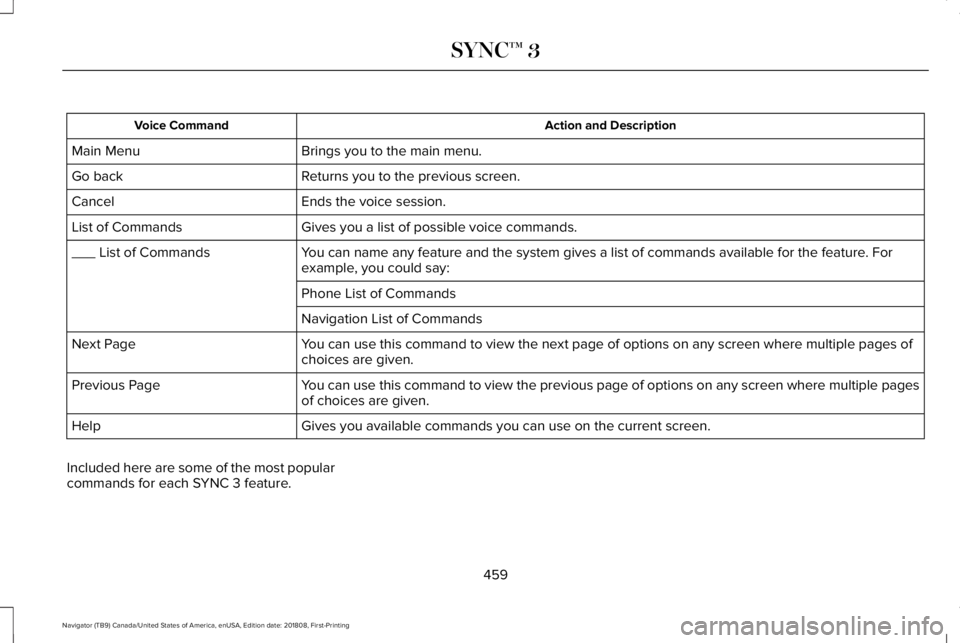
Action and DescriptionVoice Command
Brings you to the main menu.Main Menu
Returns you to the previous screen.Go back
Ends the voice session.Cancel
Gives you a list of possible voice commands.List of Commands
You can name any feature and the system gives a list of commands available for the feature. Forexample, you could say:___ List of Commands
Phone List of Commands
Navigation List of Commands
You can use this command to view the next page of options on any screen where multiple pages ofchoices are given.Next Page
You can use this command to view the previous page of options on any screen where multiple pagesof choices are given.Previous Page
Gives you available commands you can use on the current screen.Help
Included here are some of the most popularcommands for each SYNC 3 feature.
459
Navigator (TB9) Canada/United States of America, enUSA, Edition date: 201808, First-Printing
SYNC™ 3
Page 464 of 645
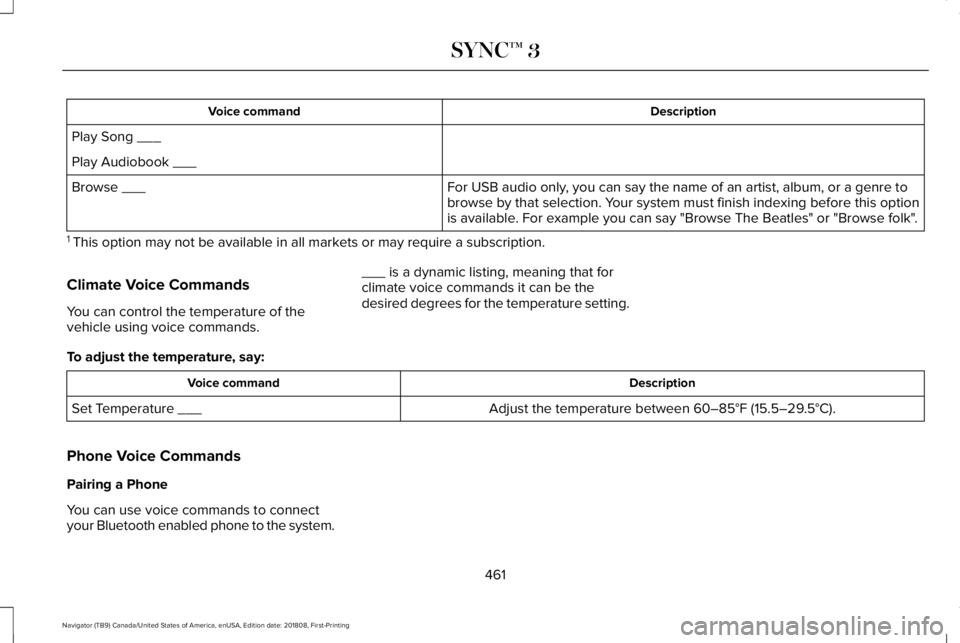
DescriptionVoice command
Play Song ___
Play Audiobook ___
For USB audio only, you can say the name of an artist, album, or a genre tobrowse by that selection. Your system must finish indexing before this optionis available. For example you can say "Browse The Beatles" or "Browse folk".
Browse ___
1 This option may not be available in all markets or may require a subscription.
Climate Voice Commands
You can control the temperature of thevehicle using voice commands.
___ is a dynamic listing, meaning that forclimate voice commands it can be thedesired degrees for the temperature setting.
To adjust the temperature, say:
DescriptionVoice command
Adjust the temperature between 60–85°F (15.5–29.5°C).Set Temperature ___
Phone Voice Commands
Pairing a Phone
You can use voice commands to connectyour Bluetooth enabled phone to the system.
461
Navigator (TB9) Canada/United States of America, enUSA, Edition date: 201808, First-Printing
SYNC™ 3
Page 465 of 645
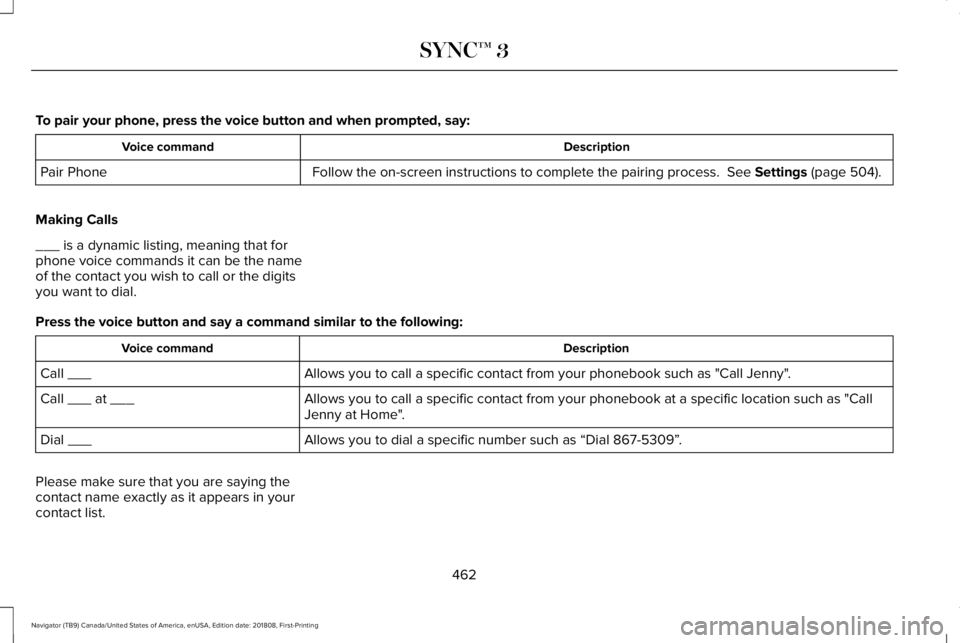
To pair your phone, press the voice button and when prompted, say:
DescriptionVoice command
Follow the on-screen instructions to complete the pairing process. See Settings (page 504).Pair Phone
Making Calls
___ is a dynamic listing, meaning that forphone voice commands it can be the nameof the contact you wish to call or the digitsyou want to dial.
Press the voice button and say a command similar to the following:
DescriptionVoice command
Allows you to call a specific contact from your phonebook such as "Call Jenny".Call ___
Allows you to call a specific contact from your phonebook at a specific location such as "CallJenny at Home".Call ___ at ___
Allows you to dial a specific number such as “Dial 867-5309”.Dial ___
Please make sure that you are saying thecontact name exactly as it appears in yourcontact list.
462
Navigator (TB9) Canada/United States of America, enUSA, Edition date: 201808, First-Printing
SYNC™ 3
Page 466 of 645
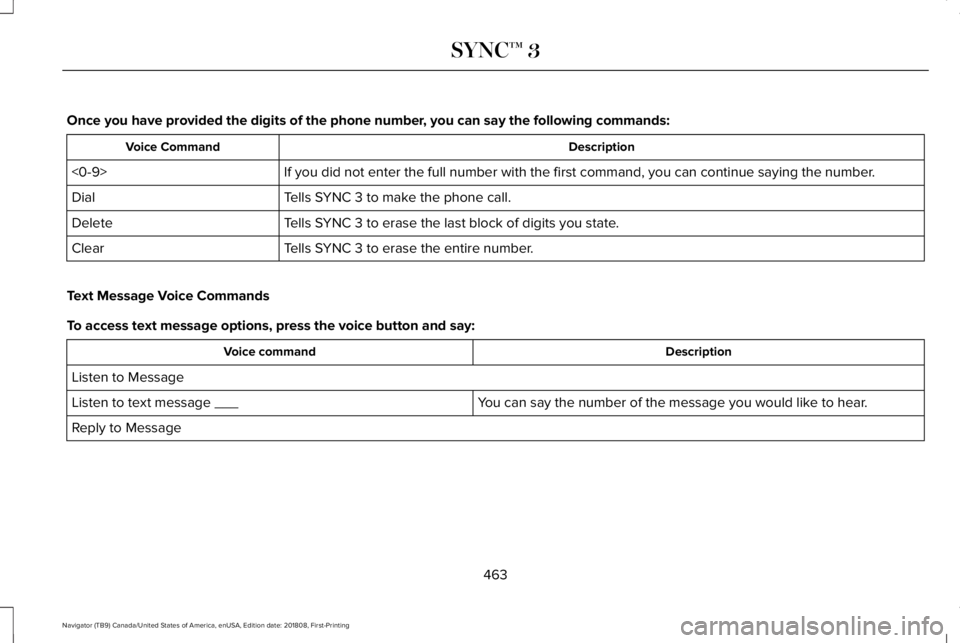
Once you have provided the digits of the phone number, you can say the following commands:
DescriptionVoice Command
If you did not enter the full number with the first command, you can continue saying the number.<0-9>
Tells SYNC 3 to make the phone call.Dial
Tells SYNC 3 to erase the last block of digits you state.Delete
Tells SYNC 3 to erase the entire number.Clear
Text Message Voice Commands
To access text message options, press the voice button and say:
DescriptionVoice command
Listen to Message
You can say the number of the message you would like to hear.Listen to text message ___
Reply to Message
463
Navigator (TB9) Canada/United States of America, enUSA, Edition date: 201808, First-Printing
SYNC™ 3
Page 470 of 645
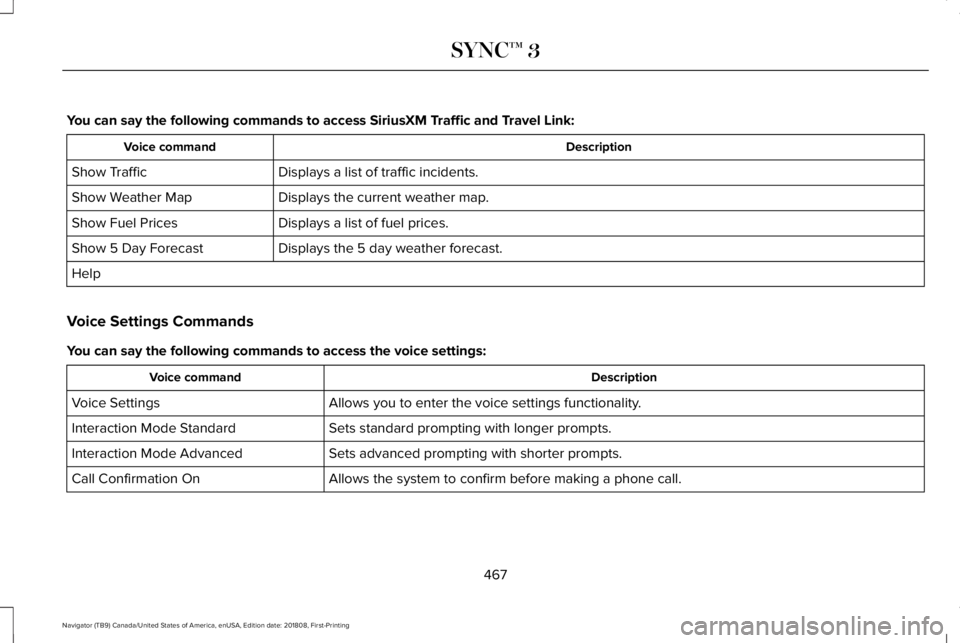
You can say the following commands to access SiriusXM Traffic and Travel Link:
DescriptionVoice command
Displays a list of traffic incidents.Show Traffic
Displays the current weather map.Show Weather Map
Displays a list of fuel prices.Show Fuel Prices
Displays the 5 day weather forecast.Show 5 Day Forecast
Help
Voice Settings Commands
You can say the following commands to access the voice settings:
DescriptionVoice command
Allows you to enter the voice settings functionality.Voice Settings
Sets standard prompting with longer prompts.Interaction Mode Standard
Sets advanced prompting with shorter prompts.Interaction Mode Advanced
Allows the system to confirm before making a phone call.Call Confirmation On
467
Navigator (TB9) Canada/United States of America, enUSA, Edition date: 201808, First-Printing
SYNC™ 3
Page 471 of 645
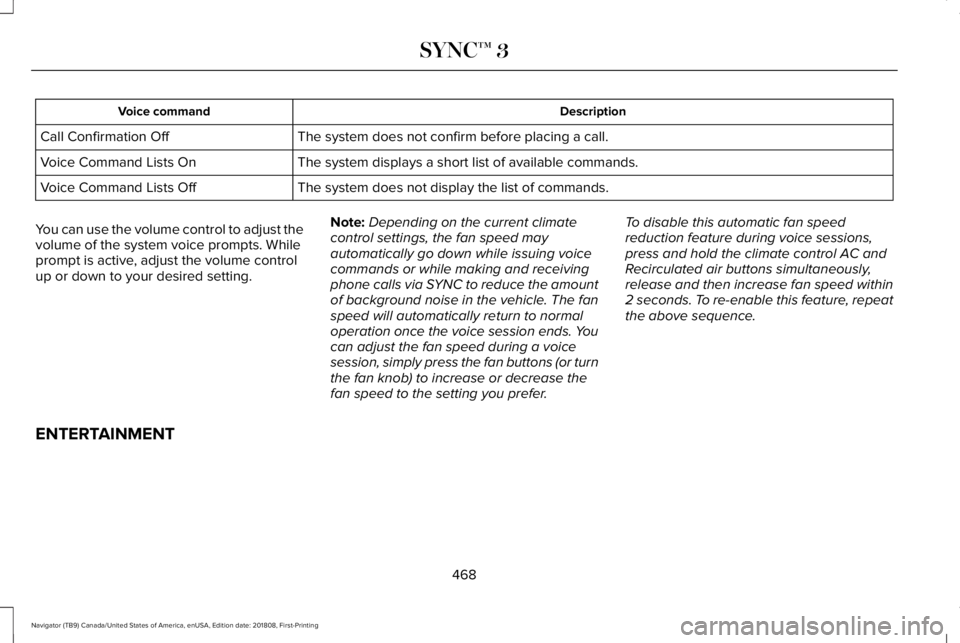
DescriptionVoice command
The system does not confirm before placing a call.Call Confirmation Off
The system displays a short list of available commands.Voice Command Lists On
The system does not display the list of commands.Voice Command Lists Off
You can use the volume control to adjust thevolume of the system voice prompts. Whileprompt is active, adjust the volume controlup or down to your desired setting.
Note:Depending on the current climatecontrol settings, the fan speed mayautomatically go down while issuing voicecommands or while making and receivingphone calls via SYNC to reduce the amountof background noise in the vehicle. The fanspeed will automatically return to normaloperation once the voice session ends. Youcan adjust the fan speed during a voicesession, simply press the fan buttons (or turnthe fan knob) to increase or decrease thefan speed to the setting you prefer.
To disable this automatic fan speedreduction feature during voice sessions,press and hold the climate control AC andRecirculated air buttons simultaneously,release and then increase fan speed within2 seconds. To re-enable this feature, repeatthe above sequence.
ENTERTAINMENT
468
Navigator (TB9) Canada/United States of America, enUSA, Edition date: 201808, First-Printing
SYNC™ 3
Page 473 of 645
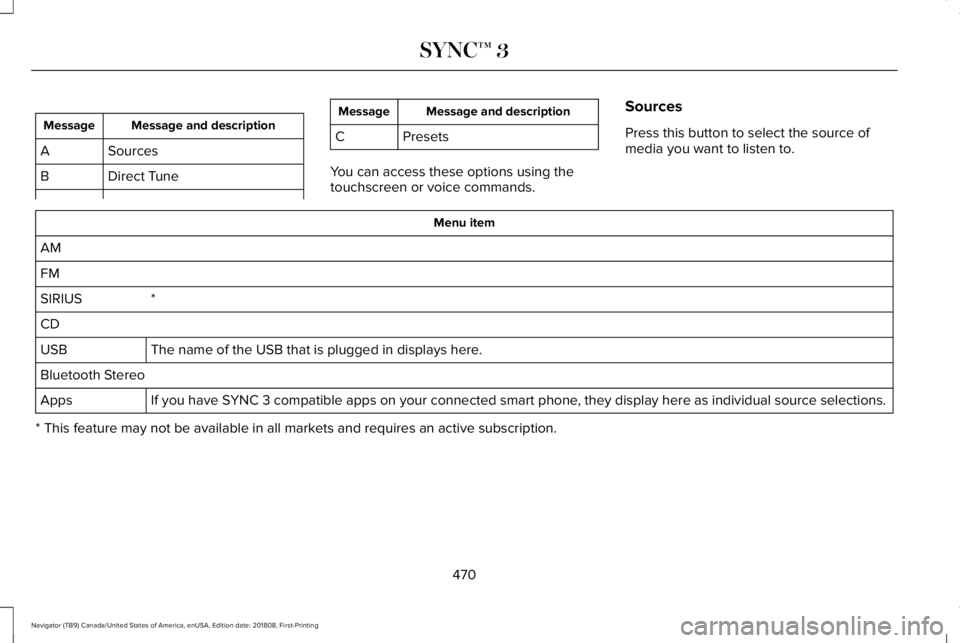
Message and descriptionMessage
SourcesA
Direct TuneB
Message and descriptionMessage
C Presets
You can access these options using thetouchscreen or voice commands.
Sources
Press this button to select the source ofmedia you want to listen to.
Menu item
AM
FM
*SIRIUS
CD
The name of the USB that is plugged in displays here.USB
Bluetooth Stereo
If you have SYNC 3 compatible apps on your connected smart phone, they display here as individual source selections.Apps
* This feature may not be available in all markets and requires an active subscription.
470
Navigator (TB9) Canada/United States of America, enUSA, Edition date: 201808, First-Printing
SYNC™ 3
Page 485 of 645
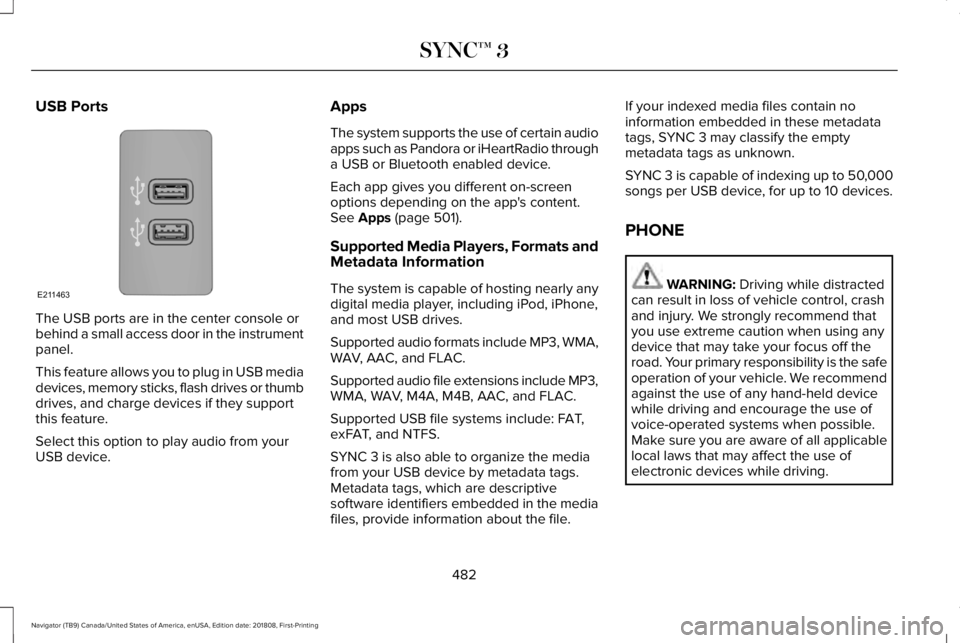
USB Ports
The USB ports are in the center console orbehind a small access door in the instrumentpanel.
This feature allows you to plug in USB mediadevices, memory sticks, flash drives or thumbdrives, and charge devices if they supportthis feature.
Select this option to play audio from yourUSB device.
Apps
The system supports the use of certain audioapps such as Pandora or iHeartRadio througha USB or Bluetooth enabled device.
Each app gives you different on-screenoptions depending on the app's content.See Apps (page 501).
Supported Media Players, Formats andMetadata Information
The system is capable of hosting nearly anydigital media player, including iPod, iPhone,and most USB drives.
Supported audio formats include MP3, WMA,WAV, AAC, and FLAC.
Supported audio file extensions include MP3,WMA, WAV, M4A, M4B, AAC, and FLAC.
Supported USB file systems include: FAT,exFAT, and NTFS.
SYNC 3 is also able to organize the mediafrom your USB device by metadata tags.Metadata tags, which are descriptivesoftware identifiers embedded in the mediafiles, provide information about the file.
If your indexed media files contain noinformation embedded in these metadatatags, SYNC 3 may classify the emptymetadata tags as unknown.
SYNC 3 is capable of indexing up to 50,000songs per USB device, for up to 10 devices.
PHONE
WARNING: Driving while distractedcan result in loss of vehicle control, crashand injury. We strongly recommend thatyou use extreme caution when using anydevice that may take your focus off theroad. Your primary responsibility is the safeoperation of your vehicle. We recommendagainst the use of any hand-held devicewhile driving and encourage the use ofvoice-operated systems when possible.Make sure you are aware of all applicablelocal laws that may affect the use ofelectronic devices while driving.
482
Navigator (TB9) Canada/United States of America, enUSA, Edition date: 201808, First-Printing
SYNC™ 3E211463
Page 486 of 645
Hands-free calling is one of the main featuresof the system. Once you pair your cell phone,you can access many options using thetouchscreen or voice commands. While thesystem supports a variety of features, manyare dependent on your cell phone’sfunctionality.
Pairing Your Cell Phone for the FirstTime
Pair your Bluetooth enabled phone with thesystem before using the functions inhands-free mode.
Switch on Bluetooth on your device to beginpairing. See your phone’s manual ifnecessary.
To add a phone, select:
Menu Item
Add a Bluetooth Device
1. Follow the on-screen instructions.
2. A prompt alerts you to search for thesystem on your phone.
3. Select your vehicle on your phone.
4. Confirm that the six-digit numberappearing on your phone matches thesix-digit number on the touchscreen.
5. The touchscreen indicates when thepairing is successful.
6. Your phone may prompt you to give thesystem permission to access information.To check your phone’s compatibility, seeyour phone’s manual or visit the website.
Alternatively, to add a phone, select:
Menu Item
Add a Bluetooth Device
Then select:
Discover Other Bluetooth Devices
1. Follow the on-screen instructions.
2. Select your phone's name when itappears on the touchscreen.
3. Confirm that the six-digit numberappearing on your phone matches thesix-digit number on the touchscreen.
4. The touchscreen indicates when thepairing is successful.
5. Your phone may prompt you to give thesystem permission to access information.To check your phone’s compatibility, seeyour phone’s manual or visit the website.
At a minimum, most cell phones withBluetooth wireless technology support thefollowing functions:
•Answering an incoming call.
•Ending a call.
•Dialing a number.
•Call waiting notification.
•Caller identification.
Other features, such as text messaging usingBluetooth and automatic phonebookdownload, are phone-dependent features.
Phone Menu
This menu becomes available after pairinga phone.
483
Navigator (TB9) Canada/United States of America, enUSA, Edition date: 201808, First-Printing
SYNC™ 3
Page 488 of 645
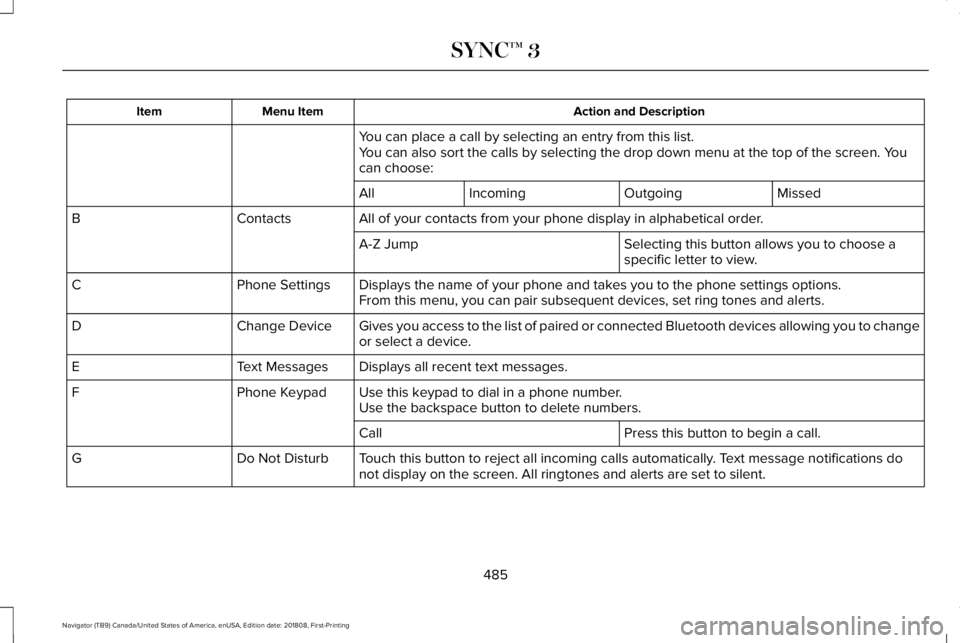
Action and DescriptionMenu ItemItem
You can place a call by selecting an entry from this list.You can also sort the calls by selecting the drop down menu at the top of the screen. Youcan choose:
MissedOutgoingIncomingAll
All of your contacts from your phone display in alphabetical order.ContactsB
Selecting this button allows you to choose aspecific letter to view.A-Z Jump
Displays the name of your phone and takes you to the phone settings options.Phone SettingsCFrom this menu, you can pair subsequent devices, set ring tones and alerts.
Gives you access to the list of paired or connected Bluetooth devices allowing you to changeor select a device.Change DeviceD
Displays all recent text messages.Text MessagesE
Use this keypad to dial in a phone number.Phone KeypadFUse the backspace button to delete numbers.
Press this button to begin a call.Call
Touch this button to reject all incoming calls automatically. Text message notifications donot display on the screen. All ringtones and alerts are set to silent.Do Not DisturbG
485
Navigator (TB9) Canada/United States of America, enUSA, Edition date: 201808, First-Printing
SYNC™ 3