steering wheel LINCOLN NAVIGATOR 2019 Repair Manual
[x] Cancel search | Manufacturer: LINCOLN, Model Year: 2019, Model line: NAVIGATOR, Model: LINCOLN NAVIGATOR 2019Pages: 645, PDF Size: 5.02 MB
Page 413 of 645
When Inflating Your Tires
WARNING: Do not use the tirepressure displayed in the informationdisplay as a tire pressure gauge. Failure tofollow this instruction could result inpersonal injury or death.
When putting air into your tires (such as at agas station or in your garage), the tirepressure monitoring system may not respondimmediately to the air added to your tires.
It may take up to two minutes of driving over20 mph (32 km/h) for the light to turn off afteryou have filled your tires to therecommended inflation pressure.
How Temperature Affects Your TirePressure
The tire pressure monitoring system monitorstire pressure in each pneumatic tire. Whiledriving in a normal manner, a typicalpassenger tire inflation pressure mayincrease about 2–4 psi (14–28 kPa) from acold start situation. If the vehicle is stationaryovernight with the outside temperature
significantly lower than the daytimetemperature, the tire pressure may decreaseabout 3 psi (21 kPa) for a drop of 30°F (17°C)in ambient temperature. This lower pressurevalue may be detected by the tire pressuremonitoring system as being significantlylower than the recommended inflationpressure and activate the system warninglight for low tire pressure. If the low tirepressure warning light is on, visually checkeach tire to verify that no tire is flat. If one ormore tires are flat, repair as necessary.Check the air pressure in the road tires. Ifany tire is under-inflated, carefully drive thevehicle to the nearest location where air canbe added to the tires. Inflate all the tires tothe recommended inflation pressure.
CHANGING A ROAD WHEEL
WARNING: If the tire pressuremonitor sensor becomes damaged it maynot function.
Note:You should only use tire sealants inroadside emergencies as they may causedamage to the tire pressure monitoringsystem sensor.
Note:The tire pressure monitoring systemindicator light illuminates when the sparetire is in use. To restore the full function ofthe monitoring system, all road wheelsequipped with tire pressure monitoringsensors must be mounted on this vehicle.
If you get a flat tire when driving, do notapply the brake heavily. Instead, graduallydecrease your speed. Hold the steeringwheel firmly and slowly move to a safe placeon the side of the road.
Have a flat serviced by an authorized dealerin order to prevent damage to the systemsensors. See Tire Pressure MonitoringSystem (page 405). Replace the spare tirewith a road tire as soon as possible. Duringrepairing or replacing of the flat tire, havethe authorized dealer inspect the systemsensor for damage.
410
Navigator (TB9) Canada/United States of America, enUSA, Edition date: 201808, First-Printing
Wheels and Tires
Page 448 of 645
DescriptionItemCallout
This shows the temperature the driver selects through the climate control system.Driver TemperatureA
When you activate the heated steering wheel option on the touch screen, this icondisplays. It only displays when there is not a physical button for the heated steeringwheel.
Heated steering wheelB
(If equipped)
When the passenger's temperature has been adjusted and is no longer linked to thedriver's temperature, it displays here. If Dual is turned off and the temperatures arelinked, the passenger's temperature does not display.
Passenger TemperatureC
This icon displays when your phone's microphone is muted. A caller cannot hear you.Microphone MuteD
This icon displays when the audio system is muted.MuteE
This icon appears when SYNC 3 receives a software update. Pressing the icon showsmore details about the new software.DownloadF
This icon appears if a Wi-Fi network is connected.Wi-FiG
An available Wi-Fi network is within range.Wi-Fi in RangeH
This icon displays the phone signal strength and the roaming signal strength.Signal StrengthI
This icon displays when you receive a text message on your phone.Text MessageJ
This icon displays when 911 Assist is set to off and your phone is connected to SYNC.911 Assist OffK
This icon displays when a phone call is active.In-CallL
445
Navigator (TB9) Canada/United States of America, enUSA, Edition date: 201808, First-Printing
SYNC™ 3
Page 451 of 645
InformationOption
Information for current audio playing.Audio
Select source.
View current road and speed limit (if information is available).Navigation
View current route, next turn, time to your destination (depending on cluster level), distance to destination (depending oncluster level), and ability to cancel route.
If you do not have an active navigation route programed, the compass is shown.
If you are not on a call, a call can be made by selecting: *Phone
Missed callsOutgoing callsIncoming callsAll callsQuick dial
If you are on a call, the call information is displayed on the information display.
If you are receiving a call, you can accept it by selecting OK on the right-hand steering wheel controls.
* Depending on your vehicle options, all of these choices may not display.
Use the OK and arrow buttons on the rightside of your steering wheel to scroll throughthe available modes.
The selection menu expands and differentoptions appear.
•Press the up and down arrows to scrollthrough the modes.
•Press the right arrow to enter the mode,use the left arrow to exit the mode.
•Press the up and down arrows to makeadjustments within the chosen mode.
•Press OK to confirm your selection.
448
Navigator (TB9) Canada/United States of America, enUSA, Edition date: 201808, First-Printing
SYNC™ 3
Page 452 of 645
Note:If your vehicle is not equipped withnavigation, compass appears in the displayinstead of navigation. If you press the rightarrow to go into the compass menu, you cansee the compass graphic. The compassdisplays the direction in which the vehicle istraveling, not true direction (for example, ifthe vehicle is traveling west, the middle ofthe compass graphic displays west; northdisplays to the left of west though its truedirection is to the right of west).
Using the Controls on the SteeringWheel
Depending on your vehicle and optionpackage, you can use different controls onyour steering wheel to interact with thetouchscreen system in different ways.
VOL: Control the volume of audio output.
Mute: Mute the audio output.
Voice: Press to start a voice session. Pressagain to stop the voice prompt andimmediately begin speaking. Press and holdto end a voice session.
SEEK NEXT:
•While in radio mode, press to seekbetween memory presets.
•While in USB, Bluetooth Audio or CDmode, press to seek between songs orpress and hold to fast seek.
SEEK PREVIOUS:
•While in radio mode, press to seekbetween memory presets.
•While in USB, Bluetooth Audio or CDmode, press to seek between songs orpress and hold to fast seek.
PHONE ACCEPT: Press to answer a call orswitch between calls.
PHONE REJECT: Press to end a call or rejectan incoming call.
Note:On some models, SEEK NEXT may becombined with PHONE REJECT and SEEKPREVIOUS may be combined with PHONEACCEPT.
M: Touch the control repeatedly to switchbetween media sources (modes).
See Steering Wheel (page 89).
Using Your Bezel Controls
Depending on your vehicle and optionpackage, you may also have these controlson your instrument panel:
•Power: Switch the audio system on andoff.
•VOL: Control the volume of playingaudio.
•Seek and Tune: Use as you normallywould in audio modes.
•Eject: Eject a CD from the audio system.
•SOURCE or MEDIA: Press repeatedly toadvance through available media modes.
•SOUND: Press to access the Soundmenu where you can adjust sound andother audio settings.
•1-6: Press and hold to store or press toselect an AM, FM or SIRIUS memorypreset. See Audio System (page 432).
449
Navigator (TB9) Canada/United States of America, enUSA, Edition date: 201808, First-Printing
SYNC™ 3
Page 454 of 645
To make sure that 911 Assist works correctly:
•SYNC must be powered and workingproperly at the time of the incident andthroughout feature activation and use.
•The 911 Assist feature must be set onbefore the incident.
•You must pair and connect a Bluetoothenabled and compatible cell phone toSYNC.
•A connected Bluetooth enabled phonemust have the ability to make andmaintain an outgoing call at the time ofthe incident.
•A connected Bluetooth enabled phonemust have adequate network coverage,battery power and signal strength.
•The vehicle must have battery power andbe located in the U.S., Canada or in aterritory in which 911 is the emergencynumber.
In the Event of a Crash
Not all crashes will deploy an airbag oractivate the fuel pump shut-off (the triggersfor 911 Assist). If a connected cell phonesustains damage or loses its connection toSYNC during a crash, SYNC will search forand try to connect to a previously paired cellphone; SYNC will then attempt to call theemergency services.
Before making the call:
•SYNC provides a short window of time(about 10 seconds) to cancel the call. Ifyou fail to cancel the call, SYNC attemptsto dial 911.
•SYNC says the following, or a similarmessage: "SYNC will attempt to call 911,to cancel the call, press Cancel on yourscreen or press and hold the phonebutton on your steering wheel."
If you do not cancel the call, and SYNCmakes a successful call, a pre-recordedmessage plays for the 911 operator, and thenthe occupant(s) in your vehicle is able to talkwith the operator. Be prepared to provideyour name, phone number and locationimmediately, because not all 911 systems arecapable of receiving this informationelectronically.
911 Assist May Not Work If
•Your cellular phone or 911 Assisthardware sustains damage in a crash.
•The vehicle's battery or the SYNC systemhas no power.
•The phone(s) thrown from your vehicleare the ones paired and connected tothe system.
911 Assist Privacy Notice
When you switch on 911 Assist, it maydisclose to emergency services that yourvehicle has been in a crash involving thedeployment of an airbag or activation of thefuel pump shut-off. Certain versions orupdates to 911 Assist may also be capable
451
Navigator (TB9) Canada/United States of America, enUSA, Edition date: 201808, First-Printing
SYNC™ 3
Page 461 of 645
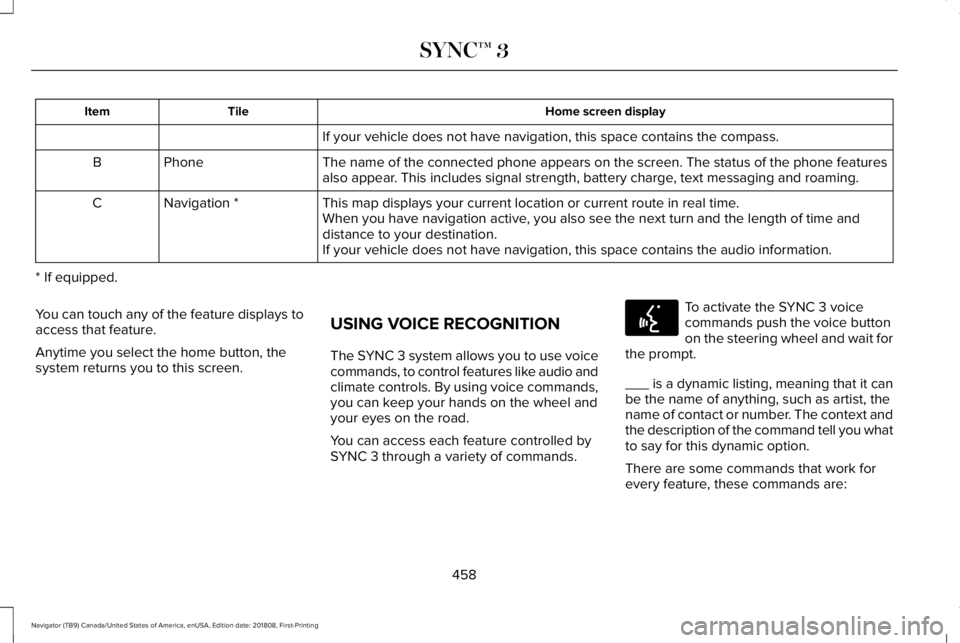
Home screen displayTileItem
If your vehicle does not have navigation, this space contains the compass.
The name of the connected phone appears on the screen. The status of the phone featuresalso appear. This includes signal strength, battery charge, text messaging and roaming.PhoneB
This map displays your current location or current route in real time.Navigation *CWhen you have navigation active, you also see the next turn and the length of time anddistance to your destination.If your vehicle does not have navigation, this space contains the audio information.
* If equipped.
You can touch any of the feature displays toaccess that feature.
Anytime you select the home button, thesystem returns you to this screen.
USING VOICE RECOGNITION
The SYNC 3 system allows you to use voicecommands, to control features like audio andclimate controls. By using voice commands,you can keep your hands on the wheel andyour eyes on the road.
You can access each feature controlled bySYNC 3 through a variety of commands.
To activate the SYNC 3 voicecommands push the voice buttonon the steering wheel and wait forthe prompt.
___ is a dynamic listing, meaning that it canbe the name of anything, such as artist, thename of contact or number. The context andthe description of the command tell you whatto say for this dynamic option.
There are some commands that work forevery feature, these commands are:
458
Navigator (TB9) Canada/United States of America, enUSA, Edition date: 201808, First-Printing
SYNC™ 3E142599
Page 489 of 645
Users with phones having voice services maysee a button to access the feature. Forexample, iPhone users see a Siri button. Apress and hold of the voice button on thesteering wheel also accesses this feature.
Making Calls
There are many ways to make calls from theSYNC 3 system, including using voicecommands. See Using Voice Recognition(page 458). You can use the touchscreen toplace calls as well.
486
Navigator (TB9) Canada/United States of America, enUSA, Edition date: 201808, First-Printing
SYNC™ 3
Page 490 of 645
To call a number in your contacts, select:
Action and DescriptionMenu Item
You can then select thename of the contact youwant to call. Any numbersstored for that contactdisplay along with anystored contact photos. Youcan then select the numberthat you want to call. Thesystem begins the call.
Contacts
To call a number from your recent calls,select:
Action and DescriptionMenu Item
You can then select an entrythat you want to call. Thesystem begins the call.
Recent CallList
To call a number that is not stored in yourphone, select:
Action and DescriptionMenu Item
Action and DescriptionMenu Item
Select the digits of thenumber you wish to call.PhoneKeypad
The system begins the call.Call
Pressing the backspace button deletes thelast digit you typed.
Receiving Calls
During an incoming call, an audible tonesounds. Caller information appears in thedisplay if it is available.
To accept the call, select:
Menu Item
Accept
Note:You can also accept the call bypressing the phone button on the steeringwheel.
To reject the call, select:
Menu Item
Reject
Note:You can also reject the call bypressing the phone button on the steeringwheel.
Ignore the call by doing nothing. SYNC 3logs it as a missed call.
During a Phone Call
During a phone call, the contacts name andnumber display on the screen along with thecall duration.
The phone status items are also visible:
•Signal Strength.
•Battery.
You can select any of the following duringan active phone call:
487
Navigator (TB9) Canada/United States of America, enUSA, Edition date: 201808, First-Printing
SYNC™ 3
Page 491 of 645
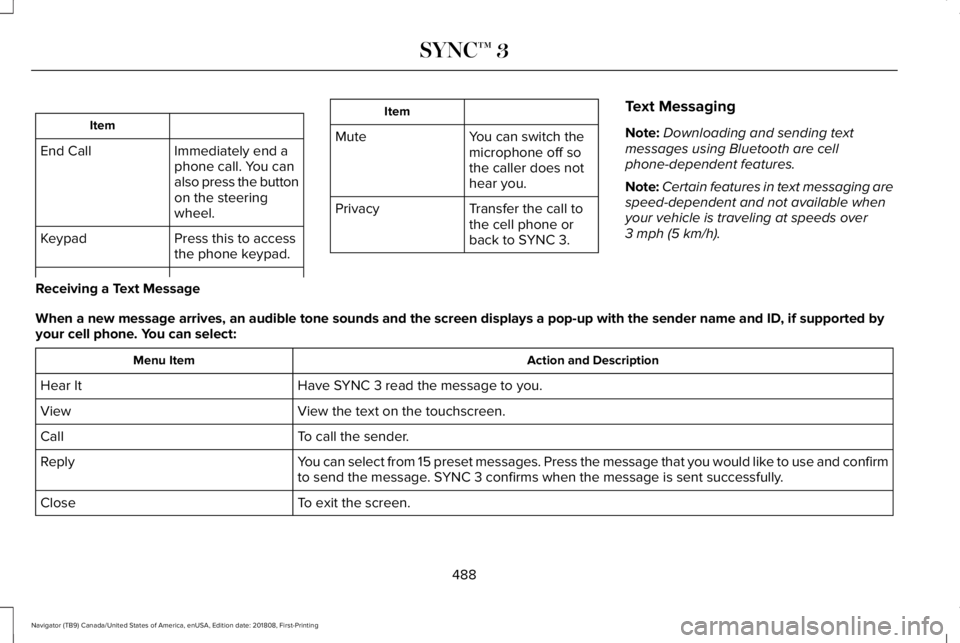
Item
Immediately end aphone call. You canalso press the buttonon the steeringwheel.
End Call
Press this to accessthe phone keypad.Keypad
Item
MuteYou can switch themicrophone off sothe caller does nothear you.
Transfer the call tothe cell phone orback to SYNC 3.
Privacy
Text Messaging
Note:Downloading and sending textmessages using Bluetooth are cellphone-dependent features.
Note:Certain features in text messaging arespeed-dependent and not available whenyour vehicle is traveling at speeds over3 mph (5 km/h).
Receiving a Text Message
When a new message arrives, an audible tone sounds and the screen displays a pop-up with the sender name and ID, if supported byyour cell phone. You can select:
Action and DescriptionMenu Item
Have SYNC 3 read the message to you.Hear It
View the text on the touchscreen.View
To call the sender.Call
You can select from 15 preset messages. Press the message that you would like to use and confirmto send the message. SYNC 3 confirms when the message is sent successfully.Reply
To exit the screen.Close
488
Navigator (TB9) Canada/United States of America, enUSA, Edition date: 201808, First-Printing
SYNC™ 3
Page 504 of 645
HERE is the digital map provider for thenavigation application. If you find map dataerrors, you may report them directly to HEREby going to www.here.com/mapcreator.HERE evaluates all reported map errors andresponds with the result of their investigationby e-mail.
Map coverage includes the USA (includingPuerto Rico and the US Virgin Islands),Canada and Mexico.
APPS
The system enables voice, steering wheel,and touch screen control of SYNC 3 AppLinkenabled smartphone apps. When an app isrunning through AppLink, you can controlmain features of the app through voicecommands and steering wheel controls. Thesystem enables voice, steering wheel, andtouch screen control of SYNC 3 AppLinkenabled smartphone apps.
Note:Available AppLink enabled apps willvary by market.
Note:You must pair and connect yoursmartphone via Bluetooth to SYNC 3 toaccess AppLink.
Note:iPhone users need to connect thephone to the USB port.
Note:For information on available apps,supported smartphone devices andtroubleshooting tips please visit:
Websites
owner.lincoln.comwww.syncmyride.cawww.syncmaroute.ca
Note:Make sure you have an active accountfor the app that you have downloaded. Someapps will automatically work with no setup.Some apps will automatically work with nosetup. Other apps will want you to configureyour personal settings and personalize yourexperience by creating stations or favorites.We recommend you do this at home oroutside of your vehicle.
Note:We encourage you to review thesmartphone app’s terms of service andprivacy policies because Ford is notresponsible for your app or its use of data.
Note:AppLink is a native SYNC systemfeature. Accessing mobile apps throughAppLink is only possible when Android Autoor Apple CarPlay are disabled. Some appsmay only be accessible in the car throughAppLink and others only through AndroidAuto or Apple CarPlay. Please refer to theSmartphone Connectivity information todisable Android Auto or Apple CarPlay.
Note:In order to use an app with SYNC 3,the app needs to be running in thebackground of your phone. If you shut downthe app on your phone, it shuts down theapp on SYNC 3 as well.
Note:If a SYNC 3 AppLink compatible appis not shown in the Apps Domain, make surethe required app is running on the mobiledevice.
501
Navigator (TB9) Canada/United States of America, enUSA, Edition date: 201808, First-Printing
SYNC™ 3