phone LINCOLN NAVIGATOR 2020 User Guide
[x] Cancel search | Manufacturer: LINCOLN, Model Year: 2020, Model line: NAVIGATOR, Model: LINCOLN NAVIGATOR 2020Pages: 622, PDF Size: 6.47 MB
Page 80 of 622
How does a valet drive my car if I only use
my phone as a key?
Have the valet use the temporary valet
passcode that you created when using
valet mode. See Using the Valet Mode
(page 75).
How do I delete a phone as a key
programmed to my vehicle? If the phone as a key belongs to your
account, you can delete it from your
phone. If not, reset phone as a key from
the touchscreen display menu.
I uninstalled my Lincoln Way app and
reinstalled it. Why am I not able to get a
new phone as a key? Remove the phone as a key that was
previously associated with your phone
or reset phone as a key from your
vehicle, and then request a new phone
as a key. Why can I not remotely start the vehicle
with my phone as a key?
Using the Lincoln Way app, verify your
phone as a key to be active and enabled
via Bluetooth connection on at least one
phone. If Bluetooth has connected but
phone as a key is not active, activate
your phone as a key where prompted
from the Lincoln Way app.
See Using
the Backup Starting Passcode (page
76).
77
Navigator (TB9) Canada/United States of America, enUSA, Edition date: 201907, Second-Printing Phone as a Key
Page 87 of 622
you press the unlock button once. The
unlocking mode applies to the remote
control, keyless entry keypad and intelligent
access. You can also change between the
unlocking modes using the information
display. See General Information (page 133).
Reprogramming the Unlocking Function
Note:
When you press the unlock button,
either all the doors are unlocked or only the
driver door is unlocked. Pressing the unlock
button again unlocks all the doors.
Press and hold the unlock and lock buttons
on the remote control simultaneously for at
least four seconds with the ignition off. The
direction indicators flash twice to confirm the
change.
To return to the original unlocking function,
repeat the process.
Locking the Doors Press the button to lock all doors.
The direction indicators will flash. Press the button again within three seconds
to confirm that all the doors are closed. The
door lock again, the horn sounds and the
direction indicators flash if all the doors and
the liftgate are closed.
Note:
If the system does not function, use
the key blade to lock and unlock your
vehicle.
Mislock
If any door or the liftgate is open, or if
the hood is open on vehicles with an
anti-theft alarm or remote start, the horn
sounds twice and the direction
indicators do not flash. You can switch
this feature on or off in the information
display. See General Information (page
133).
Opening the Liftgate Press twice within three seconds
to open the liftgate.Activating Intelligent Access
General Information
You can unlock and lock the vehicle without
taking the keys out of your pocket or purse
when your intelligent access key is within
3 ft (1 m)
of your vehicle. Intelligent access
uses a sensor on the back of the door handle
for unlocking and a separate sensor on the
face of each door handle for locking.
The system does not function if:
• Your vehicle battery has no charge.
• The key battery has no charge.
• The key frequencies are jammed.
Note: The system may not function if the key
is close to metal objects or electronic
devices, for example keys or a cell phone.
Note: If the system does not function, use
the key blade to lock and unlock your
vehicle.
See Remote Control (page 69).
84
Navigator (TB9) Canada/United States of America, enUSA, Edition date: 201907, Second-Printing Doors and LocksE138623 E267940
Page 104 of 622
Note:
If you press any adjustment or
memory button when in easy exit mode, the
system cancels the operation.
Note: Depending on your vehicle, the column
may move up and in.
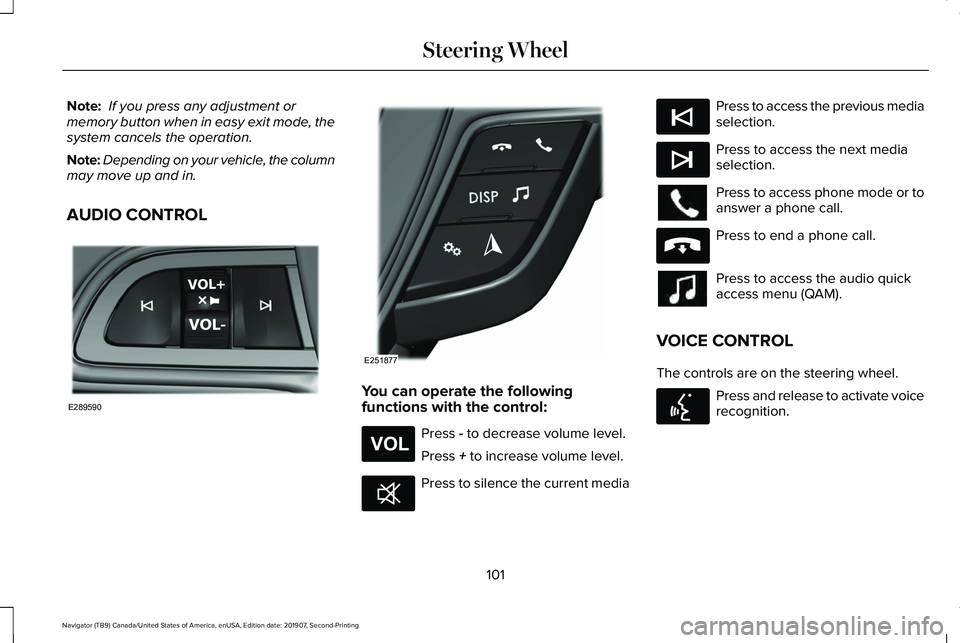
AUDIO CONTROL You can operate the following
functions with the control:
Press - to decrease volume level.
Press
+ to increase volume level. Press to silence the current media Press to access the previous media
selection.
Press to access the next media
selection.
Press to access phone mode or to
answer a phone call.
Press to end a phone call.
Press to access the audio quick
access menu (QAM).
VOICE CONTROL
The controls are on the steering wheel. Press and release to activate voice
recognition.
101
Navigator (TB9) Canada/United States of America, enUSA, Edition date: 201907, Second-Printing Steering WheelE289590 E251877 E265304 E268549 E265045 E265044 E265040 E142599
Page 137 of 622
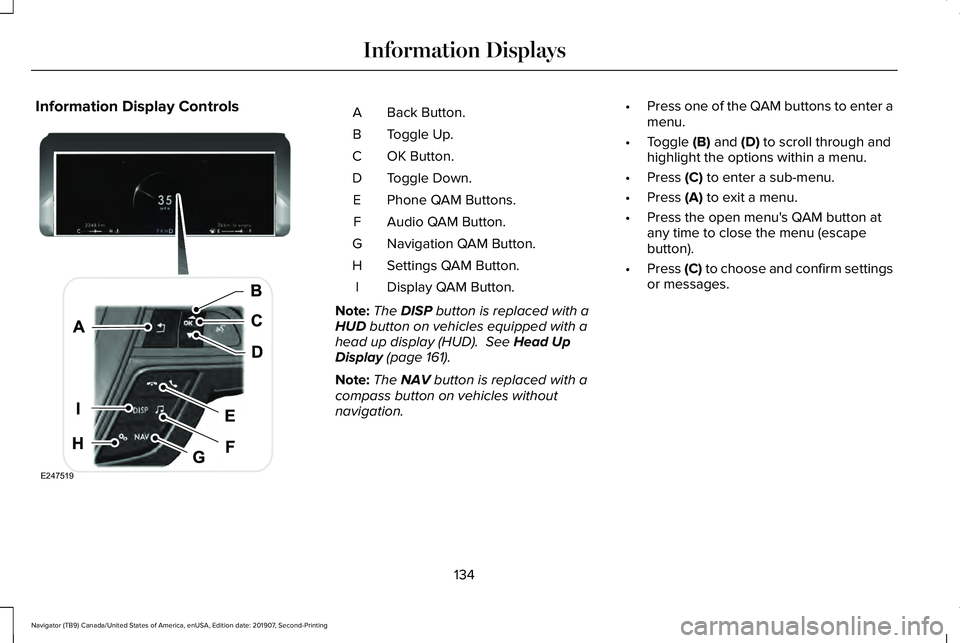
Information Display Controls
Back Button.
A
Toggle Up.
B
OK Button.
C
Toggle Down.
D
Phone QAM Buttons.
E
Audio QAM Button.
F
Navigation QAM Button.
G
Settings QAM Button.
H
Display QAM Button.
I
Note: The DISP button is replaced with a
HUD button on vehicles equipped with a
head up display (HUD). See Head Up
Display (page 161).
Note: The
NAV button is replaced with a
compass button on vehicles without
navigation. •
Press one of the QAM buttons to enter a
menu.
• Toggle
(B) and (D) to scroll through and
highlight the options within a menu.
• Press
(C) to enter a sub-menu.
• Press
(A) to exit a menu.
• Press the open menu's QAM button at
any time to close the menu (escape
button).
• Press
(C) to choose and confirm settings
or messages.
134
Navigator (TB9) Canada/United States of America, enUSA, Edition date: 201907, Second-Printing Information DisplaysE247519
Page 141 of 622
INFO/TRIP/FUEL
TIRE PRESSURE
TRAILER INFORMATION
• NO CONTENT - Displays a blank area.
• TRIP 1
- Displays distance traveled,
average fuel economy, and time spent
for trip. Press and hold
OK to reset.
• TRIP 2
information is the same as
TRIP 1.
• FUEL ECONOMY
- Displays your
vehicle's average fuel economy. Press
and hold
OK to reset.
• SEATBELTS
- Displays a graphic of the
connection status of the rear seatbelts.
• TIRE PRESSURE
- Displays a graphic of
current vehicle tire pressures.
• TRAILER INFORMATION
- Displays the
transmission temperature and trailer gain. Head Up Display
(If Equipped)
See
Head Up Display (page 161).
Phone
See
General Information (page 472).
Audio
See
General Information (page 472).
Navigation
(If Equipped)
See
General Information (page 472).
INFORMATION MESSAGES
Note: Depending on your vehicle options
and instrument cluster type, not all of the
messages will display or be available.
Certain messages may be abbreviated or
shortened depending upon which cluster
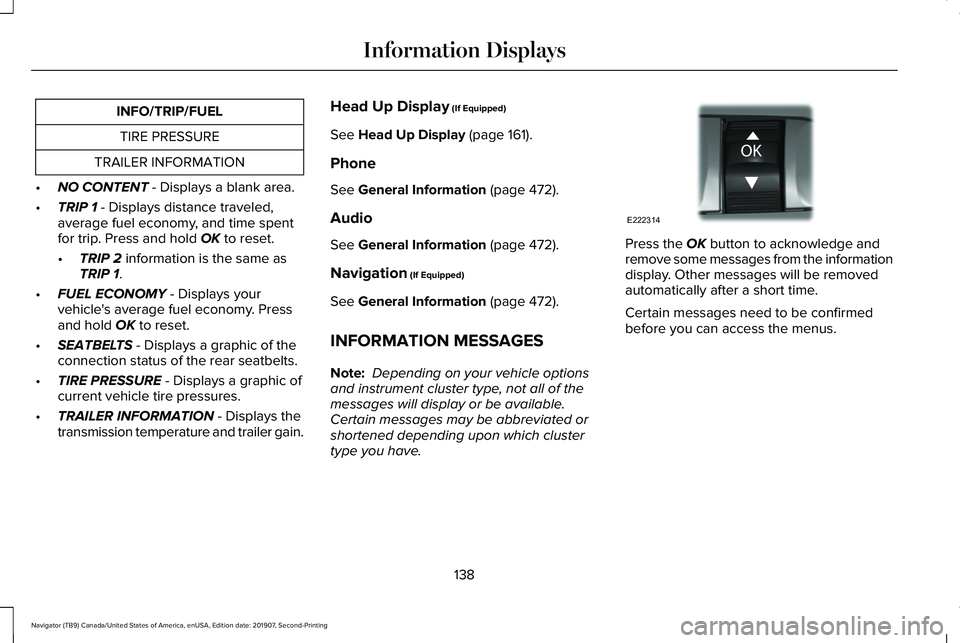
type you have. Press the
OK button to acknowledge and
remove some messages from the information
display. Other messages will be removed
automatically after a short time.
Certain messages need to be confirmed
before you can access the menus.
138
Navigator (TB9) Canada/United States of America, enUSA, Edition date: 201907, Second-Printing Information DisplaysE222314
Page 186 of 622
Personal Profiles
This feature allows you to create multiple
personal profiles enabling users to
personalize vehicle
’s settings. You can
create one profile for each preset memory
seat button along with a guest profile. You
can recall a profile using SYNC 3 or the
preset button you selected when you created
your profile. You can also link a remote
control or mobile device to your profile,
which is used to recall it.
Creating a Personal Profile
Use the SYNC display to create a personal
profile.
1. Switch the ignition on and leave the vehicle in park (P).
2. Select the Personal Profiles button under
Settings.
3. Follow the instructions on the display. Linking a Personal Profile to your Remote
Control or Mobile Device
You can save preset memory positions for
up to three remote controls by assigning a
remote control to a personal profile in your
SYNC 3. You can assign three additional
remote controls set up as Phone as a Key.
See Keys and Remote Controls (page 69).
Use the SYNC display to link a remote
control, mobile device or both to a personal
profile.
1. Switch the ignition on and leave the vehicle in park (P).
2. Select the Personal Profiles button under
Settings.
3. Touch the arrow for the profile you wish to link to a remote control or mobile
device.
4. Select the correct button to link a remote
control, mobile device or both.
5. Follow the instructions on the display. Note:
To successfully link a mobile device,
the mobile device must be present in your
vehicle, and must have previously been
setup as a remote control for your vehicle.
Note: If more than one linked remote control
or intelligent access key is in range, the
memory function moves to the settings of
the first key to initiate a memory recall.
Note: The guest profile consists of existing
settings when there is no driver profile
created. After you create a driver profile, the
guest profile serves as an additional driver
profile.
Note: You cannot link a personalized name,
a memory seat button or a keyfob to a guest
profile.
Personal Settings
Personal profiles allow you to personalize
positional settings such as seats and mirrors,
as well as non-positional settings such as
radio, navigation, driver assist and system
settings.
See SYNC™ 3 (page 472). You
cannot change the menu locations and
settings of those personalized features with
personal profiles.
183
Navigator (TB9) Canada/United States of America, enUSA, Edition date: 201907, Second-Printing Seats
Page 202 of 622
The system supports one Qi wireless
charging compatible device on the charging
area.
Keep the charging area clean and remove
foreign objects prior to charging a device.
Do not place items with a magnetic strip, for
example passports, parking tickets or credit
cards, near the charging area when charging
a device. Damage may occur to the magnetic
strip.
Do not place metal objects, for example
remote controls, coins and candy wrappers,
on or near the charging area when charging
a device. Metal objects may heat up and
degrade the charging performance.
Note:
The device controls the rate of charge,
or charging power. During charging, the
device and the charger may heat up, this is
normal. If the battery gets hotter than usual,
the charger may stop charging. The charging area is on the center
console or lower instrument panel.
See Center Console (page 201).
You can charge a device if the vehicle is on,
when in accessory mode, or anytime SYNC
is on. To begin charging, place the device on the
center of the charging surface with the
charging side down. The charging stops after
your device reaches a full charge.
Note:
If the system detects a foreign object
or if the device is misaligned on the charging
area, a message appears in the display.
Note: Software and firmware updates may
affect device compatibility, including the use
of unofficial software or firmware. You should
verify charging functionality with your
specific devices when in your vehicle. Description
Behavior
Message
This message appears when wireless chargingbegins.
Message on screen display or pop-up window.
Wireless Charger Active
The system stops charging your device if thesystem detects the phone is misaligned, or a foreign metal object is on the charging surface.
Pop-up window.
Charging Terminated
Phone misaligned or object between phone
and charger detected. Correct the condition to resume charging.
199
Navigator (TB9) Canada/United States of America, enUSA, Edition date: 201907, Second-Printing Auxiliary Power PointsE297549
Page 206 of 622
GENERAL INFORMATION
WARNING: Extended idling at high
engine speeds can produce very high
temperatures in the engine and exhaust
system, creating the risk of fire or other
damage. WARNING:
Do not park, idle or drive
your vehicle on dry grass or other dry
ground cover. The emission system heats
up the engine compartment and exhaust
system, creating the risk of fire. WARNING:
Do not start the engine
in a closed garage or in other enclosed
areas. Exhaust fumes can be toxic. Always
open the garage door before you start the
engine. WARNING: Exhaust leaks may result
in entry of harmful and potentially lethal
fumes into the passenger compartment. If
you smell exhaust fumes inside your
vehicle, have your vehicle inspected
immediately. Do not drive if you smell
exhaust fumes.
If you disconnect the battery, your vehicle
may exhibit some unusual driving
characteristics for approximately 5 mi (8 km)
after you reconnect it. This is because the
engine management system must realign
itself with the engine. You can disregard any
unusual driving characteristics during this
period.
The powertrain control system meets all
Canadian interference-causing equipment
standard requirements regulating the
impulse electrical field or radio noise.
When you start the engine, avoid pressing
the accelerator pedal before and during
operation. Only use the accelerator pedal
when you have difficulty starting the engine. KEYLESS STARTING
Note:
The system may not function if the
passive key is close to metal objects or
electronic devices, for example keys or a
cell phone.
Note: A valid passive key must be located
inside your vehicle to switch the power on
and start your vehicle.
Note: A light on the button illuminates when
the ignition is on and when your vehicle
starts.
Switching the Ignition On 203
Navigator (TB9) Canada/United States of America, enUSA, Edition date: 201907, Second-Printing Starting and Stopping the EngineE144447
Page 214 of 622
SAFETY PRECAUTIONS
WARNING: Do not overfill the fuel
tank. The pressure in an overfilled tank
may cause leakage and lead to fuel spray
and fire. WARNING:
The fuel system may be
under pressure. If you hear a hissing sound
near the fuel filler inlet, do not refuel until
the sound stops. Otherwise, fuel may spray
out, which could cause serious personal
injury. WARNING:
Fuels can cause serious
injury or death if misused or mishandled. WARNING:
Fuel may contain
benzene, which is a cancer-causing agent. WARNING:
When refueling always
shut the engine off and never allow sparks
or open flames near the fuel tank filler
valve. Never smoke or use a cell phone
while refueling. Fuel vapor is extremely
hazardous under certain conditions. Avoid
inhaling excess fumes.
Follow these guidelines when refueling:
• Extinguish all smoking materials and any
open flames before refueling your
vehicle.
• Always switch the engine off before
refueling.
• Automotive fuels can be harmful or fatal
if swallowed. Fuel is highly toxic and if
swallowed can cause death or permanent
injury. If fuel is swallowed immediately
call a physician, even if no symptoms are
immediately apparent. The toxic effects
of fuel may not be apparent for hours. •
Avoid inhaling fuel vapors. Inhaling fuel
vapor can lead to eye and respiratory
tract irritation. In severe cases, excessive
or prolonged breathing of fuel vapor can
cause serious illness and permanent
injury.
• Avoid getting fuel in your eyes. If you
splash fuel in your eyes, immediately
remove contact lenses (if worn), flush with
water for 15 minutes and seek medical
attention. Failure to seek proper medical
attention could lead to permanent injury.
• Fuels can be harmful if absorbed through
the skin. If you splash fuel on your skin,
clothing or both, promptly remove
contaminated clothing and thoroughly
wash your skin with soap and water.
Repeated or prolonged skin contact
causes skin irritation.
• Be particularly careful if you are taking
Antabuse or other forms of Disulfiram for
the treatment of alcoholism. Breathing
fuel vapors could cause an adverse
reaction, serious personal injury or
sickness. Immediately call a physician if
you experience any adverse reactions.
211
Navigator (TB9) Canada/United States of America, enUSA, Edition date: 201907, Second-Printing Fuel and Refueling
Page 218 of 622
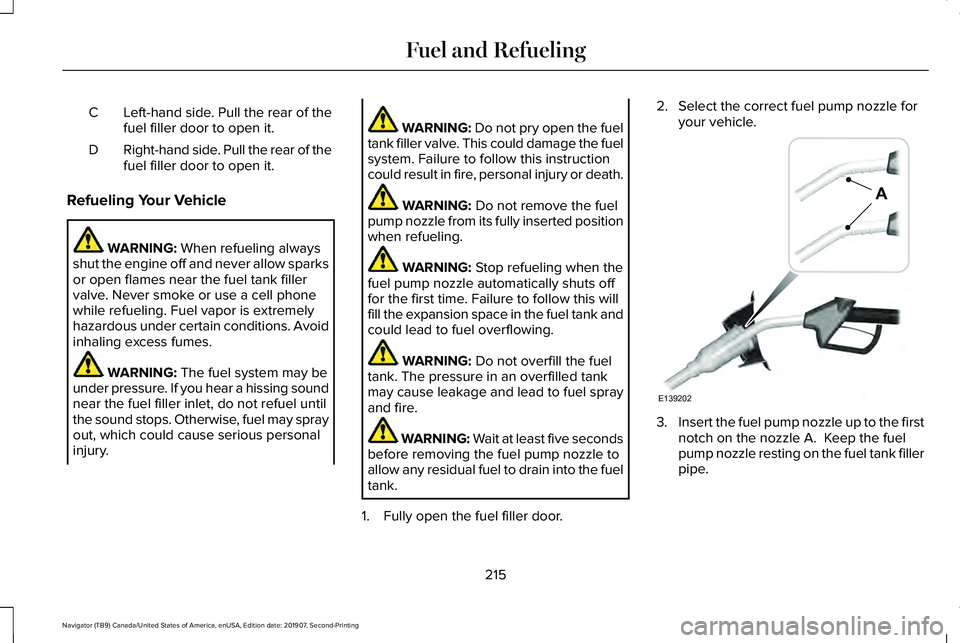
Left-hand side. Pull the rear of the
fuel filler door to open it.
C
Right-hand side. Pull the rear of the
fuel filler door to open it.
D
Refueling Your Vehicle WARNING: When refueling always
shut the engine off and never allow sparks
or open flames near the fuel tank filler
valve. Never smoke or use a cell phone
while refueling. Fuel vapor is extremely
hazardous under certain conditions. Avoid
inhaling excess fumes. WARNING:
The fuel system may be
under pressure. If you hear a hissing sound
near the fuel filler inlet, do not refuel until
the sound stops. Otherwise, fuel may spray
out, which could cause serious personal
injury. WARNING:
Do not pry open the fuel
tank filler valve. This could damage the fuel
system. Failure to follow this instruction
could result in fire, personal injury or death. WARNING:
Do not remove the fuel
pump nozzle from its fully inserted position
when refueling. WARNING:
Stop refueling when the
fuel pump nozzle automatically shuts off
for the first time. Failure to follow this will
fill the expansion space in the fuel tank and
could lead to fuel overflowing. WARNING:
Do not overfill the fuel
tank. The pressure in an overfilled tank
may cause leakage and lead to fuel spray
and fire. WARNING: Wait at least five seconds
before removing the fuel pump nozzle to
allow any residual fuel to drain into the fuel
tank.
1. Fully open the fuel filler door. 2. Select the correct fuel pump nozzle for
your vehicle. 3.
Insert the fuel pump nozzle up to the first
notch on the nozzle A. Keep the fuel
pump nozzle resting on the fuel tank filler
pipe.
215
Navigator (TB9) Canada/United States of America, enUSA, Edition date: 201907, Second-Printing Fuel and RefuelingE139202
A