ECO mode LINCOLN NAVIGATOR 2020 Repair Manual
[x] Cancel search | Manufacturer: LINCOLN, Model Year: 2020, Model line: NAVIGATOR, Model: LINCOLN NAVIGATOR 2020Pages: 622, PDF Size: 6.47 MB
Page 258 of 622
Using Active Park Assist
Selecting an Active Park Assist Mode
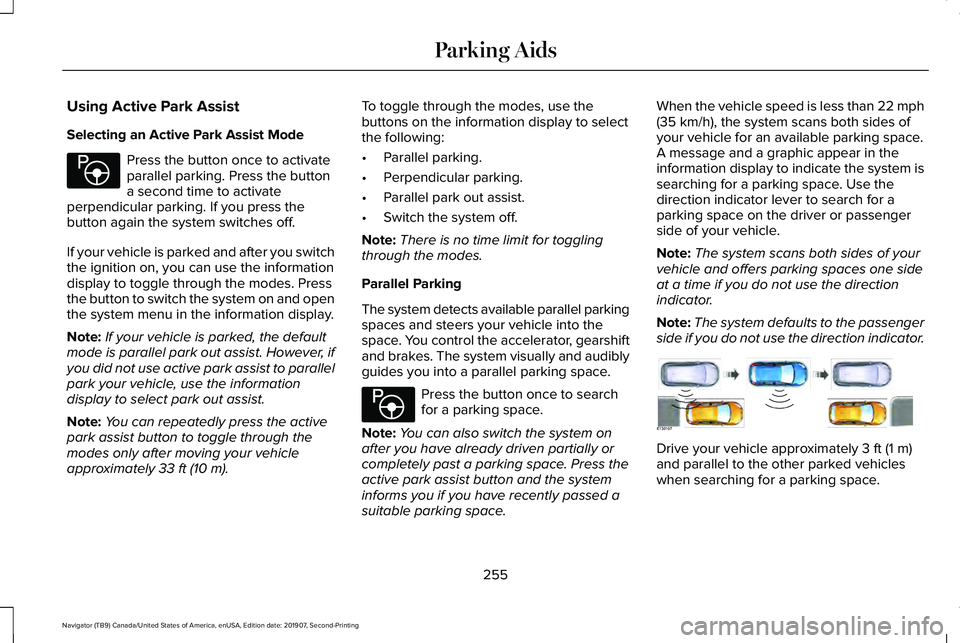
Press the button once to activate
parallel parking. Press the button
a second time to activate
perpendicular parking. If you press the
button again the system switches off.
If your vehicle is parked and after you switch
the ignition on, you can use the information
display to toggle through the modes. Press
the button to switch the system on and open
the system menu in the information display.
Note: If your vehicle is parked, the default
mode is parallel park out assist. However, if
you did not use active park assist to parallel
park your vehicle, use the information
display to select park out assist.
Note: You can repeatedly press the active
park assist button to toggle through the
modes only after moving your vehicle
approximately 33 ft (10 m). To toggle through the modes, use the
buttons on the information display to select
the following:
•
Parallel parking.
• Perpendicular parking.
• Parallel park out assist.
• Switch the system off.
Note: There is no time limit for toggling
through the modes.
Parallel Parking
The system detects available parallel parking
spaces and steers your vehicle into the
space. You control the accelerator, gearshift
and brakes. The system visually and audibly
guides you into a parallel parking space. Press the button once to search
for a parking space.
Note: You can also switch the system on
after you have already driven partially or
completely past a parking space. Press the
active park assist button and the system
informs you if you have recently passed a
suitable parking space. When the vehicle speed is less than 22 mph
(35 km/h)
, the system scans both sides of
your vehicle for an available parking space.
A message and a graphic appear in the
information display to indicate the system is
searching for a parking space. Use the
direction indicator lever to search for a
parking space on the driver or passenger
side of your vehicle.
Note: The system scans both sides of your
vehicle and offers parking spaces one side
at a time if you do not use the direction
indicator.
Note: The system defaults to the passenger
side if you do not use the direction indicator. Drive your vehicle approximately
3 ft (1 m)
and parallel to the other parked vehicles
when searching for a parking space.
255
Navigator (TB9) Canada/United States of America, enUSA, Edition date: 201907, Second-Printing Parking AidsE146186 E146186 E130107
Page 271 of 622
WHAT IS CRUISE CONTROL
Cruise control lets you maintain a set speed
without keeping your foot on the accelerator
pedal. You can use cruise control when your
vehicle speed is greater than 20 mph
(30 km/h).
SWITCHING CRUISE CONTROL ON
AND OFF WARNING:
Do not use cruise control
on winding roads, in heavy traffic or when
the road surface is slippery. This could
result in loss of vehicle control, serious
injury or death.
The cruise controls are on the steering
wheel.
See Cruise Control (page 102).
Switching Cruise Control On Press the button. Switching Cruise Control Off Press the button when the system
is in standby mode.
The system also turns off when you switch
the ignition off.
Note: The set speed erases when you switch
the system off.
SETTING THE CRUISE CONTROL
SPEED WARNING:
When you are going
downhill, your vehicle speed could
increase above the set speed. The system
does not apply the brakes.
Drive to the speed you prefer. Press either button to set the
current speed.Take your foot off the accelerator pedal.
Note:
The indicator changes color in the
information display.
Changing the Set Speed Press and release the button to
increase the set speed in small
increments.
Press and hold the button to accelerate.
Release the button when you reach your
preferred speed. Press and release the button to
decrease the set speed in small
increments.
Press and hold the button to decelerate.
Release the button when you reach your
preferred speed.
Note: If you accelerate by pressing the
accelerator pedal, the set speed does not
change. When you release the accelerator
pedal, your vehicle returns to the speed that
you previously set.
268
Navigator (TB9) Canada/United States of America, enUSA, Edition date: 201907, Second-Printing Cruise ControlE265296 E265297
Page 276 of 622
The system may apply the brakes to slow
the vehicle to the new set speed. The set
speed displays continuously in the
information display when the system is
active.
Canceling the Set Speed
Press and release the button or tap
the brake pedal.
The set speed does not erase.
Resuming the Set Speed Press and release the button.
Your vehicle speed returns to the previously
set speed and gap setting. The set speed
displays continuously in the information
display when the system is active.
Note: Only use resume if you are aware of
the set speed and intend to return to it.
Automatic Cancellation
Automatic cancellation can also occur when: •
The tires lose traction.
• You apply the parking brake.
Park Brake Application
Automatic parking brake application and
cancellation occurs if:
• You unbuckle the seatbelt and open the
door after you stop the vehicle.
• You hold the vehicle at a stop
continuously for more than three minutes.
Hilly Condition Usage
You should select a lower gear when the
system is active in situations such as
prolonged downhill driving on steep grades,
for example in mountainous areas. The
system needs additional engine braking in
these situations to reduce the load on the
vehicle ’s regular brake system to prevent it
from overheating.
Note: An audible alarm sounds and the
system shuts down if it applies brakes for an
extended period of time. This allows the
brakes to cool. The system functions
normally again after the brakes cool. Switching Adaptive Cruise Control Off Press and release the button when
the system is in standby mode, or
switch the ignition off.
Note: You erase the set speed and gap
setting when you switch the system off.
Detection Issues WARNING: On rare occasions,
detection issues can occur due to the road
infrastructures, for example bridges,
tunnels and safety barriers. In these cases,
the system may brake late or
unexpectedly. At all times, you are
responsible for controlling your vehicle,
supervising the system and intervening, if
required. WARNING:
If the system
malfunctions, have your vehicle checked
as soon as possible.
273
Navigator (TB9) Canada/United States of America, enUSA, Edition date: 201907, Second-Printing Cruise Control E265299 E265297
Page 279 of 622
Action
Cause
Do not use the system in these conditions because it may not detect
any vehicles ahead.
Water, snow or ice on the surface of the road may interfere with the
radar signals.
Wait a short time or switch to normal cruise control.
You are in a desert or remote area with no other vehicles and no
roadside objects.
Due to the nature of radar technology, it is possible to get a blockage warning with no actual block. A false\
blocked condition either self
clears, or clears after you restart your vehicle.
Switching to Normal Cruise Control WARNING: Normal cruise control will
not brake when your vehicle is
approaching slower vehicles. Always be
aware of which mode you have selected
and apply the brakes when necessary. The cruise control indicator light
replaces the adaptive cruise
control indicator light if you select
normal cruise control. The gap setting does
not display, and the system does not respond
to lead vehicles. Automatic braking remains
active to maintain set speed. You can change from adaptive cruise control
to normal cruise control through the
information display.
See General
Information (page 133).
276
Navigator (TB9) Canada/United States of America, enUSA, Edition date: 201907, Second-Printing Cruise ControlE71340
Page 282 of 622
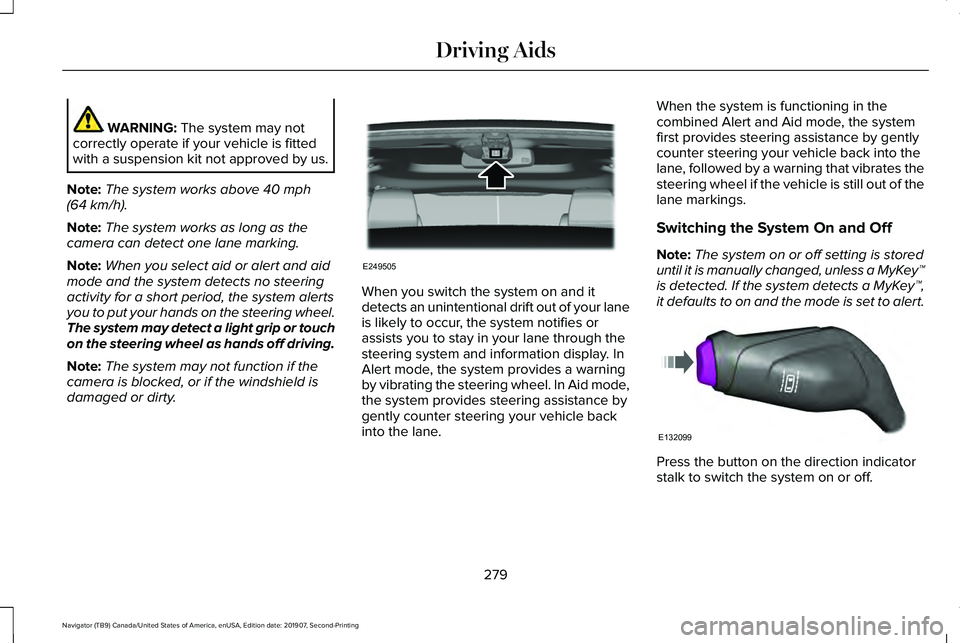
WARNING: The system may not
correctly operate if your vehicle is fitted
with a suspension kit not approved by us.
Note: The system works above
40 mph
(64 km/h).
Note: The system works as long as the
camera can detect one lane marking.
Note: When you select aid or alert and aid
mode and the system detects no steering
activity for a short period, the system alerts
you to put your hands on the steering wheel.
The system may detect a light grip or touch
on the steering wheel as hands off driving.
Note: The system may not function if the
camera is blocked, or if the windshield is
damaged or dirty. When you switch the system on and it
detects an unintentional drift out of your lane
is likely to occur, the system notifies or
assists you to stay in your lane through the
steering system and information display. In
Alert mode, the system provides a warning
by vibrating the steering wheel. In Aid mode,
the system provides steering assistance by
gently counter steering your vehicle back
into the lane.When the system is functioning in the
combined Alert and Aid mode, the system
first provides steering assistance by gently
counter steering your vehicle back into the
lane, followed by a warning that vibrates the
steering wheel if the vehicle is still out of the
lane markings.
Switching the System On and Off
Note:
The system on or off setting is stored
until it is manually changed, unless a MyKey™
is detected. If the system detects a MyKey™,
it defaults to on and the mode is set to alert. Press the button on the direction indicator
stalk to switch the system on or off.
279
Navigator (TB9) Canada/United States of America, enUSA, Edition date: 201907, Second-Printing Driving AidsE249505 E132099
Page 283 of 622
System Settings
The system has optional menu settings
available. See General Information (page
133). The system stores the last known
selection for each of these settings. You do
not need to readjust your settings each time
you switch the system on.
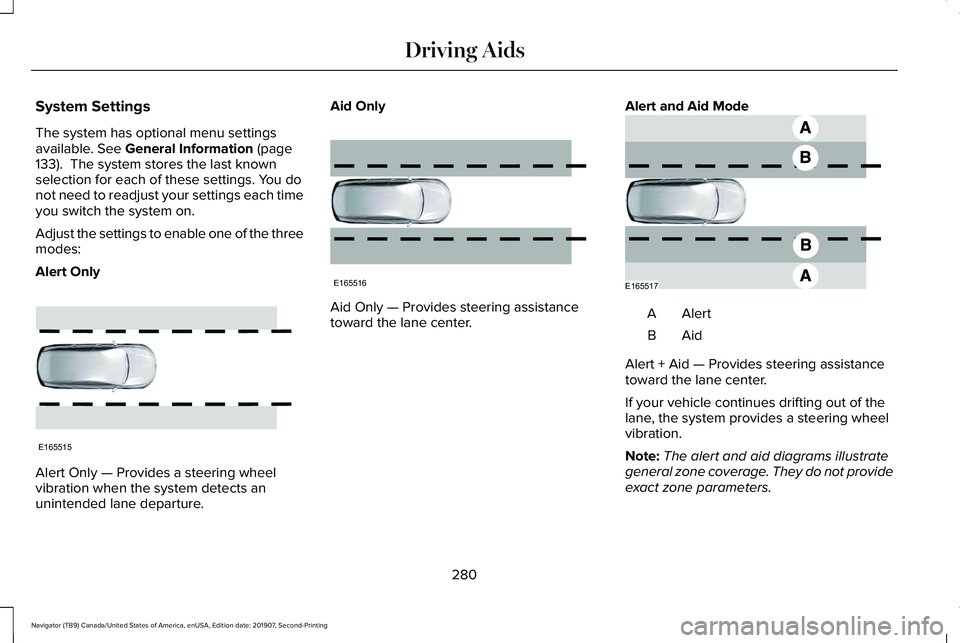
Adjust the settings to enable one of the three
modes:
Alert Only Alert Only — Provides a steering wheel
vibration when the system detects an
unintended lane departure. Aid Only
Aid Only — Provides steering assistance
toward the lane center.
Alert and Aid Mode AlertA
AidB
Alert + Aid — Provides steering assistance
toward the lane center.
If your vehicle continues drifting out of the
lane, the system provides a steering wheel
vibration.
Note: The alert and aid diagrams illustrate
general zone coverage. They do not provide
exact zone parameters.
280
Navigator (TB9) Canada/United States of America, enUSA, Edition date: 201907, Second-Printing Driving AidsE165515 E165516 E165517
Page 284 of 622
Intensity: This setting affects the intensity of
the steering wheel vibration used for the alert
and alert and aid modes.
This setting does
not affect the aid mode.
• Low.
• Medium.
• High.
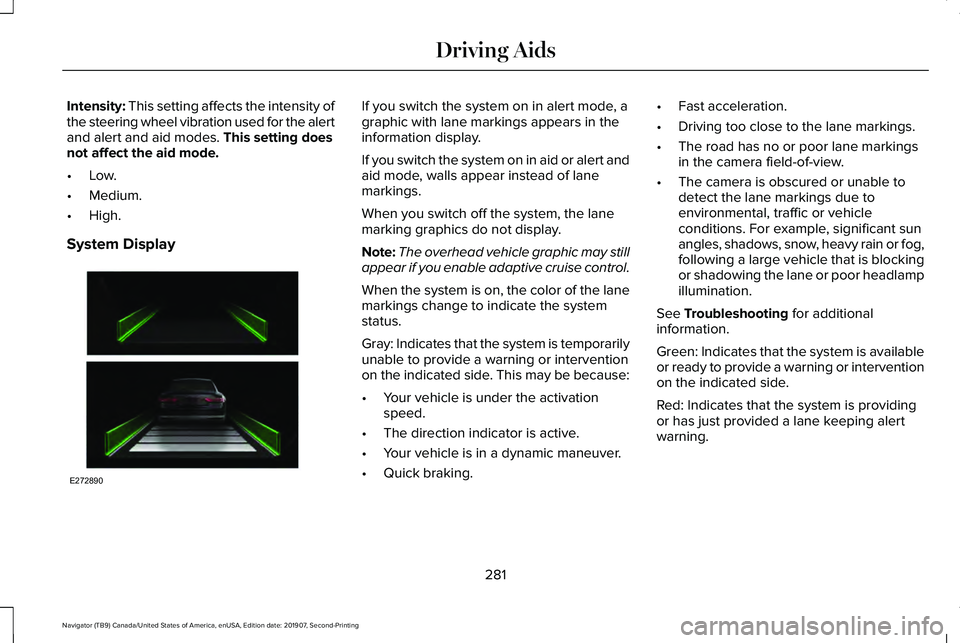
System Display If you switch the system on in alert mode, a
graphic with lane markings appears in the
information display.
If you switch the system on in aid or alert and
aid mode, walls appear instead of lane
markings.
When you switch off the system, the lane
marking graphics do not display.
Note:
The overhead vehicle graphic may still
appear if you enable adaptive cruise control.
When the system is on, the color of the lane
markings change to indicate the system
status.
Gray: Indicates that the system is temporarily
unable to provide a warning or intervention
on the indicated side. This may be because:
• Your vehicle is under the activation
speed.
• The direction indicator is active.
• Your vehicle is in a dynamic maneuver.
• Quick braking. •
Fast acceleration.
• Driving too close to the lane markings.
• The road has no or poor lane markings
in the camera field-of-view.
• The camera is obscured or unable to
detect the lane markings due to
environmental, traffic or vehicle
conditions. For example, significant sun
angles, shadows, snow, heavy rain or fog,
following a large vehicle that is blocking
or shadowing the lane or poor headlamp
illumination.
See
Troubleshooting for additional
information.
Green: Indicates that the system is available
or ready to provide a warning or intervention
on the indicated side.
Red: Indicates that the system is providing
or has just provided a lane keeping alert
warning.
281
Navigator (TB9) Canada/United States of America, enUSA, Edition date: 201907, Second-Printing Driving AidsE272890
Page 286 of 622
 when I can s\
ee the lane markings on the road?
Lane width is too narrow or too wide.
The camera has not been calibrated after a windshield re")
Why is the feature not available (line markings are gray) when I can s\
ee the lane markings on the road?
Lane width is too narrow or too wide.
The camera has not been calibrated after a windshield replacement.
Driving on tight roads or on uneven roads. Why does the vehicle not come back toward the middle of the lane, as expected, in the Aid or Aid + Alert mode?
High cross winds are present.
There is a large road crown.
Rough roads, grooves or shoulder drop-offs.
Heavy uneven loading of the vehicle or improper tire inflation pressure.
The tires have been changed, or the suspension has been modified.
283
Navigator (TB9) Canada/United States of America, enUSA, Edition date: 201907, Second-Printing Driving Aids
Page 298 of 622
Alert: When active, a flashing visual warning
appears and an audible warning tone
sounds.
Brake Support
: The system helps reduce
the impact speed by preparing the brakes
for rapid braking. Brake support does not
apply the brakes. If you press the brake
pedal, the system could apply additional
braking up to maximum braking force, even
if you lightly press the brake pedal.
Active Braking
: Active braking may activate
if the system determines that a collision is
imminent. The system may help the driver
reduce impact damage or avoid the crash
completely.
Note: Brake Support and Active Braking are
active at speeds up to 74.6 mph (120 km/h).
If the vehicle has a radar sensor or Adaptive
Cruise Control, then Brake Support and
Active Braking are active up to the maximum
speed of the vehicle.
Note: The Active Braking capability of the
system disables when you select the SLOW
CLIMB
drive mode. Note:
If you perceive Pre-Collision Assist
alerts as being too frequent or disturbing,
then you can reduce the alert sensitivity,
though the manufacturer recommends using
the highest sensitivity setting where possible.
Setting lower sensitivity would lead to fewer
and later system warnings.
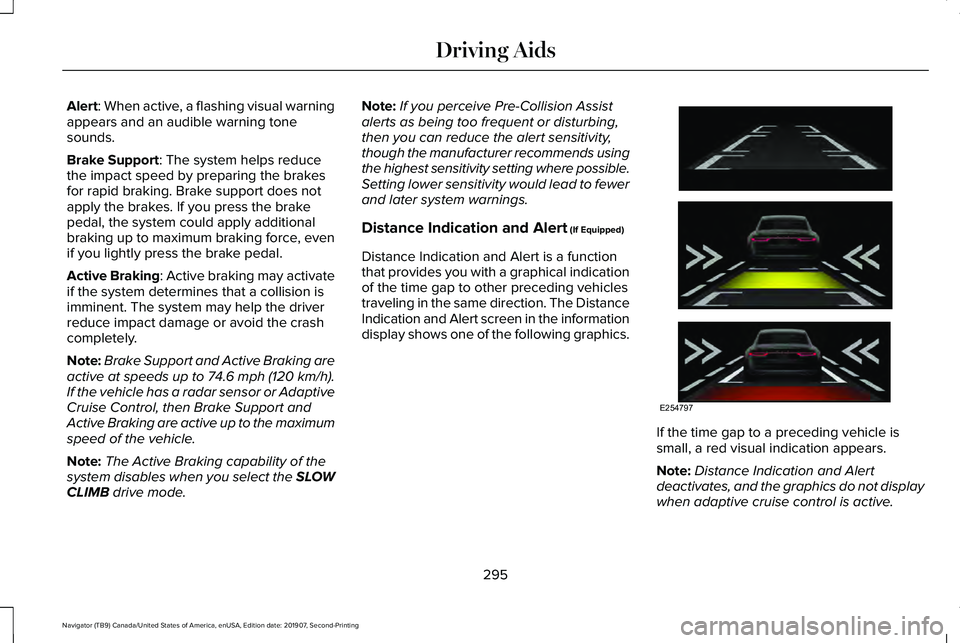
Distance Indication and Alert
(If Equipped)
Distance Indication and Alert is a function
that provides you with a graphical indication
of the time gap to other preceding vehicles
traveling in the same direction. The Distance
Indication and Alert screen in the information
display shows one of the following graphics. If the time gap to a preceding vehicle is
small, a red visual indication appears.
Note:
Distance Indication and Alert
deactivates, and the graphics do not display
when adaptive cruise control is active.
295
Navigator (TB9) Canada/United States of America, enUSA, Edition date: 201907, Second-Printing Driving AidsE254797
Page 302 of 622

Note:
If your vehicle detects excessive heat
at the camera or a potential misalignment
condition, a message may display in the
information display indicating temporary
sensor unavailability. When operational
conditions are correct, the message
deactivates. For example, when the ambient
temperature around the sensor decreases
or the sensor automatically recalibrates
successfully.
DRIVE MODE CONTROL
Lincoln Drive Modes
Lincoln Drive Modes deliver a driving
experience through a suite of sophisticated
electronic vehicle systems. These systems
optimize steering, handling and powertrain
response. You can control performance
settings for multiple systems from this single
location.
Changing the drive mode automatically
changes the functionality of the following
systems: •
Electronically power-assisted steering
system adjusts steering effort and feel
based on the mode you select. See
Steering (page 293).
• Electronic stability control and traction
control maintain your vehicle control in
adverse conditions or high performance
driving. See Stability Control (page
244).
• Electronic throttle control enhances the
powertrain response to your inputs.
• Transmission controls optimize with shift
schedules tuned to each mode.
• Driveline settings optimize for each
mode.
Using the System
The system automatically tailors your vehicle
configuration for each mode you select. To change the drive mode setting, use the
drive mode selector on the center console.
Note:
Mode changes are not available when
the vehicle ignition is off or when the engine
is not running.
Note: Not all settings may be available.
299
Navigator (TB9) Canada/United States of America, enUSA, Edition date: 201907, Second-Printing Driving AidsE246604