reset LINCOLN NAVIGATOR 2021 User Guide
[x] Cancel search | Manufacturer: LINCOLN, Model Year: 2021, Model line: NAVIGATOR, Model: LINCOLN NAVIGATOR 2021Pages: 639, PDF Size: 6.09 MB
Page 104 of 639
ADJUSTING THE STEERING WHEEL
WARNING: Do not adjust the steering
wheel when your vehicle is moving.
Note: Make sure that you are sitting in the
correct position. See Sitting in the Correct
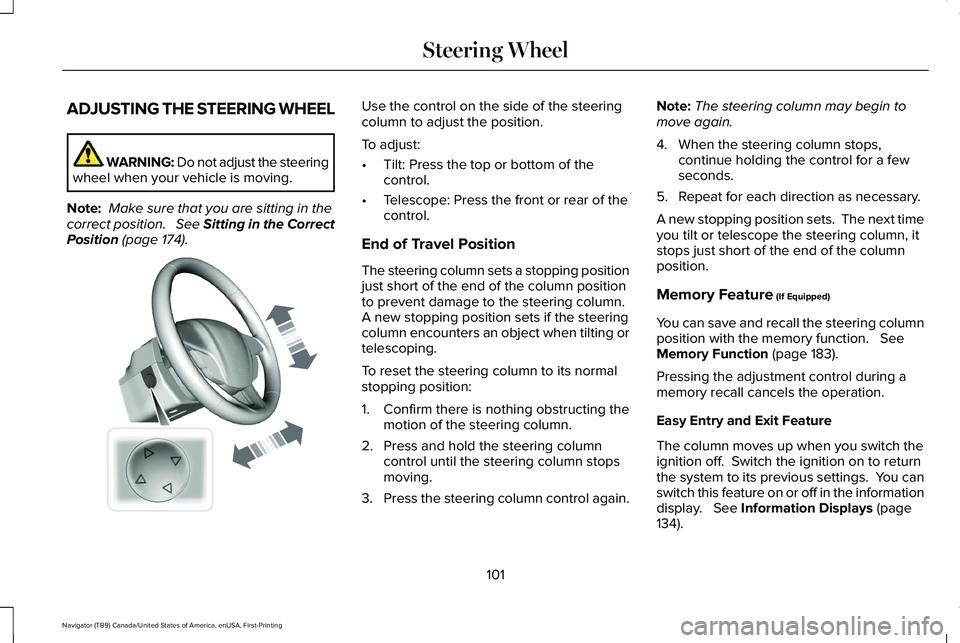
Position (page 174). Use the control on the side of the steering
column to adjust the position.
To adjust:
•
Tilt: Press the top or bottom of the
control.
• Telescope: Press the front or rear of the
control.
End of Travel Position
The steering column sets a stopping position
just short of the end of the column position
to prevent damage to the steering column.
A new stopping position sets if the steering
column encounters an object when tilting or
telescoping.
To reset the steering column to its normal
stopping position:
1. Confirm there is nothing obstructing the motion of the steering column.
2. Press and hold the steering column control until the steering column stops
moving.
3. Press the steering column control again. Note:
The steering column may begin to
move again.
4. When the steering column stops, continue holding the control for a few
seconds.
5. Repeat for each direction as necessary.
A new stopping position sets. The next time
you tilt or telescope the steering column, it
stops just short of the end of the column
position.
Memory Feature
(If Equipped)
You can save and recall the steering column
position with the memory function.
See
Memory Function (page 183).
Pressing the adjustment control during a
memory recall cancels the operation.
Easy Entry and Exit Feature
The column moves up when you switch the
ignition off. Switch the ignition on to return
the system to its previous settings. You can
switch this feature on or off in the information
display.
See Information Displays (page
134).
101
Navigator (TB9) Canada/United States of America, enUSA, First-Printing Steering WheelE261582
Page 122 of 639
POWER WINDOWS
WARNING: Do not leave children
unattended in your vehicle and do not let
them play with the power windows. Failure
to follow this instruction could result in
personal injury. WARNING:
When closing the power
windows, verify they are free of obstruction
and make sure that children and pets are
not in the proximity of the window
openings. Note:
You may hear a pulsing noise when
just one of the windows is open. Lower the
opposite window slightly to reduce this
noise.
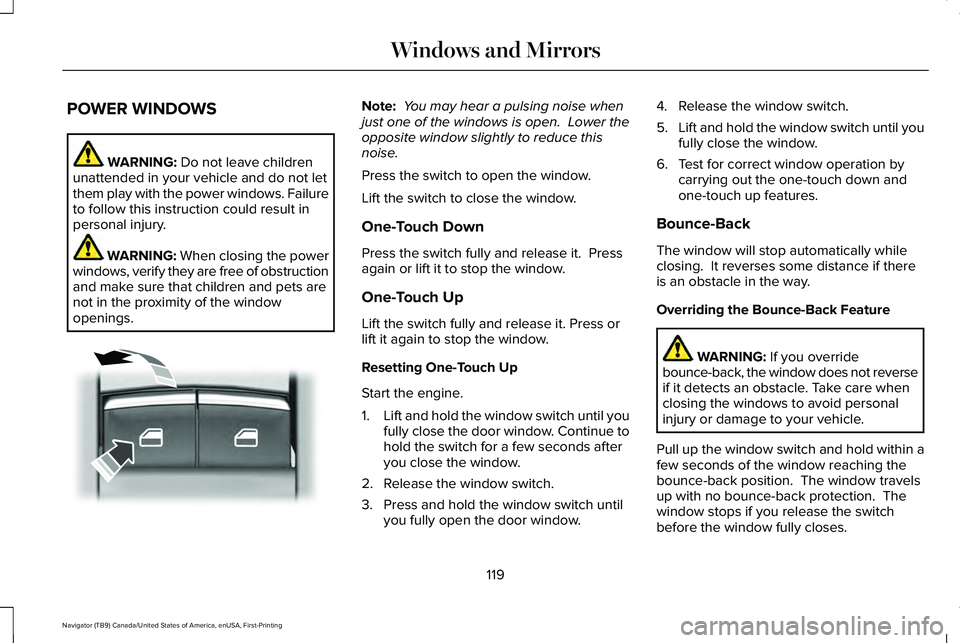
Press the switch to open the window.
Lift the switch to close the window.
One-Touch Down
Press the switch fully and release it. Press
again or lift it to stop the window.
One-Touch Up
Lift the switch fully and release it. Press or
lift it again to stop the window.
Resetting One-Touch Up
Start the engine.
1. Lift and hold the window switch until you
fully close the door window. Continue to
hold the switch for a few seconds after
you close the window.
2. Release the window switch.
3. Press and hold the window switch until you fully open the door window. 4. Release the window switch.
5.
Lift and hold the window switch until you
fully close the window.
6. Test for correct window operation by carrying out the one-touch down and
one-touch up features.
Bounce-Back
The window will stop automatically while
closing. It reverses some distance if there
is an obstacle in the way.
Overriding the Bounce-Back Feature WARNING:
If you override
bounce-back, the window does not reverse
if it detects an obstacle. Take care when
closing the windows to avoid personal
injury or damage to your vehicle.
Pull up the window switch and hold within a
few seconds of the window reaching the
bounce-back position. The window travels
up with no bounce-back protection. The
window stops if you release the switch
before the window fully closes.
119
Navigator (TB9) Canada/United States of America, enUSA, First-Printing Windows and MirrorsE295317
Page 125 of 639
Loose Mirror
If your power-folding mirrors are manually
folded, they may not work properly even
after you re-position them. You need to reset
them if:
•
The mirrors vibrate when you drive.
• The mirrors feel loose.
• The mirrors do not stay in the folded or
unfolded position.
• One of the mirrors is not in its normal
driving position.
To reset the power-fold feature, use the
power-folding mirror control to fold and
unfold the mirrors. You may hear a loud noise
as you reset the power-folding mirrors. This
sound is normal. Repeat this process as
needed each time the mirrors are manually
folded.
Heated Exterior Mirrors
See Heated Exterior Mirrors (page 171). Memory Mirrors
You can save and recall the mirror positions
through the memory function. See Memory
Function
(page 183).
Auto-Dimming Feature
The driver’ s exterior mirror automatically
dims when the interior auto-dimming mirror
turns on.
Signal Indicator Mirrors
The outer portion of the appropriate mirror
housing blinks when you switch on the
direction indicator.
Lincoln Welcome Mat
Projection lights, on the bottom of the mirror
housings, project an image onto the ground
a short distance from the vehicle.
360-Degree Camera
(If Equipped)
See
360 Degree Camera (page 269). Blind Spot Monitor
See
Blind Spot Information System (page
288).
INTERIOR MIRROR WARNING: Do not adjust the mirrors
when your vehicle is moving. This could
result in the loss of control of your vehicle,
serious personal injury or death.
Note: Do not clean the housing or glass of
any mirror with harsh abrasives, fuel or other
petroleum or ammonia-based cleaning
products.
You can adjust the interior mirror to your
preference. Some mirrors also have a second
pivot point. This lets you move the mirror
head up or down and from side to side.
122
Navigator (TB9) Canada/United States of America, enUSA, First-Printing Windows and Mirrors
Page 140 of 639
SETTINGS
DRIVER ALERT Enter the submenu and select your setting
LANE KEEPING SYSTEM
PRE-COLLISION
Enter the submenu and select your setting
TRAILER STATUS
TOWING
TRAILER OPTIONS
CONNECTION CHECKLIST ALARM
VEHICLE
ADVANCED
SETTINGS
AUTO ENGINE OFF
EASY ENTRY/EXIT
LIGHTING
LOCKS
MIRRORS
NEUTRAL TOW
OIL LIFE RESET
POWER LIFTGATE
REMOTE START
137
Navigator (TB9) Canada/United States of America, enUSA, First-Printing Information Displays
Page 142 of 639
INFO/TRIP/FUEL
TIRE PRESSURE
TRAILER INFORMATION
• NO CONTENT - Displays a blank area.
• TRIP 1
- Displays distance traveled,
average fuel economy, and time spent
for trip. Press and hold
OK to reset.
• TRIP 2
information is the same as
TRIP 1.
• FUEL ECONOMY
- Displays your
vehicle's average fuel economy. Press
and hold
OK to reset.
• SEATBELTS
- Displays a graphic of the
connection status of the rear seatbelts.
• TIRE PRESSURE
- Displays a graphic of
current vehicle tire pressures.
• TRAILER INFORMATION
- Displays the
transmission temperature and trailer gain. Head Up Display
(If Equipped)
See
Head Up Display (page 162).
Phone
See
General Information (page 473).
Audio
See
General Information (page 473).
Navigation
(If Equipped)
See
General Information (page 473).
INFORMATION MESSAGES
Note: Depending on your vehicle options
and instrument cluster type, not all of the
messages will display or be available.
Certain messages may be abbreviated or
shortened depending upon which cluster
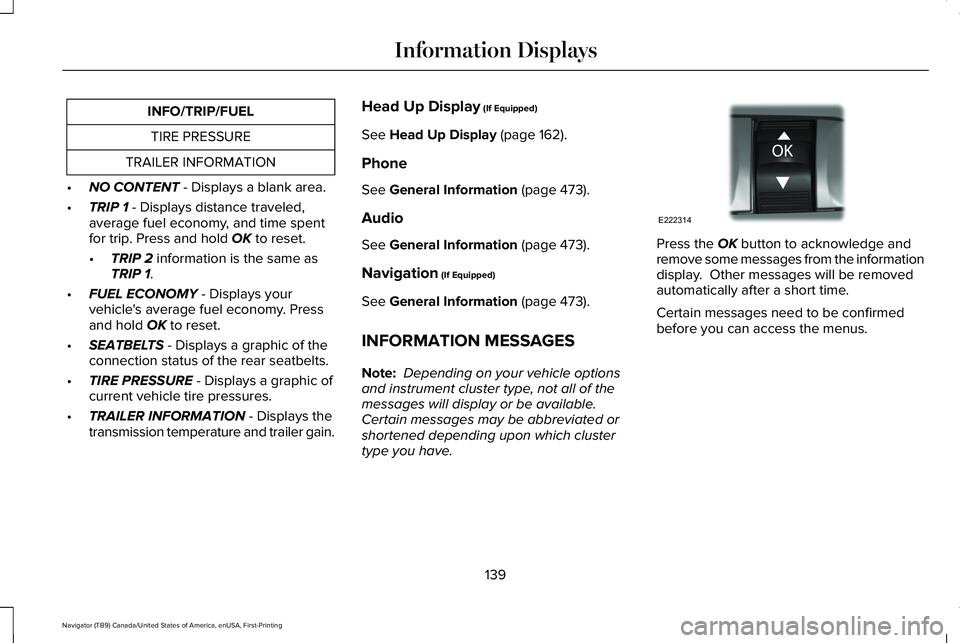
type you have. Press the
OK button to acknowledge and
remove some messages from the information
display. Other messages will be removed
automatically after a short time.
Certain messages need to be confirmed
before you can access the menus.
139
Navigator (TB9) Canada/United States of America, enUSA, First-Printing Information DisplaysE222314
Page 147 of 639
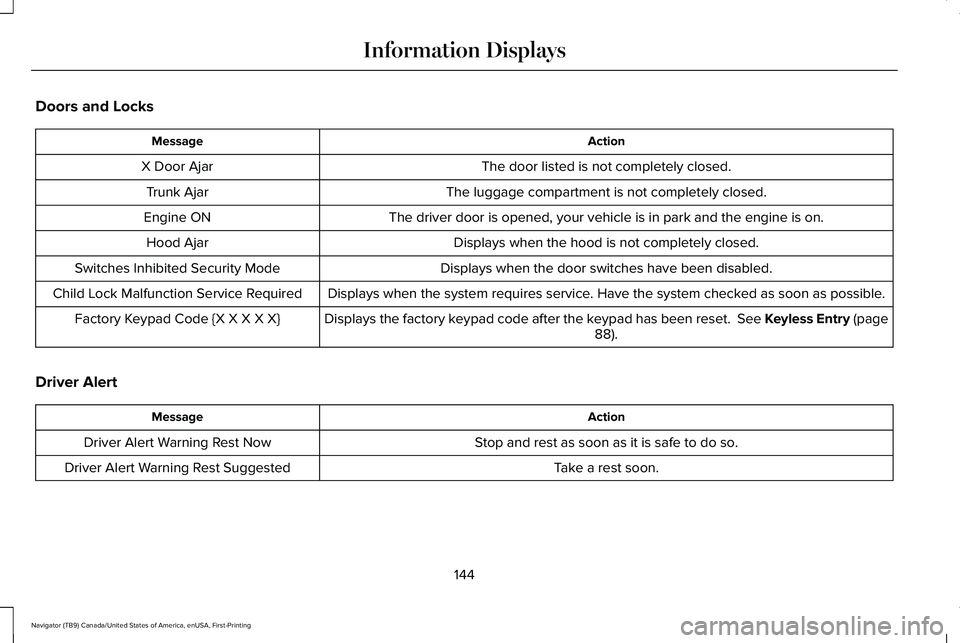
Doors and Locks
Action
Message
The door listed is not completely closed.
X Door Ajar
The luggage compartment is not completely closed.
Trunk Ajar
The driver door is opened, your vehicle is in park and the engine is on.\
Engine ON
Displays when the hood is not completely closed.
Hood Ajar
Displays when the door switches have been disabled.
Switches Inhibited Security Mode
Displays when the system requires service. Have the system checked as soon as possible.
Child Lock Malfunction Service Required
Displays the factory keypad code after the keypad has been reset. See Keyless Entry (page88).
Factory Keypad Code {X X X X X}
Driver Alert Action
Message
Stop and rest as soon as it is safe to do so.
Driver Alert Warning Rest Now
Take a rest soon.
Driver Alert Warning Rest Suggested
144
Navigator (TB9) Canada/United States of America, enUSA, First-Printing Information Displays
Page 167 of 639
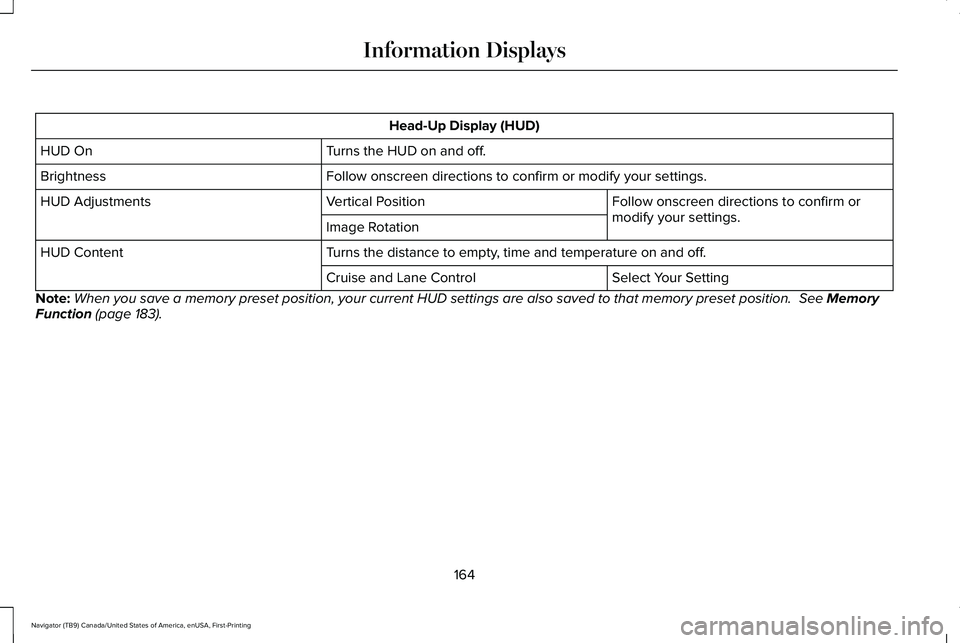
Head-Up Display (HUD)
Turns the HUD on and off.
HUD On
Follow onscreen directions to confirm or modify your settings.
Brightness
Follow onscreen directions to confirm or
modify your settings.
Vertical Position
HUD Adjustments
Image Rotation
Turns the distance to empty, time and temperature on and off.
HUD Content
Select Your Setting
Cruise and Lane Control
Note: When you save a memory preset position, your current HUD settings are al\
so saved to that memory preset position. See Memory
Function (page 183).
164
Navigator (TB9) Canada/United States of America, enUSA, First-Printing Information Displays
Page 186 of 639
You can also adjust this feature through the
touchscreen.
Press the Menu Settings icon, then
Vehicle. Choose Multi-Contour
Seats.
When switched on, the system displays
directions for you to adjust the lumbar
settings in your seat or to set the massage
function.
To access and make adjustments to the
lumbar setting:
1. Choose the seat you would like to adjust.
2. Press the + or - to adjust the lumbar intensity.
To access and make adjustments to the
massage setting:
1. Press the Menu Settings icon, then Vehicle. Choose Multi-Contour Seats.
2. Choose the seat you would like to adjust.
3. Press OFF, Low or High. MEMORY FUNCTION WARNING: Before activating the
memory seat, make sure that the area
immediately surrounding the seat is clear
of obstructions and that all occupants are
clear of moving parts. WARNING:
Do not use the memory
function when your vehicle is moving.
Driver Seat Memory
This feature automatically recalls the position
of the following:
• Driver seat.
• Power mirrors.
• Power adjustable foot pedals.
• Power steering column.
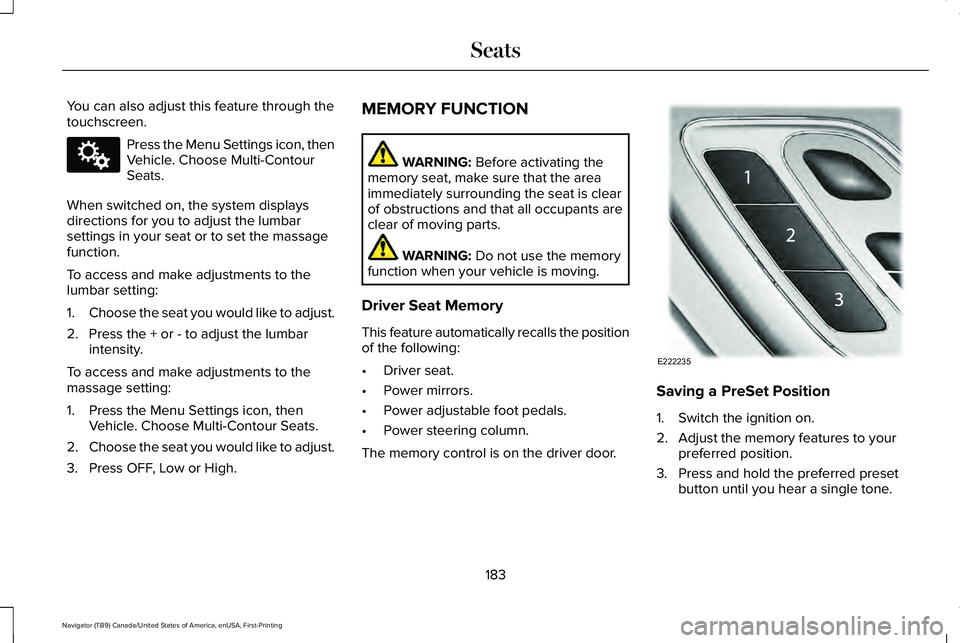
The memory control is on the driver door. Saving a PreSet Position
1. Switch the ignition on.
2. Adjust the memory features to your
preferred position.
3. Press and hold the preferred preset button until you hear a single tone.
183
Navigator (TB9) Canada/United States of America, enUSA, First-Printing SeatsE142607 E222235
Page 187 of 639
You can save up to three preset memory
positions. You can save a memory preset at
any time.
Recalling a PreSet Position
Press and release the preset button
associated with your preferred driving
position. The memory features move to the
position stored for that preset.
Note:
You can only recall a driver seat preset
memory position when the ignition is off, or
when the transmission is in park (P) or
neutral (N) (and your vehicle is not moving)
if the ignition is on.
You can also recall a preset memory position
by:
• Pressing the unlock button on your
intelligent access key fob if it is linked to
a preset position.
• Unlocking the intelligent driver door
handle if a linked key fob is present.
• Recalling a personal profile in your SYNC
3 menu. Note:
Using a linked remote control to recall
your memory position when the ignition is
off moves the seat to the Easy Entry position.
Note: Pressing any active memory feature
adjustment control (or any memory button)
during a memory recall cancels the
operation.
Easy Entry and Exit Feature
If you enable the easy entry and exit feature,
it automatically moves the driver seat
position rearward up to 2 in (5 cm) when you
switch the ignition off.
The driver seat returns to its previous
position when you switch the ignition on.
You can switch this feature on or off in the
information display.
See Information
Displays (page 134).
Passenger Seat Memory
This feature recalls the position of the
passenger seat. The memory control is on
the passenger door. Saving a PreSet Position
1. Adjust the passenger seat to your
preferred position.
2. Press and hold the preferred preset button until you hear a single tone.
You can save up to three preset memory
positions. You can save a memory preset at
any time.
Recalling a PreSet Position
Press and release the preset button
associated with your preferred position. The
passenger seat features move to the position
stored for that preset. You can recall a
passenger seat preset memory at any time.
184
Navigator (TB9) Canada/United States of America, enUSA, First-Printing Seats
Page 188 of 639
Personal Profiles
This feature allows you to create multiple
personal profiles enabling users to
personalize vehicle
’s settings. You can
create one profile for each preset memory
seat button along with a guest profile. You
can recall a profile using SYNC 3 or the
preset button you selected when you created
your profile. You can also link a remote
control or mobile device to your profile,
which is used to recall it.
Creating a Personal Profile
Use the SYNC display to create a personal
profile.
1. Switch the ignition on and leave the vehicle in park (P).
2. Select the Personal Profiles button under
Settings.
3. Follow the instructions on the display. Linking a Personal Profile to your Remote
Control or Mobile Device
You can save preset memory positions for
up to three remote controls by assigning a
remote control to a personal profile in your
SYNC 3. You can assign three additional
remote controls set up as Phone as a Key.
See Keys and Remote Controls (page 69).
Use the SYNC display to link a remote
control, mobile device or both to a personal
profile.
1. Switch the ignition on and leave the vehicle in park (P).
2. Select the Personal Profiles button under
Settings.
3. Touch the arrow for the profile you wish to link to a remote control or mobile
device.
4. Select the correct button to link a remote
control, mobile device or both.
5. Follow the instructions on the display. Note:
To successfully link a mobile device,
the mobile device must be present in your
vehicle, and must have previously been
setup as a remote control for your vehicle.
Note: If more than one linked remote control
or intelligent access key is in range, the
memory function moves to the settings of
the first key to initiate a memory recall.
Note: The guest profile consists of existing
settings when there is no driver profile
created. After you create a driver profile, the
guest profile serves as an additional driver
profile.
Note: You cannot link a personalized name,
a memory seat button or a keyfob to a guest
profile.
Personal Settings
Personal profiles allow you to personalize
positional settings such as seats and mirrors,
as well as non-positional settings such as
radio, navigation, driver assist and system
settings.
See SYNC™ 3 (page 473). You
cannot change the menu locations and
settings of those personalized features with
personal profiles.
185
Navigator (TB9) Canada/United States of America, enUSA, First-Printing Seats