steering wheel LINCOLN NAVIGATOR 2021 User Guide
[x] Cancel search | Manufacturer: LINCOLN, Model Year: 2021, Model line: NAVIGATOR, Model: LINCOLN NAVIGATOR 2021Pages: 639, PDF Size: 6.09 MB
Page 70 of 639
WHAT IS 911 ASSIST
911 Assist is a SYNC system feature that can
call for help if you are in an accident. If a
crash deploys an airbag, excluding knee
airbags and rear inflatable seatbelts [if
equipped], or activates the fuel pump
shut-off, your SYNC-equipped vehicle may
be able to contact emergency services by
dialing 911 through a paired and connected
Bluetooth enabled phone. You can learn
more about the 911 Assist feature, by visiting:
Website
www.owner.lincoln.com
www.syncmyride.ca
www.syncmaroute.ca
Not all crashes will deploy an airbag or
activate the fuel pump shut-off, the triggers
for 911 Assist. If a connected cell phone
sustains damage or loses its connection to
SYNC during a crash, SYNC will search for
and try to connect to a previously paired cell
phone. SYNC will then attempt to call the
emergency services. Before making the call:
•
SYNC provides a short window of time,
about 10 seconds, to cancel the call. If
you fail to cancel the call, SYNC attempts
to dial 911.
• SYNC says the following, or a similar
message: SYNC will attempt to call 911,
to cancel the call, press Cancel on your
screen or press and hold the phone
button on your steering wheel.
If you do not cancel the call, and SYNC
makes a successful call, a pre-recorded
message plays for the 911 operator, and then
the occupant(s) in your vehicle is able to talk
with the operator. Be prepared to
immediately provide your name, phone
number and location, because not all 911
systems are capable of receiving this
information electronically.
During an emergency call, the system
transmits vehicle data to the emergency
service. See Data Recording (page 12). EMERGENCY CALL
REQUIREMENTS WARNING: Do not wait for 911 Assist
to make an emergency call if you can do
it yourself. Dial emergency services
immediately to avoid delayed response
time which could increase the risk of
serious injury or death after a crash. If you
do not hear 911 Assist within five seconds
of the crash, the system or phone may be
damaged or non-functional. WARNING: Always place your phone
in a secure location in your vehicle so it
does not become a projectile or get
damaged in a crash. Failure to do so may
cause serious injury to someone or
damage the phone which could prevent
911 Assist from working properly. WARNING: Unless the 911 Assist
setting is set on before a crash, the system
will not dial for help which could delay
response time, potentially increasing the
risk of serious injury or death after a crash.
67
Navigator (TB9) Canada/United States of America, enUSA, First-Printing 911 Assist
Page 104 of 639
ADJUSTING THE STEERING WHEEL
WARNING: Do not adjust the steering
wheel when your vehicle is moving.
Note: Make sure that you are sitting in the
correct position. See Sitting in the Correct
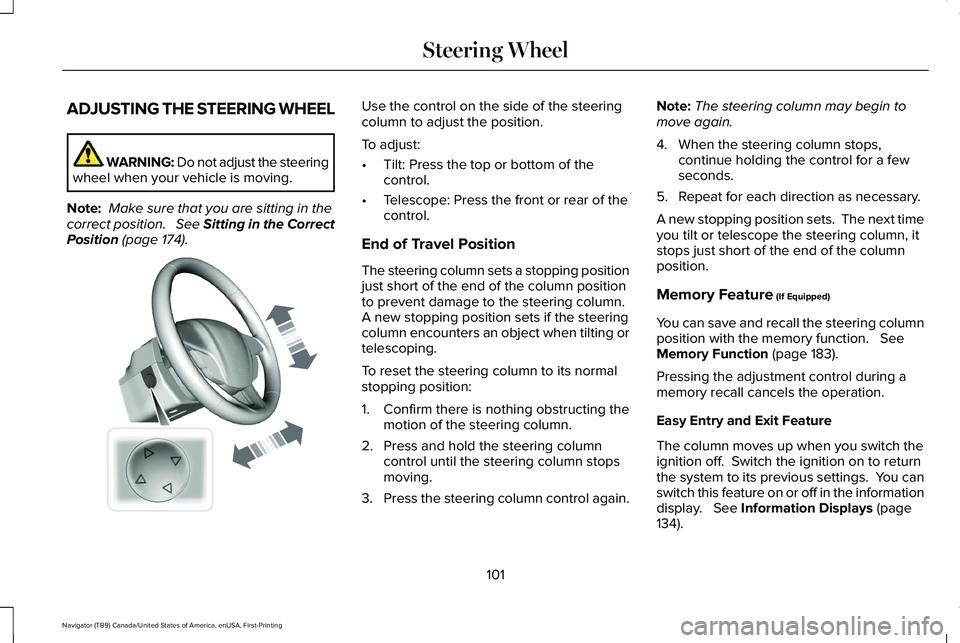
Position (page 174). Use the control on the side of the steering
column to adjust the position.
To adjust:
•
Tilt: Press the top or bottom of the
control.
• Telescope: Press the front or rear of the
control.
End of Travel Position
The steering column sets a stopping position
just short of the end of the column position
to prevent damage to the steering column.
A new stopping position sets if the steering
column encounters an object when tilting or
telescoping.
To reset the steering column to its normal
stopping position:
1. Confirm there is nothing obstructing the motion of the steering column.
2. Press and hold the steering column control until the steering column stops
moving.
3. Press the steering column control again. Note:
The steering column may begin to
move again.
4. When the steering column stops, continue holding the control for a few
seconds.
5. Repeat for each direction as necessary.
A new stopping position sets. The next time
you tilt or telescope the steering column, it
stops just short of the end of the column
position.
Memory Feature
(If Equipped)
You can save and recall the steering column
position with the memory function.
See
Memory Function (page 183).
Pressing the adjustment control during a
memory recall cancels the operation.
Easy Entry and Exit Feature
The column moves up when you switch the
ignition off. Switch the ignition on to return
the system to its previous settings. You can
switch this feature on or off in the information
display.
See Information Displays (page
134).
101
Navigator (TB9) Canada/United States of America, enUSA, First-Printing Steering WheelE261582
Page 105 of 639
Note:
If you press any adjustment or
memory button when in easy exit mode, the
system cancels the operation.
Note: Depending on your vehicle, the column
may move up and in.
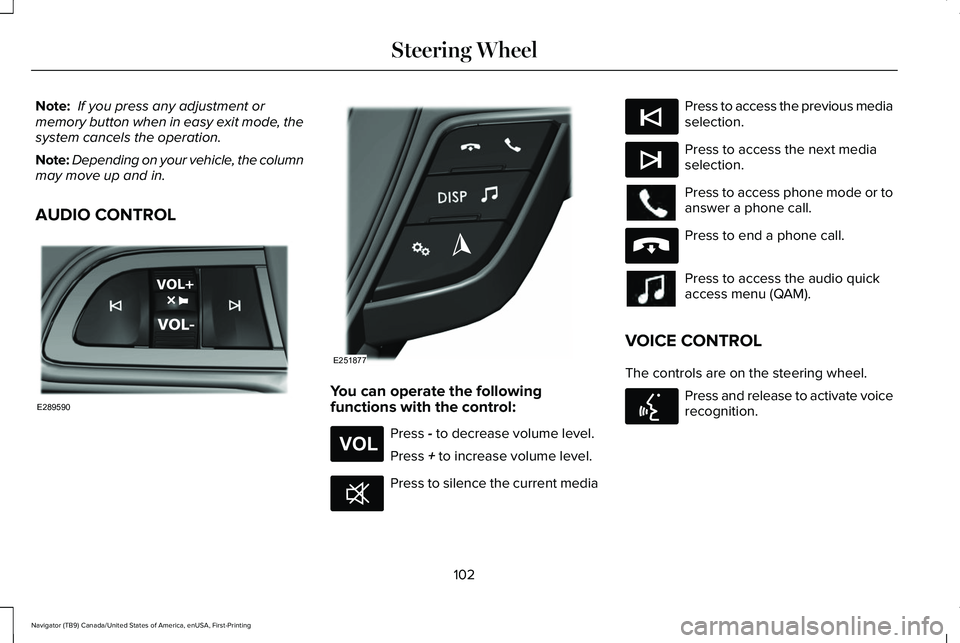
AUDIO CONTROL You can operate the following
functions with the control:
Press - to decrease volume level.
Press
+ to increase volume level. Press to silence the current media Press to access the previous media
selection.
Press to access the next media
selection.
Press to access phone mode or to
answer a phone call.
Press to end a phone call.
Press to access the audio quick
access menu (QAM).
VOICE CONTROL
The controls are on the steering wheel. Press and release to activate voice
recognition.
102
Navigator (TB9) Canada/United States of America, enUSA, First-Printing Steering WheelE289590 E251877 E265304 E268549 E265045 E265044 E265040 E142599
Page 106 of 639
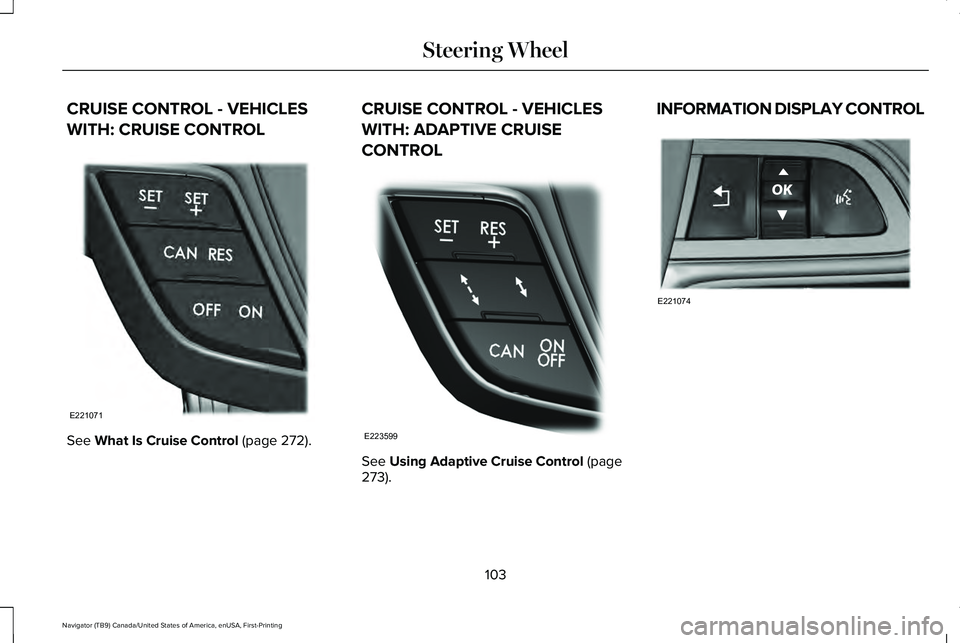
CRUISE CONTROL - VEHICLES
WITH: CRUISE CONTROL
See What Is Cruise Control (page 272). CRUISE CONTROL - VEHICLES
WITH: ADAPTIVE CRUISE
CONTROL
See
Using Adaptive Cruise Control (page
273). INFORMATION DISPLAY CONTROL
103
Navigator (TB9) Canada/United States of America, enUSA, First-Printing Steering WheelE221071 E223599 E221074
Page 107 of 639
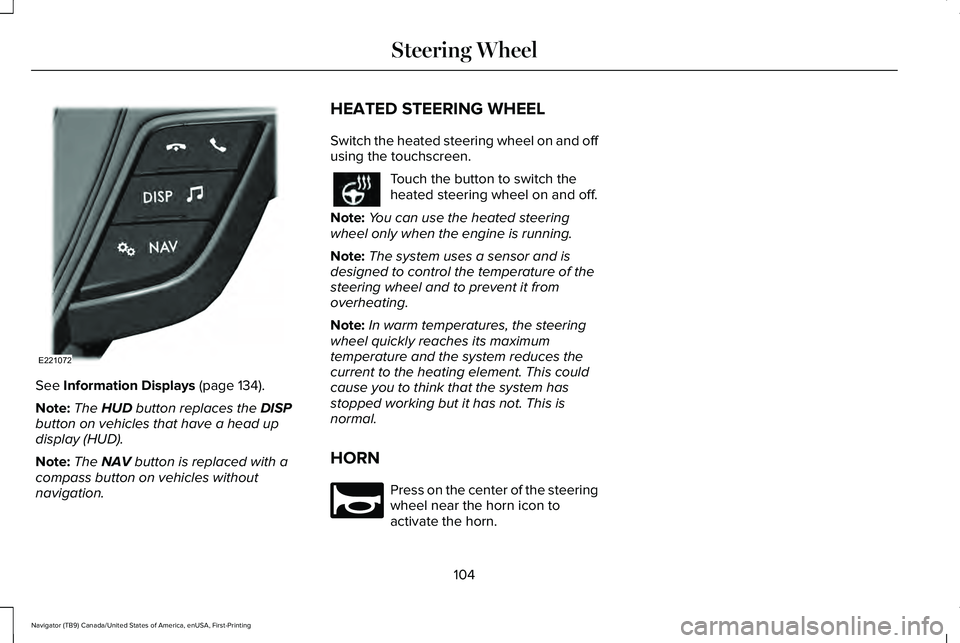
See Information Displays (page 134).
Note: The
HUD button replaces the DISP
button on vehicles that have a head up
display (HUD).
Note: The
NAV button is replaced with a
compass button on vehicles without
navigation. HEATED STEERING WHEEL
Switch the heated steering wheel on and off
using the touchscreen. Touch the button to switch the
heated steering wheel on and off.
Note: You can use the heated steering
wheel only when the engine is running.
Note: The system uses a sensor and is
designed to control the temperature of the
steering wheel and to prevent it from
overheating.
Note: In warm temperatures, the steering
wheel quickly reaches its maximum
temperature and the system reduces the
current to the heating element. This could
cause you to think that the system has
stopped working but it has not. This is
normal.
HORN Press on the center of the steering
wheel near the horn icon to
activate the horn.
104
Navigator (TB9) Canada/United States of America, enUSA, First-Printing Steering WheelE221072 E270945
Page 116 of 639
To switch the system on, switch the lighting
control to any position except headlamps.
FRONT FOG LAMPS
Switching the Front Fog Lamps On or
Off
Only switch the front fog lamps on during
reduced visibility.
You can switch the front fog lamps on if any
of the following occur:
•
You set the lighting control to the parking
lamps position.
• You set the lighting control to the
headlamps position.
• You set the lighting control to the
autolamps position and the headlamps
are on.
The front fog lamp button is on the lighting
control. Press the button to switch the front
fog lamps on or off. Note:
The brightness of the daytime running
lamps may decrease when the front fog
lamps are switched on.
Front Fog Lamp Indicator It illuminates when you switch the
front fog lamps on.
HEADLAMP LEVELING
This vehicle is equipped with a dynamic
automatic leveling system. The headlamps
do not require additional aim adjustment.
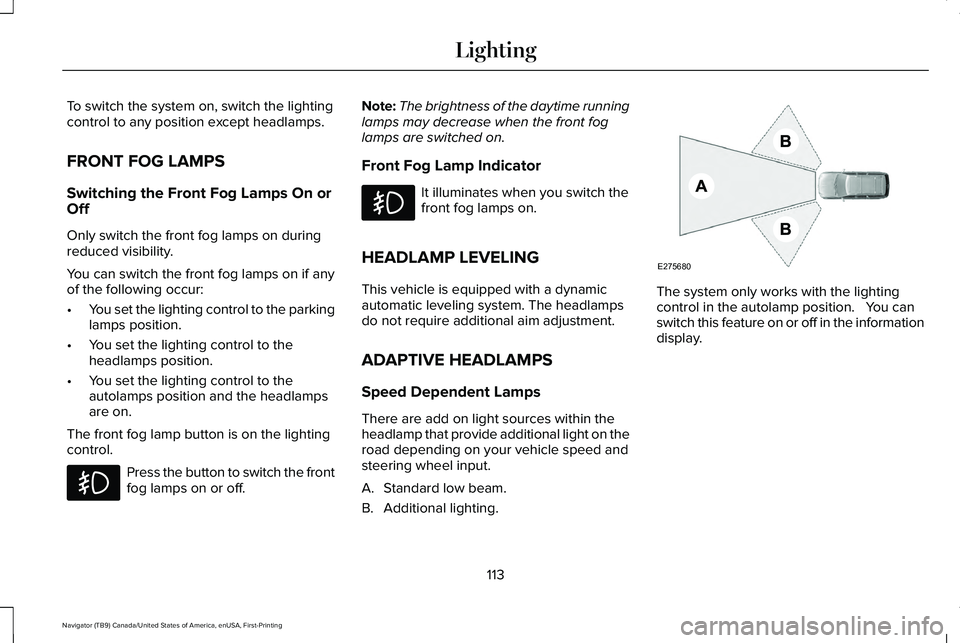
ADAPTIVE HEADLAMPS
Speed Dependent Lamps
There are add on light sources within the
headlamp that provide additional light on the
road depending on your vehicle speed and
steering wheel input.
A. Standard low beam.
B. Additional lighting. The system only works with the lighting
control in the autolamp position. You can
switch this feature on or off in the information
display.
113
Navigator (TB9) Canada/United States of America, enUSA, First-Printing Lighting E275680
Page 137 of 639
GENERAL INFORMATION
WARNING: Driving while distracted
can result in loss of vehicle control, crash
and injury. We strongly recommend that
you use extreme caution when using any
device that may take your focus off the
road. Your primary responsibility is the safe
operation of your vehicle. We recommend
against the use of any hand-held device
while driving and encourage the use of
voice-operated systems when possible.
Make sure you are aware of all applicable
local laws that may affect the use of
electronic devices while driving.
You can control various systems on your
vehicle using the quick action menu (QAM)
buttons on the right-hand side of the steering
wheel. The information display provides the
corresponding information.
Note: Some options may appear slightly
different or not at all if the items are optional.
Note: Trailer options are not available if your
vehicle speed is greater than 3 mph (5 km/h). Note:
Some MyKey menu options only
appear if MyKey is enabled and at least one
MyKey is programmed. This icon gives you the ability to
switch a feature on or off. A check
in the box indicates the feature is
on, and unchecked indicates the feature is
off.
134
Navigator (TB9) Canada/United States of America, enUSA, First-Printing Information DisplaysE204495
Page 144 of 639
Adaptive Headlamps
Action
Message
Displays when the system requires service. Have the system checked as soon as possible.
Check Headlamp System See Manual
Alarm Action
Message
The alarm has been triggered due to unauthorized entry.
Vehicle Alarm To Stop Alarm, Start Vehicle.
Automatic Engine Shutdown Action
Message
The engine is getting ready to shut off.
Vehicle Shuts Off In {seconds:#0} Seconds
The engine has shut off to help increase fuel economy.
Vehicle Shut Off to Save Energy
The engine is getting ready to shut off. You can press OK on the left steering wheel buttonto override the shut down.
Vehicle Shuts Off in {seconds:#0} Seconds
Press Ok to Override
141
Navigator (TB9) Canada/United States of America, enUSA, First-Printing Information Displays
Page 152 of 639
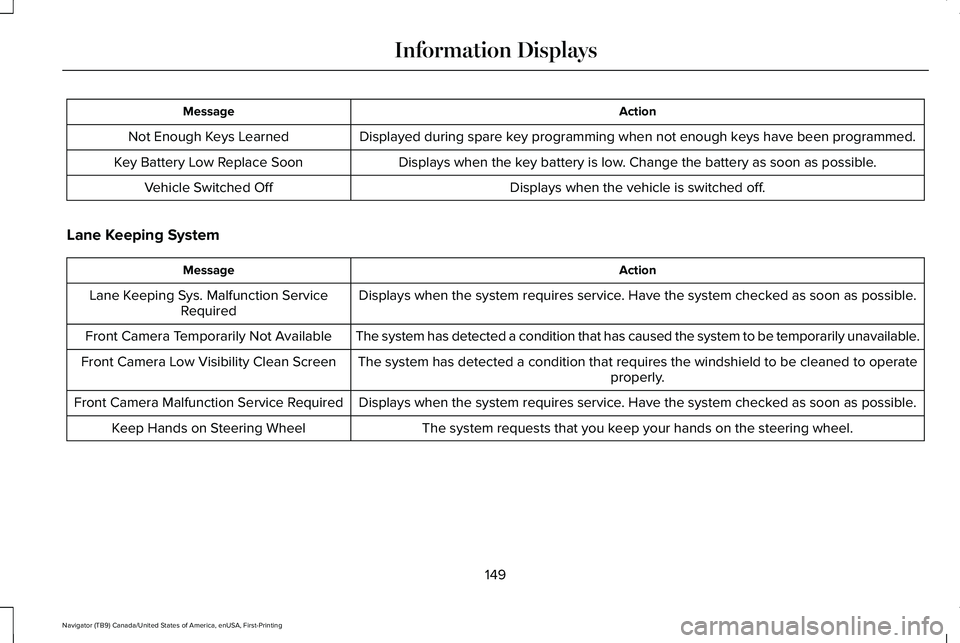
Action
Message
Displayed during spare key programming when not enough keys have been programmed.
Not Enough Keys Learned
Displays when the key battery is low. Change the battery as soon as possible.
Key Battery Low Replace Soon
Displays when the vehicle is switched off.
Vehicle Switched Off
Lane Keeping System Action
Message
Displays when the system requires service. Have the system checked as soon as possible.
Lane Keeping Sys. Malfunction Service
Required
The system has detected a condition that has caused the system to be tem\
porarily unavailable.
Front Camera Temporarily Not Available
The system has detected a condition that requires the windshield to be c\
leaned to operateproperly.
Front Camera Low Visibility Clean Screen
Displays when the system requires service. Have the system checked as soon as possible.
Front Camera Malfunction Service Required
The system requests that you keep your hands on the steering wheel.
Keep Hands on Steering Wheel
149
Navigator (TB9) Canada/United States of America, enUSA, First-Printing Information Displays
Page 158 of 639
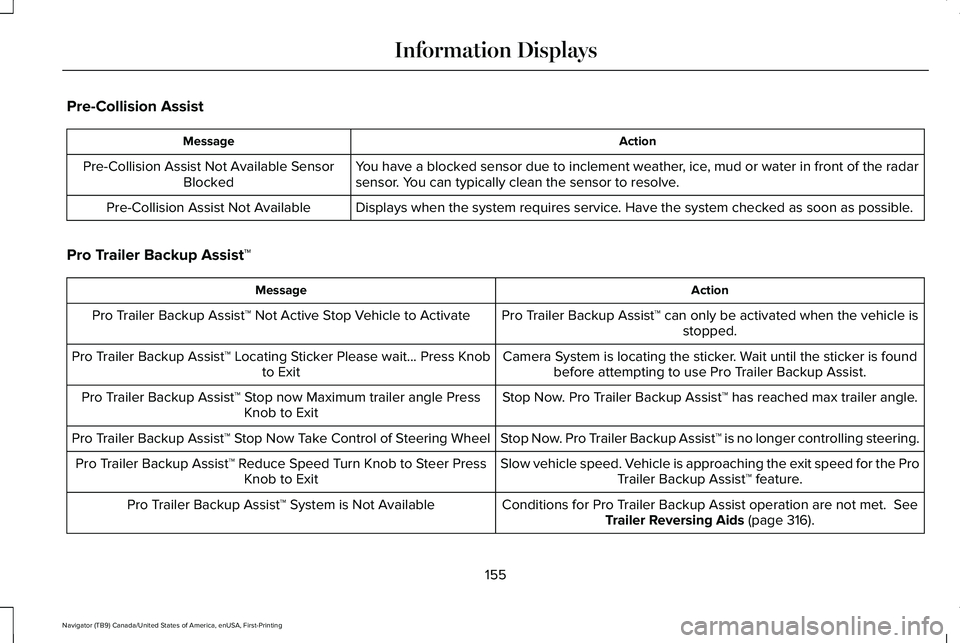
Pre-Collision Assist
Action
Message
You have a blocked sensor due to inclement weather, ice, mud or water in front of the radar
sensor. You can typically clean the sensor to resolve.
Pre-Collision Assist Not Available Sensor
Blocked
Displays when the system requires service. Have the system checked as soon as possible.
Pre-Collision Assist Not Available
Pro Trailer Backup Assist™ Action
Message
Pro Trailer Backup Assist™ can only be activated when the vehicle isstopped.
Pro Trailer Backup Assist™ Not Active Stop Vehicle to Activate
Camera System is locating the sticker. Wait until the sticker is foundbefore attempting to use Pro Trailer Backup Assist.
Pro Trailer Backup Assist™ Locating Sticker Please wait... Press Knob
to Exit
Stop Now. Pro Trailer Backup Assist™ has reached max trailer angle.
Pro Trailer Backup Assist™ Stop now Maximum trailer angle Press
Knob to Exit
Stop Now. Pro Trailer Backup Assist™ is no longer controlling steering.
Pro Trailer Backup Assist™ Stop Now Take Control of Steering Wheel
Slow vehicle speed. Vehicle is approaching the exit speed for the ProTrailer Backup Assist™ feature.
Pro Trailer Backup Assist™ Reduce Speed Turn Knob to Steer Press
Knob to Exit
Conditions for Pro Trailer Backup Assist operation are not met. See
Trailer Reversing Aids (page 316).
Pro Trailer Backup Assist™ System is Not Available
155
Navigator (TB9) Canada/United States of America, enUSA, First-Printing Information Displays