steering LINCOLN NAVIGATOR 2021 Owner's Manual
[x] Cancel search | Manufacturer: LINCOLN, Model Year: 2021, Model line: NAVIGATOR, Model: LINCOLN NAVIGATOR 2021Pages: 639, PDF Size: 6.09 MB
Page 144 of 639
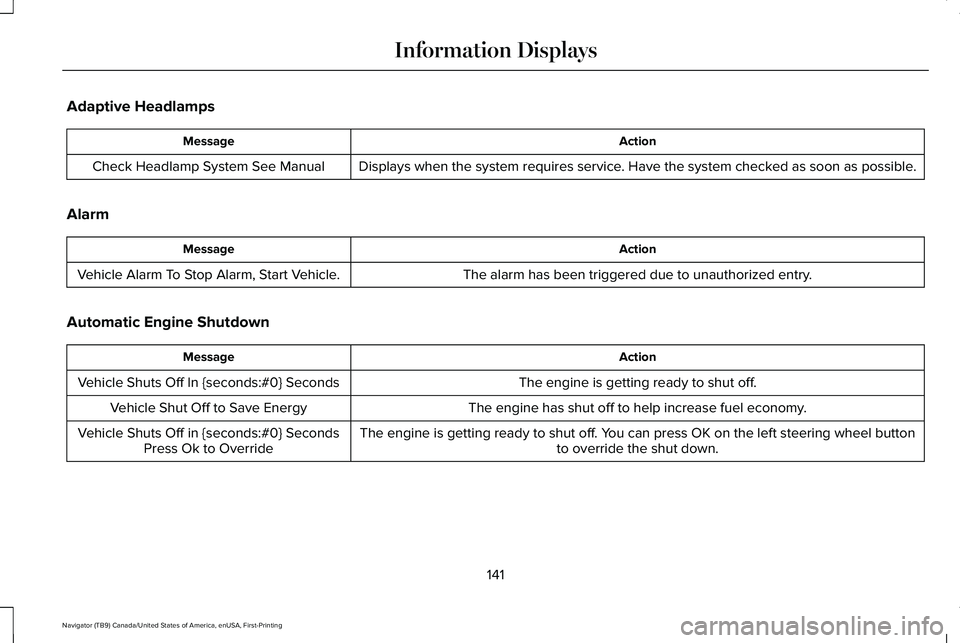
Adaptive Headlamps
Action
Message
Displays when the system requires service. Have the system checked as soon as possible.
Check Headlamp System See Manual
Alarm Action
Message
The alarm has been triggered due to unauthorized entry.
Vehicle Alarm To Stop Alarm, Start Vehicle.
Automatic Engine Shutdown Action
Message
The engine is getting ready to shut off.
Vehicle Shuts Off In {seconds:#0} Seconds
The engine has shut off to help increase fuel economy.
Vehicle Shut Off to Save Energy
The engine is getting ready to shut off. You can press OK on the left steering wheel buttonto override the shut down.
Vehicle Shuts Off in {seconds:#0} Seconds
Press Ok to Override
141
Navigator (TB9) Canada/United States of America, enUSA, First-Printing Information Displays
Page 152 of 639
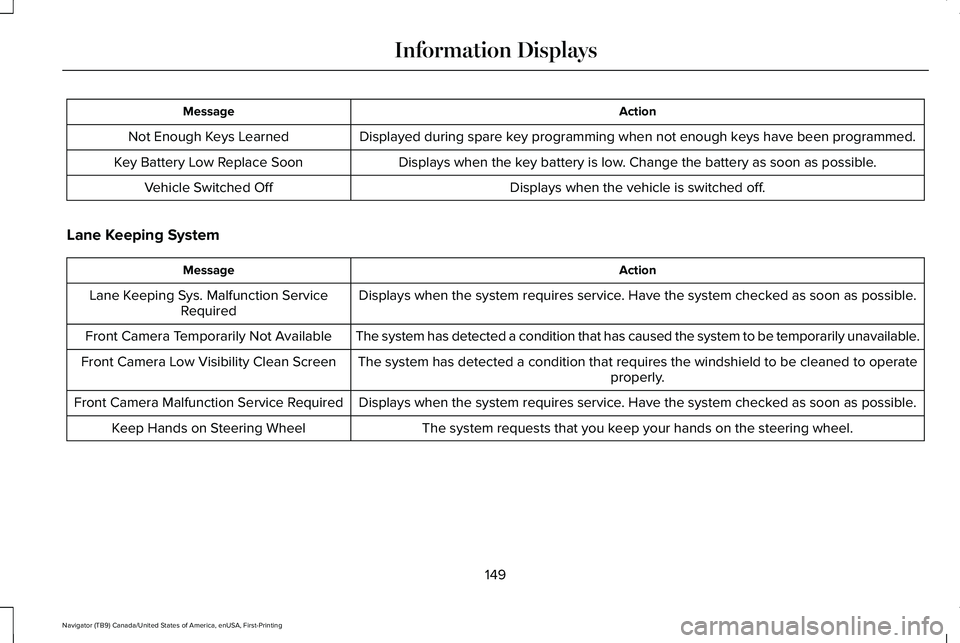
Action
Message
Displayed during spare key programming when not enough keys have been programmed.
Not Enough Keys Learned
Displays when the key battery is low. Change the battery as soon as possible.
Key Battery Low Replace Soon
Displays when the vehicle is switched off.
Vehicle Switched Off
Lane Keeping System Action
Message
Displays when the system requires service. Have the system checked as soon as possible.
Lane Keeping Sys. Malfunction Service
Required
The system has detected a condition that has caused the system to be tem\
porarily unavailable.
Front Camera Temporarily Not Available
The system has detected a condition that requires the windshield to be c\
leaned to operateproperly.
Front Camera Low Visibility Clean Screen
Displays when the system requires service. Have the system checked as soon as possible.
Front Camera Malfunction Service Required
The system requests that you keep your hands on the steering wheel.
Keep Hands on Steering Wheel
149
Navigator (TB9) Canada/United States of America, enUSA, First-Printing Information Displays
Page 157 of 639
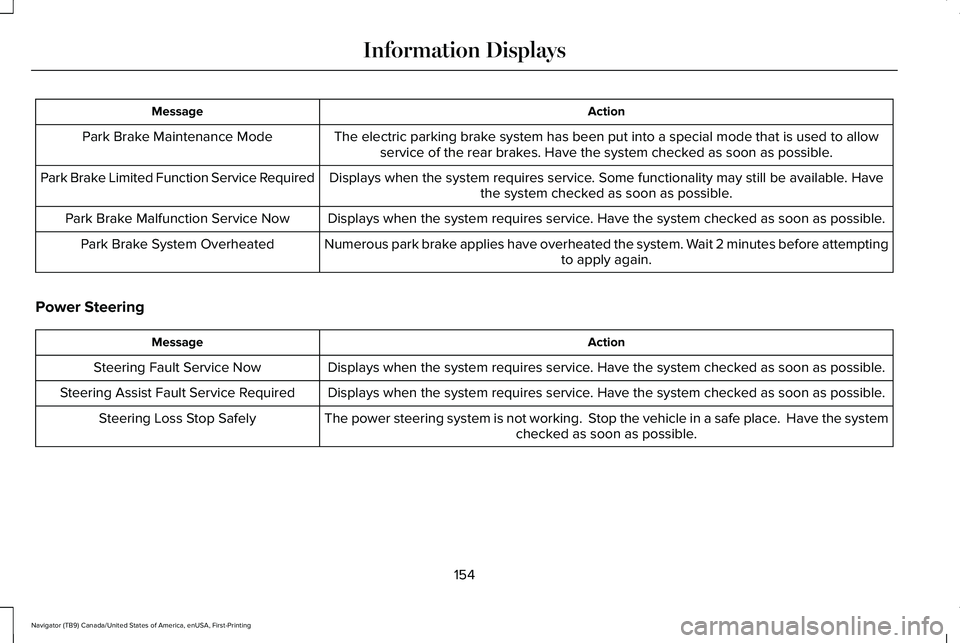
Action
Message
The electric parking brake system has been put into a special mode that is used to allowservice of the rear brakes. Have the system checked as soon as possible.
Park Brake Maintenance Mode
Displays when the system requires service. Some functionality may still be available. Havethe system checked as soon as possible.
Park Brake Limited Function Service Required
Displays when the system requires service. Have the system checked as soon as possible.
Park Brake Malfunction Service Now
Numerous park brake applies have overheated the system. Wait 2 minutes before attemptingto apply again.
Park Brake System Overheated
Power Steering Action
Message
Displays when the system requires service. Have the system checked as soon as possible.
Steering Fault Service Now
Displays when the system requires service. Have the system checked as soon as possible.
Steering Assist Fault Service Required
The power steering system is not working. Stop the vehicle in a safe place. Have the systemchecked as soon as possible.
Steering Loss Stop Safely
154
Navigator (TB9) Canada/United States of America, enUSA, First-Printing Information Displays
Page 158 of 639
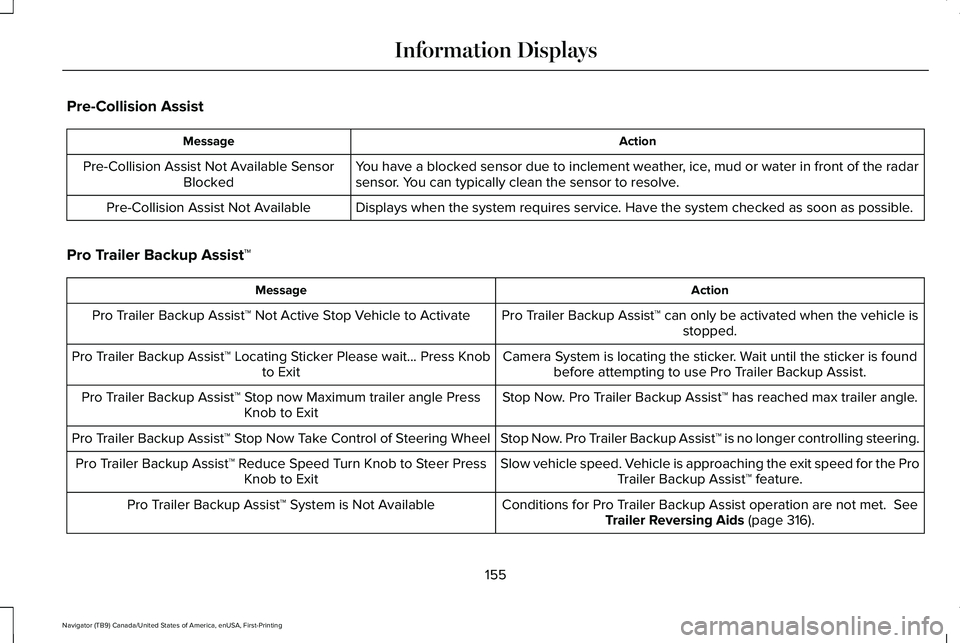
Pre-Collision Assist
Action
Message
You have a blocked sensor due to inclement weather, ice, mud or water in front of the radar
sensor. You can typically clean the sensor to resolve.
Pre-Collision Assist Not Available Sensor
Blocked
Displays when the system requires service. Have the system checked as soon as possible.
Pre-Collision Assist Not Available
Pro Trailer Backup Assist™ Action
Message
Pro Trailer Backup Assist™ can only be activated when the vehicle isstopped.
Pro Trailer Backup Assist™ Not Active Stop Vehicle to Activate
Camera System is locating the sticker. Wait until the sticker is foundbefore attempting to use Pro Trailer Backup Assist.
Pro Trailer Backup Assist™ Locating Sticker Please wait... Press Knob
to Exit
Stop Now. Pro Trailer Backup Assist™ has reached max trailer angle.
Pro Trailer Backup Assist™ Stop now Maximum trailer angle Press
Knob to Exit
Stop Now. Pro Trailer Backup Assist™ is no longer controlling steering.
Pro Trailer Backup Assist™ Stop Now Take Control of Steering Wheel
Slow vehicle speed. Vehicle is approaching the exit speed for the ProTrailer Backup Assist™ feature.
Pro Trailer Backup Assist™ Reduce Speed Turn Knob to Steer Press
Knob to Exit
Conditions for Pro Trailer Backup Assist operation are not met. See
Trailer Reversing Aids (page 316).
Pro Trailer Backup Assist™ System is Not Available
155
Navigator (TB9) Canada/United States of America, enUSA, First-Printing Information Displays
Page 159 of 639
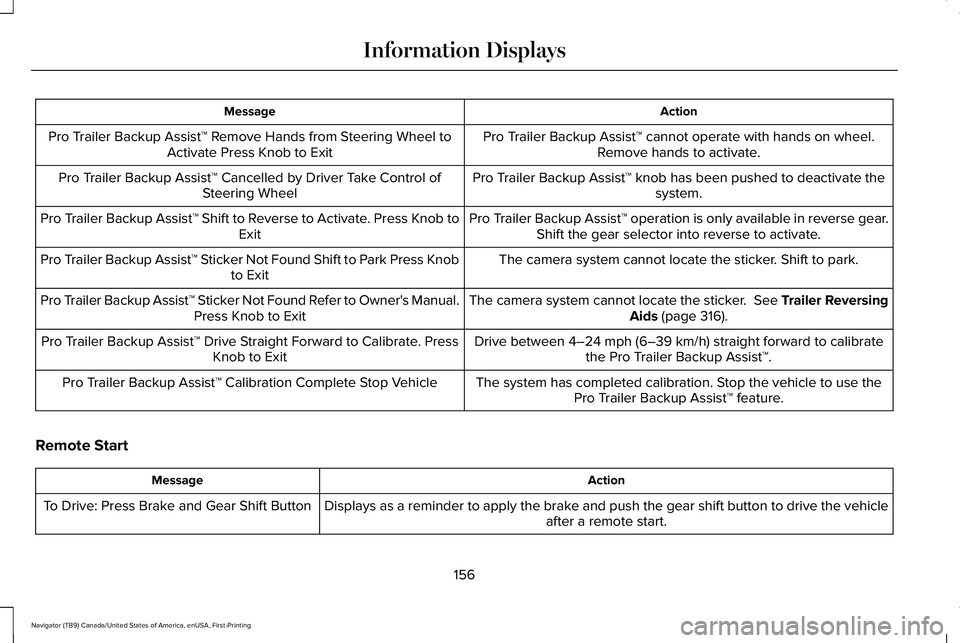
Action
Message
Pro Trailer Backup Assist™ cannot operate with hands on wheel.Remove hands to activate.
Pro Trailer Backup Assist™ Remove Hands from Steering Wheel to
Activate Press Knob to Exit
Pro Trailer Backup Assist™ knob has been pushed to deactivate thesystem.
Pro Trailer Backup Assist™ Cancelled by Driver Take Control of
Steering Wheel
Pro Trailer Backup Assist™ operation is only available in reverse gear.Shift the gear selector into reverse to activate.
Pro Trailer Backup Assist™ Shift to Reverse to Activate. Press Knob to
Exit
The camera system cannot locate the sticker. Shift to park.
Pro Trailer Backup Assist™ Sticker Not Found Shift to Park Press Knob
to Exit
The camera system cannot locate the sticker. See Trailer ReversingAids (page 316).
Pro Trailer Backup Assist™ Sticker Not Found Refer to Owner's Manual.
Press Knob to Exit
Drive between
4–24 mph (6–39 km/h) straight forward to calibrate
the Pro Trailer Backup Assist™.
Pro Trailer Backup Assist™ Drive Straight Forward to Calibrate. Press
Knob to Exit
The system has completed calibration. Stop the vehicle to use thePro Trailer Backup Assist™ feature.
Pro Trailer Backup Assist™ Calibration Complete Stop Vehicle
Remote Start Action
Message
Displays as a reminder to apply the brake and push the gear shift button to drive the vehicle after a remote start.
To Drive: Press Brake and Gear Shift Button
156
Navigator (TB9) Canada/United States of America, enUSA, First-Printing Information Displays
Page 166 of 639
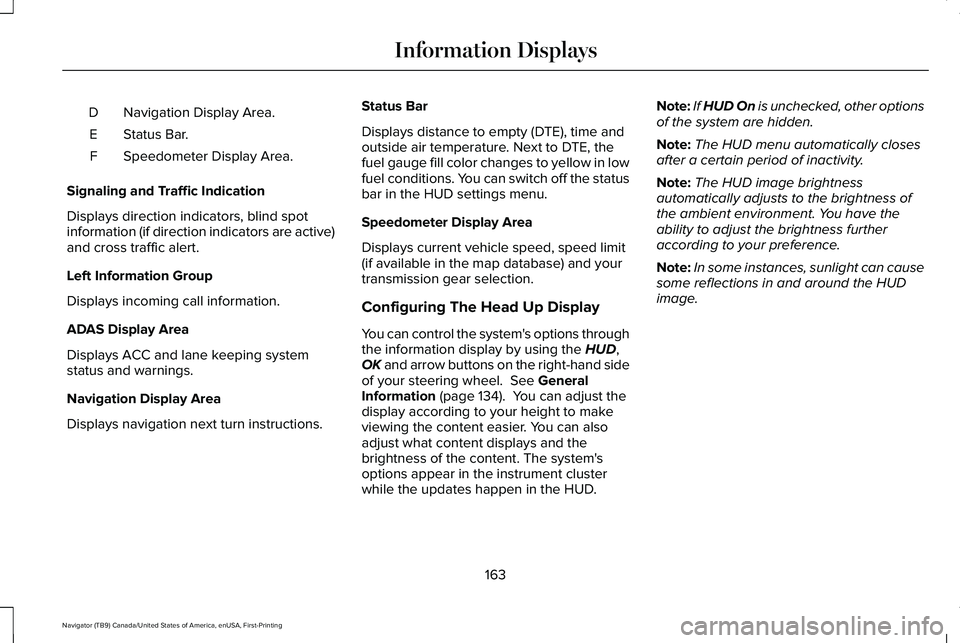
Navigation Display Area.
D
Status Bar.
E
Speedometer Display Area.
F
Signaling and Traffic Indication
Displays direction indicators, blind spot
information (if direction indicators are active)
and cross traffic alert.
Left Information Group
Displays incoming call information.
ADAS Display Area
Displays ACC and lane keeping system
status and warnings.
Navigation Display Area
Displays navigation next turn instructions. Status Bar
Displays distance to empty (DTE), time and
outside air temperature. Next to DTE, the
fuel gauge fill color changes to yellow in low
fuel conditions. You can switch off the status
bar in the HUD settings menu.
Speedometer Display Area
Displays current vehicle speed, speed limit
(if available in the map database) and your
transmission gear selection.
Configuring The Head Up Display
You can control the system's options through
the information display by using the HUD,
OK and arrow buttons on the right-hand side
of your steering wheel.
See General
Information (page 134). You can adjust the
display according to your height to make
viewing the content easier. You can also
adjust what content displays and the
brightness of the content. The system's
options appear in the instrument cluster
while the updates happen in the HUD. Note:
If HUD On is unchecked, other options
of the system are hidden.
Note: The HUD menu automatically closes
after a certain period of inactivity.
Note: The HUD image brightness
automatically adjusts to the brightness of
the ambient environment. You have the
ability to adjust the brightness further
according to your preference.
Note: In some instances, sunlight can cause
some reflections in and around the HUD
image.
163
Navigator (TB9) Canada/United States of America, enUSA, First-Printing Information Displays
Page 175 of 639
Based on your remote start settings, the
following vehicle-dependent features may
or may not remain on after remote starting
your vehicle:
•
Climate controlled seats.
• Heated steering wheel.
• Heated mirrors.
• Heated rear window.
• Windshield wiper de-icer.
Note: For dual zone climate controlled seats,
the passenger seat setting defaults to match
the driver seat during remote start.
Automatic Settings
If Auto is on, the system sets the interior
temperature to 72°F (22°C) and heats or
cools the vehicle interior as required to
achieve comfort.
Note: In cold weather, the heated rear
window and heated mirrors turn on. Last Settings
If
Last Settings is on, the system uses the
settings last selected before you turned off
the vehicle.
Heated and Cooled Features
In
Auto mode, certain heated features may
switch on during cold weather, and cooled
features during hot weather.
172
Navigator (TB9) Canada/United States of America, enUSA, First-Printing Climate Control
Page 177 of 639
SITTING IN THE CORRECT
POSITION
WARNING: Sitting improperly, out of
position or with the seatback reclined too
far can take weight off the seat cushion
and affect the decision of the passenger
sensing system, resulting in serious injury
or death in the event of a crash. Always sit
upright against your seat back, with your
feet on the floor. WARNING: Do not recline the seat
backrest too far as this can cause the
occupant to slide under the seatbelt,
resulting in personal injury in the event of
a crash. WARNING:
Do not place objects
higher than the top of the seat backrest.
Failure to follow this instruction could result
in personal injury or death in the event of
a sudden stop or crash. When you use them properly, the seat, head
restraint, seatbelt and airbags will provide
optimum protection in the event of a crash.
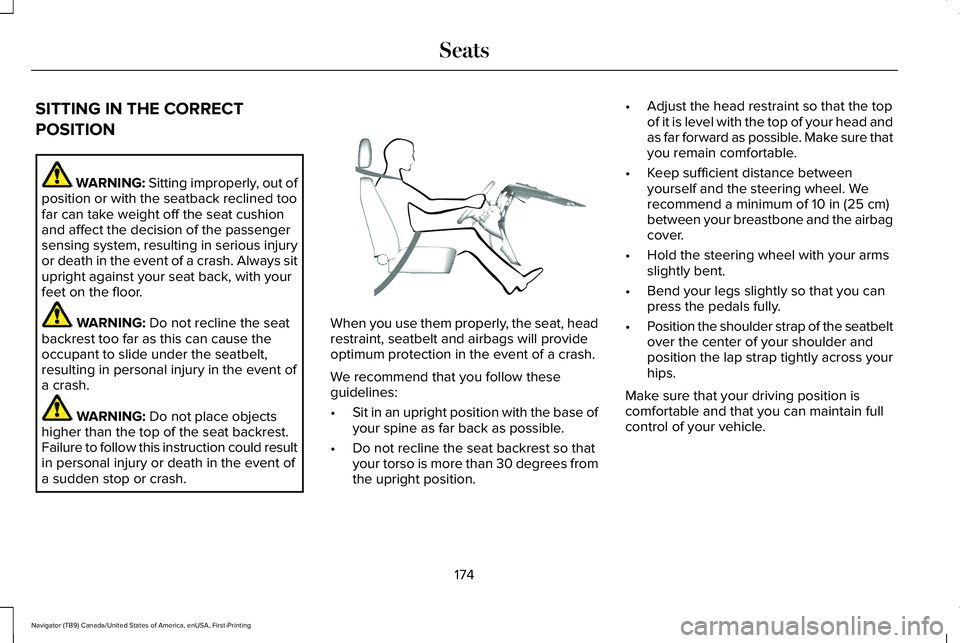
We recommend that you follow these
guidelines:
•
Sit in an upright position with the base of
your spine as far back as possible.
• Do not recline the seat backrest so that
your torso is more than 30 degrees from
the upright position. •
Adjust the head restraint so that the top
of it is level with the top of your head and
as far forward as possible. Make sure that
you remain comfortable.
• Keep sufficient distance between
yourself and the steering wheel. We
recommend a minimum of
10 in (25 cm)
between your breastbone and the airbag
cover.
• Hold the steering wheel with your arms
slightly bent.
• Bend your legs slightly so that you can
press the pedals fully.
• Position the shoulder strap of the seatbelt
over the center of your shoulder and
position the lap strap tightly across your
hips.
Make sure that your driving position is
comfortable and that you can maintain full
control of your vehicle.
174
Navigator (TB9) Canada/United States of America, enUSA, First-Printing SeatsE68595
Page 186 of 639
You can also adjust this feature through the
touchscreen.
Press the Menu Settings icon, then
Vehicle. Choose Multi-Contour
Seats.
When switched on, the system displays
directions for you to adjust the lumbar
settings in your seat or to set the massage
function.
To access and make adjustments to the
lumbar setting:
1. Choose the seat you would like to adjust.
2. Press the + or - to adjust the lumbar intensity.
To access and make adjustments to the
massage setting:
1. Press the Menu Settings icon, then Vehicle. Choose Multi-Contour Seats.
2. Choose the seat you would like to adjust.
3. Press OFF, Low or High. MEMORY FUNCTION WARNING: Before activating the
memory seat, make sure that the area
immediately surrounding the seat is clear
of obstructions and that all occupants are
clear of moving parts. WARNING:
Do not use the memory
function when your vehicle is moving.
Driver Seat Memory
This feature automatically recalls the position
of the following:
• Driver seat.
• Power mirrors.
• Power adjustable foot pedals.
• Power steering column.
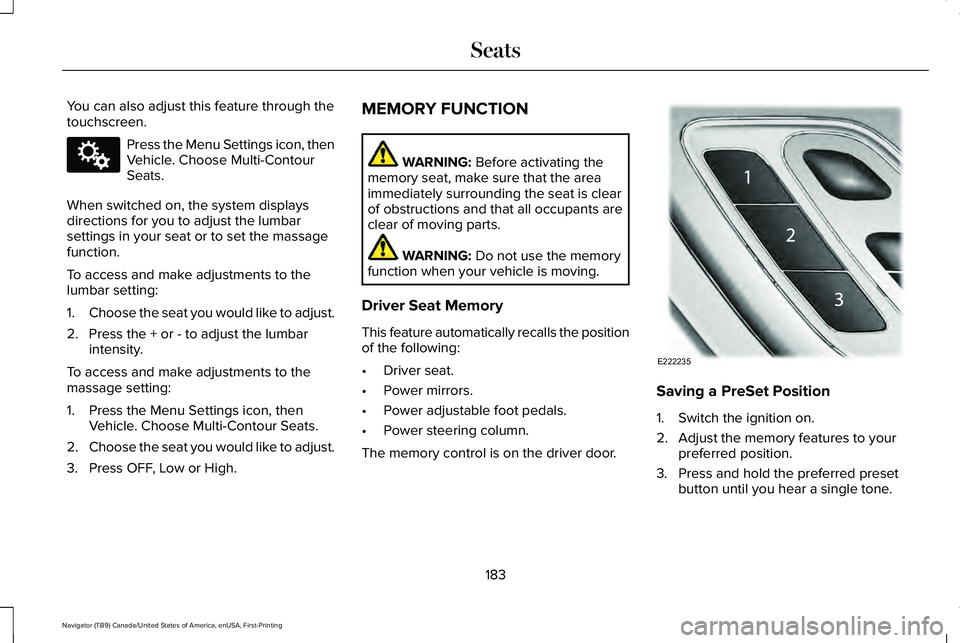
The memory control is on the driver door. Saving a PreSet Position
1. Switch the ignition on.
2. Adjust the memory features to your
preferred position.
3. Press and hold the preferred preset button until you hear a single tone.
183
Navigator (TB9) Canada/United States of America, enUSA, First-Printing SeatsE142607 E222235
Page 211 of 639
Press the push button ignition switch once
without your foot on the brake pedal. It is on
the instrument panel near the steering wheel.
All electrical circuits and accessories are
operational and the warning lamps and
indicators illuminate.
Press the push button ignition switch again
without your foot on the brake pedal to
switch the ignition off.
STARTING A GASOLINE ENGINE
When you start the engine, the idle speed
increases.
This helps to warm up the engine. If the
engine idle speed does not slow down
automatically, have your vehicle checked by
an authorized dealer.
Note:
You can crank the engine for a total
of 60 seconds without the engine starting
before the starting system temporarily
disables. The 60 seconds does not have to
be all at once. For example, if you crank the
engine three times for 20 seconds each time,
without the engine starting, you reached the
60-second time limit. You cannot attempt
to start the engine for at least 15 minutes.
After 15 minutes, you are limited to a
15-second engine cranking time. You need
to wait 60 minutes before you can crank the
engine for 60 seconds again.
Before starting your vehicle, check the
following:
• Make sure all occupants have fastened
their seatbelts.
• Make sure the headlamps and electrical
accessories are off.
• Make sure the parking brake is on.
• Make sure the transmission is in park (P).
Note: Do not touch the accelerator pedal.
Note: You must have your intelligent access
key in your vehicle to shift the transmission
out of park (P). 1. Fully depress the brake pedal.
2. Press the push button ignition switch.
The system does not function if:
•
The passive key frequencies are jammed.
• The key battery has no charge.
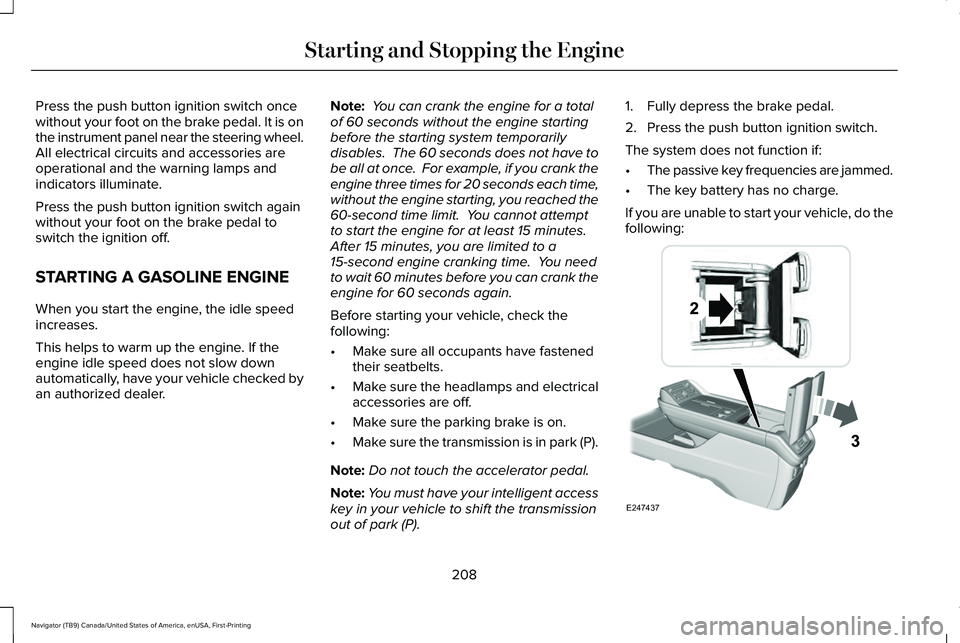
If you are unable to start your vehicle, do the
following: 208
Navigator (TB9) Canada/United States of America, enUSA, First-Printing Starting and Stopping the EngineE247437