sensor LINCOLN NAVIGATOR 2021 Repair Manual
[x] Cancel search | Manufacturer: LINCOLN, Model Year: 2021, Model line: NAVIGATOR, Model: LINCOLN NAVIGATOR 2021Pages: 639, PDF Size: 6.09 MB
Page 427 of 639
Follow these guidelines when using snow
tires and chains:
•
If possible, avoid fully loading your
vehicle.
• Use only cable type chains or chains
offered by Ford/Lincoln as an accessory
or equivalent. Other conventional link
type chains may contact and cause
damage to the vehicle's wheel house
and/or body.
• Do not install chains on the front tires as
this may interfere with suspension
components.
• Only certain snow cables or chains have
been approved by Ford/Lincoln as safe
for use on your vehicle with the following
tires: 265/70R17 and 275/65R18.
• You should install snow cables or chains
that have been rated as SAE Class S.
• Install chains securely, verifying that the
chains do not touch any wiring, brake
lines, or fuel lines.
• Do not exceed 31 mph (50 km/h) or less
if recommended by the chain
manufacturer while using snow chains. •
Drive cautiously. If you hear the chains
rub or bang against your vehicle, stop
and retighten the chains. If this does not
work, remove the chains to prevent
damage to your vehicle.
• Remove the tire chains when they are no
longer needed. Do not use tire chains on
dry roads.
• Purchase chains or cables from a
manufacturer that clearly labels body to
tire dimension restrictions. The snow
chains or cables must be mounted in
pairs on the rear tires only.
If you have any questions regarding snow
chains or cables, please contact your
authorized dealer. TIRE PRESSURE MONITORING
SYSTEM WARNING:
The tire pressure
monitoring system is not a substitute for
manually checking tire pressures. You
should periodically check tire pressures
using a pressure gauge. Failure to correctly
maintain tire pressures could increase the
risk of tire failure, loss of control, vehicle
rollover and personal injury.
Note: You should only use tire sealants in
roadside emergencies as they could cause
damage to the tire pressure monitoring
system sensor.
Note: If the tire pressure monitoring system
sensor becomes damaged, it will not
function.
424
Navigator (TB9) Canada/United States of America, enUSA, First-Printing Wheels and Tires
Page 429 of 639
Changing Tires With a Tire Pressure
Monitoring System
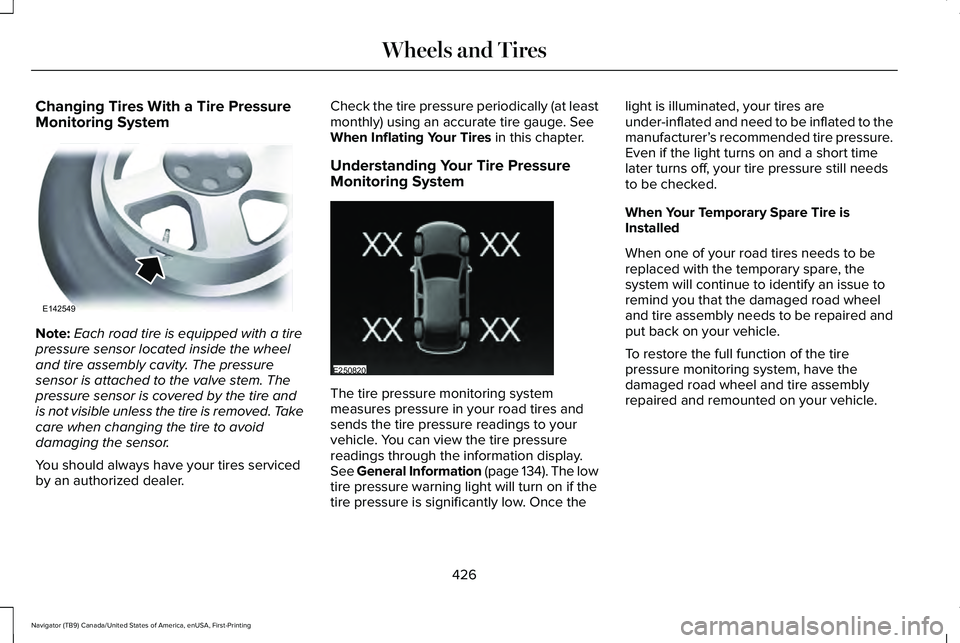
Note:
Each road tire is equipped with a tire
pressure sensor located inside the wheel
and tire assembly cavity. The pressure
sensor is attached to the valve stem. The
pressure sensor is covered by the tire and
is not visible unless the tire is removed. Take
care when changing the tire to avoid
damaging the sensor.
You should always have your tires serviced
by an authorized dealer. Check the tire pressure periodically (at least
monthly) using an accurate tire gauge. See
When Inflating Your Tires in this chapter.
Understanding Your Tire Pressure
Monitoring System The tire pressure monitoring system
measures pressure in your road tires and
sends the tire pressure readings to your
vehicle. You can view the tire pressure
readings through the information display.
See General Information (page 134). The low
tire pressure warning light will turn on if the
tire pressure is significantly low. Once thelight is illuminated, your tires are
under-inflated and need to be inflated to the
manufacturer’
s recommended tire pressure.
Even if the light turns on and a short time
later turns off, your tire pressure still needs
to be checked.
When Your Temporary Spare Tire is
Installed
When one of your road tires needs to be
replaced with the temporary spare, the
system will continue to identify an issue to
remind you that the damaged road wheel
and tire assembly needs to be repaired and
put back on your vehicle.
To restore the full function of the tire
pressure monitoring system, have the
damaged road wheel and tire assembly
repaired and remounted on your vehicle.
426
Navigator (TB9) Canada/United States of America, enUSA, First-Printing Wheels and TiresE142549 E250820
Page 432 of 639
When Inflating Your Tires
WARNING: Do not use the tire
pressure displayed in the information
display as a tire pressure gauge. Failure to
follow this instruction could result in
personal injury or death.
When putting air into your tires (such as at a
gas station or in your garage), the tire
pressure monitoring system will not respond
immediately to the air added to your tires.
It could take up to two minutes of driving
over
20 mph (32 km/h) for the light to turn
off after you have filled your tires to the
recommended inflation pressure.
How Temperature Affects Your Tire
Pressure
The tire pressure monitoring system monitors
tire pressure in each pneumatic tire. While
driving in a normal manner, a typical
passenger tire inflation pressure could
increase about
2–4 psi (14–28 kPa) from a
cold start situation. If the vehicle is stationary
overnight with the outside temperature significantly lower than the daytime
temperature, the tire pressure could
decrease about
3 psi (21 kPa) for a drop of
30°F (17°C) in ambient temperature. This
lower pressure value could be detected by
the tire pressure monitoring system as being
significantly lower than the recommended
inflation pressure and activate the system
warning light for low tire pressure. If the low
tire pressure warning light is on, visually
check each tire to verify that no tire is flat. If
one or more tires are flat, repair as
necessary. Check the air pressure in the road
tires. If any tire is under-inflated, carefully
drive the vehicle to the nearest location
where air can be added to the tires. Inflate
all the tires to the recommended inflation
pressure.
CHANGING A ROAD WHEEL WARNING:
If the tire pressure
monitor sensor becomes damaged it may
not function. Note:
You should only use tire sealants in
roadside emergencies as they may cause
damage to the tire pressure monitoring
system sensor.
Note: The tire pressure monitoring system
indicator light illuminates when the spare
tire is in use. To restore the full function of
the monitoring system, all road wheels
equipped with tire pressure monitoring
sensors must be mounted on this vehicle.
If you get a flat tire when driving, do not
apply the brake heavily. Instead, gradually
decrease your speed. Hold the steering
wheel firmly and slowly move to a safe place
on the side of the road.
Have a flat serviced by an authorized dealer
in order to prevent damage to the system
sensors.
See Tire Pressure Monitoring
System (page 424). Replace the spare tire
with a road tire as soon as possible. During
repairing or replacing of the flat tire, have
the authorized dealer inspect the system
sensor for damage.
429
Navigator (TB9) Canada/United States of America, enUSA, First-Printing Wheels and Tires
Page 457 of 639
INSTALLING THE VEHICLE
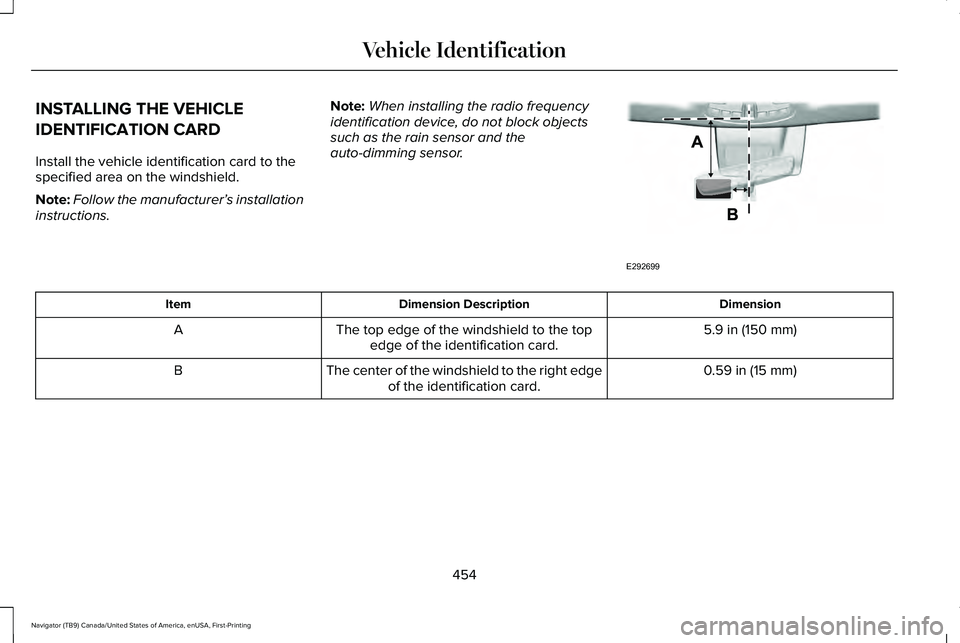
IDENTIFICATION CARD
Install the vehicle identification card to the
specified area on the windshield.
Note:
Follow the manufacturer’ s installation
instructions. Note:
When installing the radio frequency
identification device, do not block objects
such as the rain sensor and the
auto-dimming sensor. Dimension
Dimension Description
Item
5.9 in (150 mm)
The top edge of the windshield to the top
edge of the identification card.
A
0.59 in (15 mm)
The center of the windshield to the right edge
of the identification card.
B
454
Navigator (TB9) Canada/United States of America, enUSA, First-Printing Vehicle IdentificationE292699
Page 554 of 639
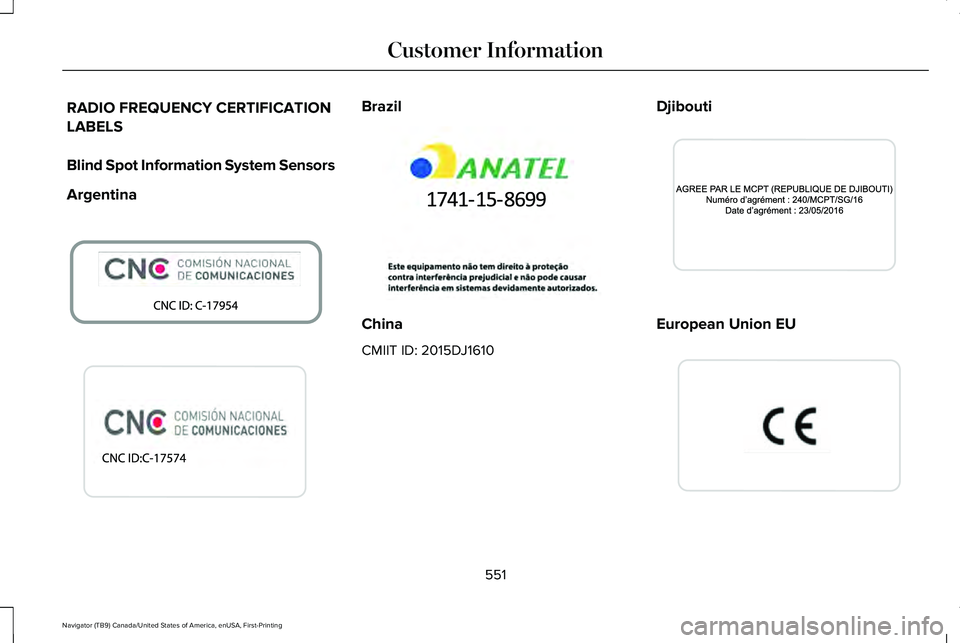
RADIO FREQUENCY CERTIFICATION
LABELS
Blind Spot Information System Sensors
Argentina Brazil
China
CMIIT ID: 2015DJ1610
Djibouti European Union EU
551
Navigator (TB9) Canada/United States of America, enUSA, First-Printing Customer InformationE337180 E340516 E340204 E340826 E310043
Page 578 of 639
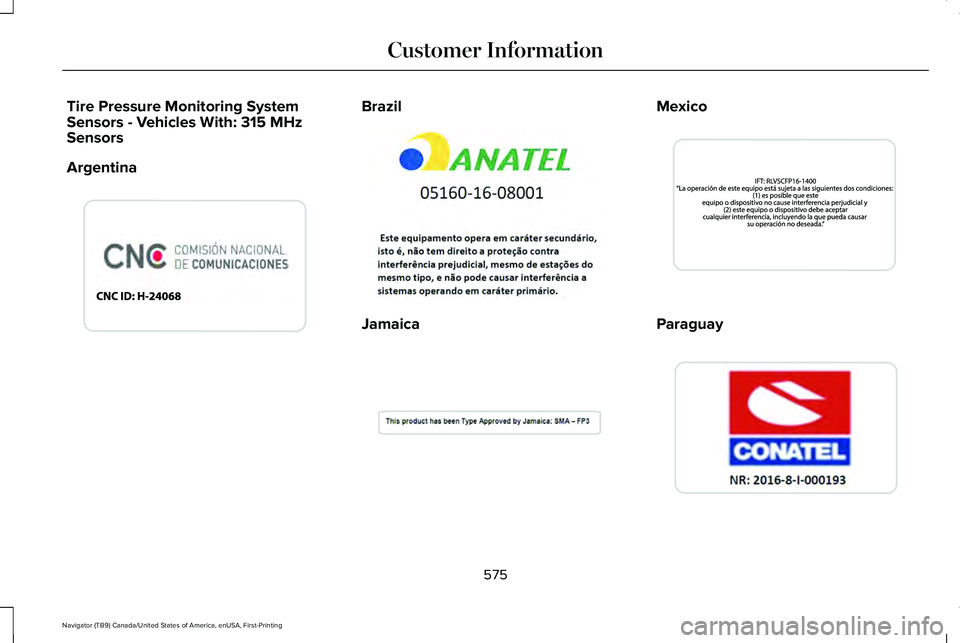
Tire Pressure Monitoring System
Sensors - Vehicles With: 315 MHz
Sensors
Argentina Brazil
Jamaica Mexico
Paraguay
575
Navigator (TB9) Canada/United States of America, enUSA, First-Printing Customer InformationE338008 E338010 E338213 E338212 E338214
Page 579 of 639
United States and Canada
WARNING: Changes or modifications
not expressively approved by the party
responsible for compliance could void the
user's authority to operate the equipment.
The term "IC:" before the radio certification
number only signifies that Industry Canada
technical specifications were met.
FCC ID: MRXFP3
IC: 2546A-FP3
This device complies with Part 15 of the FCC
Rules and with Innovation, Science and
Economic Development Canada ’s
licence-exempt RSS(s). Operation is subject
to the following two conditions:
1. This device may not cause harmful interference, and
2. This device must accept any interference
received, including interference that may
cause undesired operation. Tire Pressure Monitoring System
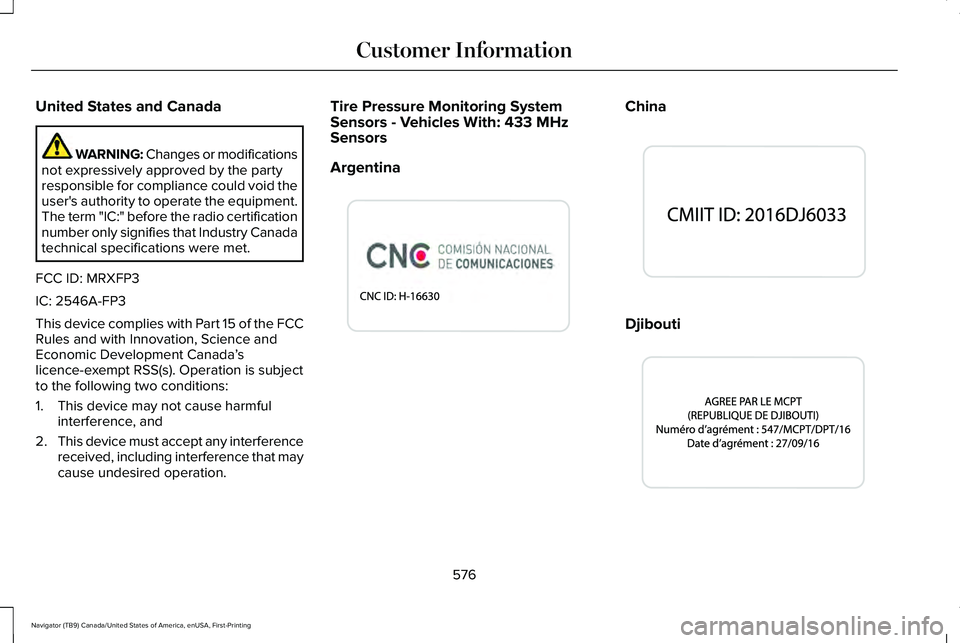
Sensors - Vehicles With: 433 MHz
Sensors
Argentina China
Djibouti
576
Navigator (TB9) Canada/United States of America, enUSA, First-Printing Customer InformationE338009 E338011 E338012
Page 627 of 639
Switching the Air Conditioning On and
Off......................................................................500
Switching the Climate Controlled Seats On and Off.............................................................500
Switching the Climate Control On and Off......................................................................500
Switching the Heated Exterior Mirrors On and Off.......................................................................501
Switching the Heated Rear Window On and Off.......................................................................501
Switching the Heated Seats On and Off.......501
Switching the Heated Steering Wheel On and Off.......................................................................501
Switching the Heated Windshield On and Off.......................................................................501
Switching the Rear Climate Controlled Seats On and Off.......................................................502
Switching the Rear Heated Seats On and Off......................................................................502
Switching the Rear Ventilated Seats On and Off......................................................................502
Switching the Ventilated Seats On and Off......................................................................502
Climate Control..............................................166
Climate Controlled Seats............................193
Automatic Climate Controlled Seats..............193
Heated Seats........................................................193
Ventilated Seats...................................................194 Connected Vehicle
......................................455
Connecting the Vehicle to a Mobile
Network............................................................455
Connected Vehicle Limitations.................455
Connected Vehicle Requirements...........455
Connected Vehicle – Troubleshooting.........................................456
Connecting the Vehicle to a Mobile Network.......................................................455
Connecting Lincoln Way to the Modem.......455
Enabling and Disabling the Modem..............455
What Is the Modem............................................455
Connecting the Vehicle to a Wi-Fi Network.......................................................455
Coolant Check See: Engine Coolant Check.............................383
Crash Sensors and Airbag Indicator..........65
Creating a MyKey...........................................80 Programming and Changing Configurable
Settings................................................................81
Creating a Vehicle Wi-Fi Hotspot
.............459
Connecting a Device to the Wi-Fi
Hotspot.............................................................459
Finding the Wi-Fi Hotspot Name and Password.........................................................459
Cross Traffic Alert.........................................292 Cross Traffic Alert Behavior When Trailer is
Attached ...........................................................295 Cross Traffic Alert Indicator.............................296
Cross Traffic Alert Information
Messages.........................................................296
Cross Traffic Alert System Limitations..........295
Cross Traffic Alert System Sensors...............295
Switching the System On and Off..................
295
Using Cross Traffic Alert...................................292
Cruise Control...............................................272
Cruise Control Indicators............................273
Cruise Control - Vehicles With: Adaptive Cruise Control.............................................103
Cruise Control - Vehicles With: Cruise Control...........................................................103
Customer Assistance...................................351
Customer Information
..................................551
Radio Frequency Certification Labels............551
D
Data Recording
................................................12
Comfort, Convenience and Entertainment
Data.......................................................................14
Event Data...............................................................13
Service Data............................................................12
Services That Third Parties Provide..................14
Services That We Provide....................................14
Vehicles With a Modem.......................................15
Vehicles With an Emergency Call System.......16
624
Navigator (TB9) Canada/United States of America, enUSA, First-Printing Index
Page 633 of 639
Passive Anti-Theft System............................95
SecuriLock™............................................................95
PATS See: Passive Anti-Theft System........................95
Perchlorate........................................................16
Personal Safety System ™
..............................56
How Does the Personal Safety System
Work?..................................................................56
Phone as a Key Limitations
..........................75
Phone as a Key................................................75 Phone as a Key – Troubleshooting...................77
Phone as a Key – Troubleshooting............77 Phone as a Key – Frequently Asked
Questions............................................................77
Phone..............................................................502 Android Auto.......................................................504
Apple CarPlay.....................................................504
Pairing Your Cell Phone for the First
Time..................................................................502
Text Messaging...................................................503
Using Your Cell Phone......................................503
Post-Crash Alert System.............................348
Power Door Locks See: Locking and Unlocking..............................84
Power Liftgate
..................................................91
Obstacle Detection..............................................93
Opening and Closing the Liftgate.....................91
Setting the Liftgate Open Height.....................93 Stopping the Liftgate Movement......................92
Switching the Power Liftgate On or Off..........93
Using the Hands-Free Liftgate..........................93
Power Outlet Indicators
..............................202
Power Outlet..................................................201
Power Outlet Precautions...........................201
Power Running Boards
.................................99
Power Seats....................................................179
Adjusting the Lumbar Support..........................181
Adjusting the Multi-Contour Front Seats With
Active Motion ...................................................181
Power Steering Fluid Check.....................390
Power Windows
..............................................119
Accessory Delay..................................................120
Bounce-Back.........................................................119
One-Touch Down.................................................119
One-Touch Up.......................................................119
Window Lock........................................................120
Pre-Collision Assist......................................298 Adjusting the Pre-Collision Assist
Settings............................................................300
Blocked Sensors................................................300
Distance Indication and Alert..........................299
Using the Pre-Collision Assist System..........
298
Programming Your Phone.............................75 Resetting Phone as a Key...................................75
Protecting the Environment.........................20 Puncture
See: Changing a Road Wheel.........................
429
R
Radio Frequency Certification Labels............................................................551
Blind Spot Information System Sensors........
551
Body Control Module........................................555
Cruise Control Module......................................
558
Garage Door Opener........................................562
Keys and Remote Controls..............................563
Radio Transceiver Module...............................567
SYNC.....................................................................570
Tire Pressure Monitoring System Sensors.............................................................575
Wireless Accessory Charging Module..........579
Rear Axle
........................................................240
Rear Occupant Alert System Audible Warnings.......................................................196
Rear Occupant Alert System Indicators......................................................196
Rear Occupant Alert System Limitations....................................................195
Rear Occupant Alert System Precautions..................................................195
Rear Occupant Alert System
......................195
630
Navigator (TB9) Canada/United States of America, enUSA, First-Printing Index
Page 637 of 639
Towing the Vehicle on Four Wheels........338
Four-wheel-down Towing.................................339
Recreational Towing..........................................338
Towing..............................................................315
Traction Control............................................247 Principle of Operation.......................................247
Trailer Reversing Aids..................................316
Principle of Operation........................................316
Pro Trailer Backup Assist™.................................316
Setting Up Pro Trailer Backup Assist..............317
Troubleshooting ..................................................322
Using Pro Trailer Backup Assist.....................320
Trailer Sway Control
.....................................327
Transfer Case Fluid Check.........................388
Transmission..................................................227
Transporting the Vehicle
............................349
U
Under Hood Overview................................379
Unique Driving Characteristics
..................212
Universal Garage Door Opener................197 HomeLink Wireless Control System...............197
USB Port...........................................................471 Locating the USB Ports.....................................472
Using Adaptive Cruise Control
.................273
Automatic Cancellation.....................................277
Blocked Sensor...................................................279 Canceling the Set Speed..................................277
Changing the Set Speed..................................276
Detection Issues.................................................277
Following a Vehicle............................................275
Following a Vehicle to a Complete
Stop...................................................................275
Hilly Condition Usage........................................277
Overriding the Set Speed................................276
Park Brake Application......................................277
Resuming the Set Speed..................................277
Setting the Adaptive Cruise Speed...............274
Setting the Adaptive Cruise Speed When Your Vehicle is Stationary......................................274
Setting the Gap Distance.................................275
Switching Adaptive Cruise Control Off.........277
Switching Adaptive Cruise Control On.........274
Switching to Normal Cruise Control..............280
System Not Available........................................279
Using Four-Wheel Drive
.............................233
4X4 Indicator Lights...........................................233
4X4 Modes...........................................................233
Driving Off-Road with Truck and Utility
Vehicles............................................................236
How Your Vehicle Differs from Other Vehicles............................................................235
Operating Four-Wheel Drive Vehicles with Spare or Mismatched Tires.........................235 Using Hill Descent Control........................250
Hill Descent Modes...........................................250
Using MyKey With Remote Start Systems..........................................................82
Using Power Running Boards.....................99 Automatic Power Deploy....................................99
Automatic Power Stow........................................99
Bounce-back........................................................100
Enabling and Disabling......................................100
Manual Power Deploy.......................................100
Using Snow Chains
......................................423
Using Stability Control................................249 Stability Control and Traction Control with Roll
Stability Control™ (RSC™)...............................249
Using the Backup Start Passcode..............76 System Lockout.....................................................77
Using the Valet Mode....................................76
Using Traction Control................................247 Switching the System On and Off..................247
System Indicator Lights and Messages........247
Using Voice Recognition............................475 Audio Voice Commands...................................477
Climate Voice Commands................................
478
Mobile App Voice Commands........................484
Navigation Voice Commands...........................481
Phone Voice Commands..................................
479
SiriusXM Traffic and Travel Link Voice Commands......................................................484
634
Navigator (TB9) Canada/United States of America, enUSA, First-Printing Index