wheel LINCOLN NAVIGATOR 2021 Repair Manual
[x] Cancel search | Manufacturer: LINCOLN, Model Year: 2021, Model line: NAVIGATOR, Model: LINCOLN NAVIGATOR 2021Pages: 639, PDF Size: 6.09 MB
Page 307 of 639
•
NORMAL – For everyday driving. This
mode is a perfect balance of excitement,
comfort and convenience.
• EXCITE – For aggressive on-road driving.
This mode increases throttle response,
provides a sportier steering feel, along
with quicker shifting. The suspension
stiffens, with an emphasis on handling
and control. The transmission also holds
gears longer, helping your vehicle
accelerate faster when shifting gears.
• CONSERVE
– Enables efficient and
responsible driving. It helps deliver
maximum fuel efficiency and increases
driving range.
• NORMAL 4A
– For general on-road
driving. Use this mode on normal firm
surfaces such as dry or wet pavement
and hard packed dirt or gravel roads.
Delivers power to all four wheels, as
required. •
SLIPPERY
– For less than ideal road
conditions, such as snow or ice covered
roads. Slippery mode inspires confidence
without taking away from driving
pleasure. Slippery mode lowers throttle
response and optimizes shifting for
slippery surfaces.
• DEEP CONDITIONS
– Used for crossing
terrain that has deformable deep, rutted
surfaces such as mud, deep snow or
deep sand. Do not use on dry, hard
surfaced roads.
• SLOW CLIMB
– Used when you need
extra power, such as when climbing
steep grades, going through deep sand
or pulling a boat out of a launch ramp.
Do not use on dry, hard surfaced roads.
Slow Climb mode puts you in 4x4 Low
drive line settings.
Note: Slow Climb is only available on
vehicles with 4x4 and a two-speed transfer
case. Note:
The system has diagnostic checks that
continuously monitor the system for proper
operation. Certain drive modes are not
available based on gear shifter position. If
a mode is unavailable due to a system fault
or change in gear shifter position, the mode
defaults to
NORMAL.
304
Navigator (TB9) Canada/United States of America, enUSA, First-Printing Driving Aids
Page 308 of 639
REAR UNDER FLOOR STORAGE
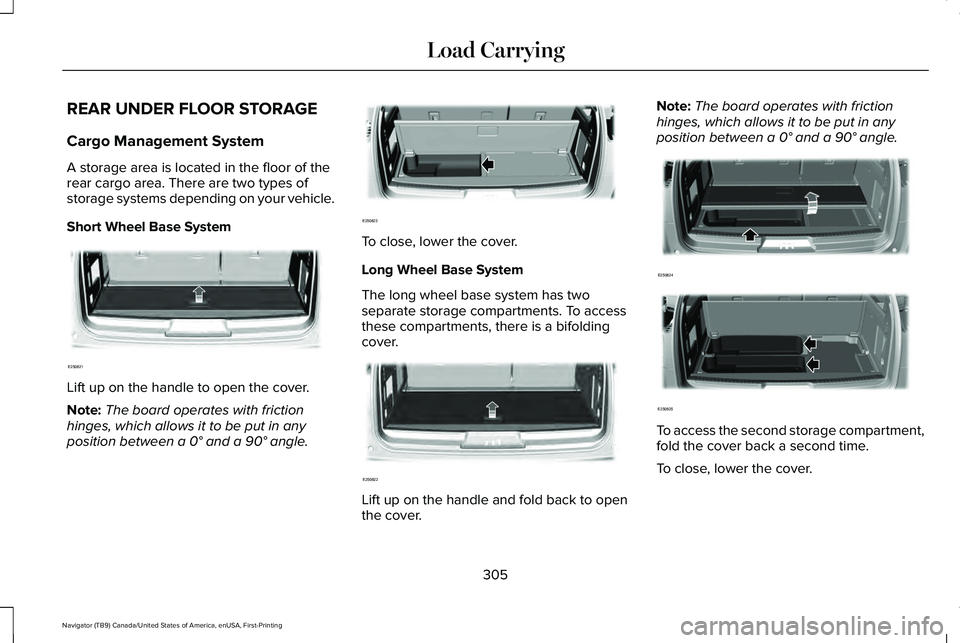
Cargo Management System
A storage area is located in the floor of the
rear cargo area. There are two types of
storage systems depending on your vehicle.
Short Wheel Base System
Lift up on the handle to open the cover.
Note:
The board operates with friction
hinges, which allows it to be put in any
position between a 0° and a 90° angle. To close, lower the cover.
Long Wheel Base System
The long wheel base system has two
separate storage compartments. To access
these compartments, there is a bifolding
cover.
Lift up on the handle and fold back to open
the cover.Note:
The board operates with friction
hinges, which allows it to be put in any
position between a
0° and a 90° angle. To access the second storage compartment,
fold the cover back a second time.
To close, lower the cover.
305
Navigator (TB9) Canada/United States of America, enUSA, First-Printing Load CarryingE250821 E250823 E250822 E250824 E250825
Page 309 of 639
Advanced System: Forward Divider,
Cargo Shelf and Rear Barrier (Bulkhead
Position) (If Equipped)
WARNING:
Do not load any objects
on the shelf that may obstruct your vision
or strike occupants of the vehicle in the
case of a sudden stop or collision. WARNING:
Do not place people or
pets on or under the parcel shelf.
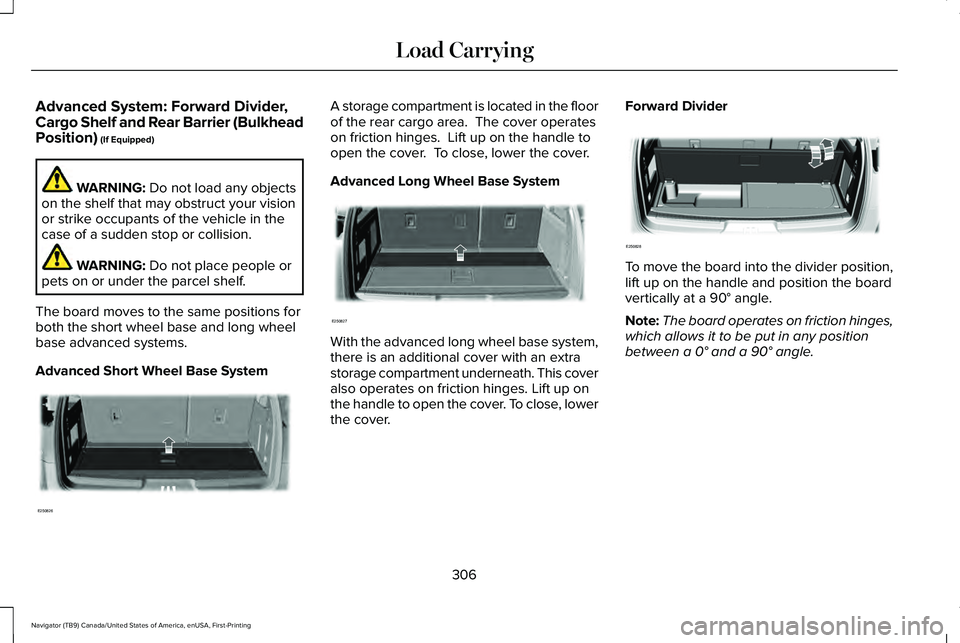
The board moves to the same positions for
both the short wheel base and long wheel
base advanced systems.
Advanced Short Wheel Base System A storage compartment is located in the floor
of the rear cargo area. The cover operates
on friction hinges. Lift up on the handle to
open the cover. To close, lower the cover.
Advanced Long Wheel Base System
With the advanced long wheel base system,
there is an additional cover with an extra
storage compartment underneath. This cover
also operates on friction hinges. Lift up on
the handle to open the cover. To close, lower
the cover.Forward Divider To move the board into the divider position,
lift up on the handle and position the board
vertically at a
90° angle.
Note: The board operates on friction hinges,
which allows it to be put in any position
between a
0° and a 90° angle.
306
Navigator (TB9) Canada/United States of America, enUSA, First-Printing Load CarryingE250826 E250827 E250828
Page 310 of 639
Cargo Shelf
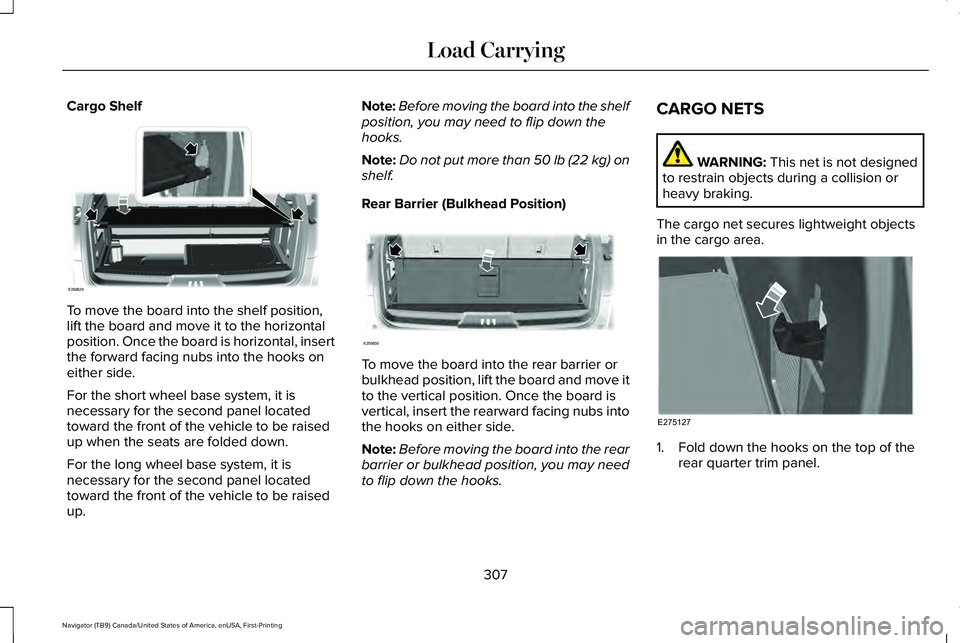
To move the board into the shelf position,
lift the board and move it to the horizontal
position. Once the board is horizontal, insert
the forward facing nubs into the hooks on
either side.
For the short wheel base system, it is
necessary for the second panel located
toward the front of the vehicle to be raised
up when the seats are folded down.
For the long wheel base system, it is
necessary for the second panel located
toward the front of the vehicle to be raised
up. Note:
Before moving the board into the shelf
position, you may need to flip down the
hooks.
Note: Do not put more than 50 lb (22 kg) on
shelf.
Rear Barrier (Bulkhead Position) To move the board into the rear barrier or
bulkhead position, lift the board and move it
to the vertical position. Once the board is
vertical, insert the rearward facing nubs into
the hooks on either side.
Note:
Before moving the board into the rear
barrier or bulkhead position, you may need
to flip down the hooks. CARGO NETS WARNING: This net is not designed
to restrain objects during a collision or
heavy braking.
The cargo net secures lightweight objects
in the cargo area. 1. Fold down the hooks on the top of the
rear quarter trim panel.
307
Navigator (TB9) Canada/United States of America, enUSA, First-Printing Load CarryingE250829 E250830 E275127
Page 320 of 639
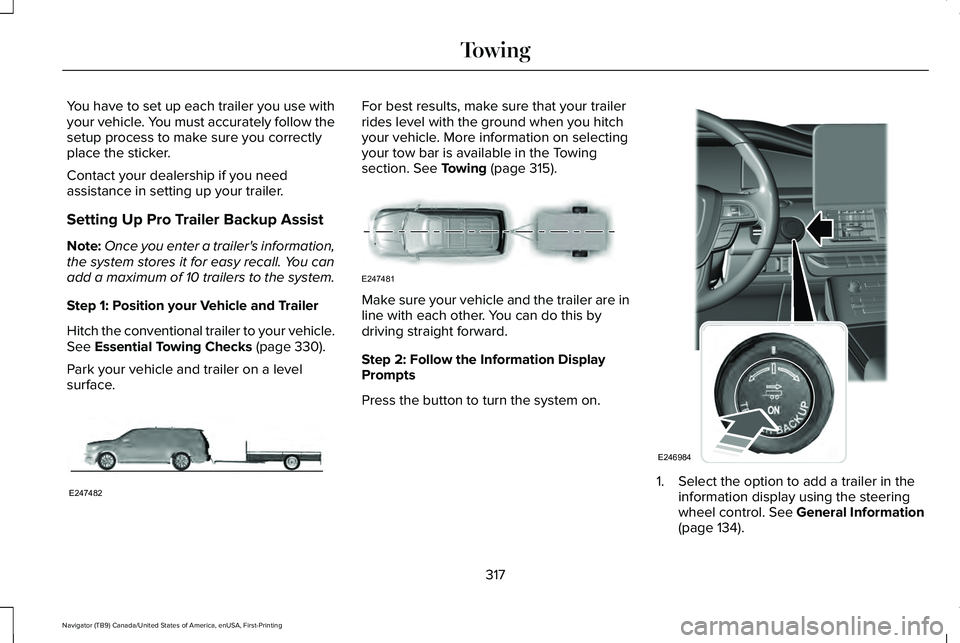
You have to set up each trailer you use with
your vehicle. You must accurately follow the
setup process to make sure you correctly
place the sticker.
Contact your dealership if you need
assistance in setting up your trailer.
Setting Up Pro Trailer Backup Assist
Note:
Once you enter a trailer's information,
the system stores it for easy recall. You can
add a maximum of 10 trailers to the system.
Step 1: Position your Vehicle and Trailer
Hitch the conventional trailer to your vehicle.
See Essential Towing Checks (page 330).
Park your vehicle and trailer on a level
surface. For best results, make sure that your trailer
rides level with the ground when you hitch
your vehicle. More information on selecting
your tow bar is available in the Towing
section.
See Towing (page 315).
Make sure your vehicle and the trailer are in
line with each other. You can do this by
driving straight forward.
Step 2: Follow the Information Display
Prompts
Press the button to turn the system on.
1. Select the option to add a trailer in the
information display using the steering
wheel control.
See General Information
(page 134).
317
Navigator (TB9) Canada/United States of America, enUSA, First-Printing TowingE247482 E247481 E246984
Page 321 of 639
2. Add a personalized name for the trailer
using the screen prompts. Use the down
arrow to scroll to the desired letter and
then press the toggle switch to advance
to the next letter. Press OK to continue.
3. Select the type of trailer brake system for
the trailer you are adding.
4. Select the brake effort level for the trailer.
Note: The default option is low. We
recommend this for most trailers. If the
trailer's brakes require more initial voltage,
or if you prefer more aggressive braking,
then select the other options as required.
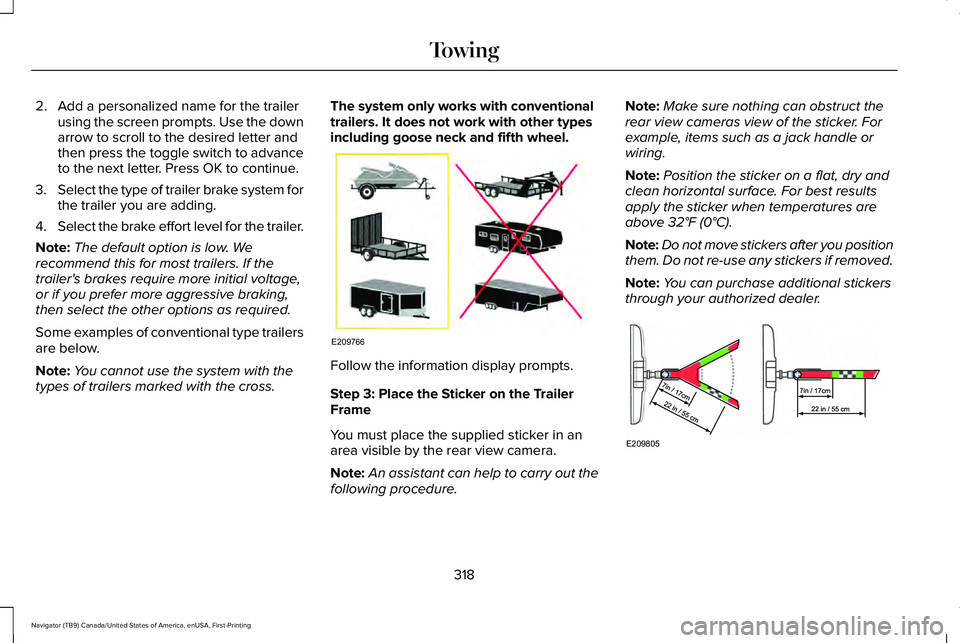
Some examples of conventional type trailers
are below.
Note: You cannot use the system with the
types of trailers marked with the cross. The system only works with conventional
trailers. It does not work with other types
including goose neck and fifth wheel.
Follow the information display prompts.
Step 3: Place the Sticker on the Trailer
Frame
You must place the supplied sticker in an
area visible by the rear view camera.
Note:
An assistant can help to carry out the
following procedure. Note:
Make sure nothing can obstruct the
rear view cameras view of the sticker. For
example, items such as a jack handle or
wiring.
Note: Position the sticker on a flat, dry and
clean horizontal surface. For best results
apply the sticker when temperatures are
above 32°F (0°C).
Note: Do not move stickers after you position
them. Do not re-use any stickers if removed.
Note: You can purchase additional stickers
through your authorized dealer. 318
Navigator (TB9) Canada/United States of America, enUSA, First-Printing TowingE209766 E209805
Page 323 of 639
Distance D
The horizontal distance from the bumper to
the center of the trailer axle (single axle
trailers), or the center of the axles (trailers
with dual axles or more).
Note:
If the distance ends in anything less
than one half of an inch, round down to the
current whole inch. If a distance ends in one
half or greater of an inch, round up to the
next whole inch. For example, 12.3 in
(31.12 cm) would be rounded down to 12 in
(30.48 cm). 12.5 in (31.75 cm) would be
rounded up to 13 in (33 cm).
Step 5: Enter Measurements Using the
Information Display
Using the recorded measurements, enter the
required data into the system. Follow the on
screen prompts to enter each of the
measurements taken in step 4. When all four
distances have been entered, a confirmation
display will appear. Check the values are
correct before proceeding, or go back to
change any if required. Step 6: Confirming the Sticker Location
Check the rear view camera display to see
if the sticker is identified by the system and
marked with a red circle.
Confirm that the red circle is correctly located
over the sticker image in the display. The on
screen prompt will ask you to confirm this.
Note:
If the system cannot locate the sticker
try cleaning the camera lens, and also make
sure the sticker is within the green zone as
indicated in step 3.
Calibrating the System
To complete setup, drive your vehicle
straight forward between 4 mph (6 km/h) and
24 mph (39 km/h)
following the on screen
prompt.
Note: Check your measurements to make
sure you measured from the correct points.
Note: If you move the steering wheel during
this procedure, the calibration pauses.
Note: We recommend that you do not do
this at night. A message will be displayed during
calibration and after calibration is complete.
Using Pro Trailer Backup Assist
To use the system press the button and
select the required trailer from the display.
320
Navigator (TB9) Canada/United States of America, enUSA, First-Printing Towing
Page 324 of 639
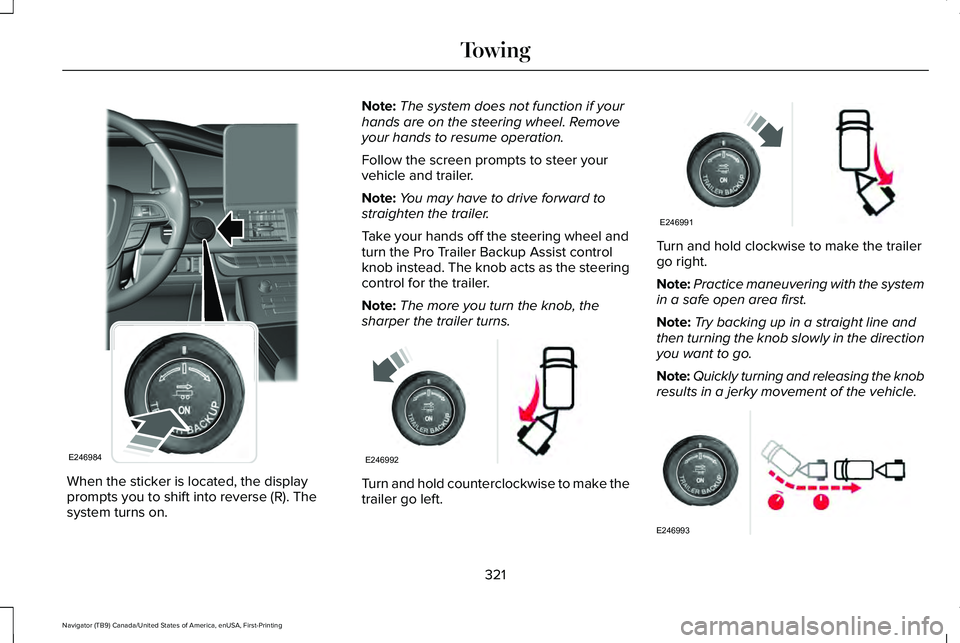
When the sticker is located, the display
prompts you to shift into reverse (R). The
system turns on. Note:
The system does not function if your
hands are on the steering wheel. Remove
your hands to resume operation.
Follow the screen prompts to steer your
vehicle and trailer.
Note: You may have to drive forward to
straighten the trailer.
Take your hands off the steering wheel and
turn the Pro Trailer Backup Assist control
knob instead. The knob acts as the steering
control for the trailer.
Note: The more you turn the knob, the
sharper the trailer turns. Turn and hold counterclockwise to make the
trailer go left. Turn and hold clockwise to make the trailer
go right.
Note:
Practice maneuvering with the system
in a safe open area first.
Note: Try backing up in a straight line and
then turning the knob slowly in the direction
you want to go.
Note: Quickly turning and releasing the knob
results in a jerky movement of the vehicle. 321
Navigator (TB9) Canada/United States of America, enUSA, First-Printing TowingE246984 E246992 E246991 E246993
Page 329 of 639
System consistently shows Stop Now Max
trailer angle reached warning:
•
The system uses your measurements to
determine sticker position and establish
system limits. Accurate sticker placement
and trailer measurements will provide the
best system performance. If you are
consistently receiving this warning it is
likely there is an issue with sticker
placement or the entered measurements.
Make sure that the sticker is placed
correctly based on steps 3 and the
measurements were made correctly
according to Step 4. The troubleshooting
guide for trailer measurements can also
be reviewed for help in making
measurements.
• To change sticker location or change
trailer measurements, go into the Towing
menu, select trailer options, select
change trailer setting and then select the
change sticker option. •
If the sticker location needs to be
changed, the previous sticker must be
removed and a new sticker needs to be
placed on the trailer. ONLY ONE
STICKER SHOULD BE PLACED ON THE
TRAILER FOR PROPER SYSTEM
FUNCTION.
• Disregard the prompt to remove this
sticker and continue to the next step if
you only plan to update the
measurements for the current sticker
location.
System consistently shows Stop now take
control of steering warning:
• The system displays this warning when
it can no longer steer the vehicle and you
must take over steering. There are four
reasons why this warning displays and
additional information regarding the
reason for the warning is available on the
center display.
• The steering wheel is touched while the
system is controlling it. Avoid touching
the wheel during system operation. •
The maximum speed for feature
operation is exceeded. System
performance is optimized at slower
speeds. Backup slowly.
• The sticker was lost by the camera
system. Once your vehicle is stopped
additional warnings will indicate the
sticker was lost. Refer to sticker lost
trouble shooting tips.
• An internal condition for system
operation was not met which requires
your vehicle return to manual control of
the steering.
Note: The system is designed to be used
with the same trailer connection every time
the trailer is chosen from the selection menu.
Using a different drawbar or a different pin
hole (on drawbars with more than one) when
connecting the drawbar to your vehicle
affects the trailer measurements. Take the
measurements again and update if required.
326
Navigator (TB9) Canada/United States of America, enUSA, First-Printing Towing
Page 330 of 639
TRAILER SWAY CONTROL (IF EQUIPPED)
WARNING: Turning off trailer sway
control increases the risk of loss of vehicle
control, serious injury or death. Ford does
not recommend disabling this feature
except in situations where speed reduction
may be detrimental (such as hill climbing),
the driver has significant trailer towing
experience, and can control trailer sway
and maintain safe operation.
Note: This feature does not prevent trailer
sway, but reduces it once it begins.
Note: This feature cannot stop all trailers
from swaying.
Note: In some cases, if vehicle speed is too
high, the system may activate multiple times,
gradually reducing vehicle speed. This feature applies your vehicle brakes at
individual wheels and, if necessary, reduces
engine power. If the trailer begins to sway,
the stability control light flashes and the
message TRAILER SWAY REDUCE SPEED
appears in the information display. The first
thing to do is slow your vehicle down, then
pull safely to the side of the road and check
for proper tongue load and trailer load
distribution.
See Load Carrying (page 309).
RECOMMENDED TOWING
WEIGHTS
Note: Do not exceed the trailer weight
for your vehicle configuration listed in
the chart below.
Note: Make sure to take into
consideration trailer frontal area. Do not
exceed 55 ft² (5.11 m²) if your vehicle has
the standard towing package, or 60 ft²
(5.57 m²) if your vehicle has the heavy
duty package. Note:
Exceeding this limitation may
significantly reduce the performance of
your towing vehicle. Selecting a trailer
with a low aerodynamic drag and
rounded front design helps optimize
performance and fuel economy.
Note: Your vehicle could have reduced
performance when operating at high
altitudes, and when heavily loaded or
towing a trailer. When driving at
elevation, in order to match driving
performance as perceived at sea level,
reduce gross vehicle weight and gross
combination weight by 2% per
1,000 ft
(300 m) of elevation.
Note: Certain states require electric
trailer brakes for trailers over a specified
weight. Be sure to check state
regulations for this specified weight. The
maximum trailer weights listed may be
limited to this specified weight, as the
vehicle ’s electrical system may not
include the wiring connector needed to
activate electric trailer brakes.
327
Navigator (TB9) Canada/United States of America, enUSA, First-Printing Towing