wheel LINCOLN NAVIGATOR 2022 Manual Online
[x] Cancel search | Manufacturer: LINCOLN, Model Year: 2022, Model line: NAVIGATOR, Model: LINCOLN NAVIGATOR 2022Pages: 646, PDF Size: 7.29 MB
Page 360 of 646
WHAT IS THE INTEGRATED
TRAILER BRAKE CONTROLLER
The trailer brake controller assists in smooth
and effective trailer braking based on the
towing vehicle
’s brake pressure.
INTEGRATED TRAILER BRAKE
CONTROLLER PRECAUTIONS WARNING: Use the integrated trailer
brake controller to properly adjust the
trailer brakes and check all connections
before towing a trailer. Failure to follow
this instruction could result in the loss of
control of your vehicle, personal injury or
death. •
Only use the manual control lever for
proper adjustment of the gain during
trailer setup. Misuse, such as application
during trailer sway, could cause instability
of trailer or tow vehicle.
• Avoid towing in adverse weather
conditions. The trailer brake controller
does not provide anti-lock control of the
trailer wheels. Trailer wheels can lock up
on slippery surfaces, resulting in reduced
stability of trailer and tow vehicle.
• The trailer brake controller is only a
factory-installed or dealer-installed item.
Ford is not responsible for warranty or
performance of the controller due to
misuse or customer installation.
Note: Do not attempt removal of the trailer
brake controller without consulting the
Workshop Manual. Damage to the unit may
result. USING THE INTEGRATED TRAILER
BRAKE CONTROLLER
1.
Make sure the trailer brakes are in good
working condition, functioning normally
and properly adjusted. See your trailer
dealer if necessary.
Note: An authorized dealer can diagnose
the trailer brake controller to determine
exactly which trailer fault has occurred. Your
vehicle warranty does not cover issues with
your trailer.
2. Hook up the trailer and make the electrical connections according to the
trailer manufacturer's instructions.
Note: Select default mode if the trailer has
surge brakes, or no brakes at all. The system
has no effect on the braking performance of
the trailer in either of these cases.
Note: If a trailer is connected by a four-pin
connector, the trailer braking function will
not be supported.
356
2022 Navigator (TB9) Canada/United States of America, enUSA, Edition date: 202109, First-Printing Integrated Trailer Brake Controller
(If Equipped)
Page 361 of 646
3.
When you plug in a trailer with electric or
electric-over-hydraulic brakes, a message
confirming connection appears in the
information display.
4. Use the gain adjustment to find the desired starting point. A gain setting of
6.0 is a good starting point for heavier
loads.
Note: Use the following steps to adjust the
gain setting whenever road, weather and
trailer, or vehicle loading conditions, change
from when you initially set the gain.
5. In a traffic-free environment, tow the trailer on a dry, level surface and squeeze
the manual control lever completely.
6. If the trailer wheels lock up, indicated by
squealing tires, reduce the gain setting.
If the trailer wheels turn freely, increase
the gain setting. Repeat Steps 5 and 6
until the gain setting is at a point just
below trailer wheel lock-up. If towing a
heavier trailer, trailer wheel lock-up may
not be attainable even with the maximum
gain setting of 10.
Note: Only perform this procedure at speeds
of approximately 20–25 mph (30–40 km/h). Note:
The trailer brake controller reduces
output at vehicle speeds below 11 mph
(18 km/h) so that trailer and vehicle braking
is not jerky or harsh. This feature is only
available when applying the brakes using
your vehicle's brake pedal, not the controller.
Note: Your vehicle's brake system and the
trailer brake system work independently of
each other. Changing the gain setting on the
controller does not affect the operation of
your vehicle's brakes whether you attach a
trailer or not.
Note: With the proper electrical connection,
pressing your vehicle brake pedal or using
the manual control lever illuminates both
trailer and vehicle brake lamps.
Note: When you switch the engine off, the
controller output is disabled and the display
and module shut down. The controller
module and display turn on when you switch
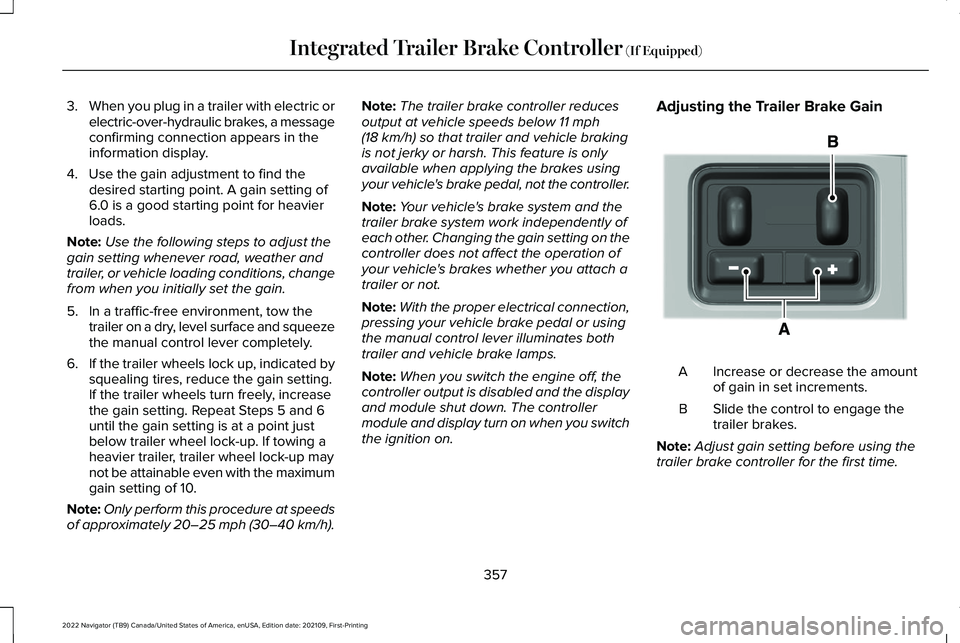
the ignition on. Adjusting the Trailer Brake Gain
Increase or decrease the amount
of gain in set increments.
A
Slide the control to engage the
trailer brakes.
B
Note: Adjust gain setting before using the
trailer brake controller for the first time.
357
2022 Navigator (TB9) Canada/United States of America, enUSA, Edition date: 202109, First-Printing Integrated Trailer Brake Controller
(If Equipped)E333154
Page 362 of 646
Note:
The gain should be set to provide the
maximum trailer braking assistance while
making sure the trailer wheels do not lock
when using the brakes. Locked trailer wheels
may lead to trailer instability.
Note: Setting adjustments are saved when
a trailer profile is selected.
ADJUSTING THE INTEGRATED
TRAILER BRAKE CONTROLLER
MODE
Select the correct integrated trailer brake
controller mode option using the
touchscreen. Note:
Trailer brake gain settings are saved
to the active trailer profile.
Selecting the Trailer Brake Type
1. Press Default for trailers with
electromagnetic drum brake systems or
press Electric over Hydraulic for trailers
with electrically actuated hydraulic brake
systems.
2. Press
Save.
Selecting the Trailer Brake Effort
1. Select a setting for your trailer. Note:
The default value is
Low and is the
recommended setting for most trailers.
Select a different setting if your trailer's
brakes require more initial voltage, or you
prefer more aggressive trailer braking.
2. Press
Save.
358
2022 Navigator (TB9) Canada/United States of America, enUSA, Edition date: 202109, First-Printing Integrated Trailer Brake Controller
(If Equipped)
Page 365 of 646
HOW DOES TRAILER SWAY
CONTROL WORK
The system applies the brakes to the
individual wheels and reduces engine torque
to aid vehicle stability.
If the trailer begins to sway, the stability
control lamp flashes and the message Trailer
Sway Reduce Speed appears in the
information display.
Stop your vehicle as soon as it is safe to do
so. Check the vertical weight on the tow ball
and trailer load distribution. TRAILER SWAY CONTROL
PRECAUTIONS WARNING:
Turning off trailer sway
control increases the risk of loss of vehicle
control, serious injury or death. Ford does
not recommend disabling this feature
except in situations where speed reduction
may be detrimental (such as hill climbing),
the driver has significant trailer towing
experience, and can control trailer sway
and maintain safe operation.
Note: This feature only activates when
significant trailer sway occurs.
Note: This feature does not prevent trailer
sway, but reduces it once it begins.
Note: This feature cannot stop all trailers
from swaying.
Note: In some cases, if vehicle speed is too
high, the system may activate multiple times,
gradually reducing vehicle speed. SWITCHING TRAILER SWAY
CONTROL ON AND OFF
1. Press
Features on the touchscreen.
2. Press
Towing.
3. Switch
Trailer Sway Control on or off.
The system turns on each time you start your
vehicle.
361
2022 Navigator (TB9) Canada/United States of America, enUSA, Edition date: 202109, First-Printing Trailer Sway Control
Page 367 of 646
SETTING UP THE TRAILER BACKUP
ASSISTANCE FOR A CONVENTIONAL
TRAILER
CONFIGURING THE TRAILER
You must configure a trailer in the system to
use the trailer reversing aids. This is a
one-time setup process and the trailer
information is saved in the system for the
next time you use that trailer.
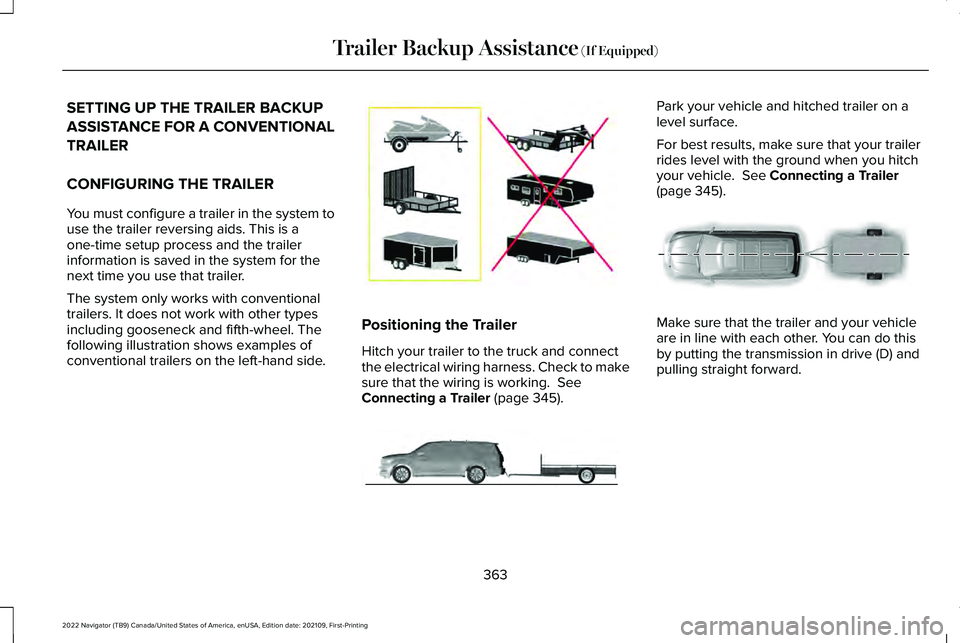
The system only works with conventional
trailers. It does not work with other types
including gooseneck and fifth-wheel. The
following illustration shows examples of
conventional trailers on the left-hand side.
Positioning the Trailer
Hitch your trailer to the truck and connect
the electrical wiring harness. Check to make
sure that the wiring is working. See
Connecting a Trailer (page 345). Park your vehicle and hitched trailer on a
level surface.
For best results, make sure that your trailer
rides level with the ground when you hitch
your vehicle.
See Connecting a Trailer
(page 345). Make sure that the trailer and your vehicle
are in line with each other. You can do this
by putting the transmission in drive (D) and
pulling straight forward.
363
2022 Navigator (TB9) Canada/United States of America, enUSA, Edition date: 202109, First-Printing Trailer Backup Assistance
(If Equipped)E209766 E247482 E247481
Page 369 of 646
CALIBRATING THE SYSTEM
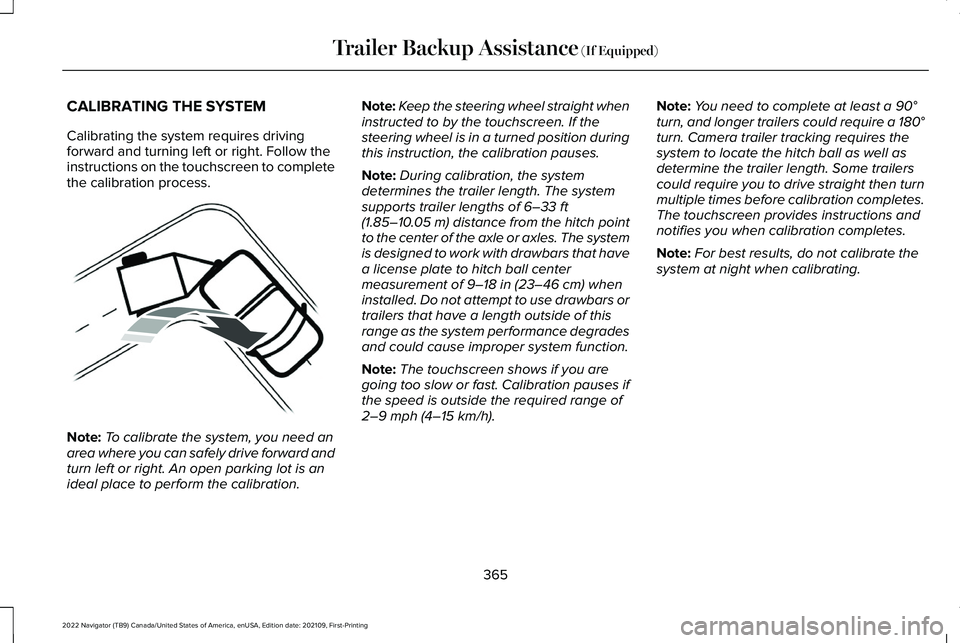
Calibrating the system requires driving
forward and turning left or right. Follow the
instructions on the touchscreen to complete
the calibration process.
Note:
To calibrate the system, you need an
area where you can safely drive forward and
turn left or right. An open parking lot is an
ideal place to perform the calibration. Note:
Keep the steering wheel straight when
instructed to by the touchscreen. If the
steering wheel is in a turned position during
this instruction, the calibration pauses.
Note: During calibration, the system
determines the trailer length. The system
supports trailer lengths of 6–33 ft
(1.85–10.05 m) distance from the hitch point
to the center of the axle or axles. The system
is designed to work with drawbars that have
a license plate to hitch ball center
measurement of
9–18 in (23–46 cm) when
installed. Do not attempt to use drawbars or
trailers that have a length outside of this
range as the system performance degrades
and could cause improper system function.
Note: The touchscreen shows if you are
going too slow or fast. Calibration pauses if
the speed is outside the required range of
2–9 mph (4–15 km/h)
. Note:
You need to complete at least a
90°
turn, and longer trailers could require a 180°
turn. Camera trailer tracking requires the
system to locate the hitch ball as well as
determine the trailer length. Some trailers
could require you to drive straight then turn
multiple times before calibration completes.
The touchscreen provides instructions and
notifies you when calibration completes.
Note: For best results, do not calibrate the
system at night when calibrating.
365
2022 Navigator (TB9) Canada/United States of America, enUSA, Edition date: 202109, First-Printing Trailer Backup Assistance
(If Equipped)E352329
Page 370 of 646
SWITCHING TRAILER BACKUP
ASSISTANCE ON AND OFF Press the button and use the touchscreen
to select the connected trailer.
Note:
A trailer must be configured to use
trailer backup assistance. See Connecting
a Trailer (page 346).
Note: If you use the steering wheel when
using trailer backup assistance, the system
turns off and a message displays in the
touchscreen.
Note: If the trailer was connected just prior
to turning the system on, you may need to
drive forward to initialize the system. Follow
the instructions on the touchscreen to
activate the system.
USING THE TRAILER BACKUP
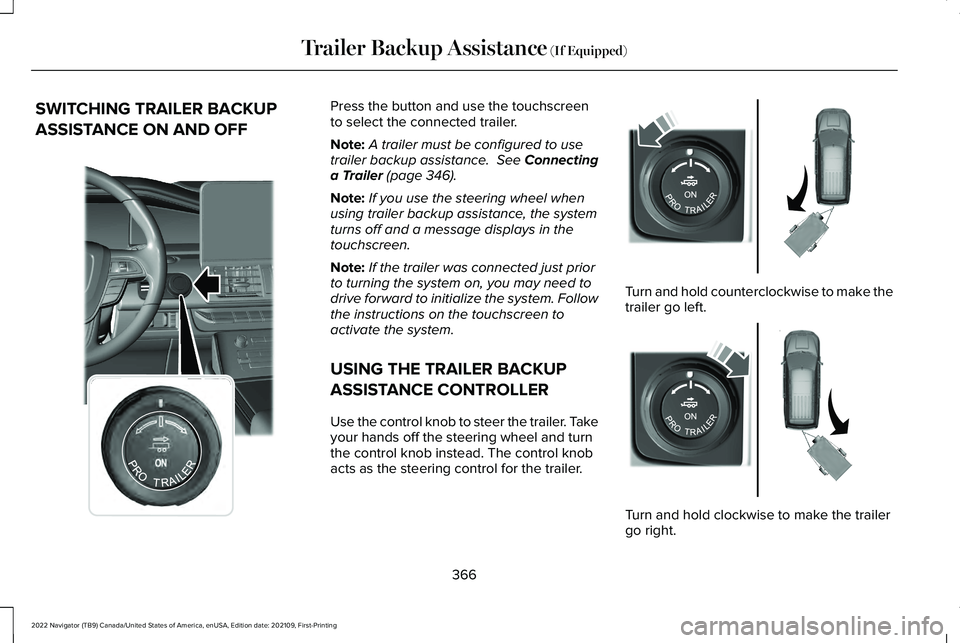
ASSISTANCE CONTROLLER
Use the control knob to steer the trailer. Take
your hands off the steering wheel and turn
the control knob instead. The control knob
acts as the steering control for the trailer. Turn and hold counterclockwise to make the
trailer go left.
Turn and hold clockwise to make the trailer
go right.
366
2022 Navigator (TB9) Canada/United States of America, enUSA, Edition date: 202109, First-Printing Trailer Backup Assistance
(If Equipped)E356842 E349262 E349263
Page 374 of 646
 and pull forward to get yo\
ur
vehicle and trailer back to an in-lin")
Description
Message
Displays when you exceed the maximum controllable trailer angle for
the system. Place your vehicle in drive (D) and pull forward to get yo\
ur
vehicle and trailer back to an in-line position, then activate the syste\
m
by selecting the connected trailer and following the instructions on
the touchscreen.
If this message consistently displays, you may need to repeat the
trailer setup and calibration. Delete the trailer from the system and
repeat the setup and calibration process.
Stop now. Deactivated by trailer angle.
Displays when the system can no longer steer the vehicle and you
must take over steering.
Pro Trailer Backup Assist™ Stop Now Take Control of Steering Wheel
These messages display when the system does not detect the trailer.
Make sure the rear camera is clean, and the sticker is clearly visible
in the camera image. You can also move the trailer forward or back-
ward to change the trailer position and lighting conditions
If these messages continue to display, visit your authorized dealer to
have your vehicle checked.
Pro Trailer Backup Assist™ Trailer Not Detected. Shift to Park Press
Knob to Exit
Pro Trailer Backup Assist™ Trailer Not Detected. Refer to Owner's
Manual. Press Knob to Exit
370
2022 Navigator (TB9) Canada/United States of America, enUSA, Edition date: 202109, First-Printing Trailer Backup Assistance (If Equipped)
Page 376 of 646
TRAILER BACKUP ASSISTANCE –
FREQUENTLY ASKED QUESTIONS
Why does the trailer not reverse straight?
Verify the sticker is correctly applied.
Other factors such as the hitch
connection, road camber, road slope
and trailer suspension could influence
how straight the system can reverse the
trailer when the control knob is not
turned. You can compensate for the
trailer drifting to the right or left by
slowly turning the knob until the trailer
is following your desired path and then
holding the knob in that position. What does it mean if the system remains
on one message for an extended time
during calibration?
The camera could need to be cleaned,
the sticker could be blocked, the
drawbar could be outside the allowed
range of 9–18 in (23–46 cm) or you
could need to move to a different area
to change the lighting and background.
Verify the sticker is in the proper
location.
See Applying the Trailer
Reversing Aid Sticker (page 364). You
can move to a different area or change
the direction you are driving or setup
the system at a different time of day.
Some trailers are not compatible with
the sticker and camera system.
What does it mean if the system pauses
during calibration? There could be steering input or trailer
movement during the straight drive
portion of the calibration process. What does it mean if the system displays
hold steering steady during turn?
Part of the calibration process for the
sticker setup requires a steady turn. If
you are continually moving the steering
wheel during the turn, this delays the
calibration process. To enable the
calibration process, hold the steering
wheel at the same position when
turning.
What does it mean if the system displays
that it is not available? There could be a sub-system that the
system uses that is not correctly
operating or there could be a battery
voltage issue. If the system continues
to display it is not available, visit your
authorized dealer to have your vehicle
checked.
372
2022 Navigator (TB9) Canada/United States of America, enUSA, Edition date: 202109, First-Printing Trailer Backup Assistance
(If Equipped)
Page 378 of 646
What does it mean if the trailer is at its
maximum angle or the system deactivated
by trailer angle?
You are at the maximum controllable
trailer angle for the system. Place your
vehicle in drive (D) and pull forward to
get the truck and trailer back to an
in-line position. If this message
consistently displays, this could indicate
the sticker is incorrectly applied, the
trailer needs to be recalibrated or the
drawbar or the trailer dimensions are
outside of the supported range. The
system is designed to work with
drawbars that have a license plate to
hitch ball center measurement of 9–18 in
(23–46 cm) when installed. The system
is designed to work with trailers that
have a hitch point to center of the axle
or axles measurement of
6–33 ft
(1.85–10.05 m). Do not attempt to use
drawbars or trailers that have a length
outside of this range as the system
performance degrades and could cause
improper system function. Check that
the correct trailer is selected in the touchscreen. Verify the sticker is
correctly applied and check that the
drawbar and the trailer dimensions are
within the allowed range. Then, delete
the trailer from the system and repeat
the setup process to calibrate the trailer.
What does it mean when the system tells
you to take control of the steering wheel? The system is no longer steering the
vehicle and you must take over steering.
There are four reasons the system could
display this message. The first reason
the system could display this message
is that you have touched the steering
wheel when the system is steering. The
second reason the system could display
this message is that you have exceeded
the maximum speed for the feature. The
third reason the system could display
this message is that the trailer is not
detected. The final reason the system
could display this message is that an
internal condition for system operation
is not met that requires your vehicle to
return to manual control of the steering. What does it mean if the system does not
detect a trailer?
The system requires a clear view of the
sticker placed on the trailer. You must
keep the camera lens and sticker clean
for the system to correctly operate. If
the system cannot initially detect the
trailer, it could be necessary for you to
change the lighting conditions by
moving your vehicle and trailer or
waiting until the conditions change. See
Applying the Trailer Reversing Aid
Sticker (page 364). Some trailers are not
compatible with the sticker and camera
system.
Note: The system is designed to be used
with the same trailer connection every time
you choose the trailer from the touchscreen.
When using a different drawbar or a different
pin hole on drawbars with more than one,
connecting the drawbar to your vehicle
affects the trailer position and you may need
to repeat the trailer setup and calibration
process.
374
2022 Navigator (TB9) Canada/United States of America, enUSA, Edition date: 202109, First-Printing Trailer Backup Assistance
(If Equipped)