key battery LINCOLN NAVIGATOR 2023 Owner's Manual
[x] Cancel search | Manufacturer: LINCOLN, Model Year: 2023, Model line: NAVIGATOR, Model: LINCOLN NAVIGATOR 2023Pages: 660, PDF Size: 14.04 MB
Page 502 of 660
CENTER DISPLAY PRECAUTIONS
WARNING: Driving while distractedcan result in loss of vehicle control, crashand injury. We strongly recommend thatyou use extreme caution when using anydevice that may take your focus off theroad. Your primary responsibility is the safeoperation of your vehicle. We recommendagainst the use of any hand-held devicewhile driving and encourage the use ofvoice-operated systems when possible.Make sure you are aware of all applicablelocal laws that may affect the use ofelectronic devices while driving.
CENTER DISPLAY LIMITATIONS
Speed-restricted Features
For your safety, some features are notavailable while the vehicle is in motion at orabove 5 mph (8 km/h). Settings that are notcritical while driving your vehicle are shownas restricted on your display. Some of thesesettings include:
•Software updates.
•Personal profiles setup.
•Valet mode setup.
•Driver assistance settings.
•MyKey setup.
•Door keypad code setup.
These restricted features become availablewhen your vehicle is no longer in motion.
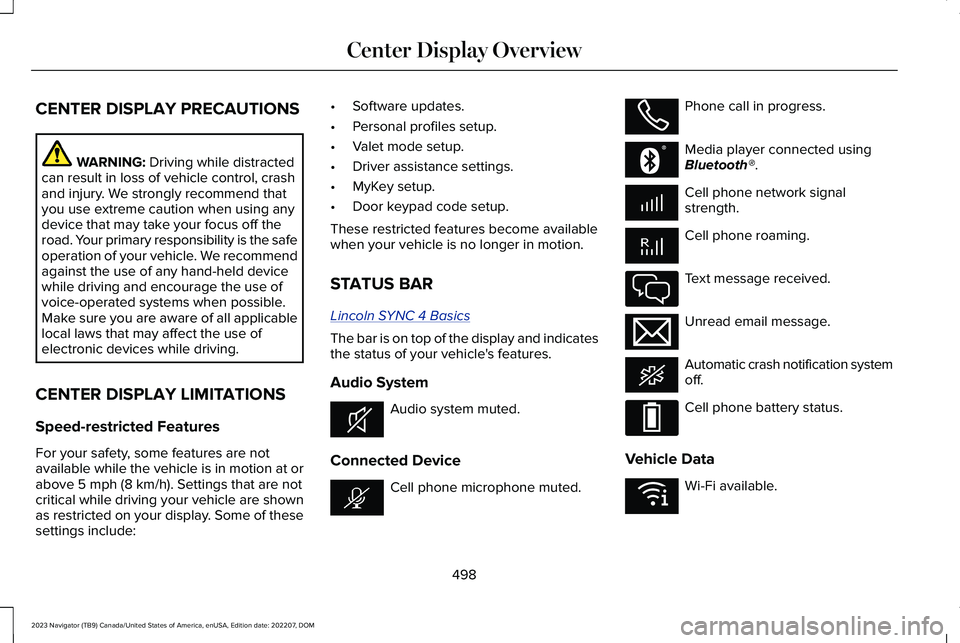
STATUS BAR
Lincoln SYNC 4 Basics
The bar is on top of the display and indicatesthe status of your vehicle's features.
Audio System
Audio system muted.
Connected Device
Cell phone microphone muted.
Phone call in progress.
Media player connected usingBluetooth®.
Cell phone network signalstrength.
Cell phone roaming.
Text message received.
Unread email message.
Automatic crash notification systemoff.
Cell phone battery status.
Vehicle Data
Wi-Fi available.
498
2023 Navigator (TB9) Canada/United States of America, enUSA, Edition date: 202207, DOMCenter Display OverviewE353221 E353213 E353208 E335295 E353216 E335293 E353219
Page 511 of 660
MAKING AND RECEIVING A
PHONE CALL
Making Calls
To call a number in your contacts, select:
Action and DescriptionMenu Item
You can then select thename of the contact youwant to call. Any numbersstored for that contactdisplay along with anystored contact photos. Youcan then select the numberthat you want to call. Thesystem begins the call.
Contacts
To call a number from your recent calls,select:
Action and DescriptionMenu Item
You can then select an entrythat you want to call. Thesystem begins the call.
Recent CallList
To call a number from your favorites, select:
Action and DescriptionMenu Item
You can then select an entrythat you want to call. Thesystem begins the call.
Favorites
To call a number that is not stored in yourphone, select:
Action and DescriptionMenu Item
Select the digits of thenumber you wish to call.PhoneKeypad
The system begins the call.Call
Pressing the backspace button deletes thelast digit you typed.
Receiving Calls
During an incoming call, an audible tonesounds. Caller information appears in thedisplay if it is available.
To accept the call, select:
Menu Item
Accept
Note:You can also accept the call bypressing the phone button on the steeringwheel.
To reject the call, select:
Menu Item
Reject
Ignore the call by doing nothing. The systemlogs it as a missed call.
During a Phone Call
During a phone call, the contacts name andnumber display on the screen along with thecall duration.
The phone status items are also visible:
•Signal Strength.
•Battery.
507
2023 Navigator (TB9) Canada/United States of America, enUSA, Edition date: 202207, DOMPhone
Page 524 of 660
This introduces new features and providesupdates to the vehicle's software systems.Make sure to switch Automatic Updates on,set a recurring update schedule and connectyour vehicle to Wi-Fi. Updates could takelonger when not connected to Wi-Fi or couldnot download at all. See Connecting theVehicle to a Wi-Fi Network (page 482). SeeConnecting the Vehicle to a Wi-Fi Network(page 482).
Your vehicle may be able to receive drivablesoftware updates, non-drivable softwareupdates or both. Drivable software updateshappen during normal vehicle usage andrequire limited input from you. You arenotified on your touchscreen and connecteddevice prior to a non-drivable update.
Most updates complete in less than 30minutes, although some updates could takeup to a few hours. Check your touchscreenor connected device for the most accurateestimated update time.
You are notified of the status of the vehiclesoftware update in the touchscreen and onyour connected device. See SoftwareUpdate Indicators (page 521).
Vehicle Software Update Requirements
Non-drivable software updates do not installif any of the following occur:
•Your vehicle is running.
•Your vehicle is switched on.
•Your vehicle is not parked.
•The 12 V battery charge is too low.
•The hazard indicators are switched on.
•The alarm is sounding.
•The doors are open.
•The parking lamps are switched on.
•You are pressing the brake pedal.
•An emergency call is in process.
•Your vehicle is in limp home mode.
Vehicle Software Update Limitations
Once you begin a non-drivable softwareupdate, you cannot:
•Cancel the update.
•Lock, unlock or enter your vehicle unlessyou have a key blade.
•You can open the doors using themechanical latch if child locks are noton.
•Drive your vehicle.
•Start your vehicle.
•Use the remote control to lock, unlock orstart your vehicle.
•Use the alarm, central locks or doortones.
•Use the electronic door locks.
•Charge your vehicle.
•Charging resumes once the updatecompletes.
SOFTWARE UPDATE SETTINGS
To access the Software Updates menu:
520
2023 Navigator (TB9) Canada/United States of America, enUSA, Edition date: 202207, DOMVehicle Software Updates
Page 639 of 660
Catalytic Converter.......................................218Catalytic Converter – Troubleshooting.........219
Catalytic Converter Precautions...............218Catalytic Converter –Troubleshooting..........................................219Catalytic Converter – Warning Lamps...........219
Center Console............................................200Opening the Center Console.........................200
Center Display Limitations.........................498Center Display Overview...........................498Center Display Precautions.......................498Changing a Flat Tire....................................459Changing a Road Wheel............................459Changing the 12V Battery..........................424Changing the Fuel Filter.............................424Changing the Language...............................151Changing the Measurement Unit...............151Changing the Radio Station.......................497Changing the Remote Control Battery......73Changing the Temperature Unit.................151Changing the Tire Pressure Unit................151Changing the Vehicle Wi-Fi Hotspot Nameor Password................................................484Charging a Device........................................194Charging a Wireless Device.......................198Checking MyKey System Status.................84Checking the Brake Fluid..........................232Checking the Coolant..................................418
Checking the Seatbelts.................................58Checking the Tire Pressures.....................449Checking the Wiper Blades.........................116Childminder Mirror........................................136Childminder Mirror Precautions.......................136Locating the Childminder Mirror......................136
Children and Airbags.....................................65Child Restraint Anchor Points......................40Locating the Child Restraint Lower AnchorPoints...................................................................40Locating the Child Restraint Top TetherAnchor Points.....................................................41What Are the Child Restraint AnchorPoints...................................................................40
Child Restraints................................................41Child Restraint Position Information..................41Child Restraints Recommendation...................43
Child Safety......................................................39Child Restraint Anchor Points............................40Child Restraints.......................................................41Installing Child Restraints....................................44
Child Safety Locks...........................................51Child Safety Precautions...............................39Cleaning Products.......................................429Cleaning the Exterior..................................430Cleaning Camera Lenses and Sensors........432Cleaning Chrome, Aluminium or StainlessSteel..................................................................430
Cleaning Headlamps and Rear Lamps.........430Cleaning Stripes or Graphics............................431Cleaning the Engine Compartment................431Cleaning the Exterior Precautions.................430Cleaning the Underbody..................................432Cleaning Wheels..................................................431Cleaning Windows and Wiper Blades..........430
Cleaning the Interior....................................432Cleaning Carpets and Floor Mats..................433Cleaning Displays and Screens......................432Cleaning Fabric Seats and Headliners.........433Cleaning Leather and Vinyl..............................433Cleaning Moonroof Tracks...............................434Cleaning Plastic..................................................432Cleaning Seatbelts.............................................434Cleaning the Instrument Panel.......................432
Clearing All MyKeys.......................................84Climate Control..............................................159Auto Mode.............................................................161
Climate Control Hints...................................162Closing the Liftgate......................................100Closing the Hands-Free Liftgate.....................102Closing the Liftgate From Inside YourVehicle...............................................................100Closing the Liftgate From Outside YourVehicle................................................................101Closing the Liftgate Using the RemoteControl................................................................101
635
2023 Navigator (TB9) Canada/United States of America, enUSA, Edition date: 202207, DOMIndex
Page 650 of 660
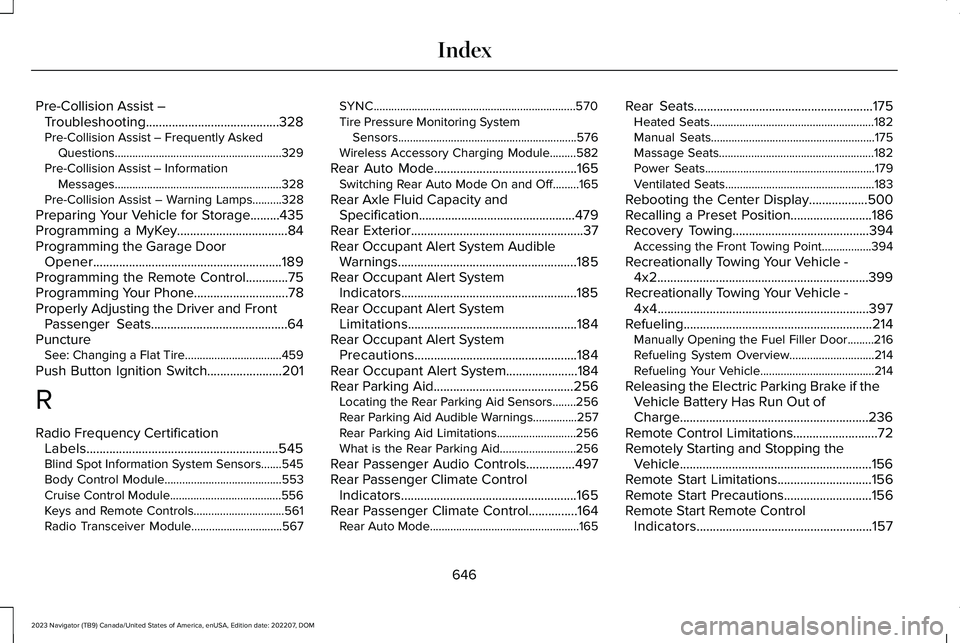
Pre-Collision Assist –Troubleshooting.........................................328Pre-Collision Assist – Frequently AskedQuestions.........................................................329Pre-Collision Assist – InformationMessages.........................................................328Pre-Collision Assist – Warning Lamps..........328
Preparing Your Vehicle for Storage.........435Programming a MyKey..................................84Programming the Garage DoorOpener..........................................................189Programming the Remote Control.............75Programming Your Phone.............................78Properly Adjusting the Driver and FrontPassenger Seats..........................................64PunctureSee: Changing a Flat Tire.................................459
Push Button Ignition Switch.......................201
R
Radio Frequency CertificationLabels...........................................................545Blind Spot Information System Sensors.......545Body Control Module........................................553Cruise Control Module......................................556Keys and Remote Controls...............................561Radio Transceiver Module...............................567
SYNC.....................................................................570Tire Pressure Monitoring SystemSensors.............................................................576Wireless Accessory Charging Module.........582
Rear Auto Mode............................................165Switching Rear Auto Mode On and Off.........165
Rear Axle Fluid Capacity andSpecification................................................479Rear Exterior.....................................................37Rear Occupant Alert System AudibleWarnings.......................................................185Rear Occupant Alert SystemIndicators......................................................185Rear Occupant Alert SystemLimitations....................................................184Rear Occupant Alert SystemPrecautions..................................................184Rear Occupant Alert System......................184Rear Parking Aid...........................................256Locating the Rear Parking Aid Sensors........256Rear Parking Aid Audible Warnings...............257Rear Parking Aid Limitations...........................256What is the Rear Parking Aid..........................256
Rear Passenger Audio Controls...............497Rear Passenger Climate ControlIndicators......................................................165Rear Passenger Climate Control...............164Rear Auto Mode...................................................165
Rear Seats.......................................................175Heated Seats........................................................182Manual Seats........................................................175Massage Seats.....................................................182Power Seats..........................................................179Ventilated Seats...................................................183
Rebooting the Center Display..................500Recalling a Preset Position.........................186Recovery Towing..........................................394Accessing the Front Towing Point.................394
Recreationally Towing Your Vehicle -4x2.................................................................399Recreationally Towing Your Vehicle -4x4.................................................................397Refueling..........................................................214Manually Opening the Fuel Filler Door.........216Refueling System Overview.............................214Refueling Your Vehicle.......................................214
Releasing the Electric Parking Brake if theVehicle Battery Has Run Out ofCharge..........................................................236Remote Control Limitations..........................72Remotely Starting and Stopping theVehicle...........................................................156Remote Start Limitations.............................156Remote Start Precautions...........................156Remote Start Remote ControlIndicators......................................................157
646
2023 Navigator (TB9) Canada/United States of America, enUSA, Edition date: 202207, DOMIndex