steering wheel LINCOLN NAVIGATOR 2023 Manual PDF
[x] Cancel search | Manufacturer: LINCOLN, Model Year: 2023, Model line: NAVIGATOR, Model: LINCOLN NAVIGATOR 2023Pages: 660, PDF Size: 14.04 MB
Page 450 of 660
USING SNOW CHAINS
WARNING: Do not exceed 30 mph(50 km/h). Failure to follow this instructioncould result in the loss of control of yourvehicle, personal injury or death.
WARNING: Do not use snow chainson snow-free roads.
WARNING: Only fit snow chains tospecified tires.
WARNING: If your vehicle is fittedwith wheel trims, remove them beforefitting snow chains.
WARNING: If you choose to installsnow tires on your vehicle, they must bethe same size, construction, and load rangeas the original tires listed on the tireplacard, and they must be installed on allfour wheels. Mixing tires of different sizeor construction on your vehicle canadversely affect your vehicle's handlingand braking, and may lead to loss ofvehicle control.
WARNING: Wheels and tires mustbe the same size, load index and speedrating as those originally fitted on thevehicle. Use of any other tire or wheel canaffect the safety and performance of yourvehicle. Additionally, the use ofnon-recommended tires and wheels cancause steering, suspension, axle, transfercase or power transfer unit failure. Followthe recommended tire inflation pressures
found on the Safety ComplianceCertification label, or the Tire Label on theB-Pillar or the edge of the driver door.Failure to follow this instruction could resultin loss of vehicle control, vehicle rollover,or personal injury or death.
Only use snow chains on rear wheels. Installsnow chains in pairs. Do not useself-tensioning snow chains.
Only use snow chains on the followingspecified tire sizes. Only install chains thatare 15mm or less (SAE Class S chains).
•265/70R17
•275/65R18
We recommend you use steel wheels of thesame size and specification if snow chainsare required because chains may chipaluminum wheels.
Follow these guidelines when using snowtires and traction devices:
446
2023 Navigator (TB9) Canada/United States of America, enUSA, Edition date: 202207, DOMWheel and Tire Information
Page 463 of 660
CHANGING A FLAT TIRE
If you get a flat tire when driving, do notapply the brake heavily. nstead, graduallydecrease your speed, hold the steeringwheel firmly and slowly move to a safe placeon the side of the road.
Have the flat serviced by an authorizeddealer to prevent damage to the systemsensors. See Tire Pressure MonitoringSystem (page 453). Replace the spare tirewith a road tire as soon as possible. Duringrepairing or replacing of the flat tire, havethe authorized dealer inspect the systemsensor for damage.
Note:Only use tire sealants in roadsideemergencies as they may cause damage tothe tire pressure monitoring system sensor.
Note:The tire pressure monitoring systemindicator light illuminates when the sparetire is in use. To restore the full function ofthe monitoring system, all road wheels withtire pressure monitoring sensors must bemounted on this vehicle.
Dissimilar Spare Wheel and TireAssembly Information
WARNING: Failure to follow theseguidelines could result in an increased riskof loss of vehicle control, injury or death.
If you have a dissimilar spare wheel and tire,then it is intended for temporary use only.This means that if you need to use it, youshould replace it as soon as possible with aroad wheel and tire assembly that is thesame size and type as the road tires andwheels that were originally provided. If thedissimilar spare tire or wheel is damaged, itshould be replaced rather than repaired.
A dissimilar spare wheel and tire assemblyis defined as a spare wheel and tire assemblythat is different in brand, size or appearancefrom the other road tires and wheels on yourvehicle.
Full-size dissimilar spare
When driving with the full-size dissimilarspare wheel and tire assembly, do not:
•Exceed 70 mph (113 km/h).
•Use more than one dissimilar sparewheel and tire assembly at a time.
•Use snow chains on the end of thevehicle with the dissimilar spare wheeland tire assembly.
When driving with the full-size dissimilarspare wheel and tire assembly, it isrecommended that you do not:
•Exceed 50 mph (80 km/h) in four-wheeldrive.
•Engage four-wheel drive unless thevehicle is stationary.
•Use four-wheel drive on dry pavement.
Using a dissimilar spare wheel and tireassembly can compromise the effectivenessof the following:
•Handling, stability and brakingperformance.
•Comfort and noise.
•Ground clearance and parking at curbs.
•Winter weather driving capability.
459
2023 Navigator (TB9) Canada/United States of America, enUSA, Edition date: 202207, DOMChanging a Road Wheel
Page 491 of 660
Touchscreen
Press the button to pauseplayback. Press again to resumeplayback.
Note:Not all sources can be paused.
ADJUSTING THE VOLUME
Turn to adjust the volume.
Some vehicles may be able to adjust thevolume using buttons on the steering wheel.
SWITCHING SHUFFLE MODE ON
AND OFF
Press the button on thetouchscreen to switch shufflemode on or off.
Note:Not all sources have shuffle mode.
SWITCHING REPEAT MODE ON
AND OFF
Press the button on thetouchscreen to switch repeat modeon or off.
Note:Not all sources have repeat mode.
SETTING A MEMORY PRESET
1.Select a station or channel.
2.Press and hold a memory preset buttonon the touchscreen.
Note:The audio mutes briefly while thesystem saves the preset and returns once itis stored.
Note:You can save presets from multiplesources to the memory preset bar.
MUTING THE AUDIO
Press to mute the signal. Pressagain to restore the signal.
ADJUSTING THE SOUND
SETTINGS
Balance and Fade (If Equipped)
1.Press Settings on the touchscreen.
2.Press Sound Settings.
3.Press Balance / Fade.
4.Press the arrows to adjust the settings.
487
2023 Navigator (TB9) Canada/United States of America, enUSA, Edition date: 202207, DOMAudio System E248939
Page 504 of 660
INFORMATION ON DEMAND
SCREEN
The information on demand screen displayscards on the side of the display and allowsyou to see information from differentfeatures.
Press the button to view the nextcard.
Press the button to view theprevious card.
Press the button to view availablecards.
You can swipe toward the main screen tomove the content into the main screen.
Note:This can only be done with someinformation on demand screens.
REBOOTING THE CENTER DISPLAY
You can reboot the center display using thecontrols on the steering wheel.
1.Simultaneously press and hold the seekforward and audio system power buttonfor 10 seconds.
500
2023 Navigator (TB9) Canada/United States of America, enUSA, Edition date: 202207, DOMCenter Display OverviewE353212 E353211 E353209
Page 505 of 660
LINCOLN PERSONAL ASSISTANT
USING LINCOLN PERSONALASSISTANT
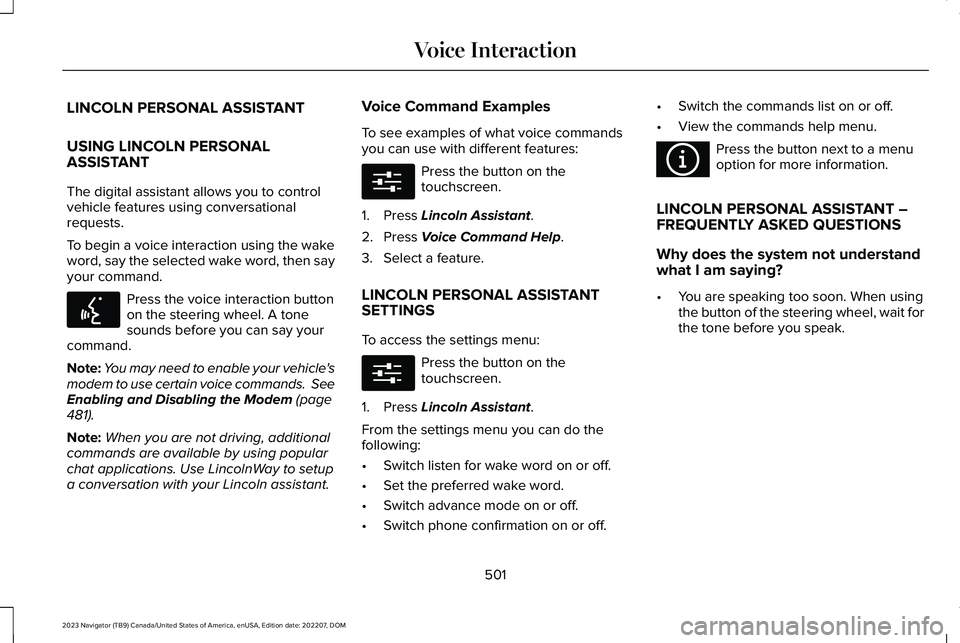
The digital assistant allows you to controlvehicle features using conversationalrequests.
To begin a voice interaction using the wakeword, say the selected wake word, then sayyour command.
Press the voice interaction buttonon the steering wheel. A tonesounds before you can say yourcommand.
Note:You may need to enable your vehicle'smodem to use certain voice commands. SeeEnabling and Disabling the Modem (page481).
Note:When you are not driving, additionalcommands are available by using popularchat applications. Use LincolnWay to setupa conversation with your Lincoln assistant.
Voice Command Examples
To see examples of what voice commandsyou can use with different features:
Press the button on thetouchscreen.
1.Press Lincoln Assistant.
2.Press Voice Command Help.
3.Select a feature.
LINCOLN PERSONAL ASSISTANTSETTINGS
To access the settings menu:
Press the button on thetouchscreen.
1.Press Lincoln Assistant.
From the settings menu you can do thefollowing:
•Switch listen for wake word on or off.
•Set the preferred wake word.
•Switch advance mode on or off.
•Switch phone confirmation on or off.
•Switch the commands list on or off.
•View the commands help menu.
Press the button next to a menuoption for more information.
LINCOLN PERSONAL ASSISTANT –FREQUENTLY ASKED QUESTIONS
Why does the system not understandwhat I am saying?
•You are speaking too soon. When usingthe button of the steering wheel, wait forthe tone before you speak.
501
2023 Navigator (TB9) Canada/United States of America, enUSA, Edition date: 202207, DOMVoice InteractionE142599 E280315 E280315 E366956
Page 507 of 660
WHAT IS ALEXA BUILT-IN
Allows you to use Alexa in your vehicle forauto specific use cases on the road andgives you access to an ever evolving numberof skills that help to make your life moreproductive, entertaining, and connectedwhile using your vehicle.
ALEXA BUILT-IN REQUIREMENTS
To use Alexa, all of the following must occur:
•Your vehicle modem is enabled.
•You are logged into an existing Amazonaccount.
•Vehicle location services are enabled.
•Vehicle connectivity and vehicle datasharing is enabled.
SIGNING INTO YOUR ACCOUNT
Press the button in the status barand follow the on-screen prompts.
To sign in using the settings menu:
1.Press Settings on the touchscreen.
2.Press Amazon Alexa.
3.Press Get Started.
4.Sign into your account by either scanningthe QR code or entering the on-screencode into the Amazon website.
5.Once logged in, follow the on-screenprompts.
6.When complete, the vehicle informs youthat Alexa is ready to be used in thevehicle.
Signing Out of Your Account
1.Press Settings on the touchscreen.
2.Press Amazon Alexa.
3.Press Sign Out.
USING ALEXA BUILT-IN
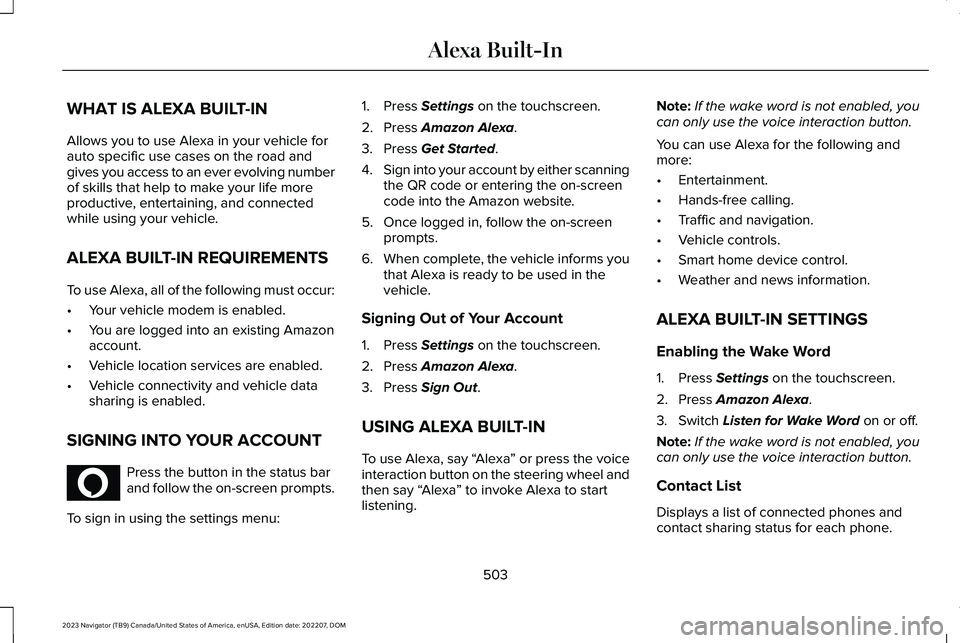
To use Alexa, say “Alexa” or press the voiceinteraction button on the steering wheel andthen say “Alexa” to invoke Alexa to startlistening.
Note:If the wake word is not enabled, youcan only use the voice interaction button.
You can use Alexa for the following andmore:
•Entertainment.
•Hands-free calling.
•Traffic and navigation.
•Vehicle controls.
•Smart home device control.
•Weather and news information.
ALEXA BUILT-IN SETTINGS
Enabling the Wake Word
1.Press Settings on the touchscreen.
2.Press Amazon Alexa.
3.Switch Listen for Wake Word on or off.
Note:If the wake word is not enabled, youcan only use the voice interaction button.
Contact List
Displays a list of connected phones andcontact sharing status for each phone.
503
2023 Navigator (TB9) Canada/United States of America, enUSA, Edition date: 202207, DOMAlexa Built-InE368039
Page 511 of 660
MAKING AND RECEIVING A
PHONE CALL
Making Calls
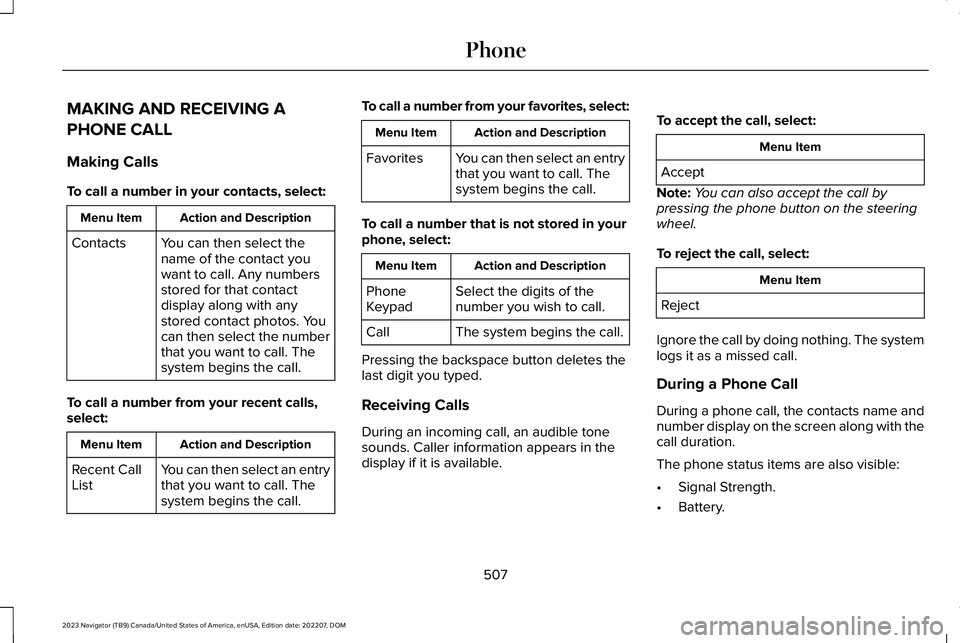
To call a number in your contacts, select:
Action and DescriptionMenu Item
You can then select thename of the contact youwant to call. Any numbersstored for that contactdisplay along with anystored contact photos. Youcan then select the numberthat you want to call. Thesystem begins the call.
Contacts
To call a number from your recent calls,select:
Action and DescriptionMenu Item
You can then select an entrythat you want to call. Thesystem begins the call.
Recent CallList
To call a number from your favorites, select:
Action and DescriptionMenu Item
You can then select an entrythat you want to call. Thesystem begins the call.
Favorites
To call a number that is not stored in yourphone, select:
Action and DescriptionMenu Item
Select the digits of thenumber you wish to call.PhoneKeypad
The system begins the call.Call
Pressing the backspace button deletes thelast digit you typed.
Receiving Calls
During an incoming call, an audible tonesounds. Caller information appears in thedisplay if it is available.
To accept the call, select:
Menu Item
Accept
Note:You can also accept the call bypressing the phone button on the steeringwheel.
To reject the call, select:
Menu Item
Reject
Ignore the call by doing nothing. The systemlogs it as a missed call.
During a Phone Call
During a phone call, the contacts name andnumber display on the screen along with thecall duration.
The phone status items are also visible:
•Signal Strength.
•Battery.
507
2023 Navigator (TB9) Canada/United States of America, enUSA, Edition date: 202207, DOMPhone
Page 512 of 660
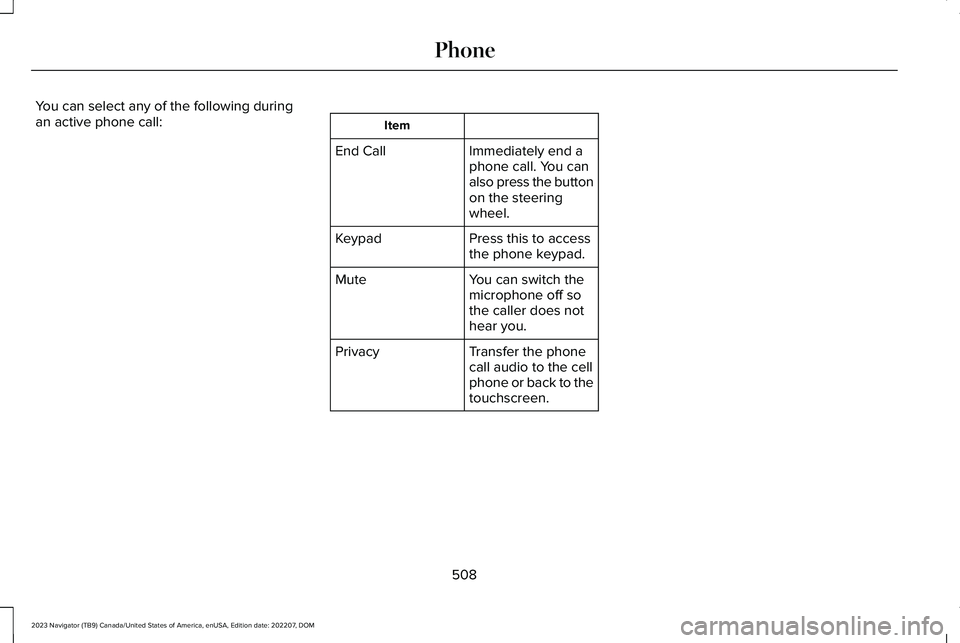
You can select any of the following duringan active phone call:Item
Immediately end aphone call. You canalso press the buttonon the steeringwheel.
End Call
Press this to accessthe phone keypad.Keypad
You can switch themicrophone off sothe caller does nothear you.
Mute
Transfer the phonecall audio to the cellphone or back to thetouchscreen.
Privacy
508
2023 Navigator (TB9) Canada/United States of America, enUSA, Edition date: 202207, DOMPhone
Page 539 of 660
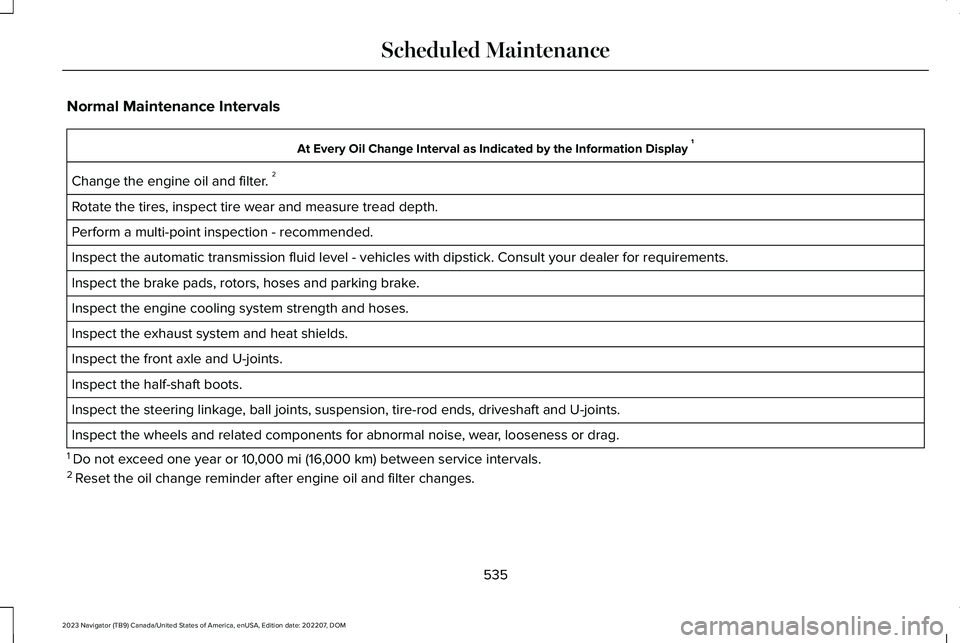
Normal Maintenance Intervals
At Every Oil Change Interval as Indicated by the Information Display 1
Change the engine oil and filter. 2
Rotate the tires, inspect tire wear and measure tread depth.
Perform a multi-point inspection - recommended.
Inspect the automatic transmission fluid level - vehicles with dipstick. Consult your dealer for requirements.
Inspect the brake pads, rotors, hoses and parking brake.
Inspect the engine cooling system strength and hoses.
Inspect the exhaust system and heat shields.
Inspect the front axle and U-joints.
Inspect the half-shaft boots.
Inspect the steering linkage, ball joints, suspension, tire-rod ends, driveshaft and U-joints.
Inspect the wheels and related components for abnormal noise, wear, looseness or drag.
1 Do not exceed one year or 10,000 mi (16,000 km) between service intervals.2 Reset the oil change reminder after engine oil and filter changes.
535
2023 Navigator (TB9) Canada/United States of America, enUSA, Edition date: 202207, DOMScheduled Maintenance
Page 543 of 660
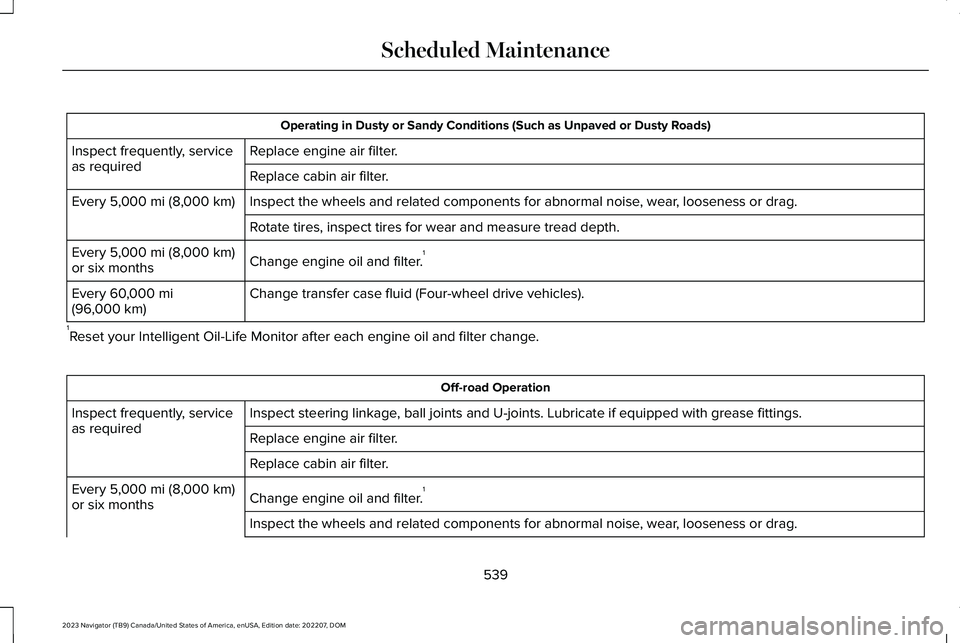
Operating in Dusty or Sandy Conditions (Such as Unpaved or Dusty Roads)
Replace engine air filter.Inspect frequently, serviceas requiredReplace cabin air filter.
Inspect the wheels and related components for abnormal noise, wear, looseness or drag.Every 5,000 mi (8,000 km)
Rotate tires, inspect tires for wear and measure tread depth.
Change engine oil and filter.1Every 5,000 mi (8,000 km)or six months
Change transfer case fluid (Four-wheel drive vehicles).Every 60,000 mi(96,000 km)
1Reset your Intelligent Oil-Life Monitor after each engine oil and filter change.
Off-road Operation
Inspect steering linkage, ball joints and U-joints. Lubricate if equipped with grease fittings.Inspect frequently, serviceas requiredReplace engine air filter.
Replace cabin air filter.
Change engine oil and filter.1Every 5,000 mi (8,000 km)or six months
Inspect the wheels and related components for abnormal noise, wear, looseness or drag.
539
2023 Navigator (TB9) Canada/United States of America, enUSA, Edition date: 202207, DOMScheduled Maintenance