Map LINCOLN TOWN CAR 2007 Owner's Guide
[x] Cancel search | Manufacturer: LINCOLN, Model Year: 2007, Model line: TOWN CAR, Model: LINCOLN TOWN CAR 2007Pages: 328, PDF Size: 4.51 MB
Page 73 of 328
Selecting a destination
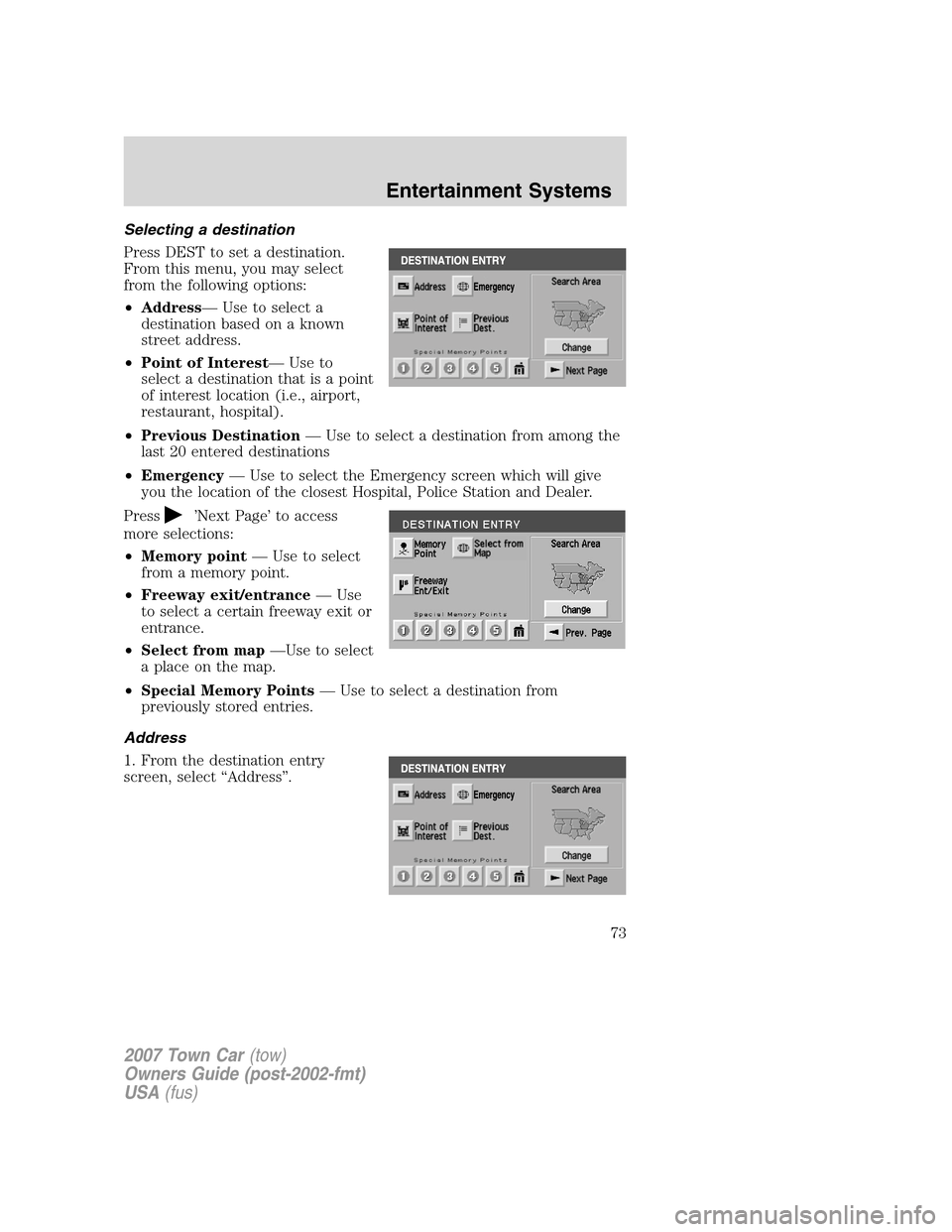
Press DEST to set a destination.
From this menu, you may select
from the following options:
•Address— Use to select a
destination based on a known
street address.
•Point of Interest— Use to
select a destination that is a point
of interest location (i.e., airport,
restaurant, hospital).
•Previous Destination— Use to select a destination from among the
last 20 entered destinations
•Emergency— Use to select the Emergency screen which will give
you the location of the closest Hospital, Police Station and Dealer.
Press
’Next Page’ to access
more selections:
•Memory point— Use to select
from a memory point.
•Freeway exit/entrance— Use
to select a certain freeway exit or
entrance.
•Select from map—Use to select
a place on the map.
•Special Memory Points— Use to select a destination from
previously stored entries.
Address
1. From the destination entry
screen, select “Address”.
2007 Town Car(tow)
Owners Guide (post-2002-fmt)
USA(fus)
Entertainment Systems
73
Page 76 of 328
Deleting stored locations
Your navigation system allows you to delete any stored locations
(previous destinations, memory points, special memory points, home,
avoid areas, destination and way points, etc.) To delete any of these
stored locations:
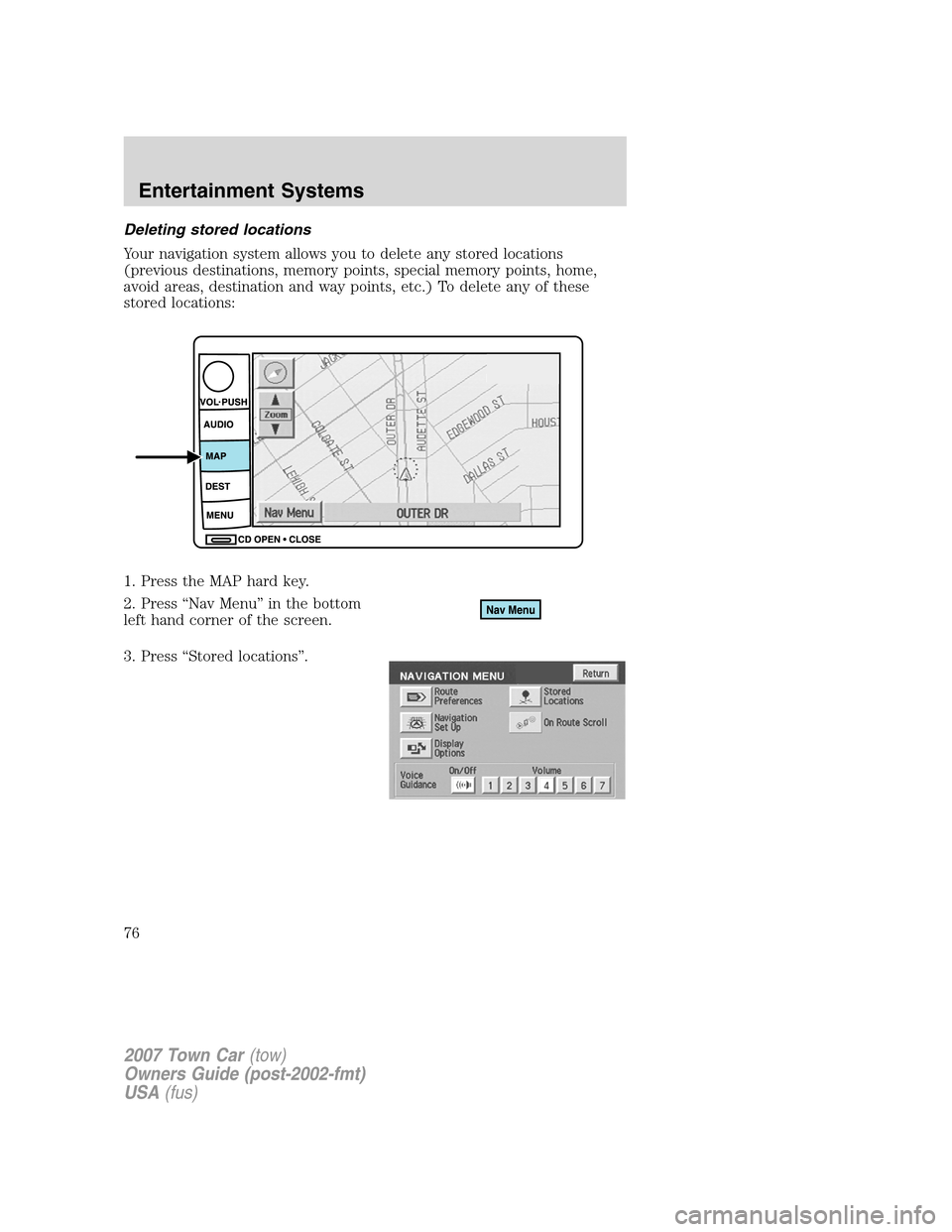
1. Press the MAP hard key.
2. Press “Nav Menu” in the bottom
left hand corner of the screen.
3. Press “Stored locations”.
2007 Town Car(tow)
Owners Guide (post-2002-fmt)
USA(fus)
Entertainment Systems
76
Page 78 of 328
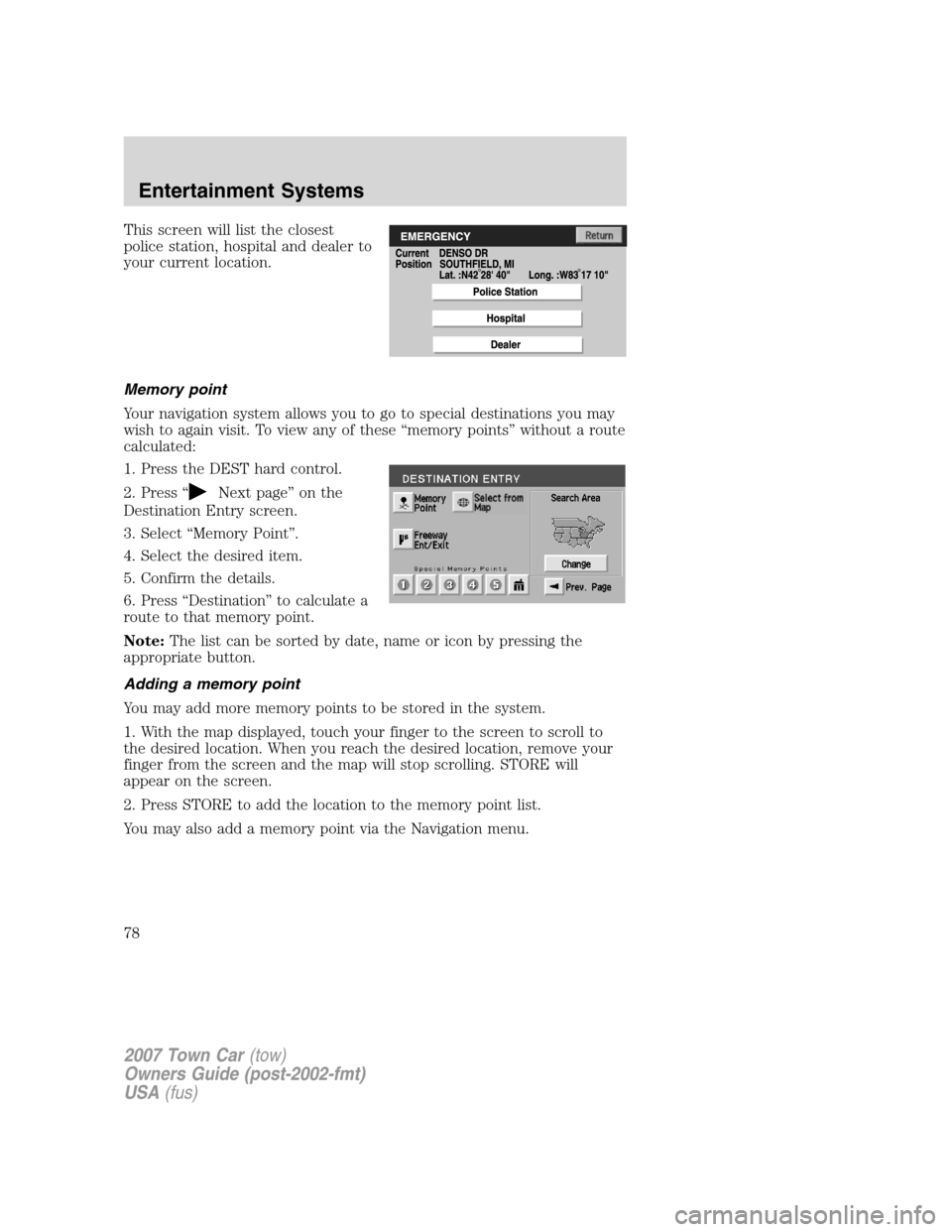
This screen will list the closest
police station, hospital and dealer to
your current location.
Memory point
Your navigation system allows you to go to special destinations you may
wish to again visit. To view any of these “memory points” without a route
calculated:
1. Press the DEST hard control.
2. Press “
Next page” on the
Destination Entry screen.
3. Select “Memory Point”.
4. Select the desired item.
5. Confirm the details.
6. Press “Destination” to calculate a
route to that memory point.
Note:The list can be sorted by date, name or icon by pressing the
appropriate button.
Adding a memory point
You may add more memory points to be stored in the system.
1. With the map displayed, touch your finger to the screen to scroll to
the desired location. When you reach the desired location, remove your
finger from the screen and the map will stop scrolling. STORE will
appear on the screen.
2. Press STORE to add the location to the memory point list.
You may also add a memory point via the Navigation menu.
2007 Town Car(tow)
Owners Guide (post-2002-fmt)
USA(fus)
Entertainment Systems
78
Page 79 of 328
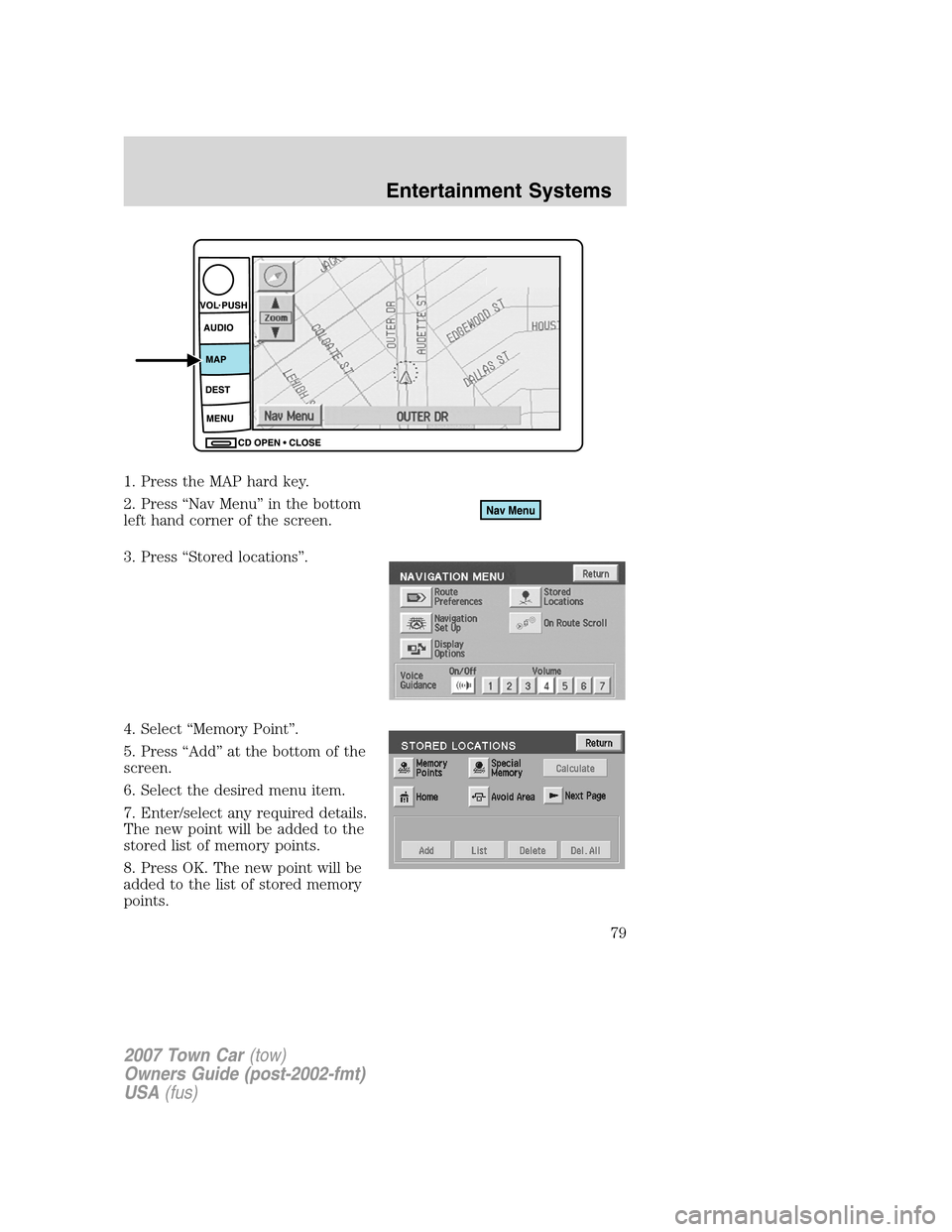
1. Press the MAP hard key.
2. Press “Nav Menu” in the bottom
left hand corner of the screen.
3. Press “Stored locations”.
4. Select “Memory Point”.
5. Press “Add” at the bottom of the
screen.
6. Select the desired menu item.
7. Enter/select any required details.
The new point will be added to the
stored list of memory points.
8. Press OK. The new point will be
added to the list of stored memory
points.
2007 Town Car(tow)
Owners Guide (post-2002-fmt)
USA(fus)
Entertainment Systems
79
Page 80 of 328
To give the new memory point a name:
1. Select it from the list.
2. Press NAME.
3. Enter the desired name.
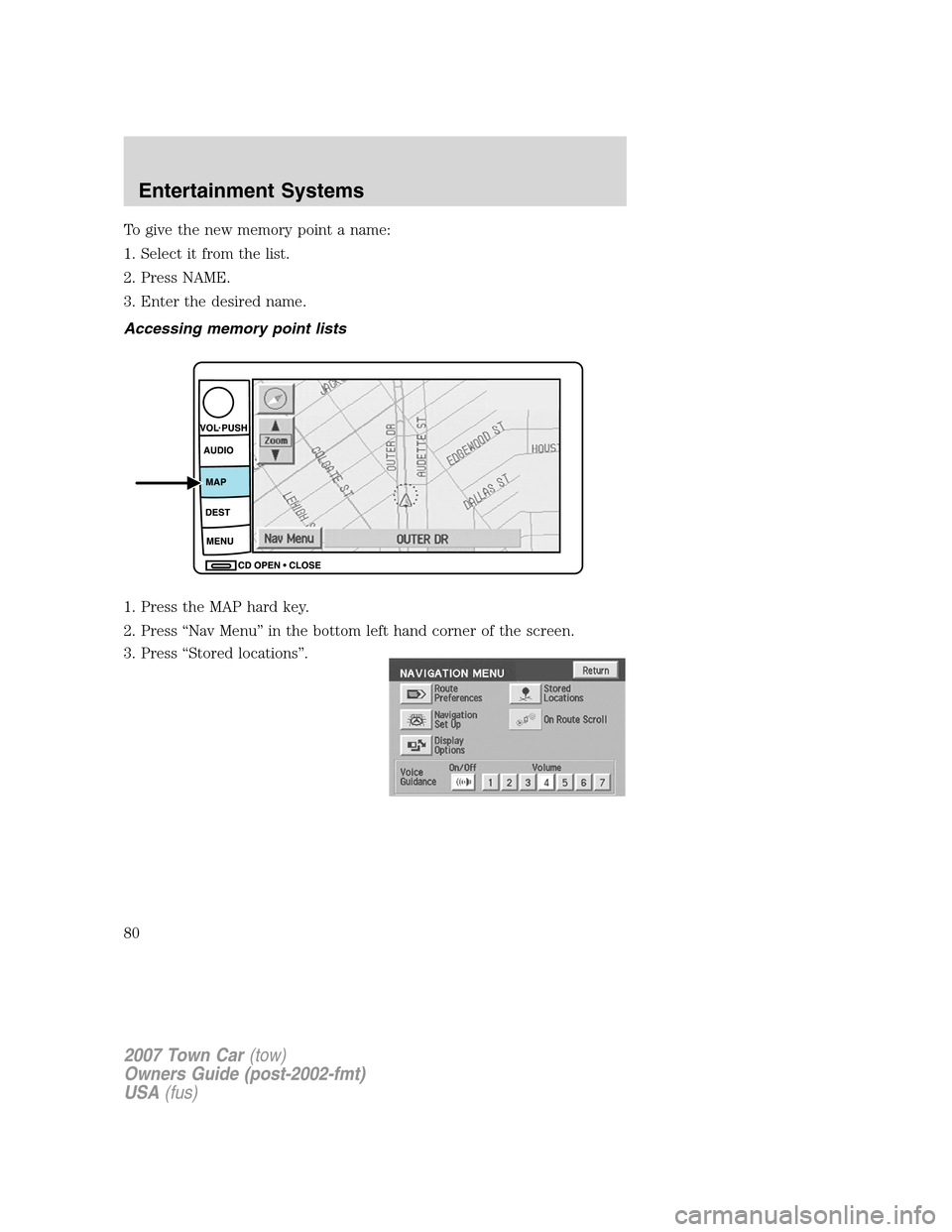
Accessing memory point lists
1. Press the MAP hard key.
2. Press “Nav Menu” in the bottom left hand corner of the screen.
3. Press “Stored locations”.
2007 Town Car(tow)
Owners Guide (post-2002-fmt)
USA(fus)
Entertainment Systems
80
Page 82 of 328
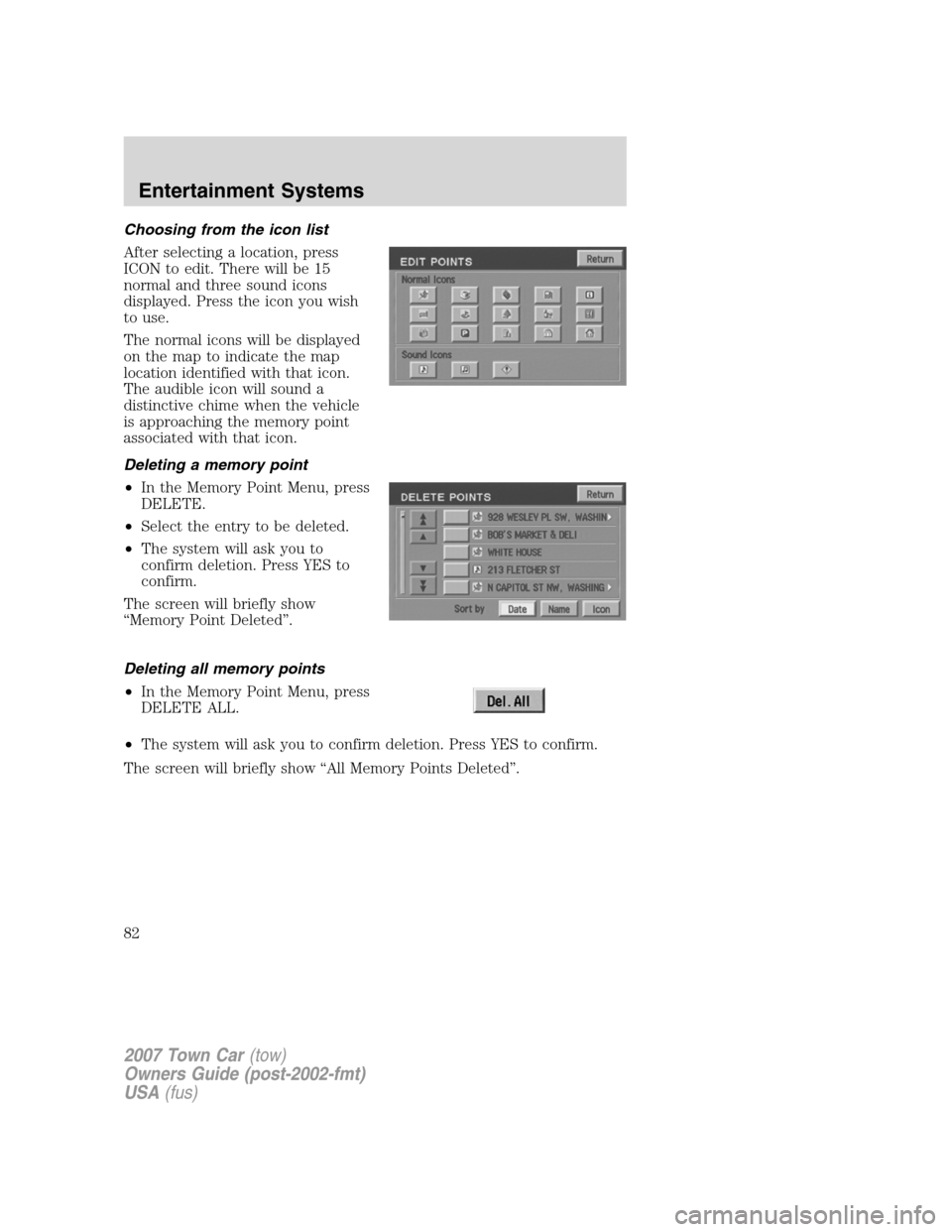
Choosing from the icon list
After selecting a location, press
ICON to edit. There will be 15
normal and three sound icons
displayed. Press the icon you wish
to use.
The normal icons will be displayed
on the map to indicate the map
location identified with that icon.
The audible icon will sound a
distinctive chime when the vehicle
is approaching the memory point
associated with that icon.
Deleting a memory point
•In the Memory Point Menu, press
DELETE.
•Select the entry to be deleted.
•The system will ask you to
confirm deletion. Press YES to
confirm.
The screen will briefly show
“Memory Point Deleted”.
Deleting all memory points
•In the Memory Point Menu, press
DELETE ALL.
•The system will ask you to confirm deletion. Press YES to confirm.
The screen will briefly show “All Memory Points Deleted”.
2007 Town Car(tow)
Owners Guide (post-2002-fmt)
USA(fus)
Entertainment Systems
82
Page 84 of 328
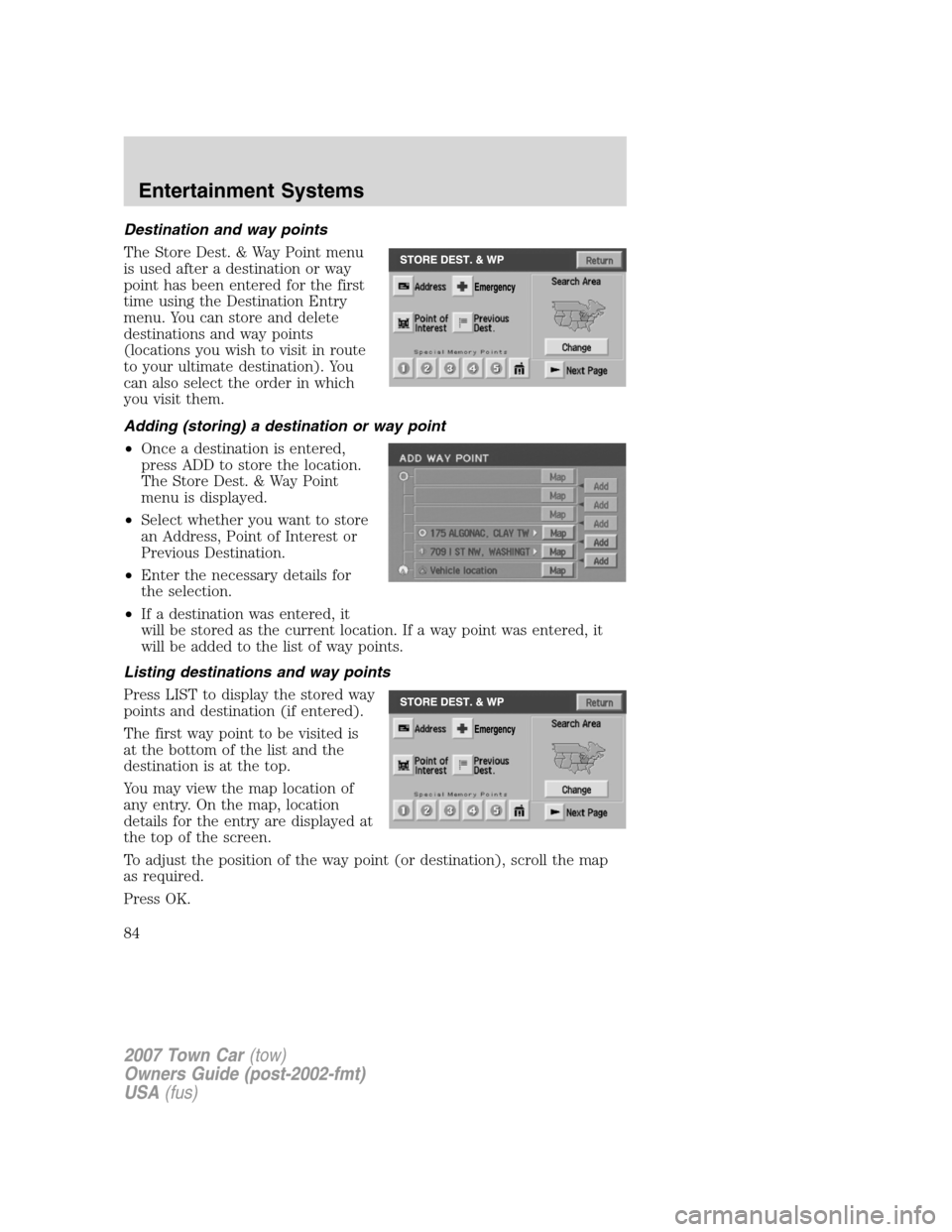
Destination and way points
The Store Dest. & Way Point menu
is used after a destination or way
point has been entered for the first
time using the Destination Entry
menu. You can store and delete
destinations and way points
(locations you wish to visit in route
to your ultimate destination). You
can also select the order in which
you visit them.
Adding (storing) a destination or way point
•Once a destination is entered,
press ADD to store the location.
The Store Dest. & Way Point
menu is displayed.
•Select whether you want to store
an Address, Point of Interest or
Previous Destination.
•Enter the necessary details for
the selection.
•If a destination was entered, it
will be stored as the current location. If a way point was entered, it
will be added to the list of way points.
Listing destinations and way points
Press LIST to display the stored way
points and destination (if entered).
The first way point to be visited is
at the bottom of the list and the
destination is at the top.
You may view the map location of
any entry. On the map, location
details for the entry are displayed at
the top of the screen.
To adjust the position of the way point (or destination), scroll the map
as required.
Press OK.
2007 Town Car(tow)
Owners Guide (post-2002-fmt)
USA(fus)
Entertainment Systems
84
Page 85 of 328
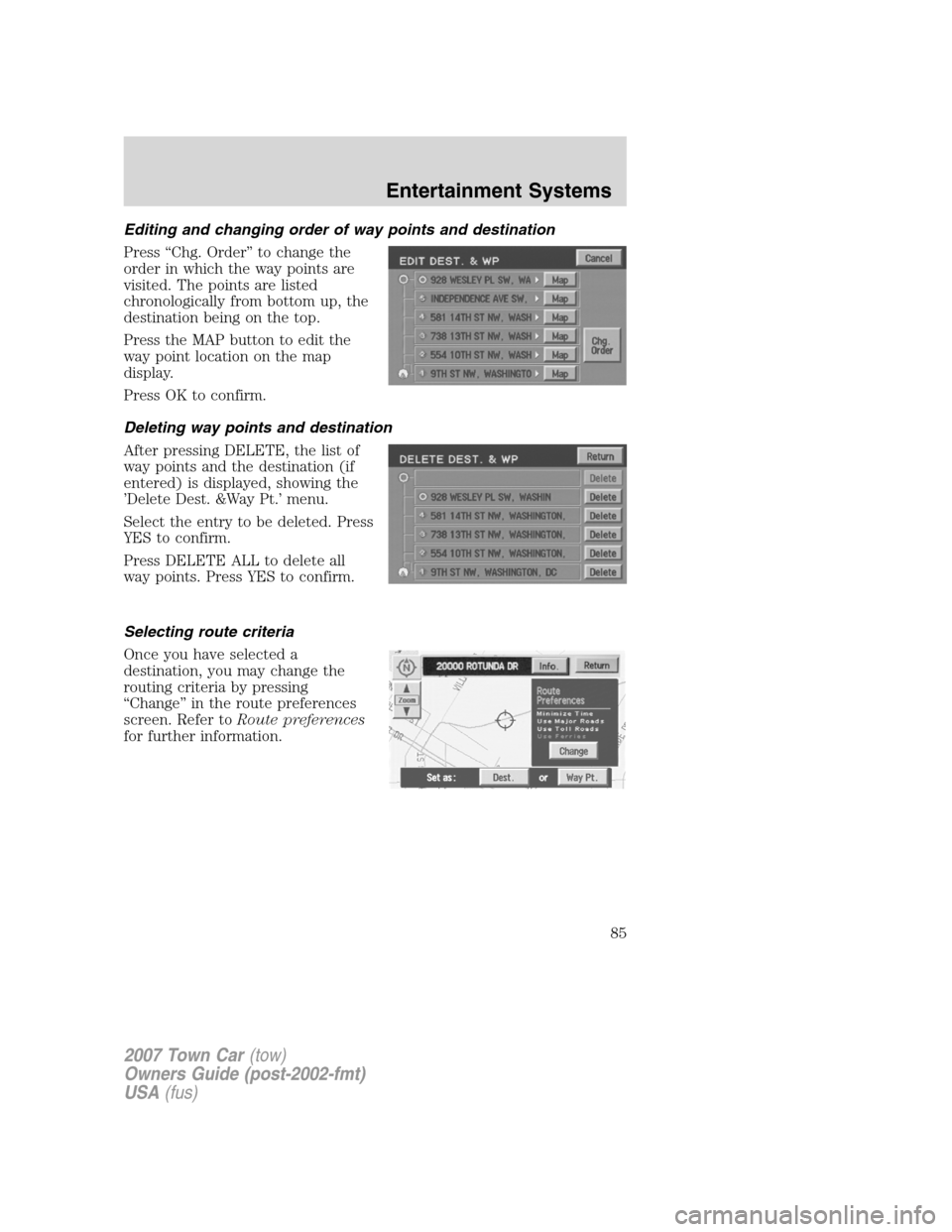
Editing and changing order of way points and destination
Press “Chg. Order” to change the
order in which the way points are
visited. The points are listed
chronologically from bottom up, the
destination being on the top.
Press the MAP button to edit the
way point location on the map
display.
Press OK to confirm.
Deleting way points and destination
After pressing DELETE, the list of
way points and the destination (if
entered) is displayed, showing the
’Delete Dest. &Way Pt.’ menu.
Select the entry to be deleted. Press
YES to confirm.
Press DELETE ALL to delete all
way points. Press YES to confirm.
Selecting route criteria
Once you have selected a
destination, you may change the
routing criteria by pressing
“Change” in the route preferences
screen. Refer toRoute preferences
for further information.
2007 Town Car(tow)
Owners Guide (post-2002-fmt)
USA(fus)
Entertainment Systems
85
Page 86 of 328
Route calculation
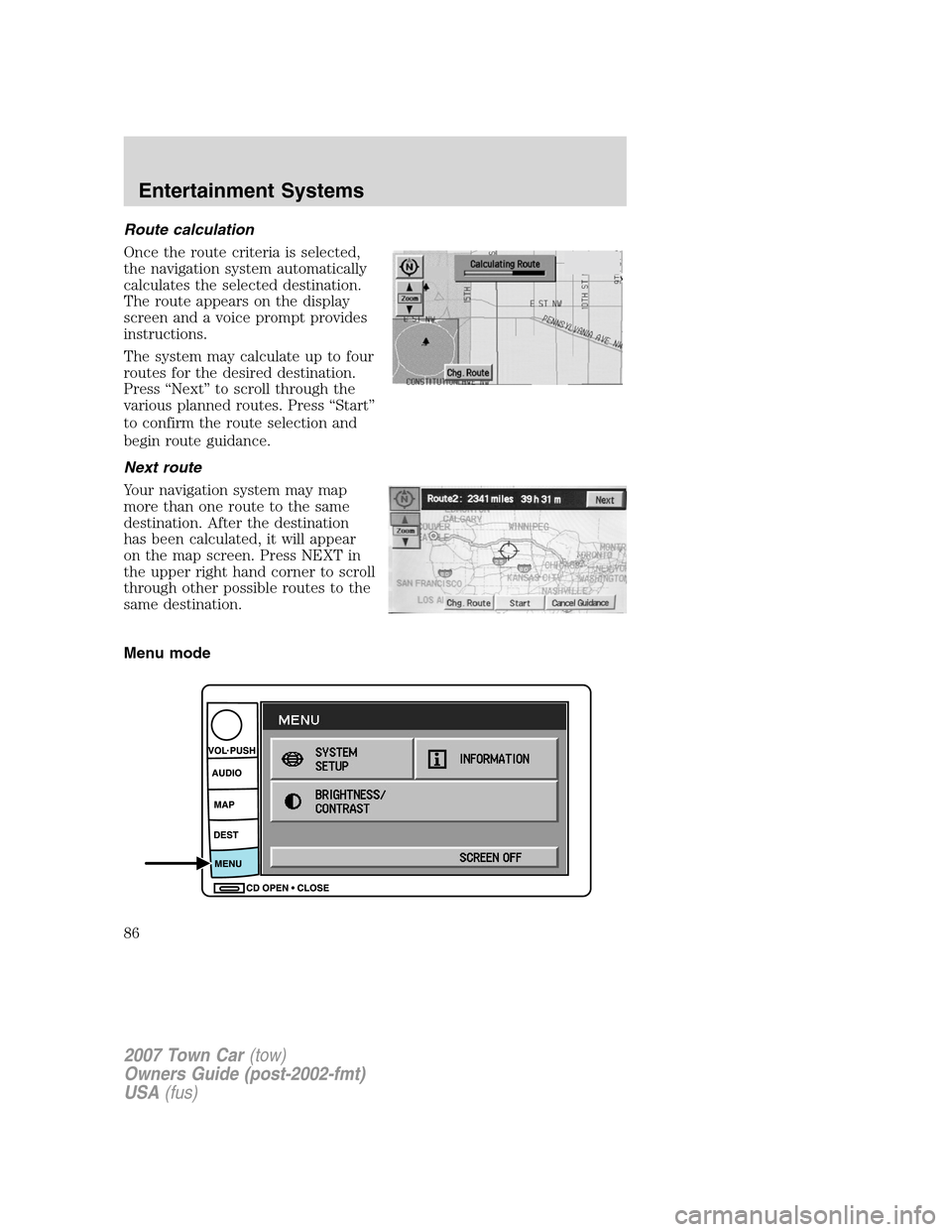
Once the route criteria is selected,
the navigation system automatically
calculates the selected destination.
The route appears on the display
screen and a voice prompt provides
instructions.
The system may calculate up to four
routes for the desired destination.
Press “Next” to scroll through the
various planned routes. Press “Start”
to confirm the route selection and
begin route guidance.
Next route
Your navigation system may map
more than one route to the same
destination. After the destination
has been calculated, it will appear
on the map screen. Press NEXT in
the upper right hand corner to scroll
through other possible routes to the
same destination.
Menu mode
2007 Town Car(tow)
Owners Guide (post-2002-fmt)
USA(fus)
Entertainment Systems
86
Page 89 of 328
Do not use the navigation system to locate emergency services.
For road safety reasons, the driver should program the system only when
the vehicle is stationary. Certain functions will therefore not operate
while the vehicle is in motion.
The map database DVD does not reflect road detours, closures or
construction, road characteristics such as rough road surface, slope or
grade, weight or height restrictions, traffic congestion, weather or similar
conditions.
To use the system as effectively and safely as possible, obtain an
up-to-date map database DVD whenever they become available.
Set the volume level so that you can hear directions clearly.
Do not disassemble or modify the system as this may lead to damage and
void your warranty. If a problem occurs, stop using the system
immediately and contact your Ford or Lincoln Dealer.
Federal Communication Commission (FCC) Compliance
Changes or modifications not approved by Ford Lincoln Mercury could
void user’s authority to operate the equipment. This equipment has been
tested and found to comply with the limits for a Class B digital device,
pursuant to Part 15 of the FCC Rules. These limits are designed to
provide reasonable protection against harmful interference in a
residential installation. This equipment generates, uses and can radiate
radio frequency energy and, if not installed and used in accordance with
the instructions, may cause harmful interference to radio
communications.
However, there is no guarantee that interference will not occur in a
particular installation. If this equipment does cause harmful interference
to radio or television reception, which can be determined by turning the
equipment off and on, the user is encouraged to consult the dealer or an
experienced radio/TV technician for help.
The database reflects reality as existing before you received the
database and it comprises data and information from government
and other sources, which may contain errors and omissions.
Accordingly, the database may contain inaccurate or incomplete
information due to the passage of time, changing circumstances,
and due to the nature of the sources used. The database does not
include or reflect information on neighborhood safety, law
enforcement, emergency assistance, construction work, road or
lane closures, vehicle or speed restrictions, road slope or grade,
bridge height, weight or other limits, road or traffic conditions,
special events, traffic congestion, or travel time.
2007 Town Car(tow)
Owners Guide (post-2002-fmt)
USA(fus)
Entertainment Systems
89