wheel LUCID AIR 2022 Owner's Manual
[x] Cancel search | Manufacturer: LUCID, Model Year: 2022, Model line: AIR, Model: LUCID AIR 2022Pages: 241, PDF Size: 5.15 MB
Page 111 of 241

ahead. The default distance maintained is
the furthest allowed. See Adjusting following
distance
Adaptive Cruise Control is primarily intended
for driving on dry, straight roads with no
stops or sharp curves, such as highways and
freeways.
If the adaptive Cruise Control cannot brake the vehicle safely, it will issue a takeover
request.
Note: If your vehicle stops behind another
vehicle and remains stationary for more than
10 minutes while Adaptive Cruise Control is
active, the system will disengage and apply the Emergency Parking Brake (EPB).
Setting and changing cruising speed To activate Adaptive Cruise Control, press the
DreamDrive button on the steering wheel.
See Steering Wheel DreamDrive Controls .
Note: The DreamDrive mode defaults to
Highway Assist for first-time users. When a
User Profile is active, the system will go to
the last used DreamDrive mode (Adaptive
Cruise Control or Highway Assist). If Highway
Assist is activated, press and hold the
. DreamDrive button to switch to Adaptive
Cruise Control.
To set the cruising speed: -Push the left toggle up or down to adjust
speed by
Page 114 of 241
Cruise Control and Highway Assist will be
unavailable until the next drive cycle.
Once an in-lane stop has completed: -The vehicle automatically shifts into P
(Park).
- Highway Assist is canceled.
- DreamDrive will be unavailable until the
next drive cycle.
- All doors unlock.
- An audible alert sounds.
Note: Warnings will be dismissed if the vehicle
is shifted out of P (Park). See Using the Drive
Selector on page 69.
Steering override
While Highway Assist is active, you can
temporarily override it by using the steering wheel. When you turn the steering wheel, the
Highway Assist indicator will gray out on the
Cockpit Panel.
Once the steering wheel returns to its neutral
position, the vehicle is centered in the lane,
and the system detects lanes again, Highway Assist should automatically resume and the
Cockpit Panel will return to displaying the
active Highway Assist mode.
Manually canceling Highway Assist To cancel Highway Assist, press the
Cancel button on the steering wheel.
The system can also be canceled by pressing
the brake pedal if it is safe to do so in the current traffic conditions.
Traffic Sign Recognition
WARNING: Traffic Sign Recognition
is an assist feature only. The driver
is responsible for paying attention
to the road signs and determining
the appropriate speed limit, road
conditions, and driving speed.WARNING: Traffic Sign Recognition is
not available in all countries.WARNING: Map data is not always
accurate. The GPS can miscalculatethe vehicle location, which may
provide an incorrect traffic sign.WARNING: If a road or a traffic
sign has recently been changed, the
Traffic Sign Recognition system may
not be fully functional or may provide
inaccurate information.WARNING: In situations where the
Traffic Sign Recognition system is
unable to determine a traffic sign, or if
it is uncertain that an acquired speed
limit is accurate, the system may not
display the information and warnings
may not take effect.
The Traffic Sign Recognition system uses the
front cameras and navigation system data to
recognize traffic signs on the road, providing
you with driving information such as speed limits and other regulations.
When a traffic sign is detected, it displays on
the Cockpit Panel next to the speedometer.
Speed Limit Alerts
When Speed Limit Alert is enabled (see Speed
Limit Alert Settings ), if the current vehicle
speed exceeds the detected speed limit, the display color of the speed limit sign willchange color and may increase in size. Thedisplay will return to the normal color and
size when the vehicle is slowed to within the
speed limit.
Wrong-way warnings
If a Wrong Way road sign is detected and the
vehicle passes the sign, the system will alert you with an audible alert and a notification on
the Cockpit Panel.
Speed Limit Alert settings To configure Speed Limit Alert settings,
use the Pilot Panel and touch
>
DreamDrive.
- Touch to enable or disable Speed Limit
Alert. Additional options to receive
VISUAL or VISUAL AND AUDIO alerts are available when this feature is
enabled.
- Touch to enable or disable Cruise Speed
Update. When enabled, this feature
DreamDrive101
Page 119 of 241
-Steering wheel is turned abruptly.
- Brake pedal is pressed and released
while Automatic Emergency Braking is
applying the brakes.
- Accelerator is pressed abruptly while
Automatic Emergency Braking is
applying the brakes.
- Hazard (vehicle, motorcycle, bicycle or
pedestrian) is no longer detected in the
vehicle path.
Note: Automatic Emergency Braking can
be adversely affected by the limitations of
Advanced Driver Assistance components. See
ADAS Limitations . Use appropriate caution
when driving.
If Automatic Emergency Braking is
unavailable, a warning message and
indicator display on the Cockpit
Panel. If either of these items
appear, contact a Lucid Service Center.
Speed limitationsWARNING: The Automatic Emergency
Braking system automatically disables
when you manually disable Lucid
Stability Control.
The Automatic Emergency Braking system,
including Forward Collision Warning, is
active at speeds above approximately 4
mph (7 km/h) and up to 112 mph (180
km/h). Pedestrian detection and reaction to
stationary vehicles is active at speeds up to
53 mph (85 km/h).
Automatic Emergency Braking settings
See Collision Protection on page 105.
Forward Collision Warning
WARNING: Forward Collision Warning
is an assist feature only, and is
not a substitute for attentive driving
and sound judgment. The driver is
responsible for paying attention to the
road, maintaining a suitable distance
from the vehicle ahead, and braking or
steering the vehicle when necessary.WARNING: There are factors that can
reduce or impair the performance ofthe Forward Collision Warning system,
causing either unnecessary, invalid,
inaccurate, or missed warnings. Do
not rely solely on Forward Collision
Warning to warn you of a potential
collision.WARNING: Forward Collision Warning
only monitors what is in front of the
vehicle. Be aware of your surroundings
at all times while operating the
vehicle.WARNING: Forward Collision Warning
does not provide alerts when the
driver is already applying the brake.
The Forward Collision Warning system uses
the front camera mounted behind the
windshield and the radar sensor mounted behind the front bumper to detect the
presence of an object (such as a vehicle,
bicycle, or pedestrian).
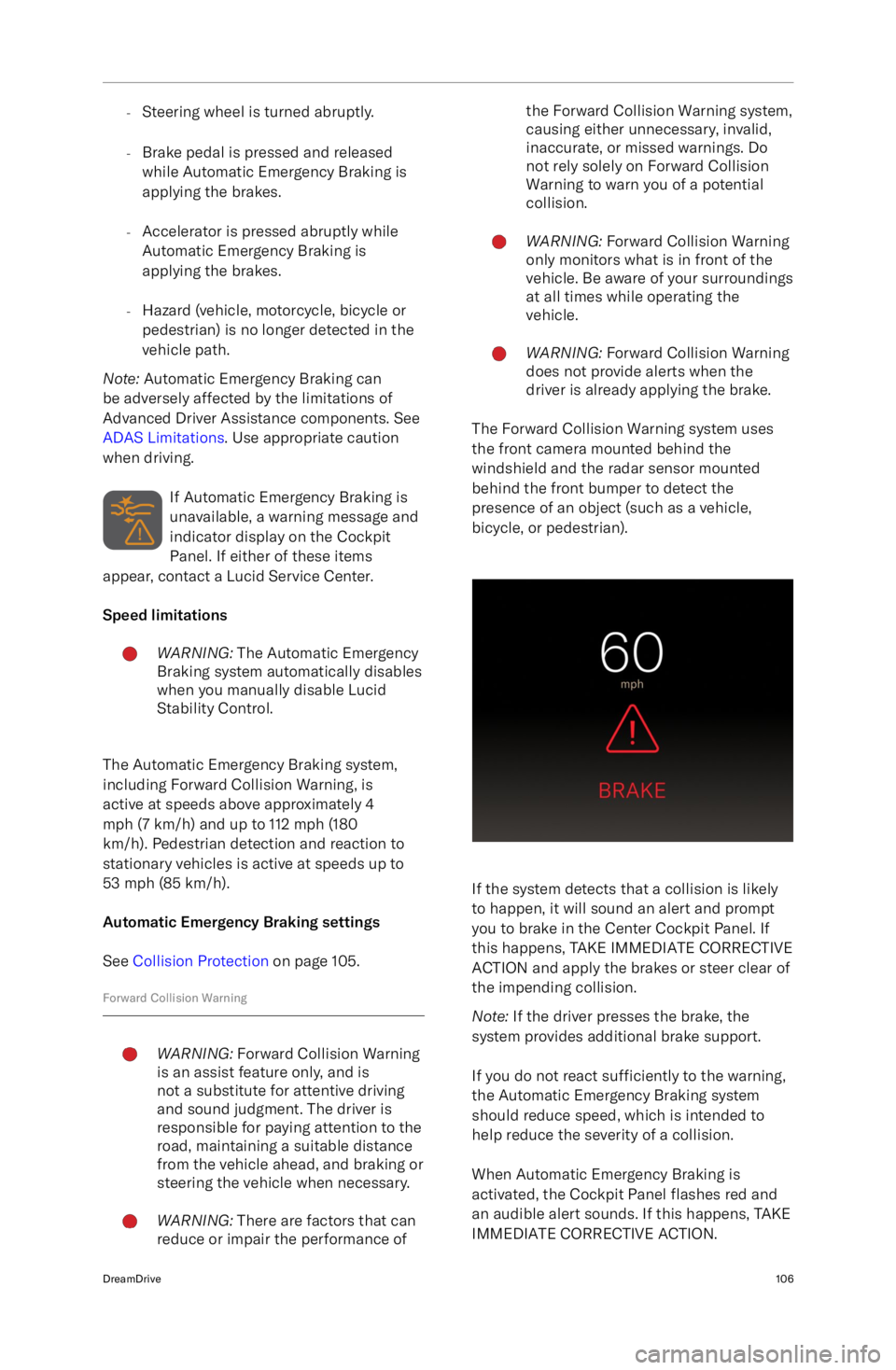
If the system detects that a collision is likely
to happen, it will sound an alert and prompt
you to brake in the Center Cockpit Panel. If
this happens, TAKE IMMEDIATE CORRECTIVE
ACTION and apply the brakes or steer clear of
the impending collision.
Note: If the driver presses the brake, the
system provides additional brake support.
If you do not react sufficiently to the warning,
the Automatic Emergency Braking system
should reduce speed, which is intended to help reduce the severity of a collision.
When Automatic Emergency Braking is
activated, the Cockpit Panel flashes red and
an audible alert sounds. If this happens, TAKE
IMMEDIATE CORRECTIVE ACTION.
DreamDrive106
Page 122 of 241
corrections, audible alerts will be longer induration.
Lane Departure Protection alerts will be
canceled immediately if any of the following
actions happen:
-A turn signal is activated
- Intentional steering
- Intentional acceleration
- Intentional braking
Lane Departure Protection settings
To configure Lane Departure Protection, from
the Pilot Panel touch
> DreamDrive,
then enable or disable Lane Departure Protection. Settings save to the current User
Profile.
When Lane Departure Protection is
disabled or unavailable, an indicator
will display on the Cockpit Panel.
When enabled, press INTERVENTION ONLY (default) or WARNING AND INTERVENTION if
you wish to receive haptic vibrations of the
steering wheel when a steering correction is recommended.
Warnings cancel automatically when the risk of an unintentional lane departure has beenreduced (such as when you steer the vehicle
back to the current lane).
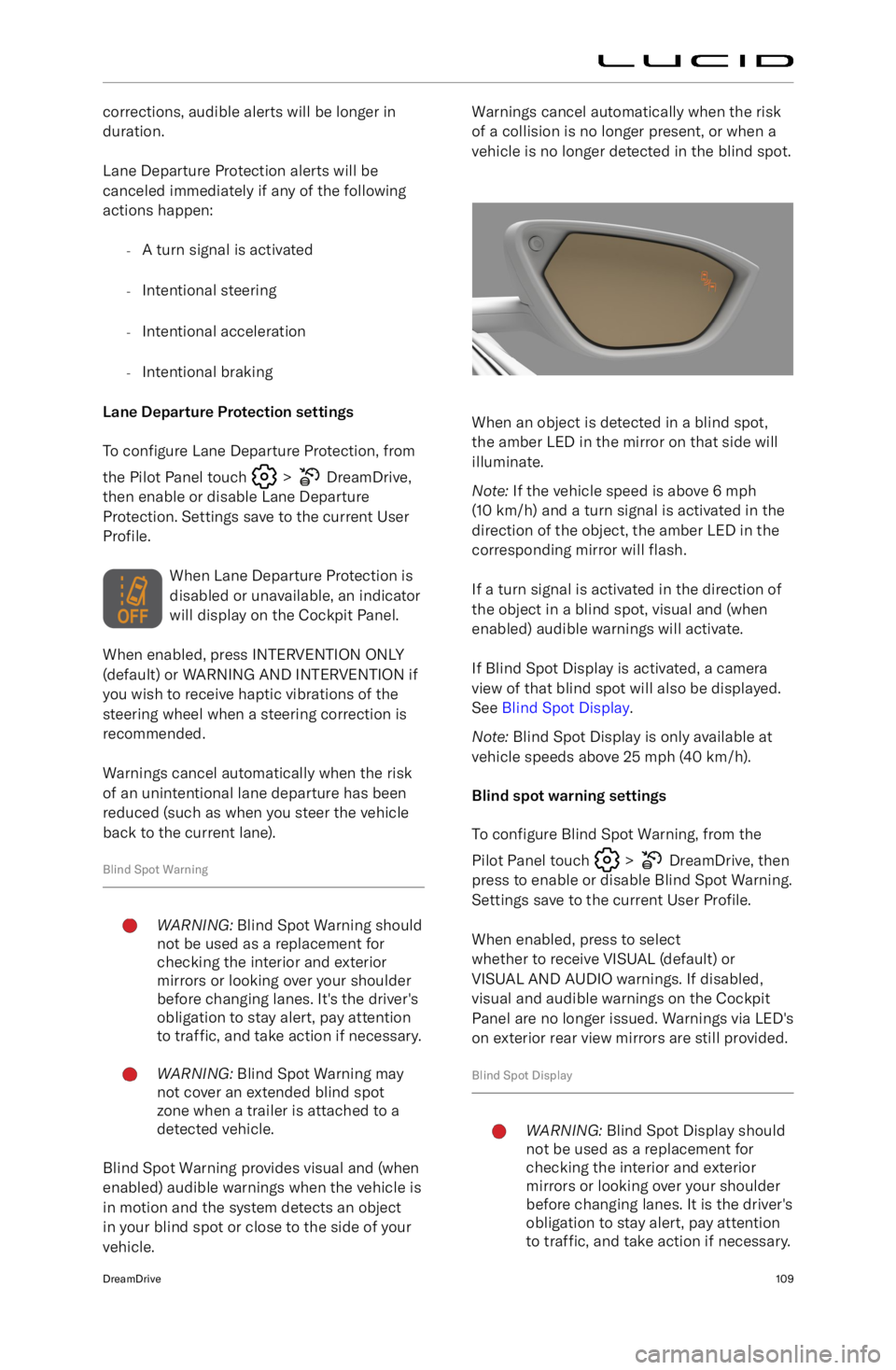
Blind Spot Warning
WARNING: Blind Spot Warning should
not be used as a replacement for
checking the interior and exterior
mirrors or looking over your shoulder
before changing lanes. It
Page 126 of 241
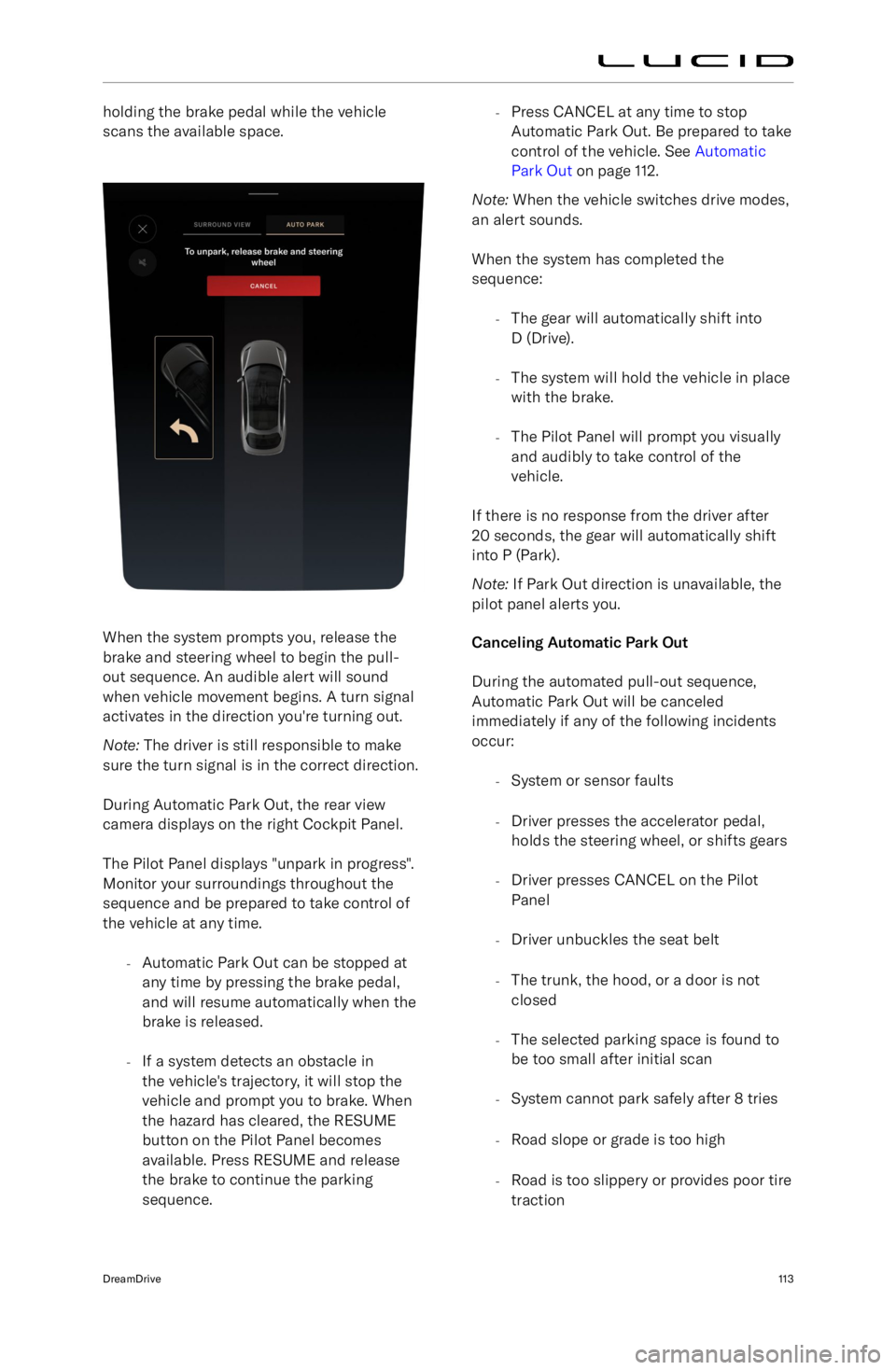
holding the brake pedal while the vehicle
scans the available space.
When the system prompts you, release the brake and steering wheel to begin the pull-
out sequence. An audible alert will sound
when vehicle movement begins. A turn signal
activates in the direction you
Page 127 of 241
-A safety system activates (such
as Collision Protection or Automatic
Emergency Braking. See Collision
Detection and Protection on page 105)
When the system is canceled, the vehicle will
stop, emit an audible alert, and prompt the
driver to take control of the steering wheel
and brake pedal. If there is no response from
the driver after 20 seconds, the gear will
automatically shift into P (Park).
If Automatic Park Out cancels for any of the
aforementioned reasons and you wish to use
the system again, you must start over at the
beginning of the process.
Surround View MonitoringWARNING: The Surround View
Monitoring system should not be
used as a replacement for looking
into the interior and exterior mirrors
or looking over your shoulder when
operating and parking the vehicle.
Always inspect your surroundings with
your own eyes.
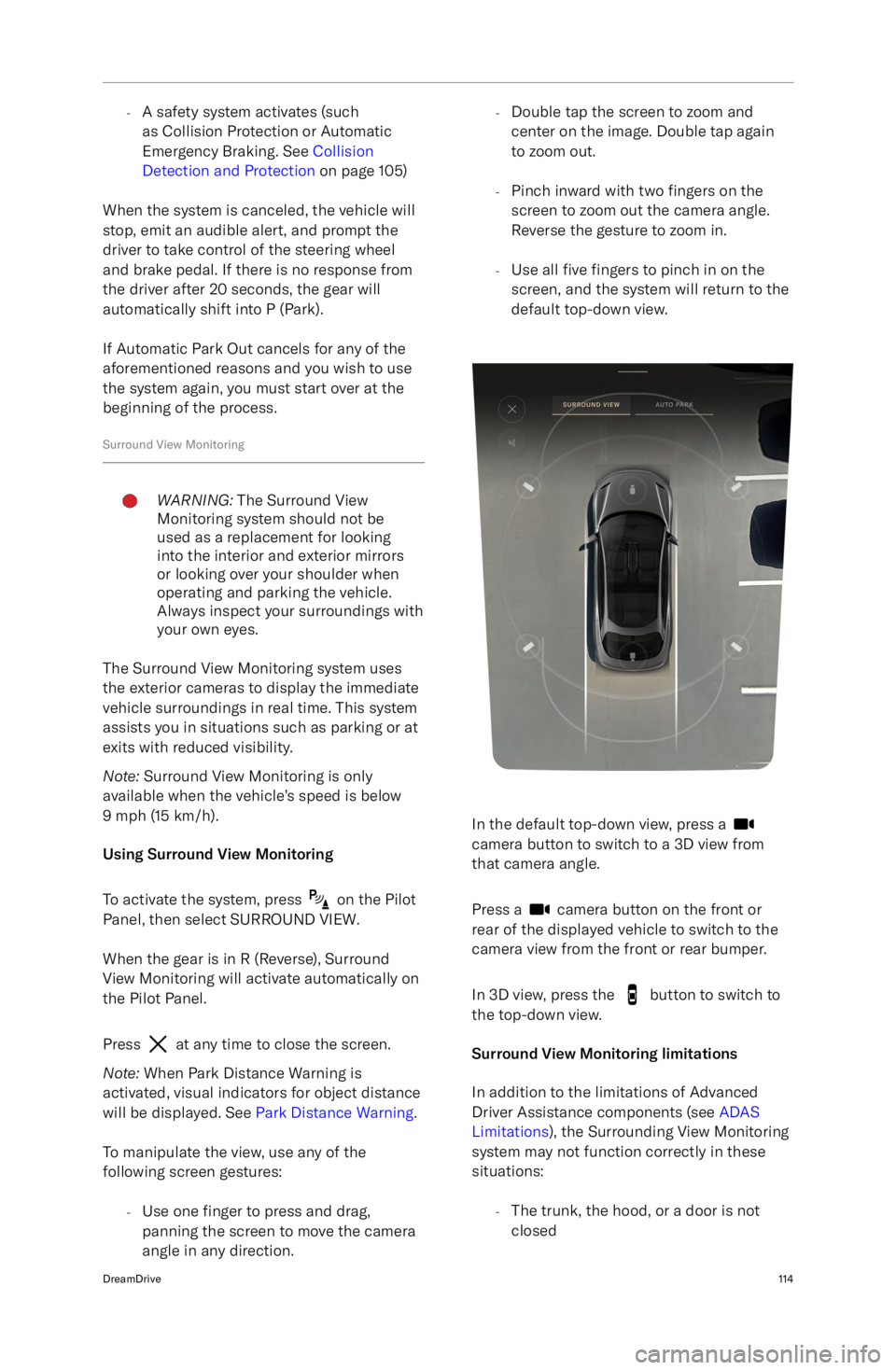
The Surround View Monitoring system uses
the exterior cameras to display the immediate vehicle surroundings in real time. This system
assists you in situations such as parking or at
exits with reduced visibility.
Note: Surround View Monitoring is only
available when the vehicle
Page 133 of 241
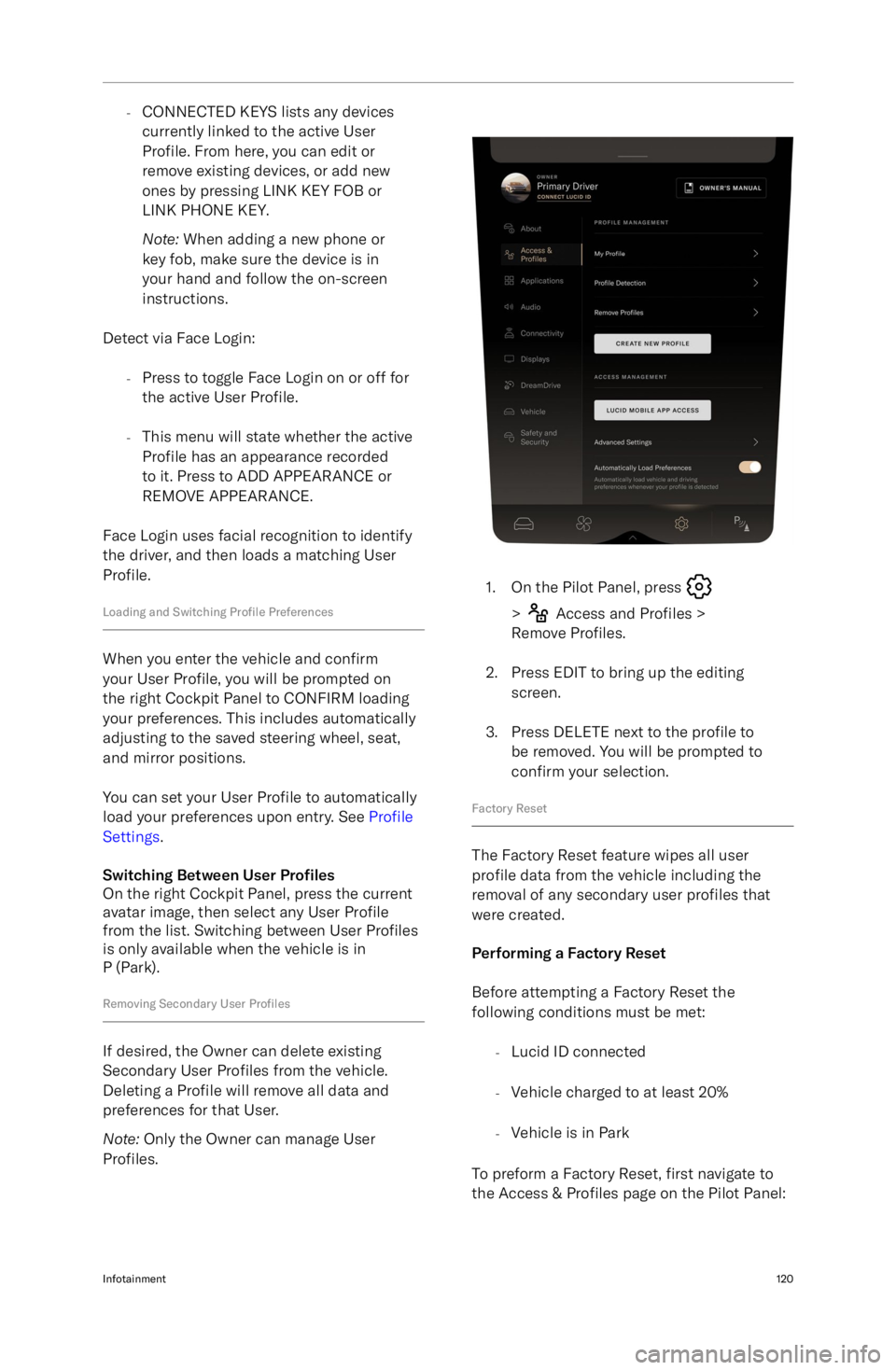
-CONNECTED KEYS lists any devices
currently linked to the active User
Profile. From here, you can edit or
remove existing devices, or add new ones by pressing LINK KEY FOB or
LINK PHONE KEY.
Note: When adding a new phone or
key fob, make sure the device is in
your hand and follow the on-screen
instructions.
Detect via Face Login: -Press to toggle Face Login on or off for
the active User Profile.
- This menu will state whether the active
Profile has an appearance recorded
to it. Press to ADD APPEARANCE or
REMOVE APPEARANCE.
Face Login uses facial recognition to identify the driver, and then loads a matching User
Profile.
Loading and Switching Profile Preferences
When you enter the vehicle and confirm
your User Profile, you will be prompted on
the right Cockpit Panel to CONFIRM loading
your preferences. This includes automatically
adjusting to the saved steering wheel, seat,
and mirror positions.
You can set your User Profile to automatically
load your preferences upon entry. See Profile
Settings .
Switching Between User Pro
Page 136 of 241
Physical Media Controls
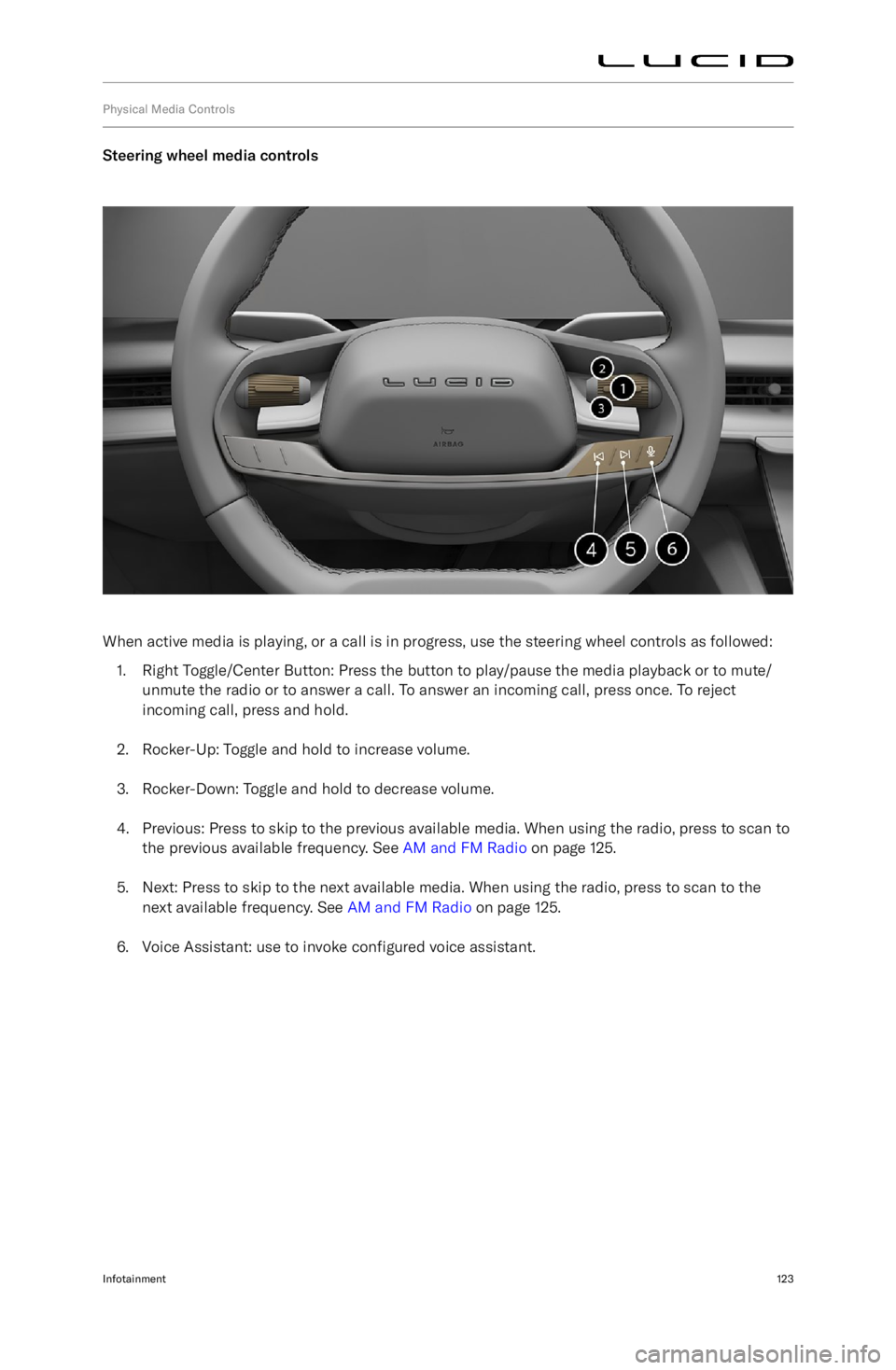
Steering wheel media controls
When active media is playing, or a call is in progress, use the steering wheel controls as followed:1. Right Toggle/Center Button: Press the button to play/pause the media playback or to mute/
unmute the radio or to answer a call. To answer an incoming call, press once. To reject
incoming call, press and hold.
2. Rocker-Up: Toggle and hold to increase volume.
3. Rocker-Down: Toggle and hold to decrease volume.
4. Previous: Press to skip to the previous available media. When using the radio, press to scan to the previous available frequency. See AM and FM Radio on page 125.
5. Next: Press to skip to the next available media. When using the radio, press to scan to the next available frequency. See AM and FM Radio on page 125.
6. Voice Assistant: use to invoke configured voice assistant.
Infotainment123
Page 149 of 241
-If you take the call from your iPhone, the
call audio will depend on iPhone “Call
Audio Routing” setting.
Press an option on the touchscreen or use
the steering wheel controls to DECLINE or
ACCEPT the call.
Note: Your phone may prompt you to select
the audio output for the call, depending on
the type of phone and last output used.
The "Call Audio Routing" Setting on iPhone The "Call Audio Routing" setting can be
configured in one of three ways:
- Automatic - The iPhone routes the audio
to the phone even though the phone is connected to the car via Bluetooth.
- Bluetooth Handset - The iPhone routes
the audio to the car when the phone is
connected to the car via Bluetooth.
- Speaker - The iPhone routes the audio
to the phone speaker even though the
phone is connected to the car via
Bluetooth.
In-Call Options
Active calls are displayed on the right Cockpit Panel.
-The
active call icon will be
displayed in the status bar when a call
is in progress.
- Contact information and call length will
be displayed in the main screen, along
with call control buttons.
If a call is placed on hold and a second call is
made, the call control buttons change.
-Press Swap to switch between the active
call and the call on hold.
- Press Merge to bring both callers into a
shared call.
Call volume and the mute option can be
controlled with the physical controls in your vehicle. See Physical Media Controls on page
123.
Using MessagesWARNING: Distracted driving can
lead to loss of vehicle control and
a collision, which can result in
serious injury or death. Lucid strongly
recommends that the driver stay
focused on the road at all times while
driving. Safe operation of the vehicle
is the driver
Page 161 of 241
Charging Instructions
Safety ChecklistWARNING: If you have any concerns
with the condition of a wall outlet, the
charge port or the charging cable, DO NOT use them. Seek assistance from a
qualified electrician or a Lucid Service
Center. Using charging equipment
that is damaged or faulty may result
in injury, death, or property damage.
Before charging your vehicle, check the
following items:
-If using a domestic wall outlet, inspect
the outlet and do not use it if it appears
damaged or worn.
- Inspect the charging cable and
connector for damage, including frays or
cracks. If a part appears damaged, do not use it.
Note: If the Lucid Mobile Charging Cable
is damaged, contact a Lucid Service
Center .
- Ensure that the charging cable is fully
uncoiled before use.
- Check that the charging connector and
charge port are clean and unobstructed.
If you find any contamination or a
foreign object in either part, do not
use them and contact a Lucid Service
Center .
- Check that the charging cable and
charge port are dry. Ensure that your hands are dry, and there is no water
or other fluids in the surrounding area
(such as puddles on the ground).
Charge Port Door
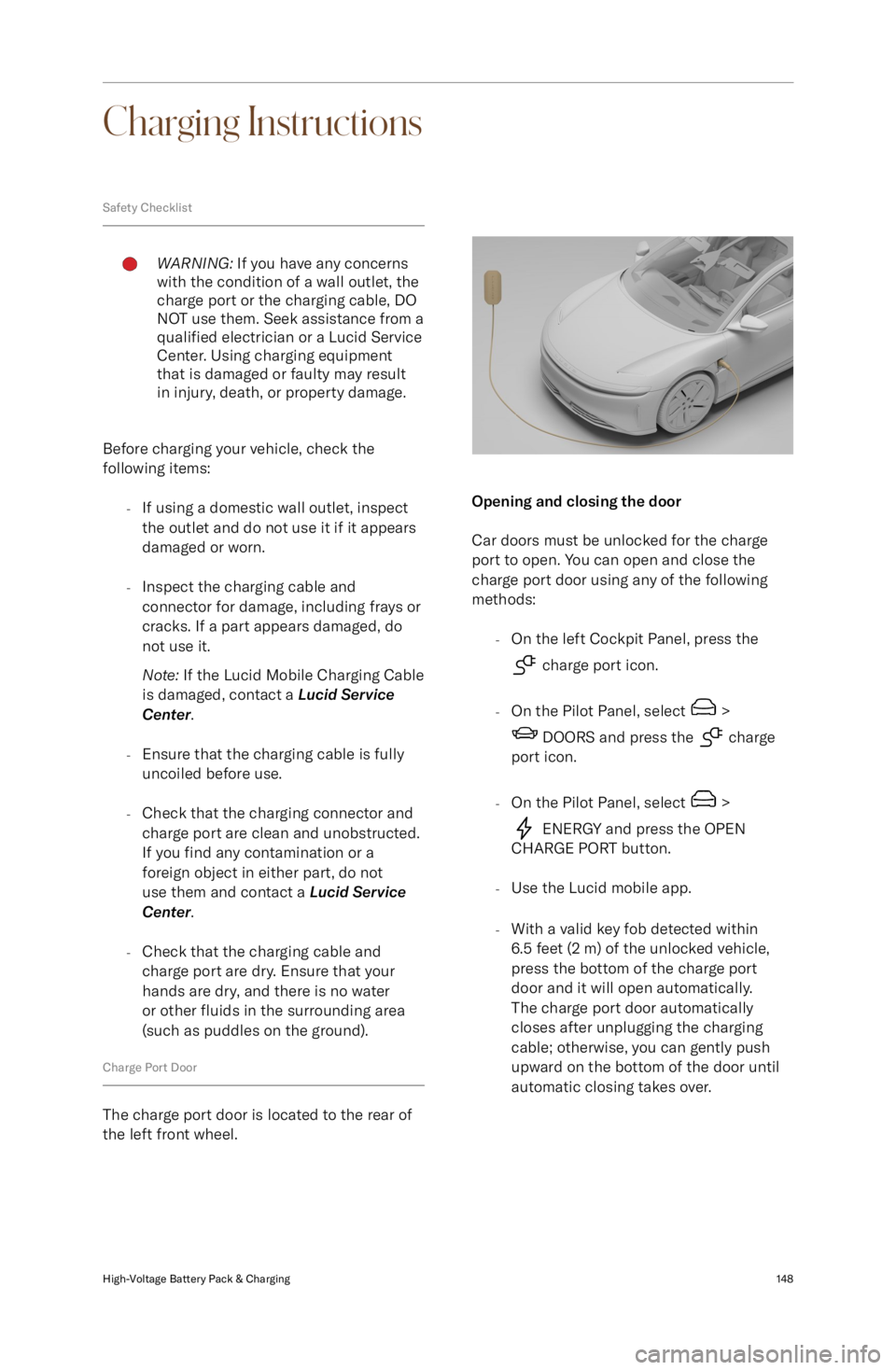
The charge port door is located to the rear of
the left front wheel.
Opening and closing the door
Car doors must be unlocked for the charge
port to open. You can open and close the
charge port door using any of the following
methods:
-On the left Cockpit Panel, press the
charge port icon.
- On the Pilot Panel, select
>
DOORS and press the charge
port icon.
- On the Pilot Panel, select
>
ENERGY and press the OPEN
CHARGE PORT button.
- Use the Lucid mobile app.
- With a valid key fob detected within
6.5 feet (2 m) of the unlocked vehicle,
press the bottom of the charge port
door and it will open automatically.
The charge port door automatically
closes after unplugging the charging
cable; otherwise, you can gently push
upward on the bottom of the door until
automatic closing takes over.
High-Voltage Battery Pack & Charging148