display MASERATI GHIBLI 2019 Owners Manual
[x] Cancel search | Manufacturer: MASERATI, Model Year: 2019, Model line: GHIBLI, Model: MASERATI GHIBLI 2019Pages: 384, PDF Size: 13.33 MB
Page 247 of 384
CAUTION!
• Under normal conditions, all red
warning lights on the instrument
cluster display should be off. When
they come on, this indicates a
malfunction. Refer to “Instrument
Cluster” in section “Dashboard
Instruments and Controls”.
• Continuing to drive when a red
warning light is on could cause
serious damage to the vehicle and
affect its performance.
Onboard Diagnostic System Your vehicle is equipped with a
sophisticated onboard diagnostic
system. This system monitors the
performance of the emissions, engine,
and automatic transmission control
systems. When these systems are
operating properly, your vehicle will
provide excellent performance and
fuel economy, as well as engine
emissions well within current local
regulations of various countries.
If any of these systems require service,
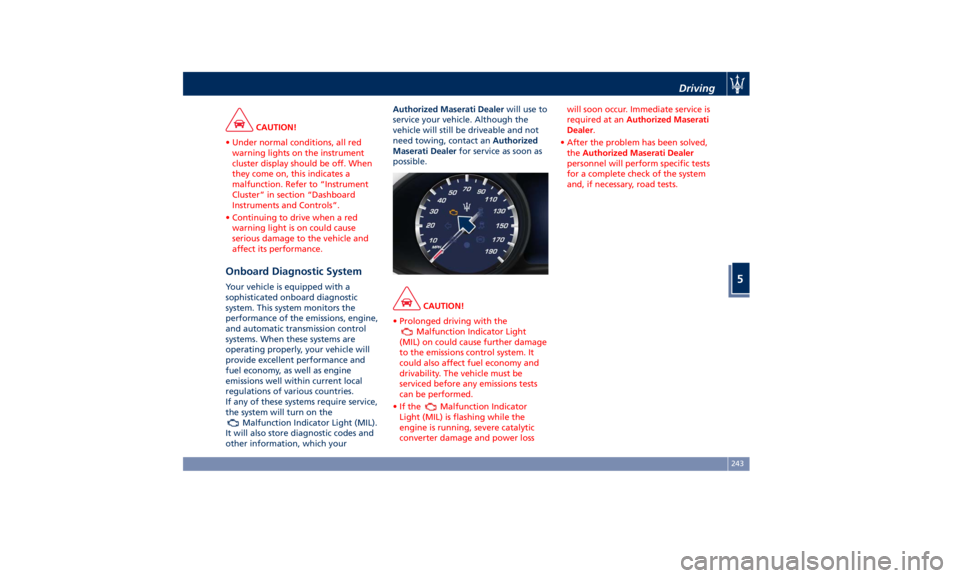
the system will turn on the
Malfunction Indicator Light (MIL).
It will also store diagnostic codes and
other information, which your Authorized Maserati Dealer will use to
service your vehicle. Although the
vehicle will still be driveable and not
need towing, contact an Authorized
Maserati Dealer for service as soon as
possible.
CAUTION!
• Prolonged driving with the
Malfunction Indicator Light
(MIL) on could cause further damage
to the emissions control system. It
could also affect fuel economy and
drivability. The vehicle must be
serviced before any emissions tests
can be performed.
•Ifthe
Malfunction Indicator
Light (MIL) is flashing while the
engine is running, severe catalytic
converter damage and power loss will soon occur. Immediate service is
required at an Authorized Maserati
Dealer .
• After the problem has been solved,
the Authorized Maserati Dealer
personnel will perform specific tests
for a complete check of the system
and, if necessary, road tests.Driving
5
243
Page 249 of 384
Shared by All Configurations
Multifunction switch:
• Press up (indication RES
+): increase speed, set
current speed or resume
previously set speed
when system is in
“cancelled” status;
• Pushed (indication
CANC): deletes the set
speed;
• Press down (indication
SET -): set speed/decrease
speed.
NOTE:
• The figures only show the Standard
Configuration.
• In order to ensure proper operation,
the CC system has been designed to
shut down if multiple systems are
operated at the same time (example:
ACC and FCW). When conditions so
allow, the CC system can be
reactivated by pushing the CC
“ON/OFF” button or the ACC Gap
button (in the Optional
Configuration) and resetting the
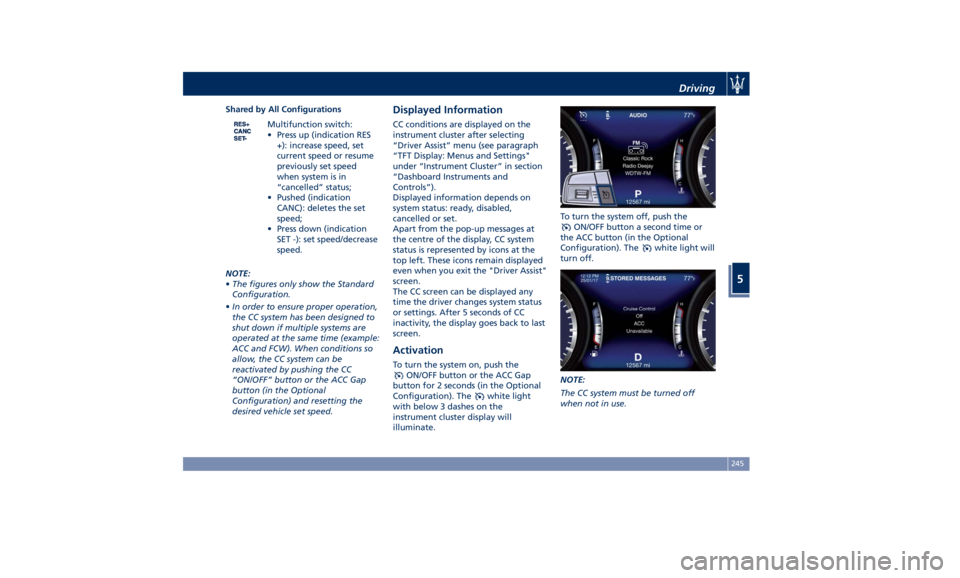
desired vehicle set speed. Displayed Information CC conditions are displayed on the
instrument cluster after selecting
“Driver Assist” menu (see paragraph
“TFT Display: Menus and Settings"
under “Instrument Cluster” in section
“Dashboard Instruments and
Controls”).
Displayed information depends on
system status: ready, disabled,
cancelled or set.
Apart from the pop-up messages at
the centre of the display, CC system
status is represented by icons at the
top left. These icons remain displayed
even when you exit the "Driver Assist"
screen.
The CC screen can be displayed any
time the driver changes system status
or settings. After 5 seconds of CC
inactivity, the display goes back to last
screen.
Activation To turn the system on, push the
ON/OFF button or the ACC Gap
button for 2 seconds (in the Optional
Configuration). The
white light
with below 3 dashes on the
instrument cluster display will
illuminate. To turn the system off, push the
ON/OFF button a second time or
the ACC button (in the Optional
Configuration). The
white light will
turn off.
NOTE:
The CC system must be turned off
when not in use.Driving
5
245
Page 250 of 384
WARNING!
Never leave the electronic Cruise
Control system on when not in use.
You could accidentally set the system
or cause it to go faster than you want.
Always leave the system off when you
are not using it.
Speed Range of Use Speed mph (km/h)
Minimum 18 (30)
Engaged/activated 18 (30)
Maximum 130 (210)
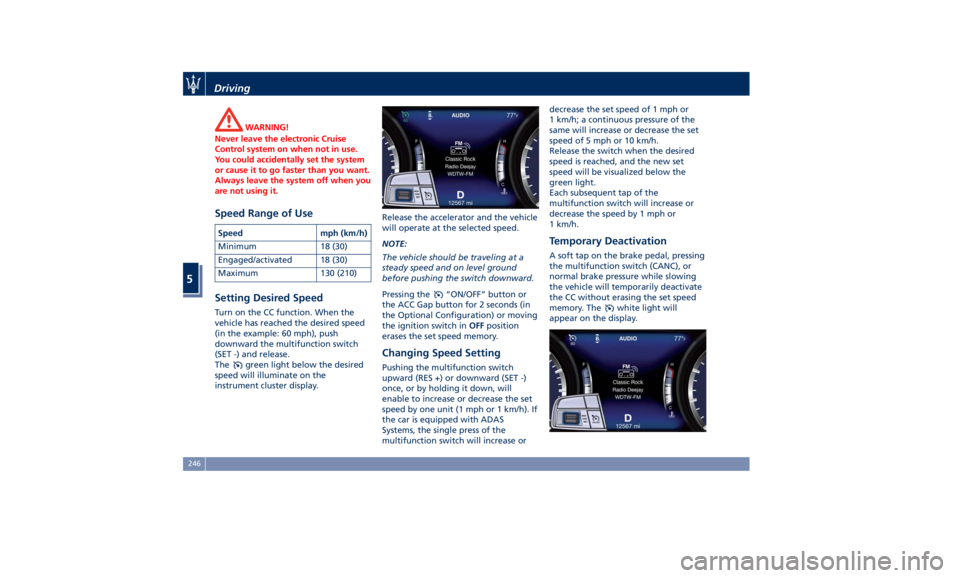
Setting Desired Speed Turn on the CC function. When the
vehicle has reached the desired speed
(in the example: 60 mph), push
downward the multifunction switch
(SET -) and release.
The
green light below the desired
speed will illuminate on the
instrument cluster display. Release the accelerator and the vehicle
will operate at the selected speed.
NOTE:
The vehicle should be traveling at a
steady speed and on level ground
before pushing the switch downward.
Pressing the
“ON/OFF” button or
the ACC Gap button for 2 seconds (in
the Optional Configuration) or moving
the ignition switch in OFF position
erases the set speed memory.
Changing Speed Setting Pushing the multifunction switch
upward (RES +) or downward (SET -)
once, or by holding it down, will
enable to increase or decrease the set
speed by one unit (1 mph or 1 km/h). If
the car is equipped with ADAS
Systems, the single press of the
multifunction switch will increase or decrease the set speed of 1 mph or
1 km/h; a continuous pressure of the
same will increase or decrease the set
speed of 5 mph or 10 km/h.
Release the switch when the desired
speed is reached, and the new set
speed will be visualized below the
green light.
Each subsequent tap of the
multifunction switch will increase or
decrease the speed by 1 mph or
1 km/h.
Temporary Deactivation A soft tap on the brake pedal, pressing
the multifunction switch (CANC), or
normal brake pressure while slowing
the vehicle will temporarily deactivate
the CC without erasing the set speed
memory. The
white light will
appear on the display.Driving
5
246
Page 251 of 384
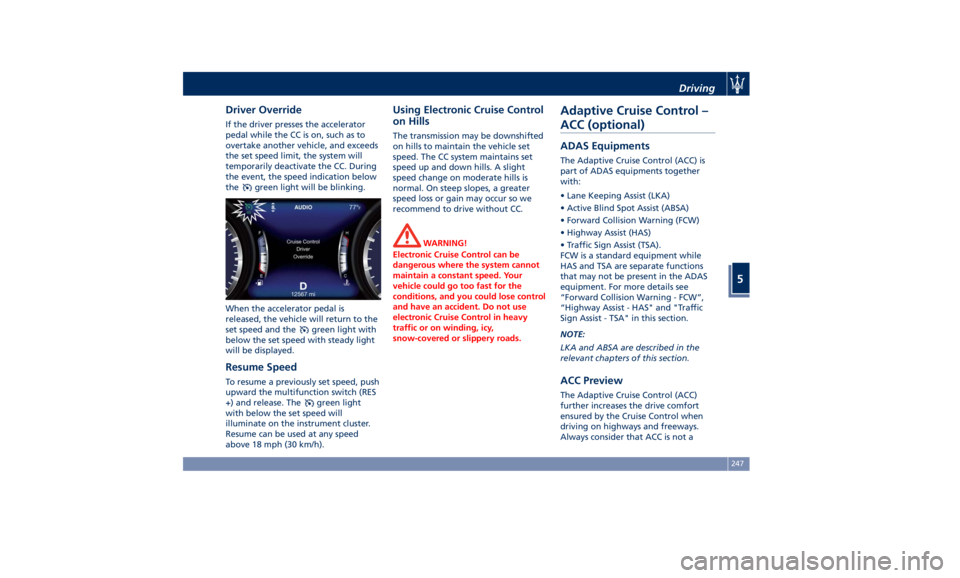
Driver Override If the driver presses the accelerator
pedal while the CC is on, such as to
overtake another vehicle, and exceeds
the set speed limit, the system will
temporarily deactivate the CC. During
the event, the speed indication below
the
green light will be blinking.
When the accelerator pedal is
released, the vehicle will return to the
set speed and the
green light with
below the set speed with steady light
will be displayed.
Resume Speed To resume a previously set speed, push
upward the multifunction switch (RES
+) and release. The
green light
with below the set speed will
illuminate on the instrument cluster.
Resume can be used at any speed
above 18 mph (30 km/h). Using Electronic Cruise Control
on Hills The transmission may be downshifted
on hills to maintain the vehicle set
speed. The CC system maintains set
speed up and down hills. A slight
speed change on moderate hills is
normal. On steep slopes, a greater
speed loss or gain may occur so we
recommend to drive without CC.
WARNING!
Electronic Cruise Control can be
dangerous where the system cannot
maintain a constant speed. Your
vehicle could go too fast for the
conditions, and you could lose control
and have an accident. Do not use
electronic Cruise Control in heavy
traffic or on winding, icy,
snow-covered or slippery roads.Adaptive Cruise Control –
ACC (optional) ADAS Equipments The Adaptive Cruise Control (ACC) is
part of ADAS equipments together
with:
• Lane Keeping Assist (LKA)
• Active Blind Spot Assist (ABSA)
• Forward Collision Warning (FCW)
• Highway Assist (HAS)
• Traffic Sign Assist (TSA).
FCW is a standard equipment while
HAS and TSA are separate functions
that may not be present in the ADAS
equipment. For more details see
“Forward Collision Warning - FCW”,
“Highway Assist - HAS" and "Traffic
Sign Assist - TSA" in this section.
NOTE:
LKA and ABSA are described in the
relevant chapters of this section.
ACC Preview The Adaptive Cruise Control (ACC)
further increases the drive comfort
ensured by the Cruise Control when
driving on highways and freeways.
Always consider that ACC is not aDriving
5
247
Page 253 of 384
could cause an incorrect assessment
of the required safety distance.
It is recommended to disable the ACC
system in the following instances:
• When driving in the fog, heavy rain,
heavy snow, slush, heavy traffic and
similar complex situations such as
highway construction zones.
• When entering a junction lane or a
slip road to leave the highway; when
driving on narrow, icy, snowy,
slippery roads, or on steep uphill and
downhill roads.
• When circumstances do not allow to
drive safely at constant speed.
Displayed information Adaptive Cruise Control (ACC)
condition, as well as the LKA and HAS
status, is displayed on instrument
cluster after selecting “Driver Assist”
menu (see paragraph “TFT Display:
Menus and Settings" under
“Instrument Cluster” in section
“Dashboard Instruments and
Controls”).
Displayed information depends on
system status: ready, set, temporarily
cancelled or override.
Apart from the image at the center of
the display, CC, ACC, LKA and HAS
systems status is represented by icons at the top left and right. These icons
remain displayed even when exiting
the "Driver Assist" screen.
The vehicle(s) and horizontal bars
represent the ACC status as ready
(white) or with sensed vehicle ahead
(green); the white, grey or yellow lines
represent the LKA and HAS systems.
The ACC screen can be displayed any
time driver changes system status or
settings. After 5 seconds of ACC
inactivity, the display goes back to last
screen.
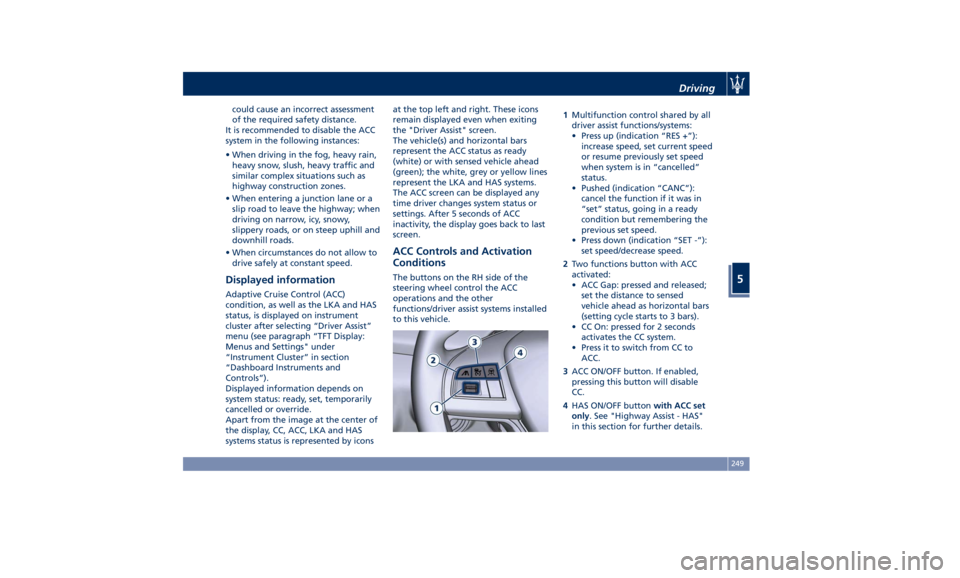
ACC Controls and Activation
Conditions The buttons on the RH side of the
steering wheel control the ACC
operations and the other
functions/driver assist systems installed
to this vehicle. 1 Multifunction control shared by all
driver assist functions/systems:
• Press up (indication “RES +”):
increase speed, set current speed
or resume previously set speed
when system is in “cancelled”
status.
• Pushed (indication “CANC”):
cancel the function if it was in
“set” status, going in a ready
condition but remembering the
previous set speed.
• Press down (indication “SET -”):
set speed/decrease speed.
2 Two functions button with ACC
activated:
• ACC Gap: pressed and released;
set the distance to sensed
vehicle ahead as horizontal bars
(setting cycle starts to 3 bars).
• CC On: pressed for 2 seconds
activates the CC system.
• Press it to switch from CC to
ACC.
3 ACC ON/OFF button. If enabled,
pressing this button will disable
CC.
4 HAS ON/OFF button with ACC set
only . See "Highway Assist - HAS"
in this section for further details.Driving
5
249
Page 254 of 384
NOTE:
Any change made to tire dimensions
affects performance of Adaptive Cruise
Control and Front Collision Warning
(FCW), if equipped.
The ACC is not activated in the
following conditions:
• When braking.
• When parking brake is activated.
• When automatic transmission is in P
(Park), R (Reverse) or N (Neutral).
• When vehicle speed is out of preset
speed range
• When brakes are overheated.
• When driver door is open.
• When the driver’s seat belt is
unbuckled.
• When the road is particularly steep
(both uphill and downhill) at low
speed.
• When drive mode
(ESC OFF) is
selected.
• When the door is opened at low
speed.
• When there has been an ESC event in
the last 5 seconds, or is still active.
• When there is an object too close in
front of the vehicle.
It is possible that more than one
system is active at the same time such as ACC and ABSA just to mention
some.
While activation of ACC and CC at the
same time is impossible.
Speed Range of Use Speed mph (km/h)
Minimum 0 (0)
Engaged/activated 18 (30)
Maximum 130 (210)
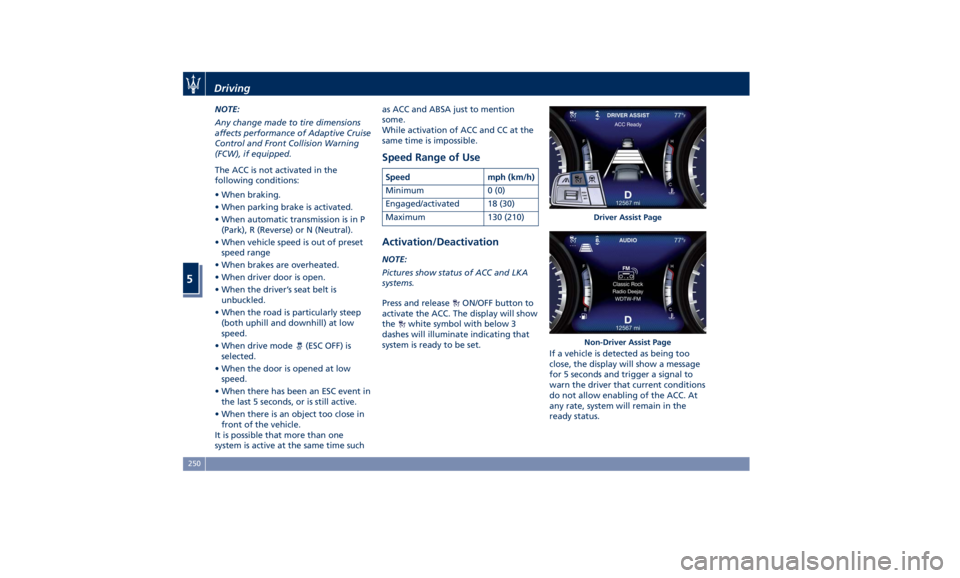
Activation/Deactivation NOTE:
Pictures show status of ACC and LKA
systems.
Press and release
ON/OFF button to
activate the ACC. The display will show
the
white symbol with below 3
dashes will illuminate indicating that
system is ready to be set.
If a vehicle is detected as being too
close, the display will show a message
for 5 seconds and trigger a signal to
warn the driver that current conditions
do not allow enabling of the ACC. At
any rate, system will remain in the
ready status. Driver Assist Page
Non-Driver Assist PageDriving
5
250
Page 255 of 384
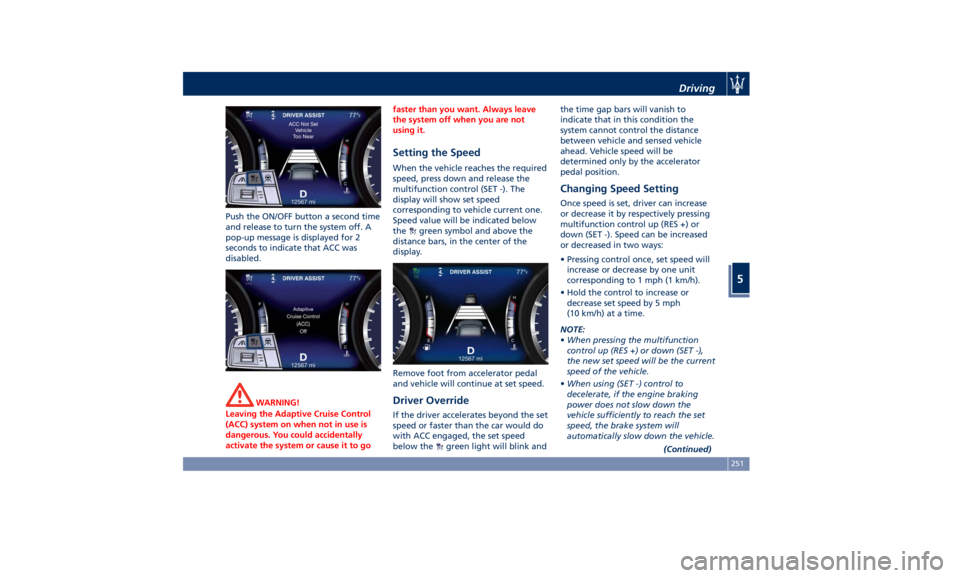
Push the ON/OFF button a second time
and release to turn the system off. A
pop-up message is displayed for 2
seconds to indicate that ACC was
disabled.
WARNING!
Leaving the Adaptive Cruise Control
(ACC) system on when not in use is
dangerous. You could accidentally
activate the system or cause it to go faster than you want. Always leave
the system off when you are not
using it.
Setting the Speed When the vehicle reaches the required
speed, press down and release the
multifunction control (SET -). The
display will show set speed
corresponding to vehicle current one.
Speed value will be indicated below
the
green symbol and above the
distance bars, in the center of the
display.
Remove foot from accelerator pedal
and vehicle will continue at set speed.
Driver Override If the driver accelerates beyond the set
speed or faster than the car would do
with ACC engaged, the set speed
below the
green light will blink and the time gap bars will vanish to
indicate that in this condition the
system cannot control the distance
between vehicle and sensed vehicle
ahead. Vehicle speed will be
determined only by the accelerator
pedal position.
Changing Speed Setting Once speed is set, driver can increase
or decrease it by respectively pressing
multifunction control up (RES +) or
down (SET -). Speed can be increased
or decreased in two ways:
• Pressing control once, set speed will
increase or decrease by one unit
corresponding to 1 mph (1 km/h).
• Hold the control to increase or
decrease set speed by 5 mph
(10 km/h) at a time.
NOTE:
• When pressing the multifunction
control up (RES +) or down (SET -),
the new set speed will be the current
speed of the vehicle.
• When using (SET -) control to
decelerate, if the engine braking
power does not slow down the
vehicle sufficiently to reach the set
speed, the brake system will
automatically slow down the vehicle.
(Continued)Driving
5
251
Page 256 of 384
(Continued)
• The ACC system applies the brake
down to a full stop when following a
target vehicle. If an ACC host vehicle
follows a target vehicle to a
standstill, after a two or three second
delay, the system will not be able to
resume driving the car
autonomously. At this point it is
necessary for the driver to manually
reengage the system by either using
the multifunction control (press SET-
or RES+) or by pressing the
accelerator pedal (see “ACC
Operation Before and During Stop”
in this chapter).
• The ACC system maintains set speed
when driving up hill and down hill.
However, a slight speed change on
moderate hills is normal. In addition,
downshifting may occur while
climbing uphill or descending
downhill. This is normal operation
and necessary to maintain set speed.
When driving uphill and downhill,
the ACC system will cancel if the
braking temperature exceeds normal
range.
Temporary Deactivation A soft tap on the brake pedal, pushing
the multifunction control (CANC), or normal brake pressure while slowing
the vehicle will temporarily deactivate
the ACC without erasing the set speed
memory. The
white light will appear
on the display with below the set
speed.
Conditions for Disabling and
Deactivation Besides the cases specified in the
previous paragraph, the following
conditions will disable the system:
• Anti-Lock Brake (ABS) kicks in.
• Transmission lever is not in D (Drive).
• The Electronic Stability Control and
the Traction Control System (ESC/TCS)
activate.
• Vehicle parking brake is operated.
• The driver safety belt is unbuckled at
low speed.
• The driver door is ajar at low speed.
• The driver disabled the ESC using the
(ESC OFF) button on central
console.
• The road is too steep both uphill and
downhill at low speed.
The system is deactivated and set
speed is deleted from system memory,
if the ACC ON/OFF button is pressed or
if ignition device is turned to OFF .Resuming Speed If a speed setting is stored in system
memory, press the multifunction
control (RES +) up and take foot off
the accelerator pedal. The last set
speed will be displayed.
WARNING!
The resume function should be used
only when road and traffic conditions
allow it. Resuming a too high or too
low speed for current traffic and road
conditions could cause a harsh vehicle
acceleration or deceleration which
could increase the risk of collisions
and death or serious injury.
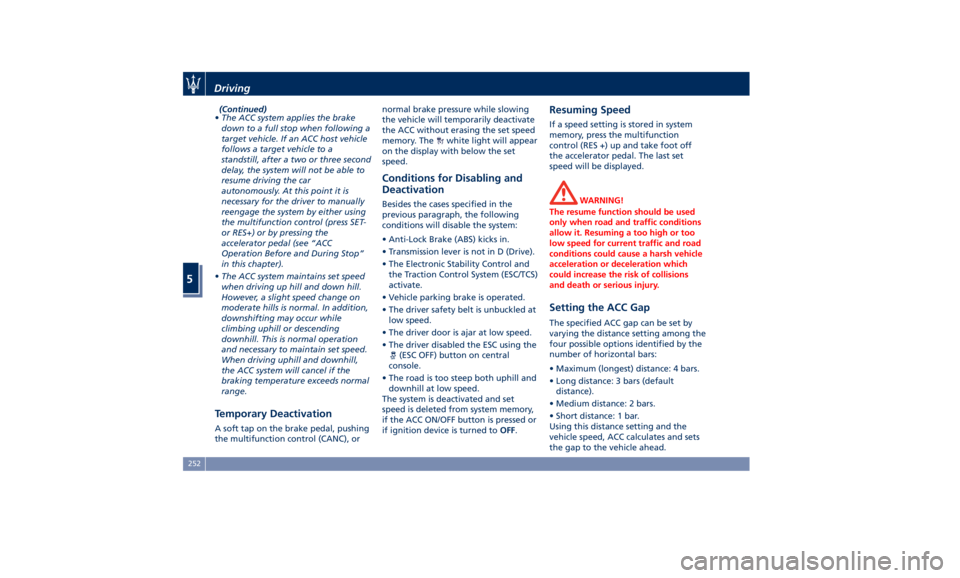
Setting the ACC Gap The specified ACC gap can be set by
varying the distance setting among the
four possible options identified by the
number of horizontal bars:
• Maximum (longest) distance: 4 bars.
• Long distance: 3 bars (default
distance).
• Medium distance: 2 bars.
• Short distance: 1 bar.
Using this distance setting and the
vehicle speed, ACC calculates and sets
the gap to the vehicle ahead.Driving
5
252
Page 257 of 384
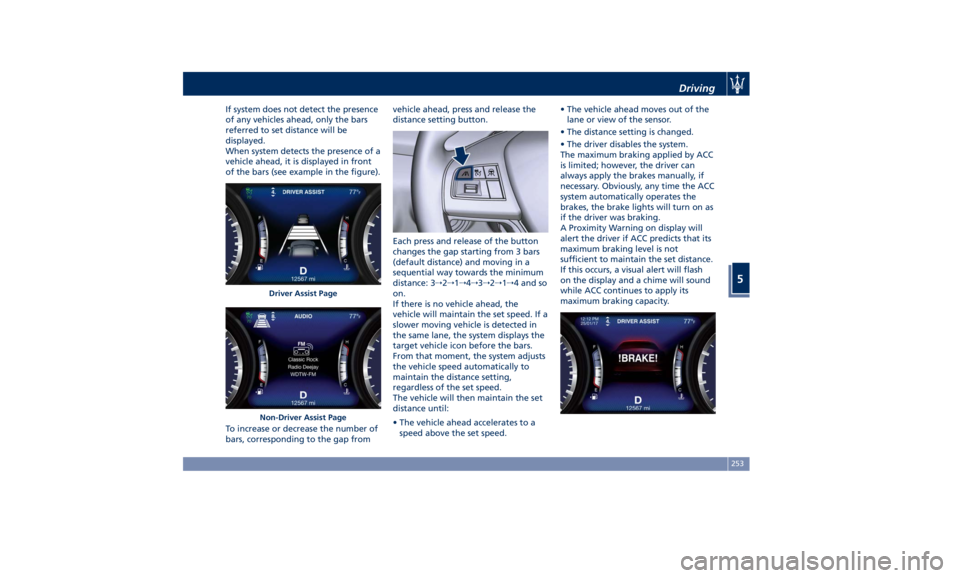
If system does not detect the presence
of any vehicles ahead, only the bars
referred to set distance will be
displayed.
When system detects the presence of a
vehicle ahead, it is displayed in front
of the bars (see example in the figure).
To increase or decrease the number of
bars, corresponding to the gap from vehicle ahead, press and release the
distance setting button.
Each press and release of the button
changes the gap starting from 3 bars
(default distance) and moving in a
sequential way towards the minimum
distance: 3 → 2 → 1 → 4 → 3 → 2 → 1 → 4 and so
on.
If there is no vehicle ahead, the
vehicle will maintain the set speed. If a
slower moving vehicle is detected in
the same lane, the system displays the
target vehicle icon before the bars.
From that moment, the system adjusts
the vehicle speed automatically to
maintain the distance setting,
regardless of the set speed.
The vehicle will then maintain the set
distance until:
• The vehicle ahead accelerates to a
speed above the set speed. • The vehicle ahead moves out of the
lane or view of the sensor.
• The distance setting is changed.
• The driver disables the system.
The maximum braking applied by ACC
is limited; however, the driver can
always apply the brakes manually, if
necessary. Obviously, any time the ACC
system automatically operates the
brakes, the brake lights will turn on as
if the driver was braking.
A Proximity Warning on display will
alert the driver if ACC predicts that its
maximum braking level is not
sufficient to maintain the set distance.
If this occurs, a visual alert will flash
on the display and a chime will sound
while ACC continues to apply its
maximum braking capacity.Driver Assist Page
Non-Driver Assist Page Driving
5
253
Page 258 of 384
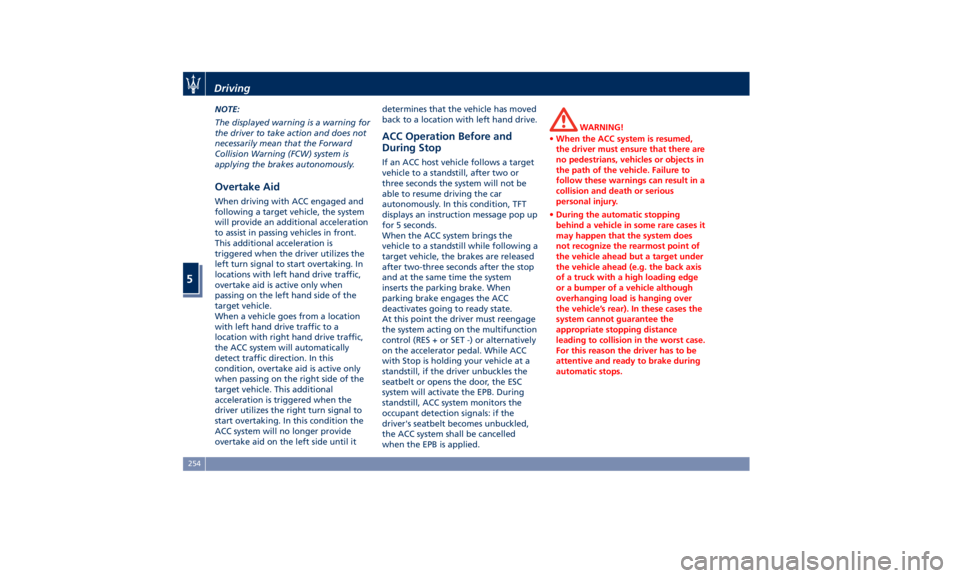
NOTE:
The displayed warning is a warning for
the driver to take action and does not
necessarily mean that the Forward
Collision Warning (FCW) system is
applying the brakes autonomously.
Overtake Aid When driving with ACC engaged and
following a target vehicle, the system
will provide an additional acceleration
to assist in passing vehicles in front.
This additional acceleration is
triggered when the driver utilizes the
left turn signal to start overtaking. In
locations with left hand drive traffic,
overtake aid is active only when
passing on the left hand side of the
target vehicle.
When a vehicle goes from a location
with left hand drive traffic to a
location with right hand drive traffic,
the ACC system will automatically
detect traffic direction. In this
condition, overtake aid is active only
when passing on the right side of the
target vehicle. This additional
acceleration is triggered when the
driver utilizes the right turn signal to
start overtaking. In this condition the
ACC system will no longer provide
overtake aid on the left side until it determines that the vehicle has moved
back to a location with left hand drive.
ACC Operation Before and
During Stop If an ACC host vehicle follows a target
vehicle to a standstill, after two or
three seconds the system will not be
able to resume driving the car
autonomously. In this condition, TFT
displays an instruction message pop up
for 5 seconds.
When the ACC system brings the
vehicle to a standstill while following a
target vehicle, the brakes are released
after two-three seconds after the stop
and at the same time the system
inserts the parking brake. When
parking brake engages the ACC
deactivates going to ready state.
At this point the driver must reengage
the system acting on the multifunction
control (RES + or SET -) or alternatively
on the accelerator pedal. While ACC
with Stop is holding your vehicle at a
standstill, if the driver unbuckles the
seatbelt or opens the door, the ESC
system will activate the EPB. During
standstill, ACC system monitors the
occupant detection signals: if the
driver's seatbelt becomes unbuckled,
the ACC system shall be cancelled
when the EPB is applied. WARNING!
• When the ACC system is resumed,
the driver must ensure that there are
no pedestrians, vehicles or objects in
the path of the vehicle. Failure to
follow these warnings can result in a
collision and death or serious
personal injury.
• During the automatic stopping
behind a vehicle in some rare cases it
may happen that the system does
not recognize the rearmost point of
the vehicle ahead but a target under
the vehicle ahead (e.g. the back axis
of a truck with a high loading edge
or a bumper of a vehicle although
overhanging load is hanging over
the vehicle’s rear). In these cases the
system cannot guarantee the
appropriate stopping distance
leading to collision in the worst case.
For this reason the driver has to be
attentive and ready to brake during
automatic stops.Driving
5
254