radio controls MASERATI GHIBLI 2019 User Guide
[x] Cancel search | Manufacturer: MASERATI, Model Year: 2019, Model line: GHIBLI, Model: MASERATI GHIBLI 2019Pages: 384, PDF Size: 13.33 MB
Page 174 of 384
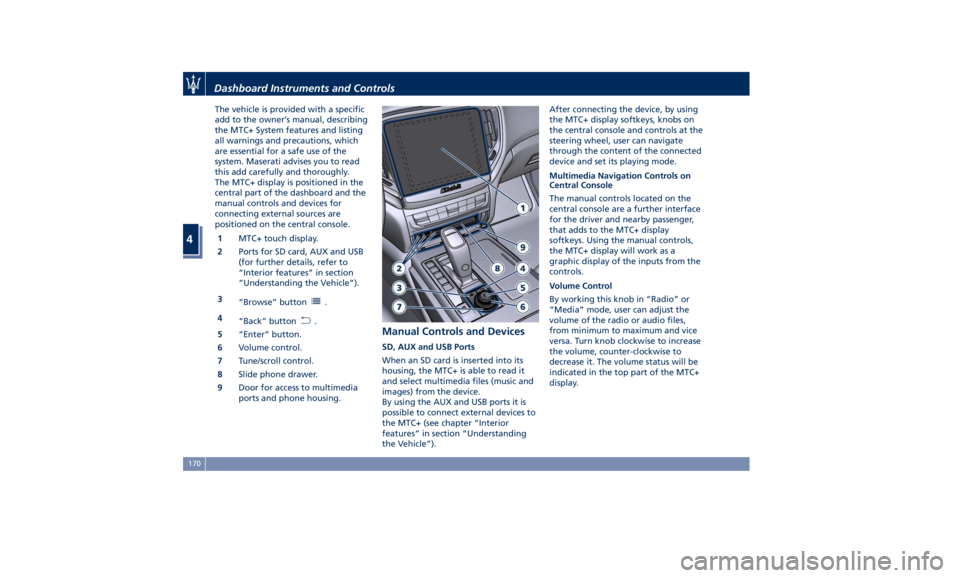
The vehicle is provided with a specific
add to the owner’s manual, describing
the MTC+ System features and listing
all warnings and precautions, which
are essential for a safe use of the
system. Maserati advises you to read
this add carefully and thoroughly.
The MTC+ display is positioned in the
central part of the dashboard and the
manual controls and devices for
connecting external sources are
positioned on the central console.
1 MTC+ touch display.
2 Ports for SD card, AUX and USB
(for further details, refer to
“Interior features” in section
“Understanding the Vehicle”).
3
“Browse” button
.
4
“Back” button
.
5 “Enter” button.
6 Volume control.
7 Tune/scroll control.
8 Slide phone drawer.
9 Door for access to multimedia
ports and phone housing. Manual Controls and Devices SD, AUX and USB Ports
When an SD card is inserted into its
housing, the MTC+ is able to read it
and select multimedia files (music and
images) from the device.
By using the AUX and USB ports it is
possible to connect external devices to
the MTC+ (see chapter “Interior
features” in section “Understanding
the Vehicle”). After connecting the device, by using
the MTC+ display softkeys, knobs on
the central console and controls at the
steering wheel, user can navigate
through the content of the connected
device and set its playing mode.
Multimedia Navigation Controls on
Central Console
The manual controls located on the
central console are a further interface
for the driver and nearby passenger,
that adds to the MTC+ display
softkeys. Using the manual controls,
the MTC+ display will work as a
graphic display of the inputs from the
controls.
Volume Control
By working this knob in “Radio” or
“Media” mode, user can adjust the
volume of the radio or audio files,
from minimum to maximum and vice
versa. Turn knob clockwise to increase
the volume, counter-clockwise to
decrease it. The volume status will be
indicated in the top part of the MTC+
display.Dashboard Instruments and Controls
4
170
Page 175 of 384
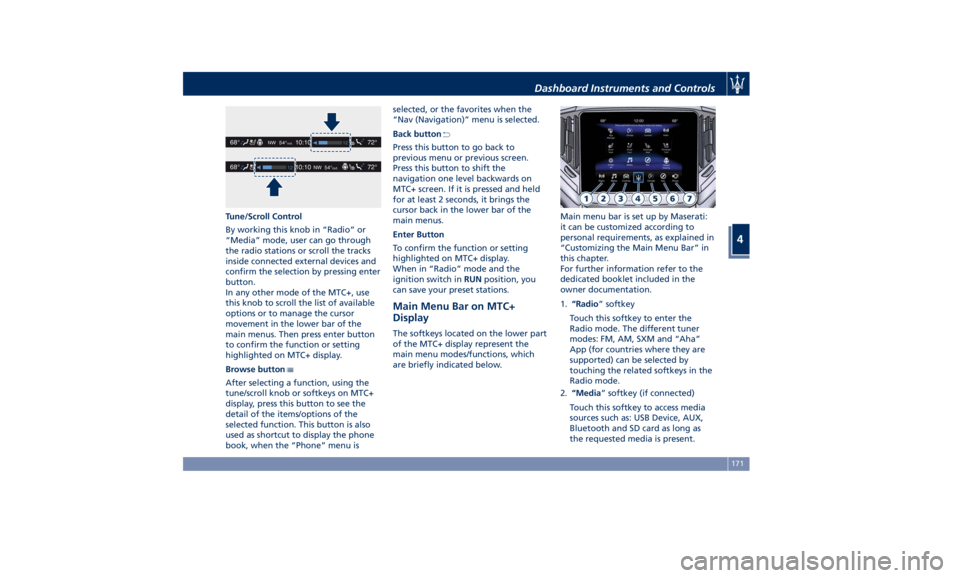
Tune/Scroll Control
By working this knob in “Radio” or
“Media” mode, user can go through
the radio stations or scroll the tracks
inside connected external devices and
confirm the selection by pressing enter
button.
In any other mode of the MTC+, use
this knob to scroll the list of available
options or to manage the cursor
movement in the lower bar of the
main menus. Then press enter button
to confirm the function or setting
highlighted on MTC+ display.
Browse button
After selecting a function, using the
tune/scroll knob or softkeys on MTC+
display, press this button to see the
detail of the items/options of the
selected function. This button is also
used as shortcut to display the phone
book, when the “Phone” menu is selected, or the favorites when the
“Nav (Navigation)” menu is selected.
Back button
Press this button to go back to
previous menu or previous screen.
Press this button to shift the
navigation one level backwards on
MTC+ screen. If it is pressed and held
for at least 2 seconds, it brings the
cursor back in the lower bar of the
main menus.
Enter Button
To confirm the function or setting
highlighted on MTC+ display.
When in “Radio” mode and the
ignition switch in RUN position, you
can save your preset stations.
Main Menu Bar on MTC+
Display The softkeys located on the lower part
of the MTC+ display represent the
main menu modes/functions, which
are briefly indicated below. Main menu bar is set up by Maserati:
it can be customized according to
personal requirements, as explained in
“Customizing the Main Menu Bar” in
this chapter.
For further information refer to the
dedicated booklet included in the
owner documentation.
1. “Radio ” softkey
Touch this softkey to enter the
Radio mode. The different tuner
modes: FM, AM, SXM and “Aha”
App (for countries where they are
supported) can be selected by
touching the related softkeys in the
Radio mode.
2. “Media ” softkey (if connected)
Touch this softkey to access media
sources such as: USB Device, AUX,
Bluetooth and SD card as long as
the requested media is present.Dashboard Instruments and Controls
4
171
Page 178 of 384
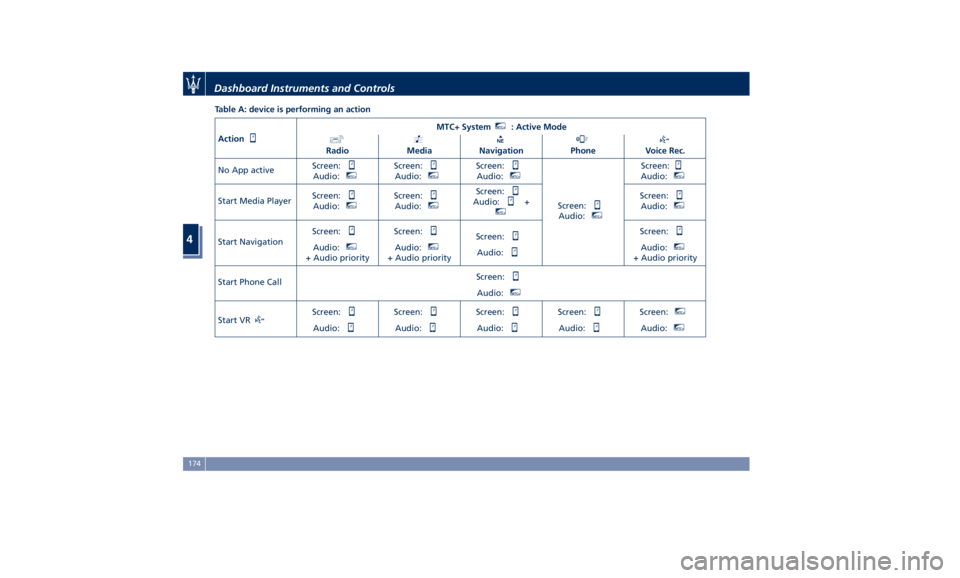
Table A: device is performing an action
Action MTC+ System MTC+
: Active Mode
Radio Media Navigation Phone Voice Rec.
No App active Screen:
Audio: MTC+
Screen:
Audio: MTC+
Screen:
Audio: MTC+
Screen:
Audio: MTC+
Screen:
Audio: MTC+
Start Media Player Screen:
Audio: MTC+
Screen:
Audio: MTC+
Screen:
Audio: + MTC+
Screen:
Audio: MTC+
Start Navigation Screen:
Audio: MTC+
+ Audio priority Screen:
Audio: MTC+
+ Audio priority Screen:
Audio: Screen:
Audio: MTC+
+ Audio priority
Start Phone Call Screen:
Audio: MTC+
Start VR Screen:
Audio: Screen:
Audio: Screen:
Audio: Screen:
Audio: Screen: MTC+
Audio: MTC+
Dashboard Instruments and Controls
4
174
Page 179 of 384
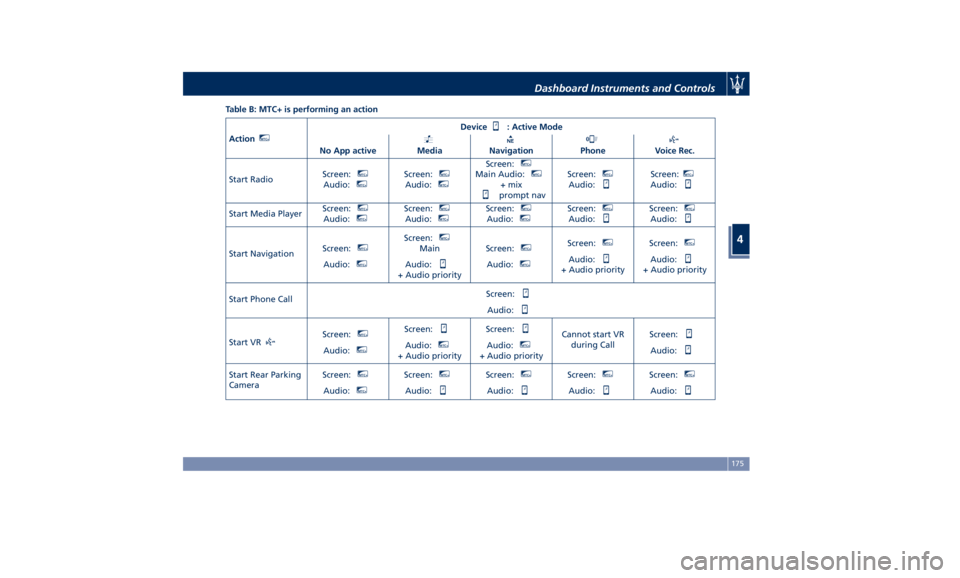
Table B: MTC+ is performing an action
Action MTC+
Device : Active Mode
No App active Media Navigation Phone Voice Rec.
Start Radio Screen: MTC+
Audio: MTC+
Screen: MTC+
Audio: MTC+
Screen: MTC+
Main Audio: MTC+
+ mix
prompt nav Screen: MTC+
Audio: Screen: MTC+
Audio:
Start Media Player Screen: MTC+
Audio: MTC+
Screen: MTC+
Audio: MTC+
Screen: MTC+
Audio: MTC+
Screen: MTC+
Audio: Screen: MTC+
Audio:
Start Navigation Screen: MTC+
Audio: MTC+
Screen: MTC+
Main
Audio:
+ Audio priority Screen: MTC+
Audio: MTC+
Screen: MTC+
Audio:
+ Audio priority Screen: MTC+
Audio:
+ Audio priority
Start Phone Call Screen:
Audio:
Start VR Screen: MTC+
Audio: MTC+
Screen:
Audio: MTC+
+ Audio priority Screen:
Audio: MTC+
+ Audio priority Cannot start VR
during Call Screen:
Audio:
Start Rear Parking
Camera Screen: MTC+
Audio: MTC+
Screen: MTC+
Audio: Screen: MTC+
Audio: Screen: MTC+
Audio: Screen: MTC+
Audio:Dashboard Instruments and Controls
4
175
Page 180 of 384
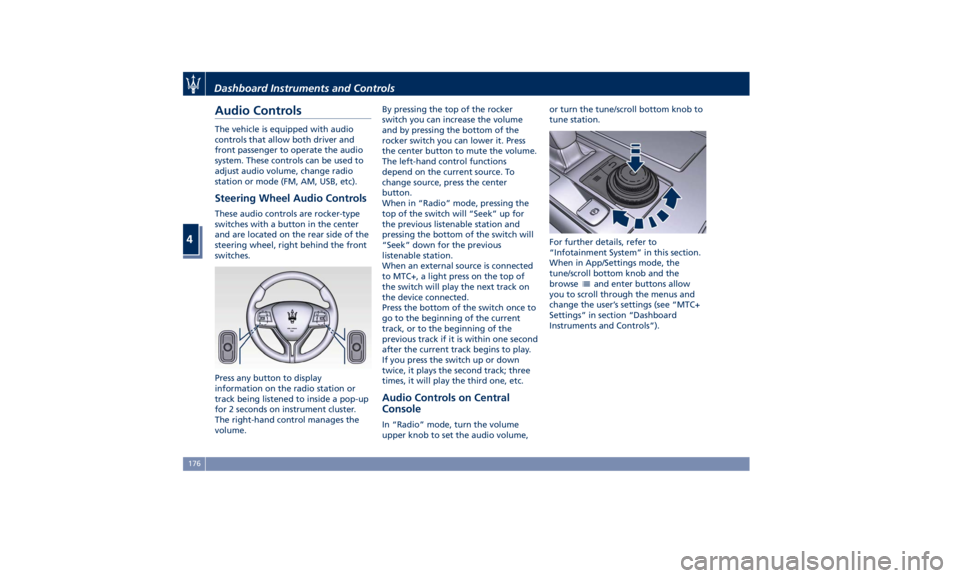
Audio Controls The vehicle is equipped with audio
controls that allow both driver and
front passenger to operate the audio
system. These controls can be used to
adjust audio volume, change radio
station or mode (FM, AM, USB, etc).
Steering Wheel Audio Controls These audio controls are rocker-type
switches with a button in the center
and are located on the rear side of the
steering wheel, right behind the front
switches.
Press any button to display
information on the radio station or
track being listened to inside a pop-up
for 2 seconds on instrument cluster.
The right-hand control manages the
volume. By pressing the top of the rocker
switch you can increase the volume
and by pressing the bottom of the
rocker switch you can lower it. Press
the center button to mute the volume.
The left-hand control functions
depend on the current source. To
change source, press the center
button.
When in “Radio” mode, pressing the
top of the switch will “Seek” up for
the previous listenable station and
pressing the bottom of the switch will
“Seek” down for the previous
listenable station.
When an external source is connected
to MTC+, a light press on the top of
the switch will play the next track on
the device connected.
Press the bottom of the switch once to
go to the beginning of the current
track, or to the beginning of the
previous track if it is within one second
after the current track begins to play.
If you press the switch up or down
twice, it plays the second track; three
times, it will play the third one, etc.
Audio Controls on Central
Console In “Radio” mode, turn the volume
upper knob to set the audio volume, or turn the tune/scroll bottom knob to
tune station.
For further details, refer to
“Infotainment System” in this section.
When in App/Settings mode, the
tune/scroll bottom knob and the
browse
and enter buttons allow
you to scroll through the menus and
change the user’s settings (see “MTC+
Settings” in section “Dashboard
Instruments and Controls”).Dashboard Instruments and Controls
4
176
Page 190 of 384
response length, touch the “Brief”
or “Detailed” softkey.
• Show Command List
When this feature is selected, it is
possible to select options during a
voice control session. Options for
available controls are: “Always”,
“w/Help” or “Never”.
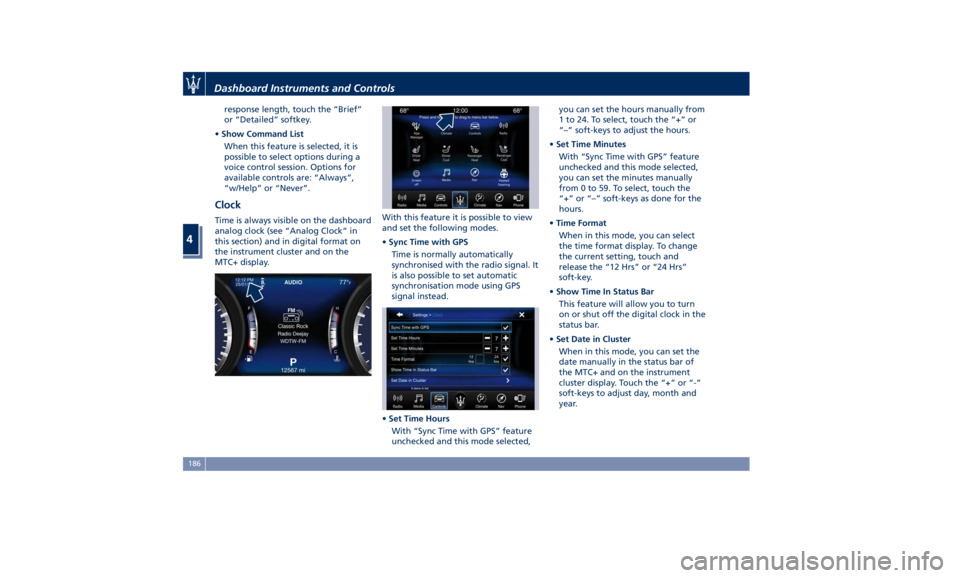
Clock Time is always visible on the dashboard
analog clock (see “Analog Clock” in
this section) and in digital format on
the instrument cluster and on the
MTC+ display. With this feature it is possible to view
and set the following modes.
• Sync Time with GPS
Time is normally automatically
synchronised with the radio signal. It
is also possible to set automatic
synchronisation mode using GPS
signal instead.
• Set Time Hours
With “Sync Time with GPS” feature
unchecked and this mode selected, you can set the hours manually from
1 to 24. To select, touch the “+” or
“–” soft-keys to adjust the hours.
• Set Time Minutes
With “Sync Time with GPS” feature
unchecked and this mode selected,
you can set the minutes manually
from 0 to 59. To select, touch the
“+” or “–” soft-keys as done for the
hours.
• Time Format
When in this mode, you can select
the time format display. To change
the current setting, touch and
release the “12 Hrs” or “24 Hrs”
soft-key.
• Show Time In Status Bar
This feature will allow you to turn
on or shut off the digital clock in the
status bar.
• Set Date in Cluster
When in this mode, you can set the
date manually in the status bar of
the MTC+ and on the instrument
cluster display. Touch the “+” or “-”
soft-keys to adjust day, month and
year.Dashboard Instruments and Controls
4
186
Page 194 of 384
• Power Liftgate Alert
When this feature is selected,
further to turn indicators flashing,
an acoustic warning will also be
triggered when opening and closing
the liftgate/trunk lid. The feature
can be set to “On” or “Off”.
• Hands Free Power Liftgate
To prevent the accidental opening
of the Power Trunk Lid/Hands Free
(optional) with the movement of
the foot, it is possible to disable the
“Hands Free” function. The feature
can be set to “On” or “Off”. This
operation is recommended when
you have to wash the car (for
further information, refer to “Power
Trunk Lid Operation” in section
“Before Starting”).
Auto-On Comfort & Remote
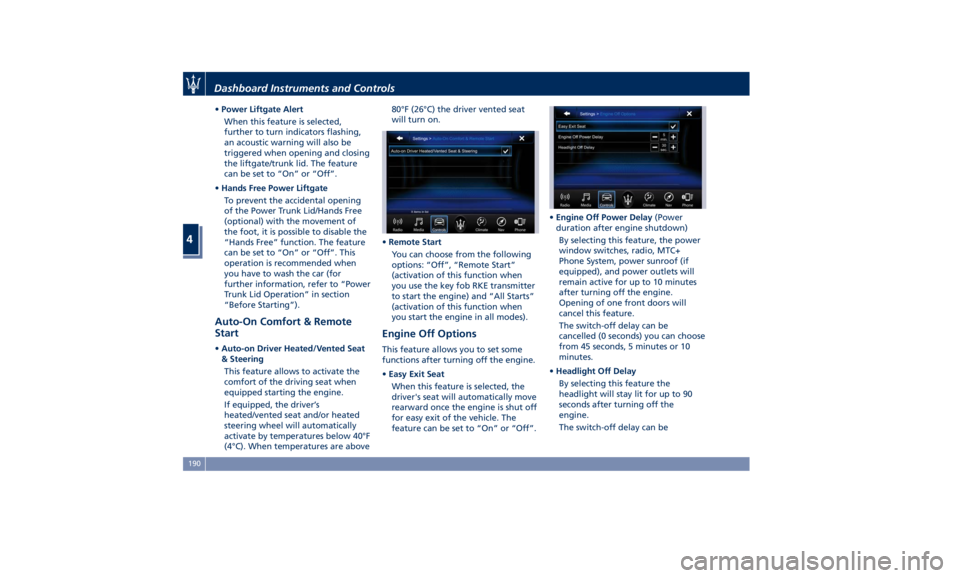
Start • Auto-on Driver Heated/Vented Seat
& Steering
This feature allows to activate the
comfort of the driving seat when
equipped starting the engine.
If equipped, the driver’s
heated/vented seat and/or heated
steering wheel will automatically
activate by temperatures below 40°F
(4°C). When temperatures are above 80°F (26°C) the driver vented seat
will turn on.
• Remote Start
You can choose from the following
options: “Off”, “Remote Start”
(activation of this function when
you use the key fob RKE transmitter
to start the engine) and “All Starts”
(activation of this function when
you start the engine in all modes).
Engine Off Options This feature allows you to set some
functions after turning off the engine.
• Easy Exit Seat
When this feature is selected, the
driver's seat will automatically move
rearward once the engine is shut off
for easy exit of the vehicle. The
feature can be set to “On” or “Off”. • Engine Off Power Delay (Power
duration after engine shutdown)
By selecting this feature, the power
window switches, radio, MTC+
Phone System, power sunroof (if
equipped), and power outlets will
remain active for up to 10 minutes
after turning off the engine.
Opening of one front doors will
cancel this feature.
The switch-off delay can be
cancelled (0 seconds) you can choose
from 45 seconds, 5 minutes or 10
minutes.
• Headlight Off Delay
By selecting this feature the
headlight will stay lit for up to 90
seconds after turning off the
engine.
The switch-off delay can beDashboard Instruments and Controls
4
190
Page 195 of 384
cancelled (0 seconds) or reduced to
60 or 30 seconds.
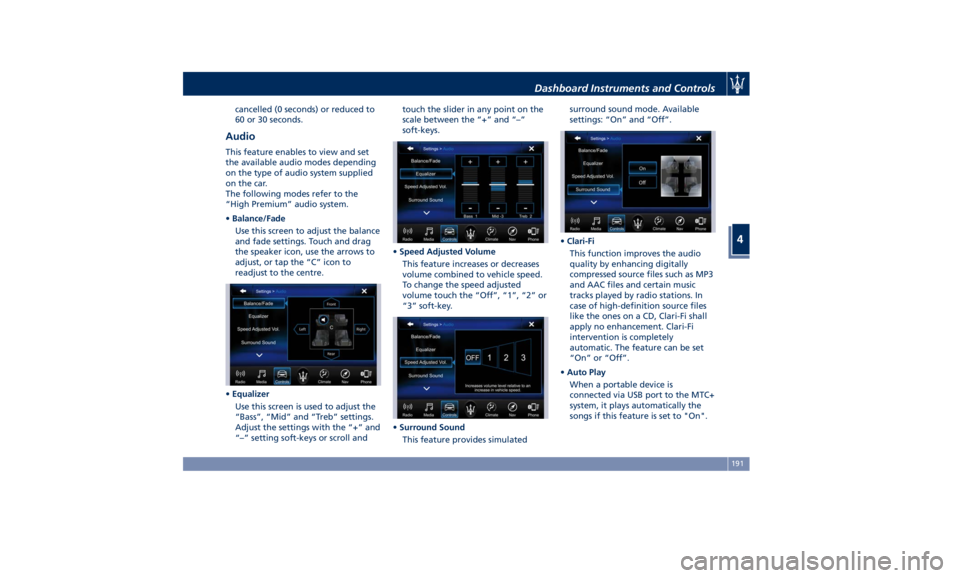
Audio This feature enables to view and set
the available audio modes depending
on the type of audio system supplied
on the car.
The following modes refer to the
“High Premium” audio system.
• Balance/Fade
Use this screen to adjust the balance
and fade settings. Touch and drag
the speaker icon, use the arrows to
adjust, or tap the “C” icon to
readjust to the centre.
• Equalizer
Use this screen is used to adjust the
“Bass”, “Mid” and “Treb” settings.
Adjust the settings with the “+” and
“–” setting soft-keys or scroll and touch the slider in any point on the
scale between the “+” and “–”
soft-keys.
• Speed Adjusted Volume
This feature increases or decreases
volume combined to vehicle speed.
To change the speed adjusted
volume touch the “Off”, “1”, “2” or
“3” soft-key.
• Surround Sound
This feature provides simulated surround sound mode. Available
settings: “On” and “Off”.
• Clari-Fi
This function improves the audio
quality by enhancing digitally
compressed source files such as MP3
and AAC files and certain music
tracks played by radio stations. In
case of high-definition source files
like the ones on a CD, Clari-Fi shall
apply no enhancement. Clari-Fi
intervention is completely
automatic. The feature can be set
“On” or “Off”.
• Auto Play
When a portable device is
connected via USB port to the MTC+
system, it plays automatically the
songs if this feature is set to "On".Dashboard Instruments and Controls
4
191
Page 197 of 384
NOTE:
On the Maserati website, at
www.maserati.com , or through an
Authorized Maserati Dealer you may
consult the list of telephones that are
compatible with the MTC+, and their
level of compatibility.
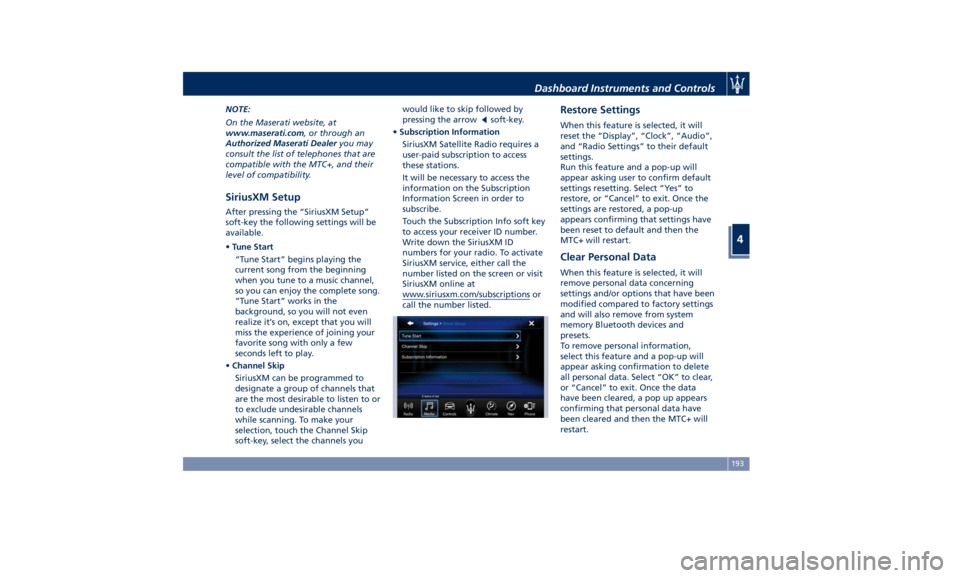
SiriusXM Setup After pressing the “SiriusXM Setup”
soft-key the following settings will be
available.
• Tune Start
“Tune Start” begins playing the
current song from the beginning
when you tune to a music channel,
so you can enjoy the complete song.
“Tune Start” works in the
background, so you will not even
realize it’s on, except that you will
miss the experience of joining your
favorite song with only a few
seconds left to play.
• Channel Skip
SiriusXM can be programmed to
designate a group of channels that
are the most desirable to listen to or
to exclude undesirable channels
while scanning. To make your
selection, touch the Channel Skip
soft-key, select the channels you would like to skip followed by
pressing the arrow
soft-key.
• Subscription Information
SiriusXM Satellite Radio requires a
user-paid subscription to access
these stations.
It will be necessary to access the
information on the Subscription
Information Screen in order to
subscribe.
Touch the Subscription Info soft key
to access your receiver ID number.
Write down the SiriusXM ID
numbers for your radio. To activate
SiriusXM service, either call the
number listed on the screen or visit
SiriusXM online at
www.siriusxm.com/subscriptions or
call the number listed. Restore Settings When this feature is selected, it will
reset the “Display”, “Clock”, “Audio”,
and “Radio Settings” to their default
settings.
Run this feature and a pop-up will
appear asking user to confirm default
settings resetting. Select “Yes” to
restore, or “Cancel” to exit. Once the
settings are restored, a pop-up
appears confirming that settings have
been reset to default and then the
MTC+ will restart.
Clear Personal Data When this feature is selected, it will
remove personal data concerning
settings and/or options that have been
modified compared to factory settings
and will also remove from system
memory Bluetooth devices and
presets.
To remove personal information,
select this feature and a pop-up will
appear asking confirmation to delete
all personal data. Select “OK” to clear,
or “Cancel” to exit. Once the data
have been cleared, a pop up appears
confirming that personal data have
been cleared and then the MTC+ will
restart.Dashboard Instruments and Controls
4
193
Page 201 of 384
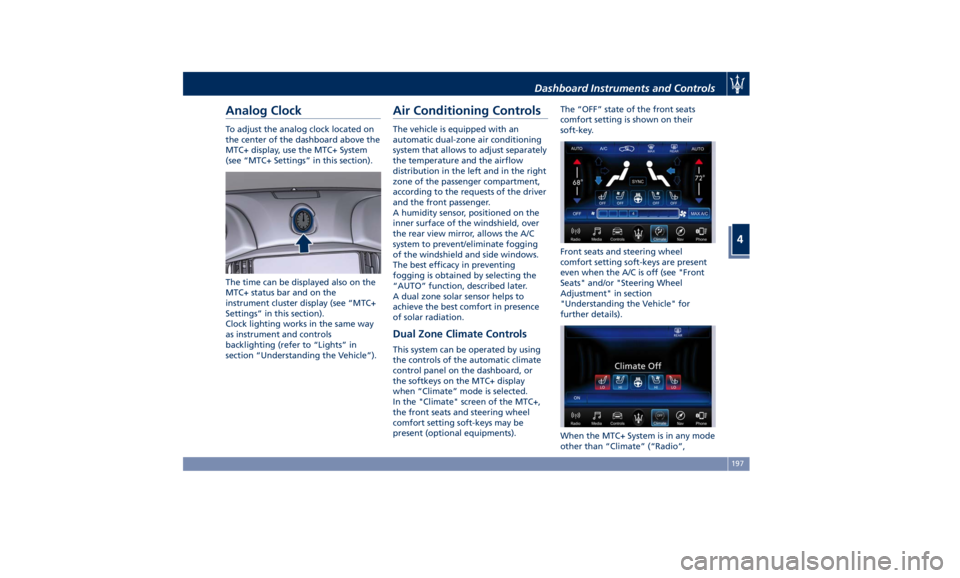
Analog Clock To adjust the analog clock located on
the center of the dashboard above the
MTC+ display, use the MTC+ System
(see “MTC+ Settings” in this section).
The time can be displayed also on the
MTC+ status bar and on the
instrument cluster display (see “MTC+
Settings” in this section).
Clock lighting works in the same way
as instrument and controls
backlighting (refer to “Lights” in
section “Understanding the Vehicle”). Air Conditioning Controls The vehicle is equipped with an
automatic dual-zone air conditioning
system that allows to adjust separately
the temperature and the airflow
distribution in the left and in the right
zone of the passenger compartment,
according to the requests of the driver
and the front passenger.
A humidity sensor, positioned on the
inner surface of the windshield, over
the rear view mirror, allows the A/C
system to prevent/eliminate fogging
of the windshield and side windows.
The best efficacy in preventing
fogging is obtained by selecting the
“AUTO” function, described later.
A dual zone solar sensor helps to
achieve the best comfort in presence
of solar radiation.
Dual Zone Climate Controls This system can be operated by using
the controls of the automatic climate
control panel on the dashboard, or
the softkeys on the MTC+ display
when “Climate” mode is selected.
In the "Climate" screen of the MTC+,
the front seats and steering wheel
comfort setting soft-keys may be
present (optional equipments). The “OFF” state of the front seats
comfort setting is shown on their
soft-key.
Front seats and steering wheel
comfort setting soft-keys are present
even when the A/C is off (see "Front
Seats" and/or "Steering Wheel
Adjustment" in section
"Understanding the Vehicle" for
further details).
When the MTC+ System is in any mode
other than “Climate” (“Radio”,Dashboard Instruments and Controls
4
197