ESP MASERATI GHIBLI 2019 Owner's Guide
[x] Cancel search | Manufacturer: MASERATI, Model Year: 2019, Model line: GHIBLI, Model: MASERATI GHIBLI 2019Pages: 384, PDF Size: 13.33 MB
Page 126 of 384
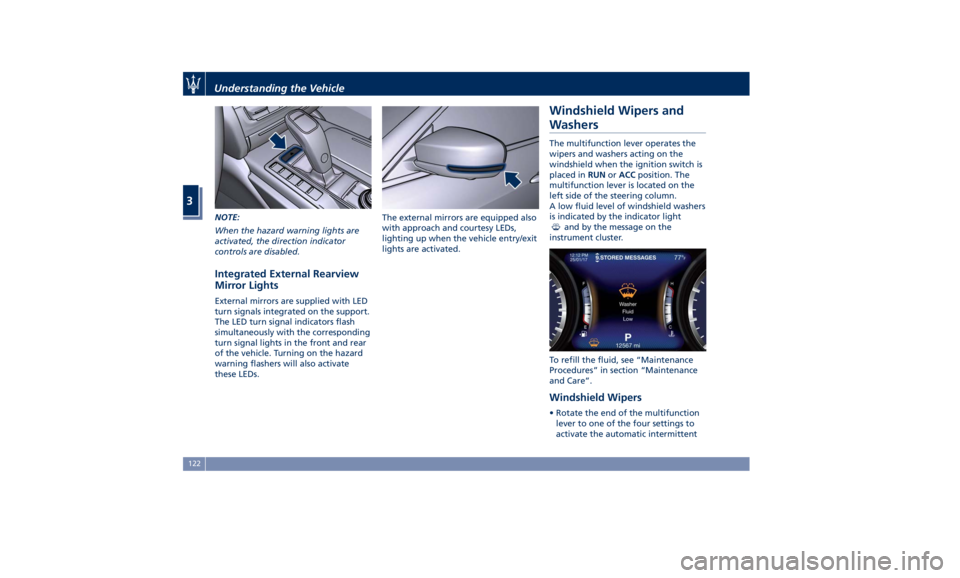
NOTE:
When the hazard warning lights are
activated, the direction indicator
controls are disabled.
Integrated External Rearview
Mirror Lights External mirrors are supplied with LED
turn signals integrated on the support.
The LED turn signal indicators flash
simultaneously with the corresponding
turn signal lights in the front and rear
of the vehicle. Turning on the hazard
warning flashers will also activate
these LEDs. The external mirrors are equipped also
with approach and courtesy LEDs,
lighting up when the vehicle entry/exit
lights are activated.
Windshield Wipers and
Washers The multifunction lever operates the
wipers and washers acting on the
windshield when the ignition switch is
placed in RUN or ACC position. The
multifunction lever is located on the
left side of the steering column.
A low fluid level of windshield washers
is indicated by the indicator light
and by the message on the
instrument cluster.
To refill the fluid, see “Maintenance
Procedures” in section “Maintenance
and Care”.
Windshield Wipers • Rotate the end of the multifunction
lever to one of the four settings to
activate the automatic intermittentUnderstanding the Vehicle
3
122
Page 128 of 384
arms. It will not operate under the
following conditions:
• Low Temperature Wipe Inhibit : the
rain sensing feature will not operate
when the ignition is in RUN position,
the vehicle is stationary and the
outside temperature is below 32°F
(0°C). To resume, set the automatic
feature on the multifunction lever,
start the engine and drive or wait
until the outside temperature rises
above freezing.
• Wipe Inhibit with Transmission in
Neutral Position : the rain sensing
feature will not operate when the
ignition is placed in the RUN
position, the transmission shift lever
is in the N (Neutral) position and the
vehicle speed is less than 5 mph
(8 km/h). To resume, set the
multifunction lever to the automatic
function or move the shift lever out
of N (Neutral).
Headlights On with Windshield
Wipers When activating this function, the
headlights will light up approximately
10 seconds after the wipers acting on
the windshield are turned on if the
light switch is placed in “AUTO”
position. In addition, the headlights switch off when the wipers are turned
off (position “OFF”) if they were
previously turned by using this
function. Powering on Headlights with
wipers can be activated and
deactivated with the MTC+ System, see
“MTC+ Settings” in section
“Dashboard Instruments and Controls”
for further information.
Wiper Blade Maintenance When the wiper arms acting on the
windshield are in the rest position it is
not possible to check or replace the
blades (Service position) as they are
folded under the hood. To service the
blades (see paragraph “Wiper
Maintenance and Blades
Replacement” in chapter
“Maintenance Procedures” of section
“Maintenance and Care”) it is
necessary to shift the multifunction
lever to “OFF” and the ignition switch
to OFF position.
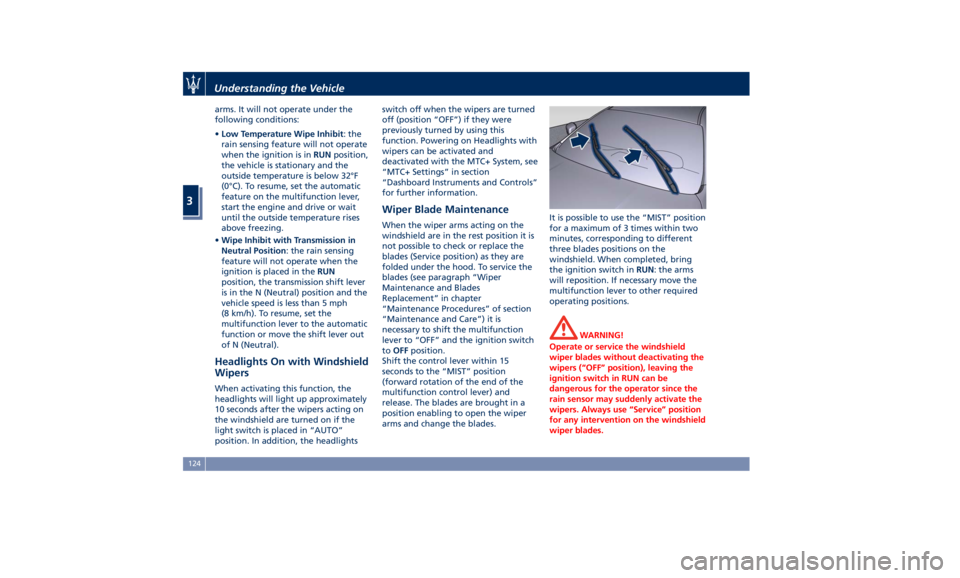
Shift the control lever within 15
seconds to the “MIST” position
(forward rotation of the end of the
multifunction control lever) and
release. The blades are brought in a
position enabling to open the wiper
arms and change the blades. It is possible to use the “MIST” position
for a maximum of 3 times within two
minutes, corresponding to different
three blades positions on the
windshield. When completed, bring
the ignition switch in RUN : the arms
will reposition. If necessary move the
multifunction lever to other required
operating positions.
WARNING!
Operate or service the windshield
wiper blades without deactivating the
wipers (“OFF” position), leaving the
ignition switch in RUN can be
dangerous for the operator since the
rain sensor may suddenly activate the
wipers. Always use “Service” position
for any intervention on the windshield
wiper blades.Understanding the Vehicle
3
124
Page 155 of 384
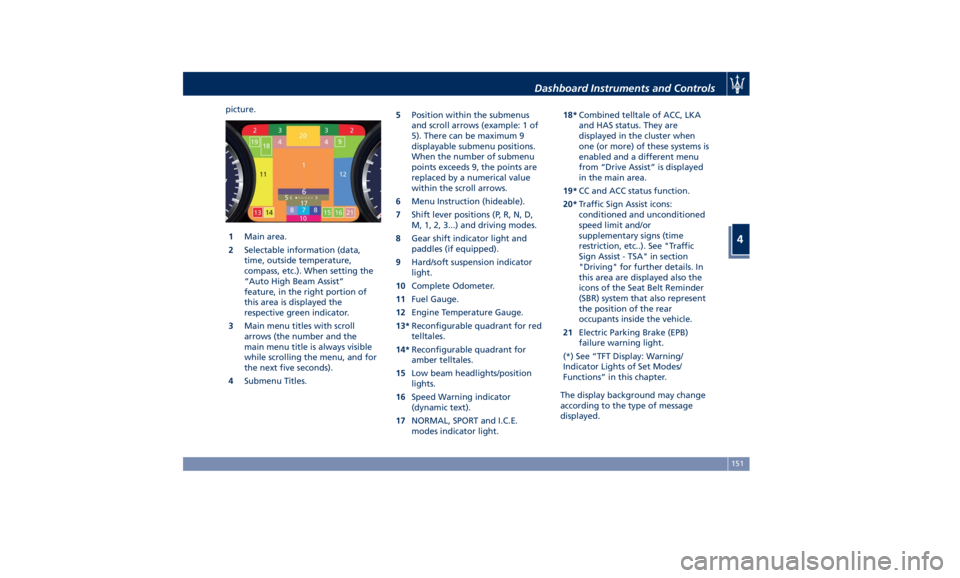
picture.
1 Main area.
2 Selectable information (data,
time, outside temperature,
compass, etc.). When setting the
“Auto High Beam Assist”
feature, in the right portion of
this area is displayed the
respective green indicator.
3 Main menu titles with scroll
arrows (the number and the
main menu title is always visible
while scrolling the menu, and for
the next five seconds).
4 Submenu Titles. 5 Position within the submenus
and scroll arrows (example: 1 of
5). There can be maximum 9
displayable submenu positions.
When the number of submenu
points exceeds 9, the points are
replaced by a numerical value
within the scroll arrows.
6 Menu Instruction (hideable).
7 Shift lever positions (P, R, N, D,
M, 1, 2, 3...) and driving modes.
8 Gear shift indicator light and
paddles (if equipped).
9 Hard/soft suspension indicator
light.
10 Complete Odometer.
11 Fuel Gauge.
12 Engine Temperature Gauge.
13* Reconfigurable quadrant for red
telltales.
14* Reconfigurable quadrant for
amber telltales.
15 Low beam headlights/position
lights.
16 Speed Warning indicator
(dynamic text).
17 NORMAL, SPORT and I.C.E.
modes indicator light. 18* Combined telltale of ACC, LKA
and HAS status. They are
displayed in the cluster when
one (or more) of these systems is
enabled and a different menu
from “Drive Assist” is displayed
in the main area.
19* CC and ACC status function.
20* Traffic Sign Assist icons:
conditioned and unconditioned
speed limit and/or
supplementary signs (time
restriction, etc..). See "Traffic
Sign Assist - TSA" in section
"Driving" for further details. In
this area are displayed also the
icons of the Seat Belt Reminder
(SBR) system that also represent
the position of the rear
occupants inside the vehicle.
21 Electric Parking Brake (EPB)
failure warning light.
(*) See “TFT Display: Warning/
Indicator Lights of Set Modes/
Functions” in this chapter.
The display background may change
according to the type of message
displayed.Dashboard Instruments and Controls
4
151
Page 169 of 384
If the warning light stays or turns on
while driving, the engine oil pressure
is too low. The warning light is
combined with a displayed message
and an acoustic signal that will last 4
minutes. In this case, turn the engine
off immediately and carry out the
necessary checks.
Do not operate the vehicle until the
problem has been corrected. This light
does not indicate the oil level. The
engine oil level must be checked with
the dipstick located under the hood
(see “Maintenance Procedures” in
section “Maintenance and Care”).
If the problem persists, contact an
Authorized Maserati Dealer .
Engine Oil Temperature Warning Light
This light indicates that the
engine oil is overheated. The
warning light is combined
with the related displayed
message. In this case, drive carefully
until the temperature drops back to
normal level and the light warning
light turns off.
If the problem persists, contact an
Authorized Maserati Dealer .
Low Engine Oil Level Warning Light
This warning light and the
related displayed message,
indicate a low engine oil level. The engine oil level must be checked
with the dipstick fitted under the
hood (see “Maintenance Procedures”
in section “Maintenance and Care”).
Electric Power Steering Failure
Warning Light
This warning light, and the
related message, illuminate
when the electric power
steering is not operating and
needs service.
If the warning light is on, steering
assistance may be not available.
WARNING!
After battery disconnection event, the
warning light may be on. In this case,
start the engine and perform a
steering wheel stroke end to end.
If the problem persists, contact an
Authorized
Maserati Dealer .
Catalyst Over Temperature Warning
Light
This warning light, and the
related message, light up if
the engine runs irregularly
with consequent high
temperature in the exhaust system. WARNING!
• If the warning light is accompanied
by the message “Catalyst Temp
Getting Hot Reduce Speed”: the
temperature of the catalytic
converters is too high. The driver
must slow down immediately until
the warning light turns off.
• If the message “Catalyst Temp Hot
Stop Safely Wait To Cool” appears
after decelerating: the temperature
in the catalytic converters has
reached a dangerous level and the
catalytic converters could be
damaged. Drive slowly to the
nearest Authorized Maserati Dealer.
• Maserati declines all responsibility
for whatever damage deriving from
non-compliance with the above
mentioned warnings.
Door Ajar Indicator
This
indicator illuminates
when
one or more doors are
ajar. The indicator will show
which door is ajar. When one
or more doors are open, a related
message will be displayed if the
vehicle is running at a speed of 5 mph
(8 km/h) or faster.Dashboard Instruments and Controls
4
165
Page 173 of 384
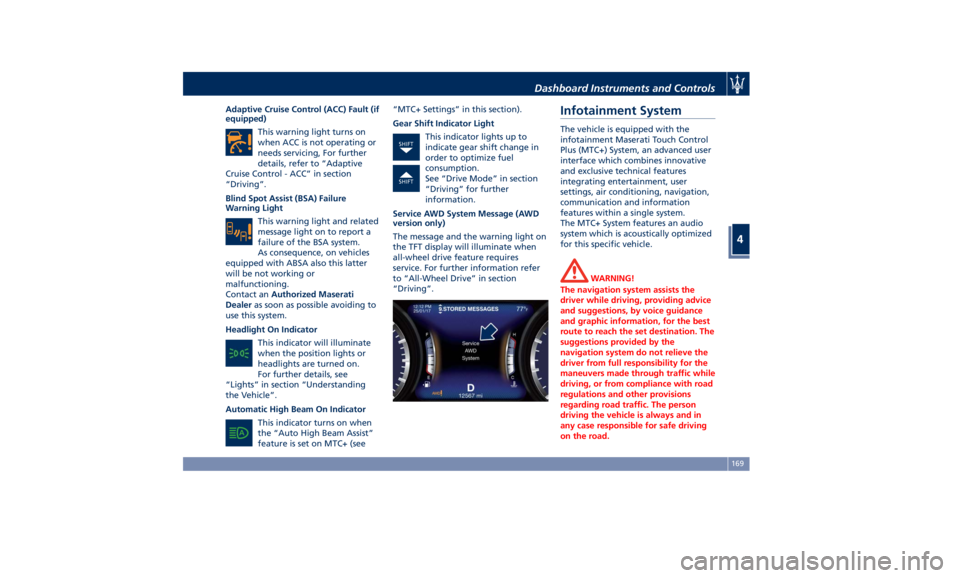
Adaptive Cruise Control (ACC) Fault (if
equipped)
This warning light turns on
when ACC is not operating or
needs servicing, For further
details, refer to “Adaptive
Cruise Control - ACC” in section
“Driving”.
Blind Spot Assist (BSA) Failure
Warning Light
This warning light and related
message light on to report a
failure of the BSA system.
As consequence, on vehicles
equipped with ABSA also this latter
will be not working or
malfunctioning.
Contact an Authorized Maserati
Dealer as soon as possible avoiding to
use this system.
Headlight On Indicator
This indicator will illuminate
when the position lights or
headlights are turned on.
For further details, see
“Lights” in section “Understanding
the Vehicle”.
Automatic High Beam On Indicator
This indicator turns on when
the “Auto High Beam Assist”
feature is set on MTC+ (see “MTC+ Settings” in this section).
Gear Shift Indicator Light
This indicator lights up to
indicate gear shift change in
order to optimize fuel
consumption.
See “Drive Mode” in section
“Driving” for further
information.
Service AWD System Message (AWD
version only)
The message and the warning light on
the TFT display will illuminate when
all-wheel drive feature requires
service. For further information refer
to “All-Wheel Drive” in section
“Driving”.Infotainment System The vehicle is equipped with the
infotainment Maserati Touch Control
Plus (MTC+) System, an advanced user
interface which combines innovative
and exclusive technical features
integrating entertainment, user
settings, air conditioning, navigation,
communication and information
features within a single system.
The MTC+ System features an audio
system which is acoustically optimized
for this specific vehicle.
WARNING!
The navigation system assists the
driver while driving, providing advice
and suggestions, by voice guidance
and graphic information, for the best
route to reach the set destination. The
suggestions provided by the
navigation system do not relieve the
driver from full responsibility for the
maneuvers made through traffic while
driving, or from compliance with road
regulations and other provisions
regarding road traffic. The person
driving the vehicle is always and in
any case responsible for safe driving
on the road.Dashboard Instruments and Controls
4
169
Page 177 of 384
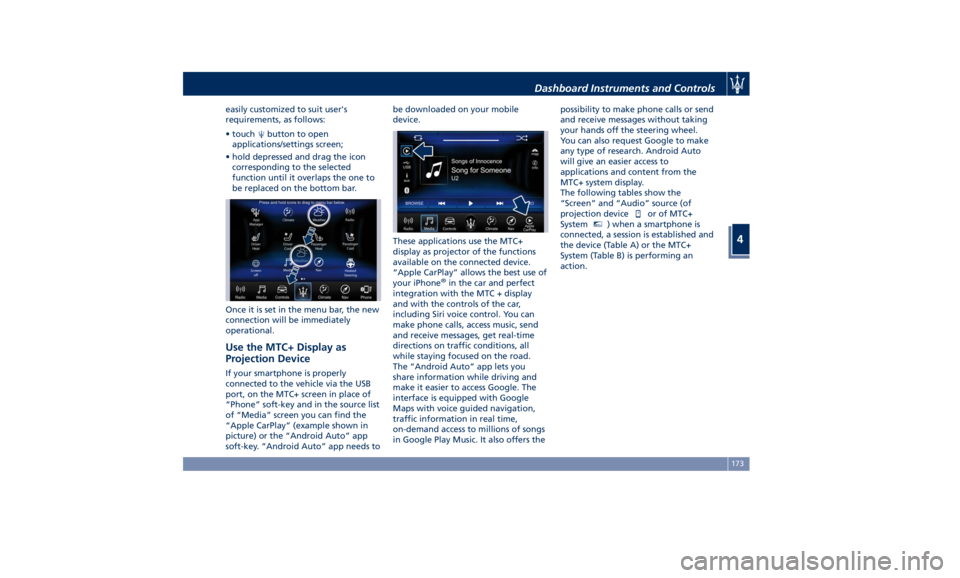
easily customized to suit user's
requirements, as follows:
• touch button to open
applications/settings screen;
• hold depressed and drag the icon
corresponding to the selected
function until it overlaps the one to
be replaced on the bottom bar.
Once it is set in the menu bar, the new
connection will be immediately
operational.
Use the MTC+ Display as
Projection Device If your smartphone is properly
connected to the vehicle via the USB
port, on the MTC+ screen in place of
“Phone” soft-key and in the source list
of “Media” screen you can find the
“Apple CarPlay” (example shown in
picture) or the “Android Auto” app
soft-key. “Android Auto” app needs to be downloaded on your mobile
device.
These applications use the MTC+
display as projector of the functions
available on the connected device.
“Apple CarPlay” allows the best use of
your iPhone ®
in the car and perfect
integration with the MTC + display
and with the controls of the car,
including Siri voice control. You can
make phone calls, access music, send
and receive messages, get real-time
directions on traffic conditions, all
while staying focused on the road.
The “Android Auto” app lets you
share information while driving and
make it easier to access Google. The
interface is equipped with Google
Maps with voice guided navigation,
traffic information in real time,
on-demand access to millions of songs
in Google Play Music. It also offers the possibility to make phone calls or send
and receive messages without taking
your hands off the steering wheel.
You can also request Google to make
any type of research. Android Auto
will give an easier access to
applications and content from the
MTC+ system display.
The following tables show the
“Screen” and “Audio” source (of
projection device
or of MTC+
System MTC+
) when a smartphone is
connected, a session is established and
the device (Table A) or the MTC+
System (Table B) is performing an
action.Dashboard Instruments and Controls
4
173
Page 183 of 384
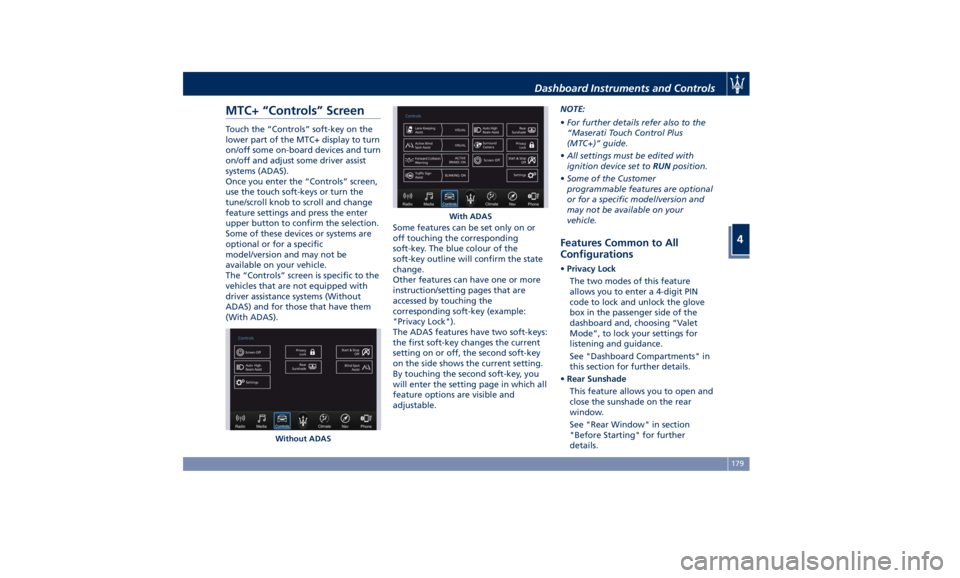
MTC+ “Controls” Screen Touch the “Controls” soft-key on the
lower part of the MTC+ display to turn
on/off some on-board devices and turn
on/off and adjust some driver assist
systems (ADAS).
Once you enter the “Controls” screen,
use the touch soft-keys or turn the
tune/scroll knob to scroll and change
feature settings and press the enter
upper button to confirm the selection.
Some of these devices or systems are
optional or for a specific
model/version and may not be
available on your vehicle.
The “Controls” screen is specific to the
vehicles that are not equipped with
driver assistance systems (Without
ADAS) and for those that have them
(With ADAS). Some features can be set only on or
off touching the corresponding
soft-key. The blue colour of the
soft-key outline will confirm the state
change.
Other features can have one or more
instruction/setting pages that are
accessed by touching the
corresponding soft-key (example:
"Privacy Lock").
The ADAS features have two soft-keys:
the first soft-key changes the current
setting on or off, the second soft-key
on the side shows the current setting.
By touching the second soft-key, you
will enter the setting page in which all
feature options are visible and
adjustable. NOTE:
• For further details refer also to the
“Maserati Touch Control Plus
(MTC+)” guide.
• All settings must be edited with
ignition device set to RUN position.
• Some of the Customer
programmable features are optional
or for a specific model/version and
may not be available on your
vehicle.
Features Common to All
Configurations • Privacy Lock
The two modes of this feature
allows you to enter a 4-digit PIN
code to lock and unlock the glove
box in the passenger side of the
dashboard and, choosing “Valet
Mode”, to lock your settings for
listening and guidance.
See "Dashboard Compartments" in
this section for further details.
• Rear Sunshade
This feature allows you to open and
close the sunshade on the rear
window.
See "Rear Window" in section
"Before Starting" for further
details.Without ADAS With ADASDashboard Instruments and Controls
4
179
Page 185 of 384
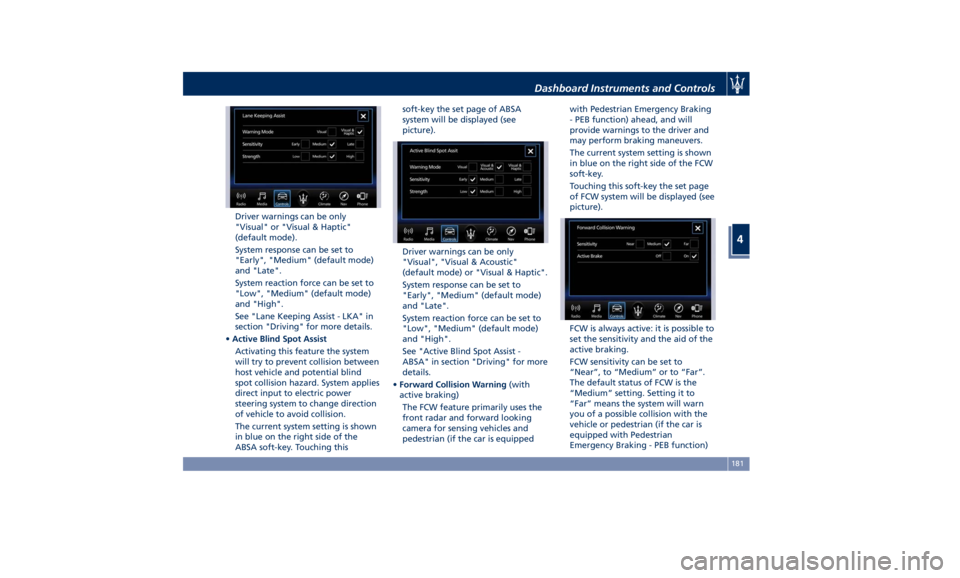
Driver warnings can be only
"Visual" or "Visual & Haptic"
(default mode).
System response can be set to
"Early", "Medium" (default mode)
and "Late".
System reaction force can be set to
"Low", "Medium" (default mode)
and "High".
See "Lane Keeping Assist - LKA" in
section "Driving" for more details.
• Active Blind Spot Assist
Activating this feature the system
will try to prevent collision between
host vehicle and potential blind
spot collision hazard. System applies
direct input to electric power
steering system to change direction
of vehicle to avoid collision.
The current system setting is shown
in blue on the right side of the
ABSA soft-key. Touching this soft-key the set page of ABSA
system will be displayed (see
picture).
Driver warnings can be only
"Visual", "Visual & Acoustic"
(default mode) or "Visual & Haptic".
System response can be set to
"Early", "Medium" (default mode)
and "Late".
System reaction force can be set to
"Low", "Medium" (default mode)
and "High".
See "Active Blind Spot Assist -
ABSA" in section "Driving" for more
details.
• Forward Collision Warning (with
active braking)
The FCW feature primarily uses the
front radar and forward looking
camera for sensing vehicles and
pedestrian (if the car is equipped with Pedestrian Emergency Braking
- PEB function) ahead, and will
provide warnings to the driver and
may perform braking maneuvers.
The current system setting is shown
in blue on the right side of the FCW
soft-key.
Touching this soft-key the set page
of FCW system will be displayed (see
picture).
FCW is always active: it is possible to
set the sensitivity and the aid of the
active braking.
FCW sensitivity can be set to
“Near”, to “Medium” or to “Far”.
The default status of FCW is the
“Medium” setting. Setting it to
“Far” means the system will warn
you of a possible collision with the
vehicle or pedestrian (if the car is
equipped with Pedestrian
Emergency Braking - PEB function)Dashboard Instruments and Controls
4
181
Page 188 of 384
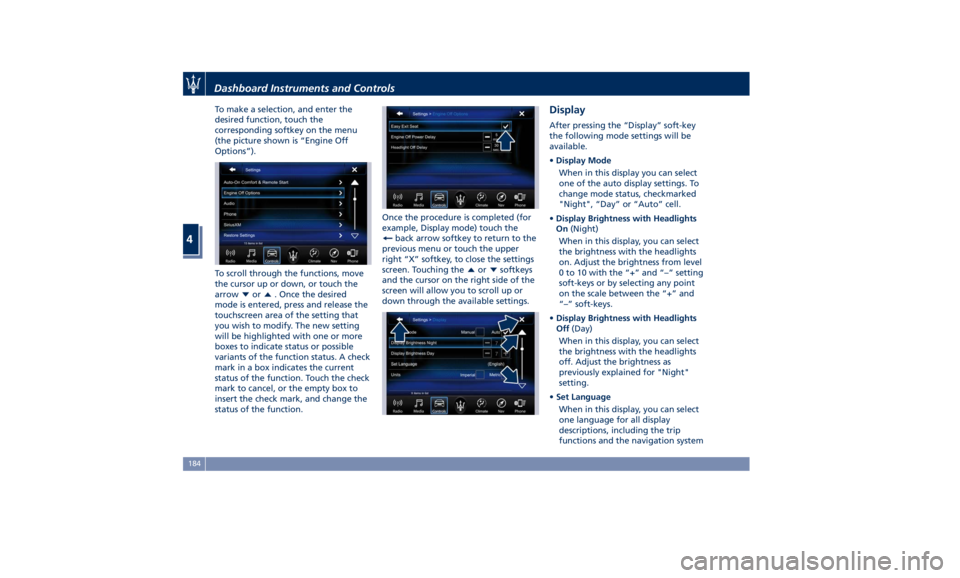
To make a selection, and enter the
desired function, touch the
corresponding softkey on the menu
(the picture shown is “Engine Off
Options”).
To scroll through the functions, move
the cursor up or down, or touch the
arrow
or . Once the desired
mode is entered, press and release the
touchscreen area of the setting that
you wish to modify. The new setting
will be highlighted with one or more
boxes to indicate status or possible
variants of the function status. A check
mark in a box indicates the current
status of the function. Touch the check
mark to cancel, or the empty box to
insert the check mark, and change the
status of the function. Once the procedure is completed (for
example, Display mode) touch the
back arrow softkey to return to the
previous menu or touch the upper
right “X” softkey, to close the settings
screen. Touching the
or softkeys
and the cursor on the right side of the
screen will allow you to scroll up or
down through the available settings. Display After pressing the “Display” soft-key
the following mode settings will be
available.
• Display Mode
When in this display you can select
one of the auto display settings. To
change mode status, checkmarked
"Night", “Day” or “Auto” cell.
• Display Brightness with Headlights
On (Night)
When in this display, you can select
the brightness with the headlights
on. Adjust the brightness from level
0 to 10 with the “+” and “–” setting
soft-keys or by selecting any point
on the scale between the “+” and
“–” soft-keys.
• Display Brightness with Headlights
Off (Day)
When in this display, you can select
the brightness with the headlights
off. Adjust the brightness as
previously explained for "Night"
setting.
• Set Language
When in this display, you can select
one language for all display
descriptions, including the trip
functions and the navigation systemDashboard Instruments and Controls
4
184
Page 189 of 384
(if equipped). The available
languages are specific to the target
markets.
• Touchscreen Beep
When in this display, you can turn
on or shut off the sound activated
by pressure of a touchscreen
soft-key.
• Controls Screen Time-Out
When this mode is selected, the
“Controls” screen will remain
displayed for 5 seconds. If this mode
is not selected, the screen will
remain displayed until closed
manually.
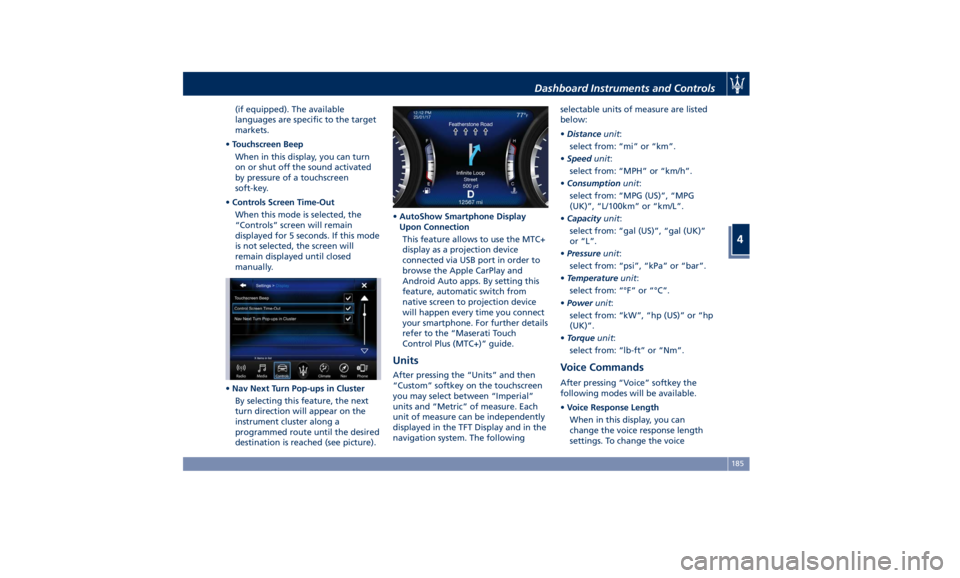
• Nav Next Turn Pop-ups in Cluster
By selecting this feature, the next
turn direction will appear on the
instrument cluster along a
programmed route until the desired
destination is reached (see picture). • AutoShow Smartphone Display
Upon Connection
This feature allows to use the MTC+
display as a projection device
connected via USB port in order to
browse the Apple CarPlay and
Android Auto apps. By setting this
feature, automatic switch from
native screen to projection device
will happen every time you connect
your smartphone. For further details
refer to the “Maserati Touch
Control Plus (MTC+)” guide.
Units After pressing the “Units” and then
“Custom” softkey on the touchscreen
you may select between “Imperial”
units and “Metric” of measure. Each
unit of measure can be independently
displayed in the TFT Display and in the
navigation system. The following selectable units of measure are listed
below:
• Distance unit :
select from: “mi” or “km”.
• Speed unit :
select from: “MPH” or “km/h”.
• Consumption unit :
select from: “MPG (US)”, “MPG
(UK)”, “L/100km” or “km/L”.
• Capacity unit :
select from: “gal (US)”, “gal (UK)”
or “L”.
• Pressure unit :
select from: “psi”, “kPa” or “bar”.
• Temperature unit :
select from: “°F” or “°C”.
• Power unit :
select from: “kW”, “hp (US)” or “hp
(UK)”.
• Torque unit :
select from: “lb-ft” or “Nm”.
Voice Commands After pressing “Voice” softkey the
following modes will be available.
• Voice Response Length
When in this display, you can
change the voice response length
settings. To change the voiceDashboard Instruments and Controls
4
185