lock MASERATI GRANTURISMO 2020 Owner's Guide
[x] Cancel search | Manufacturer: MASERATI, Model Year: 2020, Model line: GRANTURISMO, Model: MASERATI GRANTURISMO 2020Pages: 286, PDF Size: 6.7 MB
Page 115 of 286
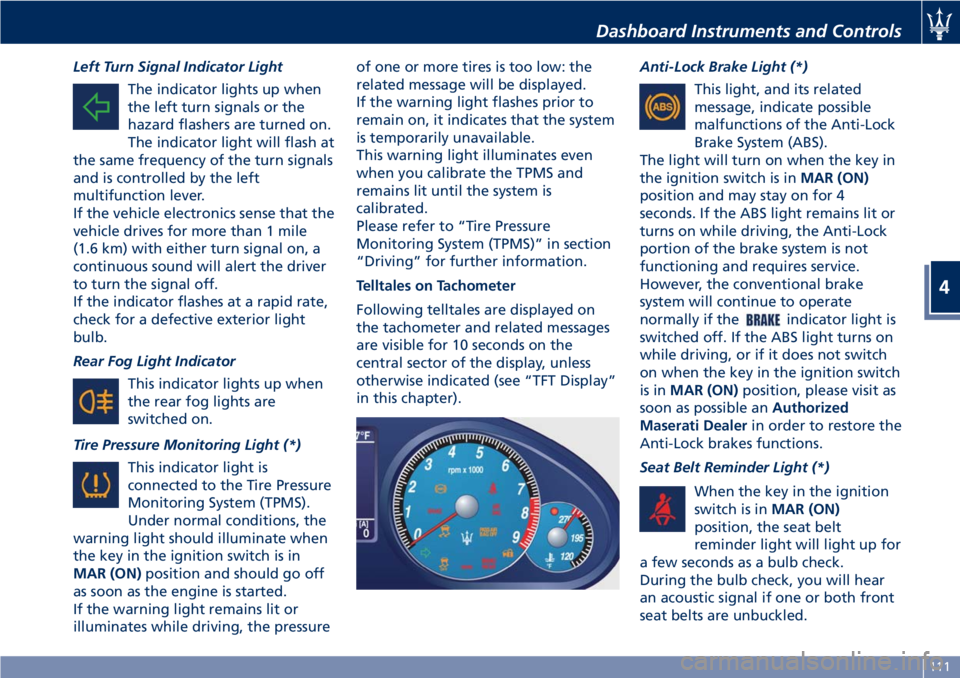
Left Turn Signal Indicator Light
The indicator lights up when
the left turn signals or the
hazard flashers are turned on.
The indicator light will flash at
the same frequency of the turn signals
and is controlled by the left
multifunction lever.
If the vehicle electronics sense that the
vehicle drives for more than 1 mile
(1.6 km) with either turn signal on, a
continuous sound will alert the driver
to turn the signal off.
If the indicator flashes at a rapid rate,
check for a defective exterior light
bulb.
Rear Fog Light Indicator
This indicator lights up when
the rear fog lights are
switched on.
Tire Pressure Monitoring Light (*)
This indicator light is
connected to the Tire Pressure
Monitoring System (TPMS).
Under normal conditions, the
warning light should illuminate when
the key in the ignition switch is in
MAR (ON)position and should go off
as soon as the engine is started.
If the warning light remains lit or
illuminates while driving, the pressureof one or more tires is too low: the
related message will be displayed.
If the warning light flashes prior to
remain on, it indicates that the system
is temporarily unavailable.
This warning light illuminates even
when you calibrate the TPMS and
remains lit until the system is
calibrated.
Please refer to “Tire Pressure
Monitoring System (TPMS)” in section
“Driving” for further information.
Telltales on Tachometer
Following telltales are displayed on
the tachometer and related messages
are visible for 10 seconds on the
central sector of the display, unless
otherwise indicated (see “TFT Display”
in this chapter).Anti-Lock Brake Light (*)
This light, and its related
message, indicate possible
malfunctions of the Anti-Lock
Brake System (ABS).
The light will turn on when the key in
the ignition switch is inMAR (ON)
position and may stay on for 4
seconds. If the ABS light remains lit or
turns on while driving, the Anti-Lock
portion of the brake system is not
functioning and requires service.
However, the conventional brake
system will continue to operate
normally if the
indicator light is
switched off. If the ABS light turns on
while driving, or if it does not switch
on when the key in the ignition switch
is inMAR (ON)position, please visit as
soon as possible anAuthorized
Maserati Dealerin order to restore the
Anti-Lock brakes functions.
Seat Belt Reminder Light (*)
When the key in the ignition
switch is inMAR (ON)
position, the seat belt
reminder light will light up for
a few seconds as a bulb check.
During the bulb check, you will hear
an acoustic signal if one or both front
seat belts are unbuckled.
Dashboard Instruments and Controls
4
111
Page 116 of 286
After the bulb check or while driving,
if driver or front passenger seat belt is
unbuckled, together with the acoustic
signal the seat belt reminder light will
light up.
WARNING!
Maserati urges you to use the seat
belts correctly fastened and adjusted
at all times. Correct use of the seat
belts can help reduce the risk of
serious injury in the event of an
accident. Do not pass seat belts over
sharp edges: they could tear. Do not
pin anything to the seat belts. This
could reduce their initial strength and
cause them to tear in the event of a
crash.
Refer to “Occupants Restraint
Systems” in section “Before Starting”
for further information.
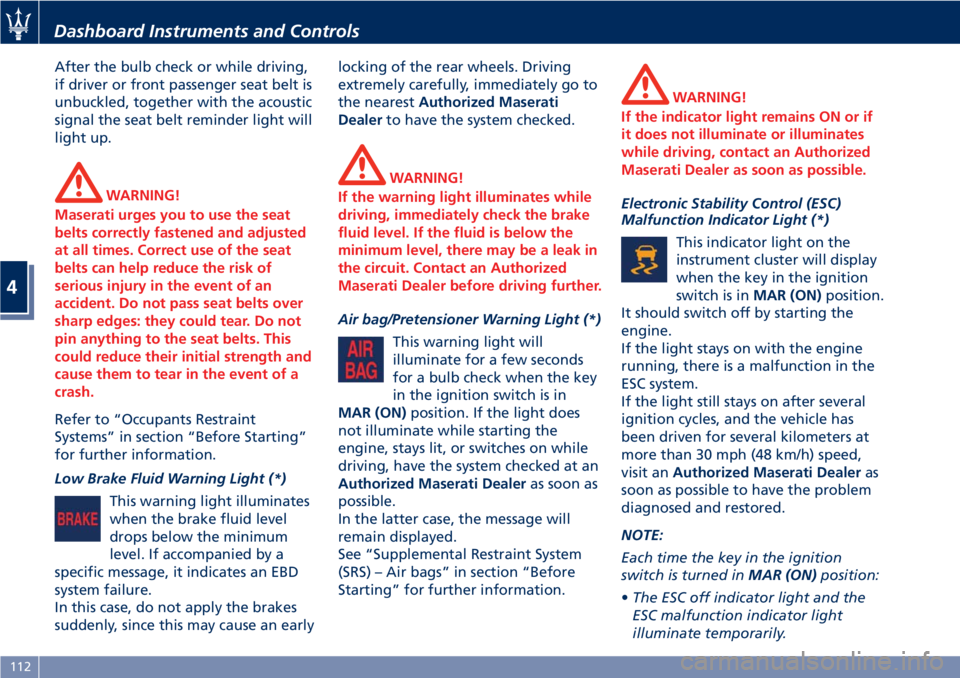
Low Brake Fluid Warning Light (*)
This warning light illuminates
when the brake fluid level
drops below the minimum
level. If accompanied by a
specific message, it indicates an EBD
system failure.
In this case, do not apply the brakes
suddenly, since this may cause an earlylocking of the rear wheels. Driving
extremely carefully, immediately go to
the nearestAuthorized Maserati
Dealerto have the system checked.
WARNING!
If the warning light illuminates while
driving, immediately check the brake
fluid level. If the fluid is below the
minimum level, there may be a leak in
the circuit. Contact an Authorized
Maserati Dealer before driving further.
Air bag/Pretensioner Warning Light (*)
This warning light will
illuminate for a few seconds
for a bulb check when the key
in the ignition switch is in
MAR (ON)position. If the light does
not illuminate while starting the
engine, stays lit, or switches on while
driving, have the system checked at an
Authorized Maserati Dealeras soon as
possible.
In the latter case, the message will
remain displayed.
See “Supplemental Restraint System
(SRS) – Air bags” in section “Before
Starting” for further information.
WARNING!
If the indicator light remains ON or if
it does not illuminate or illuminates
while driving, contact an Authorized
Maserati Dealer as soon as possible.
Electronic Stability Control (ESC)
Malfunction Indicator Light (*)
This indicator light on the
instrument cluster will display
when the key in the ignition
switch is inMAR (ON)position.
It should switch off by starting the
engine.
If the light stays on with the engine
running, there is a malfunction in the
ESC system.
If the light still stays on after several
ignition cycles, and the vehicle has
been driven for several kilometers at
more than 30 mph (48 km/h) speed,
visit anAuthorized Maserati Dealeras
soon as possible to have the problem
diagnosed and restored.
NOTE:
Each time the key in the ignition
switch is turned inMAR (ON)position:
•The ESC off indicator light and the
ESC malfunction indicator light
illuminate temporarily.
Dashboard Instruments and Controls
4
112
Page 123 of 286
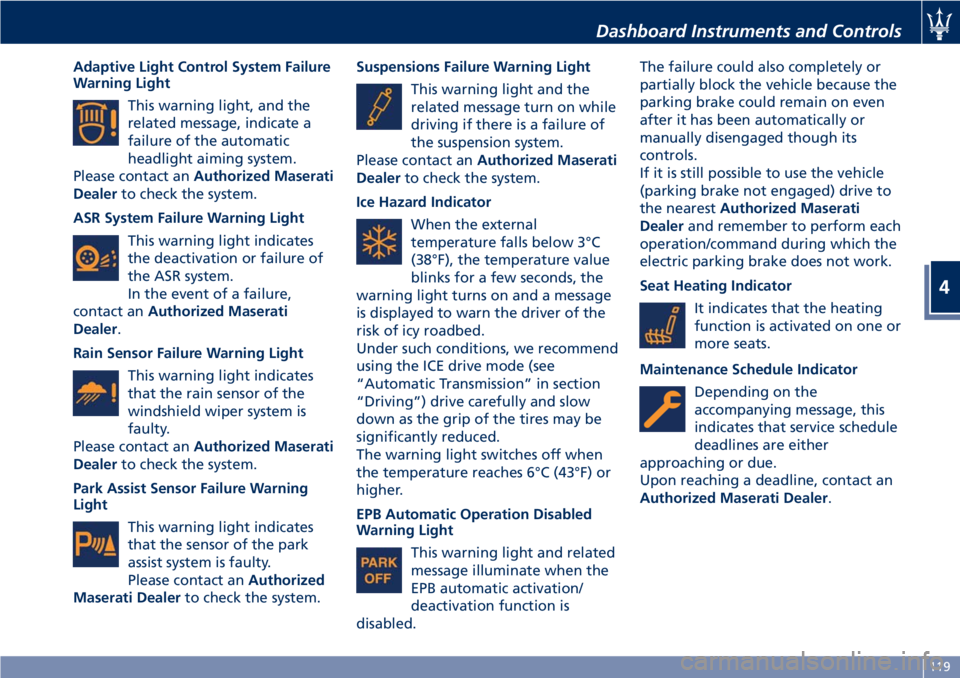
Adaptive Light Control System Failure
Warning Light
This warning light, and the
related message, indicate a
failure of the automatic
headlight aiming system.
Please contact anAuthorized Maserati
Dealerto check the system.
ASR System Failure Warning Light
This warning light indicates
the deactivation or failure of
the ASR system.
In the event of a failure,
contact anAuthorized Maserati
Dealer.
Rain Sensor Failure Warning Light
This warning light indicates
that the rain sensor of the
windshield wiper system is
faulty.
Please contact anAuthorized Maserati
Dealerto check the system.
Park Assist Sensor Failure Warning
Light
This warning light indicates
that the sensor of the park
assist system is faulty.
Please contact anAuthorized
Maserati Dealerto check the system.Suspensions Failure Warning Light
This warning light and the
related message turn on while
driving if there is a failure of
the suspension system.
Please contact anAuthorized Maserati
Dealerto check the system.
Ice Hazard Indicator
When the external
temperature falls below 3°C
(38°F), the temperature value
blinks for a few seconds, the
warning light turns on and a message
is displayed to warn the driver of the
risk of icy roadbed.
Under such conditions, we recommend
using the ICE drive mode (see
“Automatic Transmission” in section
“Driving”) drive carefully and slow
down as the grip of the tires may be
significantly reduced.
The warning light switches off when
the temperature reaches 6°C (43°F) or
higher.
EPB Automatic Operation Disabled
Warning Light
This warning light and related
message illuminate when the
EPB automatic activation/
deactivation function is
disabled.The failure could also completely or
partially block the vehicle because the
parking brake could remain on even
after it has been automatically or
manually disengaged though its
controls.
If it is still possible to use the vehicle
(parking brake not engaged) drive to
the nearestAuthorized Maserati
Dealerand remember to perform each
operation/command during which the
electric parking brake does not work.
Seat Heating Indicator
It indicates that the heating
function is activated on one or
more seats.
Maintenance Schedule Indicator
Depending on the
accompanying message, this
indicates that service schedule
deadlines are either
approaching or due.
Upon reaching a deadline, contact an
Authorized Maserati Dealer.
Dashboard Instruments and Controls
4
119
Page 126 of 286
Manual Controls and Devices
SD, AUX and USB Ports
When an SD card is inserted into its
housing, the MTC+ is able to read it
and select multimedia files (music and
images) from the device.
By using the AUX and USB (full) inputs
it is possible to connect external
devices to the MTC+ (see chapter
“Interior features” in section
“Understanding the Vehicle”).
After connecting the device, by using
the MTC+ display softkeys, knobs on
the central console and controls at the
steering wheel, user can navigate
through the content of the connected
device and set its playing mode.
Multimedia Navigation Controls on
Central Console
The manual controls located on the
central console are a further interface
for the driver and nearby passenger,
that adds to the MTC+ display
softkeys. Using the manual controls,
the MTC+ display will work as a
graphic display of the inputs from the
controls.
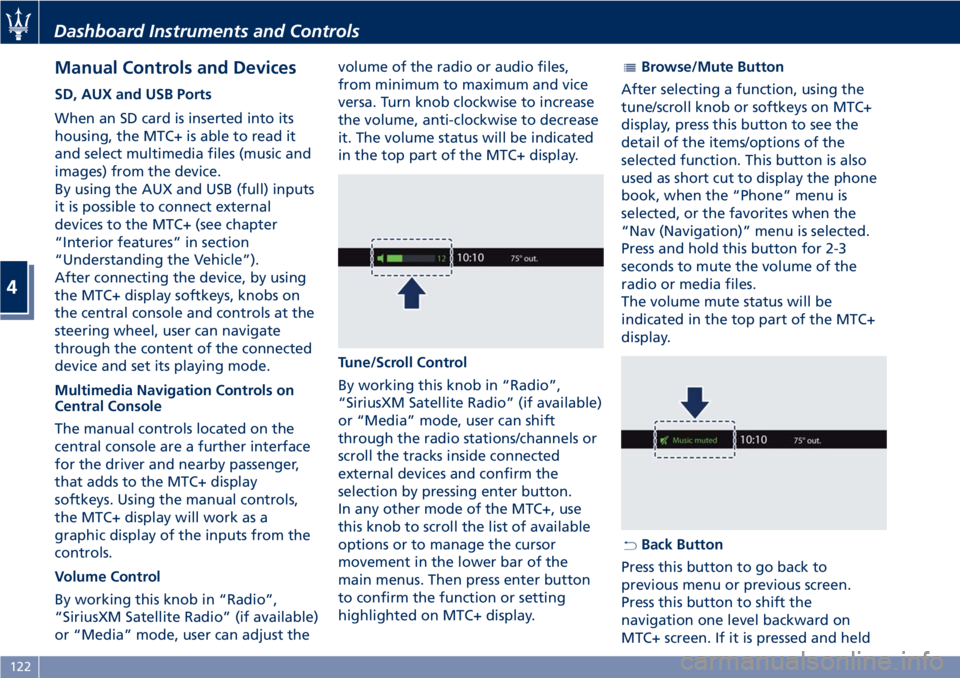
Volume Control
By working this knob in “Radio”,
“SiriusXM Satellite Radio” (if available)
or “Media” mode, user can adjust thevolume of the radio or audio files,
from minimum to maximum and vice
versa. Turn knob clockwise to increase
the volume, anti-clockwise to decrease
it. The volume status will be indicated
in the top part of the MTC+ display.
Tune/Scroll Control
By working this knob in “Radio”,
“SiriusXM Satellite Radio” (if available)
or “Media” mode, user can shift
through the radio stations/channels or
scroll the tracks inside connected
external devices and confirm the
selection by pressing enter button.
In any other mode of the MTC+, use
this knob to scroll the list of available
options or to manage the cursor
movement in the lower bar of the
main menus. Then press enter button
to confirm the function or setting
highlighted on MTC+ display.
Browse/Mute Button
After selecting a function, using the
tune/scroll knob or softkeys on MTC+
display, press this button to see the
detail of the items/options of the
selected function. This button is also
used as short cut to display the phone
book, when the “Phone” menu is
selected, or the favorites when the
“Nav (Navigation)” menu is selected.
Press and hold this button for 2-3
seconds to mute the volume of the
radio or media files.
The volume mute status will be
indicated in the top part of the MTC+
display.
Back Button
Press this button to go back to
previous menu or previous screen.
Press this button to shift the
navigation one level backward on
MTC+ screen. If it is pressed and held
Dashboard Instruments and Controls
4
122
Page 136 of 286
NOTE:
•For further details refer to the
“Maserati Touch Control Plus
(MTC+)” guide.
•All settings must be edited with key
in the ignition switch inMAR (ON)
position.
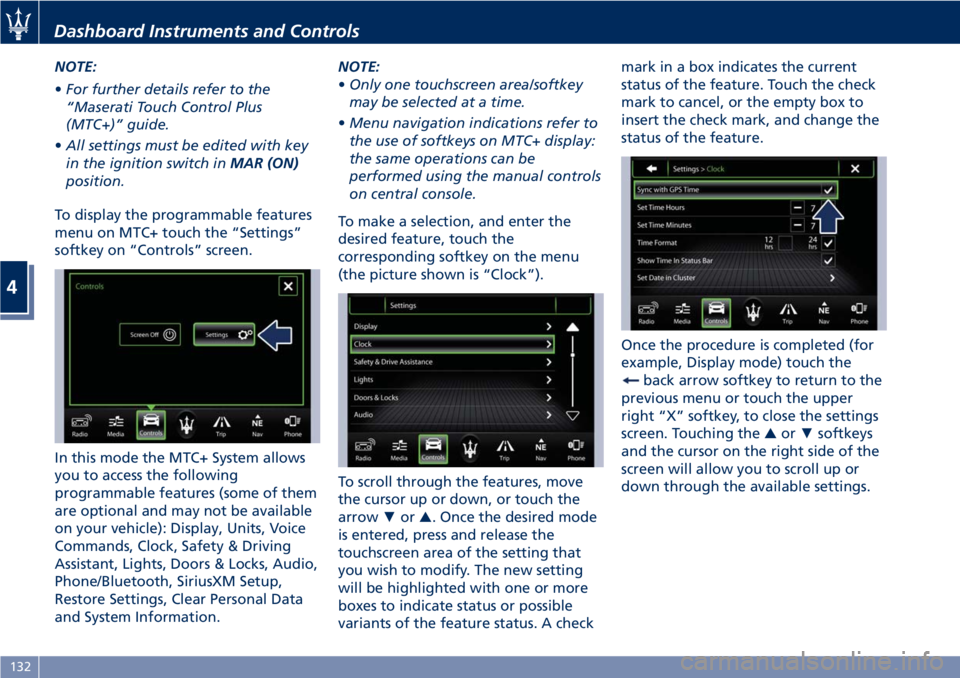
To display the programmable features
menu on MTC+ touch the “Settings”
softkey on “Controls” screen.
In this mode the MTC+ System allows
you to access the following
programmable features (some of them
are optional and may not be available
on your vehicle): Display, Units, Voice
Commands, Clock, Safety & Driving
Assistant, Lights, Doors & Locks, Audio,
Phone/Bluetooth, SiriusXM Setup,
Restore Settings, Clear Personal Data
and System Information.NOTE:
•Only one touchscreen area/softkey
may be selected at a time.
•Menu navigation indications refer to
the use of softkeys on MTC+ display:
the same operations can be
performed using the manual controls
on central console.
To make a selection, and enter the
desired feature, touch the
corresponding softkey on the menu
(the picture shown is “Clock”).
To scroll through the features, move
the cursor up or down, or touch the
arrow▼or▲. Once the desired mode
is entered, press and release the
touchscreen area of the setting that
you wish to modify. The new setting
will be highlighted with one or more
boxes to indicate status or possible
variants of the feature status. A checkmark in a box indicates the current
status of the feature. Touch the check
mark to cancel, or the empty box to
insert the check mark, and change the
status of the feature.
Once the procedure is completed (for
example, Display mode) touch the
back arrow softkey to return to the
previous menu or touch the upper
right “X” softkey, to close the settings
screen. Touching the▲or▼softkeys
and the cursor on the right side of the
screen will allow you to scroll up or
down through the available settings.
Dashboard Instruments and Controls
4
132
Page 138 of 286
•AutoShow Smartphone Display
Upon Connection
This feature allows to use the MTC+
display as a projection device
connected via USB port in order to
browse the Apple CarPlay and
Android Auto apps. By setting this
feature, automatic switch from
native screen to projection device
will happen every time you connect
your smartphone. For further details
refer to the “Maserati Touch Control
Plus (MTC+)” guide.
Units
After pressing the “Units” and then
“Custom” softkey on the touch screen
you may select between Metric and
Imperial units of measure. Each unit of
measure can be independently
displayed in the TFT Display and in the
navigation system. The following
selectable units of measure are listed
below:
•Speedunit:
select from: “mph” or “km/h”.
•Consumptionunit:
select from: “mpg US”, “mpg UK”,
“l/100km” and “km/l”.
•Distanceunit:
select from: “mi or km”.•Pressureunit:
select from: “PSI” or “BAR”.
•Temperatureunit:
select from: “°F” or “°C”.
Voice Commands
After pressing “Voice” softkey the
following modes will be available.
•Voice Response Length
When in this display, you can change
the voice response length settings.
To change the voice response
length, touch the “Brief” or
“Detailed” softkey.
•Show Command List
When this feature is selected, it is
possible to select options during a
voice control session. Options for
available controls are: “Always”,
“w/Help” or “Never”.
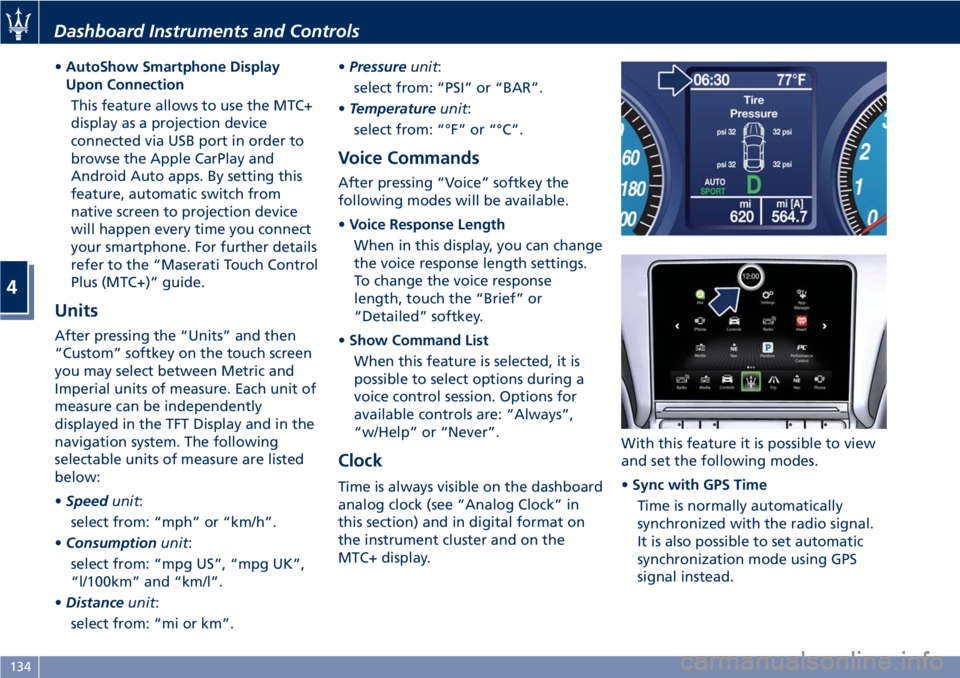
Clock
Time is always visible on the dashboard
analog clock (see “Analog Clock” in
this section) and in digital format on
the instrument cluster and on the
MTC+ display.With this feature it is possible to view
and set the following modes.
•Sync with GPS Time
Time is normally automatically
synchronized with the radio signal.
It is also possible to set automatic
synchronization mode using GPS
signal instead.
Dashboard Instruments and Controls
4
134
Page 139 of 286
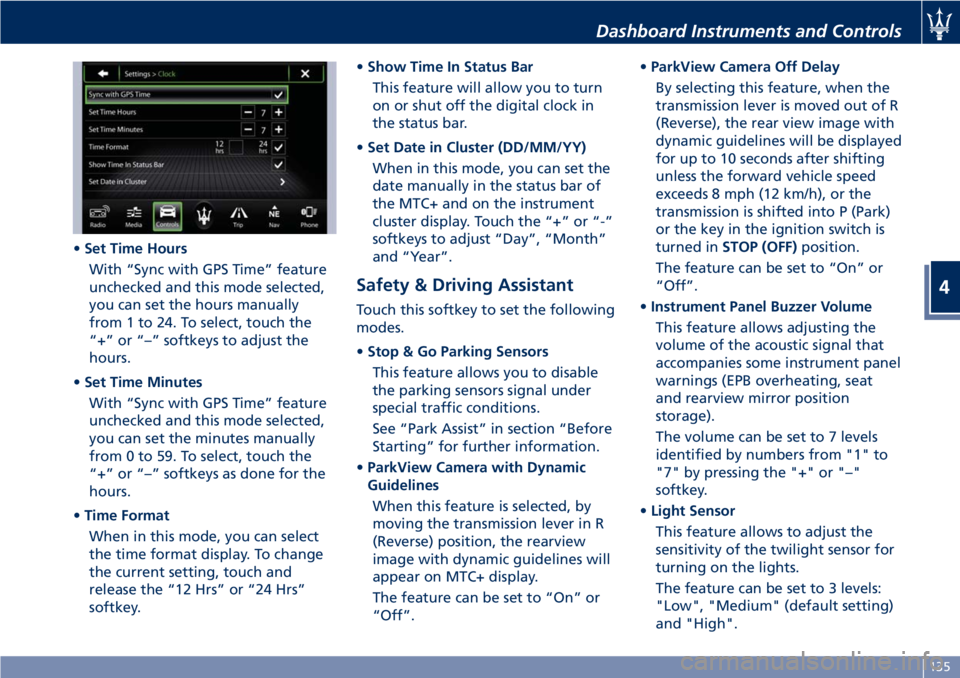
•Set Time Hours
With “Sync with GPS Time” feature
unchecked and this mode selected,
you can set the hours manually
from 1 to 24. To select, touch the
“+” or “–” softkeys to adjust the
hours.
•Set Time Minutes
With “Sync with GPS Time” feature
unchecked and this mode selected,
you can set the minutes manually
from 0 to 59. To select, touch the
“+” or “–” softkeys as done for the
hours.
•Time Format
When in this mode, you can select
the time format display. To change
the current setting, touch and
release the “12 Hrs” or “24 Hrs”
softkey.•Show Time In Status Bar
This feature will allow you to turn
on or shut off the digital clock in
the status bar.
•Set Date in Cluster (DD/MM/YY)
When in this mode, you can set the
date manually in the status bar of
the MTC+ and on the instrument
cluster display. Touch the “+” or “-”
softkeys to adjust “Day”, “Month”
and “Year”.
Safety & Driving Assistant
Touch this softkey to set the following
modes.
•Stop & Go Parking Sensors
This feature allows you to disable
the parking sensors signal under
special traffic conditions.
See “Park Assist” in section “Before
Starting” for further information.
•ParkView Camera with Dynamic
Guidelines
When this feature is selected, by
moving the transmission lever in R
(Reverse) position, the rearview
image with dynamic guidelines will
appear on MTC+ display.
The feature can be set to “On” or
“Off”.•ParkView Camera Off Delay
By selecting this feature, when the
transmission lever is moved out of R
(Reverse), the rear view image with
dynamic guidelines will be displayed
for up to 10 seconds after shifting
unless the forward vehicle speed
exceeds 8 mph (12 km/h), or the
transmission is shifted into P (Park)
or the key in the ignition switch is
turned inSTOP (OFF)position.
The feature can be set to “On” or
“Off”.
•Instrument Panel Buzzer Volume
This feature allows adjusting the
volume of the acoustic signal that
accompanies some instrument panel
warnings (EPB overheating, seat
and rearview mirror position
storage).
The volume can be set to 7 levels
identified by numbers from "1" to
"7" by pressing the "+" or "–"
softkey.
•Light Sensor
This feature allows to adjust the
sensitivity of the twilight sensor for
turning on the lights.
The feature can be set to 3 levels:
"Low", "Medium" (default setting)
and "High".
Dashboard Instruments and Controls
4
135
Page 140 of 286
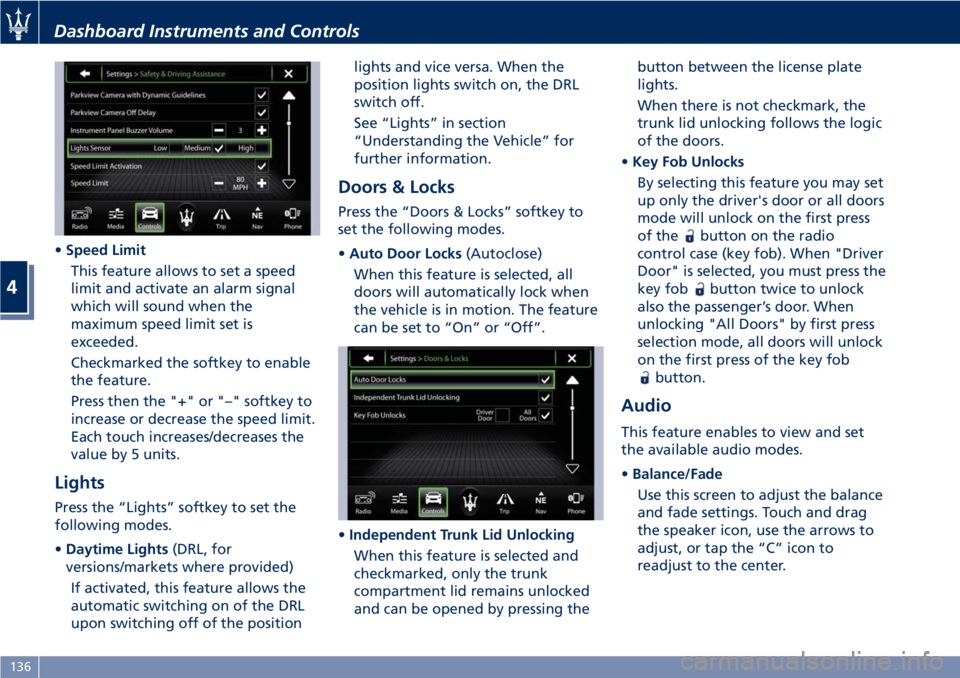
•Speed Limit
This feature allows to set a speed
limit and activate an alarm signal
which will sound when the
maximum speed limit set is
exceeded.
Checkmarked the softkey to enable
the feature.
Press then the "+" or "–" softkey to
increase or decrease the speed limit.
Each touch increases/decreases the
value by 5 units.
Lights
Press the “Lights” softkey to set the
following modes.
•Daytime Lights(DRL, for
versions/markets where provided)
If activated, this feature allows the
automatic switching on of the DRL
upon switching off of the positionlights and vice versa. When the
position lights switch on, the DRL
switch off.
See “Lights” in section
“Understanding the Vehicle” for
further information.
Doors & Locks
Press the “Doors & Locks” softkey to
set the following modes.
•Auto Door Locks(Autoclose)
When this feature is selected, all
doors will automatically lock when
the vehicle is in motion. The feature
can be set to “On” or “Off”.
•Independent Trunk Lid Unlocking
When this feature is selected and
checkmarked, only the trunk
compartment lid remains unlocked
and can be opened by pressing thebutton between the license plate
lights.
When there is not checkmark, the
trunk lid unlocking follows the logic
of the doors.
•Key Fob Unlocks
By selecting this feature you may set
up only the driver's door or all doors
mode will unlock on the first press
of the
button on the radio
control case (key fob). When "Driver
Door" is selected, you must press the
key fob
button twice to unlock
also the passenger’s door. When
unlocking "All Doors" by first press
selection mode, all doors will unlock
on the first press of the key fob
button.
Audio
This feature enables to view and set
the available audio modes.
•Balance/Fade
Use this screen to adjust the balance
and fade settings. Touch and drag
the speaker icon, use the arrows to
adjust, or tap the “C” icon to
readjust to the center.
Dashboard Instruments and Controls
4
136
Page 142 of 286
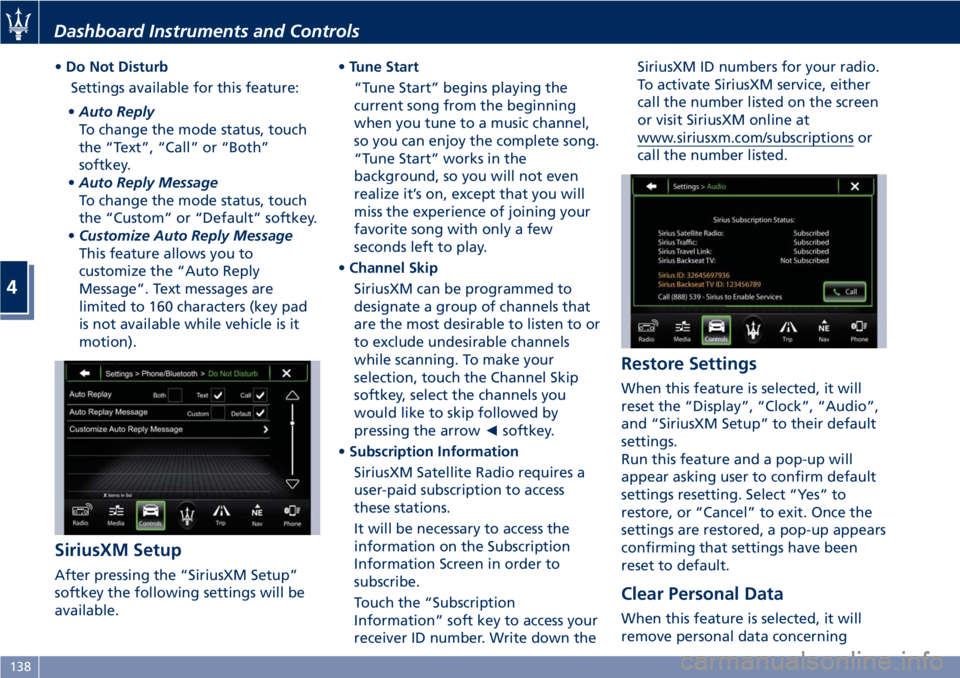
•Do Not Disturb
Settings available for this feature:
•Auto Reply
To change the mode status, touch
the “Text”, “Call” or “Both”
softkey.
•Auto Reply Message
To change the mode status, touch
the “Custom” or “Default” softkey.
•Customize Auto Reply Message
This feature allows you to
customize the “Auto Reply
Message”. Text messages are
limited to 160 characters (key pad
is not available while vehicle is it
motion).
SiriusXM Setup
After pressing the “SiriusXM Setup”
softkey the following settings will be
available.•Tune Start
“Tune Start” begins playing the
current song from the beginning
when you tune to a music channel,
so you can enjoy the complete song.
“Tune Start” works in the
background, so you will not even
realize it’s on, except that you will
miss the experience of joining your
favorite song with only a few
seconds left to play.
•Channel Skip
SiriusXM can be programmed to
designate a group of channels that
are the most desirable to listen to or
to exclude undesirable channels
while scanning. To make your
selection, touch the Channel Skip
softkey, select the channels you
would like to skip followed by
pressing the arrow◄softkey.
•Subscription Information
SiriusXM Satellite Radio requires a
user-paid subscription to access
these stations.
It will be necessary to access the
information on the Subscription
Information Screen in order to
subscribe.
Touch the “Subscription
Information” soft key to access your
receiver ID number. Write down theSiriusXM ID numbers for your radio.
To activate SiriusXM service, either
call the number listed on the screen
or visit SiriusXM online at
www.siriusxm.com/subscriptions or
call the number listed.
Restore Settings
When this feature is selected, it will
reset the “Display”, “Clock”, “Audio”,
and “SiriusXM Setup” to their default
settings.
Run this feature and a pop-up will
appear asking user to confirm default
settings resetting. Select “Yes” to
restore, or “Cancel” to exit. Once the
settings are restored, a pop-up appears
confirming that settings have been
reset to default.
Clear Personal Data
When this feature is selected, it will
remove personal data concerning
Dashboard Instruments and Controls
4
138
Page 144 of 286
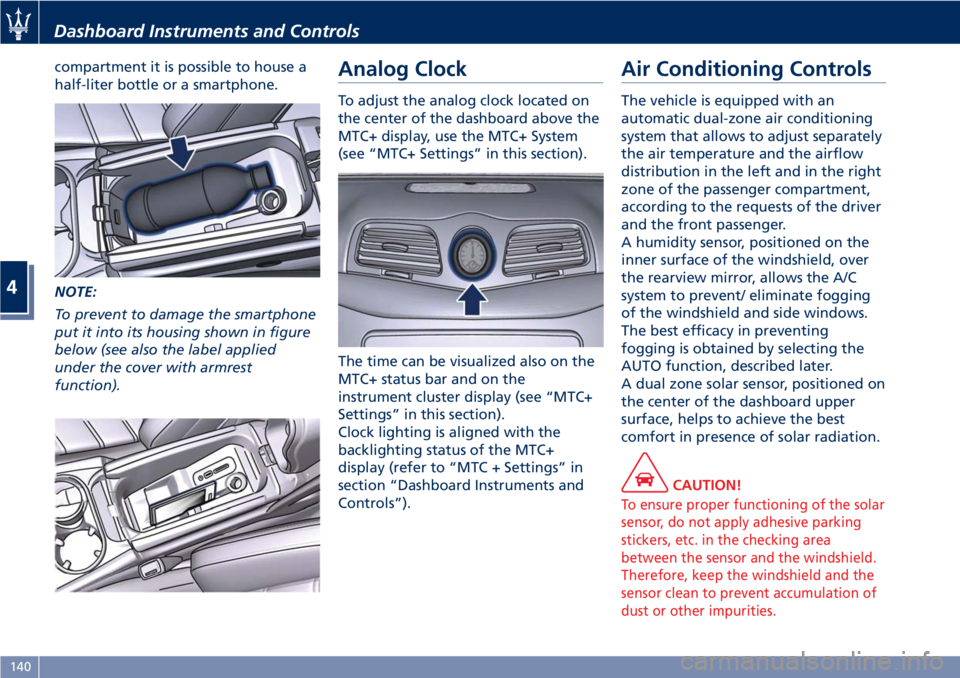
compartment it is possible to house a
half-liter bottle or a smartphone.
NOTE:
To prevent to damage the smartphone
put it into its housing shown in figure
below (see also the label applied
under the cover with armrest
function).Analog Clock
To adjust the analog clock located on
the center of the dashboard above the
MTC+ display, use the MTC+ System
(see “MTC+ Settings” in this section).
The time can be visualized also on the
MTC+ status bar and on the
instrument cluster display (see “MTC+
Settings” in this section).
Clock lighting is aligned with the
backlighting status of the MTC+
display (refer to “MTC + Settings” in
section “Dashboard Instruments and
Controls”).
Air Conditioning Controls
The vehicle is equipped with an
automatic dual-zone air conditioning
system that allows to adjust separately
the air temperature and the airflow
distribution in the left and in the right
zone of the passenger compartment,
according to the requests of the driver
and the front passenger.
A humidity sensor, positioned on the
inner surface of the windshield, over
the rearview mirror, allows the A/C
system to prevent/ eliminate fogging
of the windshield and side windows.
The best efficacy in preventing
fogging is obtained by selecting the
AUTO function, described later.
A dual zone solar sensor, positioned on
the center of the dashboard upper
surface, helps to achieve the best
comfort in presence of solar radiation.
CAUTION!
To ensure proper functioning of the solar
sensor, do not apply adhesive parking
stickers, etc. in the checking area
between the sensor and the windshield.
Therefore, keep the windshield and the
sensor clean to prevent accumulation of
dust or other impurities.
Dashboard Instruments and Controls
4
140