steering wheel MASERATI QUATTROPORTE 2019 Owner's Manual
[x] Cancel search | Manufacturer: MASERATI, Model Year: 2019, Model line: QUATTROPORTE, Model: MASERATI QUATTROPORTE 2019Pages: 396, PDF Size: 13.9 MB
Page 178 of 396
steering wheel, or through the button
on the central console or through the
relevant soft-key of the MTC+. See
chapter “Automatic Start&Stop
System” of section “Driving” for
further information.
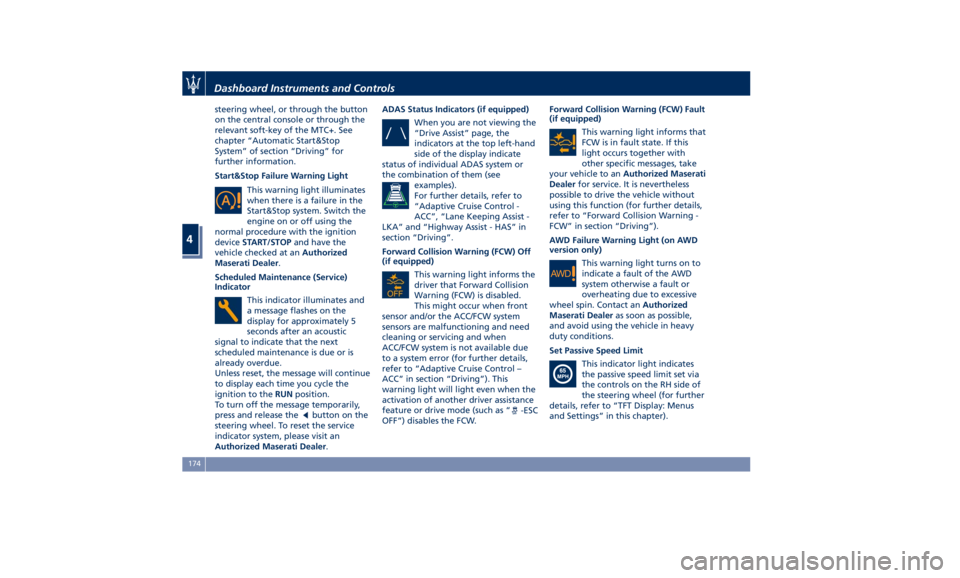
Start&Stop Failure Warning Light
This warning light illuminates
when there is a failure in the
Start&Stop system. Switch the
engine on or off using the
normal procedure with the ignition
device START/STOP and have the
vehicle checked at an Authorized
Maserati Dealer .
Scheduled Maintenance (Service)
Indicator
This indicator illuminates and
a message flashes on the
display for approximately 5
seconds after an acoustic
signal to indicate that the next
scheduled maintenance is due or is
already overdue.
Unless reset, the message will continue
to display each time you cycle the
ignition to the RUN position.
To turn off the message temporarily,
press and release the
button on the
steering wheel. To reset the service
indicator system, please visit an
Authorized Maserati Dealer . ADAS Status Indicators (if equipped)
When you are not viewing the
“Drive Assist” page, the
indicators at the top left-hand
side of the display indicate
status of individual ADAS system or
the combination of them (see
examples).
For further details, refer to
“Adaptive Cruise Control -
ACC”, “Lane Keeping Assist -
LKA” and “Highway Assist - HAS” in
section “Driving”.
Forward Collision Warning (FCW) Off
(if equipped)
This warning light informs the
driver that Forward Collision
Warning (FCW) is disabled.
This might occur when front
sensor and/or the ACC/FCW system
sensors are malfunctioning and need
cleaning or servicing and when
ACC/FCW system is not available due
to a system error (for further details,
refer to “Adaptive Cruise Control –
ACC” in section “Driving”). This
warning light will light even when the
activation of another driver assistance
feature or drive mode (such as “
-ESC
OFF”) disables the FCW. Forward Collision Warning (FCW) Fault
(if equipped)
This warning light informs that
FCW is in fault state. If this
light occurs together with
other specific messages, take
your vehicle to an Authorized Maserati
Dealer for service. It is nevertheless
possible to drive the vehicle without
using this function (for further details,
refer to “Forward Collision Warning -
FCW” in section “Driving”).
AWD Failure Warning Light (on AWD
version only)
This warning light turns on to
indicate a fault of the AWD
system otherwise a fault or
overheating due to excessive
wheel spin. Contact an Authorized
Maserati Dealer as soon as possible,
and avoid using the vehicle in heavy
duty conditions.
Set Passive Speed Limit
This indicator light indicates
the passive speed limit set via
the controls on the RH side of
the steering wheel (for further
details, refer to “TFT Display: Menus
and Settings” in this chapter).Dashboard Instruments and Controls
4
174
Page 181 of 396
The vehicle is provided with a specific
add to the owner’s manual, describing
the MTC+ System features and listing
all warnings and precautions, which
are essential for a safe use of the
system. Maserati advises you to read
this add carefully and thoroughly.
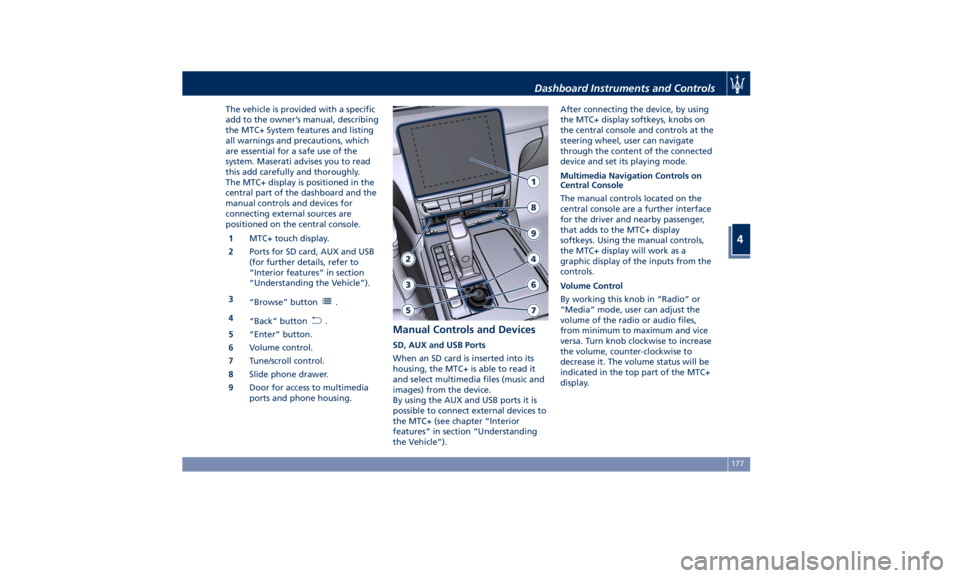
The MTC+ display is positioned in the
central part of the dashboard and the
manual controls and devices for
connecting external sources are
positioned on the central console.
1 MTC+ touch display.
2 Ports for SD card, AUX and USB
(for further details, refer to
“Interior features” in section
“Understanding the Vehicle”).
3
“Browse” button
.
4
“Back” button
.
5 “Enter” button.
6 Volume control.
7 Tune/scroll control.
8 Slide phone drawer.
9 Door for access to multimedia
ports and phone housing. Manual Controls and Devices SD, AUX and USB Ports
When an SD card is inserted into its
housing, the MTC+ is able to read it
and select multimedia files (music and
images) from the device.
By using the AUX and USB ports it is
possible to connect external devices to
the MTC+ (see chapter “Interior
features” in section “Understanding
the Vehicle”). After connecting the device, by using
the MTC+ display softkeys, knobs on
the central console and controls at the
steering wheel, user can navigate
through the content of the connected
device and set its playing mode.
Multimedia Navigation Controls on
Central Console
The manual controls located on the
central console are a further interface
for the driver and nearby passenger,
that adds to the MTC+ display
softkeys. Using the manual controls,
the MTC+ display will work as a
graphic display of the inputs from the
controls.
Volume Control
By working this knob in “Radio” or
“Media” mode, user can adjust the
volume of the radio or audio files,
from minimum to maximum and vice
versa. Turn knob clockwise to increase
the volume, counter-clockwise to
decrease it. The volume status will be
indicated in the top part of the MTC+
display.Dashboard Instruments and Controls
4
177
Page 183 of 396
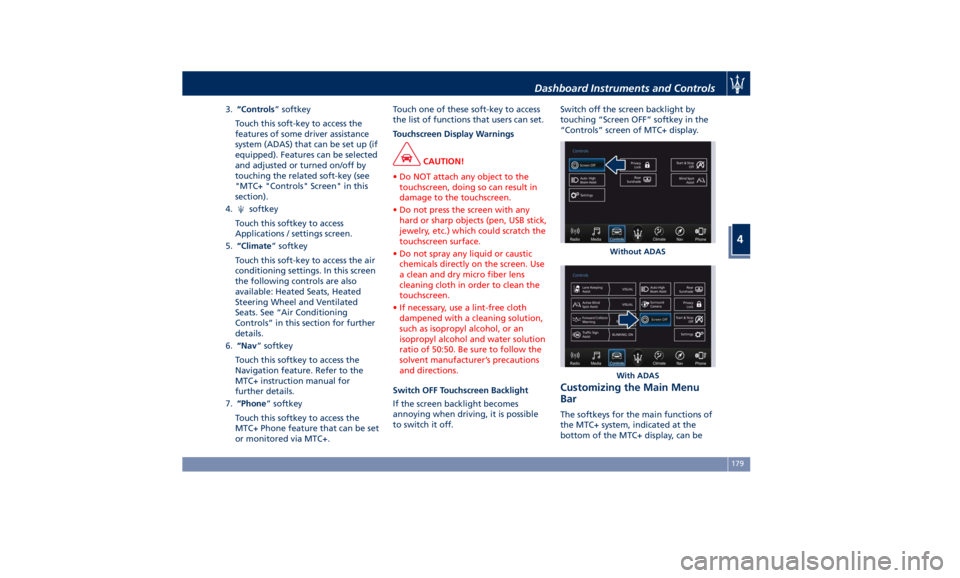
3. “Controls ” softkey
Touch this soft-key to access the
features of some driver assistance
system (ADAS) that can be set up (if
equipped). Features can be selected
and adjusted or turned on/off by
touching the related soft-key (see
"MTC+ "Controls" Screen" in this
section).
4.
softkey
Touch this softkey to access
Applications / settings screen.
5. “Climate ” softkey
Touch this soft-key to access the air
conditioning settings. In this screen
the following controls are also
available: Heated Seats, Heated
Steering Wheel and Ventilated
Seats. See “Air Conditioning
Controls” in this section for further
details.
6. “Nav ” softkey
Touch this softkey to access the
Navigation feature. Refer to the
MTC+ instruction manual for
further details.
7. “Phone ” softkey
Touch this softkey to access the
MTC+ Phone feature that can be set
or monitored via MTC+. Touch one of these soft-key to access
the list of functions that users can set.
Touchscreen Display Warnings
CAUTION!
• Do NOT attach any object to the
touchscreen, doing so can result in
damage to the touchscreen.
• Do not press the screen with any
hard or sharp objects (pen, USB stick,
jewelry, etc.) which could scratch the
touchscreen surface.
• Do not spray any liquid or caustic
chemicals directly on the screen. Use
a clean and dry micro fiber lens
cleaning cloth in order to clean the
touchscreen.
• If necessary, use a lint-free cloth
dampened with a cleaning solution,
such as isopropyl alcohol, or an
isopropyl alcohol and water solution
ratio of 50:50. Be sure to follow the
solvent manufacturer’s precautions
and directions.
Switch OFF Touchscreen Backlight
If
the screen backlight becomes
annoying when driving, it is possible
to switch it off. Switch off the screen backlight by
touching “Screen OFF” softkey in the
“Controls” screen of MTC+ display.
Customizing the Main Menu
Bar The softkeys for the main functions of
the MTC+ system, indicated at the
bottom of the MTC+ display, can be Without ADAS
With ADASDashboard Instruments and Controls
4
179
Page 184 of 396
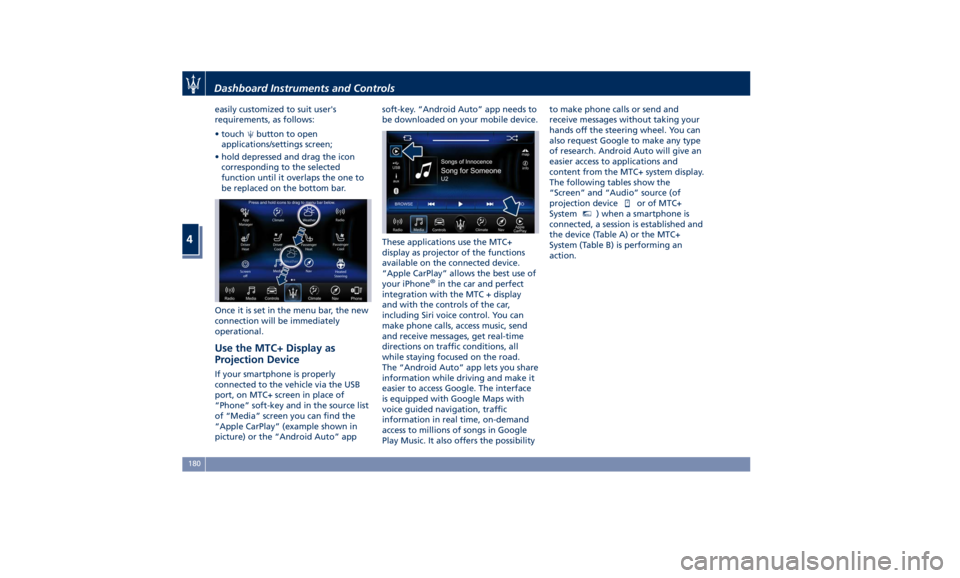
easily customized to suit user's
requirements, as follows:
• touch button to open
applications/settings screen;
• hold depressed and drag the icon
corresponding to the selected
function until it overlaps the one to
be replaced on the bottom bar.
Once it is set in the menu bar, the new
connection will be immediately
operational.
Use the MTC+ Display as
Projection Device If your smartphone is properly
connected to the vehicle via the USB
port, on MTC+ screen in place of
“Phone” soft-key and in the source list
of “Media” screen you can find the
“Apple CarPlay” (example shown in
picture) or the “Android Auto” app soft-key. “Android Auto” app needs to
be downloaded on your mobile device.
These applications use the MTC+
display as projector of the functions
available on the connected device.
“Apple CarPlay” allows the best use of
your iPhone ®
in the car and perfect
integration with the MTC + display
and with the controls of the car,
including Siri voice control. You can
make phone calls, access music, send
and receive messages, get real-time
directions on traffic conditions, all
while staying focused on the road.
The “Android Auto” app lets you share
information while driving and make it
easier to access Google. The interface
is equipped with Google Maps with
voice guided navigation, traffic
information in real time, on-demand
access to millions of songs in Google
Play Music. It also offers the possibility to make phone calls or send and
receive messages without taking your
hands off the steering wheel. You can
also request Google to make any type
of research. Android Auto will give an
easier access to applications and
content from the MTC+ system display.
The following tables show the
“Screen” and “Audio” source (of
projection device
or of MTC+
System MTC+
) when a smartphone is
connected, a session is established and
the device (Table A) or the MTC+
System (Table B) is performing an
action.Dashboard Instruments and Controls
4
180
Page 187 of 396
Audio Controls The vehicle is equipped with audio
controls that allow both driver and
front passenger to operate the audio
system. These controls can be used to
adjust audio volume, change radio
station or mode (FM, AM, USB, etc).
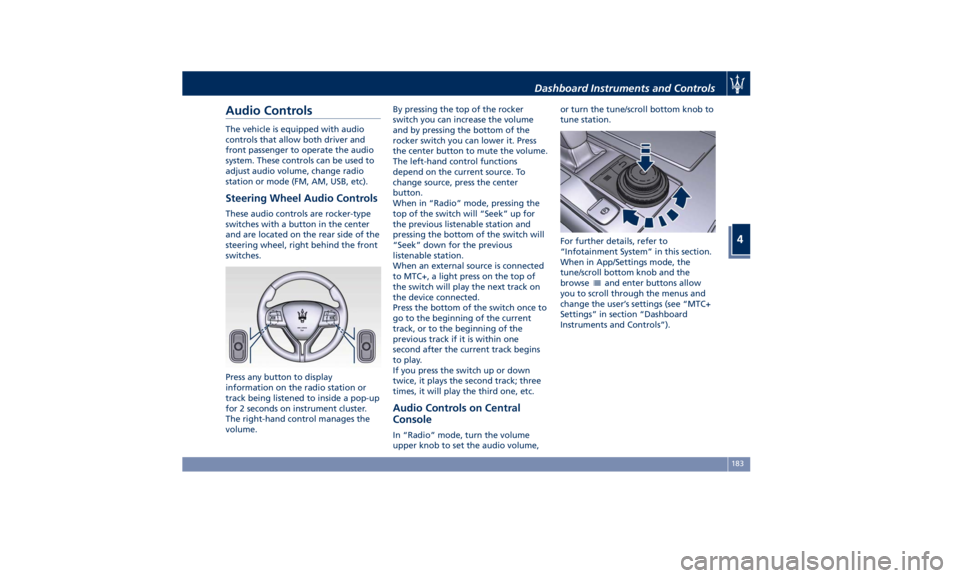
Steering Wheel Audio Controls These audio controls are rocker-type
switches with a button in the center
and are located on the rear side of the
steering wheel, right behind the front
switches.
Press any button to display
information on the radio station or
track being listened to inside a pop-up
for 2 seconds on instrument cluster.
The right-hand control manages the
volume. By pressing the top of the rocker
switch you can increase the volume
and by pressing the bottom of the
rocker switch you can lower it. Press
the center button to mute the volume.
The left-hand control functions
depend on the current source. To
change source, press the center
button.
When in “Radio” mode, pressing the
top of the switch will “Seek” up for
the previous listenable station and
pressing the bottom of the switch will
“Seek” down for the previous
listenable station.
When an external source is connected
to MTC+, a light press on the top of
the switch will play the next track on
the device connected.
Press the bottom of the switch once to
go to the beginning of the current
track, or to the beginning of the
previous track if it is within one
second after the current track begins
to play.
If you press the switch up or down
twice, it plays the second track; three
times, it will play the third one, etc.
Audio Controls on Central
Console In “Radio” mode, turn the volume
upper knob to set the audio volume, or turn the tune/scroll bottom knob to
tune station.
For further details, refer to
“Infotainment System” in this section.
When in App/Settings mode, the
tune/scroll bottom knob and the
browse
and enter buttons allow
you to scroll through the menus and
change the user’s settings (see “MTC+
Settings” in section “Dashboard
Instruments and Controls”).Dashboard Instruments and Controls
4
183
Page 200 of 396
• Power Liftgate Alert
When this feature is selected,
further to turn indicators flashing,
an acoustic warning will also be
triggered when opening and closing
the liftgate/trunk lid. The feature
can be set to “On” or “Off”.
• Hands Free Power Liftgate
To prevent the accidental opening
of the Power Trunk Lid/Hands Free
(optional) with the movement of
the foot, it is possible to disable the
“Hands Free” function. The feature
can be set to “On” or “Off”. This
operation is recommended when
you have to wash the car (for
further information, refer to “Power
Trunk Lid Operation” in section
“Before Starting”).
Auto-On Comfort & Remote
Start • Auto-on Driver Heated/Vented Seat
& Steering
This feature allows to activate the
comfort of the driving seat when
starting the engine.
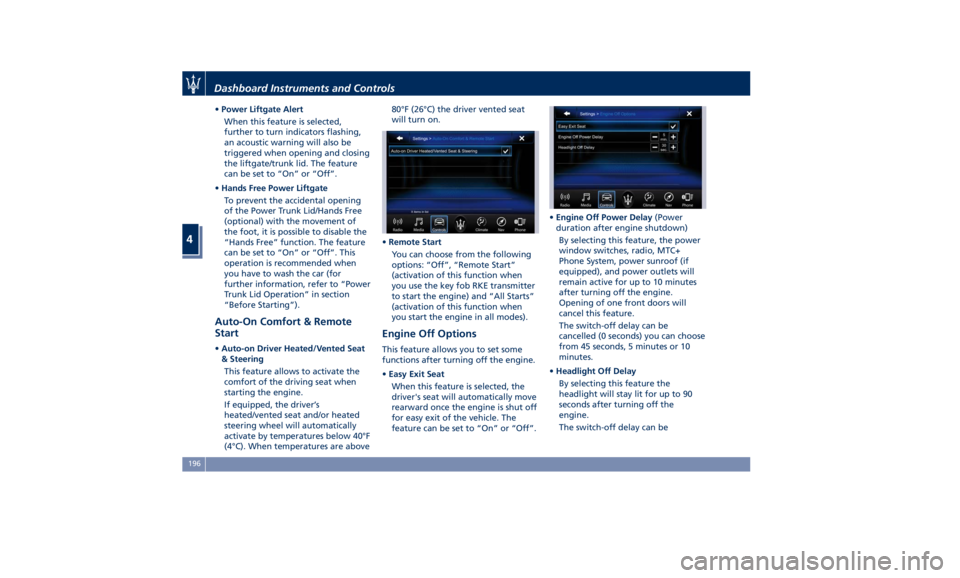
If equipped, the driver’s
heated/vented seat and/or heated
steering wheel will automatically
activate by temperatures below 40°F
(4°C). When temperatures are above 80°F (26°C) the driver vented seat
will turn on.
• Remote Start
You can choose from the following
options: “Off”, “Remote Start”
(activation of this function when
you use the key fob RKE transmitter
to start the engine) and “All Starts”
(activation of this function when
you start the engine in all modes).
Engine Off Options This feature allows you to set some
functions after turning off the engine.
• Easy Exit Seat
When this feature is selected, the
driver's seat will automatically move
rearward once the engine is shut off
for easy exit of the vehicle. The
feature can be set to “On” or “Off”. • Engine Off Power Delay (Power
duration after engine shutdown)
By selecting this feature, the power
window switches, radio, MTC+
Phone System, power sunroof (if
equipped), and power outlets will
remain active for up to 10 minutes
after turning off the engine.
Opening of one front doors will
cancel this feature.
The switch-off delay can be
cancelled (0 seconds) you can choose
from 45 seconds, 5 minutes or 10
minutes.
• Headlight Off Delay
By selecting this feature the
headlight will stay lit for up to 90
seconds after turning off the
engine.
The switch-off delay can beDashboard Instruments and Controls
4
196
Page 202 of 396
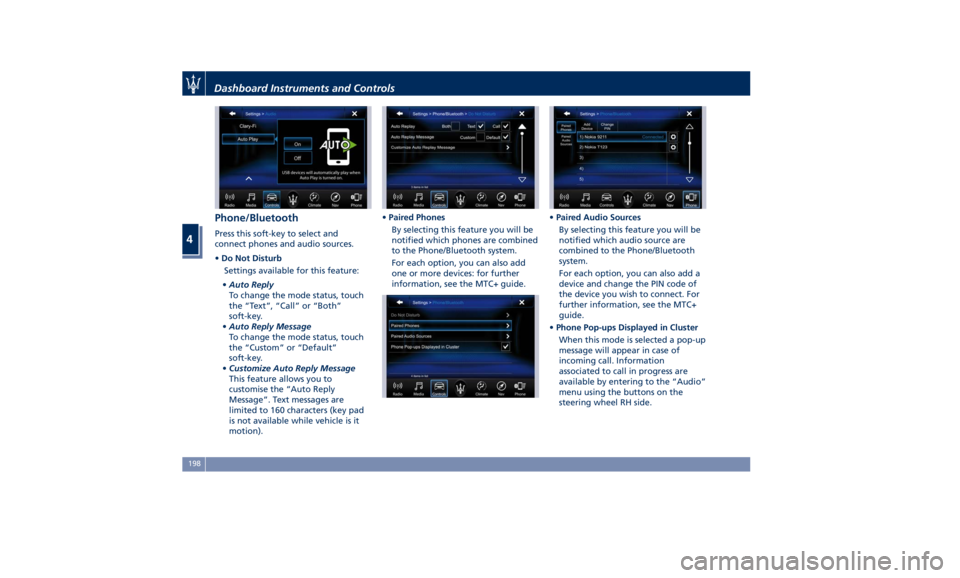
Phone/Bluetooth Press this soft-key to select and
connect phones and audio sources.
• Do Not Disturb
Settings available for this feature:
• Auto Reply
To change the mode status, touch
the “Text”, “Call” or “Both”
soft-key.
• Auto Reply Message
To change the mode status, touch
the “Custom” or “Default”
soft-key.
• Customize Auto Reply Message
This feature allows you to
customise the “Auto Reply
Message”. Text messages are
limited to 160 characters (key pad
is not available while vehicle is it
motion). • Paired Phones
By selecting this feature you will be
notified which phones are combined
to the Phone/Bluetooth system.
For each option, you can also add
one or more devices: for further
information, see the MTC+ guide. • Paired Audio Sources
By selecting this feature you will be
notified which audio source are
combined to the Phone/Bluetooth
system.
For each option, you can also add a
device and change the PIN code of
the device you wish to connect. For
further information, see the MTC+
guide.
• Phone Pop-ups Displayed in Cluster
When this mode is selected a pop-up
message will appear in case of
incoming call. Information
associated to call in progress are
available by entering to the “Audio”
menu using the buttons on the
steering wheel RH side.Dashboard Instruments and Controls
4
198
Page 207 of 396
Analog Clock To adjust the analog clock located on
the center of the dashboard between
the air outlets, use the MTC+ System
(see “MTC+ Settings” in this section).
The time can be displayed also on the
MTC+ status bar and on the
instrument cluster display (see “MTC+
Settings” in this section).
Clock lighting works in the same way
as instrument and controls
backlighting (refer to “Lights” in
section “Understanding the Vehicle”). Air Conditioning Controls The vehicle is equipped with an
automatic dual-zone air conditioning
system that allows to adjust separately
the temperature and the airflow
distribution in the left and in the right
zone of the passenger compartment,
according to the requests of the driver
and the front passenger.
A humidity sensor, positioned on the
inner surface of the windshield, over
the rear view mirror, allows the A/C
system to prevent/eliminate fogging
of the windshield and side windows.
The best efficacy in preventing
fogging is obtained by selecting the
“AUTO” function, described later.
A dual zone solar sensor helps to
achieve the best comfort in presence
of solar radiation.
Upon request, the vehicle can be
equipped with an additional
automatic dual-zone air conditioning
system installed in the central console,
between the front seats. The
additional dual-zone module, can be
operated by the rear passengers (see
“Four-zone Climate Control
(optional)” in this chapter), by means
of the control panel at the end of
central console, but also by the front passengers using the soft-keys on
MTC+ display.
Dual Zone Climate Controls This system can be operated by using
the controls of the automatic climate
control panel on the dashboard, or
the softkeys on the MTC+ display
when “Climate” mode is selected.
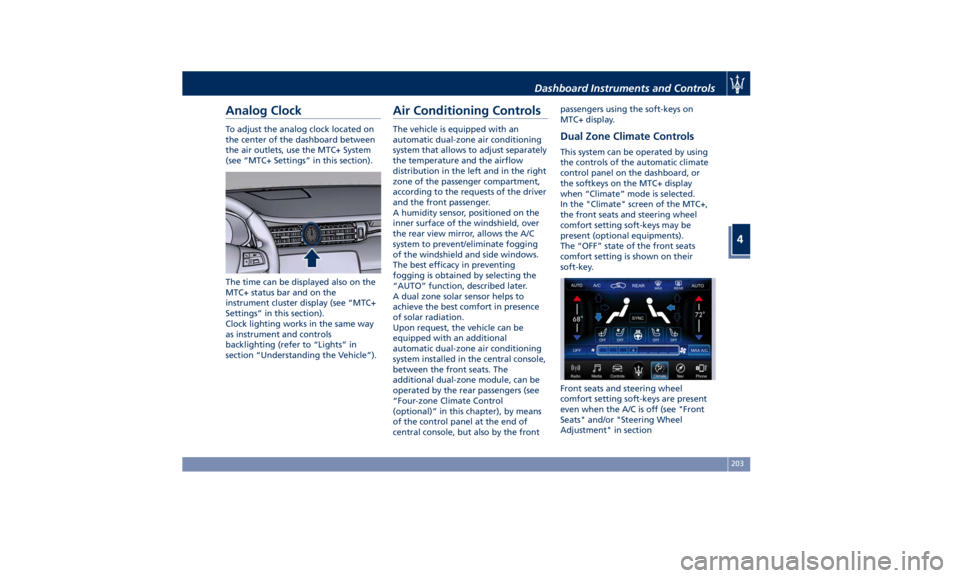
In the "Climate" screen of the MTC+,
the front seats and steering wheel
comfort setting soft-keys may be
present (optional equipments).
The “OFF” state of the front seats
comfort setting is shown on their
soft-key.
Front seats and steering wheel
comfort setting soft-keys are present
even when the A/C is off (see "Front
Seats" and/or "Steering Wheel
Adjustment" in sectionDashboard Instruments and Controls
4
203
Page 217 of 396
the air conditioning system at idle
for about five minutes in the fresh
air by high blower setting. This will
ensure adequate system lubrication
and minimize the possibility of
compressor damage when the
system is started again.
A/C Filter The climate control system filters
outside air containing dust, pollen and
some odors. Strong odors cannot be
totally removed by A/C filter at the
entrance of the air climate system. See
“Maintenance Procedures” in section
“Maintenance and Care” for filter
replacement instructions. Phone and Voice Controls
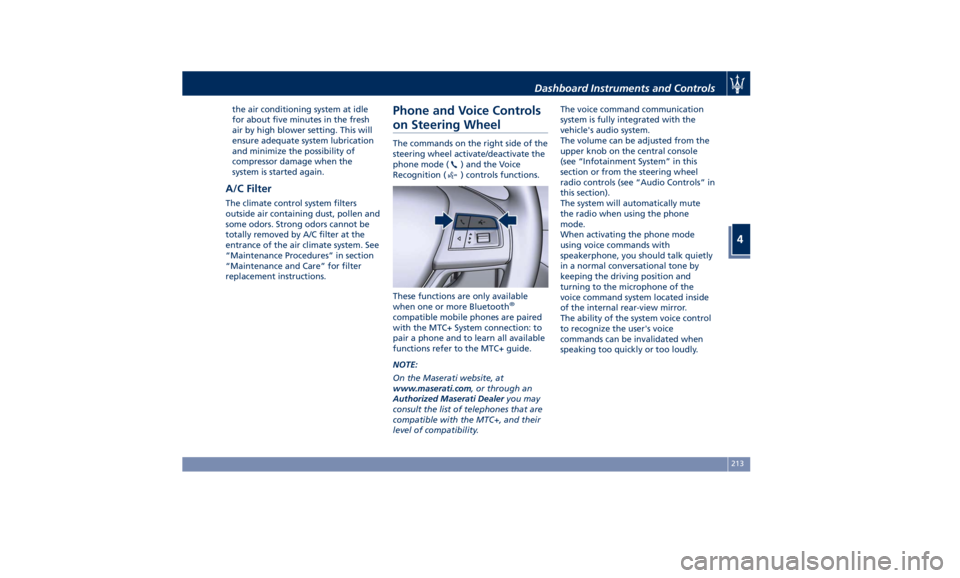
on Steering Wheel The commands on the right side of the
steering wheel activate/deactivate the
phone mode (
) and the Voice
Recognition (
) controls functions.
These functions are only available
when one or more Bluetooth ®
compatible mobile phones are paired
with the MTC+ System connection: to
pair a phone and to learn all available
functions refer to the MTC+ guide.
NOTE:
On the Maserati website, at
www.maserati.com , or through an
Authorized Maserati Dealer you may
consult the list of telephones that are
compatible with the MTC+, and their
level of compatibility. The voice command communication
system is fully integrated with the
vehicle's audio system.
The volume can be adjusted from the
upper knob on the central console
(see “Infotainment System” in this
section or from the steering wheel
radio controls (see “Audio Controls” in
this section).
The system will automatically mute
the radio when using the phone
mode.
When activating the phone mode
using voice commands with
speakerphone, you should talk quietly
in a normal conversational tone by
keeping the driving position and
turning to the microphone of the
voice command system located inside
of the internal rear-view mirror.
The ability of the system voice control
to recognize the user's voice
commands can be invalidated when
speaking too quickly or too loudly.Dashboard Instruments and Controls
4
213
Page 218 of 396
WARNING!
Any voice-controlled system should be
used only in safe driving conditions
following all applicable regulations.
Full attention should be kept on
driving.
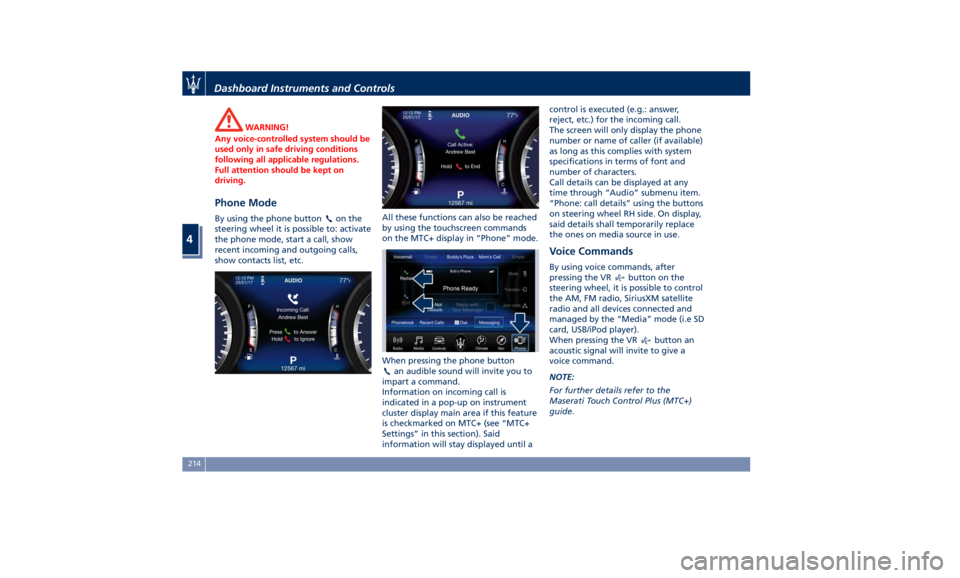
Phone Mode By using the phone button on the
steering wheel it is possible to: activate
the phone mode, start a call, show
recent incoming and outgoing calls,
show contacts list, etc. All these functions can also be reached
by using the touchscreen commands
on the MTC+ display in “Phone” mode.
When pressing the phone button
an audible sound will invite you to
impart a command.
Information on incoming call is
indicated in a pop-up on instrument
cluster display main area if this feature
is checkmarked on MTC+ (see “MTC+
Settings” in this section). Said
information will stay displayed until a control is executed (e.g.: answer,
reject, etc.) for the incoming call.
The screen will only display the phone
number or name of caller (if available)
as long as this complies with system
specifications in terms of font and
number of characters.
Call details can be displayed at any
time through “Audio” submenu item.
“Phone: call details” using the buttons
on steering wheel RH side. On display,
said details shall temporarily replace
the ones on media source in use.
Voice Commands By using voice commands, after
pressing the VR
button on the
steering wheel, it is possible to control
the AM, FM radio, SiriusXM satellite
radio and all devices connected and
managed by the “Media” mode (i.e SD
card, USB/iPod player).
When pressing the VR
button an
acoustic signal will invite to give a
voice command.
NOTE:
For further details refer to the
Maserati Touch Control Plus (MTC+)
guide.Dashboard Instruments and Controls
4
214