display MAZDA MODEL 3 4-DOOR 2017 Repair Manual
[x] Cancel search | Manufacturer: MAZDA, Model Year: 2017, Model line: MODEL 3 4-DOOR, Model: MAZDA MODEL 3 4-DOOR 2017Pages: 612
Page 278 of 612
4–14 8
When Driving
Cruise Control
To Set Speed
1. Activate the cruise control system by
pressing the ON switch. The cruise
main indication (white) is displayed.
2. Accelerate to the desired speed, which
must be more than 25 km/h (16 mph).
3. Set the cruise control by pressing the
SET switch at the desired speed. The
cruise control is set at the moment the
SET
switch is pressed. Release the
accelerator pedal simultaneously. The
cruise set indication (white) is
displayed and the cruise set indicator
light (green) turns on.
NOTE
The cruise contr ol speed setting cannot
be performed under the following
conditions:
(Automatic transaxle)
The selector lever is in the P or N
position. (Manual transaxle)
The shift lever is in the neutral
position. The parking brake is applied.
Release the SET or RES/ switch at
the desired speed, otherwise the speed
will continue increasing while the
RES/
switch is pressed and held, and
continue decreasing while the SET
switch is pressed and held (except when
the accelerator pedal is depressed).
On a steep grade, the vehicle may
momentarily slow down while
ascending, or speed up while
descending.
The cruise contr ol will cancel if the
vehicle speed decreases below 21 km/h
(13 mph) when climbing a steep grade.
The cruise control may cancel at about
15 km/h (9 mph) below the preset speed
such as when climbing a long, steep
grade.
Mazda3_8FL6-EA-16F_Edition2.indb 1482016/08/10 17:37:02
Page 279 of 612
4–149
When Driving
Cruise Control
To Increase Cruising Speed
Follow either of these procedures.
To increase speed using cruise control
switch
Press the RES/
switch and hold it. Your
vehicle will accelerate. Release the switch
at the desired speed.
Press the RES/
switch and release it
immediately to adjust the preset speed.
Multiple operations will increase the
preset speed according to the number of
times it is operated.
Increasing speed with a single RES/
switch operation
Instrument cluster display for vehicle
speed indicated in km/h: 1 km/h (0.6 mph)
Instrument cluster display for vehicle
speed indicated in mph: 1 mph (1.6 km/h)
To increase speed using accelerator
pedal
Depress the accelerator pedal to accelerate
to the desired speed. Press the SET
switch and release it immediately.
NOTE
Accelerate if you want to speed up
temporarily when the cruise control is on.
Greater speed will not interfere with or
change the set speed. Take your foot off the
accelerator to return to the set speed.
To Decrease Cruising Speed
Press the SET switch and hold it. The
vehicle will gradually slow.
Release the switch at the desired speed.
Press the SET
switch and release it
immediately to adjust the preset speed.
Multiple operations will decrease the
preset speed according to the number of
times it is operated.
Decreasing speed with a single SET
switch operation
Instrument cluster display for vehicle
speed indicated in km/h: 1 km/h (0.6 mph)
Instrument cluster display for vehicle
speed indicated in mph: 1 mph (1.6 km/h)
To Resume Cruising Speed at
More Than 25 km/h (16 mph)
If some other method besides the OFF/
CAN switch was used to cancel cruising
speed (such as applying the brake pedal)
and the system is still activated, the most
recent set speed will automatically resume
when the RES/
switch is pressed.
If vehicle speed is below 25 km/h (16
mph), increase the vehicle speed up to 25
km/h (16 mph) or more and press the
RES/
switch.
To Temporarily Cancel
To temporarily cancel the system, use one
of these methods:
Slightly depress the brake pedal. (Manual transaxle)
Depress the clutch pedal. Press the OFF/CAN switch.
If the RES/ switch is pressed when the
vehicle speed is 25 km/h (16 mph) or
higher, the system reverts to the previously
set speed.
Mazda3_8FL6-EA-16F_Edition2.indb 1492016/08/10 17:37:03
Page 280 of 612
4–150
When Driving
Cruise Control
NOTE
If any of the following conditions occur,
the cruise control system is temporarily
canceled.
The parking brake is applied. (Automatic transaxle)
The selector lever is in the P or N
position. (Manual transaxle)
The shift lever is in the neutral
position.
When the cruise control system is
temporarily canceled by even one of the
applicable cancel conditions, the speed
cannot be re-set.
(Automatic transaxle)
The cruise control cannot be cancelled
while driving in manual mode (selector
lever shifted from D to M position).
Therefore, engine braking will not be
applied even if the transaxle is shifted
down to a lower gear. If deceleration is
required, lower the set speed or depress
the brake pedal.
To Deactivate
When a cruising speed has been
set (cruise set indication (white) is
displayed/cruise set indicator light
(green) turns on)
Long-press the OFF/CAN switch or press
the OFF/CAN switch 2 times.
When a cruising speed has not been
set (cruise main indication (white) is
displayed)
Press the OFF/CAN switch.
Mazda3_8FL6-EA-16F_Edition2.indb 1502016/08/10 17:37:03
Page 285 of 612

4–155
When Driving
Rear View Monitor
*Some models.
Rear View Monitor*
The rear view monitor provides visual images of the rear of the vehicle \
when reversing.
WARNING
Always drive carefully confirming the safety of the rear and the surrounding conditions
by looking directly with your eyes:Reversing the vehicle by only looking at the screen is dangerous as it may cause an
accident or a collision with an object. The rear view monitor is only a visual assist device
when reversing the vehicle. The images on the screen may be different from the actual
conditions.
CAUTION
Do not use the rear view monitor under the following conditions: Using the rear view
monitor under the following conditions is dangerous and could result in injury or vehicle
damage or both.
Icy or snow-covered roads. Tire chains or a temporary spare tire is installed. The liftgate/trunk lid is not fully closed. The vehicle is on a road incline.
When the display is cold, images may course across the monitor or the screen and may be
dimmer than usual, which could cause difficulty in confirming the surrounding conditions
of the vehicle. Always drive carefully confirming the safety of the rear and the surrounding
conditions by looking directly with your eyes.
Do not apply excessive force to the camera. The camera position and angle may deviate. Do not disassemble, modify, or remove it as it may no longer be waterproof. The camera cover is made of plastic. Do not apply degreasing agents, organic solvents,
wax, or glass coating agents to the camera cover. If any are spilled on the cover, wipe off
with a soft cloth immediately.
Do not rub the camera cover forcefully with an abrasive or hard brush. The camera cover or
lens may be scratched which might affect the images.
Mazda3_8FL6-EA-16F_Edition2.indb 1552016/08/10 17:37:05
Page 286 of 612

4–156
When Driving
Rear View Monitor
NOTE
If water, snow, or mud is stuck on the camera lens, wipe it off using a soft cloth. If\
it
cannot be wiped off, use a mild detergent. If the camera temperature changes rapidly (Hot to cold, cold to hot), the rear view
monitor may not operate correctly. When replacing the tires, consult an Authorized Mazda Dealer. Replacing the tires could
result in deviation of the guide lines which appear on the display. If the vehicle's front, side, or rear has been involved in a collision, the alignment of
the rear view parking camera (location, installation angle) may have deviat\
ed. Always
consult an Authorized Mazda Dealer to have the vehicle inspected.
If “No Video Signal Available” is indicated in the display, there could be a problem with
the camera. Have your vehicle inspected at an Authorized Mazda Dealer.
Rear View Parking Camera Location
Rear View Parking CameraSedan Hatchback
Switching to the Rear View Monitor Display
Shift the shift lever to R with the ignition switched ON to switch the display to the rear view
monitor display.
NOTE
When the shift lever is shifted from R to another shift lever position, the screen returns to the
previous display.
Mazda3_8FL6-EA-16F_Edition2.indb 1562016/08/10 17:37:05
Page 287 of 612
4–157
When Driving
Rear View Monitor
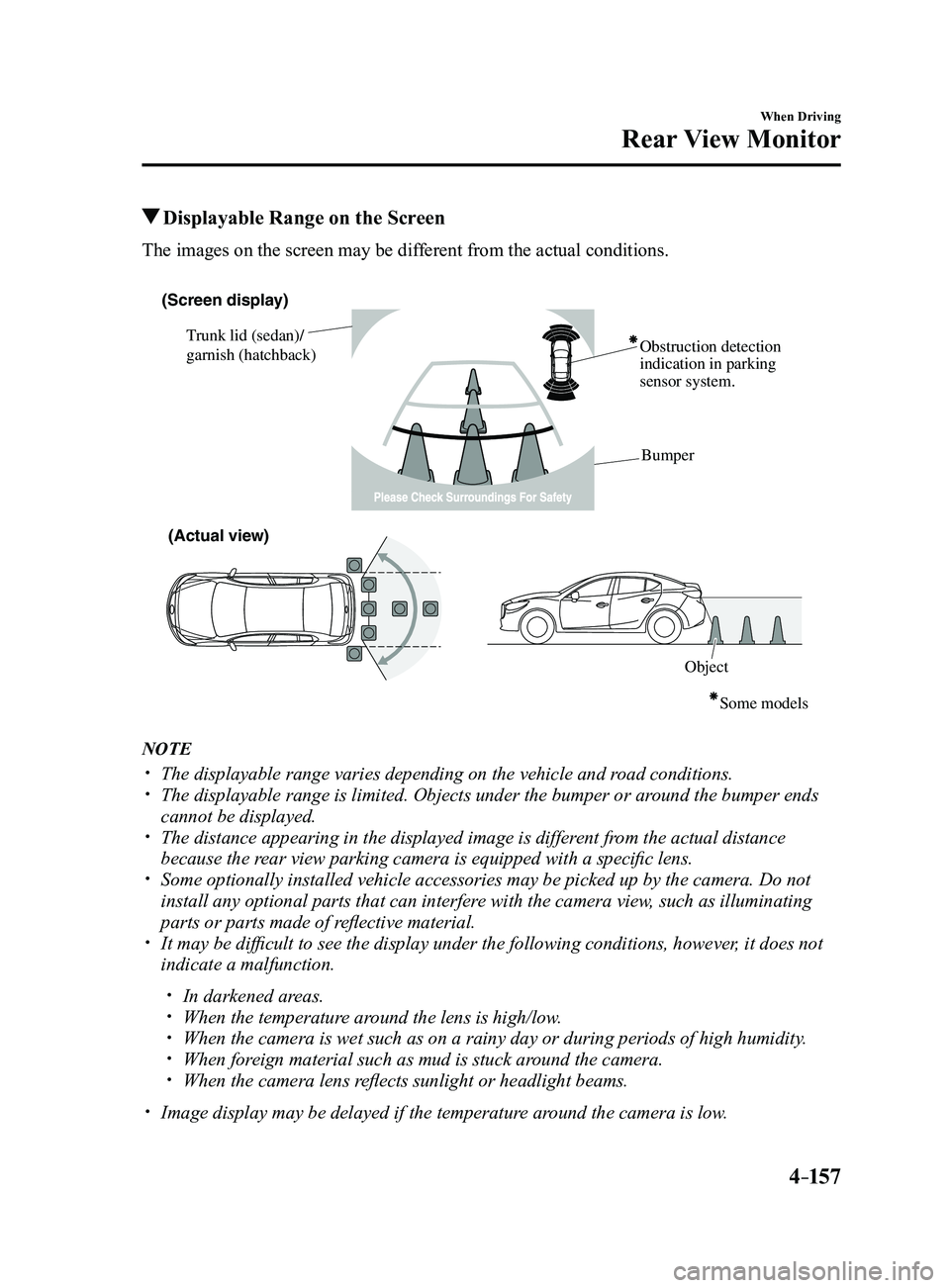
Displayable Range on the Screen
The images on the screen may be different from the actual conditions.
(Screen display)
Trunk lid (sedan)/
garnish (hatchback) Obstruction detection
indication in parking
sensor system.
Bumper
ObjectSome models
(Actual view)
NOTE
The displayable range varies depending on the vehicle and r
oad conditions. The displayable range is limited. Objects under the bumper or ar ound the bumper ends
cannot be displayed. The distance appearing in the displayed image is different from the actual distance
because the rear view parking camera is equipped with a specific lens. Some optionally installed vehicle accessories may be picked up by the ca\
mera. Do not
install any optional parts that can interfere with the camera view, such as illuminating
parts or parts made of reflective material.
It may be difficult to see the display under the following condi tions, however, it does not
indicate a malfunction.
In darkened areas. When the temperatur e around the lens is high/low. When the camera is wet such as on a rainy day or during periods of high \
humidity . When foreign material such as mud is stuck around the camera. When the camera lens reflects sunlight or headlight beams.
Image display may be delayed if the temperatur e around the camera is low.
Mazda3_8FL6-EA-16F_Edition2.indb 1572016/08/10 17:37:06
Page 288 of 612
4–158
When Driving
Rear View Monitor
Viewing the Display
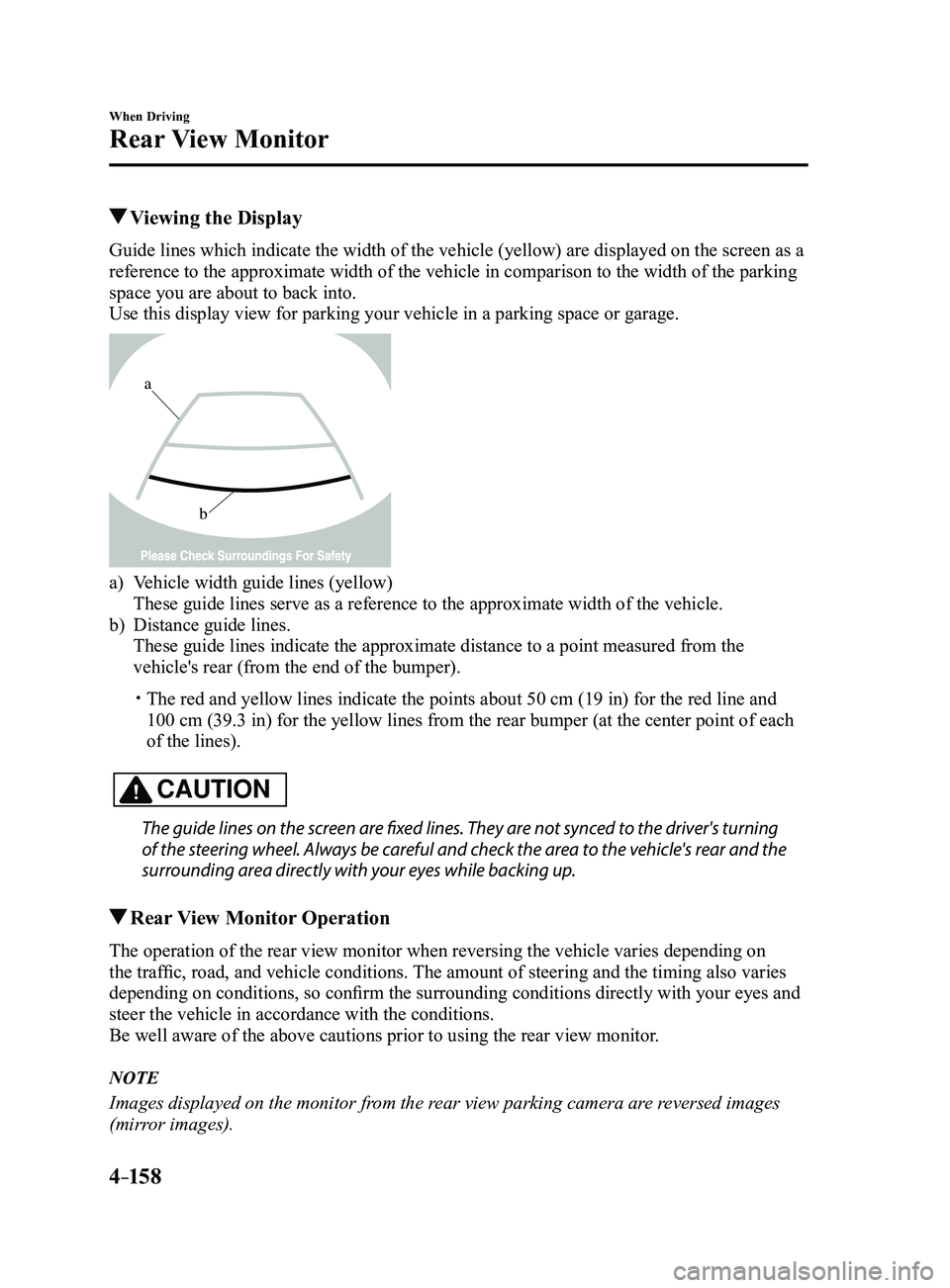
Guide lines which indicate the width of the vehicle (yellow) are displayed on the screen as a
reference to the approximate width of the vehicle in comparison to the w\
idth of the parking
space you are about to back into.
Use this display view for parking your vehicle in a parking space or gar\
age.
b
a
a) Vehicle width guide lines (yellow)
These guide lines serve as a reference to the approximate width of the v\
ehicle.
b) Distance guide lines.
These guide lines indicate the approximate distance to a point measured \
from the
vehicle's rear (from the end of the bumper).
The red and yellow lines indicate the points about 50 cm (19 in) for t\
he red line and
100 cm (39.3 in) for the yellow lines from the rear bumper (at the ce\
nter point of each
of the lines).
CAUTION
The guide lines on the screen are fixed lines. They are not synced to the driver's turning
of the steering wheel. Always be careful and check the area to the vehicle's rear and the
surrounding area directly with your eyes while backing up.
Rear View Monitor Operation
The operation of the rear view monitor when reversing the vehicle varies\
depending on
the traffic, road, and vehicle conditions. The amount of steering and the timing also varies
depending on conditions, so confirm the surrounding conditions directly with your eyes and
steer the vehicle in accordance with the conditions.
Be well aware of the above cautions prior to using the rear view monitor.
NOTE
Images displayed on the monitor from the rear view parking camera are reversed images
(mirror images).
Mazda3_8FL6-EA-16F_Edition2.indb 1582016/08/10 17:37:06
Page 289 of 612
4–159
When Driving
Rear View Monitor
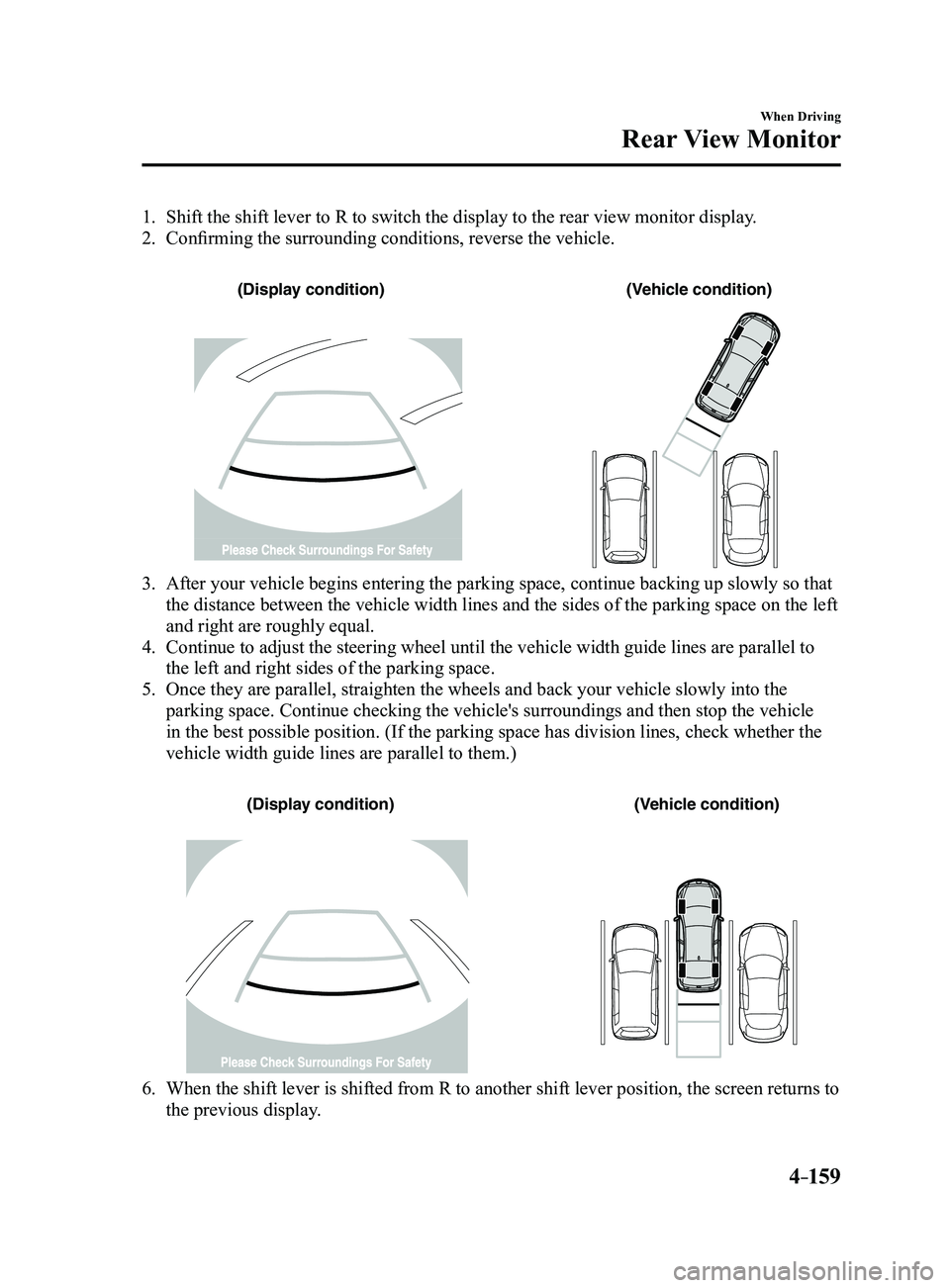
1. Shift the shift lever to R to switch the display to the rear view monitor display.
2. Confirming the surrounding conditions, reverse the vehicle.
(Display condition)(Vehicle condition)
3. After your vehicle begins entering the parking space, continue backing u\
p slowly so that
the distance between the vehicle width lines and the sides of the parkin\
g space on the left
and right are roughly equal.
4. Continue to adjust the steering wheel until the vehicle width guide line\
s are parallel to
the left and right sides of the parking space.
5. Once they are parallel, straighten the wheels and back your vehicle slow\
ly into the
parking space. Continue checking the vehicle's surroundings and then sto\
p the vehicle
in the best possible position. (If the parking space has division lines\
, check whether the
vehicle width guide lines are parallel to them.)
(Display condition)(Vehicle condition)
6. When the shift lever is shifted from R to another shift lever p osition, the screen returns to
the previous display.
Mazda3_8FL6-EA-16F_Edition2.indb 1592016/08/10 17:37:07
Page 290 of 612
4–160
When Driving
Rear View Monitor
NOTE
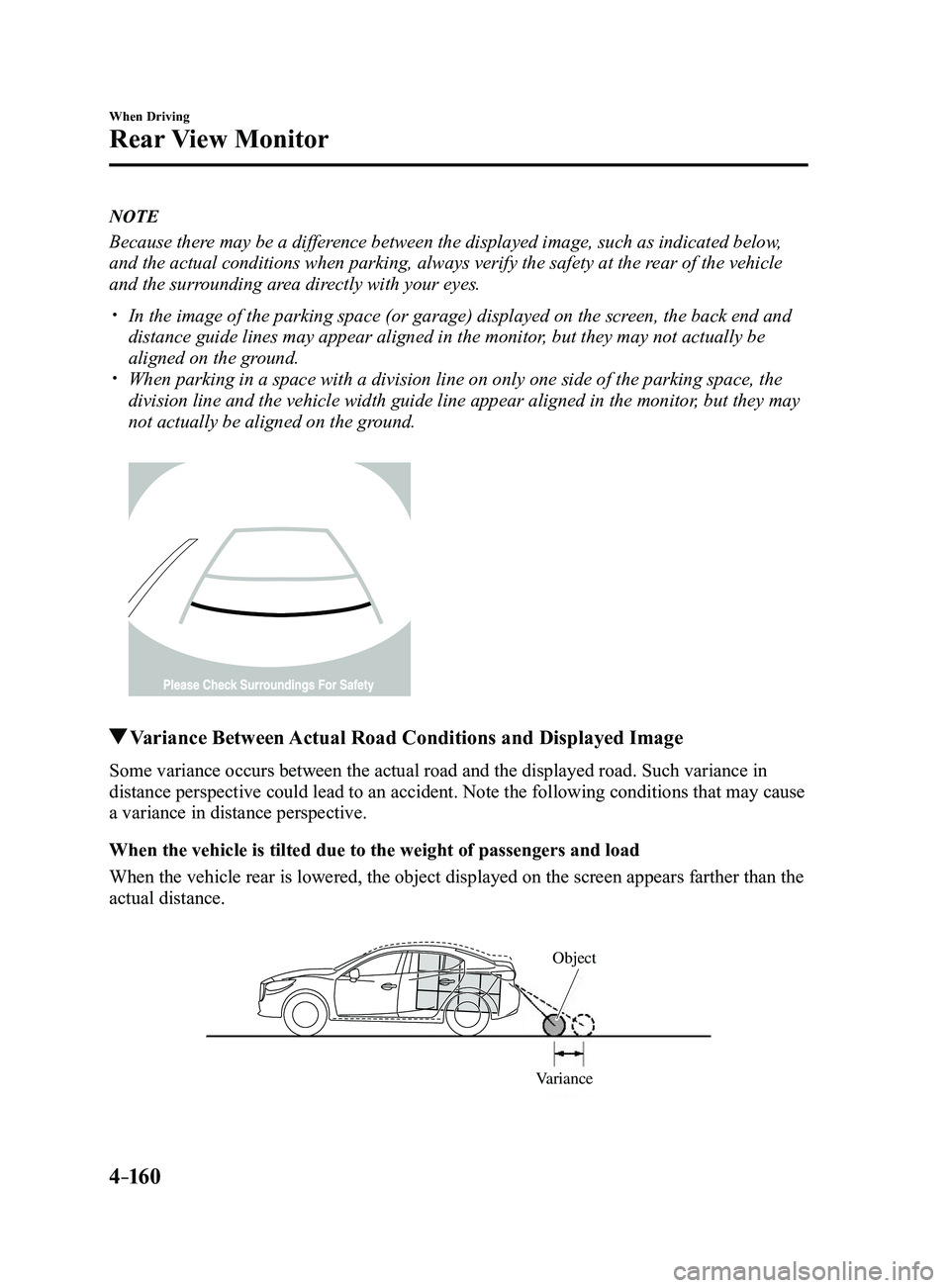
Because there may be a difference between the displayed image, such as indicated below,
and the actual conditions when parking, always verify the safety at the \
rear of the vehicle
and the surrounding area directly with your eyes.
In the image of the parking space (or garage) displayed on the screen, the back end and
distance guide lines may appear aligned in the monitor, but they may not actually be
aligned on the ground.
When parking in a space with a division line on only one side of the par\
king space, the
division line and the vehicle width guide line appear aligned in the mon\
itor, but they may
not actually be aligned on the ground.
Variance Between Actual Road Conditions and Displayed Image
Some variance occurs between the actual road and the displayed road. Suc\
h variance in
distance perspective could lead to an accident. Note the following conditions that may cause
a variance in distance perspective.
When the vehicle is tilted due to the weight of passengers and load
When the vehicle rear is lowered, the object displayed on the screen app\
ears farther than the
actual distance.
VarianceObject
Mazda3_8FL6-EA-16F_Edition2.indb 1602016/08/10 17:37:07
Page 291 of 612
 behind the vehicle, the obje\
ct displayed on the
screen appears farthe")
4–161
When Driving
Rear View Monitor
When there is a steep grade behind the vehicle
When there is a steep upgrade (downgrade) behind the vehicle, the obje\
ct displayed on the
screen appears farther (downgrade: closer) than the actual distance.
Appears farther than
actual
distanceAppears
closer than
actual
distance
Object at actual
position
Object at actual position
Object on screen
A: Distance between the vehicle and object displayed on the screen.
B: Actual distance between the vehicle and object. Object on screen
Three-dimensional object on vehicle rear
Because the distance guide lines are displayed based on a flat surface, the distance to the
three-dimensional object displayed on the screen is different from the actual distance.
A
A
C B
CB
(Actual distance) B>C=A
Sensed distance on screen A>B>C (Screen display)
(Actual condition)
Mazda3_8FL6-EA-16F_Edition2.indb 1612016/08/10 17:37:08