display MAZDA MODEL 3 4-DOOR 2017 Manual Online
[x] Cancel search | Manufacturer: MAZDA, Model Year: 2017, Model line: MODEL 3 4-DOOR, Model: MAZDA MODEL 3 4-DOOR 2017Pages: 612
Page 322 of 612
5–30
Interior Features
Audio System
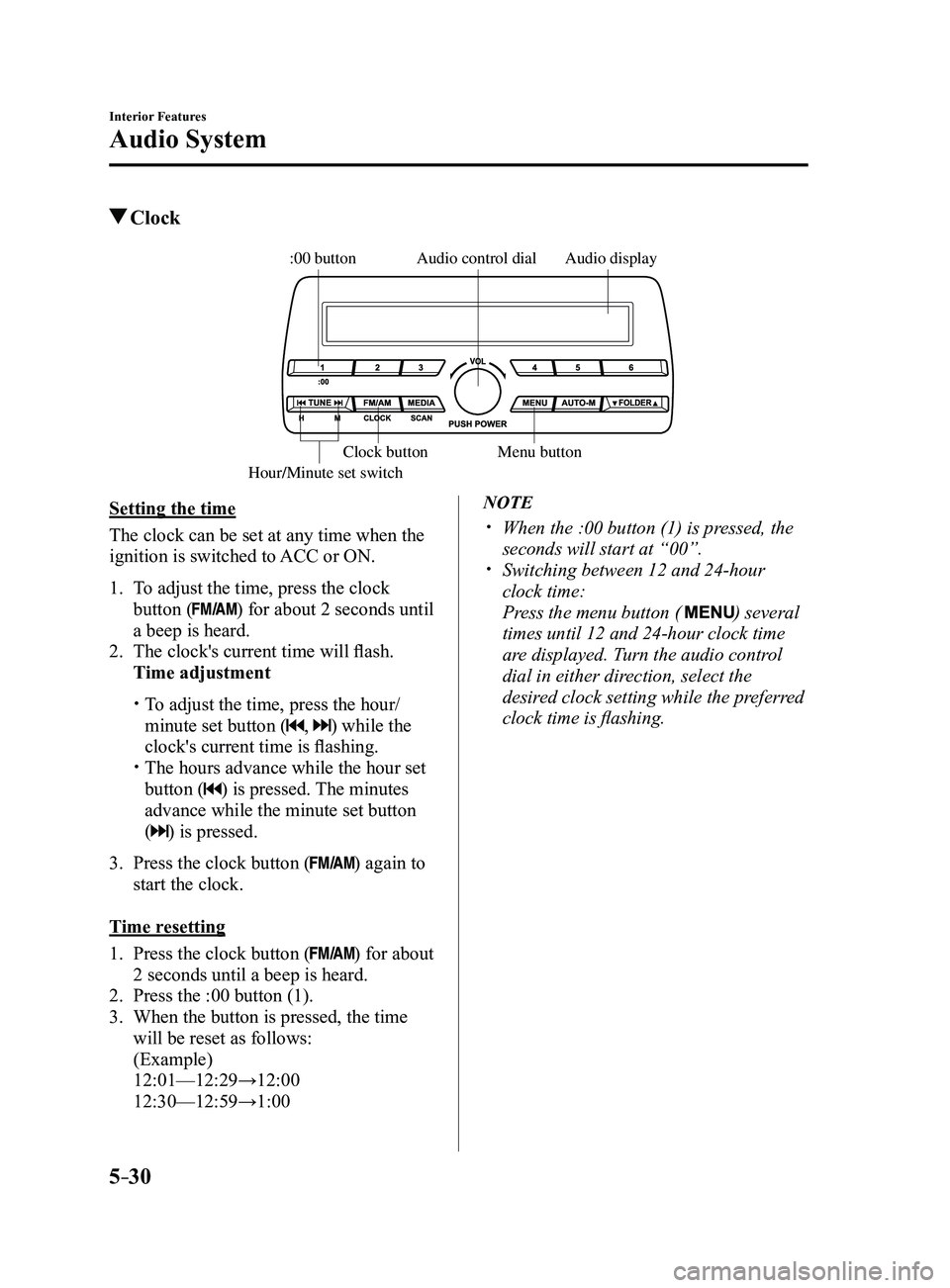
Clock
Audio display
Audio control dial
Hour/Minute set switch:00 button
Menu button
Clock button
Setting the time
The clock can be set at any time when the
ignition is switched to ACC or ON.
1. To adjust the time, press the clock
button () for about 2 seconds until
a beep is heard.
2. The clock's current time will flash.
Time adjustment
To adjust the time, press the hour/
minute set button (, ) while the
clock's current time is flashing.
The hours advance while the hour set
button () is pressed. The minutes
advance while the minute set button
(
) is pressed.
3. Press the clock button () again to
start the clock.
Time resetting
1. Press the clock button () for about
2 seconds until a beep is heard.
2. Press the :00 button (1).
3. When the button is pressed, the time
will be reset as follows:
(Example)
12:01—12:29→12:00
12:30—12:59→1:00
NOTE
When the :00 button (1) is pr essed, the
seconds will start at “00”. Switching between 12 and 24-hour
clock time:
Press the menu button ( ) several
times until 12 and 24-hour clock time
are displayed. Turn the audio control
dial in either direction, select the
desired clock setting while the preferred
clock time is flashing.
Mazda3_8FL6-EA-16F_Edition2.indb 302016/08/10 17:37:27
Page 324 of 612
5–32
Interior Features
Audio System
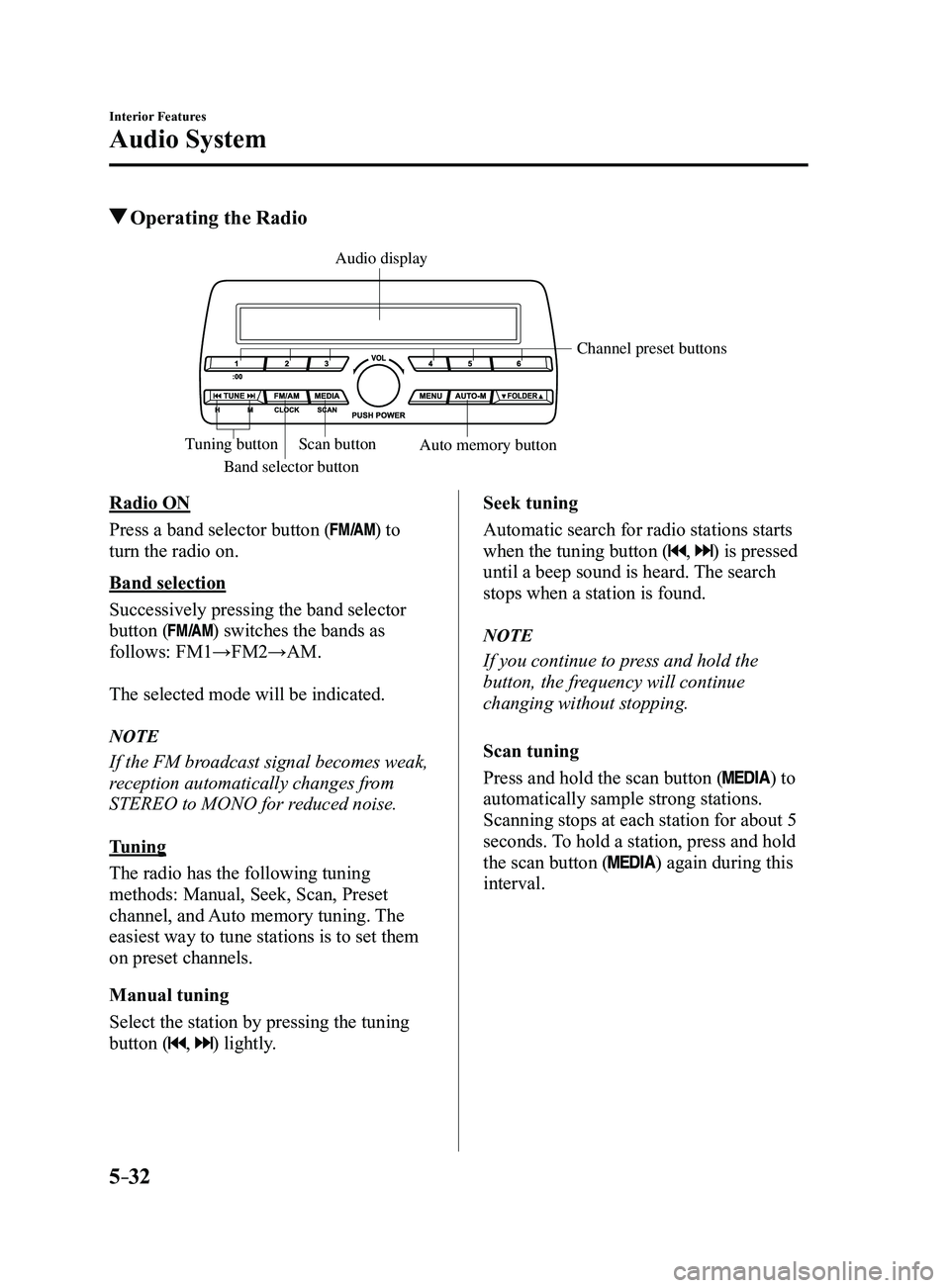
Operating the Radio
Band selector button
Channel preset buttons
Scan button Auto memory button
Tuning button
Audio display
Radio ON
Press a band selector button (
) to
turn the radio on.
Band selection
Successively pressing the band selector
button (
) switches the bands as
follows: FM1→FM2→AM.
The selected mode will be indicated.
NOTE
If the FM broadcast signal becomes weak,
reception automatically changes from
STEREO to MONO for reduced noise.
Tuning
The radio has the following tuning
methods: Manual, Seek, Scan, Preset
channel, and Auto memory tuning. The
easiest way to tune stations is to set them
on preset channels.
Manual tuning
Select the station by pressing the tuning
button (
, ) lightly. Seek tuning
Automatic search for radio stations starts
when the tuning button (
, ) is pressed
until a beep sound is heard. The search
stops when a station is found.
NOTE
If you continue to press and hold the
button, the frequency will continue
changing without stopping.
Scan tuning
Press and hold the scan button (
) to
automatically sample strong stations.
Scanning stops at each station for about 5
seconds. To hold a station, press and hold
the scan button (
) again during this
interval.
Mazda3_8FL6-EA-16F_Edition2.indb 322016/08/10 17:37:28
Page 325 of 612
5–33
Interior Features
Audio System
Preset channel tuning
The 6 preset channels can be used to store
6 AM and 12 FM stations.
1. To set a channel first select AM, FM1,
or FM2. Tune to the desired station.
2. Press a channel preset button for
about 2 seconds until a beep is heard.
The preset channel number or station
frequency will be displayed. The
station is now held in the memory.
3. Repeat this operation for the other
stations and bands you want to store.
To tune one in the memory, select AM,
FM1, or FM2 and then press its channel
preset button. The station frequency or
the channel number will be displayed.
Auto memory tuning
This is especially useful when driving in
an area where the local stations are not
known.
Press and hold the auto memory button
(
) for about 2 seconds until a beep
is heard; the system will automatically
scan and temporarily store up to 6 stations
with the strongest frequencies in each
selected band in that area.
After scanning is completed, the station
with the strongest frequency will be tuned
and its frequency displayed. Press and
release the auto memory button (
)
to recall stations from the auto-stored
stations. One stored station will be
selected each time and its frequency and
channel number will be displayed.
NOTE
If no stations can be tuned after scanning
operations, “A” will be displayed.
How to use Auxiliary jack/USB
port
Audio can be heard from the vehicle's
speakers by connecting a commercially-
available portable audio unit to the
auxiliary jack.
Use a commercially-available, non-
impedance (3.5
) stereo mini plug cable.
Contact an Authorized Mazda Dealer for
details.
In addition, audio can be played from the
vehicle audio device by connecting a USB
device to the USB port.
Refer to AUX/USB mode on page
5-57.
Mazda3_8FL6-EA-16F_Edition2.indb 332016/08/10 17:37:28
Page 326 of 612
![MAZDA MODEL 3 4-DOOR 2017 Manual Online 5–34
Interior Features
Audio System
Audio set [Type B (touchscreen)]
NOTE
The explanation of functions described in this manual may differ from the actual
operation, and the shapes of screens and b](/img/28/40993/w960_40993-325.png "MAZDA MODEL 3 4-DOOR 2017 Manual Online 5–34
Interior Features
Audio System
Audio set [Type B (touchscreen)]
NOTE
The explanation of functions described in this manual may differ from the actual
operation, and the shapes of screens and b")
5–34
Interior Features
Audio System
Audio set [Type B (touchscreen)]
NOTE
The explanation of functions described in this manual may differ from the actual
operation, and the shapes of screens and buttons and the letters and cha\
racters displayed
may also differ from the actual appearance.
Additionally, depending on future software updates, the content may successively cha\
nge
without notice.
Audio Set (Type B) has three different human interfaces.
Commander switch Touch panel Voice recognition with steering switch and microphone
Commander switch operation
NOTE
For safety reasons, some operations are disabled while the vehicle is being driven.
Volume dial operation
Volume dial
Press the volume dial to switch the audio MUTE on and off.
Turn the volume dial to adjust the volume. The volume increases by turning the dial
clockwise, and decreases by turning it counterclockwise.
Mazda3_8FL6-EA-16F_Edition2.indb 342016/08/10 17:37:29
Page 327 of 612

5–35
Interior Features
Audio System
Switches around commander knob
The following operations can be done by pressing the switches around the\
commander knob.
: Displays the home screen.
: Displays the Entertainment screen.
: Displays the Navigation screen (Only navigation-equipped vehicles). For operation
of the Navigation screen, refer to the navigation system manual. If the SD card for the
navigation system is not inserted, the compass indicating the direction \
in which the vehicle
is moving is displayed.
: Displays the Favorites screen. Long-press to store particular items in Favorites. (Radio,
phonebook and destination of the navigation system can be programmed.)
: Returns to previous screen.
Commander knob operation
(Selection of icons on screen)
1. Tilt or turn the commander knob and move the cursor to the desired icon.
2. Press the commander knob and select the icon.
NOTE
Long-press operation of the commander knob is also possible for some functions.\
Mazda3_8FL6-EA-16F_Edition2.indb 352016/08/10 17:37:30
Page 328 of 612
5–36
Interior Features
Audio System
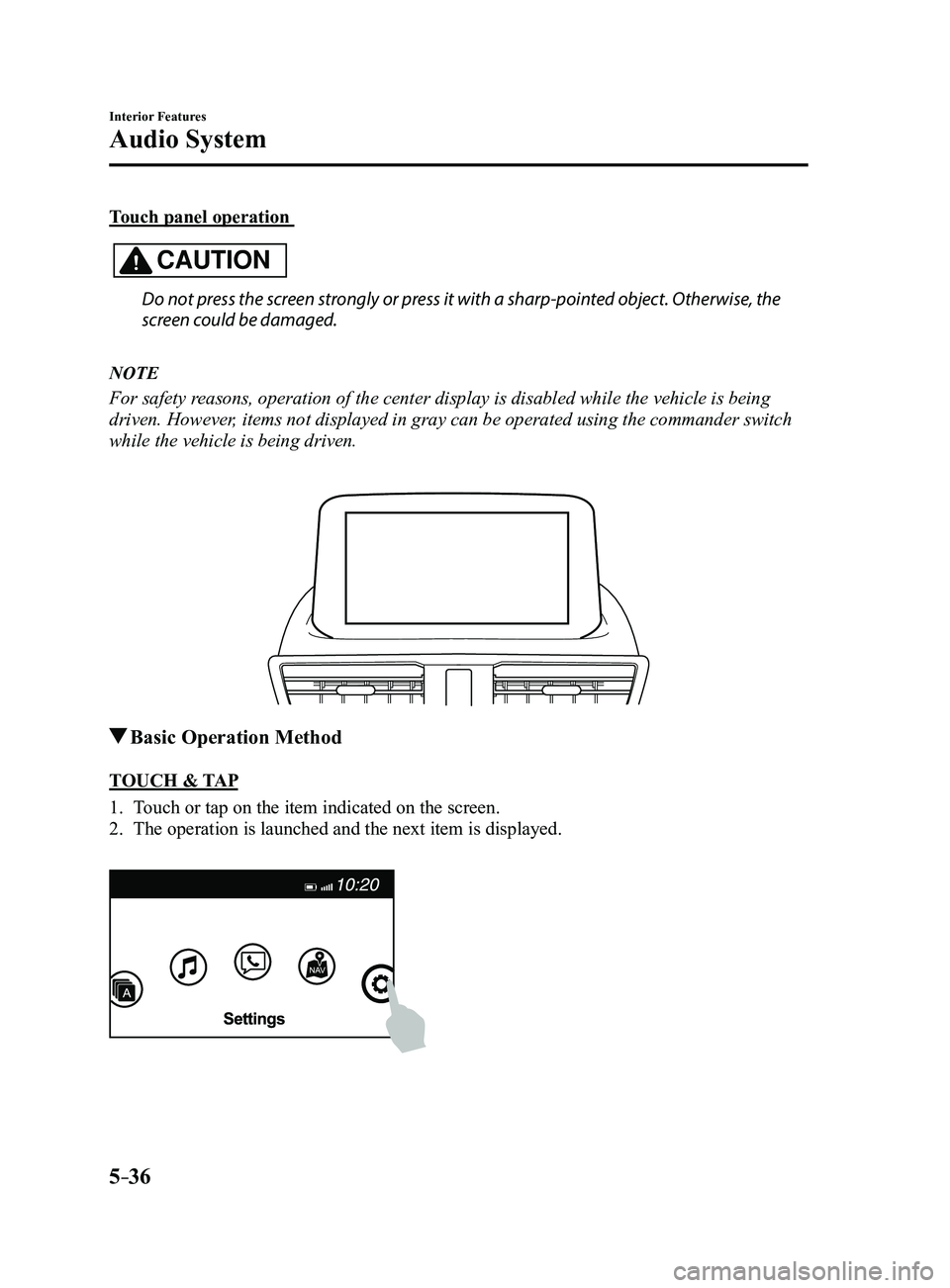
Touch panel operation
CAUTION
Do not press the screen strongly or press it with a sharp-pointed object. Otherwise, the
screen could be damaged.
NOTE
For safety reasons, operation of the center display is disabled while the vehicle is\
being
driven. However, items not displayed in gray can be operated using the commander switch\
while the vehicle is being driven.
Basic Operation Method
TOUCH & TAP
1. Touch or tap on the item indicated on the screen.
2. The operation is launched and the next item is displayed.
Mazda3_8FL6-EA-16F_Edition2.indb 362016/08/10 17:37:31
Page 329 of 612
5–37
Interior Features
Audio System
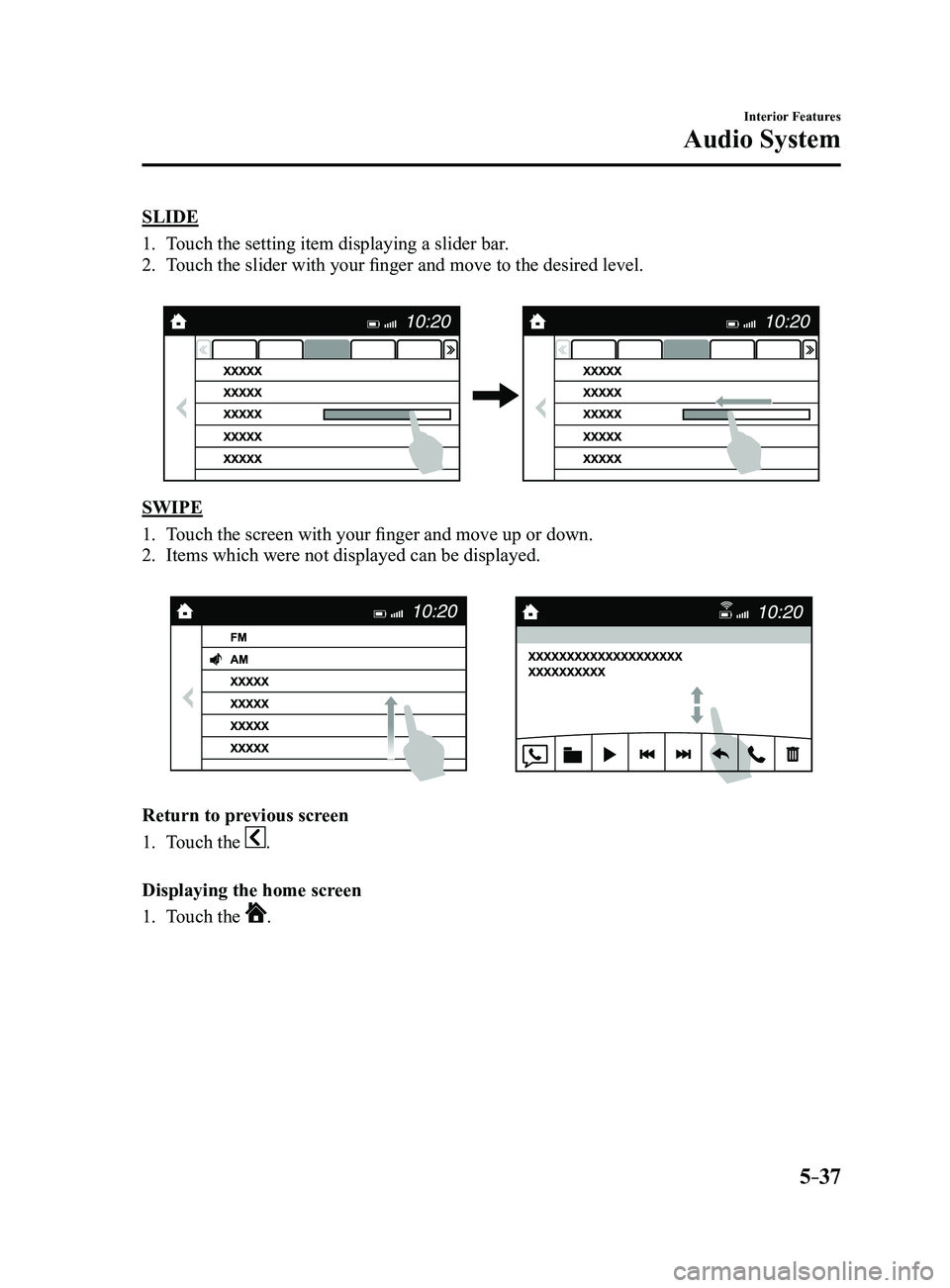
SLIDE
1. Touch the setting item displaying a slider bar.
2. Touch the slider with your finger and move to the desired level.
SWIPE
1. Touch the screen with your finger and move up or down.
2. Items which were not displayed can be displayed.
Return to previous screen
1. Touch the .
Displaying the home screen
1. Touch the .
Mazda3_8FL6-EA-16F_Edition2.indb 372016/08/10 17:37:32
Page 330 of 612
5–38
Interior Features
Audio System
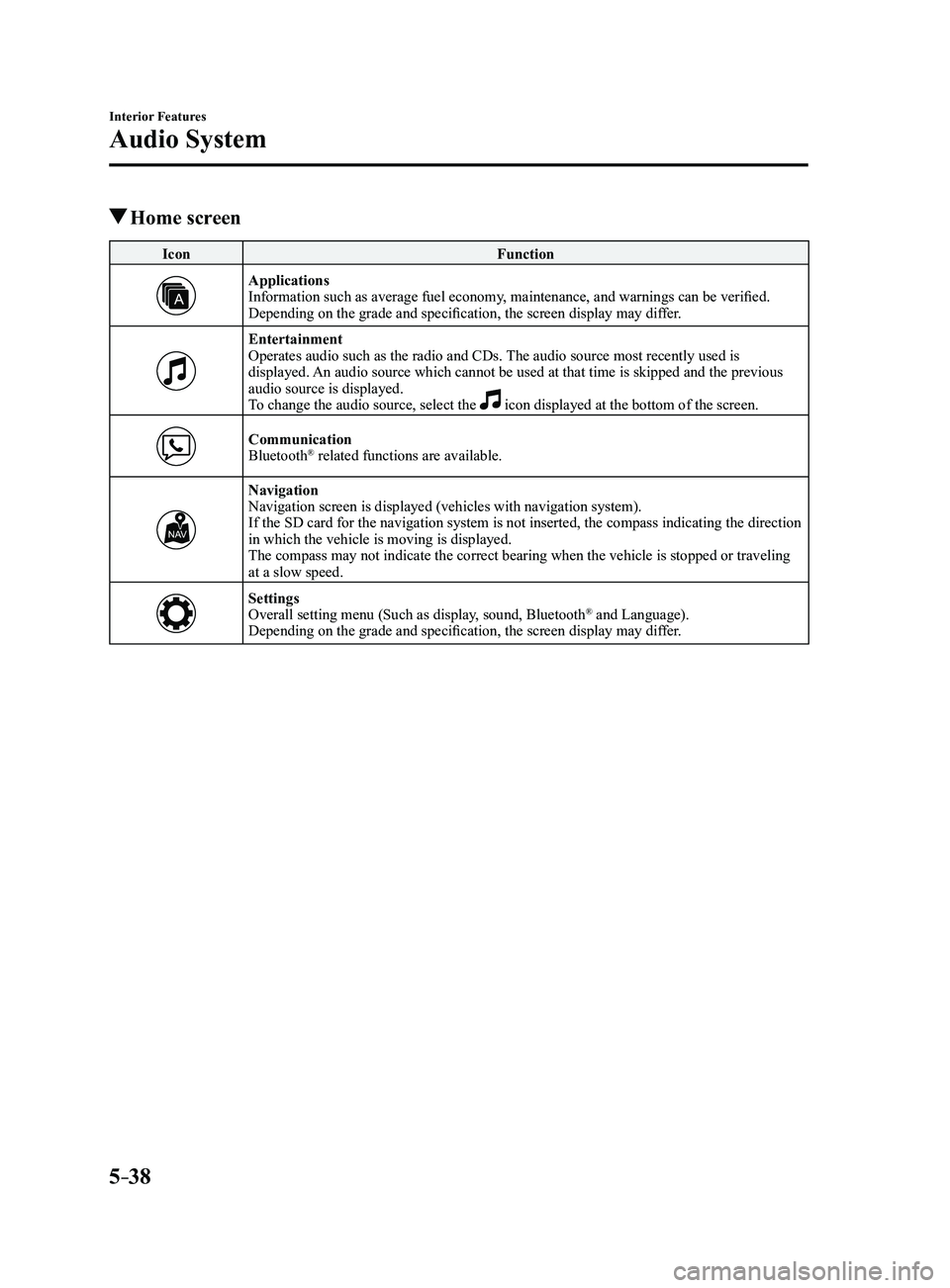
Home screen
IconFunction
ApplicationsInformation such as average fuel economy, maintenance, and warnings can be verified.
Depending on the grade and specification, the screen display may differ.
EntertainmentOperates audio such as the radio and CDs. The audio source most recently used is
displayed. An audio source which cannot be used at that time is skipped and the pre\
vious
audio source is displayed.
To change the audio source, select the
icon displayed at the bottom of the screen.
CommunicationBluetooth® related functions are available.
NavigationNavigation screen is displayed (vehicles with navigation system).
If the SD card for the navigation system is not inserted, the compass in\
dicating the direction
in which the vehicle is moving is displayed.
The compass may not indicate the correct bearing when the vehicle is sto\
pped or traveling
at a slow speed.
SettingsOverall setting menu (Such as display, sound, Bluetooth® and Language).
Depending on the grade and specification, the screen display may differ.
Mazda3_8FL6-EA-16F_Edition2.indb 382016/08/10 17:37:33
Page 332 of 612
5–40
Interior Features
Audio System
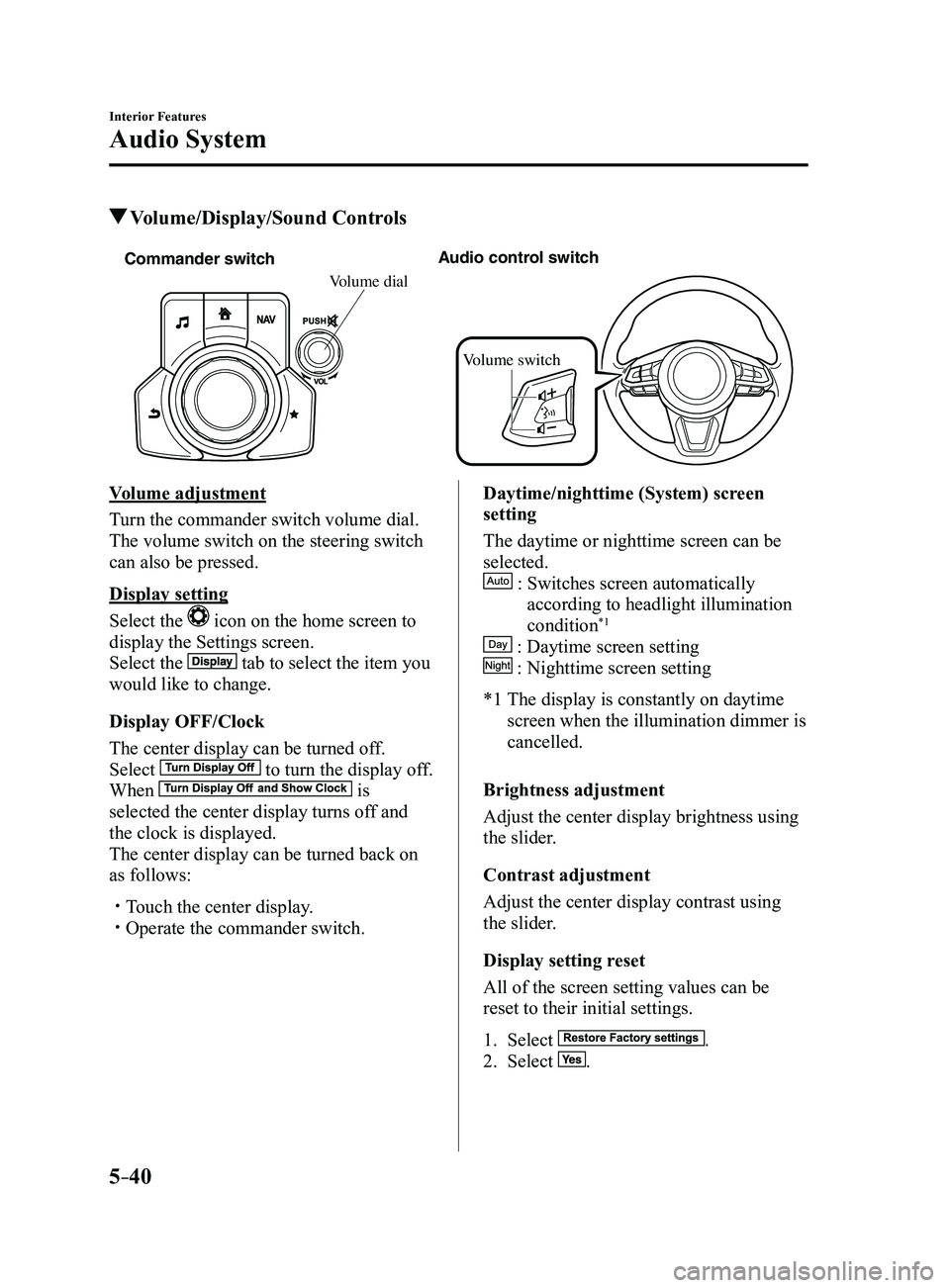
Volume/Display/Sound Controls
Commander switchAudio control switch
Volume switch
Volume dial
Volume adjustment
Turn the commander switch volume dial.
The volume switch on the steering switch
can also be pressed.
Display setting
Select the
icon on the home screen to
display the Settings screen.
Select the
tab to select the item you
would like to change.
Display OFF/Clock
The center display can be turned off.
Select
to turn the display off.
When is
selected the center display turns off and
the clock is displayed.
The center display can be turned back on
as follows:
Touch the center display. Operate the commander switch.
Daytime/nighttime (System) screen
setting
The daytime or nighttime screen can be
selected.
: Switches screen automatically
according to headlight illumination
condition*1
: Daytime screen setting
: Nighttime screen setting
*1 The display is constantly on daytime
screen when the illumination dimmer is
cancelled.
Brightness adjustment
Adjust the center display brightness using
the slider.
Contrast adjustment
Adjust the center display contrast using
the slider.
Display setting reset
All of the screen setting values can be
reset to their initial settings.
1. Select .
2. Select .
Mazda3_8FL6-EA-16F_Edition2.indb 402016/08/10 17:37:35
Page 333 of 612
5–41
Interior Features
Audio System
Audio sound adjustment
Select the
icon on the home screen to
display the Settings screen.
Select the
tab to select the item you
would like to change.
IndicationSetting value
Bass
(Low pitch sound)
Side: Low pitch enhancement Side: Low pitch reduction
Treble
(Treble sound)
Side: Treble enhancement Side: Treble reduction
Fade
(Front/Rear volume
balance)
Front: Front speaker volume
enhancement
Rear: Rear speaker volume
enhancement
Balance
(Left/right volume
balance)
Right: Right speaker volume
enhancement
Left: Left speaker volume
enhancement
ALC
*1
(Automatic volume
adjustment) Off—Adjustment at
seven levels
Bose
® Centerpoint*2
(Automatic surround
level adjustment) On/Off
Bose
® AudioPilot*2
(Automatic volume
adjustment) On/Off
Beep
(Audio operation sound) On/Off
*1 Standard audio*2 Bose® Sound System
ALC (Automatic volume adjustment)
The automatic level control (ALC) is a
feature that automatically adjusts audio
volume and sound quality according to
the vehicle speed. The volume increases
in accordance with the increase in vehicle
speed, and decreases as vehicle speed
decreases.
Bose
®Centerpoint (Automatic surround
level adjustment)
Centerpoint
®*3 lets vehicle owners enjoy
a Bose® surround sound experience from
their existing CDs, MP3s and satellite
radio.
Specifically engineered to meet the unique
demands of reproducing surround sound in
a vehicle.
Converts stereo signals to multiple
channels allowing greater precision when
reproducing the sound.
An enhanced algorithm to simultaneously
create a wider, more spacious sound field.
*3 Centerpoint® is a registered trademark
of Bose Corporation.
Bose
®AudioPilot (Automatic volume
adjustment)
When driving, background noise can
interfere with enjoying music.
AudioPilot
®*4 noise compensation
technology continuously adjusts the music
to compensate for background noise and
vehicle speed.
It reacts only to sustained noise sources
and not intermittent ones, such as speed
bumps.
An enhanced DSP algorithm allows faster
and more effective compensation for
unusual situations, such as driving on a
very rough road or at high speeds.
*4 AudioPilot® is a registered trademark of
Bose Corporation.
Mazda3_8FL6-EA-16F_Edition2.indb 412016/08/10 17:37:36