USB MAZDA MODEL 3 4-DOOR 2017 Owners Manual
[x] Cancel search | Manufacturer: MAZDA, Model Year: 2017, Model line: MODEL 3 4-DOOR, Model: MAZDA MODEL 3 4-DOOR 2017Pages: 612
Page 293 of 612
5–1
*Some models.
5Interior Features
Use of various features for ride comfort, including air-conditioning and
audio system.
Climate Control System.....................................................................
5-2
Operating Tips ........................................................................\
.......5-2
Vent Operation ........................................................................\
......5-3
Manual Climate Control ...............................................................5-5
Automatic Climate Control ...........................................................5-9
Dual-Zone Automatic Climate Control .......................................5-12
Audio System ........................................................................\
............5-16
Antenna ........................................................................\
...............5-16
Operating Tips for Audio System ...............................................5-17
Audio set [Type A (non-touchscreen)] ........................................5-26
Audio set [Type B (touchscreen)] ...............................................5-34
Audio Control Switch Operation* ...............................................5-55
AUX/USB mode ........................................................................\
.5-57
Bluetooth® ........................................................................\
.................5-74
Bluetooth®* ........................................................................\
..........5-74
Bluetooth® Hands-Free* ..............................................................5-83
Bluetooth® Audio* .......................................................................5-92
Troubleshooting* .......................................................................5-106
Interior Equipment ........................................................................\
5-110
Sunvisors ........................................................................\
...........5-110
Interior Lights ........................................................................\
...5-111
Accessory Sockets ....................................................................5-113
Cup Holder ........................................................................\
........5-115
Bottle Holder ........................................................................\
.....5-116
Storage Compartments ..............................................................5-117
Mazda3_8FL6-EA-16F_Edition2.indb 12016/08/10 17:37:09
Page 316 of 612
5–24
Interior Features
Audio System
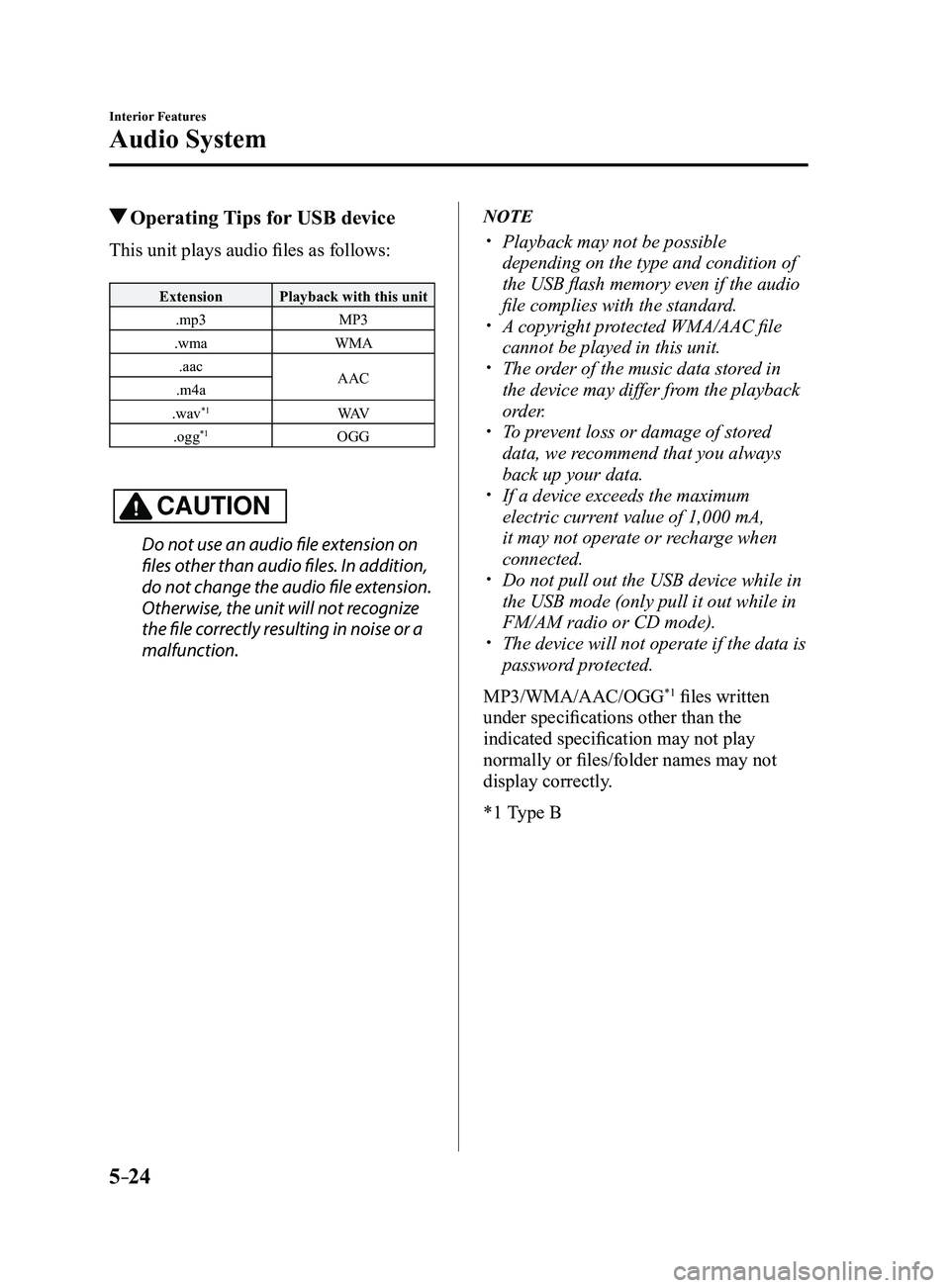
Operating Tips for USB device
This unit plays audio files as follows:
ExtensionPlayback with this unit
.mp3 MP3
.wma WMA
.aac AAC
.m4a
.wav
*1WAV
.ogg*1OGG
CAUTION
Do not use an audio file extension on
files other than audio files. In addition,
do not change the audio file extension.
Otherwise, the unit will not recognize
the file correctly resulting in noise or a
malfunction.
NOTE
Playback may not be possible
depending on the type and condition of
the USB flash memory even if the audio
file complies with the standard.
A copyright protected WMA/AAC file
cannot be played in this unit. The order of the music data stored in
the device may differ from the playback
order.
To prevent loss or damage of stored
data, we recommend that you always
back up your data.
If a device exceeds the maximum
electric current value of 1,000 mA,
it may not operate or recharge when
connected.
Do not pull out the USB device while in
the USB mode (only pull it out while in
FM/AM radio or CD mode).
The device will not operate if the data is
password protected.
MP3/WMA/AAC/OGG
*1 files written
under specifications other than the
indicated specification may not play
normally or files/folder names may not
display correctly.
*1 Type B
Mazda3_8FL6-EA-16F_Edition2.indb 242016/08/10 17:37:24
Page 317 of 612
5–25
Interior Features
Audio System
Operating Tips for iPod
This unit supports playback of music files
recorded to an iPod.
* iPod is a trademark of Apple Inc.,
registered in the U.S. and other
countries.
The iPod may not be compatible
depending on the model or OS version. In
this case, an error message is displayed.
CAUTION
Remove the iPod when it is not in
use. Because the iPod is not designed
to withstand excessive changes in
temperature inside the cabin, it could be
damaged or the battery may deteriorate
due to the excessive temperature or
humidity inside the cabin if it is left in the
vehicle.
If data in the iPod is lost while it is
connected to the unit, Mazda cannot
guarantee recovery of any lost data.
If the iPod battery is deteriorated, the
iPod may not recharge and playback
may not be possible when it is connected
to the unit.
Be careful not to pinch the iPod
connecting cable when opening/closing
the center console.
For details on using the iPod, refer to the
iPod instruction manual. When connecting the iPod to a USB port,
all commands are made from the audio
unit. iPod control is not possible.
NOTE
The audio unit cannot display images or
videos stored in an iPod.
Mazda3_8FL6-EA-16F_Edition2.indb 252016/08/10 17:37:24
Page 318 of 612
![MAZDA MODEL 3 4-DOOR 2017 Owners Manual 5–26
Interior Features
Audio System
Audio set [Type A (non-touchscreen)]
Power/Volume/Sound Controls ........................................................................\
.....page 5-28
Clock](/img/28/40993/w960_40993-317.png "MAZDA MODEL 3 4-DOOR 2017 Owners Manual 5–26
Interior Features
Audio System
Audio set [Type A (non-touchscreen)]
Power/Volume/Sound Controls ........................................................................\
.....page 5-28
Clock")
5–26
Interior Features
Audio System
Audio set [Type A (non-touchscreen)]
Power/Volume/Sound Controls ........................................................................\
.....page 5-28
Clock ........................................................................\
.............................................page 5-30
Operating the Radio ........................................................................\
......................page 5-32
How to use Auxiliary jack/USB port ....................................................................page 5-33
Mazda3_8FL6-EA-16F_Edition2.indb 262016/08/10 17:37:25
Page 325 of 612
5–33
Interior Features
Audio System
Preset channel tuning
The 6 preset channels can be used to store
6 AM and 12 FM stations.
1. To set a channel first select AM, FM1,
or FM2. Tune to the desired station.
2. Press a channel preset button for
about 2 seconds until a beep is heard.
The preset channel number or station
frequency will be displayed. The
station is now held in the memory.
3. Repeat this operation for the other
stations and bands you want to store.
To tune one in the memory, select AM,
FM1, or FM2 and then press its channel
preset button. The station frequency or
the channel number will be displayed.
Auto memory tuning
This is especially useful when driving in
an area where the local stations are not
known.
Press and hold the auto memory button
(
) for about 2 seconds until a beep
is heard; the system will automatically
scan and temporarily store up to 6 stations
with the strongest frequencies in each
selected band in that area.
After scanning is completed, the station
with the strongest frequency will be tuned
and its frequency displayed. Press and
release the auto memory button (
)
to recall stations from the auto-stored
stations. One stored station will be
selected each time and its frequency and
channel number will be displayed.
NOTE
If no stations can be tuned after scanning
operations, “A” will be displayed.
How to use Auxiliary jack/USB
port
Audio can be heard from the vehicle's
speakers by connecting a commercially-
available portable audio unit to the
auxiliary jack.
Use a commercially-available, non-
impedance (3.5
) stereo mini plug cable.
Contact an Authorized Mazda Dealer for
details.
In addition, audio can be played from the
vehicle audio device by connecting a USB
device to the USB port.
Refer to AUX/USB mode on page
5-57.
Mazda3_8FL6-EA-16F_Edition2.indb 332016/08/10 17:37:28
Page 334 of 612
5–42
Interior Features
Audio System
Operating the Radio
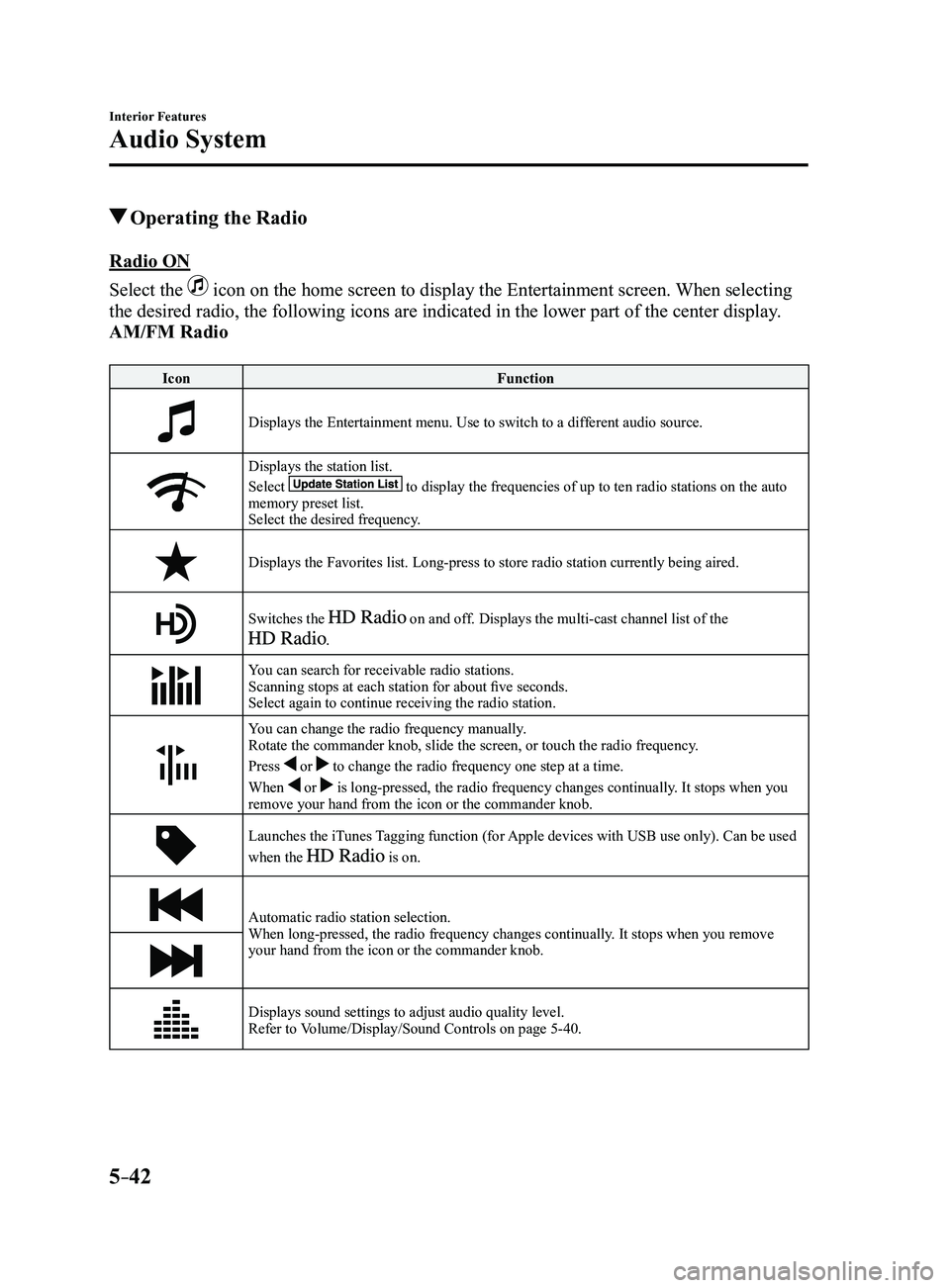
Radio ON
Select the
icon on the home screen to display the Entertainment screen. When selecting
the desired radio, the following icons are indicated in the lower part o\
f the center display.
AM/FM Radio
IconFunction
Displays the Entertainment menu. Use to switch to a different audio source.
Displays the station list.
Select to display the frequencies of up to ten radio stations on the auto memory preset list.
Select the desired frequency.
Displays the Favorites list. Long-press to store radio station currently\
being aired.
Switches the on and off. Displays the multi-cast channel list of the
.
You can search for receivable radio stations.
Scanning stops at each station for about five seconds.
Select again to continue receiving the radio station.
You can change the radio frequency manually.
Rotate the commander knob, slide the screen, or touch the radio frequency.
Press
or to change the radio frequency one step at a time.
When
or is long-pressed, the radio frequency changes continually. It stops when you
remove your hand from the icon or the commander knob.
Launches the iTunes Tagging function (for Apple devices with USB use only). Can be used
when the is on.
Automatic radio station selection.
When long-pressed, the radio frequency changes continually. It stops when you remove
your hand from the icon or the commander knob.
Displays sound settings to adjust audio quality level.
Refer to Volume/Display/Sound Controls on page 5-40.
Mazda3_8FL6-EA-16F_Edition2.indb 422016/08/10 17:37:38
Page 337 of 612
5–45
Interior Features
Audio System
*Some models.
NOTE
If an analog broadcast is received once
and is received while HD1 is
selected, the audio unit switches to the
station automatically.
When the icon is illuminated, there
could be a noticeable difference in
sound quality and volume when a
change from digital to analog signals
occurs. If the sound quality and volume
become noticeably diminished or cut
off, select the
icon to turn off
( icon is not illuminated). Once an analog br oadcast is received
when HD1 is selected from the Favorite
channels, it is switched to
automatically. If the radio reception
conditions are poor, or HD is off,
switching to
broadcasts is
not possible. When an HD specialty channel (HD2 to
HD8) is selected from the Favorite
channels, “Signal Lost” is displayed
and no audio is output until
is received. If the radio reception
conditions are poor, “Signal Lost”
continues to be displayed.
If the icon is not illuminated,
information such as song titles of the
station are received,
however, the audio output is analog.
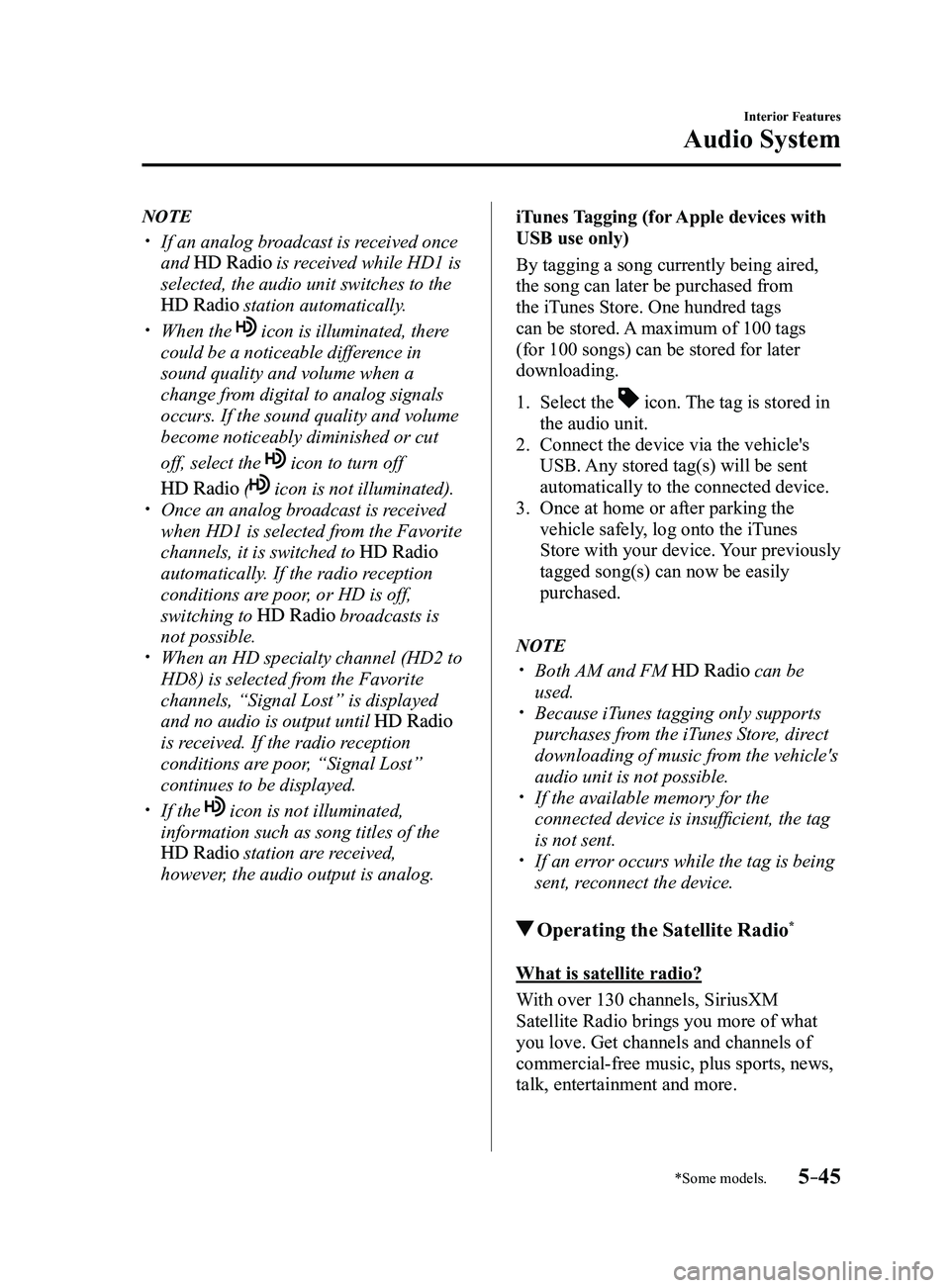
iTunes Tagging (for Apple devices with
USB use only)
By tagging a song currently being aired,
the song can later be purchased from
the iTunes Store. One hundred tags
can be stored. A maximum of 100 tags
(for 100 songs) can be stored for later
downloading.
1. Select the icon. The tag is stored in
the audio unit.
2. Connect the device via the vehicle's
USB. Any stored tag(s) will be sent
automatically to the connected device.
3. Once at home or after parking the
vehicle safely, log onto the iTunes
Store with your device. Your previously
tagged song(s) can now be easily
purchased.
NOTE
Both AM and FM can be
used. Because iTunes tagging only supports
purchases from the iTunes Store, direct
downloading of music from the vehicle's
audio unit is not possible.
If the available memory for the
connected device is insufficient, the tag
is not sent.
If an error occurs while the tag is being
sent, reconnect the device.
Operating the Satellite Radio*
What is satellite radio?
With over 130 channels, SiriusXM
Satellite Radio brings you more of what
you love. Get channels and channels of
commercial-free music, plus sports, news,
talk, entertainment and more.
Mazda3_8FL6-EA-16F_Edition2.indb 452016/08/10 17:37:41
Page 344 of 612
5–52
Interior Features
Audio System
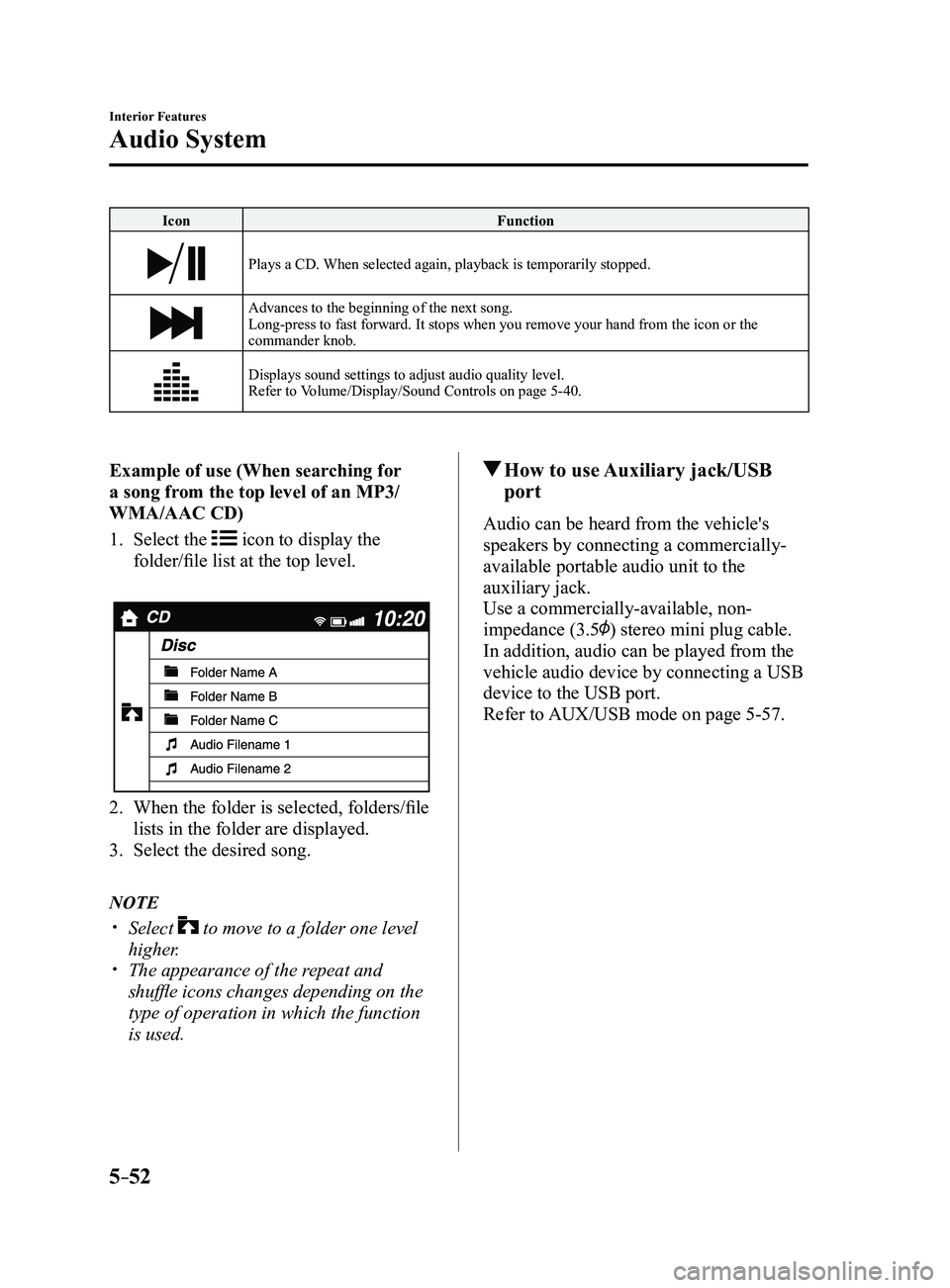
IconFunction
Plays a CD. When selected again, playback is temporarily stopped.
Advances to the beginning of the next song.
Long-press to fast forward. It stops when you remove your hand from the \
icon or the
commander knob.
Displays sound settings to adjust audio quality level.
Refer to Volume/Display/Sound Controls on page 5-40.
Example of use (When searching for
a song from the top level of an MP3/
WMA/AAC CD)
1. Select the icon to display the
folder/file list at the top level.
2. When the folder is selected, folders/file
lists in the folder are displayed.
3. Select the desired song.
NOTE
Select to move to a folder one level
higher. The appearance of the r epeat and
shuffle icons changes depending on the
type of operation in which the function
is used.
How to use Auxiliary jack/USB
port
Audio can be heard from the vehicle's
speakers by connecting a commercially-
available portable audio unit to the
auxiliary jack.
Use a commercially-available, non-
impedance (3.5
) stereo mini plug cable.
In addition, audio can be played from the
vehicle audio device by connecting a USB
device to the USB port.
Refer to AUX/USB mode on page
5-57.
Mazda3_8FL6-EA-16F_Edition2.indb 522016/08/10 17:37:45
Page 346 of 612
5–54
Interior Features
Audio System
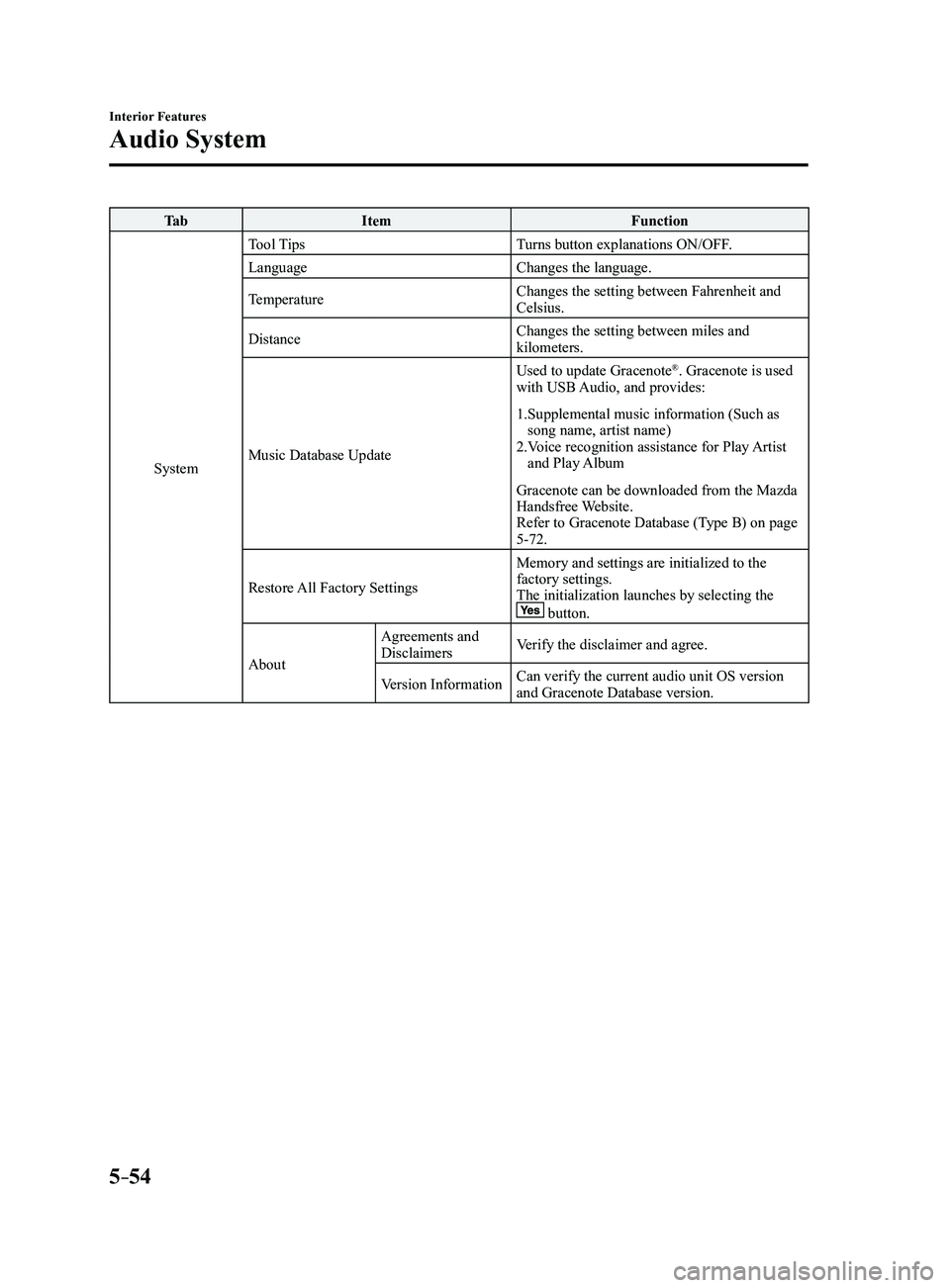
Ta bItem Function
System Tool Tips
Turns button explanations ON/OFF.
Language Changes the language.
Temperature Changes the setting between Fahrenheit and
Celsius.
Distance Changes the setting between miles and
kilometers.
Music Database Update Used to update Gracenote
®. Gracenote is used
with USB Audio, and provides:
1. Supplemental music information (Such as song name, artist name)2. Voice recognition assistance for Play Artist and Play Album
Gracenote can be downloaded from the Mazda
Handsfree Website.
Refer to Gracenote Database (Type B) on page
5-72.
Restore All Factory Settings Memory and settings are initialized to the
factory settings.
The initialization launches by selecting the
button.
AboutAgreements and
Disclaimers
Verify the disclaimer and agree.
Version Information Can verify the current audio unit OS version
and Gracenote Database version.
Mazda3_8FL6-EA-16F_Edition2.indb 542016/08/10 17:37:46
Page 348 of 612
5–56
Interior Features
Audio System
*Some models.
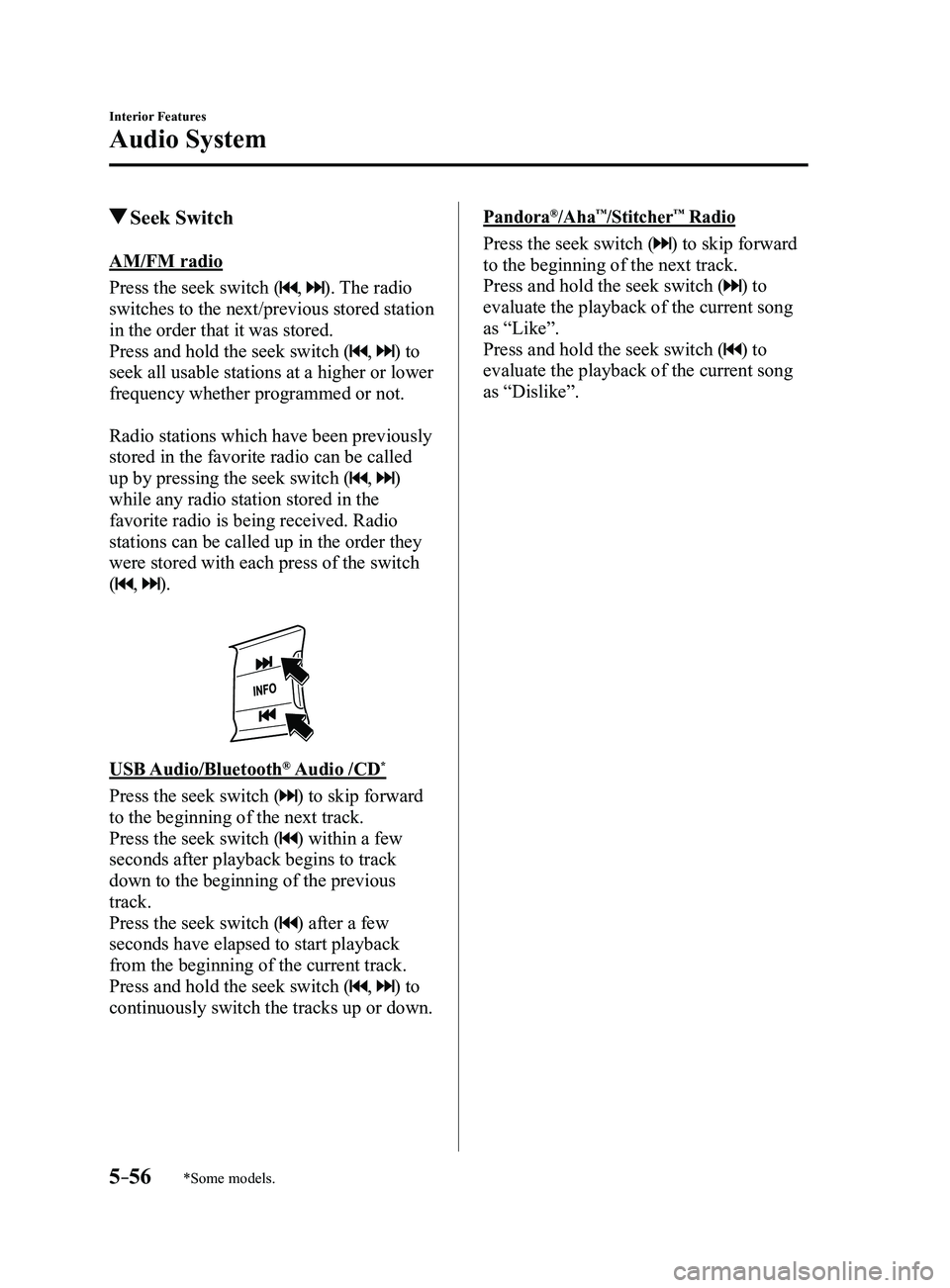
Seek Switch
AM/FM radio
Press the seek switch (
, ). The radio
switches to the next/previous stored station
in the order that it was stored.
Press and hold the seek switch (
, ) to
seek all usable stations at a higher or lower
frequency whether programmed or not.
Radio stations which have been previously
stored in the favorite radio can be called
up by pressing the seek switch (
, )
while any radio station stored in the
favorite radio is being received. Radio
stations can be called up in the order they
were stored with each press of the switch
(
, ).
USB Audio/Bluetooth® Audio /CD*
Press the seek switch () to skip forward
to the beginning of the next track.
Press the seek switch (
) within a few
seconds after playback begins to track
down to the beginning of the previous
track.
Press the seek switch (
) after a few
seconds have elapsed to start playback
from the beginning of the current track.
Press and hold the seek switch (
, ) to
continuously switch the tracks up or down.
Pandora®/Aha™/Stitcher™ Radio
Press the seek switch () to skip forward
to the beginning of the next track.
Press and hold the seek switch (
) to
evaluate the playback of the current song
as “Like”.
Press and hold the seek switch (
) to
evaluate the playback of the current song
as “Dislike”.
Mazda3_8FL6-EA-16F_Edition2.indb 562016/08/10 17:37:47