lock MAZDA MODEL 3 5-DOOR 2013 Owners Manual
[x] Cancel search | Manufacturer: MAZDA, Model Year: 2013, Model line: MODEL 3 5-DOOR, Model: MAZDA MODEL 3 5-DOOR 2013Pages: 610, PDF Size: 7.05 MB
Page 317 of 610
Black plate (317,1)
4. After inputting the four digits, touchthe
on-screen button to confirm
the four digits.
5. If the four digits match the registered code, “Enter New Code ”is displayed.
If they do not match the registered
code, “Wrong code ”appears and then
the display returns to
“ Enter Current Code ”. To enter a
number, use the numerical keypad.
6. After inputting the four digits, touch the
on-screen button to confirm
the four digits.
7. “Code changed ”appears to indicate
that the new code input has been
completed.
8. The display returns to its normal display.
NOTE
Channels locked before changing the code
remain after changing the code. To unlock a
channel, input the changed code.
Parental-lock code reset
If the registered code has been forgotten,
reset the code to the default [0000] code.
1. Touch the
on-screen button to
display the settings screen.
2. Touch the
on-
screen button to display the code initial
screen.
3. “Enter Master Code ”is displayed, and
input of the registered code is possible.
To enter a number, use the numerical
keypad. NOTE
Master code:
The Master Code is used to initialize or re-
initialize the code in the event that the code is
not set to [0000] and/or the personalized code
is not known. The initialization process resets
the code to [0000]. The master code can
potentially defeat the intent of the security of
the parental lock if it is located by persons not
authorized by the owner to access certain
channels.
SIRIUS Satellite Radio Master Code: [0913]
4. After inputting the four digits, touch
the
on-screen button to confirm
the four digits.
5. If the four digits match the master code, “Code initialized ”appears. If
they do not match the master code,
“ Wrong code ”appears and the display
returns to “Enter Master Code ”.
6. The code returns to the default [0000] code.
Seek alert
The song title and artist name for the song
currently being listened to, and team
names at the sports game currently being
listened to can be recorded as favorites.
The user is notified when a program
begins which has favorites-related
information recorded.
Selection from seek alert program list
Select the station you want to listen to
from the list to receive the program.
Touch the
on-screen button to
return to the receiving screen.
Interior Comfort
Audio System
6-77
Mazda3_8CV6-EA-12H_Edition3 Page317
Thursday, February 28 2013 11:29 AM
Form No.8CV6-EA-12H
Page 321 of 610
Black plate (321,1)
Fast-forward/Reverse
Operations using audio panel
Press and hold the fast-forward button
(
) to advance through a track at high
speed.
Press and hold the reverse button (
)to
reverse through a track at high speed.
Operations on screen
Touch and hold the
on-screen
button to advance through a track at high
speed.
Touch and hold the
on-screen
button to reverse through a track at high
speed.
Track search
Operations using audio panel
Press the track up button (
) or turn the
file dial clockwise once to skip forward to
the beginning of the next track.
Press the track down button (
) or turn
the file dial counterclockwise within a few
seconds after playback begins to track
down to the beginning of the previous
track.
Press the track down button (
) or turn
the file dial counterclockwise after a few
seconds have elapsed to start playback
from the beginning of the current track.
Operations on screen
Touch the
on-screen button once to
skip forward to the beginning of the next
track.
Touch the
on-screen button within
a few seconds after playback begins to
track down to the beginning of the
previous track.
Touch the
on-screen button after a
few seconds have elapsed to start
playback from the beginning of the
current track.
Displaying file list
The desired file list in the CD can be
viewed.
During music CD playback
Touch the
on-screen button to display
the track list in the CD.
During MP3/WMA/AAC CD playback
(Viewing file list in desired folder)
1. Touch the
on-screen button to
display the folder list in the CD.
2. Touch the folder which you want to select.
(Viewing file list of current folder)
Touch the
on-screen button.
Selecting file/track
Select the file/track you want to play.
During music CD playback
1. Touch the
on-screen button to
display the track list in the CD.
2. Touch the track you want to play.
During MP3/WMA/AAC CD playback
NOTE
Press theon-screen button on the file list
screen to display the list of folders.
(Selection from all folders in CD)
1. When the
on-screen button is
touched, the folder list in the CD is
displayed.
2. Select the folder name from the displayed list.
3. The files in the selected folder are displayed.
4. Select the file you want to play.
Interior Comfort
Audio System
6-81
Mazda3_8CV6-EA-12H_Edition3 Page321
Thursday, February 28 2013 11:29 AM
Form No.8CV6-EA-12H
Page 333 of 610
Black plate (333,1)
Fast-forward/Reverse
Press and hold the fast-forward button
(
) to advance through a track at high
speed.
Press and hold the reverse button (
)to
reverse through a track at high speed.
Track search
Press the track up button (
) or turn the
file dial clockwise once to skip forward to
the beginning of the next track.
Press the track down button (
) or turn
the file dial counterclockwise within a few
seconds after playback begins to track
down to the beginning of the previous
track.
Press the track down button (
) or turn
the file dial counterclockwise after a few
seconds have elapsed to start playback
from the beginning of the current track.
Folder search
To change to the previous folder, press the
folder down button (
), or press the
folder up button (
) to advance to the
next folder.
Music Scan
This function scans the titles in a folder
currently being played and plays ten
seconds of each song to aid you in finding
a song you want to listen to.
Press the scan button (
) during
playback to start the scan play operation
(the track number will flash). Press the
scan button (
) again to cancel scan
playback.
NOTE
If the unit is left in scan, normal playback will
resume where scan was selected.
Repeat playback
Press the repeat button (
) during
playback to play the current track
repeatedly. “RPT ”is displayed during
playback.
Press the repeat button (
) two times
while “RPT ”is displayed to cancel.
Random playback
Press the random button (
) during
playback to play the tracks in the folder
randomly. “RDM ”is displayed during
playback.
Press the random button (
) two times
while “RDM ”is displayed to cancel.
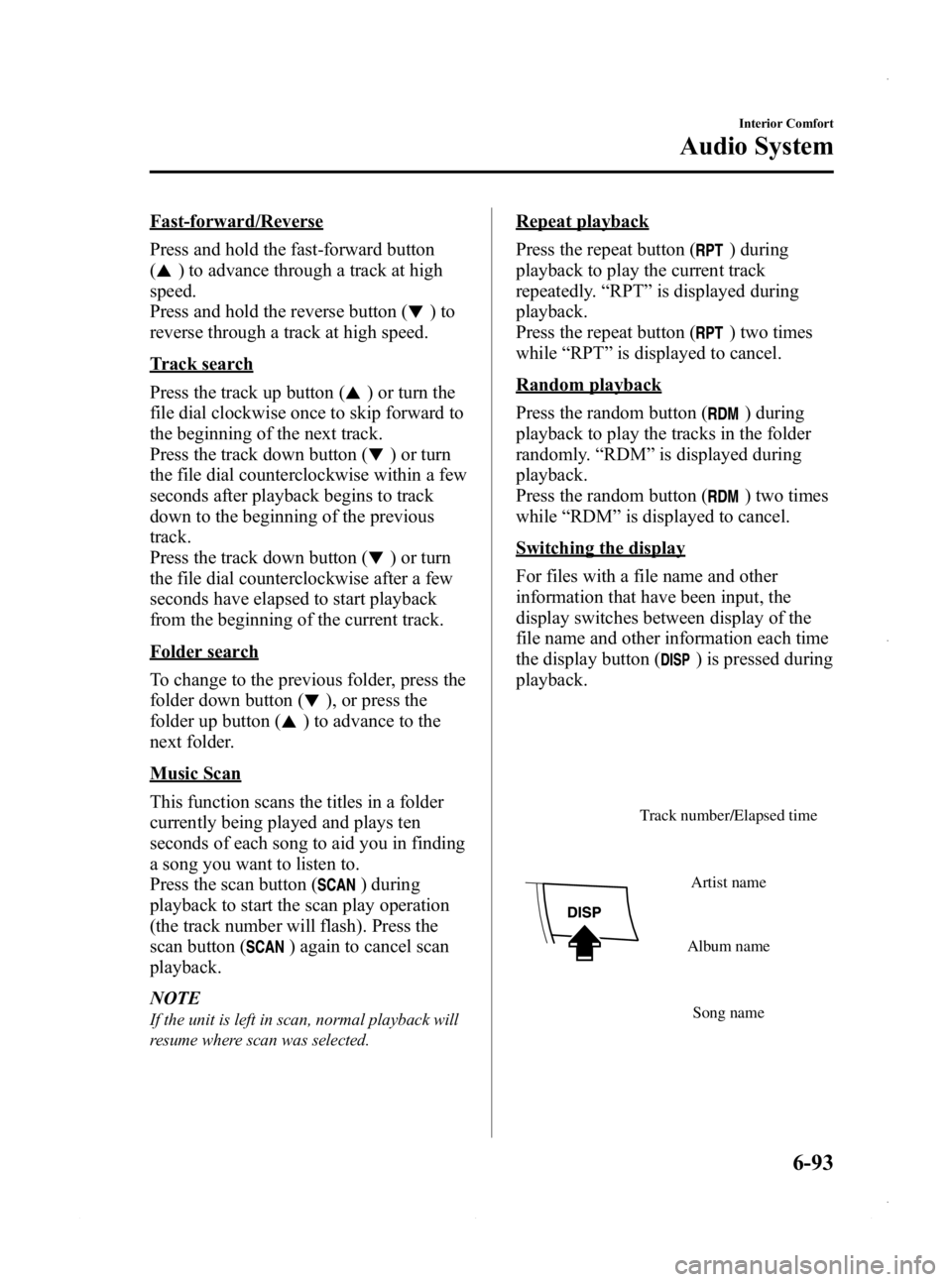
Switching the display
For files with a file name and other
information that have been input, the
display switches between display of the
file name and other information each time
the display button (
) is pressed during
playback.
Track number/Elapsed time
Song name
Album name
Artist name
Interior Comfort
Audio System
6-93
Mazda3_8CV6-EA-12H_Edition3 Page333
Thursday, February 28 2013 11:29 AM
Form No.8CV6-EA-12H
Page 337 of 610
Black plate (337,1)
Fast-forward/Reverse
Operations using audio panel
Press and hold the fast-forward button
(
) to advance through a track at high
speed.
Press and hold the reverse button (
)to
reverse through a track at high speed.
Operations on screen
Touch and hold the
on-screen
button to advance through a track at high
speed.
Touch and hold the
on-screen
button to reverse through a track at high
speed.
Track search
Operations using audio panel
Press the track up button (
) or turn the
file dial clockwise once to skip forward to
the beginning of the next track.
Press the track down button (
) or turn
the file dial counterclockwise within a few
seconds after playback begins to track
down to the beginning of the previous
track.
Press the track down button (
) or turn
the file dial counterclockwise after a few
seconds have elapsed to start playback
from the beginning of the current track.
Operations on screen
Touch the
on-screen button once to
skip forward to the beginning of the next
track.
Touch the
on-screen button within
a few seconds after playback begins to
track down to the beginning of the
previous track.
Touch the
on-screen button after a
few seconds have elapsed to start
playback from the beginning of the
current track.
Displaying song list
The song list in the USB device can be
viewed.
NOTE
The song list may not display depending on the
conditions.
(Displaying optional list)
1. Touch the
on-screen button during
playback.
2. Touch the category which you want to select. The record list or song list is
displayed.
(Displaying a list being played)
Touch the
on-screen button.
NOTE
Press theon-screen button to display the
upper list.
Selecting from list
Select the desired song to play.
1. Press the
on-screen button to select
the song list.
2. Touch the song you want to listen to.
NOTE
The selected song list becomes the play list.
Repeat playback
Touch the
on-screen button during
playback. “
”is displayed during
playback.
Touch the
on-screen button two
times while “
”is displayed to cancel.
Shuffle playback
(Shuffling songs in list being played)
Touch the
on-screen button during
playback. “
”is displayed during
playback.
Interior Comfort
Audio System
6-97
Mazda3_8CV6-EA-12H_Edition3 Page337
Thursday, February 28 2013 11:29 AM
Form No.8CV6-EA-12H
Page 341 of 610
Black plate (341,1)
Fast-forward/Reverse
Press and hold the fast-forward button
(
) to advance through a track at high
speed.
Press and hold the reverse button (
)to
reverse through a track at high speed.
Track search
Press the track up button (
) or turn the
file dial clockwise once to skip forward to
the beginning of the next track.
Press the track down button (
) or turn
the file dial counterclockwise within a few
seconds after playback begins to track
down.
Press the track down button (
) or turn
the file dial counterclockwise after a few
seconds have elapsed to start playback
from the beginning of the track.
Category search
Press the category down button (
)to
select the previous category and press the
category up button (
) to select the next
category.
NOTE
The types of categories include Playlist, Artist,
Album, Song, Podcast, Genre, Composer, and
Audio book.
List search
Press the list down button (
) to select
the previous list and press the list up
button (
) to select the next list.
NOTE
When the selected category is Song or Audio
book, there is no list.
Music Scan
This function scans the titles in a list
currently being played and plays ten
seconds of each song to aid you in finding
a song you want to listen to. Press the scan button (
) during
playback to start the scan play operation
(the track number will flash). Press the
scan button (
) again to cancel scan
playback.
NOTE
If the unit is left in scan, normal playback will
resume where scan was selected.
Repeat playback
Press the repeat button (
) during
playback to repeat the playback of the
song in the current list. “RPT ”is
displayed during playback.
Press the repeat button (
) while
displaying “RPT ”to cancel.
Random playback
Press the random button (
) during
playback to play the tracks in the list
randomly. “RDM ”is displayed during
playback.
Press the random button (
) two times
while “RDM ”is displayed to cancel.
NOTE
The track number being played randomly is in
the order of the iPod shuffle table.
Interior Comfort
Audio System
6-101
Mazda3_8CV6-EA-12H_Edition3 Page341
Thursday, February 28 2013 11:29 AM
Form No.8CV6-EA-12H
Page 345 of 610
Black plate (345,1)
Fast-forward/Reverse
Operations using audio panel
Press and hold the fast-forward button
(
) to advance through a track at high
speed.
Press and hold the reverse button (
)to
reverse through a track at high speed.
Operations on screen
Touch and hold the
on-screen
button to advance through a track at high
speed.
Touch and hold the
on-screen
button to reverse through a track at high
speed.
Track search
Operations using audio panel
Press the track up button (
) or turn the
file dial clockwise once to skip forward to
the beginning of the next track.
Press the track down button (
) or turn
the file dial counterclockwise within a few
seconds (depends on iPod software
version) after playback begins to track
down to the beginning of the previous
track.
Press the track down button (
) or turn
the file dial counterclockwise after a few
seconds (depends on iPod software
version) have elapsed to start playback
from the beginning of the current track.
Operations on screen
Touch the
on-screen button once to
skip forward to the beginning of the next
track.
Touch the
on-screen button within
a few seconds (depends on iPod software
version) after playback begins to track
down to the beginning of the previous
track. Touch the
on-screen button after a
few seconds (depends on iPod software
version) have elapsed to start playback
from the beginning of the current track.
Displaying song list
The song list in the iPod can be viewed.
NOTE
The song list may not display depending on the
conditions.
(Displaying optional list)
1. Touch the
on-screen button during
playback.
2. Touch the category which you want to select. The record list or song list is
displayed.
(Displaying a list being played)
Touch the
on-screen button.
NOTE
Press theon-screen button to display the
upper list.
Selecting from list
Select the desired song to play.
1. Press the
on-screen button to select
the song list.
2. Touch the song you want to listen to.
NOTE
The selected song list becomes the play list.
Repeat playback
Touch the
on-screen button during
playback. “
”is displayed during
playback.
Touch the
on-screen button two
times while “
”is displayed to cancel.
Interior Comfort
Audio System
6-105
Mazda3_8CV6-EA-12H_Edition3 Page345
Thursday, February 28 2013 11:29 AM
Form No.8CV6-EA-12H
Page 355 of 610
Black plate (355,1)
5. If a selection other than“GO BACK ”
is made and the audio control dial is
pressed, “SURE ? NO ”is displayed.
6. Rotate the audio control dial clockwise and switch the display to “SURE ?
YES ”.
NOTE
The display changes as follows depending on
whether the audio control dial is rotated
clockwise or counterclockwise.
-Clockwise: “SURE ? YES ”displayed
-Counterclockwise: “SURE ? NO ”displayed
7. Press the audio control dial to delete
the selected device.
NOTE
Select “GO BACK ”and press the audio
control dial to return to the “PAIR DELETE ”
display.
8. “PAIR DELETED ”is displayed for
three seconds after the deletion is
completed, and then it returns to the
normal display.
NOTE
If an error occurs while trying to delete the
programmed device, “Err ”flashes in the
display for three seconds and the display
returns to “LINK DELETE ”.
Bluetooth®audio device information
display
1. Using the audio control dial, select the
pair device information display mode
“DEVICE INFO ”in the “BT SETUP”
mode. (Refer to “Bluetooth
®audio
device set-up ”for details.)
2. Press the audio control dial to determine the mode.
3. The name of the Bluetooth
®unit
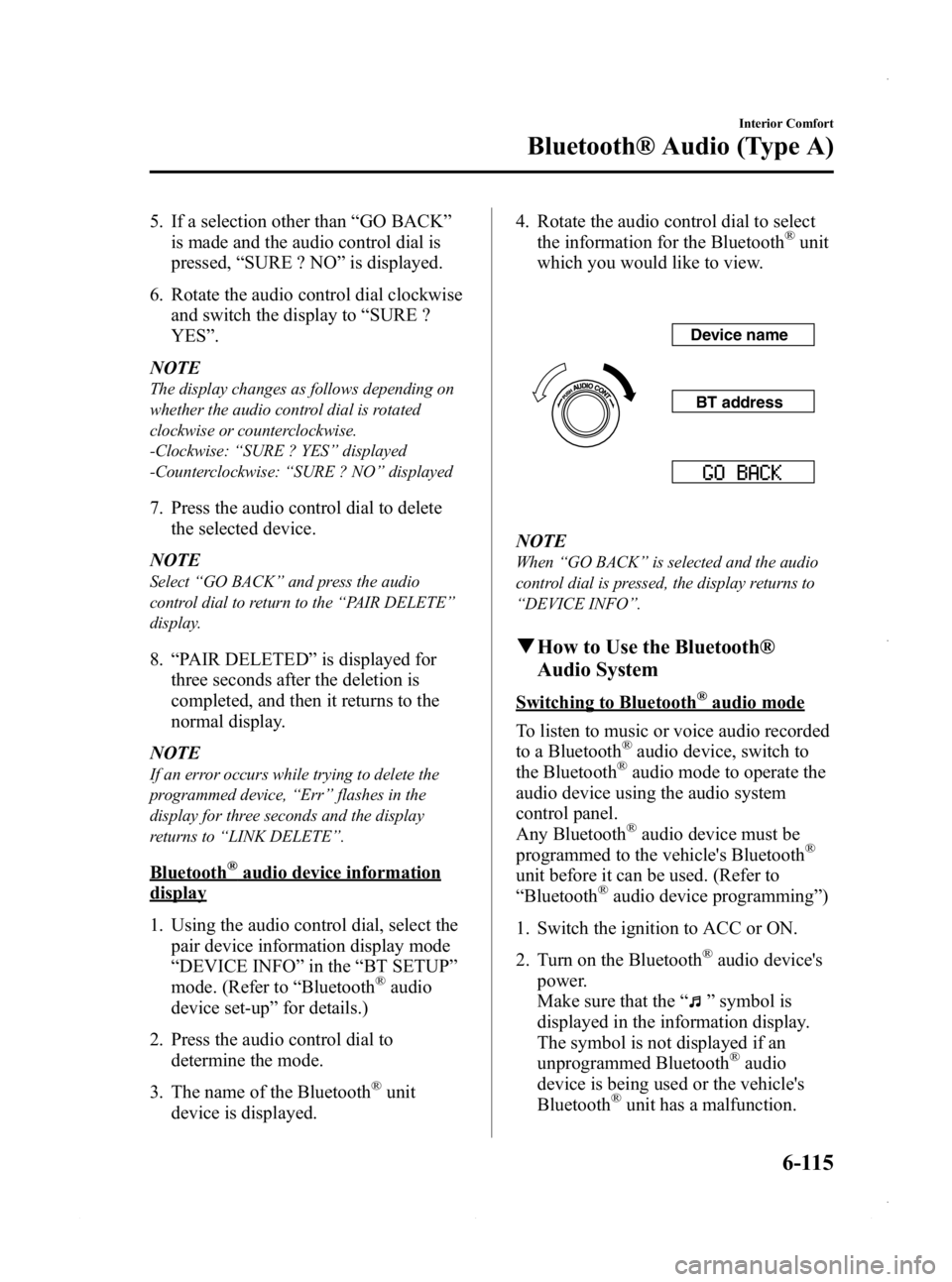
device is displayed. 4. Rotate the audio control dial to select
the information for the Bluetooth
®unit
which you would like to view.
Device name
BT address
NOTE
When “GO BACK ”is selected and the audio
control dial is pressed, the display returns to
“ DEVICE INFO ”.
q How to Use the Bluetooth®
Audio System
Switching to Bluetooth®audio mode
To listen to music or voice audio recorded
to a Bluetooth
®audio device, switch to
the Bluetooth®audio mode to operate the
audio device using the audio system
control panel.
Any Bluetooth
®audio device must be
programmed to the vehicle's Bluetooth®
unit before it can be used. (Refer to
“ Bluetooth®audio device programming ”)
1. Switch the ignition to ACC or ON.
2. Turn on the Bluetooth
®audio device's
power.
Make sure that the “
”symbol is
displayed in the information display.
The symbol is not displayed if an
unprogrammed Bluetooth
®audio
device is being used or the vehicle's
Bluetooth
®unit has a malfunction.
Interior Comfort
Bluetooth® Audio (Type A)
6-115
Mazda3_8CV6-EA-12H_Edition3 Page355
Thursday, February 28 2013 11:29 AM
Form No.8CV6-EA-12H
Page 356 of 610
Black plate (356,1)
NOTE
Some Bluetooth®audio devices need a certain
amount of time before the “
”symbol is
displayed.
3. Press the AUX button () to switch
to the Bluetooth®audio mode and start
playback.
If the current device version is lower
than AVRCP Ver. 1.3:
“ BT Audio ”is displayed.
If the current device is AVRCP Ver.
1.3:
The playback time is displayed.
NOTE
lIf the Bluetooth®audio device does not
begin playback, press the Play/Pause
button (
).lIf the mode is switched from Bluetooth®
audio mode to another mode (radio mode),
audio playback from the Bluetooth®audio
device stops.
lIf a call is received on a hands-free mobile
phone during playback from the Bluetooth®
audio device, the playback is stopped.
Playback from the Bluetooth®audio device
resumes after the call ends.
Playback
1. To listen to a Bluetooth
®audio device
over the vehicle's speaker system,
switch the mode to Bluetooth
®audio
mode. (Refer to “Switching to
Bluetooth
®audio mode ”)
2. To stop playback, press the Play/Pause button (
).
3. Press the button again to resume playback.
Selecting a file (track)
Short-press the track down button (
)or
turn the file dial counterclockwise: Selects
the beginning of the current file (track).
Short-press the track up button (
)or
turn the file dial clockwise: Selects the
next file (track).
Fast-forward/Reverse (only AVRCP
Ver. 1.3)
Fast-forward
Press and hold the track up button (
).
Reverse
Press and hold the track down button
(
).
Switching the display (only AVRCP
Ver. 1.3)
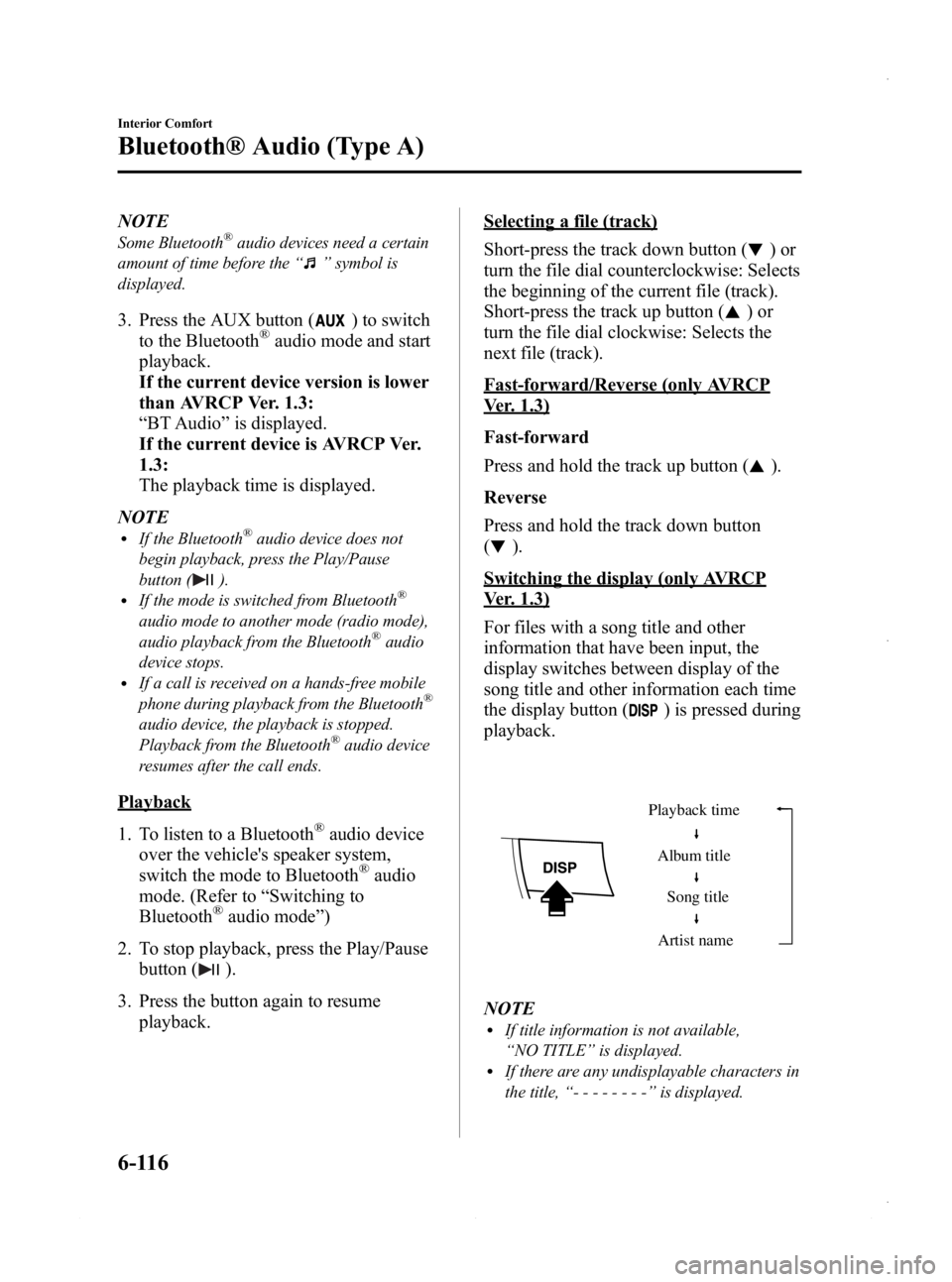
For files with a song title and other
information that have been input, the
display switches between display of the
song title and other information each time
the display button (
) is pressed during
playback.
Album title
Song title
Artist name
Playback time
NOTElIf title information is not available,
“
NO TITLE ”is displayed.
lIf there are any undisplayable characters in
the title, “-------- ”is displayed.
6-116
Interior Comfort
Bluetooth® Audio (Type A)
Mazda3_8CV6-EA-12H_Edition3 Page356
Thursday, February 28 2013 11:29 AM
Form No.8CV6-EA-12H
Page 376 of 610
![MAZDA MODEL 3 5-DOOR 2013 Owners Manual Black plate (376,1)
10.Say: [Beep] “XXXXX... (Ex. device
C) ”(Speak a “device tag ”,an
arbitrary name for the device.)
11. Prompt: “XXXXX... (Ex. device C)
(Device tag), is this correct? ”](/img/28/41005/w960_41005-375.png "MAZDA MODEL 3 5-DOOR 2013 Owners Manual Black plate (376,1)
10.Say: [Beep] “XXXXX... (Ex. device
C) ”(Speak a “device tag ”,an
arbitrary name for the device.)
11. Prompt: “XXXXX... (Ex. device C)
(Device tag), is this correct? ”")
Black plate (376,1)
10.Say: [Beep] “XXXXX... (Ex. device
C) ”(Speak a “device tag ”,an
arbitrary name for the device.)
11. Prompt: “XXXXX... (Ex. device C)
(Device tag), is this correct? ”
12. Say: [Beep] “Ye s ”
13. Prompt: “New name saved, returning
to main menu. ”
qSecurity Setting
If a passcode is set, the system cannot be
activated unless the passcode is input.
NOTE
Do this function only when parked. It is too
distracting to attempt while driving and you
may make too many errors to be effective.
Passcode setting
1. Press the pick-up button or talk button
with a short press.
2. Say: [Beep] “Setup ”
3. Prompt: “Select one of the following:
Pairing options, confirmation prompts,
language, passcode, select phone or
select music player.”
4. Say: [Beep] “Passcode ”
5. Prompt: “Passcode is disabled. Would
you like to enable it? ”
6. Say: [Beep] “Ye s ”
7. Prompt: “Please say a 4-digit
passcode. Remember this passcode. It
will be required to use this system. ”
8. Say: [Beep] “XXXX ”(Say a desired 4-
digit passcode, “PCode ”.)
9. Prompt: “Passcode XXXX (Passcode,
PCode). Is this correct? ”10.
Say: [Beep] “Ye s ”
11. Prompt: “Passcode is enabled,
returning to main menu. ”
Using Bluetooth®Hands-Free with a
passcode
1. Press the pick-up button or talk button
with a short press.
2. Prompt: “Hands-Free system is
locked. State the passcode to
continue. ”
3. Say: [Beep] “XXXX ”(Say the set
passcode “PCode ”.)
4. If the correct passcode is input, voice guidance “XXXXXX... (Ex. “Mary's
device ”) (Device tag) is connected ”is
announced.
If the passcode is incorrect, voice
guidance “XXXX (4-digit passcode,
Pcode) incorrect passcode, please try
again ”is announced.
Canceling the passcode
NOTE
Do this function only when parked. It is too
distracting to attempt while driving and you
may make too many errors to be effective.
1. Press the pick-up button or talk button
with a short press.
2. Say: [Beep] “Setup ”
3. Prompt: “Select one of the following:
Pairing options, confirmation prompts,
language, passcode, select phone or
select music player.”
4. Say: [Beep] “Passcode ”
5. Prompt: “Passcode is enabled. Would
you like to disable it? ”
6. Say: [Beep] “Ye s ”
6-136
Interior Comfort
Bluetooth® Hands-Free (Type A)
Mazda3_8CV6-EA-12H_Edition3 Page376
Thursday, February 28 2013 11:29 AM
Form No.8CV6-EA-12H
Page 390 of 610
![MAZDA MODEL 3 5-DOOR 2013 Owners Manual Black plate (390,1)
5.Say: [Beep]
“ XXXXXXXXXXX (Ex. “5551234 ”)
(Telephone number) ”
6. Prompt:
“XXXXXXXXXXX. (Ex “5551234 ”)
(Telephone number (first choice)) ”
7. Prompt:
“Press t](/img/28/41005/w960_41005-389.png "MAZDA MODEL 3 5-DOOR 2013 Owners Manual Black plate (390,1)
5.Say: [Beep]
“ XXXXXXXXXXX (Ex. “5551234 ”)
(Telephone number) ”
6. Prompt:
“XXXXXXXXXXX. (Ex “5551234 ”)
(Telephone number (first choice)) ”
7. Prompt:
“Press t")
Black plate (390,1)
5.Say: [Beep]
“ XXXXXXXXXXX (Ex. “5551234 ”)
(Telephone number) ”
6. Prompt:
“XXXXXXXXXXX. (Ex “5551234 ”)
(Telephone number (first choice)) ”
7. Prompt:
“Press the pick-up button to dial, or
continue to add numbers. You can also
say ‘Option A ’or ‘Option B ’to replace
the last block of digits with the
displayed alternate, or say ‘Go Back ’to
delete the last block of digits. ”
NOTE
Option A is the second candidate, Option B is
the third, and they may not be presented
depending on the conditions.
8. (Dialing)
Press the pick-up button or say, “Dial ”,
then go to Step 9.
(Adding/inputting telephone
number)
Say, “XXXX ”(desired telephone
number). Then go to Step 5.
(The last recognized telephone
number is replaced by Option A or
B)
Say, “Option A ”or “Option B” . Then
go to Step 6.
(Telephone number correction)
Say, “Go Back ”. The prompt replies,
“ The last entered numbers have been
removed ”. Then go back to Step 4 or
Step 7.
9. The call is made.
NOTE
For the faster operation, the “Dial ”command
and a telephone number can be combined.
Ex. In Step 3, say, “Dial 1234567 ”, then, Steps
4 and 5 can be skipped.
Screen operation
1. Input the telephone number using the numerical keypad.
2. Touch the
on-screen button to
make the call.
Numeral or symbol entry
Use the numerical keypad.
Long-press the
on-screen button to
input
.
Touch the
on-screen button to delete
the currently input value.
Emergency calls
A call can be made to the emergency
phone number (911) using the voice input
command.
1. Press the pick-up button.
2. Prompt: “Ready ”
3. Say: [Beep] “Emergency ”
4. Prompt:
“Press the Pick-Up button to dial the
Emergency number.”
5. (Dialing) Press the pick-up button or say “Call. ”
6. Prompt: “Dialing 911. ”
Automatic 911
If the vehicle is involved in a moderate to
severe collision, a call is made
automatically to 911 from the connected
device.
1. If the vehicle is involved in a moderate to severe collision, notification of the
call made to 911 is made via audio and
screen display. To cancel the call, press
the
on-screen button or hang-up
button within 10 seconds.
6-150
Interior Comfort
Bluetooth® (Type B)
Mazda3_8CV6-EA-12H_Edition3 Page390
Thursday, February 28 2013 11:30 AM
Form No.8CV6-EA-12H