ECO mode MAZDA MODEL 3 5-DOOR 2017 Service Manual
[x] Cancel search | Manufacturer: MAZDA, Model Year: 2017, Model line: MODEL 3 5-DOOR, Model: MAZDA MODEL 3 5-DOOR 2017Pages: 612
Page 362 of 612
5–70
Interior Features
Audio System
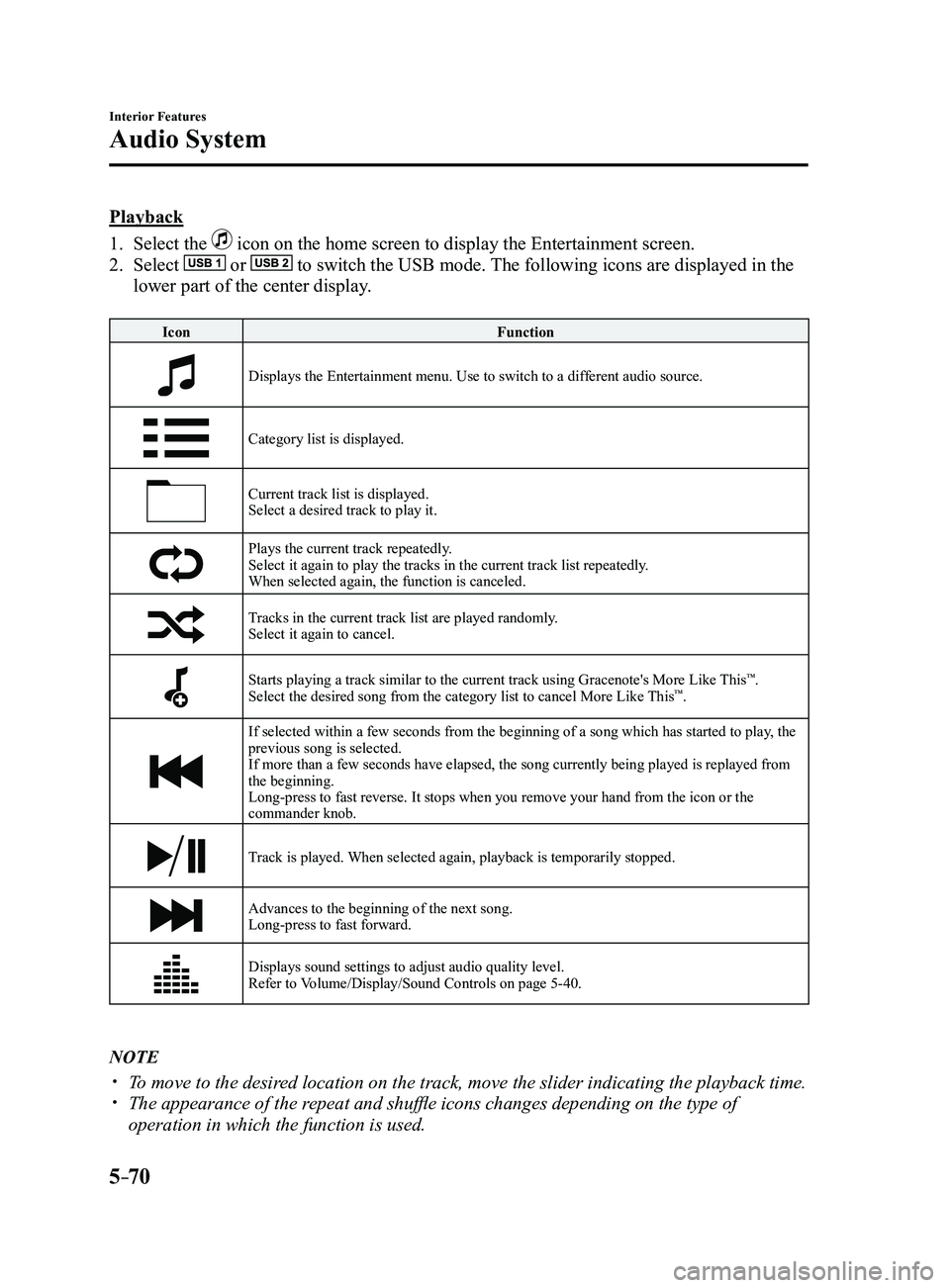
Playback
1. Select the icon on the home screen to display the Entertainment screen.
2. Select or to switch the USB mode. The following icons are displayed in the
lower part of the center display.
IconFunction
Displays the Entertainment menu. Use to switch to a different audio source.
Category list is displayed.
Current track list is displayed.Select a desired track to play it.
Plays the current track repeatedly.Select it again to play the tracks in the current track list repeatedly.
When selected again, the function is canceled.
Tracks in the current track list are played randomly.Select it again to cancel.
Starts playing a track similar to the current track using Gracenote's More Like This™.
Select the desired song from the category list to cancel More Like This™.
If selected within a few seconds from the beginning of a song which has \
started to play, the
previous song is selected.
If more than a few seconds have elapsed, the song currently being played\
is replayed from
the beginning.
Long-press to fast reverse. It stops when you remove your hand from the \
icon or the
commander knob.
Track is played. When selected again, playback is temporarily stopped.
Advances to the beginning of the next song.
Long-press to fast forward.
Displays sound settings to adjust audio quality level.
Refer to Volume/Display/Sound Controls on page 5-40.
NOTE
To move to the desired location on the track, move the slider indicating the playback time. The appearance of the r epeat and shuffle icons changes depending on the type of
operation in which the function is used.
Mazda3_8FL6-EA-16F_Edition2.indb 702016/08/10 17:37:55
Page 369 of 612

5–77
Interior Features
Bluetooth®
Conversation volume and the volume of the voice guidance and ringtone ca\
n each be set in
advance.
1. Select the icon on the home screen to display the Communication screen.
2. Select .
3. Adjust the and the using the slider.
Bluetooth® Preparation
Device pairing
To use Bluetooth
® audio and Hands-Free,
the device equipped with Bluetooth® has
to be paired to the unit using the following
procedure. A maximum of seven devices
including Bluetooth
® audio devices and
hands-free mobile phones can be paired.
NOTE
The Bluetooth® system may not operate
for 1 or 2 minutes after the ignition
is switched to ACC or ON. However,
this does not indicate a problem. If the
Bluetooth
® system does not connect
automatically after 1 or 2 minutes have
elapsed, make sure that the Bluetooth
®
setting on the device is normal and
attempt to reconnect the Bluetooth
®-
enabled device from the vehicle side.
If Bluetooth®-enabled devices are used
in the following locations or conditions,
connection via Bluetooth
® may not be
possible.
The device is in a location hidden
from the center display such as
behind or under a seat, or inside the
glove compartment.
The device contacts or is cover ed by
a metal object or body. The device is set to power-saving
mode. Pairing Procedure
1. Select the icon on the home screen
to display the Settings screen.
2. Select the tab.
3. Select .
4. Turn the Bluetooth® setting on.
5. Select to display the
message and switch to the device
operation.
6. Using your device, perform a search
for the Bluetooth® device (Peripheral
device).
7. Select “Mazda” from the device list
searched by the device.
8. (Device with Bluetooth® version 2.0)
Input the displayed 4-digit pairing code
into the device.
(Device with Bluetooth® version 2.1
or higher)
Make sure the displayed 6-digit code
on the audio is also displayed on the
device, and touch the
.
Connection permission and phonebook
access permission for your mobile
device may be required depending on
the mobile device.
9. If pairing is successful, the functions of
the device connected to Bluetooth® are
displayed.
10. (Devices compatible with Mazda
Email / SMS function)
SMS (Short Message Service)
messages, and E-mail for the device are
downloaded automatically. A download
permission operation for your device
may be required depending on the
device.
Mazda3_8FL6-EA-16F_Edition2.indb 772016/08/10 17:37:59
Page 371 of 612
5–79
Interior Features
Bluetooth®
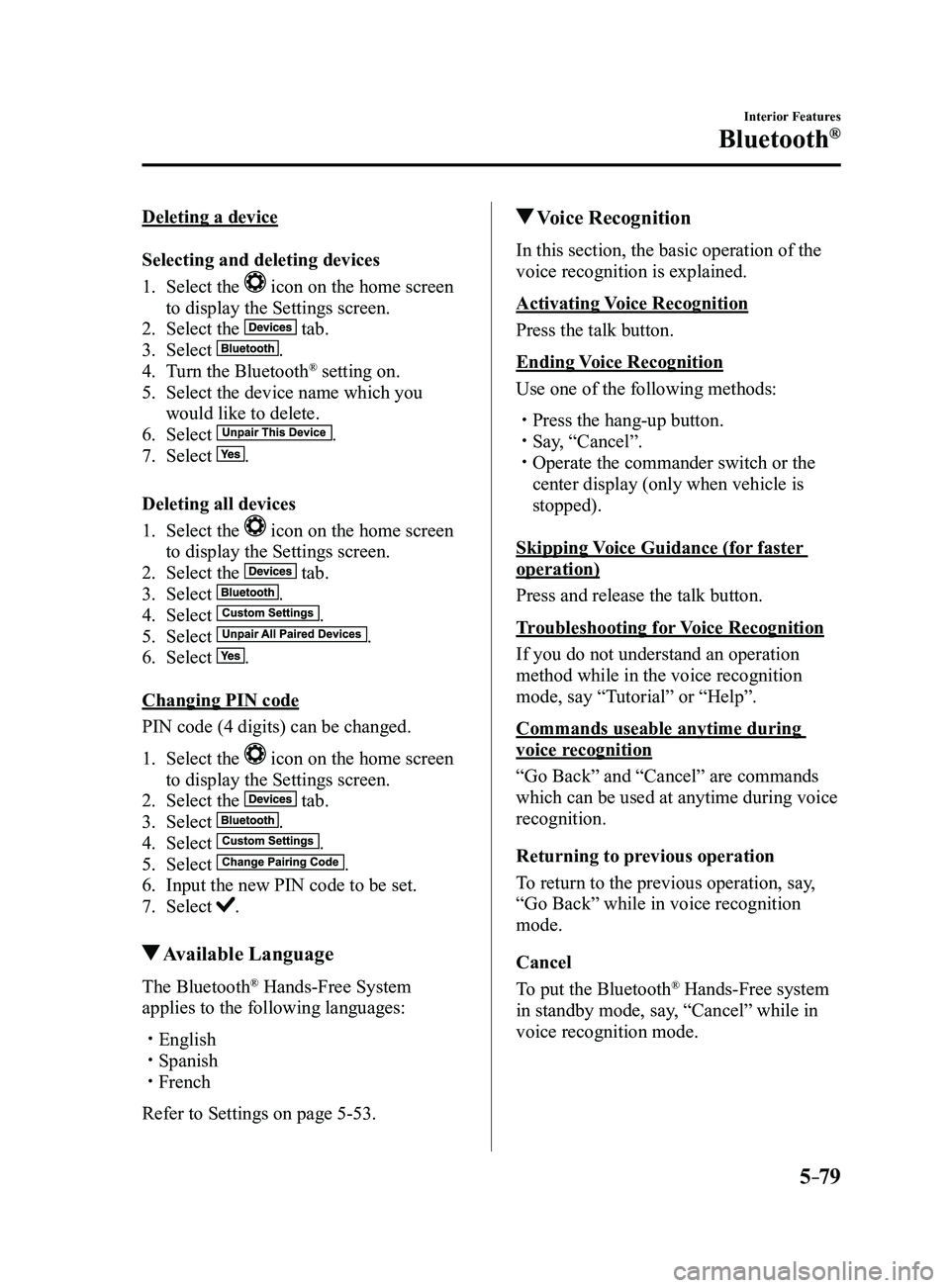
Deleting a device
Selecting and deleting devices
1. Select the icon on the home screen
to display the Settings screen.
2. Select the tab.
3. Select .
4. Turn the Bluetooth® setting on.
5. Select the device name which you
would like to delete.
6. Select .
7. Select .
Deleting all devices
1. Select the icon on the home screen
to display the Settings screen.
2. Select the tab.
3. Select .
4. Select .
5. Select .
6. Select .
Changing PIN code
PIN code (4 digits) can be changed.
1. Select the icon on the home screen
to display the Settings screen.
2. Select the tab.
3. Select .
4. Select .
5. Select .
6. Input the new PIN code to be set.
7. Select .
Available Language
The Bluetooth® Hands-Free System
applies to the following languages:
English Spanish French
Refer to Settings on page 5-53.
Voice Recognition
In this section, the basic operation of the
voice recognition is explained.
Activating Voice Recognition
Press the talk button.
Ending Voice Recognition
Use one of the following methods:
Press the hang-up button. Say, “Cancel”. Operate the commander switch or the
center display (only when vehicle is
stopped).
Skipping Voice Guidance (for faster
operation)
Press and release the talk button.
Troubleshooting for Voice Recognition
If you do not understand an operation
method while in the voice recognition
mode, say “Tutorial” or “Help”.
Commands useable anytime during
voice recognition
“Go Back” and “Cancel” are commands
which can be used at anytime during voice
recognition.
Returning to previous operation
To return to the previous operation, say,
“Go Back” while in voice recognition
mode.
Cancel
To put the Bluetooth
® Hands-Free system
in standby mode, say, “Cancel” while in
voice recognition mode.
Mazda3_8FL6-EA-16F_Edition2.indb 792016/08/10 17:38:01
Page 372 of 612
5–80
Interior Features
Bluetooth®
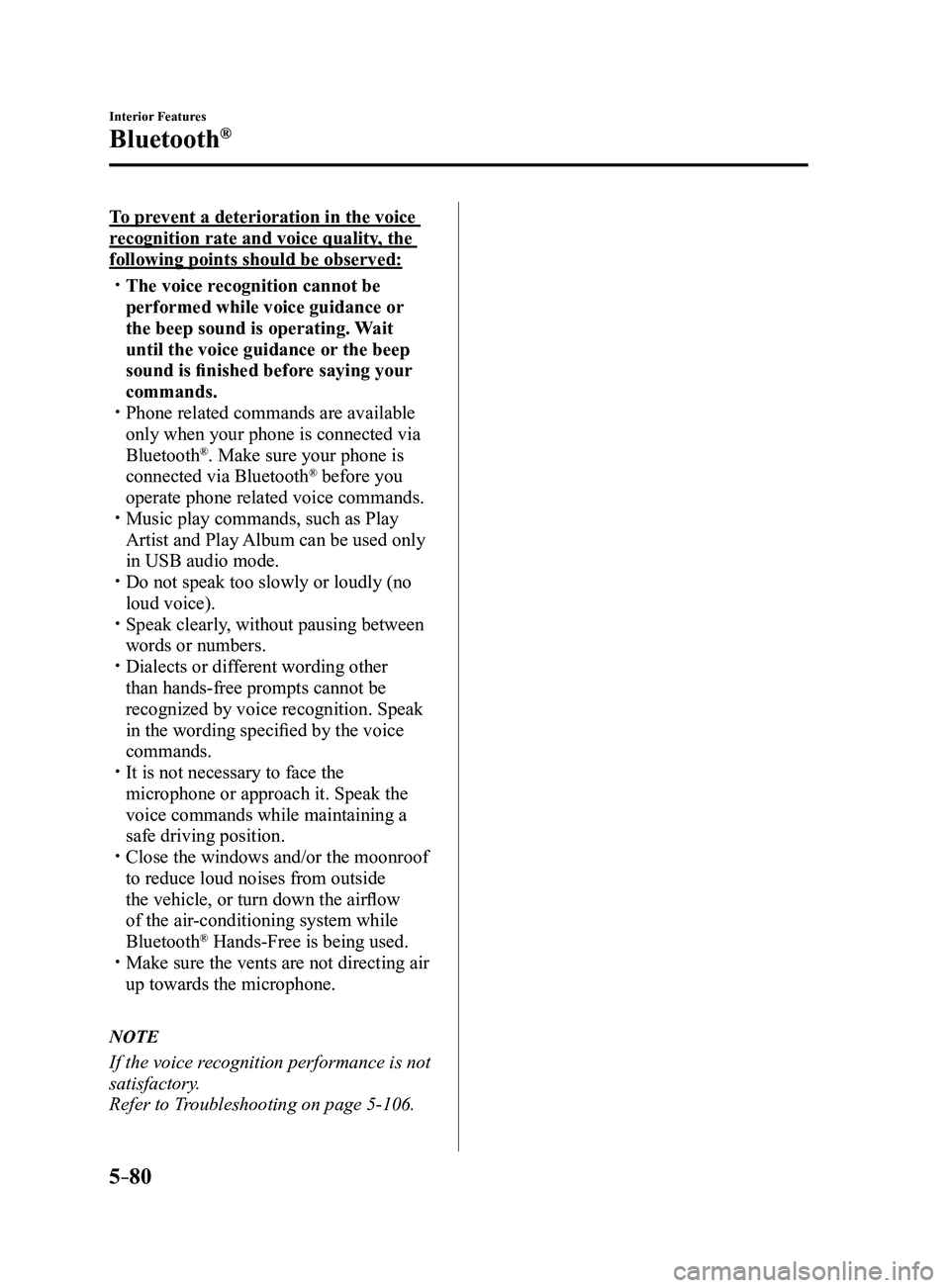
To prevent a deterioration in the voice
recognition rate and voice quality, the
following points should be observed:
The voice recognition cannot be
performed while voice guidance or
the beep sound is operating. Wait
until the voice guidance or the beep
sound is finished before saying your
commands.
Phone related commands are available
only when your phone is connected via
Bluetooth®. Make sure your phone is
connected via Bluetooth® before you
operate phone related voice commands.
Music play commands, such as Play
Artist and Play Album can be used only
in USB audio mode.
Do not speak too slowly or loudly (no
loud voice). Speak clearly , without pausing between
words or numbers. Dialects or dif ferent wording other
than hands-free prompts cannot be
recognized by voice recognition. Speak
in the wording specified by the voice
commands.
It is not necessary to face the
microphone or approach it. Speak the
voice commands while maintaining a
safe driving position.
Close the windows and/or the moonroof
to reduce loud noises from outside
the vehicle, or turn down the airflow
of the air-conditioning system while
Bluetooth
® Hands-Free is being used. Make sure the vents are not directing air
up towards the microphone.
NOTE
If the voice recognition performance is not
satisfactory.
Refer to Troubleshooting on page
5-106.
Mazda3_8FL6-EA-16F_Edition2.indb 802016/08/10 17:38:01
Page 373 of 612

5–81
Interior Features
Bluetooth®
Audio Operation Using Voice Recognition
Voice command
When the talk button is pressed and the following command is spoken, the\
audio or
navigation can be operated. The commands in the () can be omitted. The specified name and
number are put into the {}.
Standard command
Voice command Function
cancel Ends the voice recognition mode.
(go) back Returns to the previous operation.
help Usable commands can be verified.
tutorial Basic voice commands and methods of use can be verified.
(go to) home (screen)/main menu Moves to the home screen.
(go to) communication Moves to the communication screen.
(go to) navigation Moves to the navigation screen.
(go to) entertainment (menu) Moves to the entertainment screen.
(go to) settings Moves to the setting screen.
(go to) favorites Moves to the favorites screen.
Communication (phone) related command
Voice command Function
Call {name in phonebook} (mobile/
home/work/other)
Example: “Call John Mobile” Call to the contact in the downloaded phonebook.
Refer to Making a Call on page
5-70.
Redial Call to the last contact you called.
Refer to Making a Call on page
5-70.
Callback Call to the last contact who called you.
Refer to Making a Call on page
5-70.
Mazda3_8FL6-EA-16F_Edition2.indb 812016/08/10 17:38:02
Page 375 of 612
5–83
Interior Features
Bluetooth®
*Some models.
Bluetooth® Hands-Free*
Making a Call
Phonebook Usage
Telephone calls can be made by saying
the contact name in the downloaded
phonebook or the name of a person whose
phone number has been registered in the
Bluetooth
® Hands-Free. Refer to Import
contact (Download Phonebook).
1. Press the talk button.
2. Wait for the beep sound.
3. Say: “Call XXXXX... (Ex. “John”)
Mobile”.
4. Follow the voice guidance to place the
call.
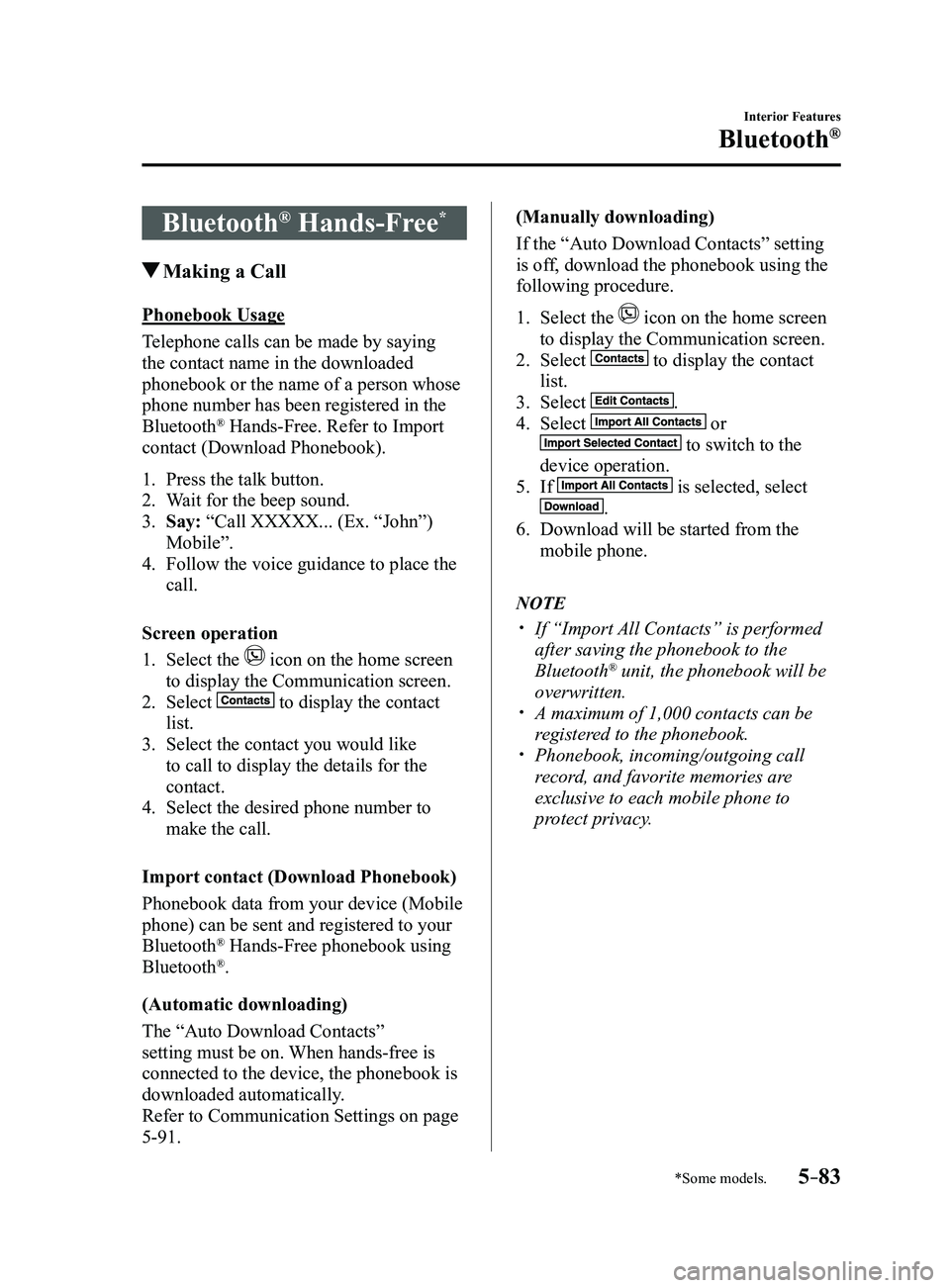
Screen operation
1. Select the icon on the home screen
to display the Communication screen.
2. Select to display the contact
list.
3. Select the contact you would like
to call to display the details for the
contact.
4. Select the desired phone number to
make the call.
Import contact (Download Phonebook)
Phonebook data from your device (Mobile
phone) can be sent and registered to your
Bluetooth
® Hands-Free phonebook using
Bluetooth®.
(Automatic downloading)
The “Auto Download Contacts”
setting must be on. When hands-free is
connected to the device, the phonebook is
downloaded automatically.
Refer to Communication Settings on page
5-91. (Manually downloading)
If the “Auto Download Contacts” setting
is off, download the phonebook using the
following procedure.
1. Select the icon on the home screen
to display the Communication screen.
2. Select to display the contact
list.
3. Select .
4. Select or
to switch to the
device operation.
5. If is selected, select
.
6. Download will be started from the
mobile phone.
NOTE
If “Import All Contacts” is performed
after saving the phonebook to the
Bluetooth® unit, the phonebook will be
overwritten.
A maximum of 1,000 contacts can be
registered to the phonebook. Phonebook, incoming/outgoing call
record, and favorite memories are
exclusive to each mobile phone to
protect privacy.
Mazda3_8FL6-EA-16F_Edition2.indb 832016/08/10 17:38:03
Page 377 of 612
5–85
Interior Features
Bluetooth®
Telephone Number Input
NOTE
Practice this while parked until you are
confident you can do it while driving in a
non-taxing road situation. If you are not
completely comfortable, make all calls
from a safe parking position, and only
start driving when you can devote your full
attention to driving.
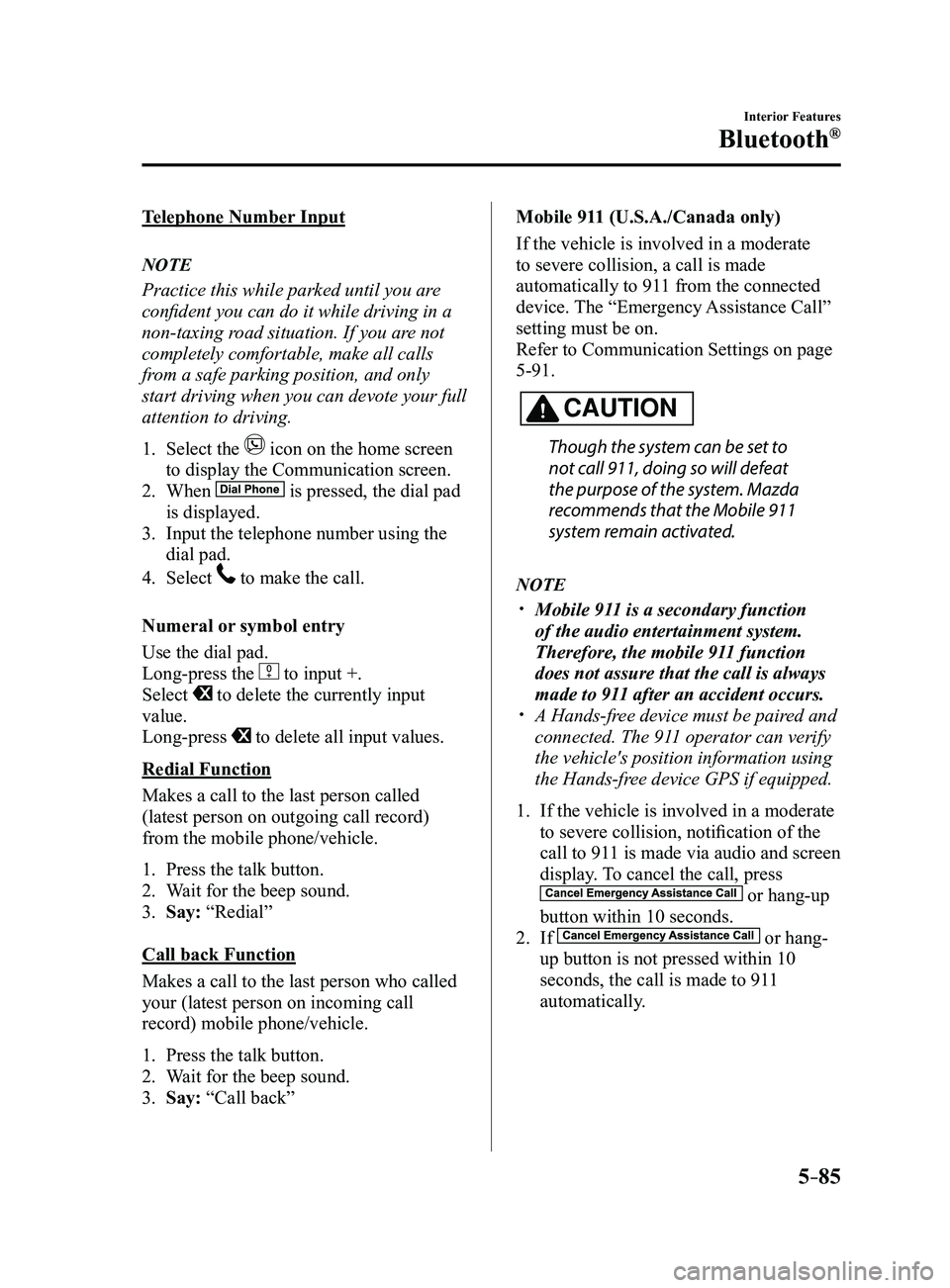
1. Select the icon on the home screen
to display the Communication screen.
2. When is pressed, the dial pad
is displayed.
3. Input the telephone number using the
dial pad.
4. Select to make the call.
Numeral or symbol entry
Use the dial pad.
Long-press the
to input +.
Select to delete the currently input
value.
Long-press
to delete all input values.
Redial Function
Makes a call to the last person called
(latest person on outgoing call record)
from the mobile phone/vehicle.
1. Press the talk button.
2. Wait for the beep sound.
3. Say: “Redial”
Call back Function
Makes a call to the last person who called
your (latest person on incoming call
record) mobile phone/vehicle.
1. Press the talk button.
2. Wait for the beep sound.
3. Say: “Call back” Mobile 911 (U.S.A./Canada only)
If the vehicle is involved in a moderate
to severe collision, a call is made
automatically to 911 from the connected
device. The “Emergency Assistance Call”
setting must be on.
Refer to Communication Settings on page
5-91.
CAUTION
Though the system can be set to
not call 911, doing so will defeat
the purpose of the system. Mazda
recommends that the Mobile 911
system remain activated.
NOTE
Mobile 911 is a secondary function
of the audio entertainment system.
Therefore, the mobile 911 function
does not assure that the call is always
made to 911 after an accident occurs.
A Hands-free device must be paired and
connected. The 911 operator can verify
the vehicle's position information using
the Hands-free device GPS if equipped.
1. If the vehicle is involved in a moderate
to severe collision, notification of the
call to 911 is made via audio and screen
display. To cancel the call, press
or hang-up
button within 10 seconds.
2. If or hang-
up button is not pressed within 10
seconds, the call is made to 911
automatically.
Mazda3_8FL6-EA-16F_Edition2.indb 852016/08/10 17:38:05
Page 384 of 612
5–92
Interior Features
Bluetooth®
*Some models.
Bluetooth® Audio*
Applicable Bluetooth® specification
(Recommended)
Ver. 1.1/1.2/2.0
EDR/2.1 EDR/3.0
(conformity)
Response profile
A2DP (Advanced Audio Distribution
Profile) Ver. 1.0/1.2 AVRCP (Audio/Video Remote Control
Profile) Ver. 1.0/1.3/1.4
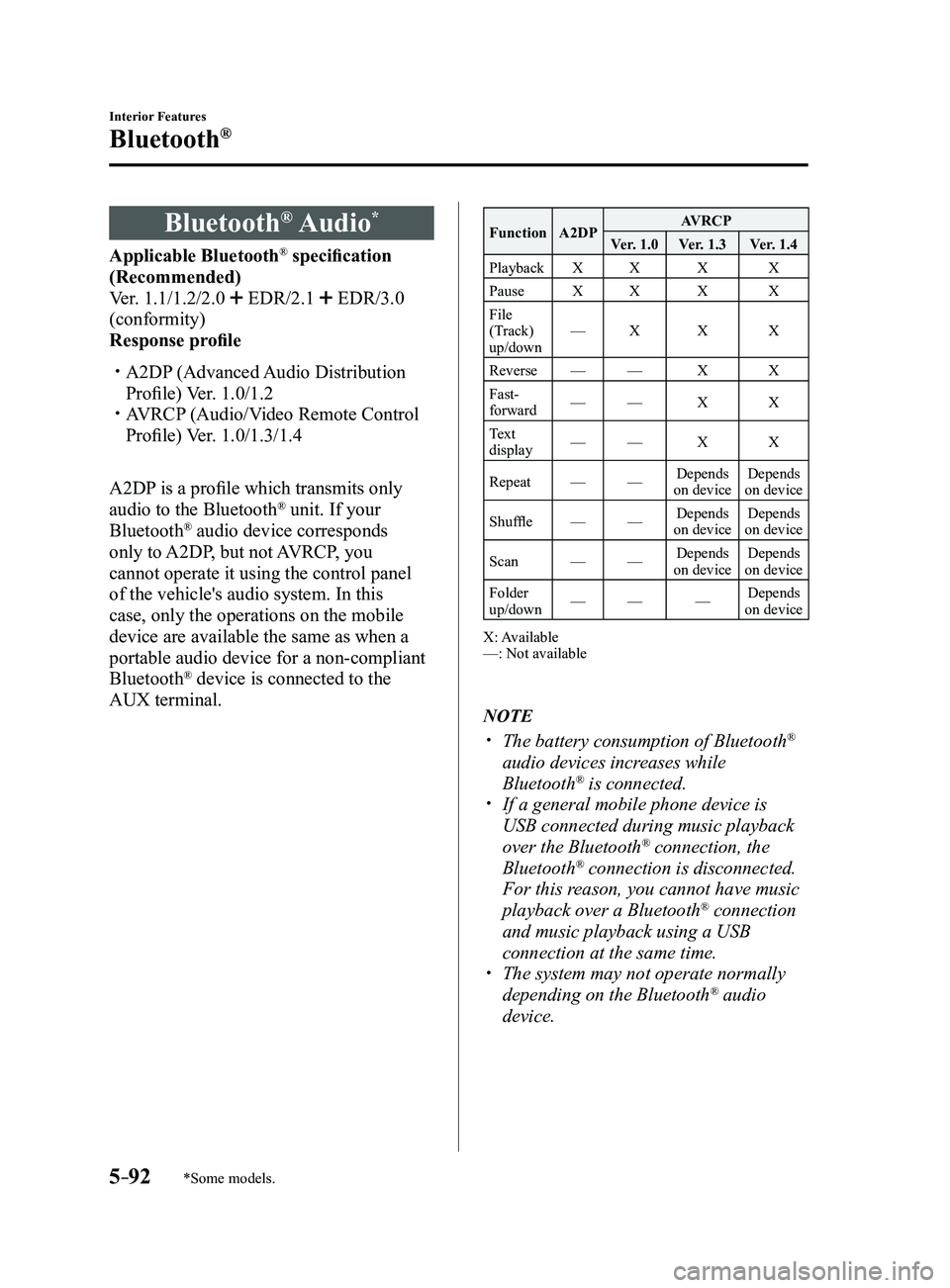
A2DP is a profile which transmits only
audio to the Bluetooth
® unit. If your
Bluetooth® audio device corresponds
only to A2DP, but not AVRCP, you
cannot operate it using the control panel
of the vehicle's audio system. In this
case, only the operations on the mobile
device are available the same as when a
portable audio device for a non-compliant
Bluetooth
® device is connected to the
AUX terminal.
Function A2DP AVRCP
Ver. 1.0 Ver. 1.3 Ver. 1.4
Playback XX X X
Pause XX X X
File
(Track)
up/down —
X X X
Reverse —— X X
Fast-
forward —
— X X
Text
display —
— X X
Repeat ——Depends
on device Depends
on device
Shuffle ——Depends
on device Depends
on device
Scan ——Depends
on device Depends
on device
Folder
up/down —
— —Depends
on device
X: Available
—: Not available
NOTE
The battery consumption of Bluetooth®
audio devices increases while
Bluetooth
® is connected. If a general mobile phone device is
USB connected during music playback
over the Bluetooth® connection, the
Bluetooth® connection is disconnected.
For this reason, you cannot have music
playback over a Bluetooth
® connection
and music playback using a USB
connection at the same time.
The system may not operate normally
depending on the Bluetooth® audio
device.
Mazda3_8FL6-EA-16F_Edition2.indb 922016/08/10 17:38:12
Page 385 of 612
5–93
Interior Features
Bluetooth®
How to Use the Bluetooth® Audio System
Switching to Bluetooth® audio mode
To listen to music or voice audio recorded to a Bluetooth
® audio device, switch to the
Bluetooth® audio mode to operate the audio device using the audio system control p\
anel.
Any Bluetooth® audio device must be paired to the vehicle's Bluetooth® unit before it can be
used.
Refer to Bluetooth
® Preparation on page 5-77.
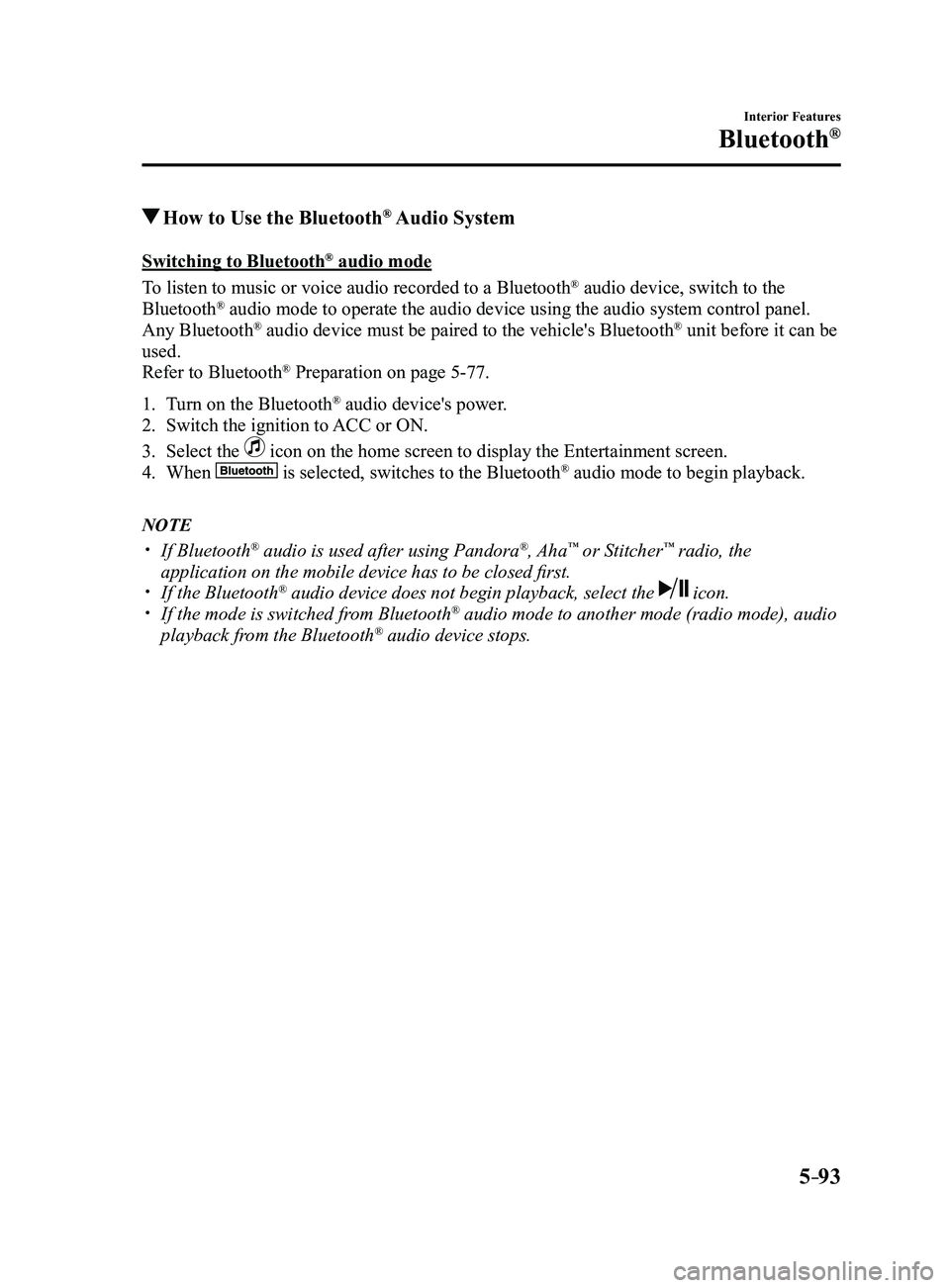
1. Turn on the Bluetooth® audio device's power.
2. Switch the ignition to ACC or ON.
3. Select the icon on the home screen to display the Entertainment screen.
4. When is selected, switches to the Bluetooth® audio mode to begin playback.
NOTE
If Bluetooth® audio is used after using Pandora®, Aha™ or Stitcher™ radio, the
application on the mobile device has to be closed first.
If the Bluetooth® audio device does not begin playback, select the icon. If the mode is switched fr om Bluetooth® audio mode to another mode (radio mode), audio
playback from the Bluetooth® audio device stops.
Mazda3_8FL6-EA-16F_Edition2.indb 932016/08/10 17:38:13
Page 398 of 612
5–106
Interior Features
Bluetooth®
*Some models.
Troubleshooting*
Mazda Bluetooth® Hands-Free Customer Service
If you have any problems with Bluetooth
®, contact our toll-free customer service center.
U.S.A.
Phone: 800-430-0153 (T oll-free)
Web: www.mazdausa.com/mazdaconnect Canada
Phone: 800-430-0153 (Toll-free)
Web: www.mazdahandsfree.ca Mexico
Center of Attention to Client (CAC)
Phone: 01-800-01-MAZDA (Toll-free)
Web: www.mazdamexico.com.mx
Bluetooth® Device pairing, connection problems
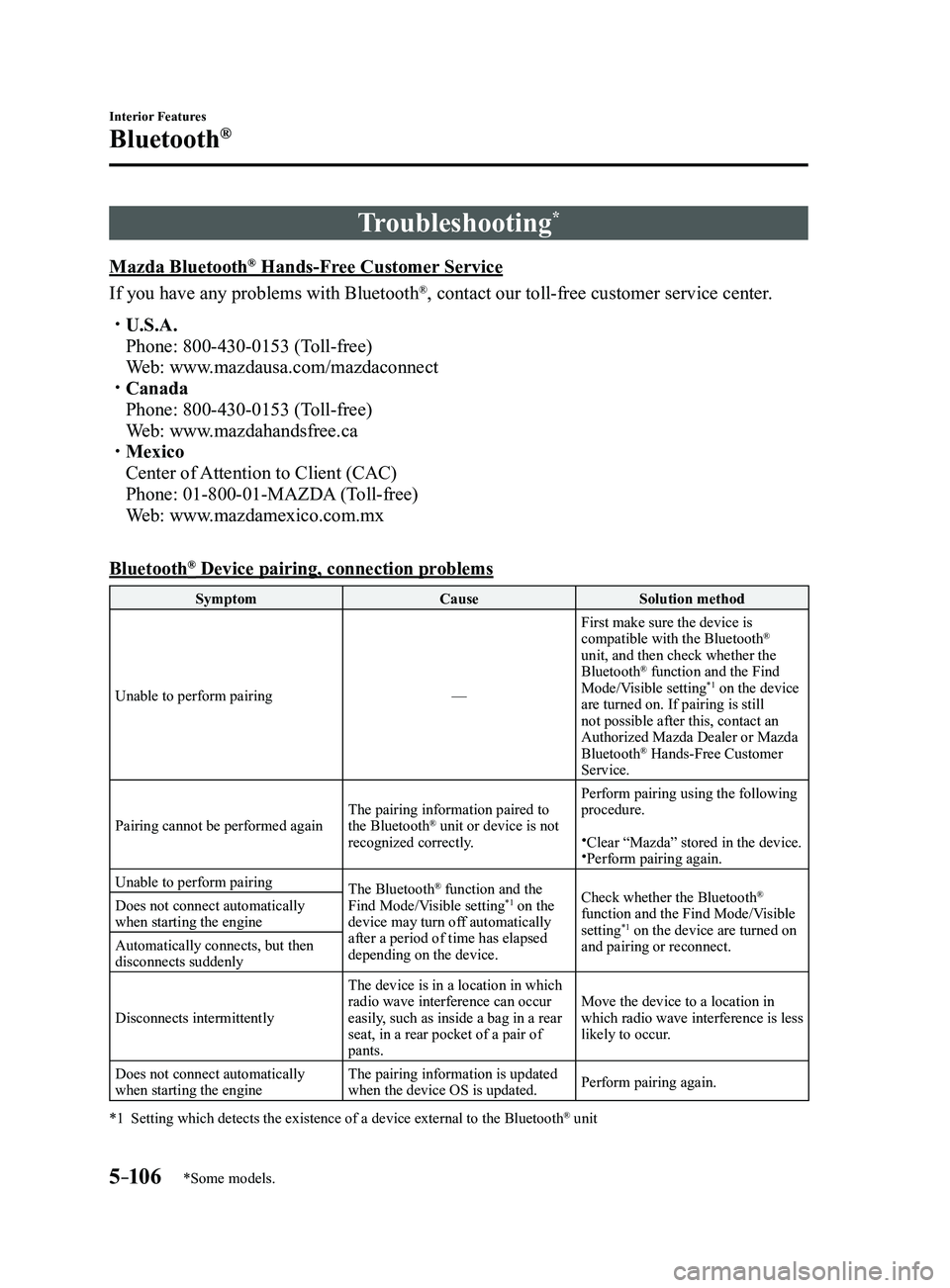
Symptom CauseSolution method
Unable to perform pairing —First make sure the device is
compatible with the Bluetooth
®
unit, and then check whether the
Bluetooth
® function and the Find
Mode/Visible setting*1 on the device
are turned on. If pairing is still
not possible after this, contact an
Authorized Mazda Dealer or Mazda
Bluetooth
® Hands-Free Customer
Service.
Pairing cannot be performed again The pairing information paired to
the Bluetooth
® unit or device is not
recognized correctly. Perform pairing using the following
procedure.Clear “Mazda” stored in the device.Perform pairing again.
Unable to perform pairing The Bluetooth
® function and the
Find Mode/Visible setting*1 on the
device may turn off automatically
after a period of time has elapsed
depending on the device. Check whether the Bluetooth®
function and the Find Mode/Visible
setting
*1 on the device are turned on
and pairing or reconnect.
Does not connect automatically
when starting the engine
Automatically connects, but then
disconnects suddenly
Disconnects intermittently
The device is in a location in which
radio wave interference can occur
easily, such as inside a bag in a rear
seat, in a rear pocket of a pair of
pants.Move the device to a location in
which radio wave interference is less
likely to occur.
Does not connect automatically
when starting the engine The pairing information is updated
when the device OS is updated.
Perform pairing again.
*1 Setting which detects the existence of a device external to the
Bluetooth® unit
Mazda3_8FL6-EA-16F_Edition2.indb 1062016/08/10 17:38:20